AI Transition Generator
Create custom AI transitions between two images or videos.
Free to start. No watermarks.
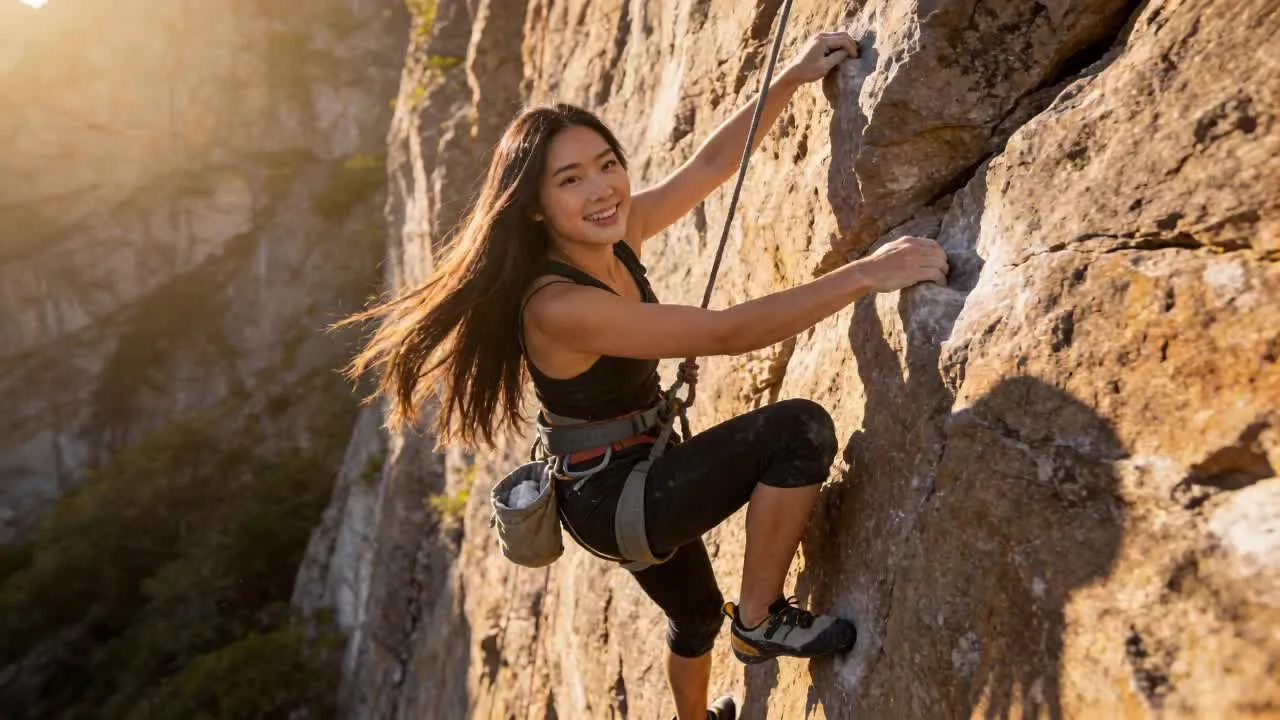
Make your transitions part of the story
Upload two images and describe the transformation. Works in your browser.
Generate any transition you can describe
With Kapwing's AI transitions, the move between two shots becomes an engaging scene of its own. Burst your subject into a swarm of butterflies, scatter the frame into ravens or smoke, sweep through a wall of fire, or drift from one shot into the next with a dreamy morph.
Each transition picks up exactly where one clip stops and lands where the next begins. Create these effects from footage you already have, with no reshoots, keyframing, or VFX work.
For simpler changes, browse Kapwing’s library of 70+ video transitions for fades, wipes, and zooms, or ask Kai, Kapwing’s AI assistant, to add a preset transition between every clip in your project with one prompt.
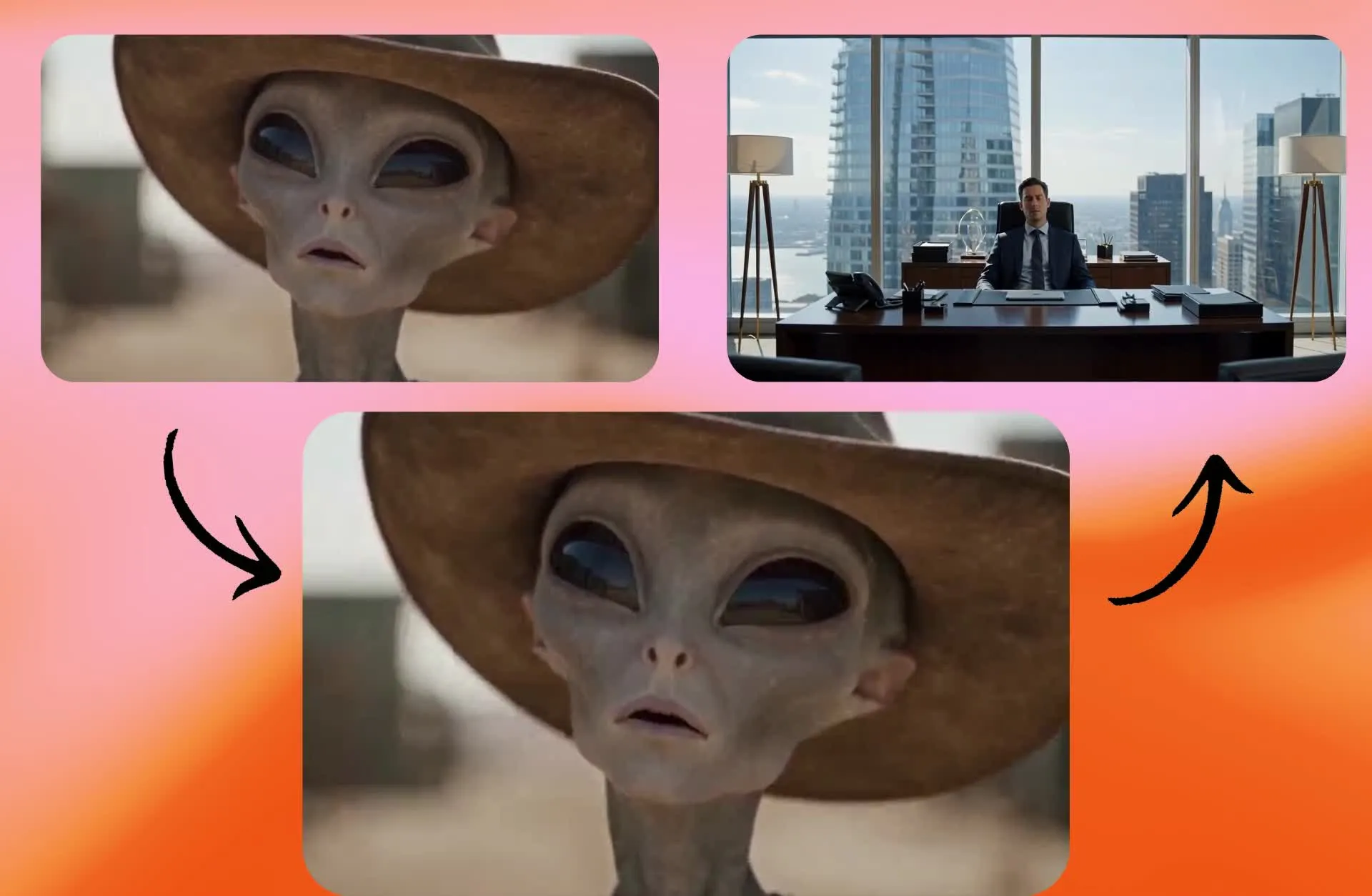
How to create AI transitions
Generate AI transitions between two videos or images online
Upload
two images or the start and end frames of your video clips to a new chat with Kapwing AI.


Describe
your transition in a prompt. Use the hashtag to define your uploaded images as start and end frames.
Generate
your AI transition by clicking the arrow, then download without watermark or move to the Studio to arrange your clips and export.
Put AI transitions to work
Hook viewers, sell products, and move stories forward with AI video transitions
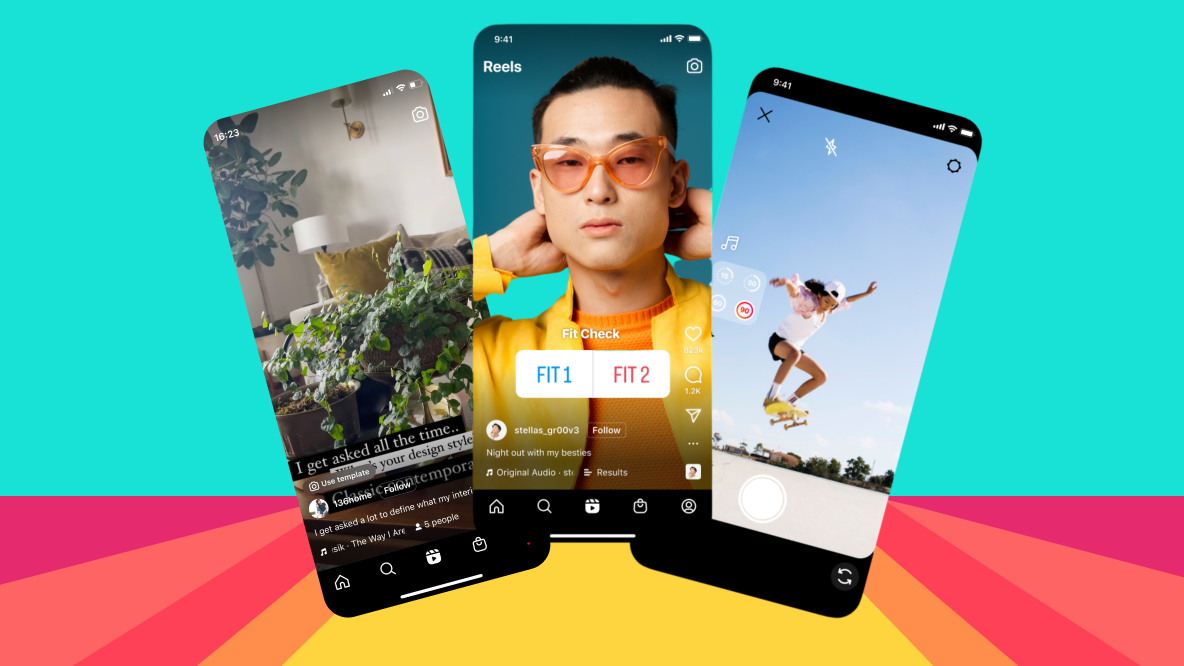
TikTok and Reels Hooks
Start social media content with a transition as a visual hook, like a still frame that cracks apart into your first scene, and give viewers a reason to stop scrolling
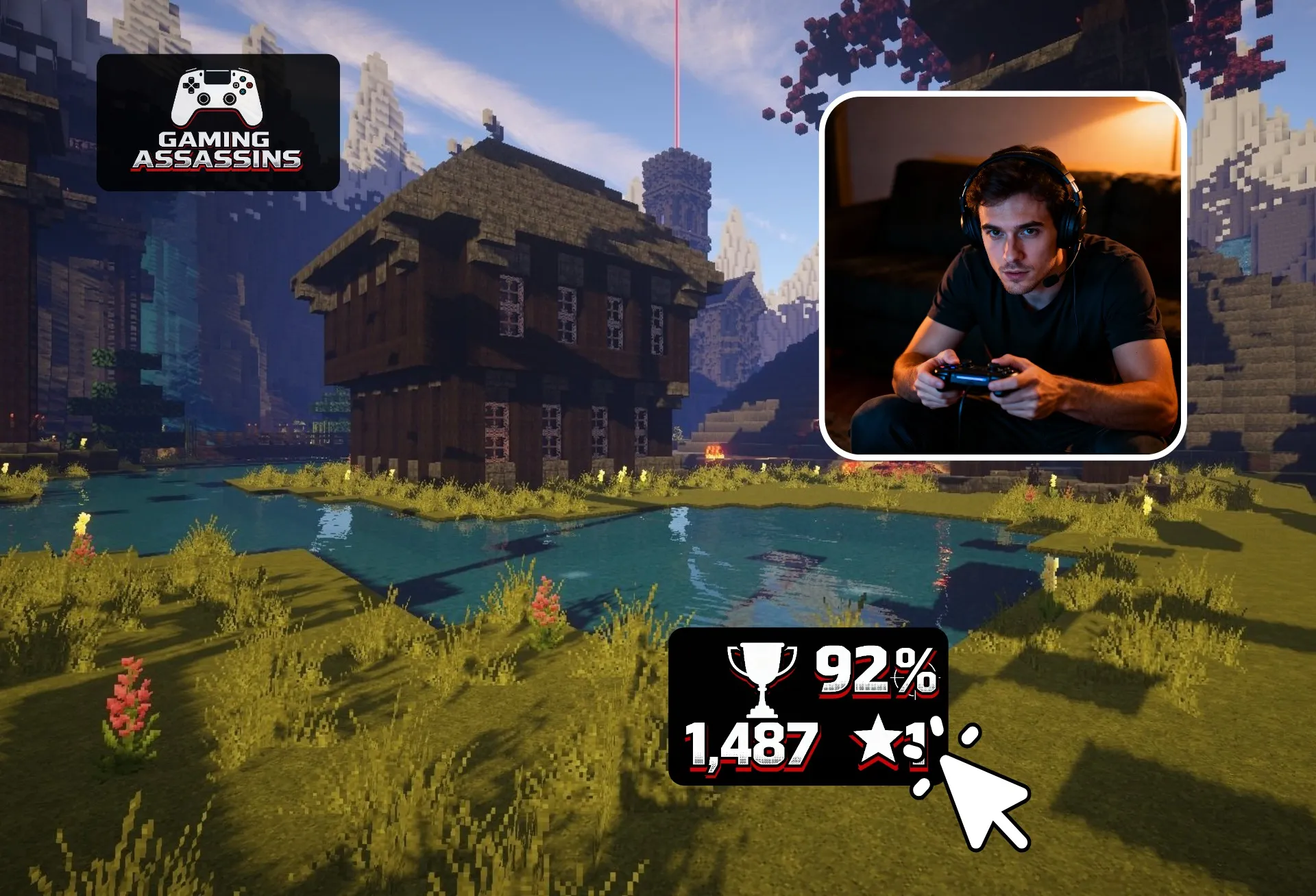
Gaming Videos
Dive from your facecam into the game world when the action starts, or pull out of a match and land on your reaction
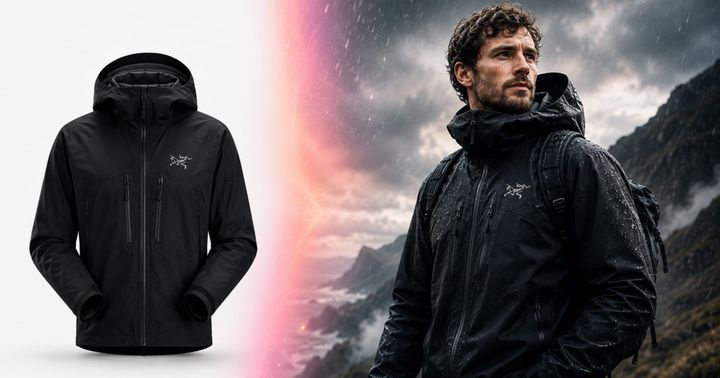
Product Ads
Go from a product closeup to someone using it, or from the problem to the fix, in one continuous move that keeps the advertisement flowing
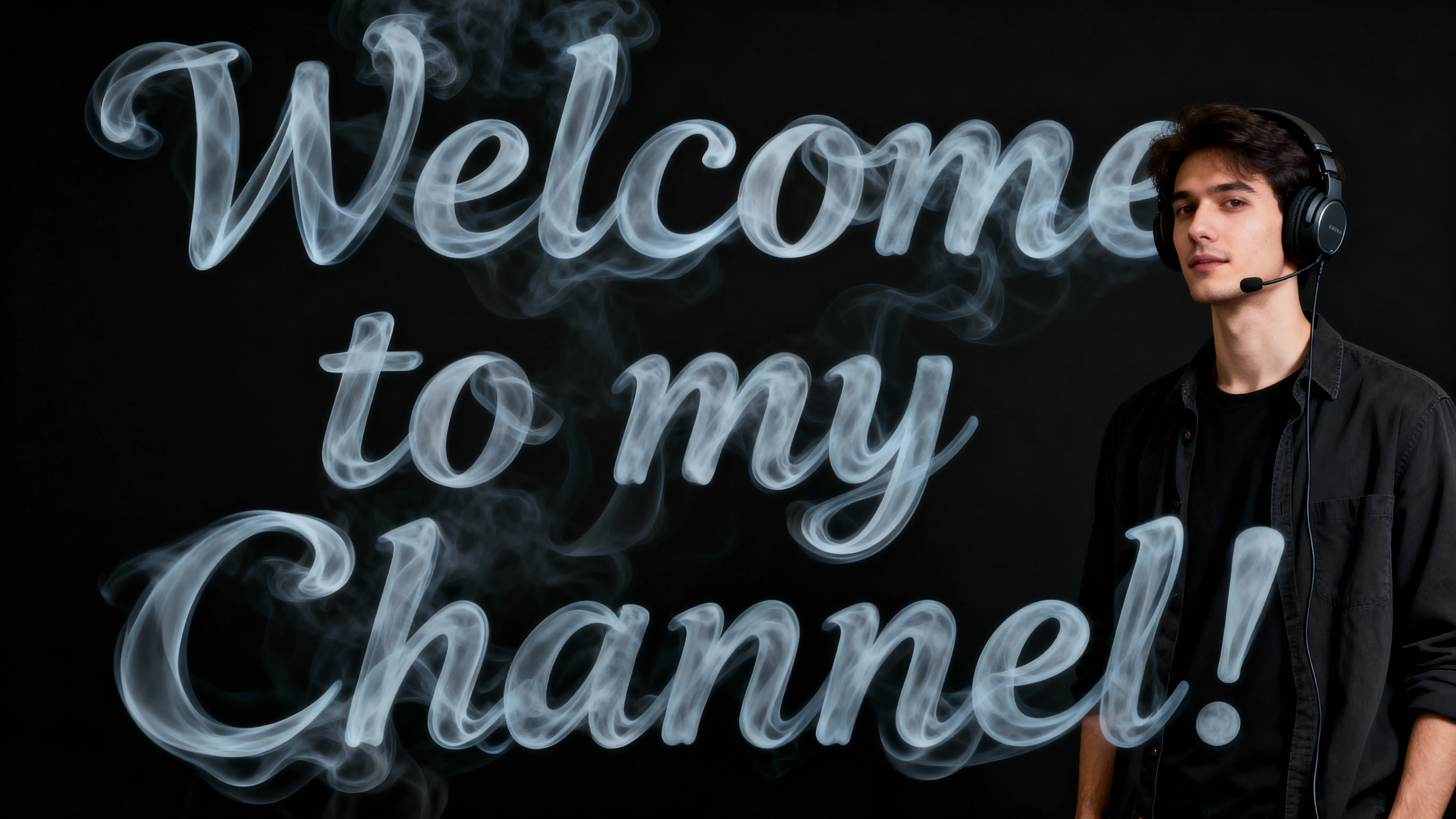
Intros and Outros
YouTubers can move from the main video into a sponsor read and back again, so the ad plays as part of the show instead of a hard stop
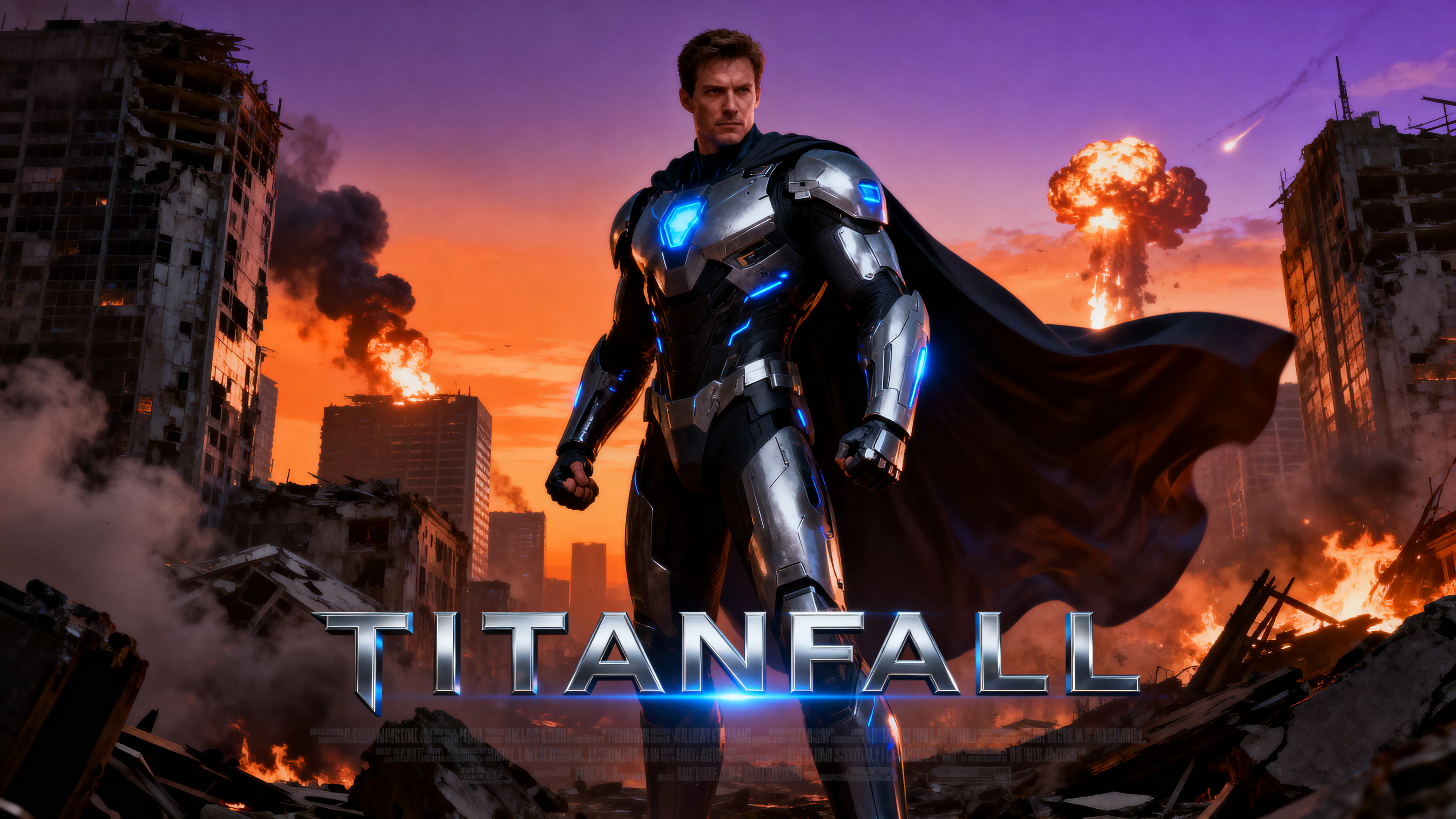
AI Short Films
Filmmakers working with AI video can carry a character from one generated scene into the next, like waking from a dream or stepping through a portal

Travel Videos
Travel creators can jump from a plane window to the beach below, or from one city to the next, without a cut breaking the momentum of the trip
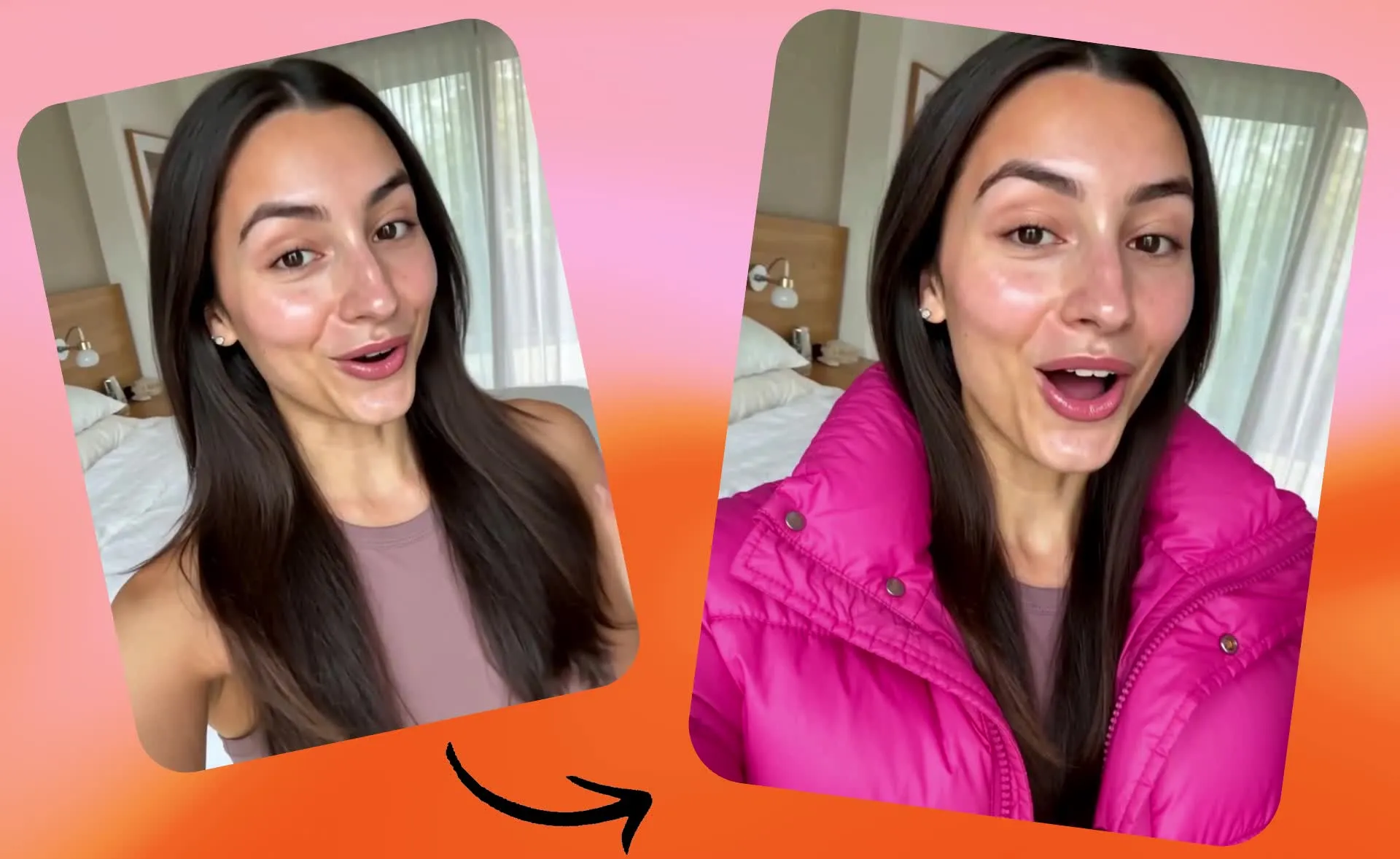
Reveals
Swap a look, a product, or a set in one move, so the change itself becomes the moment viewers are watching for
Transitions that do more than change the scene
Generate transitions and arrange them on your timeline in one online studio
Turn any two images into a transition
Start with photos, videos, or a mix of both. Transition from one photo to another to turn two stills into a single moving shot, or from a photo into a video so your opening image comes to life. Go from a video into a photo to land on a final still, like a product shot or an end card.
To make an AI transition between two videos, use a freeze frame from the end of one clip and the start of the next. Clips from different shoots, cameras, or AI tools then connect in one continuous move.
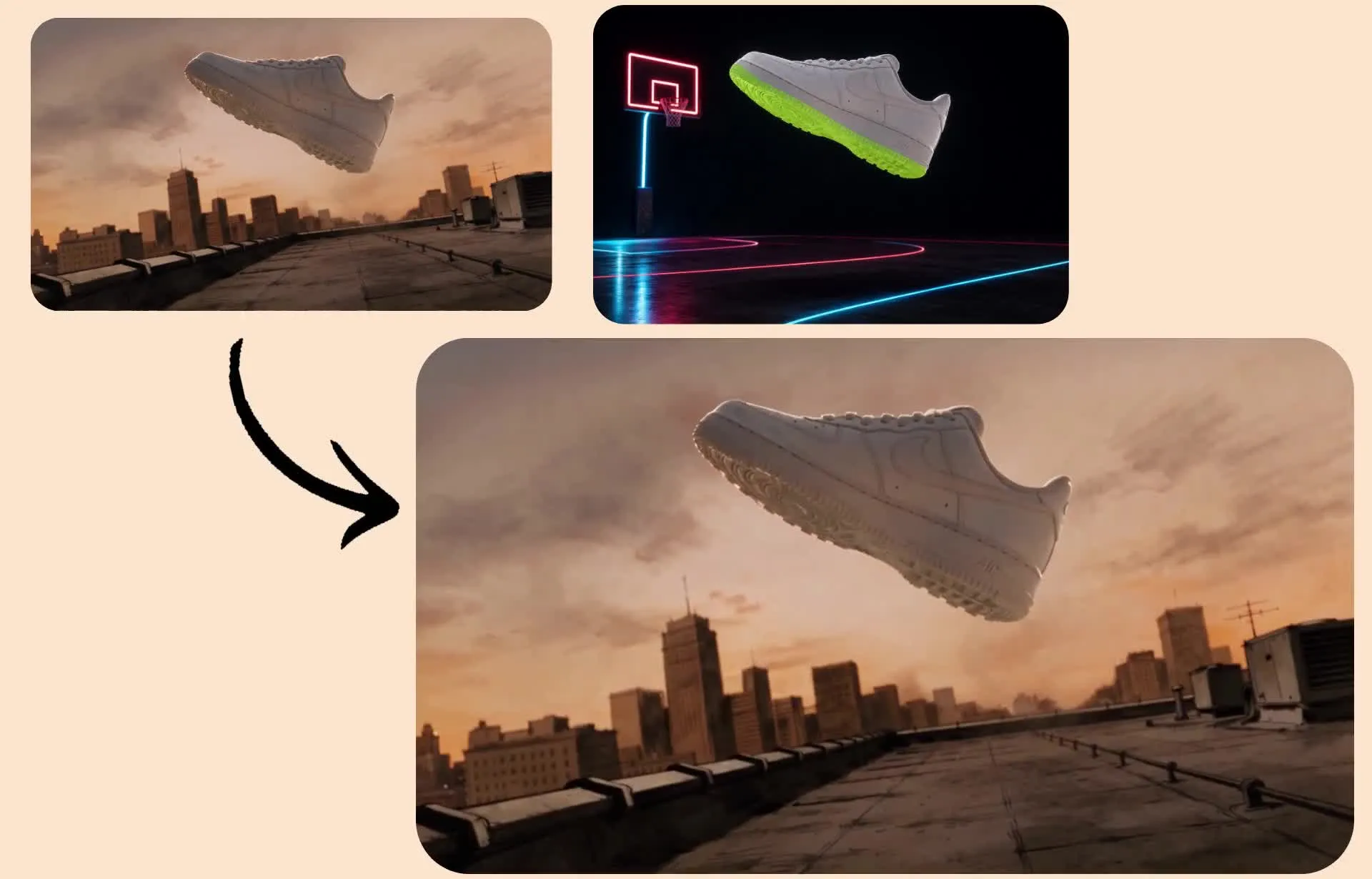
Design transitions as unique as your videos
Describe a transition and you get one made for your video, not a preset that shows up in countless other edits. Use your prompt to match the move to what you’re making: a slow, cinematic push for a brand film, a fast spin for a TikTok, or a camera that dives into a coffee cup and comes out in the next scene.
Chain transitions to connect a whole sequence, or generate a new transition to add between every clip. Every scene in your video can flow into the following one like a single continuous shot.
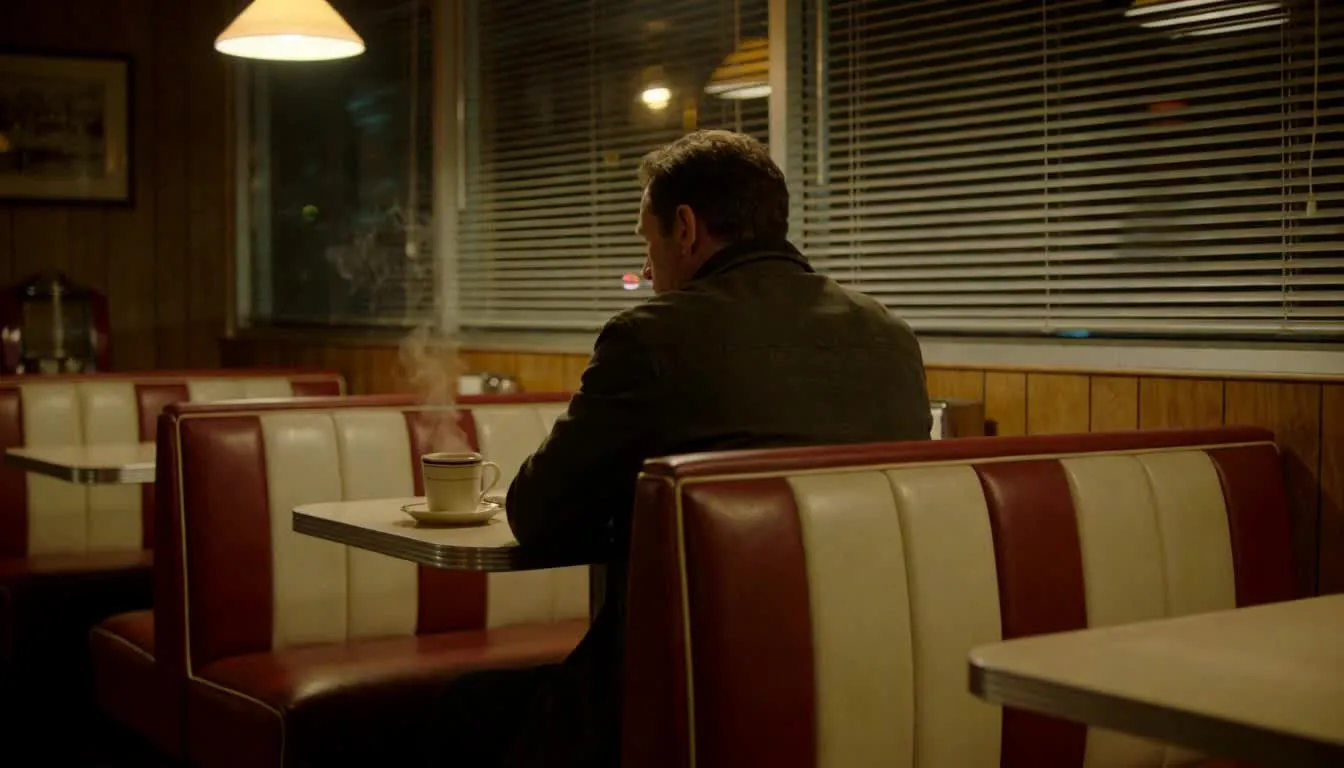
Fine-tune the cut with speed, color, and sound
Fit each transition to the clips around it. Slow it down to linger on a reveal or speed-ramp into the next scene, color correct the generated frames to match your footage, and layer an AI sound effect, like a whoosh or an impact, right on the cut.
Already editing? Ask Kai in the Studio sidebar for a transition between two scenes, and it’s generated inside your project, next to the clips it connects. When the edit is done, resize it for TikTok, Reels, or YouTube and export.
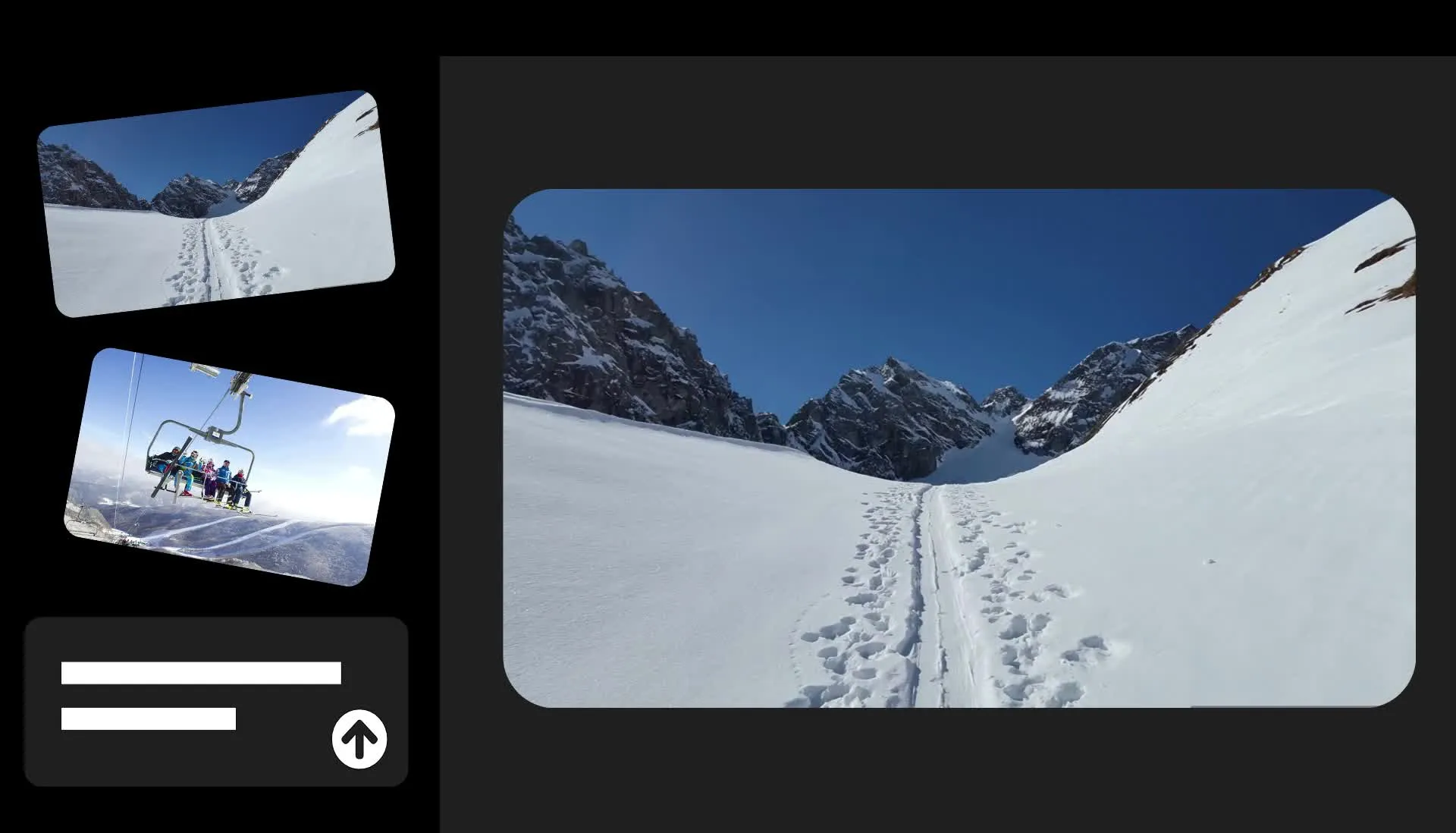
How to create an AI transition
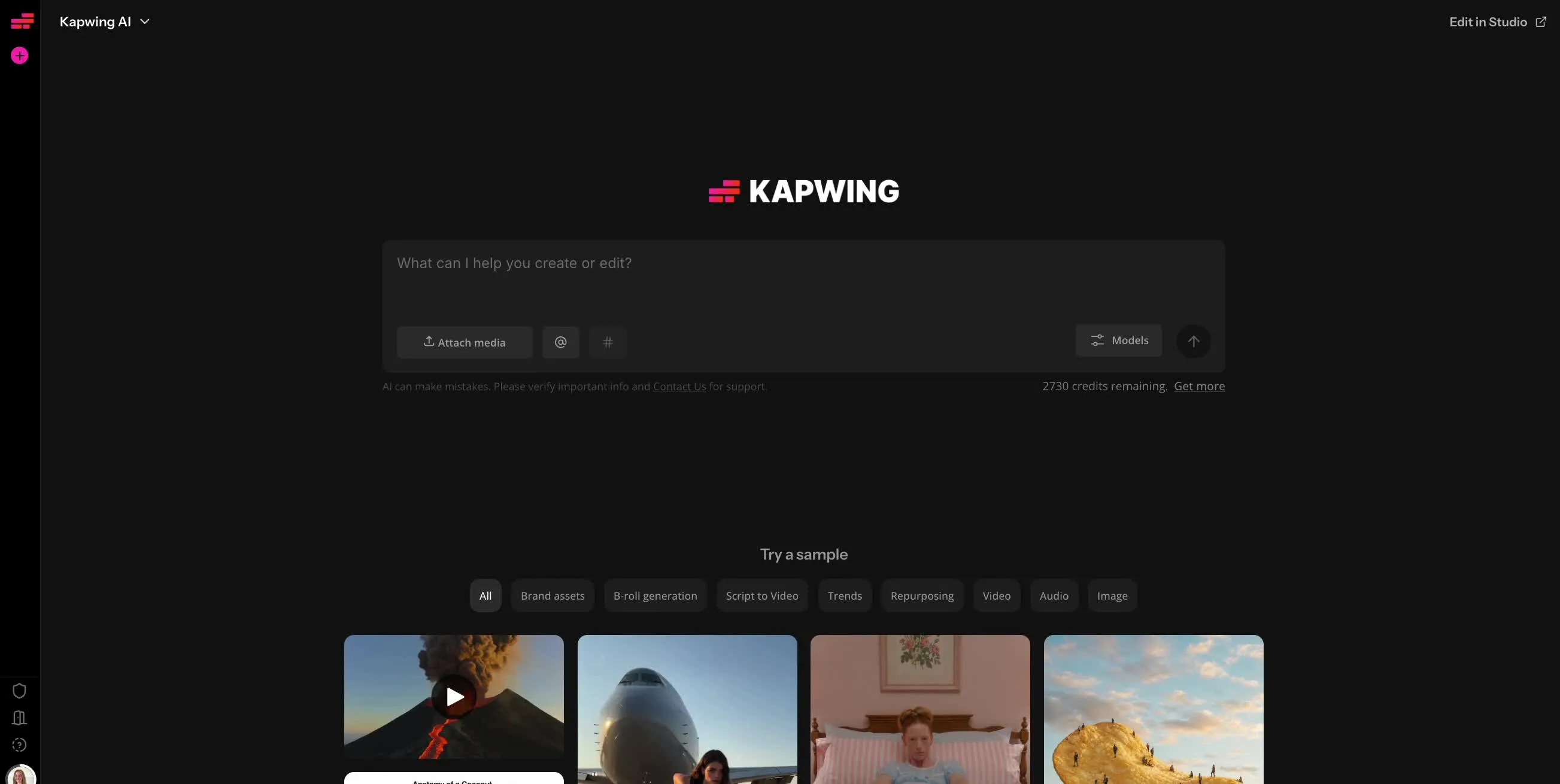
- Step 1Write prompt
Create a new chat with Kai and enter a prompt describing where you want your transition to start and end. Make sure you specify the start frame and end frame.
- Step 2Upload images
Click "Attach media" to upload your two images. If you want to transition between two videos, you can upload the final frame of the first video and the first frame of the second video. Place your cursor next to the start and end frame sections of your prompt and click the hashtag to reference each image.
- Step 3Arrange project
Click the arrow to download your transition video, or click "Edit" to move to the Kapwing Studio, where you can arrange your transition between your original images or videos. When you're ready, export your project as MP4, MOV, or WebM.
What's different about Kapwing?


Frequently Asked Questions
We have answers to the most common questions that our users ask.
Yes, anyone can try Kapwing’s AI toolkit for free without watermarks. Our AI tools run on a credit system, with each feature costing a set number of credits. For maximum creativity and the best value, upgrade to a Pro account to unlock the full power of AI-driven content creation. You maintain full commercial rights over your generations.
To create an AI transition, start a new chat with Kapwing AI and enter a detail prompt describing where you want your transition to start and end, as well as the action in between.
Next, upload two images or the last frame of your first video and the first frame of your second video. If you need to extract the frames from existing clips, you can use the Freeze Frame tool in the Kapwing Studio. Specify which image is the start frame and which image is the end frame in your prompt. To make sure the AI interprets your prompt correctly, use the hashtag button or hover over each uploaded image and click the hashtag to specifically name each image as part of your prompt.
Click the arrow to generate your transition. Kai, Kapwing's AI assistant, will come up with a plan for you to approve, and will then start generating. When your transition is ready, click the download icon to save it to your device without watermarks, or click the "Edit" button to move to the Kapwing Studio, where you can arrange your images or videos around your new transition. Finally, click "Export project" at the upper right to download or share your finished video as MP4, MOV, or WebM.
Describe the camera move, what changes between your two frames, and the style of the change, like a morph, a melt, or a whip pan. Add a pace and any sound effects you want. For camera terms, see Kapwing’s AI Camera Prompt Guide. Overall, the more detailed your prompt is, the better your AI transition will be.
For the best results, make sure you specify that you want the video to use a start frame and end frame, then specify which image is which using the hashtag button in the prompt box.
In Kapwing, Veo, Kling, and Seedance support both start and end frames, so any of them can generate a transition.
Each model interprets motion differently, so the same frames and prompt can give you different results. If a transition doesn’t land the way you want, try another model before you rewrite the prompt.
Traditional transitions, like crossfades, wipes, zooms, and glitches, are preset effects applied to the cut between two clips. They change how one shot gives way to the next, but the shots themselves stay the same. An AI transition generates new footage made for your two frames and your prompt, so the scene can move, transform, or burst into something else on its way to the next shot.
Presets are instant and work well for quick, consistent cuts across a whole video, like moving between interview answers or tutorial steps. AI transitions take a few minutes to generate and suit the moments you want viewers to notice. Kapwing has both, so you can browse the library of video transitions in Kapwing Studio and generate custom AI transitions for your key scene changes.
Both frames should share the same aspect ratio, or the transition may crop one of them. Use the AI Image Extender to reframe one image so it matches the other before you generate.
For TikTok, Reels, and Shorts, use 9:16 images for both frames and choose a vertical aspect ratio before you generate, so the transition fits the rest of your video.
Yes, you can ask for sound effects in your prompt, like a whoosh, a splash, or the crackle of fire, and they’re generated with the clip.
You can also leave audio out and build the sound yourself in Kapwing Studio. Create a specific effect with the AI Sound Effects Generator and layer it on the cut, or let your music or original audio continue through the transition.
Yes, you can generate a transition from the speaker into B-roll of the product, place, or step you’re describing, then detach the audio so the voiceover keeps playing over the transition.
Cutaways like this suit tutorials, explainers, and podcasts, where showing the subject helps viewers follow along without pausing the story. Need B-roll? Create it with the AI B-Roll Generator, then transition into it.
Kapwing accepts common image formats for your start and end frames, including JPG, PNG, WEBP, and HEIC, so you can use photos straight from your phone. To start from video, upload MP4, MOV, WebM, AVI, or another common format to Kapwing Studio, then save the frames you need as images.
Your finished transition is a video clip you can edit with the rest of your project. Export the final video as an MP4, MOV, or WebM.
If you only have one image, you can create the second one with AI. Generate an end frame with Kapwing’s AI Image Generator, like your product on a mountaintop or your subject in a new outfit, and the transition takes your video somewhere you never filmed.
Start from your first image when you generate the end frame, so both frames share the same subject and composition. That gives the AI a clear path between them and makes a clean transition more likely.
Discover Resources
Tips, templates, and deep dives to help you create faster and share with confidence.
View all

Get started with your first video in just a few clicks. Join over 35 million creators who trust Kapwing to create more content in less time.