Create AI videos up to 30 seconds long, guided by 10 keyframes — add a start frame, end frame, and middle frames
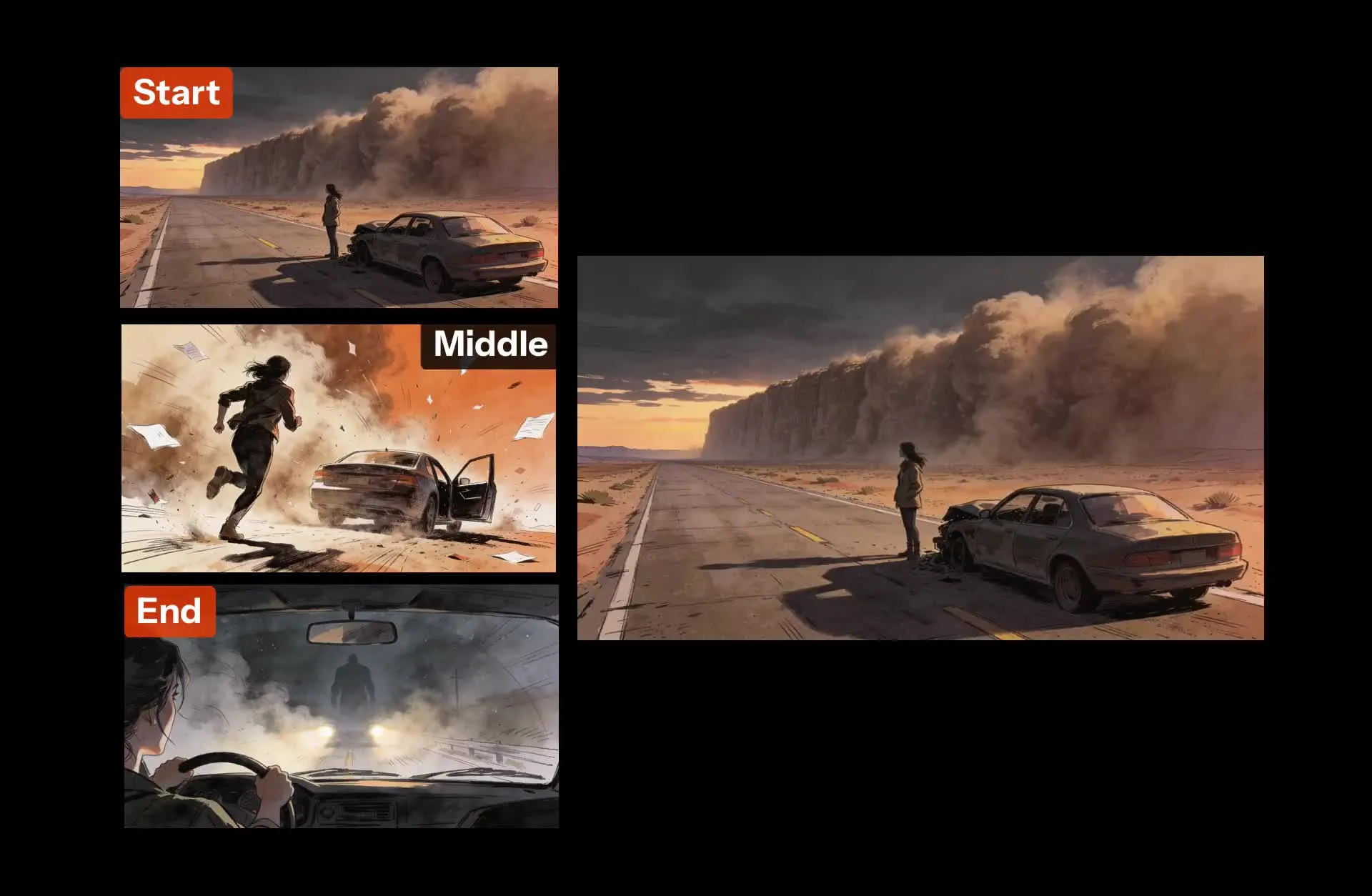
Kling 4.0 AI video generator
3-30 second videos. Supported by 10 keyframes.
Smooth AI video sequences using keyframes
Kling 4.0 is the only AI video model in Kapwing that supports middle keyframes.
Generate clips from 3 to 30 seconds at 720p or 1080p. Guide the story with a start frame, an end frame, and as many as 8 middle frames that shape the action in between.
Use image references to help keep products, characters, and locations consistent. Describe the audio in your prompt to generate lip-synced dialogue, ambient sounds, sound effects, and background music.
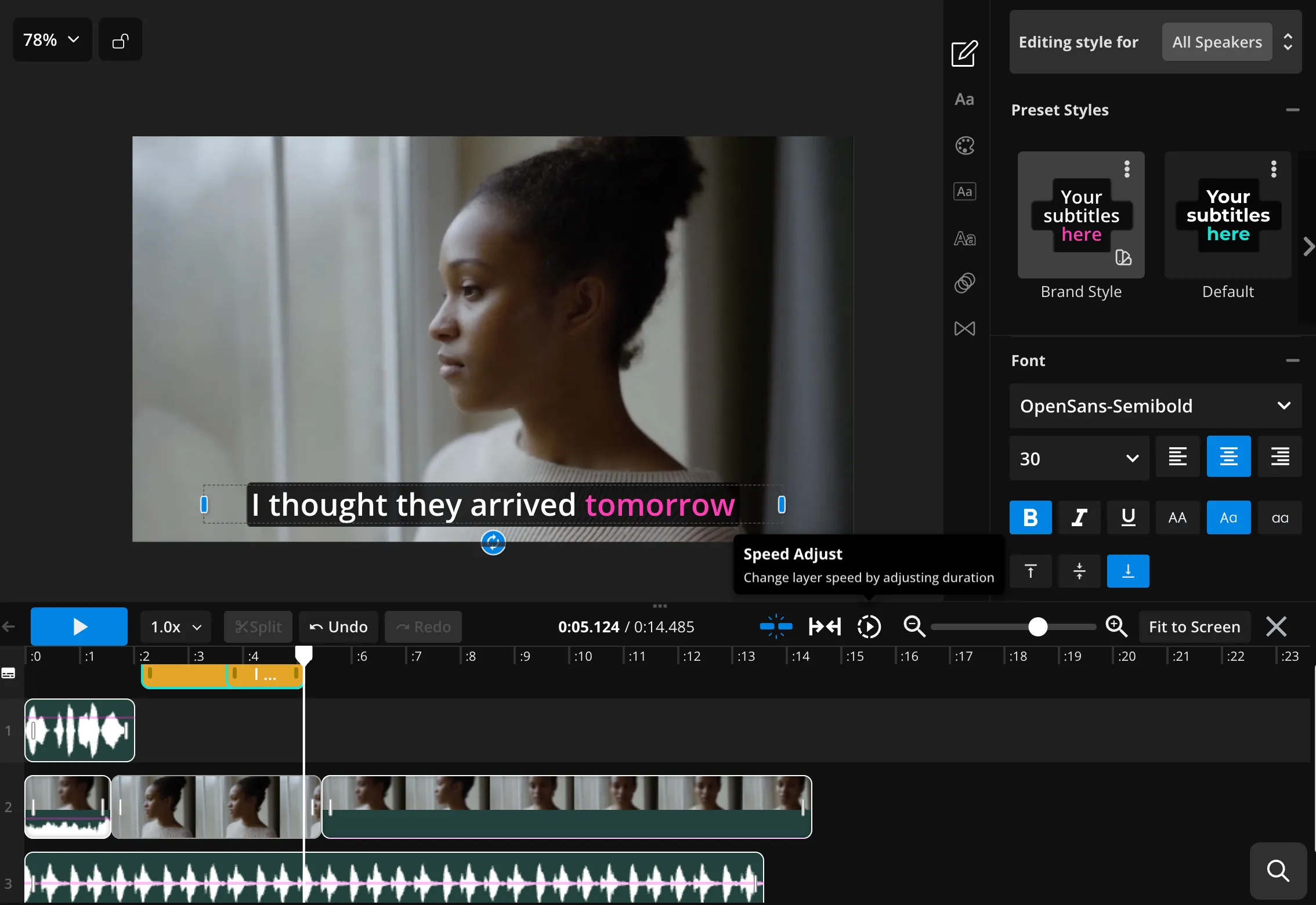
Every Kling 4.0 clip opens in Kapwing's free online editor. Trim, subtitle, resize, and combine your clips without leaving your browser.
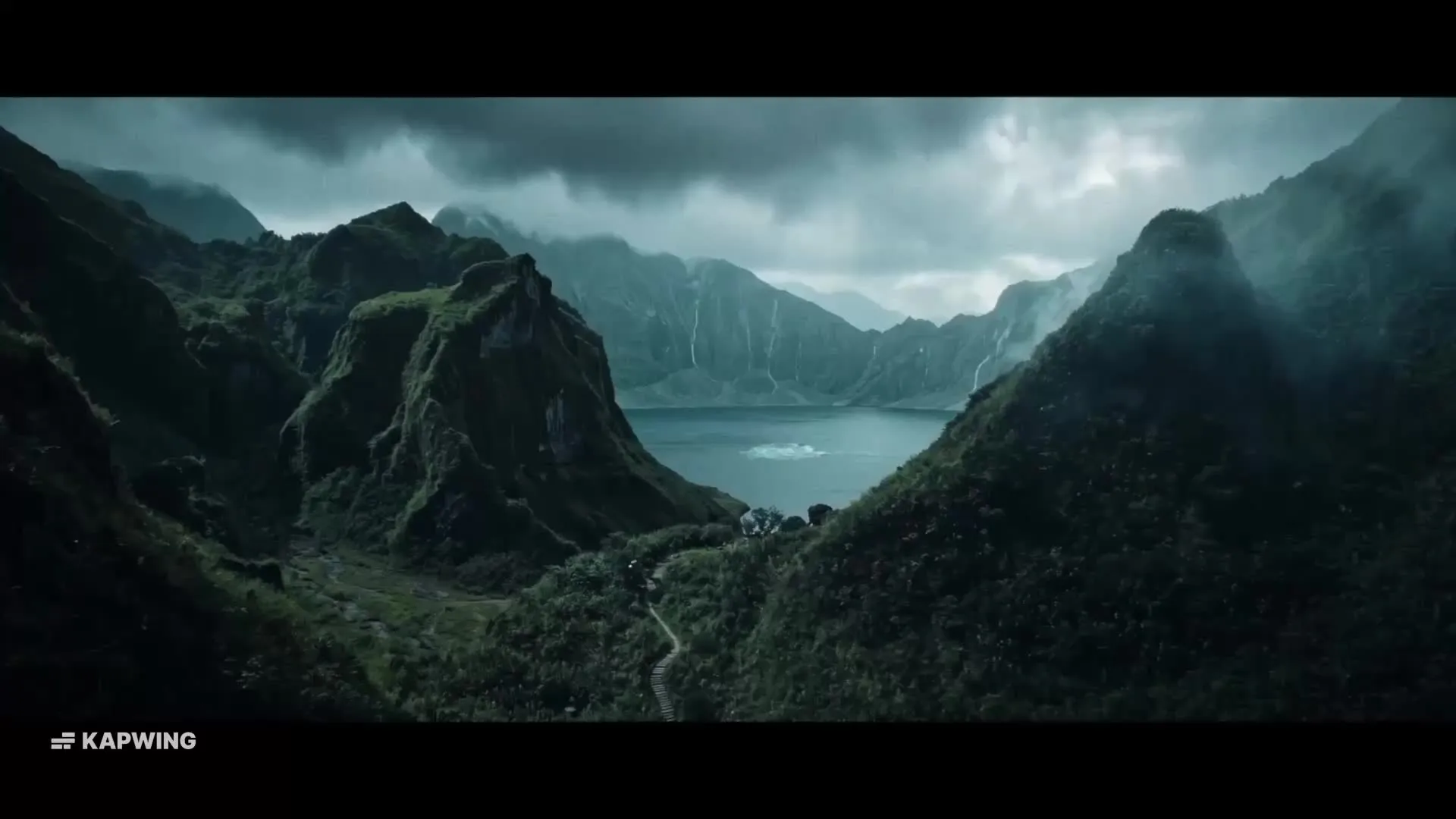
The power of Kling 4.0 in Kapwing
Longer clips, HD output, and more ways to guide your story
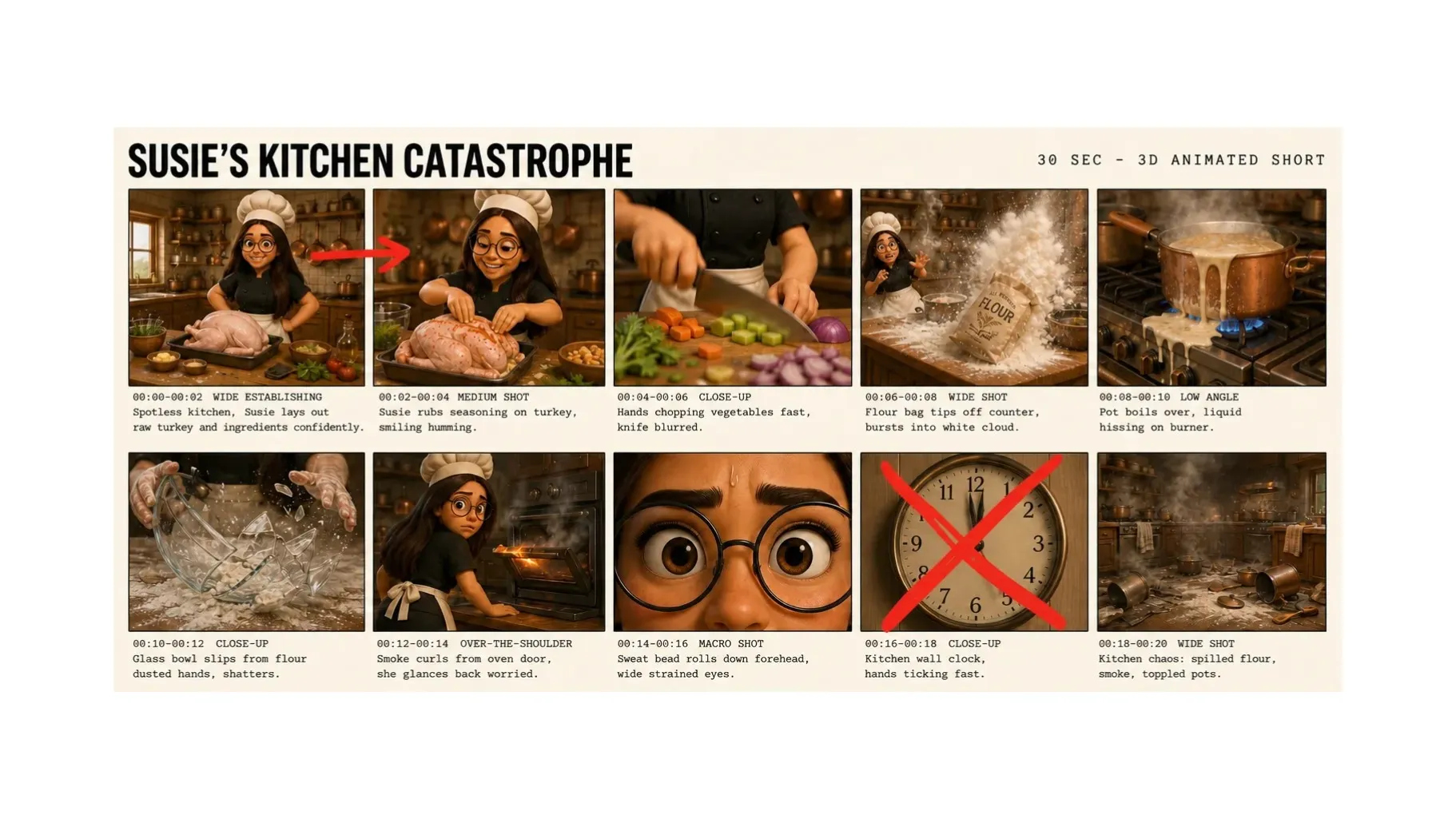
Middle keyframes
Add as many as 8 middle keyframes to guide poses, scene changes, and story beats in sequence. Kling 4.0 generates the movement between them, following your chosen order.
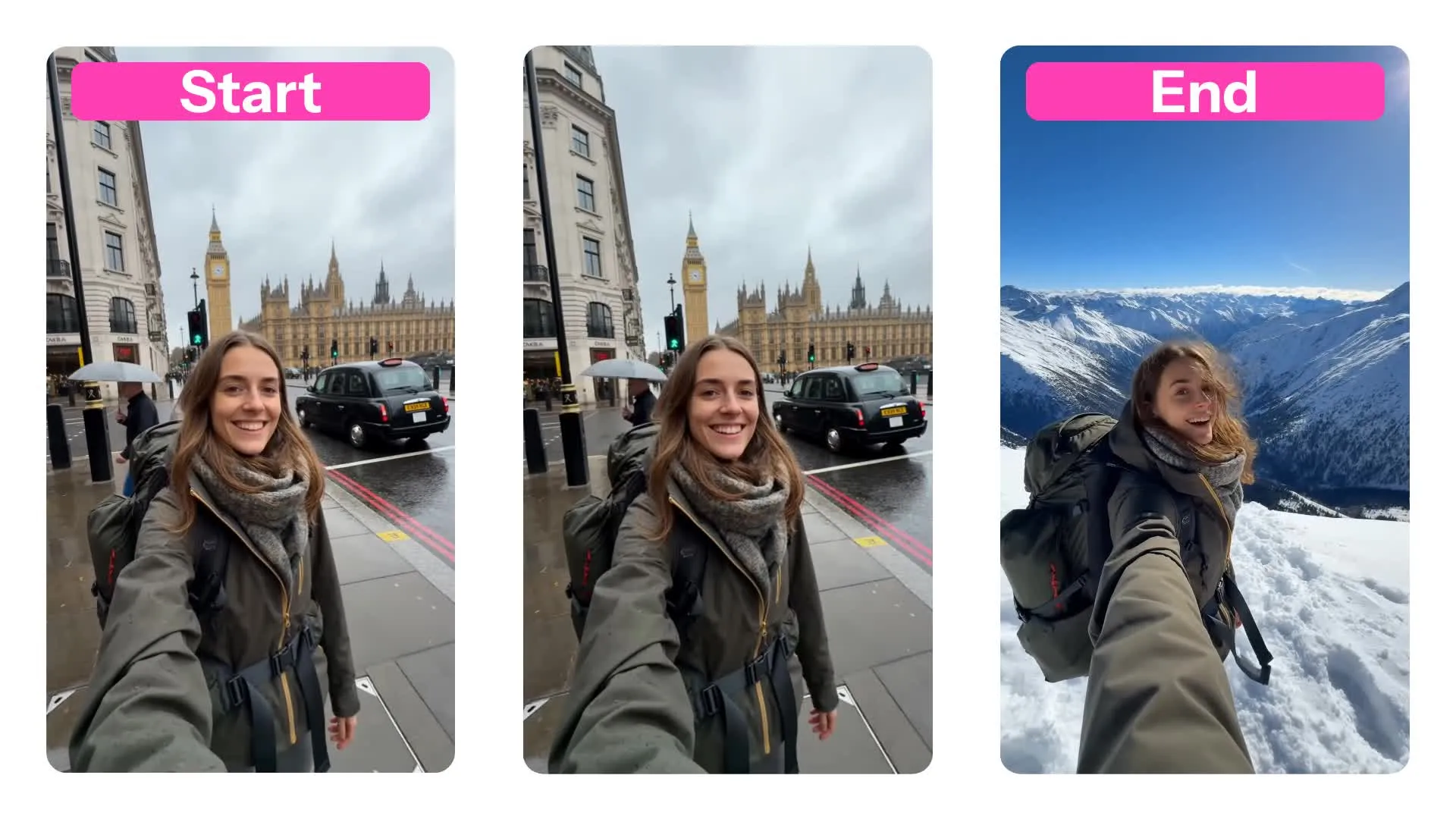
Start and end frames
Turn images into video with an opening image, or an opening and closing pair. Describe the action and camera movement to guide how the scene unfolds between your images.
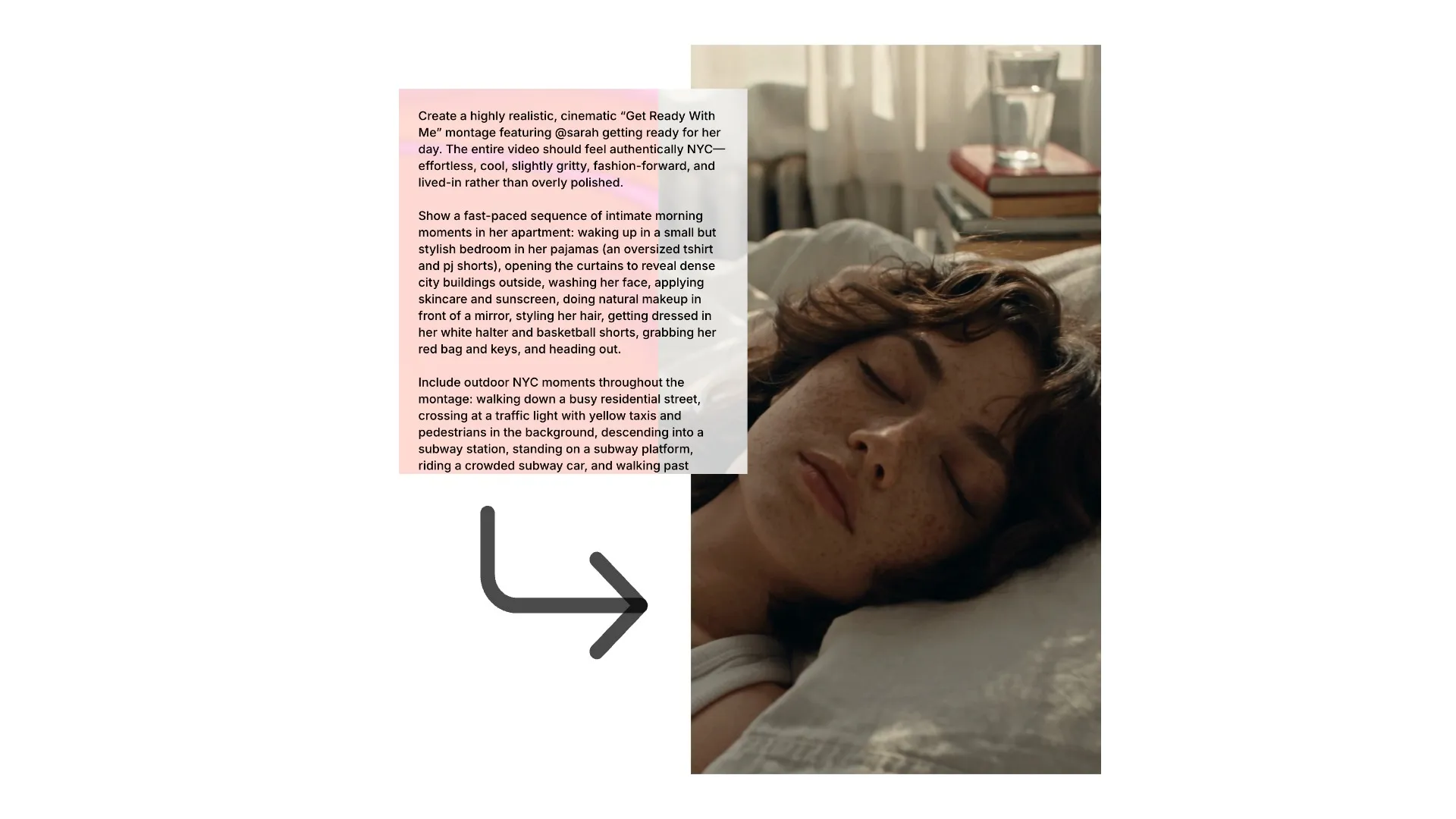
Text to video
Write a prompt including subject, action, camera movement, and sound. Kling 4.0 generates videos from 3 to 30 seconds at 720p or 1080p, giving videos with multiple scenes time to unfold.
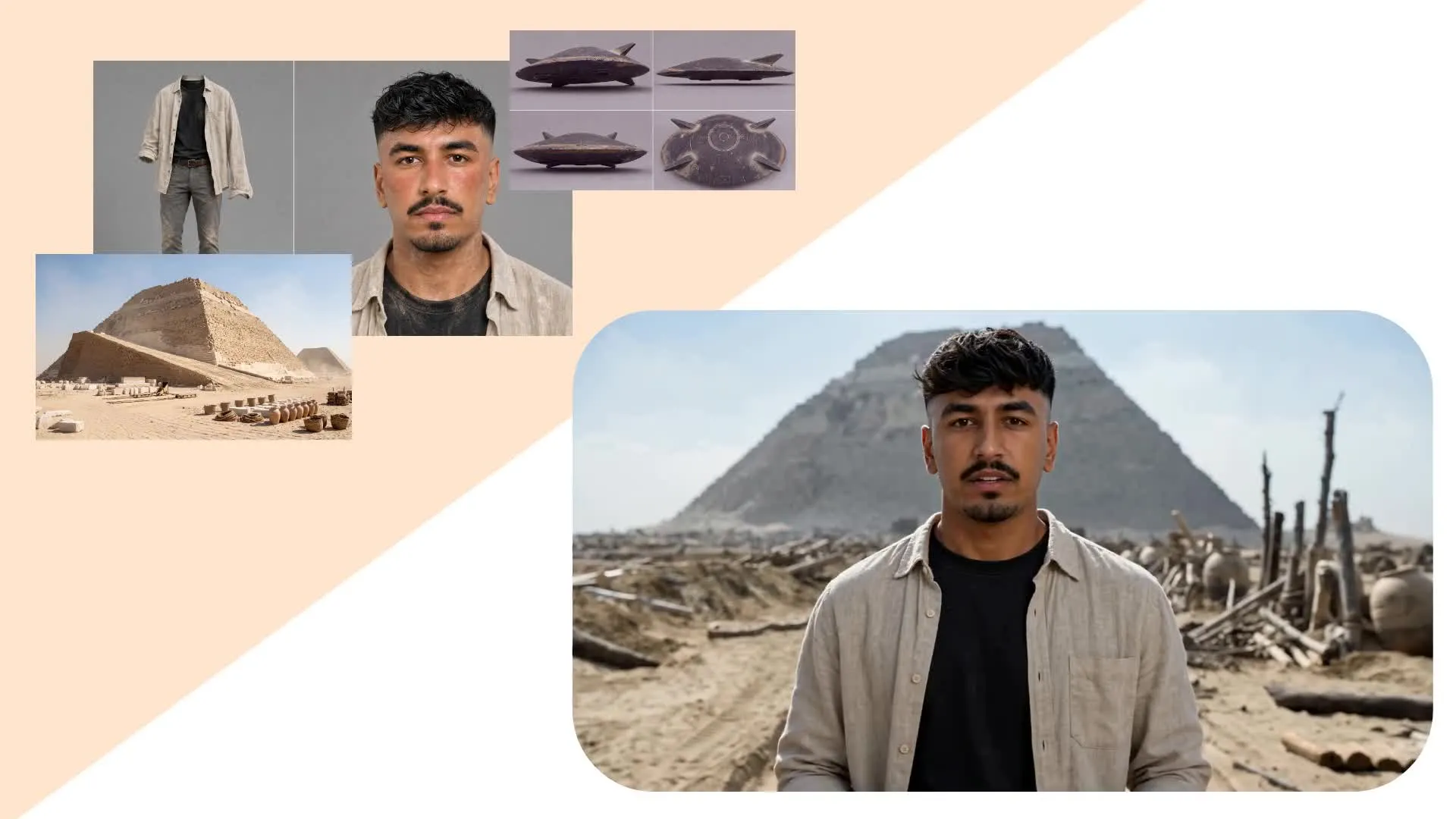
Reference images
Add as many as 10 images to define the appearance of products, characters, and locations. Reference images shape the video’s overall look, while keyframes define specific shots.
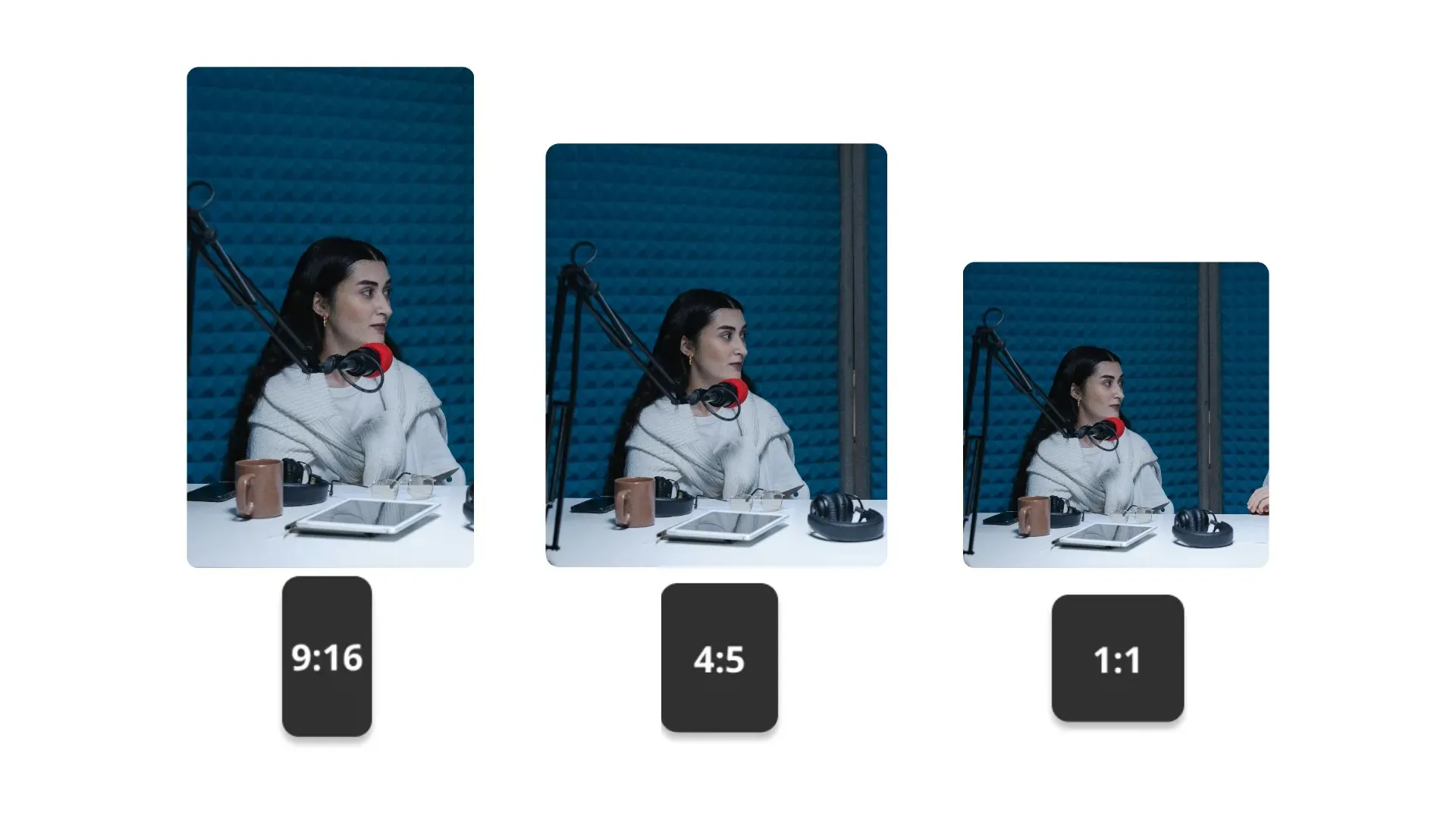
Multiple aspect ratios
Generate AI videos in 16:9 landscape, 9:16 portrait, 1:1 square, or 21:9 widescreen. When you use a start frames, the output follows the aspect ratio of your image.
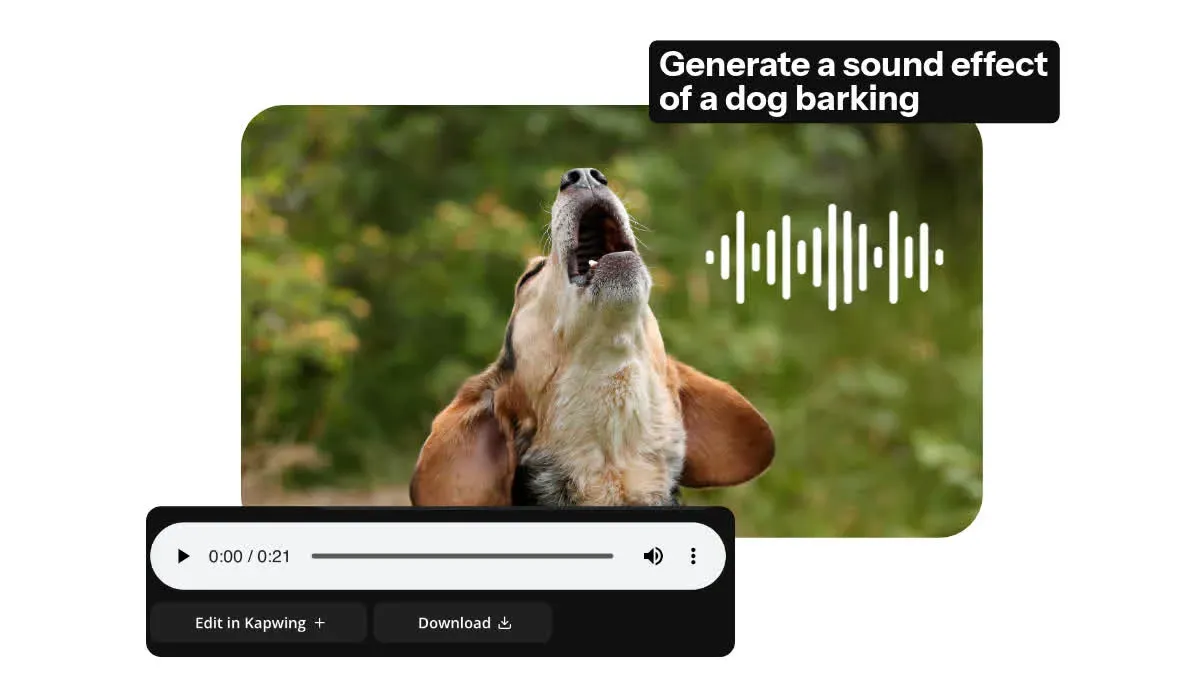
Native audio
Generate video and sound together, including lip-synced dialogue, ambient sounds, sound effects, and background music. Describe what you want to hear in your prompt.
Generated with Kling 4.0 — in Kapwing
Fully online. Free to start. No watermark on Pro.
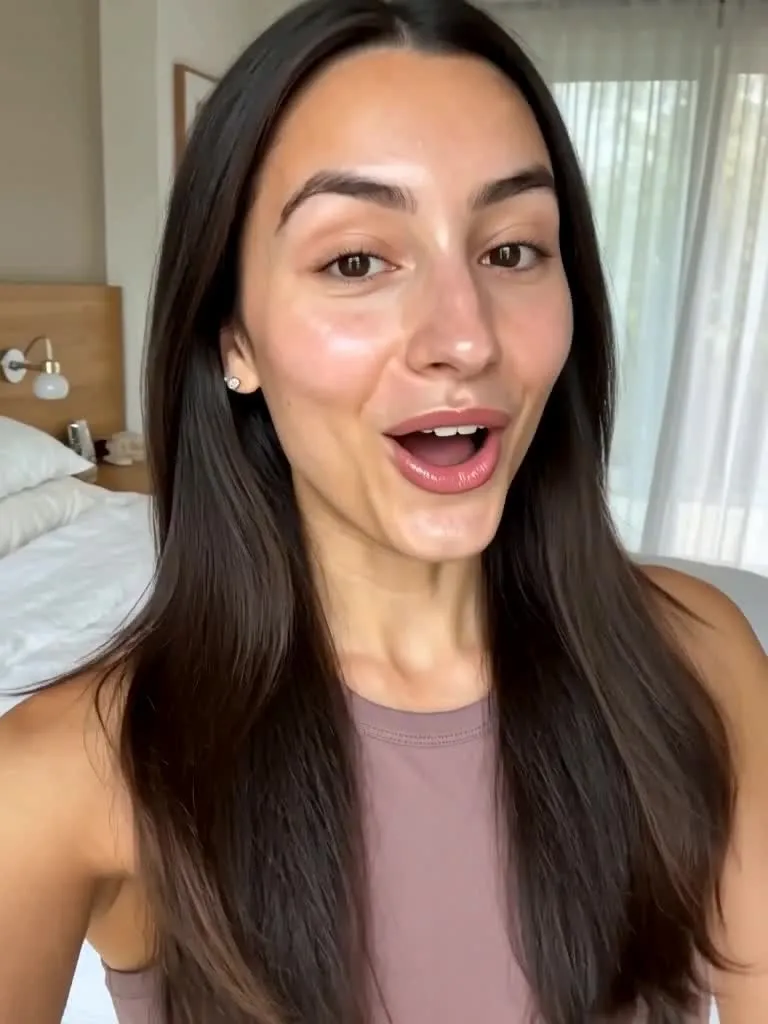
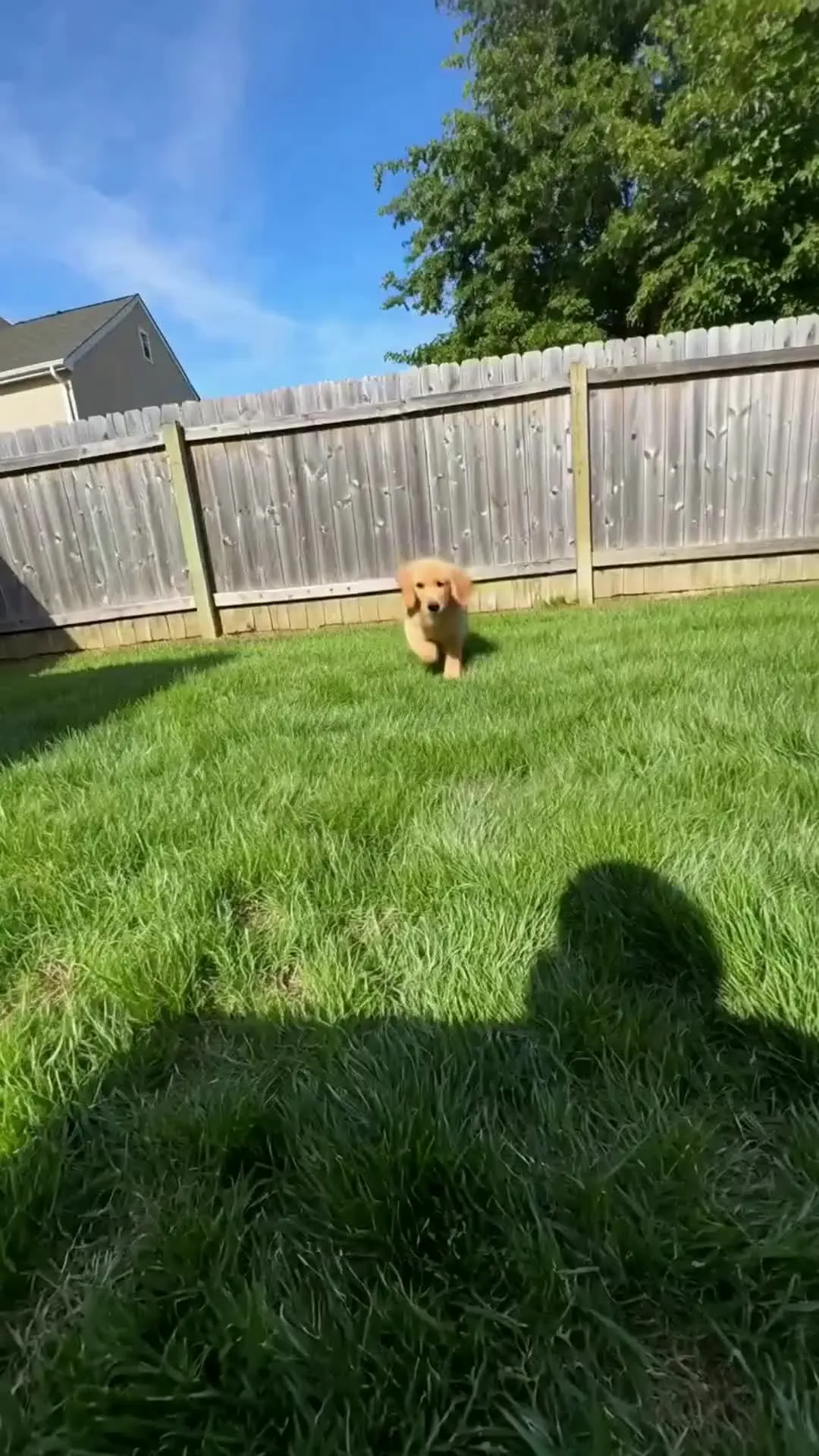
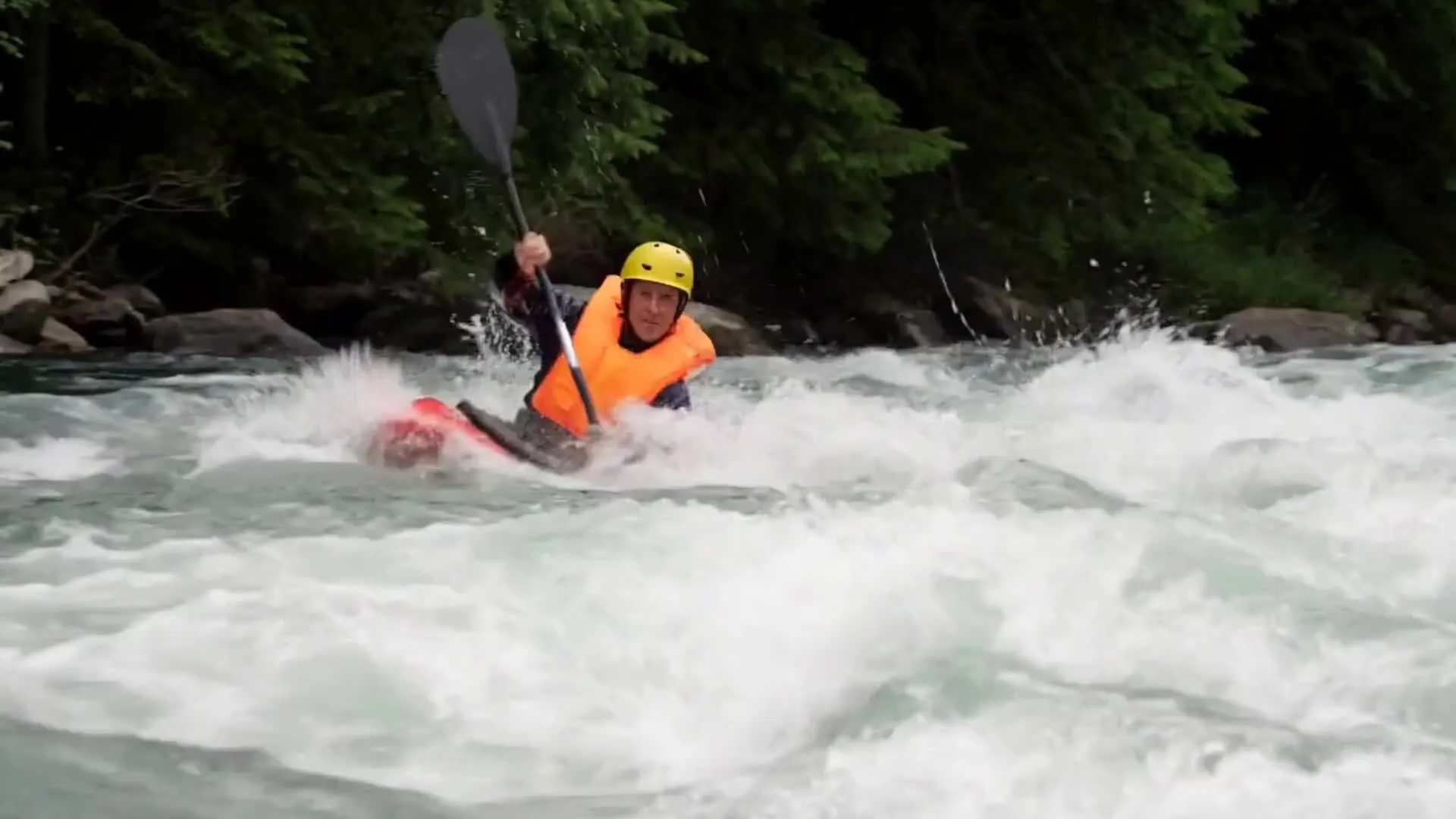
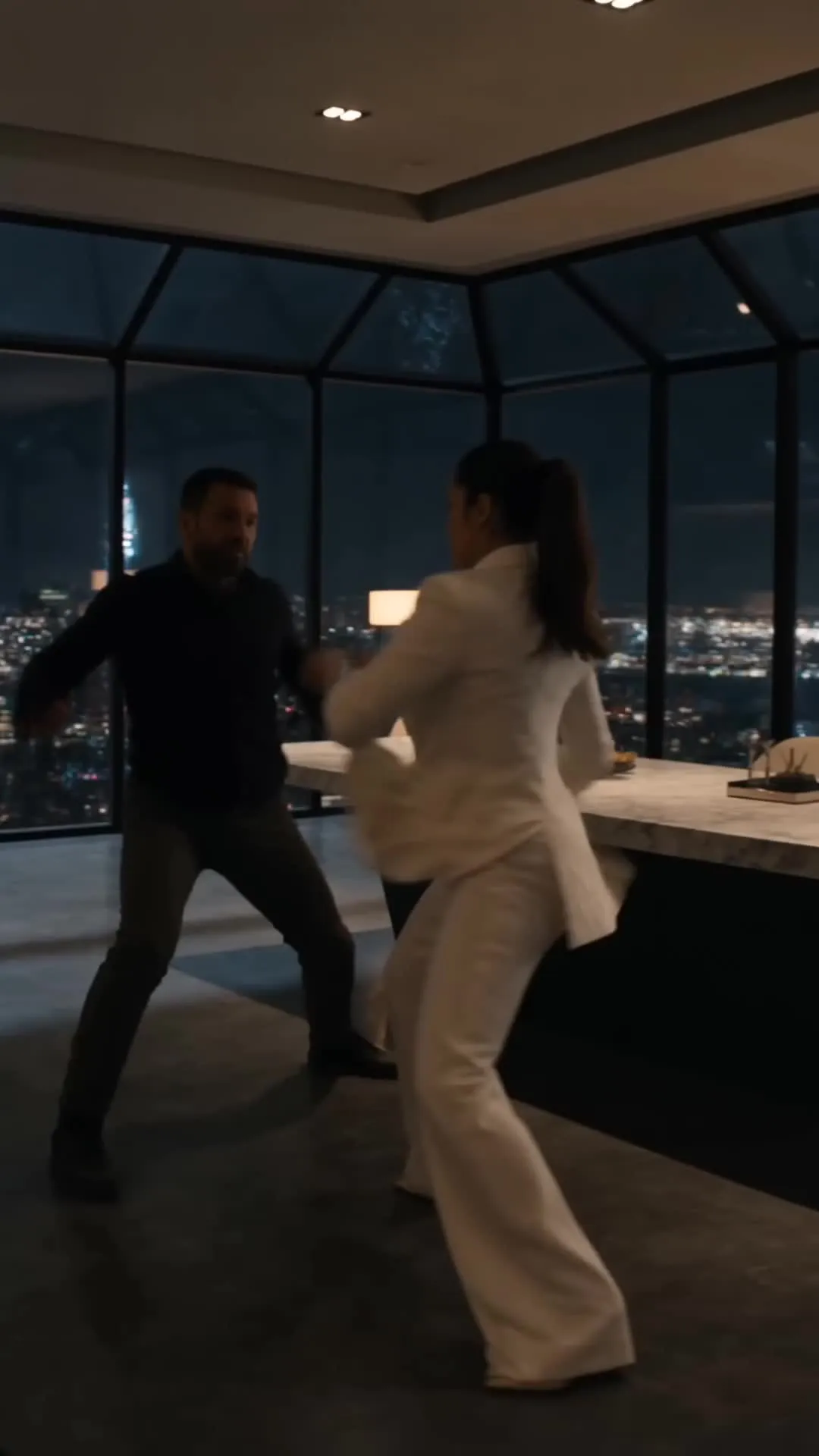
What to make with Kling 4.0
Over 35M teams, businesses, and creators use Kapwing
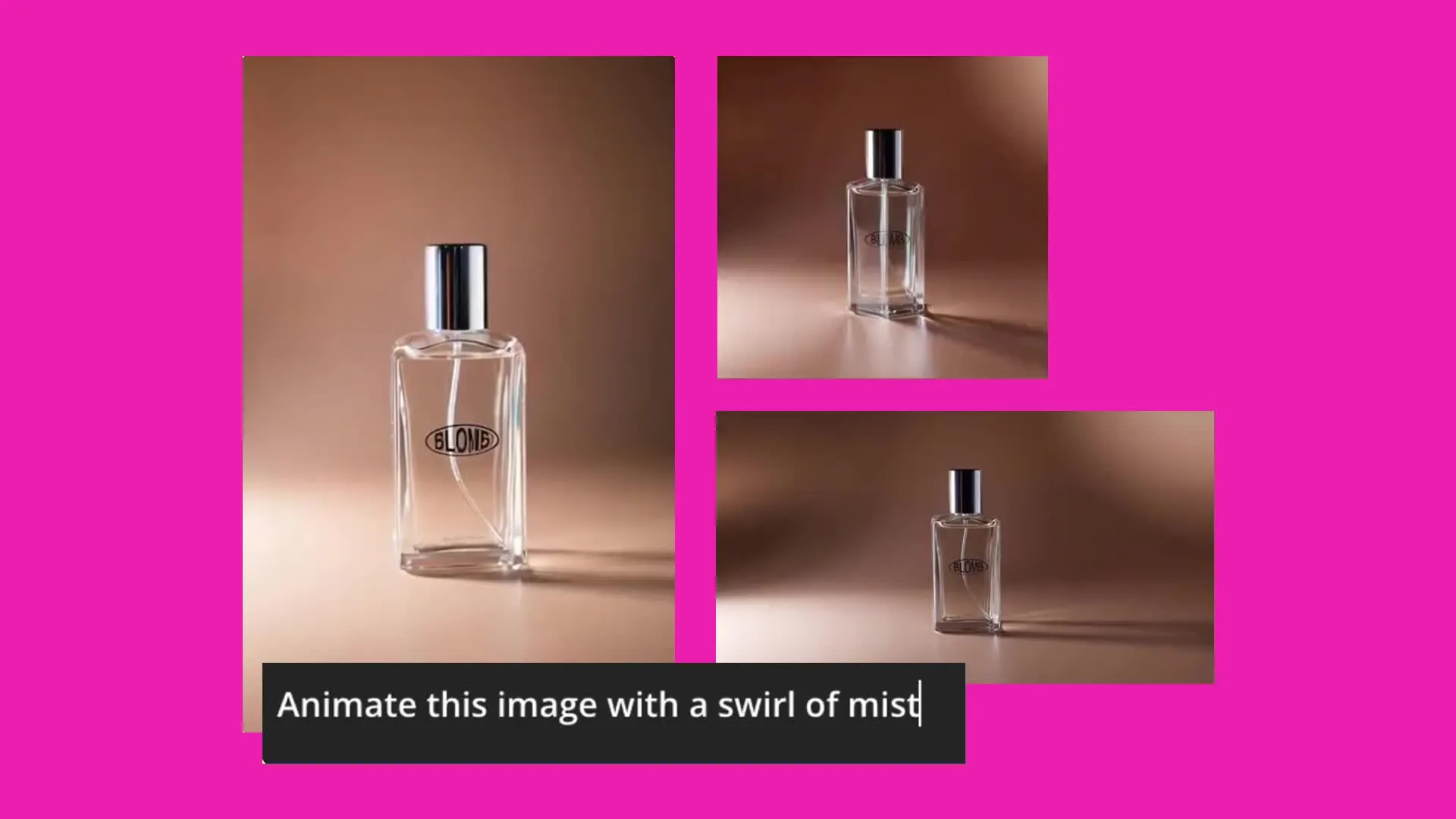
Product videos
Show your product from more than one perspective using different camera angles and movements. Highlight details, demonstrate features, and reveal multiple product angles.
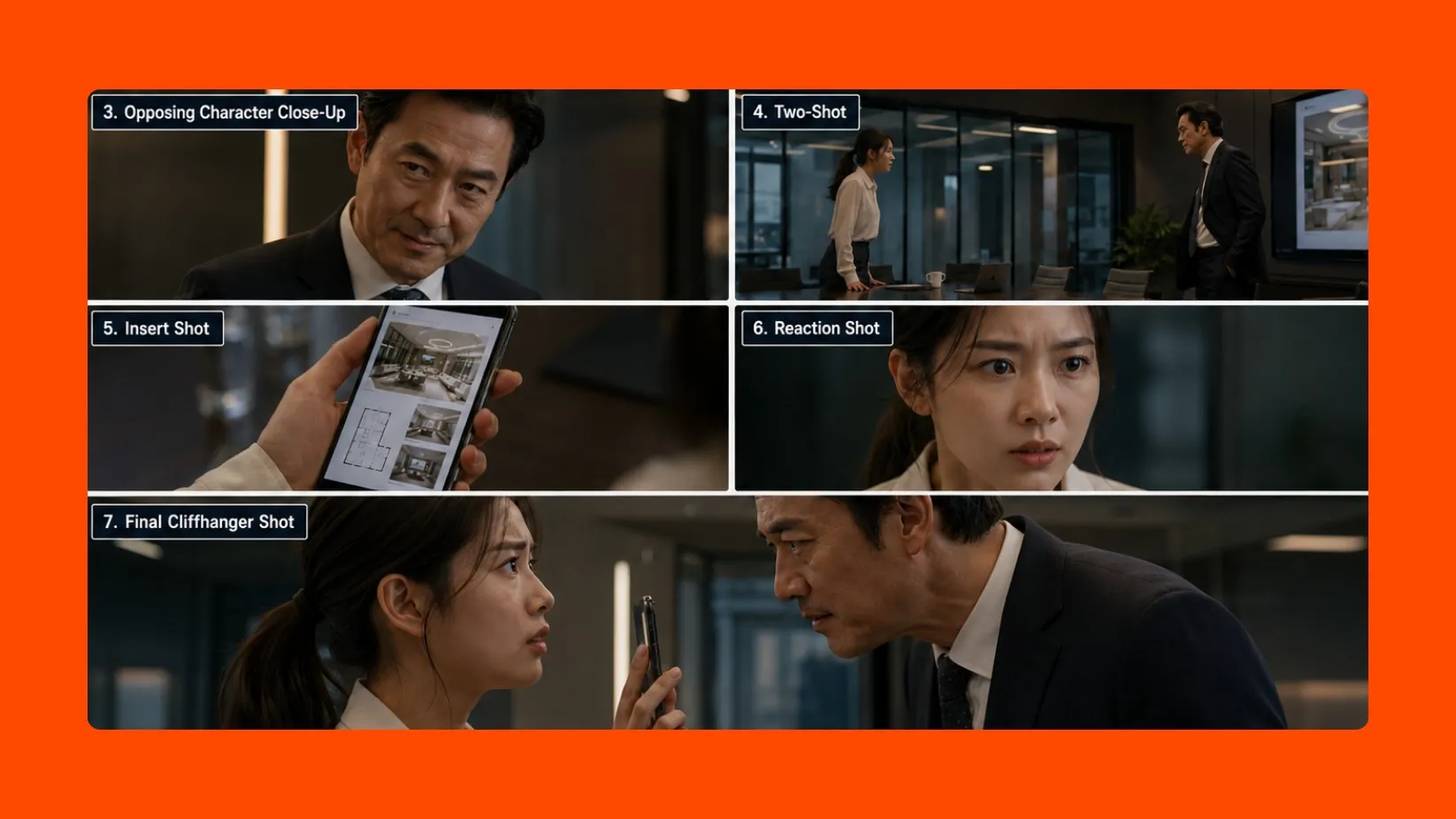
Storyboard sequences
Bring a sequence of storyboard images to life, whether cartoon or realistic. Create multiple versions to explore pacing, transitions, and different variations of the same storyboard.
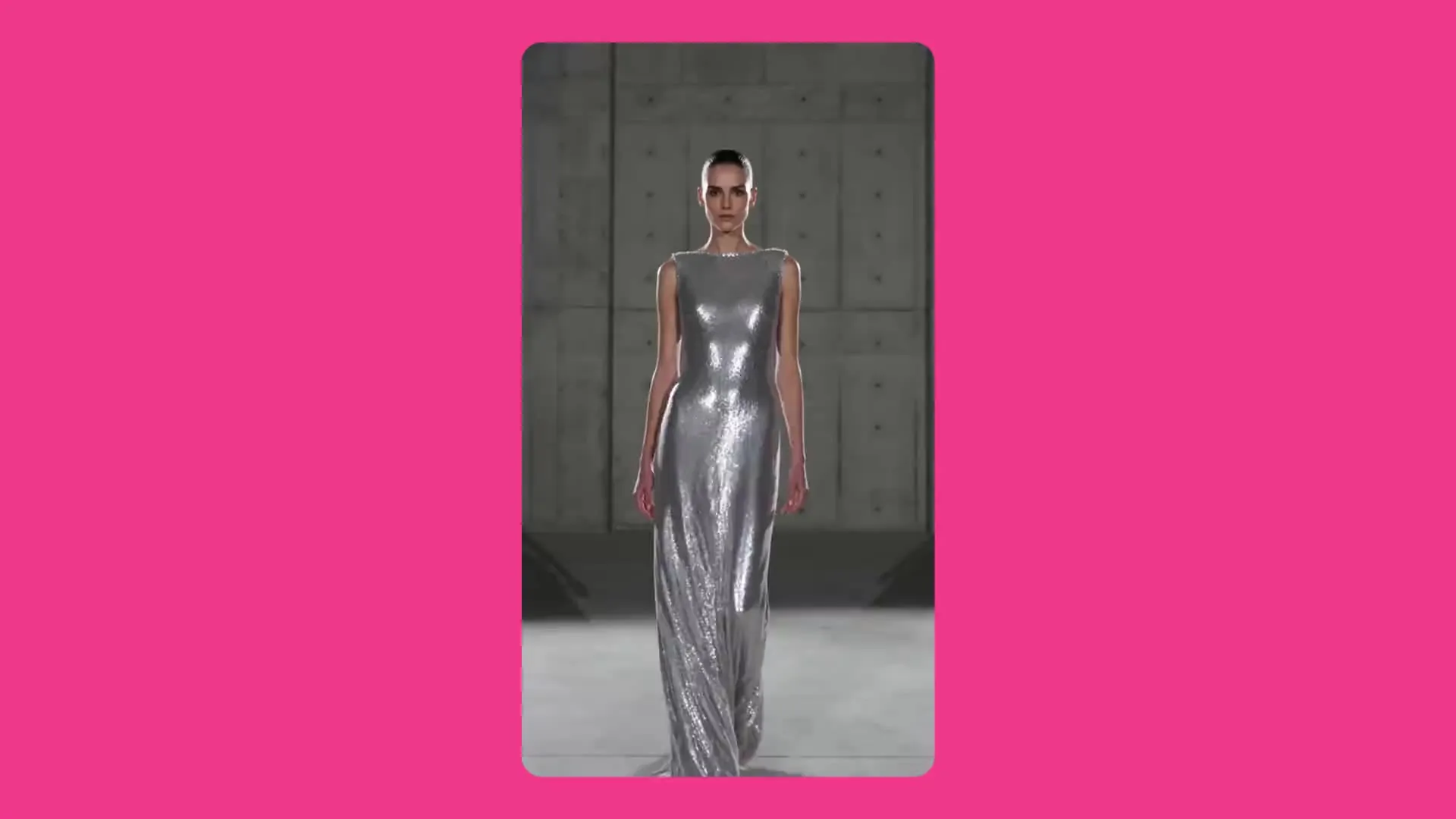
Before and after shots
Set the before and after images as your start and end frames, then transform what happens between them. Turn an empty room into a furnished interior, change outfits, and transform characters.
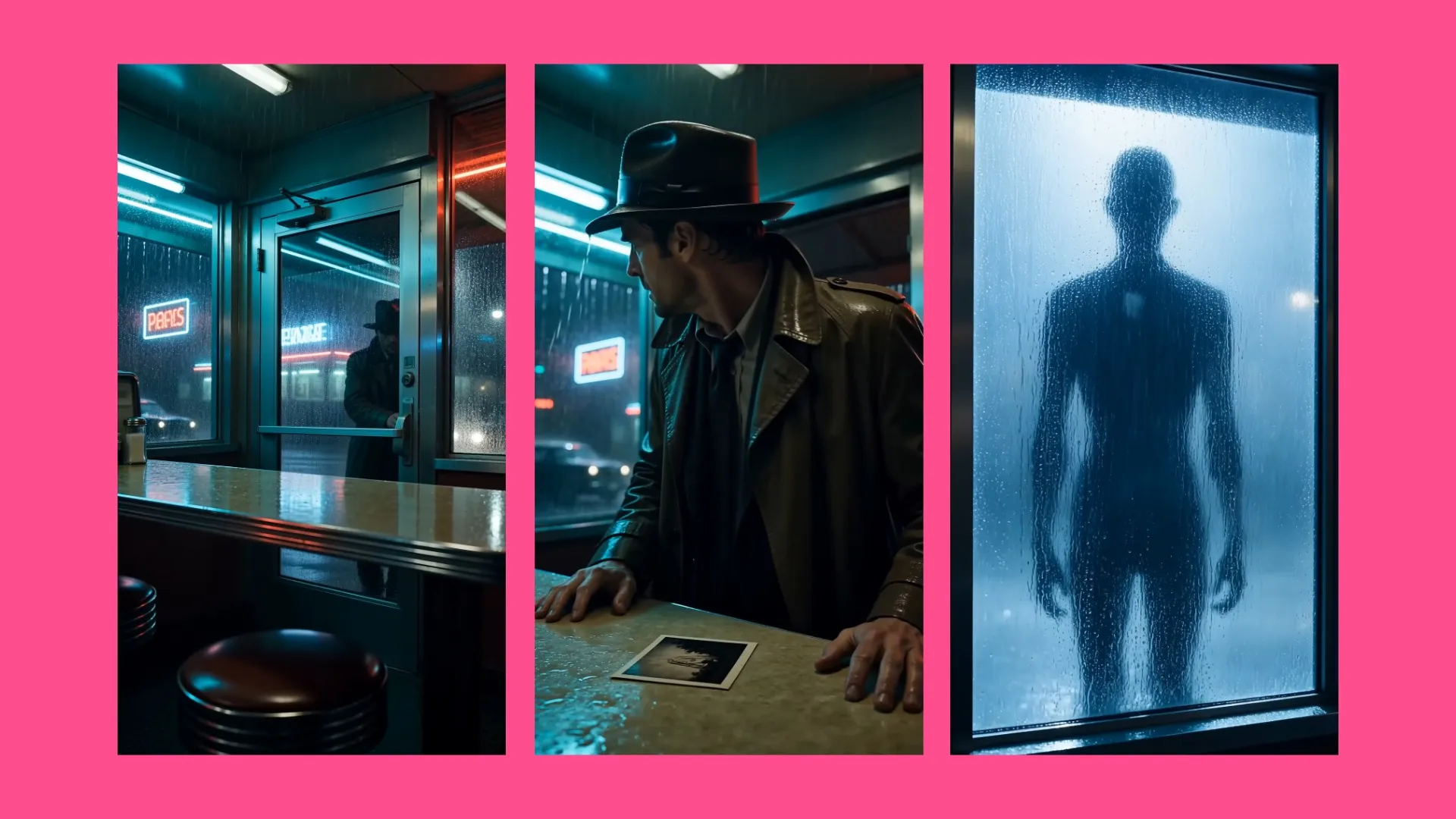
Cinematic scenes
Build movie trailers, short films, cinematic product launches, and social media teasers. Combine dramatic visuals, shot changes, and sound in sequences up to 30 seconds long.
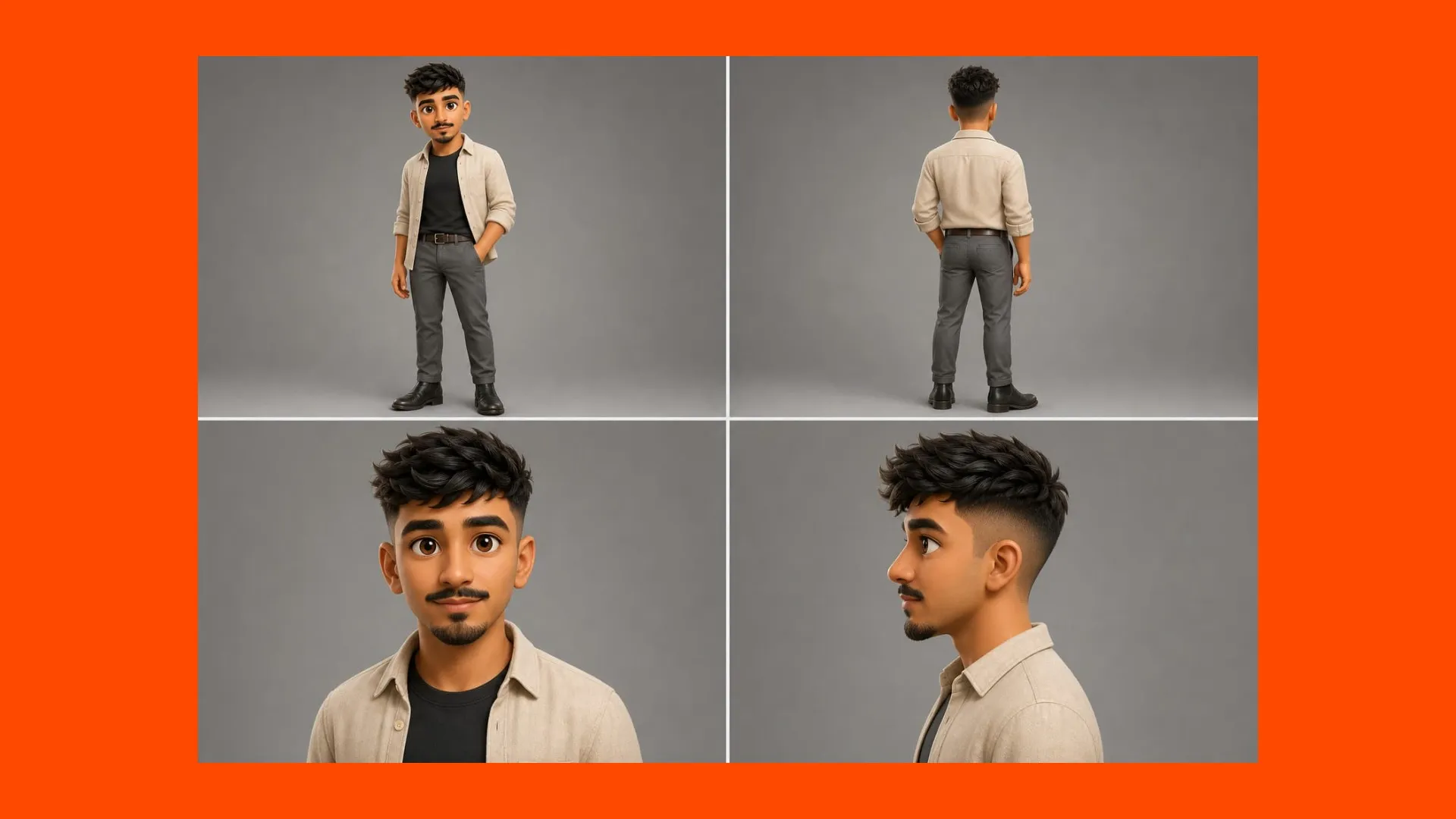
Character animations
Give an illustrated character or brand mascot a personality. Build a character sheet then animate gestures, expressions, and reactions for brand videos, greetings, and social content.
Why use Kling 4.0 in Kapwing
Generate your video, then integrate it into larger projects
From keyframes to finished edit
Kling 4.0 creates the footage. Kapwing gives you the production workflow around it.
- Bring prompts and images into one reference-led workflow
- Compare Kling 4.0 results with other AI video models in Kai
- Combine, subtitle, add a voice-over, or translate your video
- Resize for social platforms, upscale to 4K, and export
How to Use Kling 4.0

- Step 1Open Kai
Go to kapwing.com/kai to open Kapwing’s AI Video Assistant (Kai)
- Step 2Add your prompt and images
Describe the scene, then state the length (3 to 30 seconds), resolution, and aspect ratio. Upload a start frame, a start and end frame, or up to 10 reference images.
- Step 3Generate with Kling 4
Open the Models menu and select "Kling 4" under Video Clips. Kai shows the estimated credit cost before generating. When the clip is ready, open it in the editor to trim, subtitle, and export.
Frequently Asked Questions
We have answers to the most common questions that our users ask.
Kling 4.0 is a video generation model from Kling AI. In Kapwing, it creates clips of 3 to 30 seconds at 720p or 1080p with native audio, from a text prompt, start and end frames, or up to 10 reference images.
Open Kapwing AI (Kai), select Models, and choose "Kling 4" under Video Clips. Describe your scene, add any images, and state the length, resolution, and aspect ratio. Kai runs in the browser, so this works on desktop, iPhone, and Android without separate software.
Yes, you can start for free and try Kling 4 online from your browser.
Kling 4.0 generates at 720p by default, or 1080p when you ask for it. Text-to-video supports 16:9, 9:16, 1:1, and 21:9. With start or end frames, the output follows the framing of your images.
Yes. Upload one image as a start frame, two images as start and end frames, or up to 10 reference images to guide subjects and settings. Use JPG or PNG files at least 300 pixels on each side, up to 30 MB, with a shape between 2:5 and 5:2. Kapwing's integration doesn't accept reference videos or audio for Kling 4.0.
Yes. Kling 4.0 generates sound with every clip, and audio can't be turned off at generation. For a silent clip, ask Kai to mute it, or lower the clip volume and add your own voice-over or music in Kapwing’s online video editor.
Describe one continuous shot: the subject, what happens from start to finish, how the camera moves, and the sound you expect. For longer clips, list the action in order so there's enough to fill the time. For image-to-video clips, focus on the motion between your frames rather than describing what's already in them. With reference images, describe each subject by visible traits.
Kapwing doesn't add a separate Kling watermark to generated clips.
Between 3 and 30 seconds, set in whole seconds. If you don't give a length, Kai uses 5 seconds. Requests outside that range are adjusted to the nearest supported length, so a 45-second request becomes 30 seconds.
AI video guides
Tips, tools, and deep dives to help you get started with AI


Get started with your first video in just a few clicks. Join over 35 million creators who trust Kapwing to create more content in less time.