
Instant image duplication — for free
Duplicate and edit images using an easy online tool
Quickly make copies for risk-free image editing
Kapwing's free image duplicator instantly makes endless high resolution copies of any image. Preserve your original image while creating different variations for A/B testing, applying watermarks, or experimenting with stickers and filters.
Designed for content creators and marketers, Kapwing's Duplicate Image tool enables parallel editing paths with collaborators and maintains consistent export quality. It works entirely online, so you can make copies, edit, and share, all without leaving your browser.
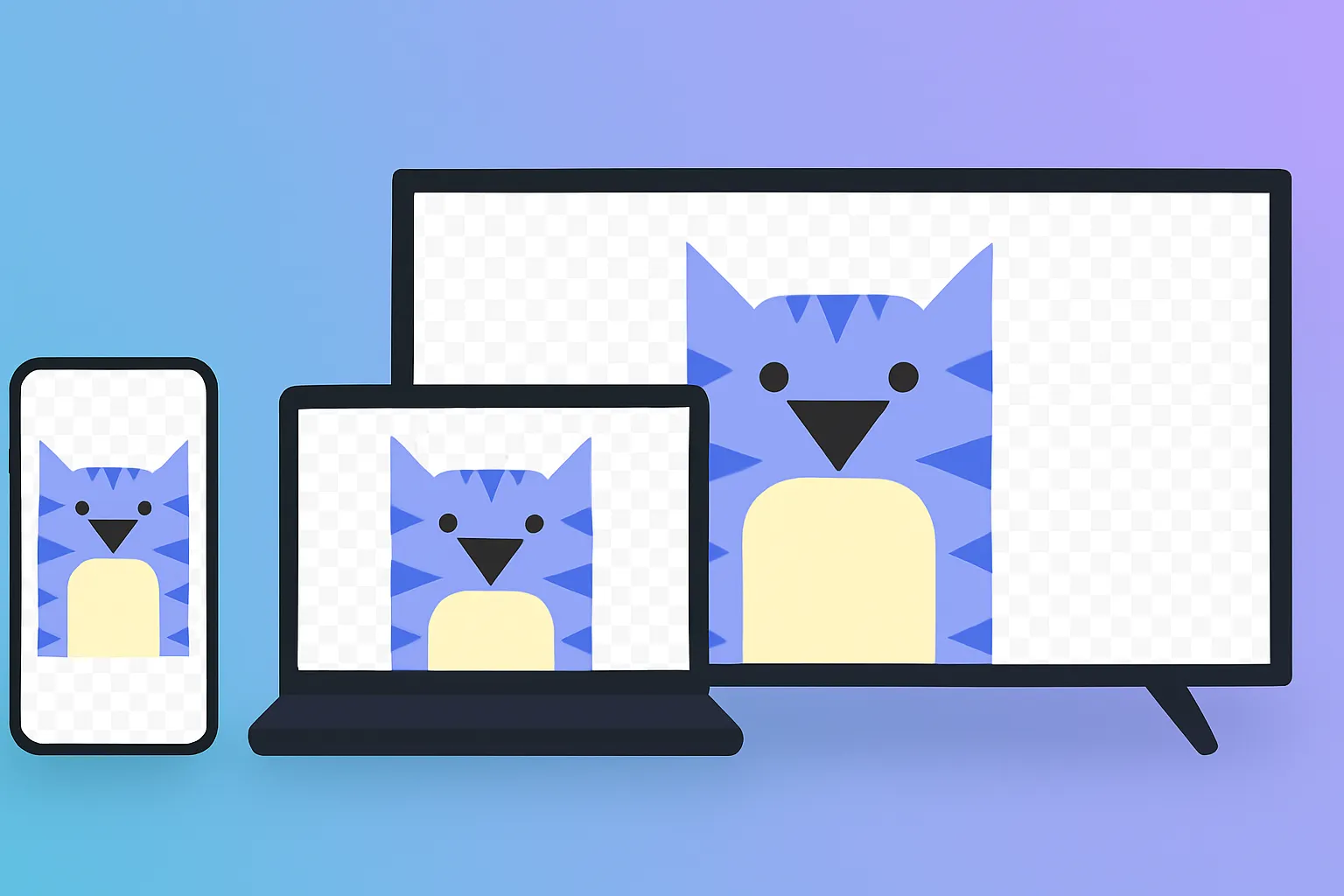
Duplicate and edit in a powerful studio
Skip the extra software and complex file management: Kapwing's Duplicate Image tool is built into a full image editor. Create copies of your images, then edit them with a full range of free and AI-powered tools.
Blur the background or make it transparent with one-click tools. Adjust color and saturation with sliders, apply filters, or enhance image resolution. Resize for different platforms or add animations and audio.

Already transforming video creation across industries
Hear directly from the teams who publish faster, collaborate better, and stay ahead.


How to Duplicate an Image
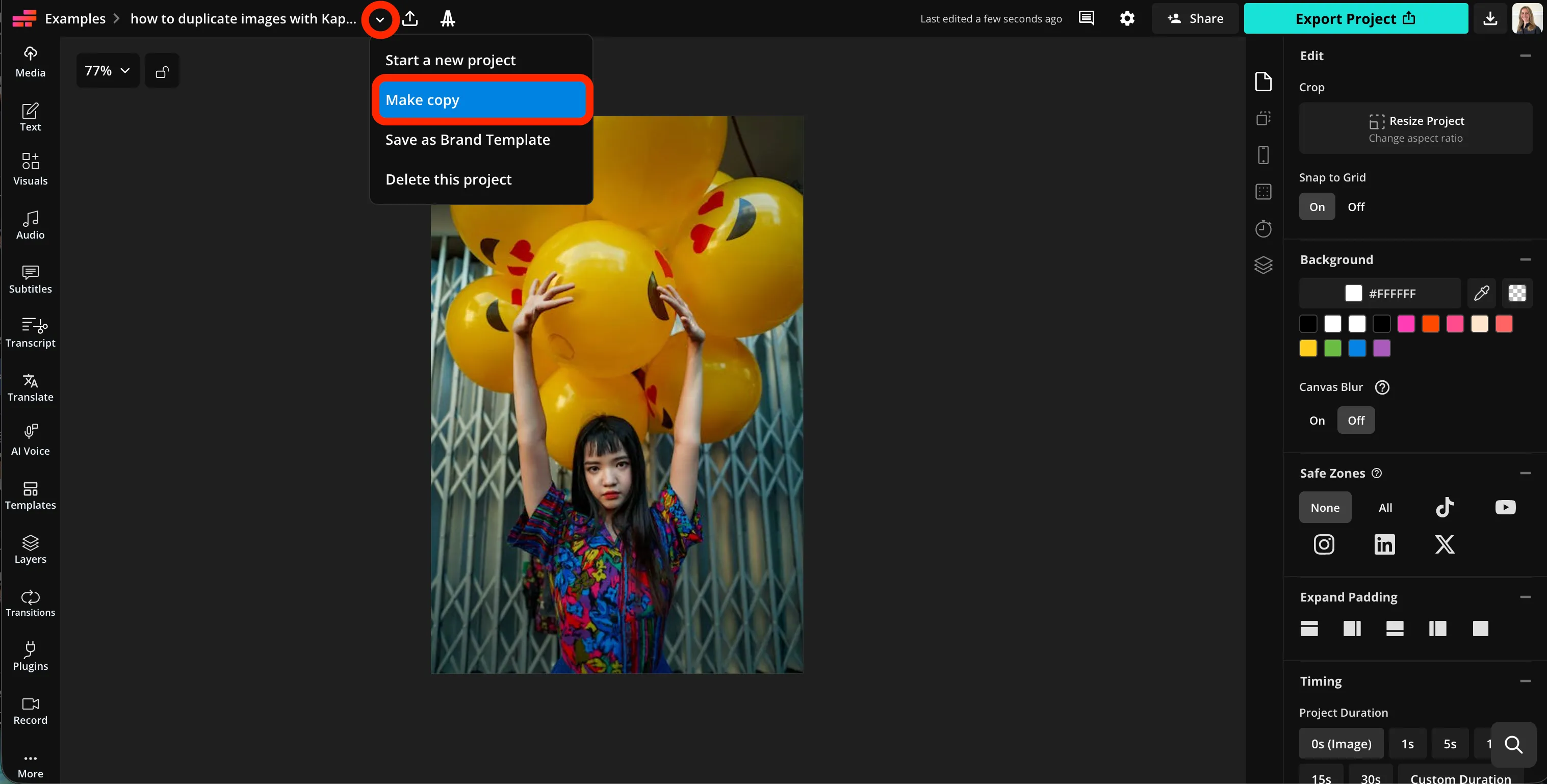
- Step 1Upload image
Create a new project in Kapwing and click to upload your image.
- Step 2Duplicate
Click the arrow in the top toolbar, then select "Make copy" to duplicate your image.
- Step 3Edit and download
Use Kapwing's range of editing tools, or click "Export project" to download your duplicated image.
What's different about Kapwing?



Frequently Asked Questions
We have answers to the most common questions that our users ask.
Is the Duplicate Image tool free?
Yes, Kapwing's Duplicate Image tool is free for all users. For access to the full range of image editing tools, including AI-powered tools, upgrade to a Pro account.
Is there a watermark on exports?
If you use Kapwing on a Free account, then all exports — including Kapwing's Image Duplicator — contain a watermark. Once you upgrade to a Pro account, the watermark is completely removed from your creations.
How to duplicate images with Kapwing
To duplicate images with Kapwing, start by creating a new project in the studio. Then click to upload your image, or use the drag and drop tool. Click the arrow next to the file name in the top toolbar. Select "Make copy," then give your duplicated image file a name and choose its folder location. Click "Copy" to create your duplicate image file.
From here, you can use any of Kapwing's extensive image editing tools to adjust the new version of your image. When you're ready, click "Export project" at the top right, then select your file type and resolution, to create a downloadable image file.
How to duplicate an image on iPhone or tablet
If you want to duplicate images using your phone or tablet, including Apple and Android devices, first open the Kapwing studio in your mobile browser. Click to upload your image, then return to the Kapwing homepage. Find your new project and click the three dots next to the file name. Click "Duplicate" to make a copy of your image file. From there, you can edit or export your new image as usual.
Can I duplicate images after editing them?
Yes, you can duplicate images at any point, including after editing them. To preserve a master copy of your image, make a copy before you start editing. To duplicate an already edited image, make your edits first, then duplicate the file for final edits like resizing for TikTok or YouTube.
What file formats can I duplicate?
Kapwing supports all popular image file formats, including JPEG, PNG, and WebP. You can download duplicated images as any of those file types.
Discover Resources
Tips, templates, and deep dives to help you create faster and share with confidence.
View all


Get started with your first video in just a few clicks. Join over 35 million creators who trust Kapwing to create more content in less time.