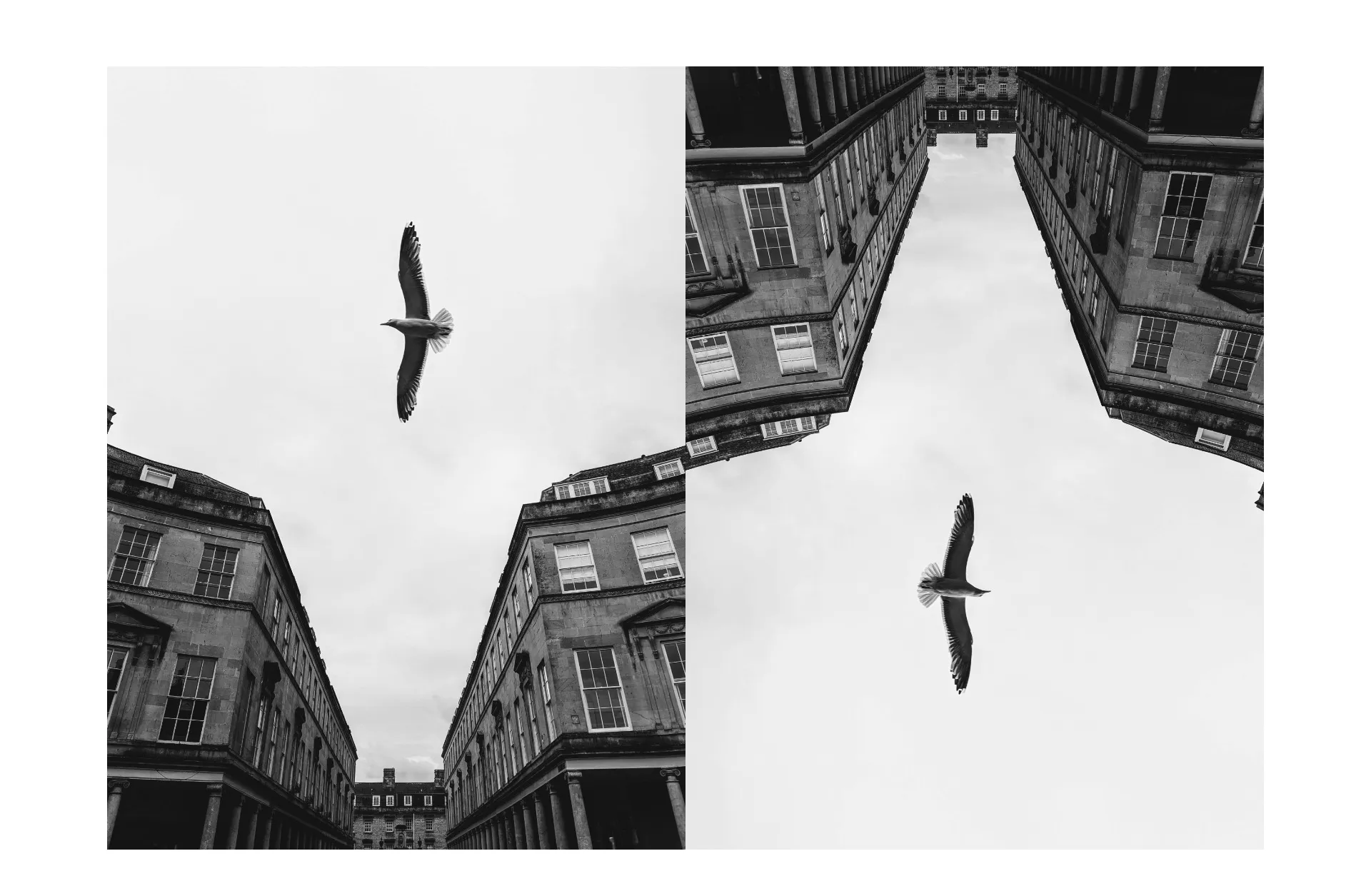
Instantly flip images, online
Turn pictures upside-down or side-to-side — for free
Flip images in a few simple clicks
Kapwing’s online Image Flip tool works seamlessly on any device, from iPhone and Android to MacBook and Chromebook. You can flip photos horizontally or vertically, rotate them to any angle, and correct orientation issues in seconds.
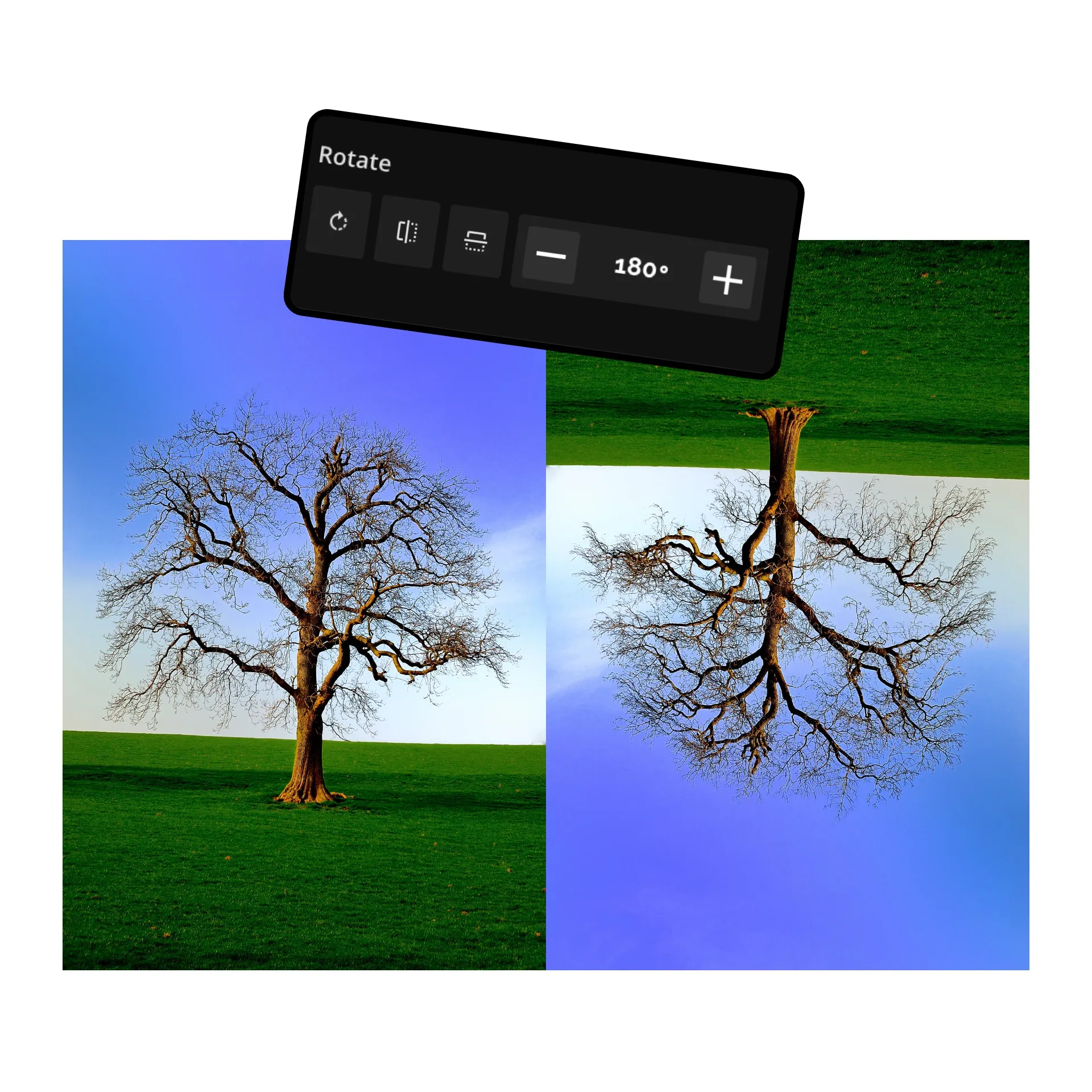
Unlike basic tools limited to preset 90° or 180° rotations, Kapwing lets you rotate images to any angle you choose, giving you complete flexibility for your edits. Whether it’s a sideways picture, an upside-down scan, or a backwards selfie, the free Flip tool makes adjustments effortless.
Upload files in formats like JPG, PNG, GIF, or WebP, or import pictures directly from platforms like YouTube or Google Photos. Every tool is accessible online, allowing creators to flip pictures for free without any installations or downloads.

How to Flip an Image
- Step 1Upload image
Upload your image to the Kapwing editor.
- Step 2Flip image
Select your image, then scroll to ‘Rotate" in the right-hand menu and click the first icon. Each click will rotate the image 90°. Alternatively, you can manually enter a number to set a custom angle.
- Step 3Export and download
Hit "Export Project" and download to save the image to your desktop or share via a Kapwing URL.
Already transforming video creation across industries
Hear directly from the teams who publish faster, collaborate better, and stay ahead.


Upload. Edit. Export.
A seamless online workflow for creating and sharing flipped images
Experiment with new image angles
Flipping isn’t only for correcting mistakes, it can also be a design choice. Reversing a photo left-to-right or upside-down can change the focus, create unexpected balance, or give content a fresh perspective.
For creators and designers, flipping images is a quick way to experiment with layouts, add variety to visuals, and bring new life to existing content
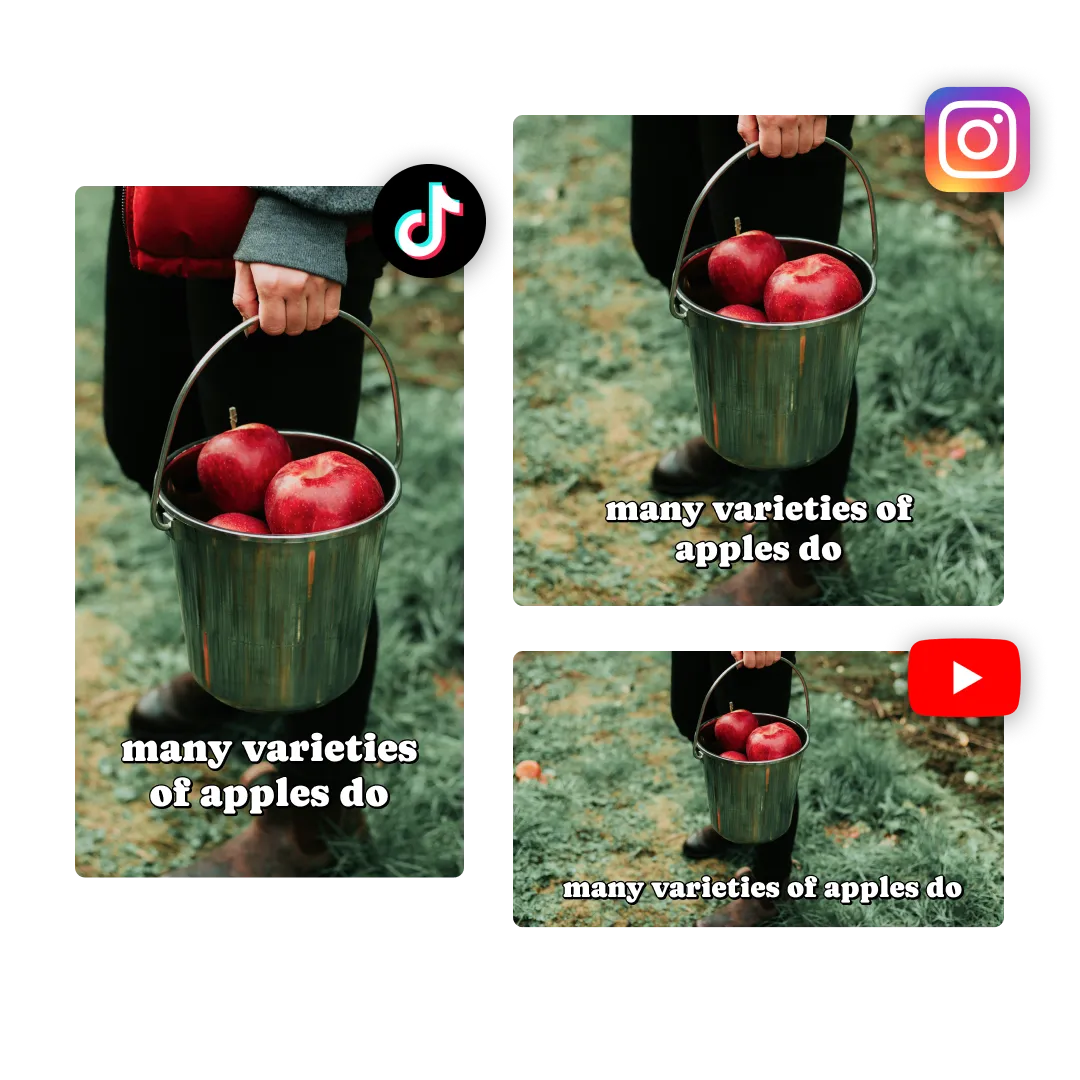
Resize and repurpose for social media
Kapwing offers a host of tools that can instantly enhance the quality of your pictures, saving time for both design teams and individual creators or influencers. Resize photos to any social media format with one click or simply ask the "AI Assistant" to expand your image beyond its frame, filling in the missing parts naturally.
Refresh photos with a simple flip
Creators flip images to adjust framing, spark creativity, and experiment with layouts

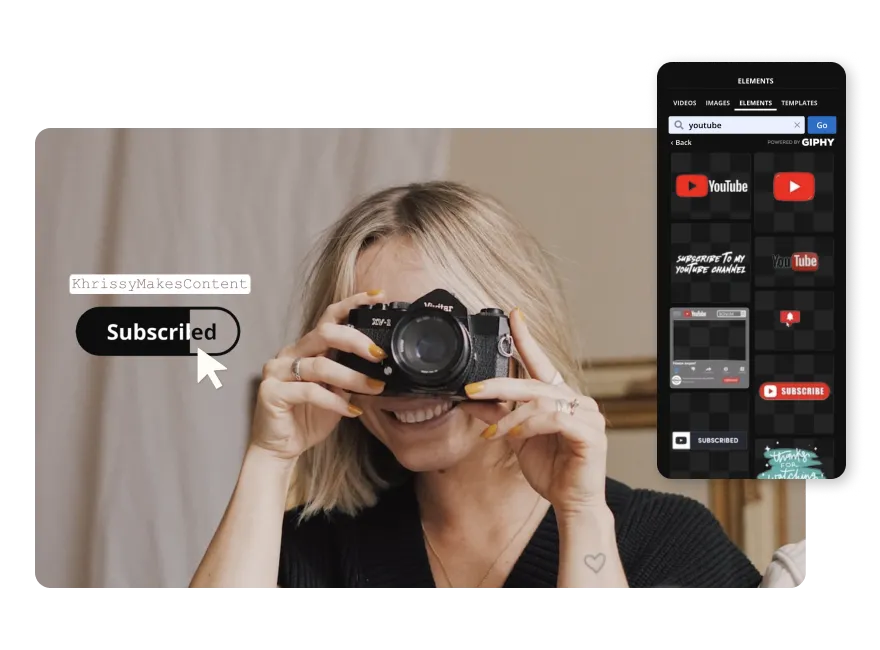
Influencers
Content creators and influencers use Kapwing's Flip Image tool to correct photos such as selfies taken with a front-facing camera
Design Teams
Design teams flip and rotate photos to better fit magazine layouts, online banners, and social templates
.webp)
Social Media Managers
Social media managers flip logos and branded visuals to adapt content for different formats while keeping designs consistent.
Photography
Photographers use Kapwing’s online Flip Image tool to improve composition and tell more intentional visual stories

Advertising and Marketing
Advertising and marketing teams quickly create A/B test designs for brochure layouts and promotional images, or simply experiment with a visual variety of pictures
Educators
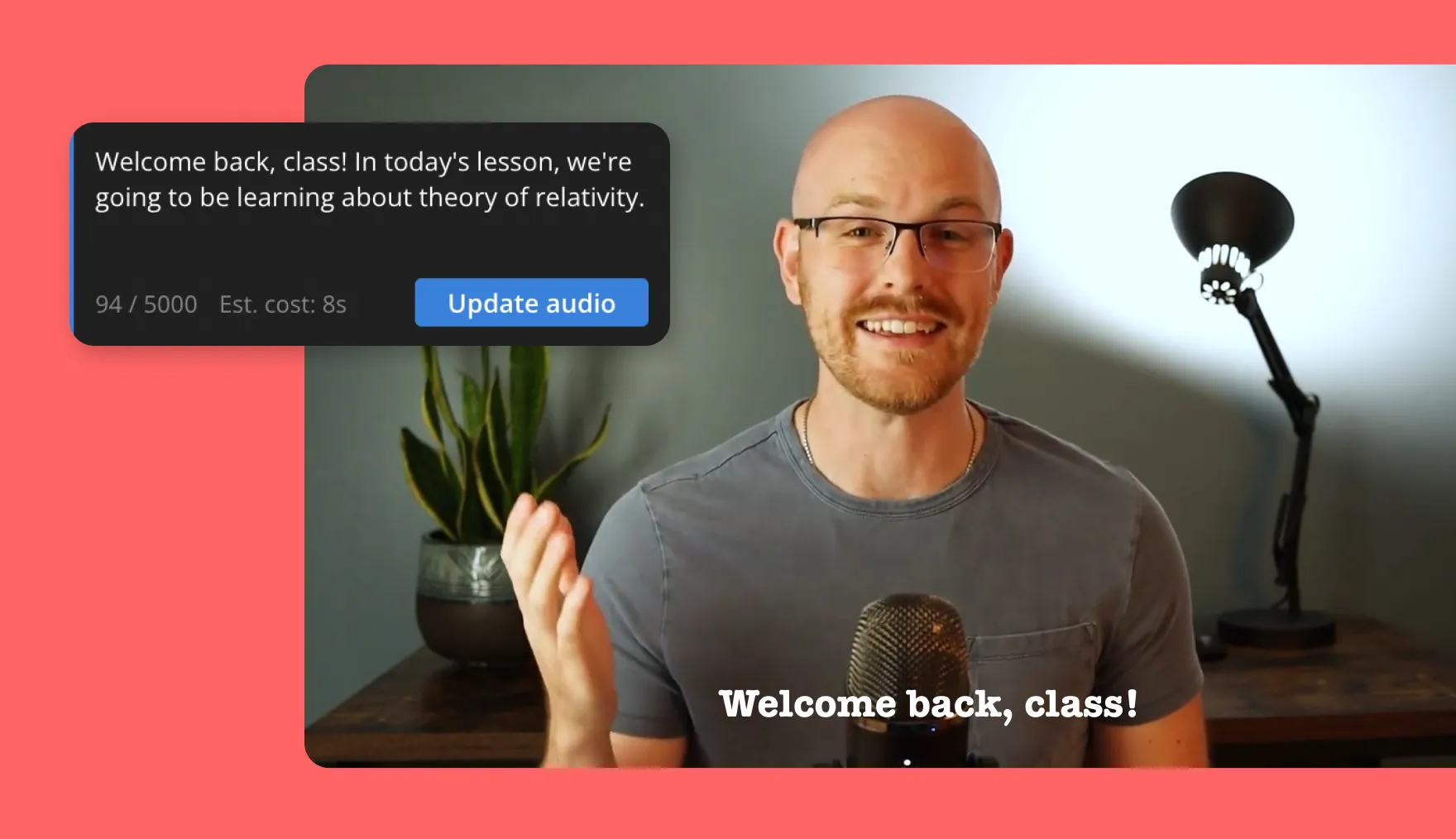
Reversing or rotating diagrams and models supports clearer analysis and instruction, making it a valuable tool for educators across all subjects

Media Companies
Journalists, bloggers, and media teams use image side changes to flip photos, aligning visuals more effectively with article layouts and text flow
Support Teams
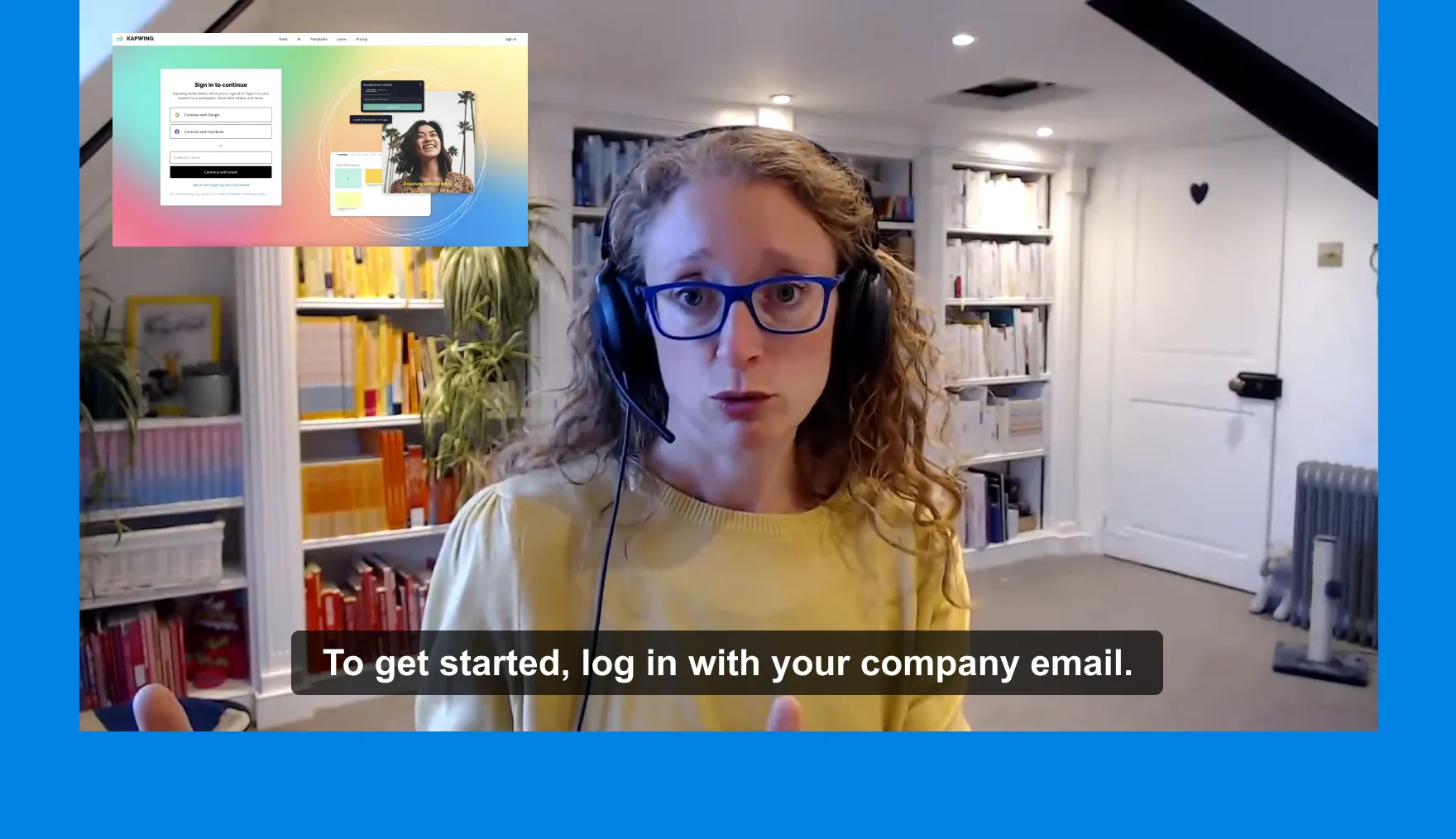
Flipping, mirroring, or rotating product screenshots to match the user's perspective when troubleshooting is easy for support teams
Frequently Asked Questions
We have answers to the most common questions that our users ask.
Is Kapwing's Flip Image tool free?
Yes, anyone can use Kapwing's Flip Image tool for free.
Is there a watermark on exports?
If you are using Kapwing on a Free account then all exports contain a watermark. Once you upgrade to a Pro account the watermark will be completely removed from your creations
Are photographs reverse images?
Selfies taken with a front-facing camera often produce a mirrored image, swapping the left and right sides to mimic how you see yourself in a mirror. Traditional cameras, however, capture the scene as it truly appears, making them non-reversed. If needed, use Kapwing to quickly flip or mirror photographs and correct the orientation.
How to flip an image on an iPhone
Kapwing works across both desktop and mobile devices. To flip an image on an iPhone, start by uploading a picture to Kapwing's online browser. Next, select the image and click 'edit image'. Scroll at the bottom of your iPhone until a 'Rotate' section appears. Here, you can flip, mirror, rotate, or reverse your image for free.
What image files does Kapwing work with?
Kapwing supports most major file types, including but not limited to, JPEG, PNG, GIF, WebP, HEIC, and more.
How do you reverse an image?
Reversing an image simply involves rotating an image across its axis, typically by 90 or 180 degrees. Select your picture or photo then navigate to the 'Rotate' section on the right-hand toolbar (desktop). From here, click on the third icon to reverse the image in one click.
What is the difference between a flip, mirror, rotate, and reverse image?
The terms flip, mirror, rotate, and reverse image describe different ways to alter an image's orientation or appearance:
- Flip: Reverses the image horizontally (left to right) or vertically (top to bottom) along its axis, creating a simple inversion
- Mirror: Similar to a horizontal flip, it creates a reflection of the image as if viewed in a mirror. It emphasizes symmetry and is often interchangeable with the term "flip"
- Rotate: Turns the image by a specific angle, such as 90°, 180°, or 270°, either clockwise or counterclockwise. It changes the image’s position without flipping or mirroring it
- Reverse: Often overlaps with "flip" or "rotate" depending on the context, but typically refers to rotating an image 180°
If you flip an image, does it affect quality?
No, flipping an image with Kapwing preserves the original image quality.
Discover Resources
Tips, templates, and deep dives to help you create faster and share with confidence.
View all


What's different about Kapwing?



Get started with your first video in just a few clicks. Join over 35 million creators who trust Kapwing to create more content in less time.