AI PDF to Video
Turn PDFs into videos with AI.
Works in your browser. No watermarks.
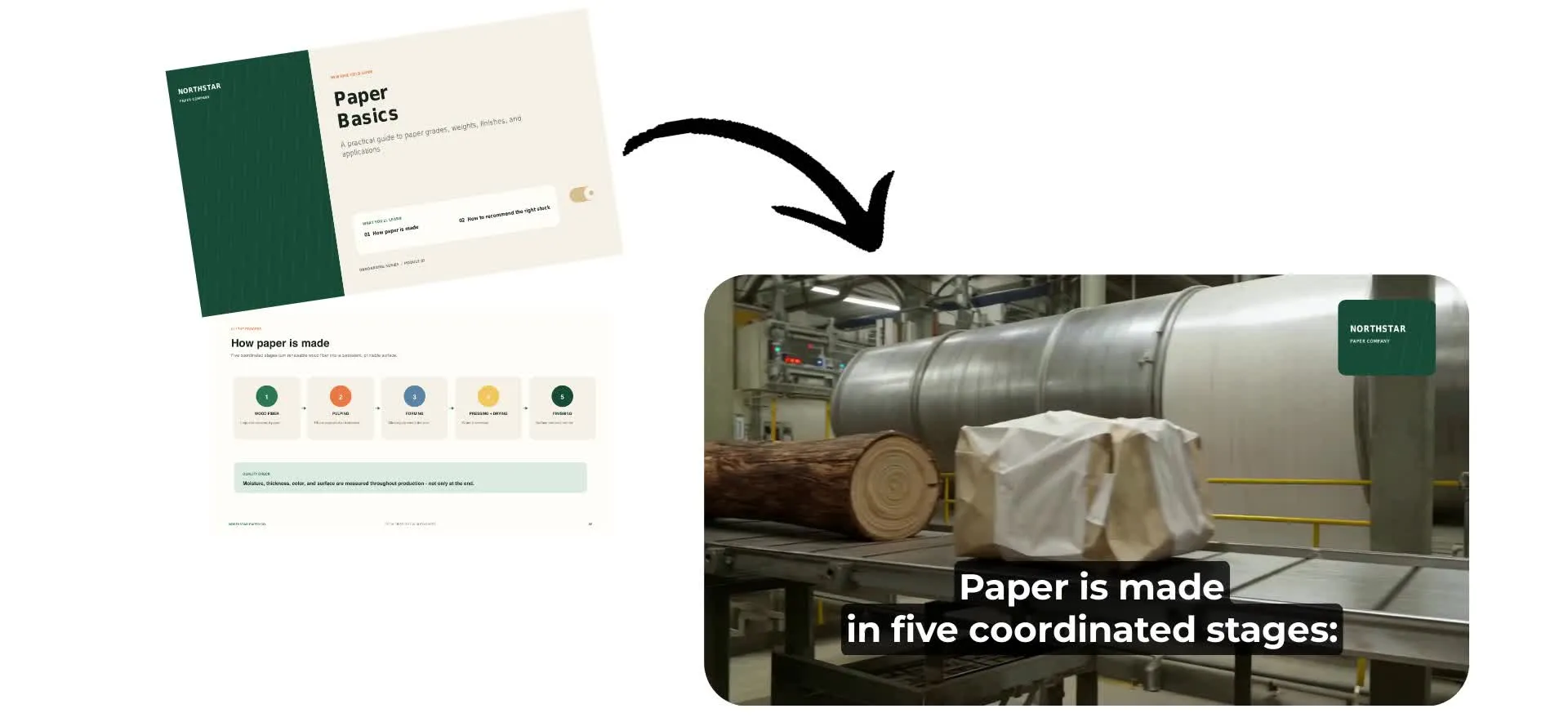
Turn static PDFs into engaging videos online
Create videos with voiceovers, subtitles, and visuals. No installs or downloads.
Your PDF, reimagined as a video
Turn any PDF into a ready-to-share video in minutes. Upload your document to a chat with Kai, Kapwing's AI assistant, then describe the video you want to create. From lesson handouts and slide decks to reports, newsletters, and ebooks, Kai transforms your content into a shareable video format.
Kai creates a complete plan for the AI Video Generator with a natural voiceover script, scene-by-scene visuals, and pacing optimized for viewers. Refine the script, adjust visuals, or change the style anytime using simple chat prompts.
When you're ready, click Generate to create your video automatically. Make final edits in the Studio or download a watermark-free MP4 that's ready to share anywhere.
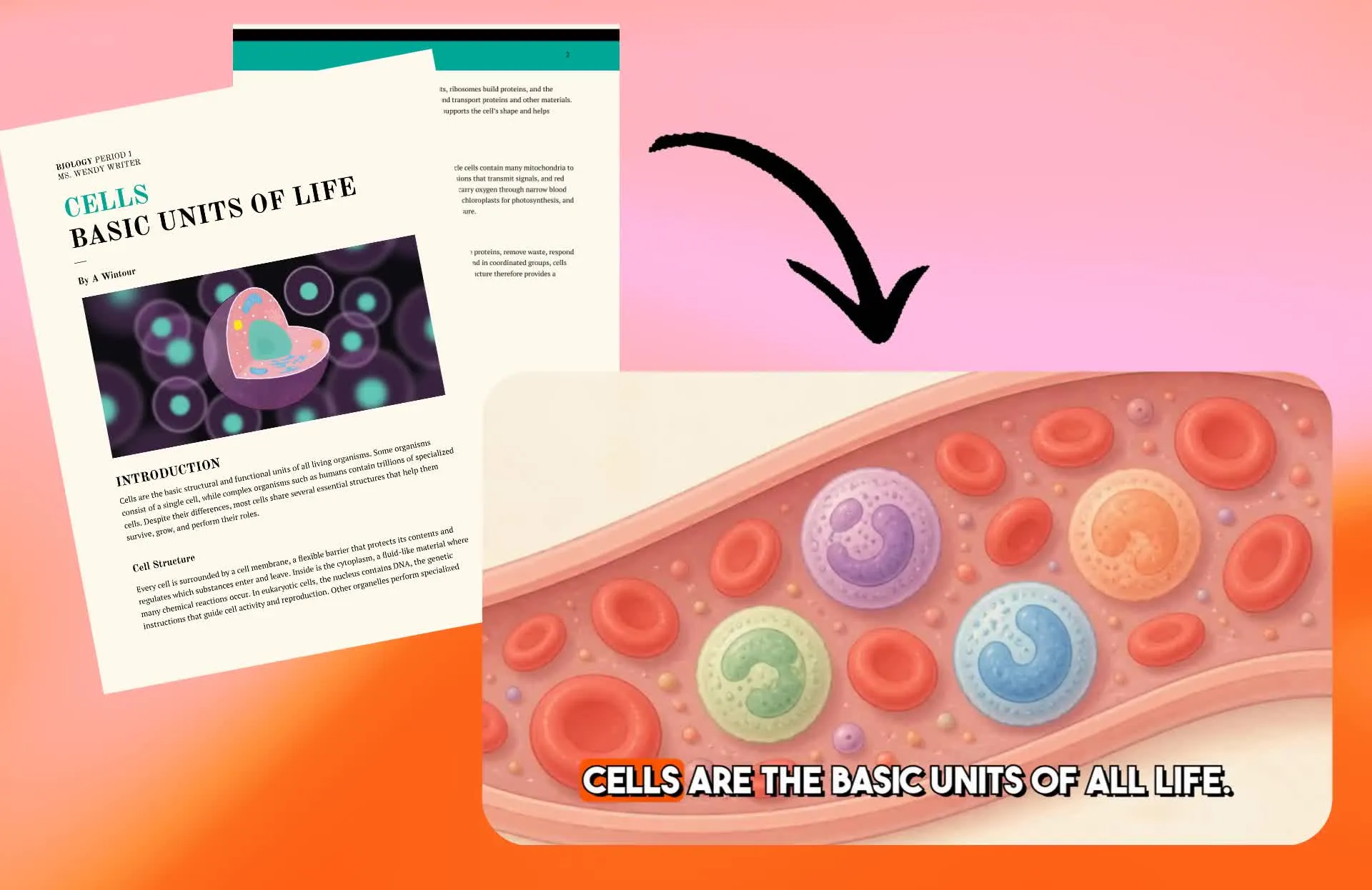
How to convert PDF to MP4 in minutes
Turn your PDFs into videos for any platform. Download without watermarks.
Upload
your PDF to a new chat with Kai


Prompt
to create a video with visuals and voiceover
Download
your completed MP4 or edit with additional prompts
Create videos from every kind of PDF
Turn presentations, newsletters, worksheets, and guides into engaging videos

Sales Decks
Sales reps transform pitch decks and proposals into videos they can send before or after meetings. Convert PDF to MP4 to deliver presentations prospects can watch on their own schedule.
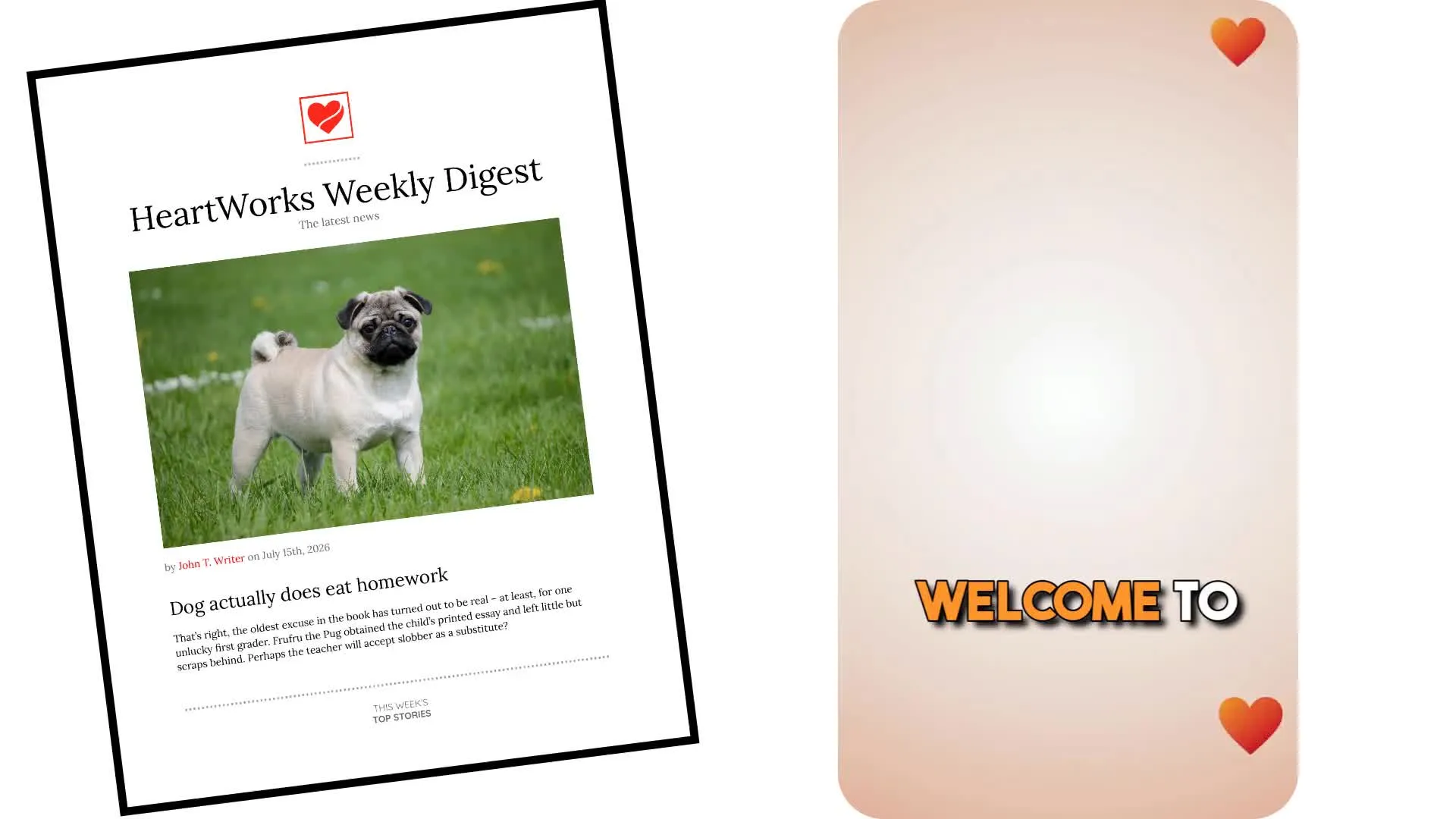
Newsletters
Marketers repurpose company newsletters, industry roundups, and quarterly updates as short videos for social media and internal communications

Presentation Slides
Turn presentation PDFs into narrated videos with AI-generated voiceovers and visuals. Share conference talks, company updates, project proposals, and keynote presentations in a format people can watch anytime.
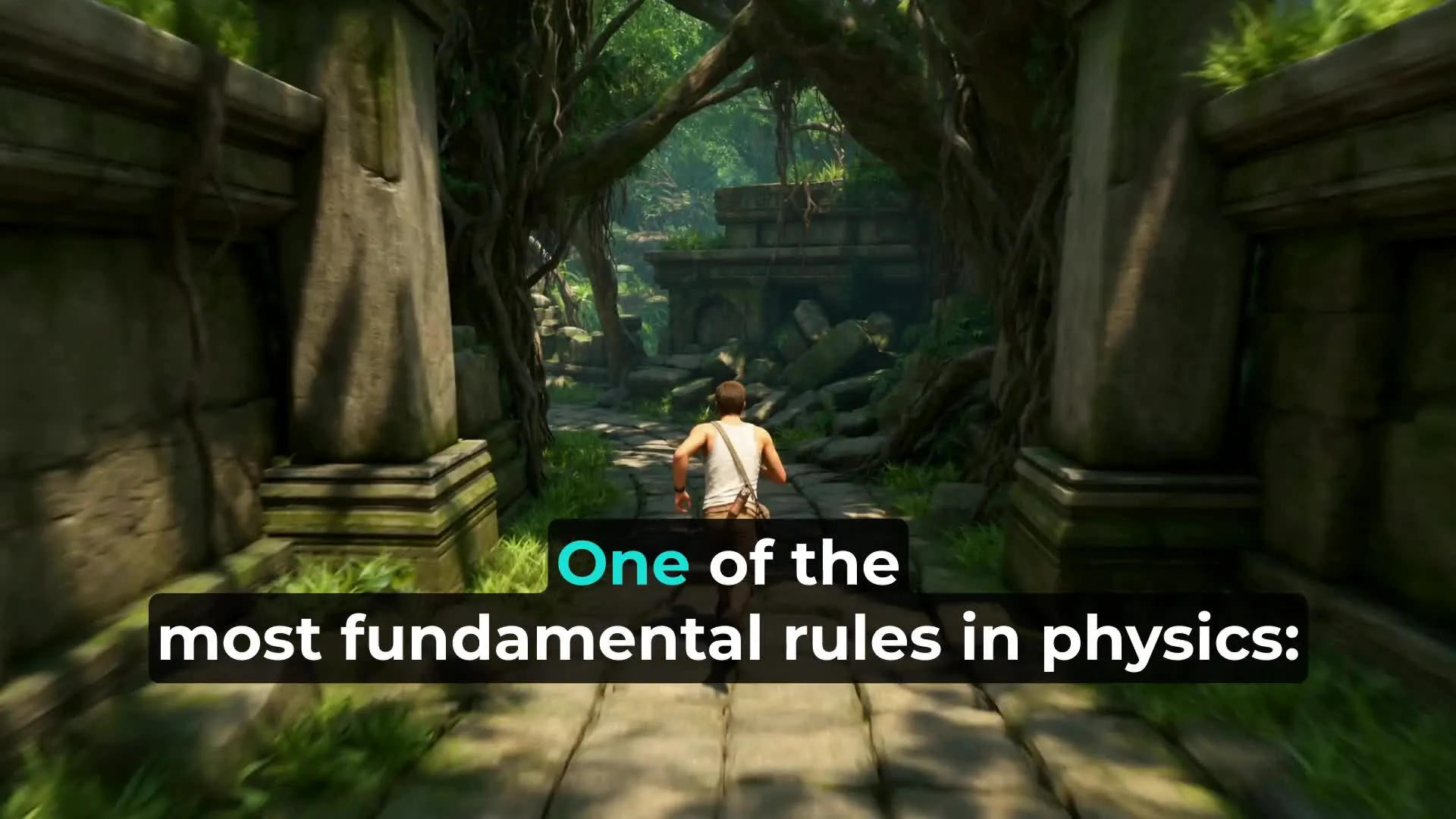
Study Guides
Tutors and college students turn study guides, articles, or educational PDFs into fast-paced brainrot PDF to video study material with AI narration, dynamic visuals, and subtitles
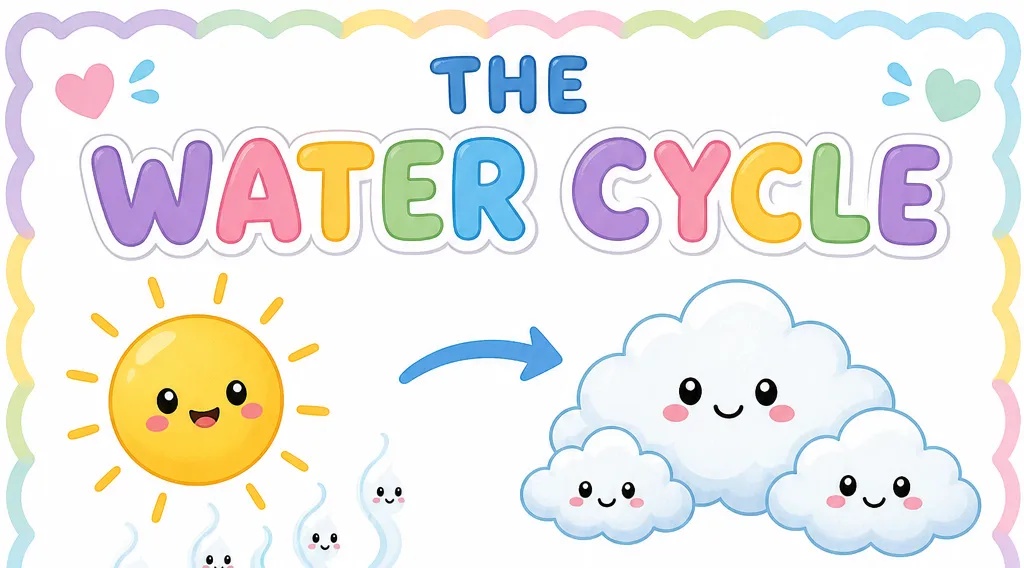
Lessons & Worksheets
Educators and online coaches turn lesson handouts and worksheets into narrated videos that students can watch anytime. Convert a PDF to video with AI instead of recording every lesson from scratch.
Make PDFs easier to watch, understand, and share
Prompt to shape your video. Works in your browser.
Turn PDFs into videos in minutes, not hours
Creating a video from a PDF usually means rewriting content, recording a voiceover, sourcing visuals, and editing everything together. AI PDF to Video automates the process by turning your document into a ready-to-share video with a script, narration, subtitles, and relevant visuals.
Get more value from every PDF by repurposing it for different audiences. Turn a single presentation into a narrated lesson, a webinar recap, a YouTube tutorial, and short social clips without starting from scratch. Simply tell Kai what you want to create, then generate polished MP4s in minutes.
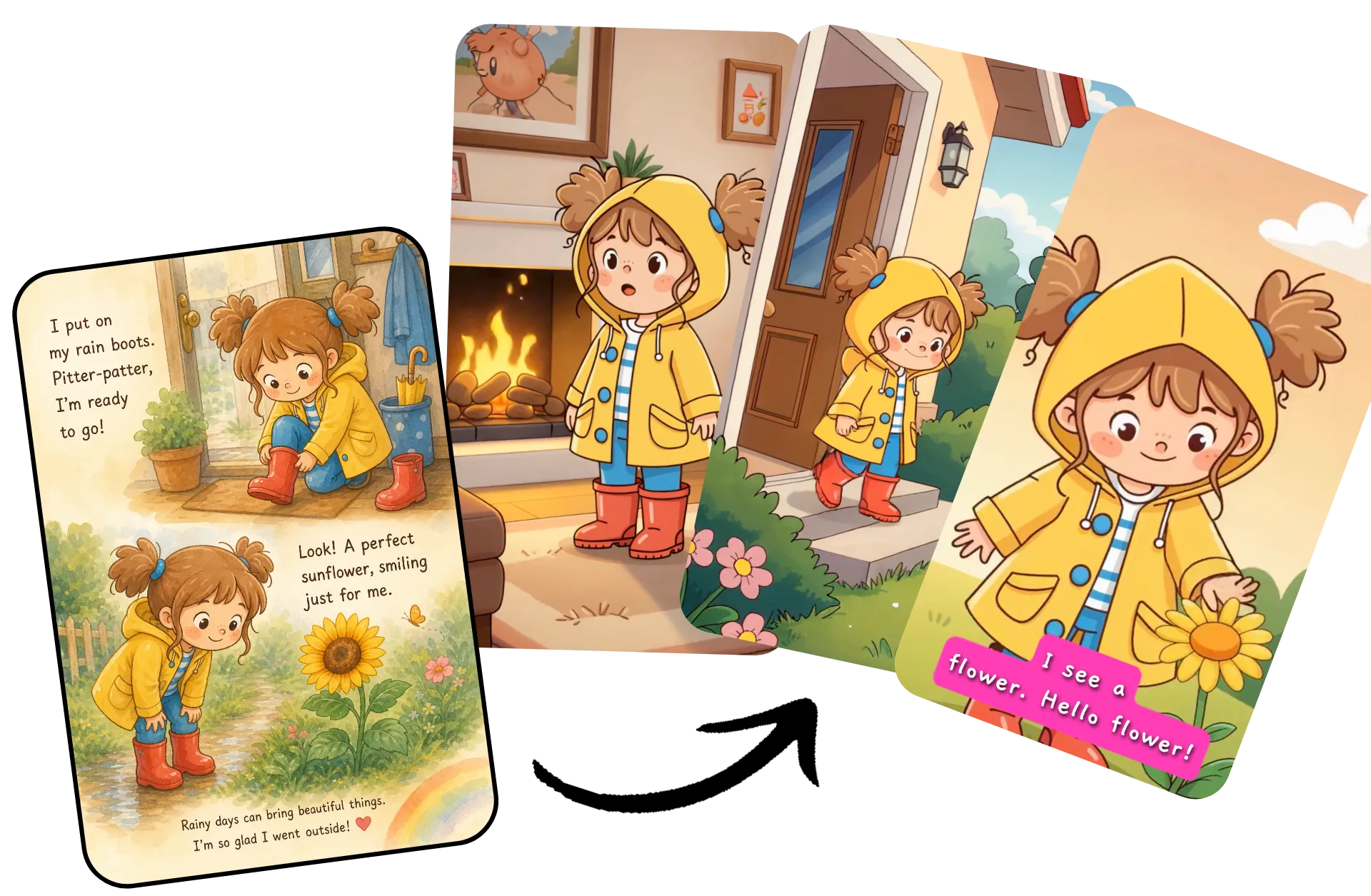
Plan every scene before you generate
Guide how AI interprets your PDF before it's turned into a video. Kapwing's AI video assistant, Kai, analyzes your document and creates an editable storyboard with a voiceover script, scene-by-scene visuals, pacing, and music — all before using any credits.
Refine every part of the plan using simple chat prompts. Rewrite the script, reorganize sections, shorten or expand explanations, swap visuals, or maintain consistent characters across scenes. Once the storyboard matches your vision, approve it and generate your video with confidence.
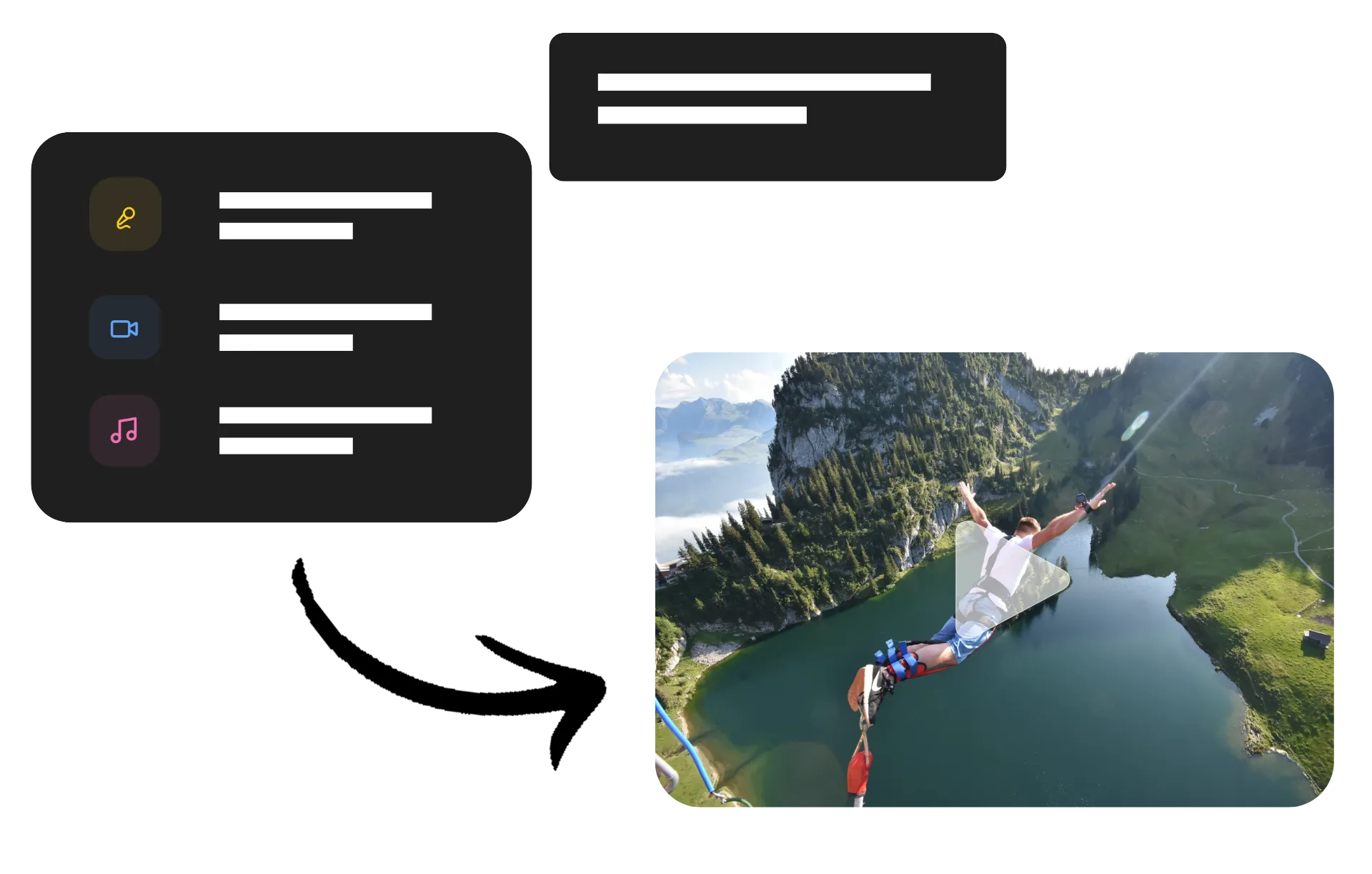
Create reusable characters from your PDFs
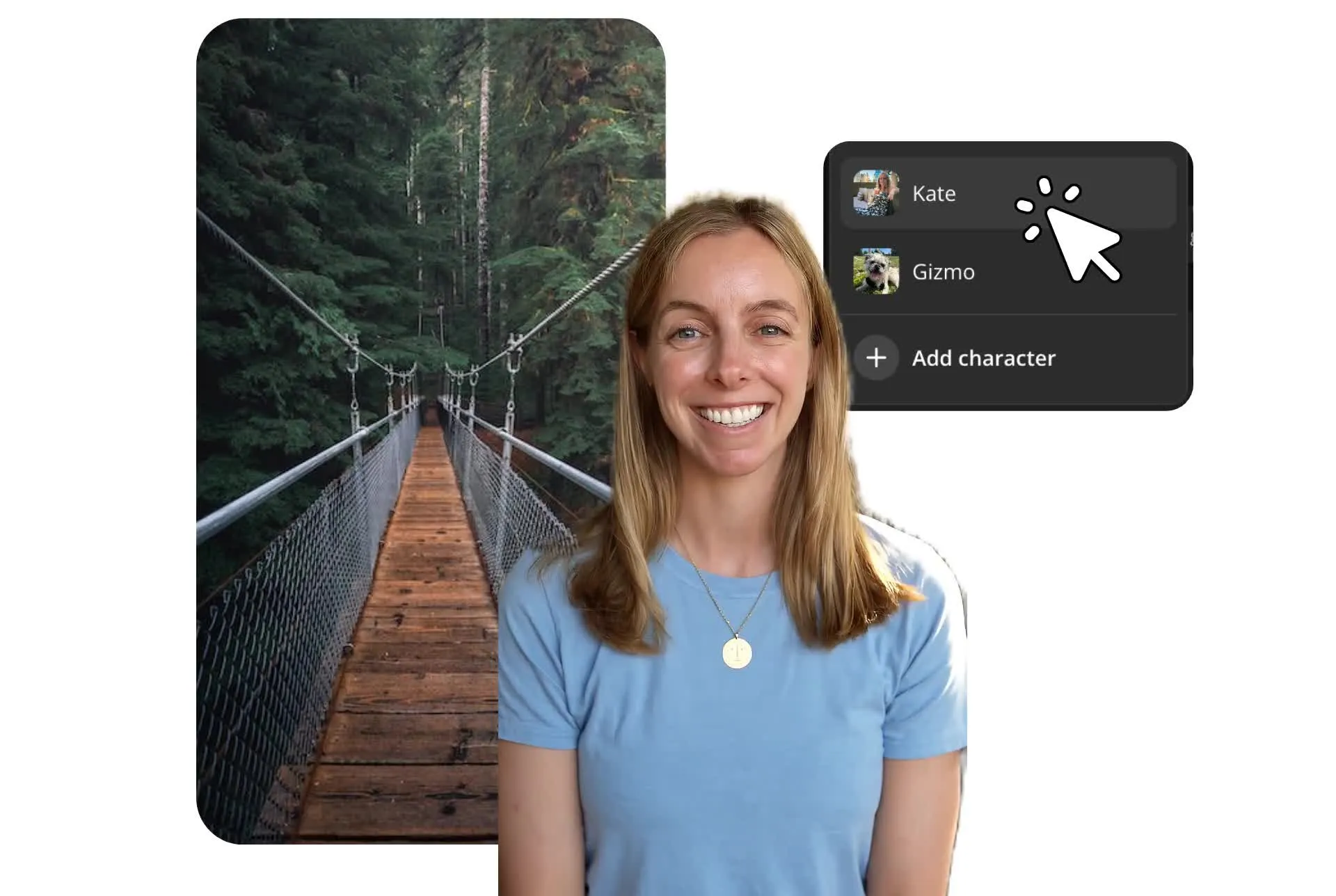
Turn the people in your PDFs into reusable AI characters, or create an AI persona of yourself to present the content. Whether you're adapting a children's book, training manual, lesson plan, or presentation, you can generate consistent characters that appear across every scene — or have your AI presenter read and explain the PDF with synchronized voiceover, without recording yourself.
Reuse saved characters and personas across future videos to build recognizable, consistent content. Change backgrounds, camera angles, expressions, and scenes while preserving each character's identity, or use your AI persona to deliver reports, training videos, product explainers, and educational lessons with a natural, on-brand presentation every time.
Streamline team video workflows
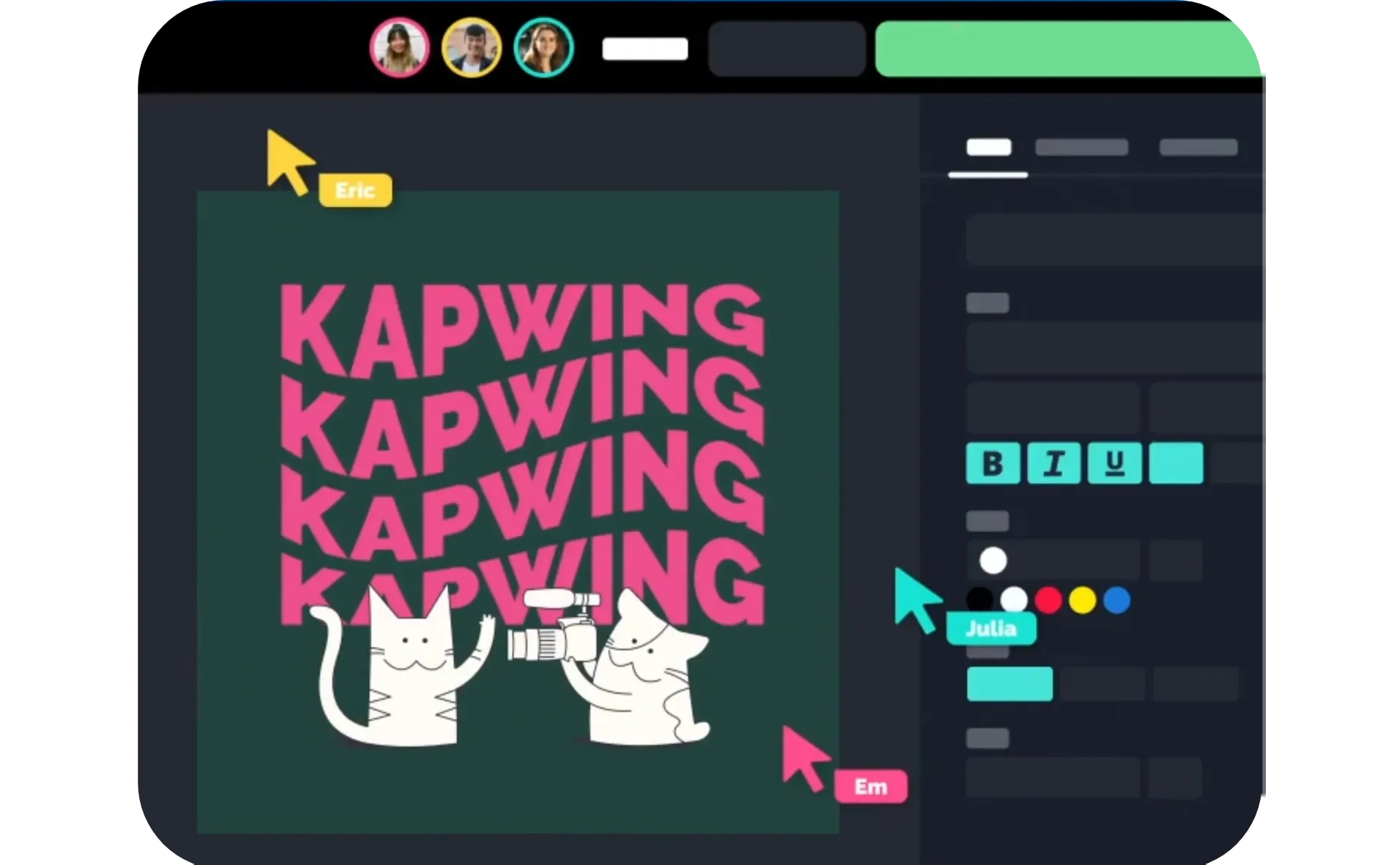
Turn static documents into video projects your whole team can work on together. Marketing teams, educators, L&D departments, and customer success teams can review AI-generated scripts, refine visuals, leave comments, and edit videos in real time — all from a shared workspace instead of passing PDFs and feedback back and forth.
Keep every video consistent with shared Brand Kits and reusable templates. Store your logos, colors, fonts, and branded assets in one place, then apply them automatically to every PDF-to-video project. Shared workspaces, templates, and collaborative editing make it easy for teams to produce professional videos faster while maintaining a consistent look and voice across every export.
How to Convert PDF to Video
- Step 1Upload PDF
Create a new chat with Kai and click or use drag-and-drop to upload your PDF.
- Step 2Enter prompt
Type a prompt like "Turn this PDF into a video with a voiceover and relevant visuals." Click the arrow or press enter to generate your video plan.
- Step 3Approve and generate
Review and edit Kai's plan for your video, then click confirm plan. Download your completed video as watermark-free MP4.
What's different about Kapwing?



Frequently Asked Questions
We have answers to the most common questions that our users ask.
Is AI PDF to Video free?
Yes, anyone can try Kapwing’s AI Toolkit for free without watermarks. Our AI tools run on a credit system, with each feature costing a set number of credits. For maximum creativity and the best value, upgrade to a Pro account to unlock the full power of AI-driven content creation.
How to convert PDF to video
To change PDF to MP4, start by creating a new chat with Kapwing's AI assistant, Kai. Click to upload your PDF, then describe the video you want to create. Click the arrow to generate, then review Kai's plan for your video. Make any changes, then click "Confirm plan" to generate your full video. Once it's generated, you can download as MP4 straight to your device or move to the Studio for additional edits.
Can AI add voiceovers and visuals to my PDFs?
Yes, AI PDF to Video tools like Kapwing can generate a video script, create an AI voiceover, recommend relevant visuals and B-roll, and automatically add subtitles. The result is much more engaging than simply scrolling through a PDF while someone reads it aloud.
You can also review and edit the generated plan before rendering the final video to ensure the narration and visuals match their goals.
What kinds of PDFs work best?
You can convert a PDF to video from almost any document, including slide decks, educational documents, lecture notes, reports, ebooks, newsletters, whitepapers, case studies, user manuals, onboarding guides, and training materials.
Documents with clear headings and structured sections generally produce the best results because AI can organize the information into logical scenes.
Can I make educational videos from lecture notes?
Absolutely, the PDF to video lecture workflow is a popular use for AI. Teachers, online educators, and L&D teams upload lesson plans, lecture slides, or study guides to create narrated learning videos that students can watch on demand.
Instead of recording every lesson manually, AI generates a draft with voiceover, subtitles, and supporting visuals that you can customize before publishing.
Can I edit the video before it generates?
Yes, with Kapwing's AI video assistant, you review the complete video plan before generating any scenes or using credits. You can rewrite the narration, replace visuals, adjust pacing, or change the overall style using simple chat prompts.
Approving the plan first gives you much more control than generating a full video immediately and editing it afterward.
How do I write the best prompt for my PDF?
Start by telling the AI assistant what you want the finished video to accomplish, not just that you want to "convert this PDF to a video." For example, you might ask Kai to turn a research report into a 2-minute LinkedIn video, summarize a presentation as a YouTube explainer, or transform lecture notes into a 10-minute narrated lesson. Including your target audience, preferred length, tone, and platform will produce more relevant scripts and visuals.
You don't need to get everything right in the first prompt. Kai creates an editable video plan before generating, so you can ask it to shorten sections, emphasize key points, add or remove scenes, change the voiceover style, or swap visuals until the plan matches your vision. This iterative workflow is especially useful for PDFs, where the same document can be repurposed into many different kinds of videos.
Can I turn other kinds of documents into videos?
Yes, if you're working with notes, Word documents, articles, or other written content, you can turn them into videos by copying the text into the AI Document to Video tool. You can also export your content as a PDF from Google Docs, Apple Pages, or another word processor before uploading to Kai.
You can also turn presentations, slide decks, reports, ebooks, newsletters, worksheets, manuals, and other documents into videos, as long as you can save or export them as a PDF. Kai analyzes the PDF's structure and content to generate a video plan with a script, voiceover, visuals, and subtitles that you can edit before generating the final video.
Can AI read any PDF?
AI works best with PDFs that contain readable, selectable text. That includes most digitally created PDFs, such as presentations, reports, ebooks, newsletters, manuals, and documents exported from Microsoft Word, Google Docs, or PowerPoint.
If your PDF is a scanned document or consists only of images, the AI may not be able to accurately interpret the content unless the text has been processed with OCR (optical character recognition). For the most accurate scripts, voiceovers, and visuals, upload a high-quality PDF with clear, machine-readable text.
Discover Resources
Tips, templates, and deep dives to help you create faster and share with confidence.
View all

Get started with your first video in just a few clicks. Join over 35 million creators who trust Kapwing to create more content in less time.