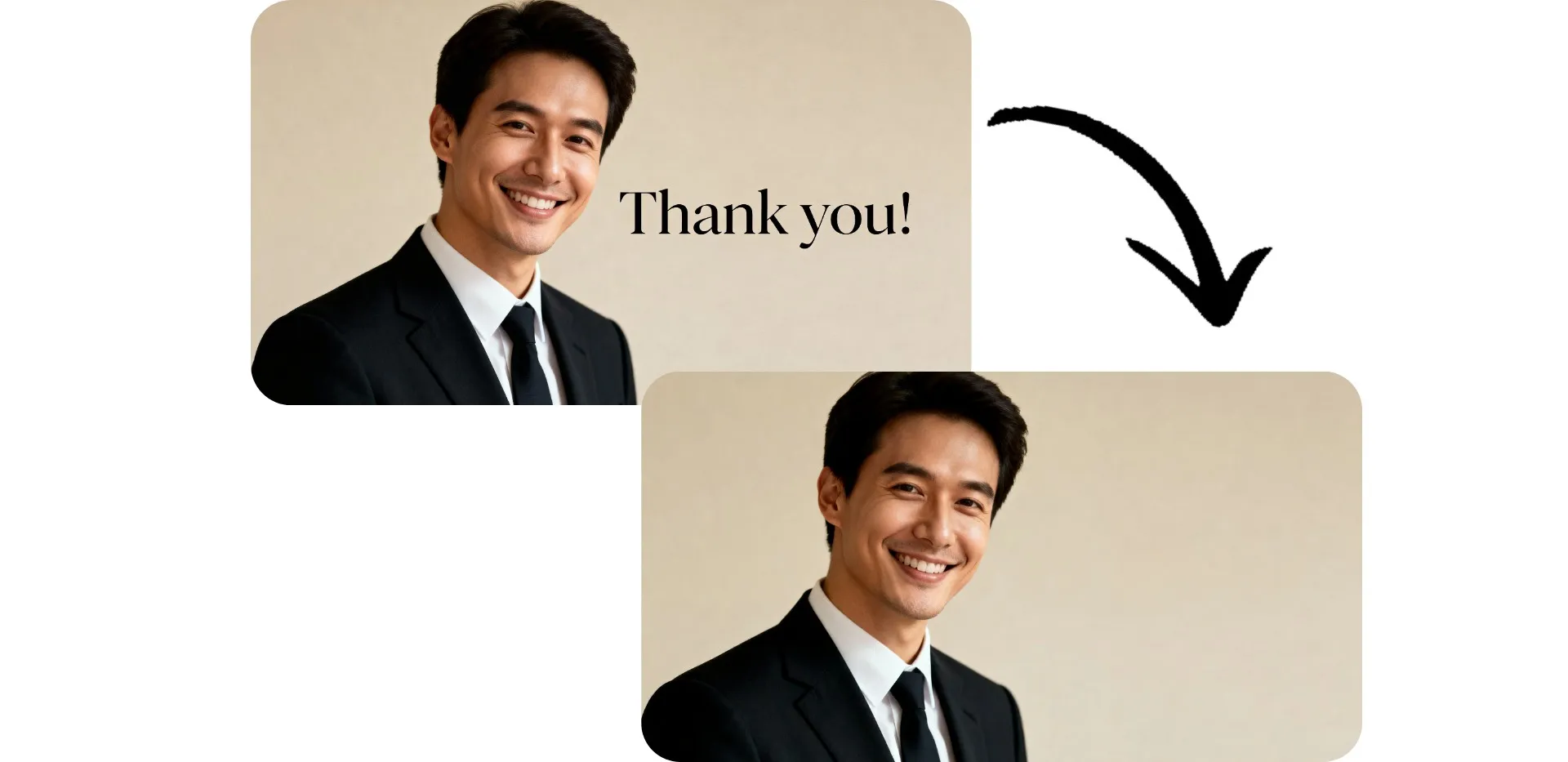
Remove text with AI — maintain details and quality
Erase text without blur using an online tool
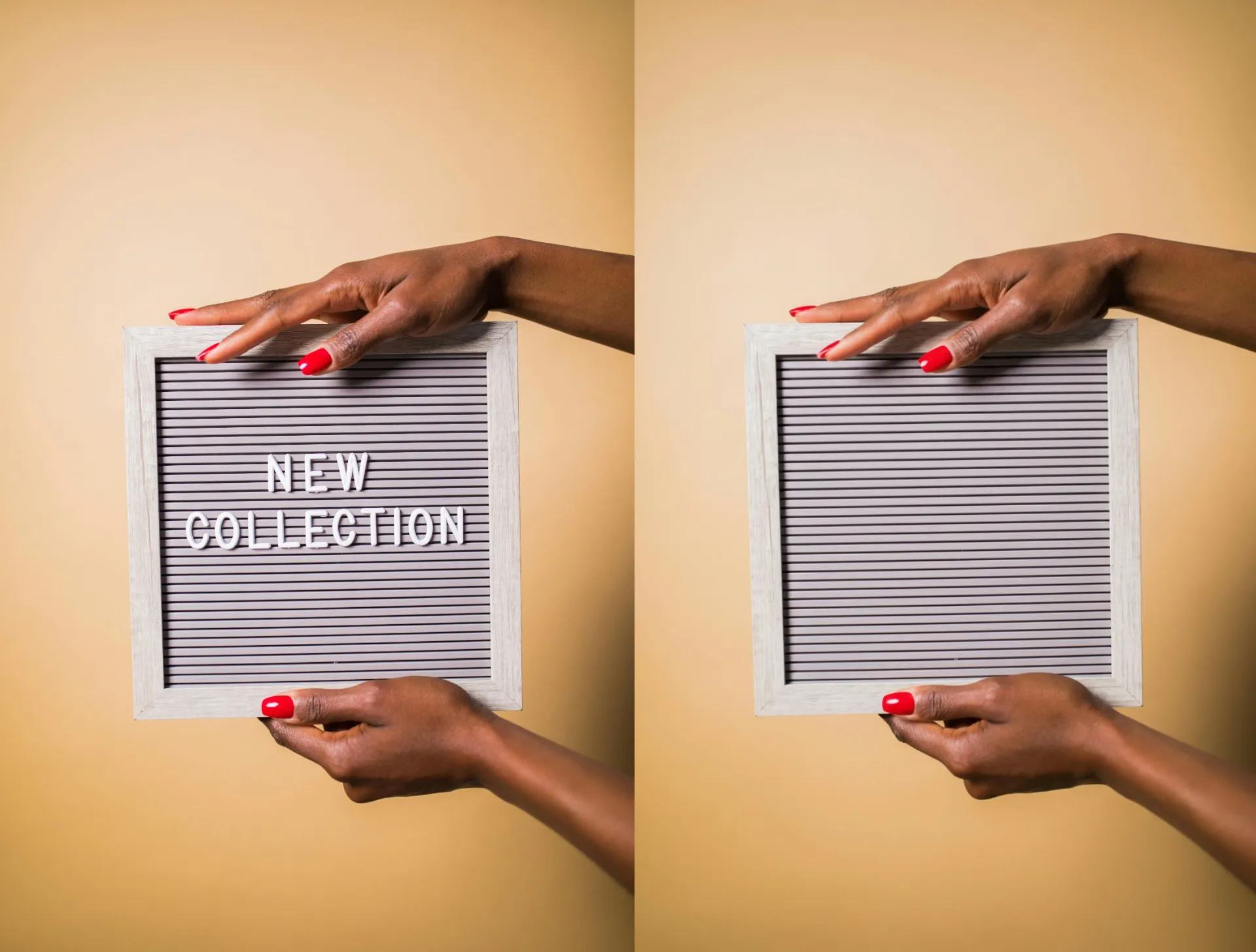
Repurpose visuals with instant text removal
Make your visuals more versatile with Kapwing's Remove Text From Image. The AI scans your image to remove text overlays and diegetic in-image words, then uses AI inpainting to realistically fill in the gaps. Maintain every detail of your original image, including patterns, gradients, and shadows, all without affecting resolution or adding blur.
Reuse stock images, remove embedded quotes and captions, fix typos, or remove distracting labels and signs. Skip tedious masking, rasters, and image reconstruction with instant content-aware fill.
Remove text, then keep editing in a professional studio
Kapwing's image text remover is integrated with a comprehensive image editing studio so you can remove text without slowing your workflow.
Add new text overlays and stickers. Apply filters and fine-tune color and lighting. Reach a global audience with automatic image text translations, erase your image background, or upscale resolution with one-click AI tools.
Resize for any platform with preset aspect ratios, then download and share your images directly to social media.
Already transforming video creation across industries
Hear directly from the teams who publish faster, collaborate better, and stay ahead.


How to Remove Text From Images Online
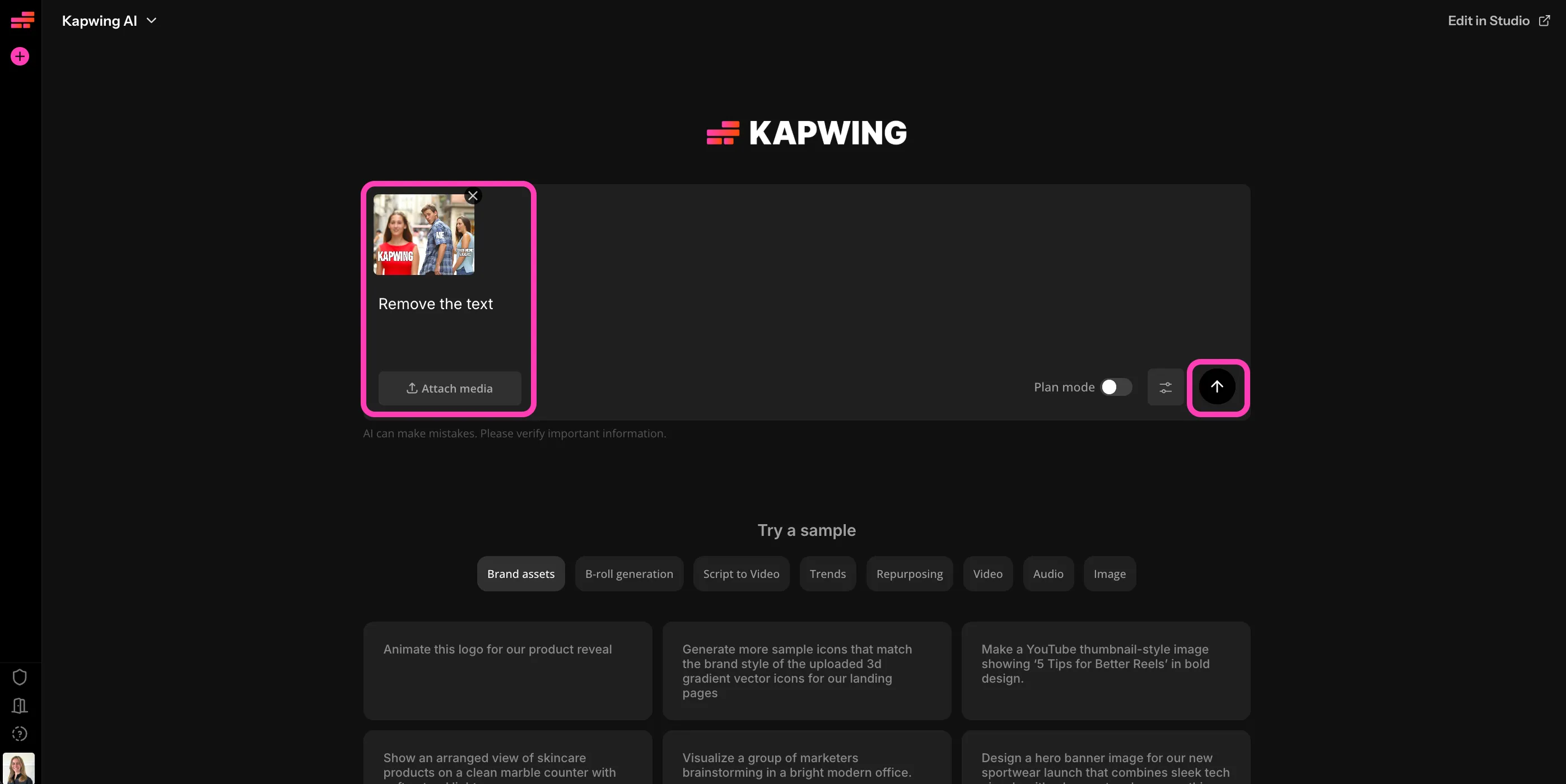
- Step 1Upload image
Create a new chat with Kapwing AI and click to upload your image.
- Step 2Remove text
Enter a prompt like "Remove the text," then click the arrow to generate.
- Step 3Edit and export
Edit your image further in the studio, or download to your device.
What's different about Kapwing?



Frequently Asked Questions
We have answers to the most common questions that our users ask.
Is the Remove Text From Image tool free?
Yes, anyone can try Kapwing’s AI Toolkit for free without watermarks. Our AI tools run on a credit system, with each feature costing a set number of credits. For maximum creativity and the best value, upgrade to a Pro account to unlock the full power of AI-driven content creation.
How to remove text from a picture
To remove text in images with Kapwing, start by creating a new chat with Kapwing's AI. Click to upload your image, then enter a prompt like "Remove the text in this image, keeping everything else the same." For the best results, click the "Settings" icon and choose Google Nano Banana as your image model.
The AI will automatically remove your text and return your image without the text. You can download it as a JPG or edit it in the studio, then export as JPG, PNG, or WebP.
Which AI model works best for text removal?
Kapwing offers you a range of advanced AI model options, including Seedream, GPT Image, and Nano Banana. We recommend selecting Nano Banana as your preferred image model for text removal that maintains your original image. To do this, open a chat with Kapwing AI, then click the settings button near the generate arrow. Under "Images," select "Google Nano Banana."
What image file formats does Kapwing support?
Kapwing supports all major image file formats, including JPG, PNG, and WebP. You can upload and download images in any of these formats.
Can I add and customize new text in my images?
Yes, you can also add text overlays to your images after using the photo text remover. Remove text in your picture, then move it to the editing studio to add and customize new text boxes. Click "Text" in the lefthand sidebar, then choose your preferred text style. Type in your words, adjust position and sizing, and choose your font, alignment, color, background, blur, and drop shadow.
Does the Remove Text From Image tool work on complex backgrounds?
Yes. Kapwing’s text remover from image is designed to work on complex backgrounds such as patterned walls, textured surfaces, gradients, and detailed scenes. The AI uses inpainting to reconstruct missing areas by analyzing nearby pixels, shadows, and perspective.
While simple backgrounds are processed instantly, more detailed images may benefit from selecting the recommended AI model for best results. Whether you need to remove text in picture files with subtle lighting or layered textures, the AI aims to maintain realism and image quality.
Will removing text reduce image resolution?
No, Kapwing’s remove text from image AI maintains your original resolution. The AI reconstructs only the selected text area while preserving the rest of the image’s quality, sharpness, and detail.
After you remove text from image files, you can download them in high resolution or continue editing in the studio to resize, enhance, or export in your preferred format.
Can I use Kapwing as a photo text remover on mobile?
Yes. Kapwing works entirely online, so you can use the photo text remover on desktop, tablet, or mobile devices. There’s no app download required: just upload your image in your browser and let the AI remove text from image files instantly.
This makes it easy to remove text in picture files on the go, whether you’re editing social media content, marketing visuals, or personal photos.
Discover Resources
Tips, templates, and deep dives to help you create faster and share with confidence.
View all
Get started with your first video in just a few clicks. Join over 35 million creators who trust Kapwing to create more content in less time.