Make GIFs out of videos and images.
Edit and export for free online.

Create and edit GIFs online
Turn videos, photos, and existing GIFs into custom repeating animations
Turn anything into a ready-to-share GIF
Kapwing’s online GIF maker lets you create animated GIFs from videos, images, and existing GIFs, then customize every part of your animation in one editor. Trim clips, arrange images, adjust timing, crop and resize your GIF, or add filters, text, stickers, and graphics to create the exact loop you want.
Use the GIF creator to turn a video moment into a reaction GIF, combine photos into an animation, make a GIF meme, or edit an existing GIF for a new purpose. With Kapwing’s GIF editor, you can control your media on the timeline and make changes without switching between separate creation and editing tools.
Start with your own media or build a GIF from scratch, then export and download your finished GIF online.

How to make a GIF in 30 seconds
Build and export your GIF for free in Kapwing's online studio
Upload
your videos or images to the Kapwing Studio


Edit
using studio tools to trim, crop, overlay, reorder, and resize
Export
as high-definition GIF with adjustable compression settings
Make a GIF for any moment
Create and customize GIFs for your channel, company, or socials in an online studio
Reaction GIFs
Turn memorable video moments, expressions, and clips into looping reaction GIFs for messages, communities, and social posts
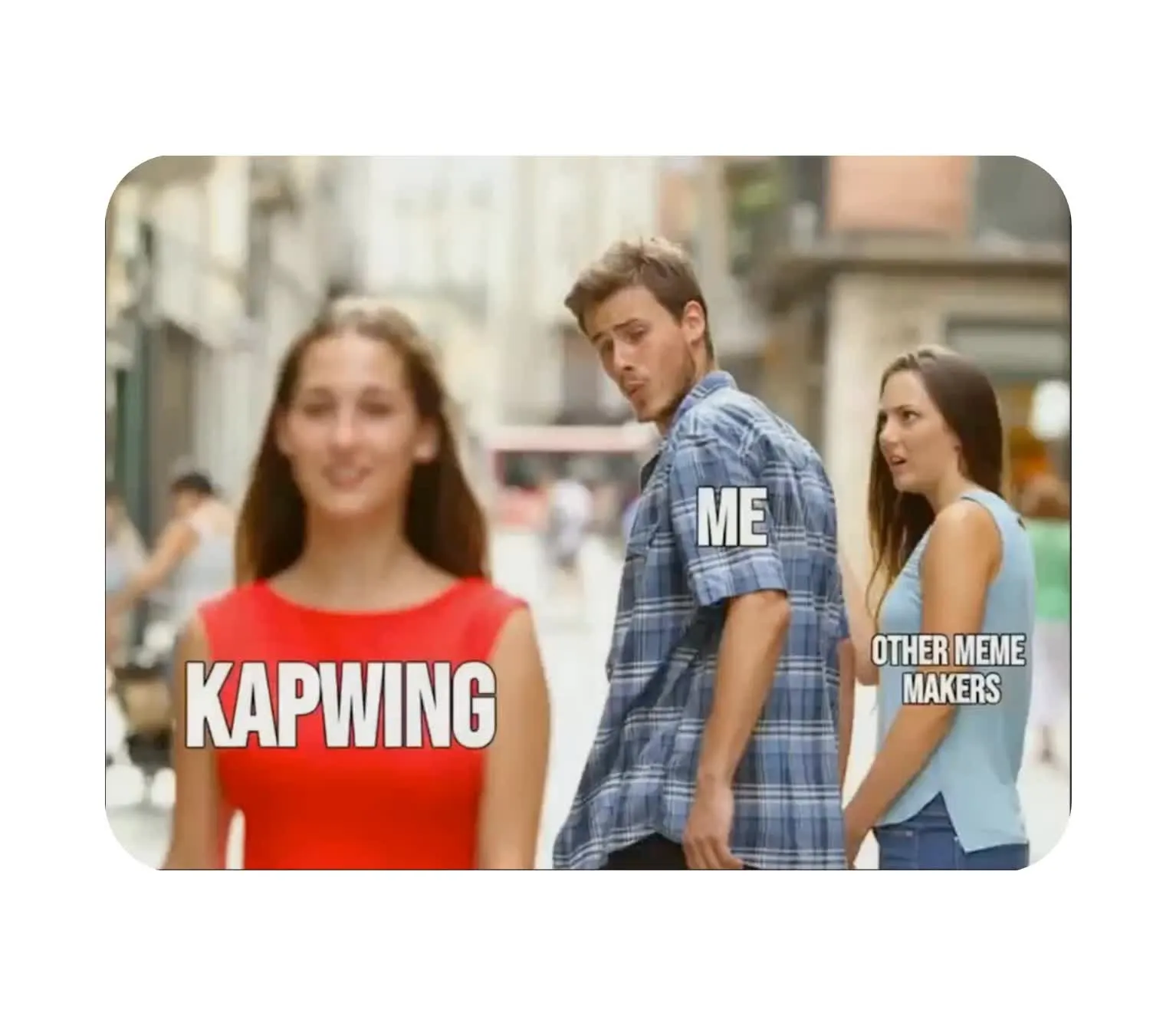
GIF Memes
Create animated memes with custom text, images, stickers, and timing. Start with your own media or edit an existing GIF with a new joke or message.
Tutorial GIFs
Show a short process or product feature in a loop. Educators, support teams, and product marketers can create GIFs that demonstrate steps without requiring viewers to play a full video.

Social GIFs
Resize and edit GIFs for social posts, replies, and community content. Add text and graphics to give each animation platform-specific context before sharing it.
Marketing GIFs
Make GIF product previews, announcements, and promotional graphics for campaigns, websites, presentations, and email content

Branded GIFs
Create animated logos, product graphics, campaign visuals, and other branded GIFs for websites, social media, email, and marketing content
Build unique GIFs in your browser
Create, edit, and optimize GIFs for free
Turn videos and images into GIFs
Create GIFs from videos, photos, and existing GIFs in one online GIF maker. Upload your own media or browse our stock library, then choose the moments or images you want to include and arrange them on the timeline. Combine multiple files into one GIF, control how long each one appears, and preview the animation as you edit.
Kapwing gives you room to customize your media before converting it. Trim a video into a short loop, turn a series of photos into an animated GIF, or edit an existing GIF with new media.
.webp)
Edit and customize in your browser
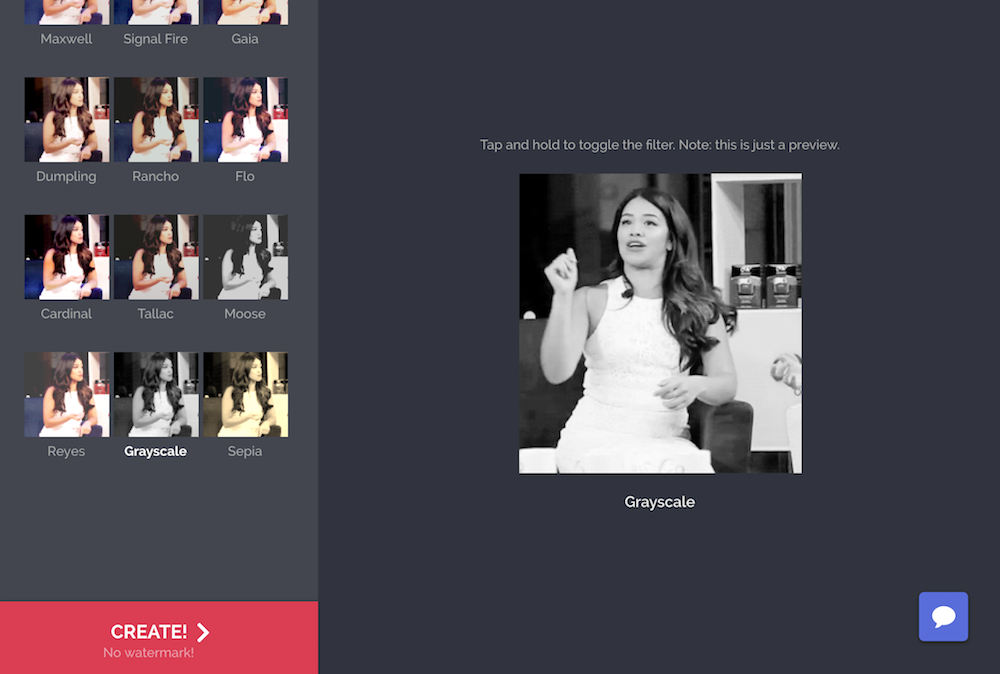
Create more than a basic loop with Kapwing’s GIF editor. Trim and split clips, rearrange media on the timeline, adjust timing, crop your canvas, and resize your GIF for different platforms. You can also edit an existing GIF to change its content, layout, or pacing without starting over.
Kapwing combines an animated GIF maker and editor in one workspace, so you can move from raw media to a finished GIF without switching tools.
Personalize GIFs with drawings and graphics
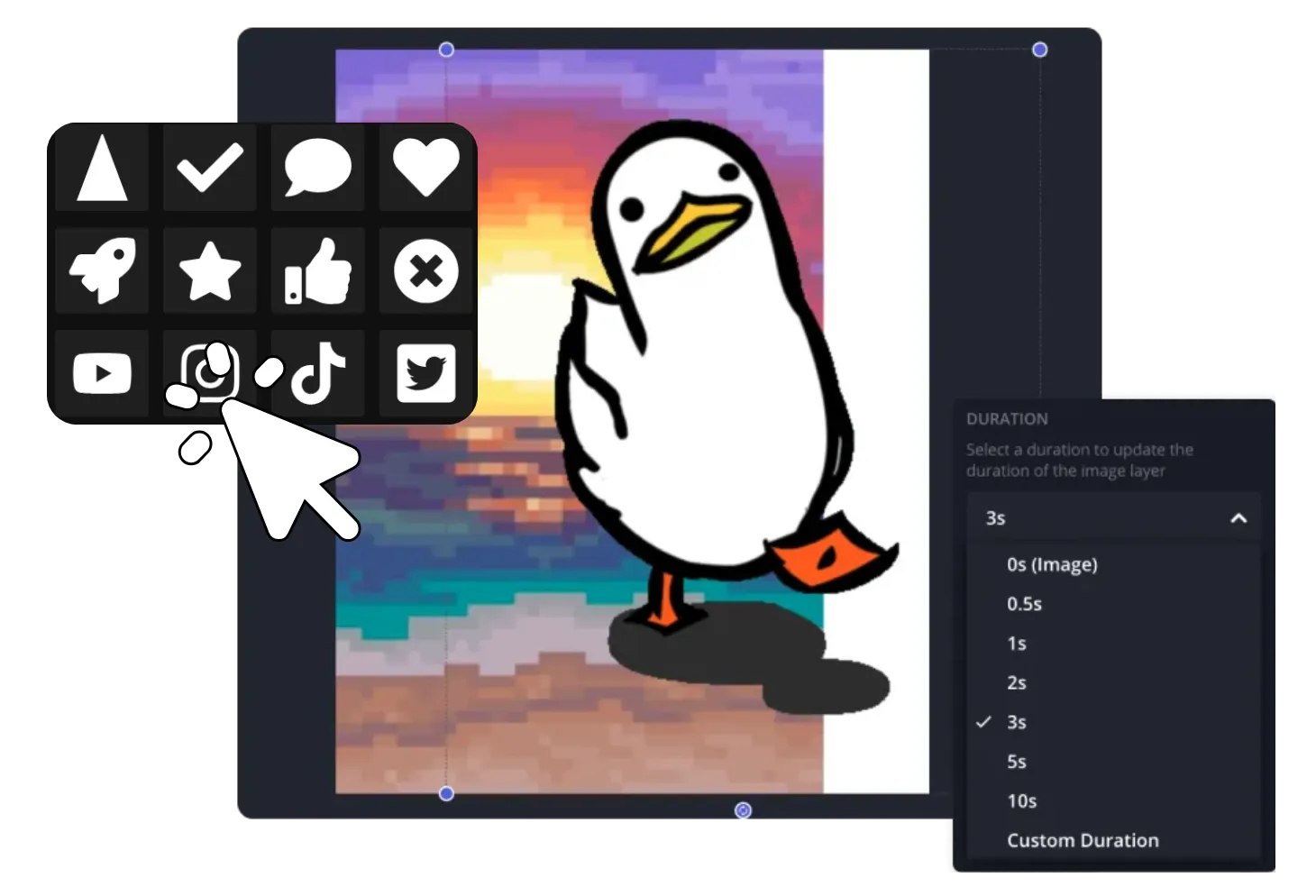
Personalize or brand your GIFs with text, images, logos, stickers, and hand-drawn elements. Add custom text to an animated meme, highlight an important detail in a tutorial, or apply logos and brand assets to marketing GIFs.
For more hands-on annotations, use Kapwing’s Draw on GIF tool to draw directly over your animation. Add arrows, circles, highlights, sketches, or handwritten notes, then customize the placement, appearance, and timing of each element alongside the rest of your media.

Already transforming video creation across industries
Hear directly from the teams who publish faster, collaborate better, and stay ahead.


Get more from every GIF
Add context, draw attention to key details, balance quality with file size, and work with your team to create GIFs
Make GIFs clearer with animated text
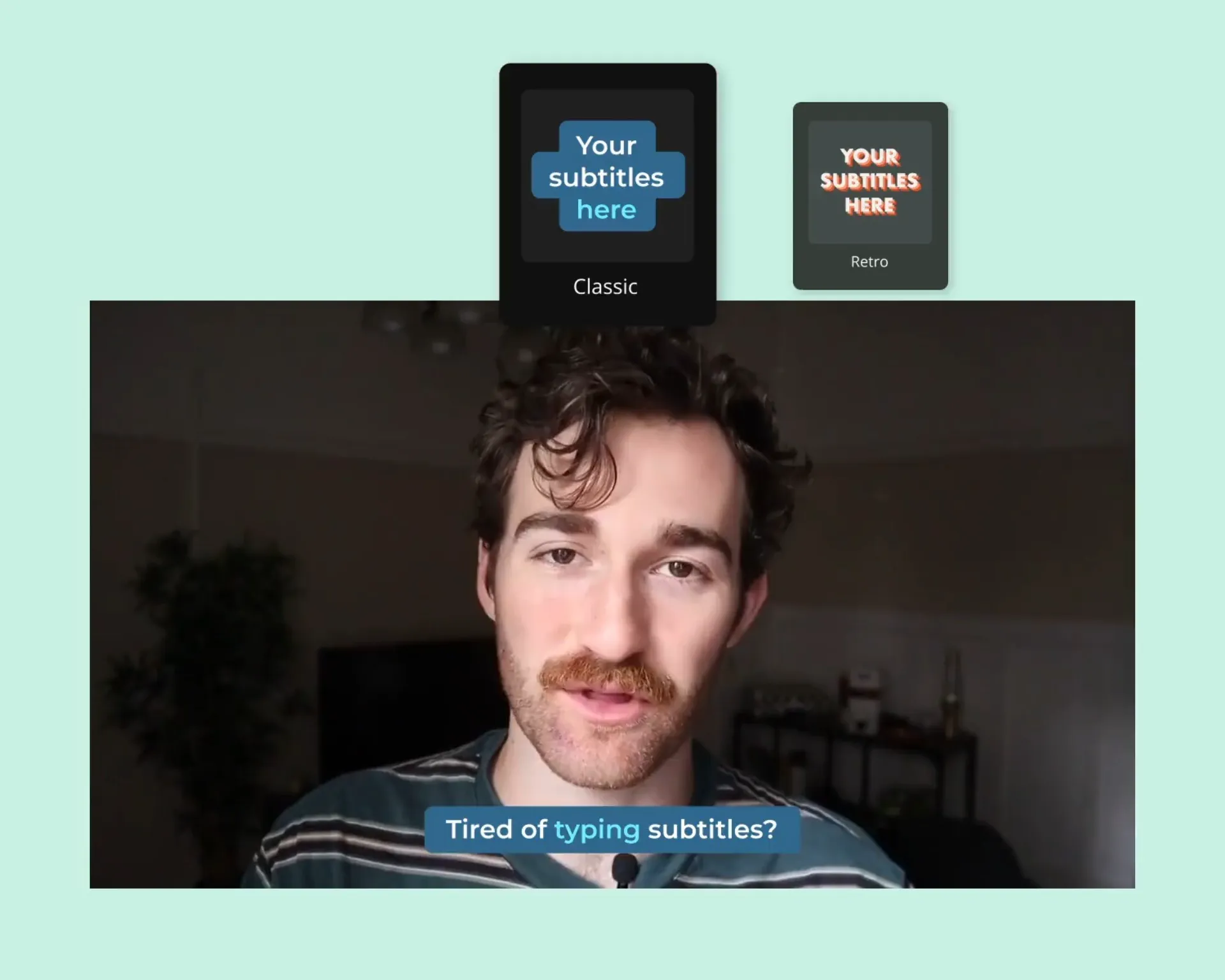
Give your GIF context without relying on sound. Add animated text to deliver a punchline in a meme, label steps in a tutorial, highlight a product feature, or add a call to action to a marketing GIF. Time text to appear at specific moments so the message follows the action in your animation.
Choose from fonts, colors, and text animation styles, then customize the placement and timing in the editor. Teams can also save fonts, colors, and other brand assets in their Brand Kit to keep GIFs consistent across campaigns and creators.
Share and edit GIFs with your team
Create, review, and share GIFs from the same online workspace. Send teammates a project link to work together, make edits in real time, and collect feedback without passing new versions of a file back and forth.
Kapwing’s collaborative editing tools also give teams access to shared media and brand assets, making it easier to create GIFs with consistent logos, fonts, colors, and other visual elements. Once your GIF is ready, download the finished file or share it with a link.

High-quality GIFs, low file sizes
Start with high-resolution images and videos to give your GIF the best possible source quality. Kapwing lets you crop, resize, and enhance your media as you edit, helping preserve detail throughout the GIF-making process.
When you need a smaller file for uploading, sharing, or embedding, use Kapwing’s GIF Compressor to reduce the file size while balancing compression with visual quality. Starting with high-resolution media and compressing the finished GIF gives you more control over both image quality and file size.

What's different about Kapwing?



How to Make a GIF Online
- Step 1Open a project
Start a new project and upload videos or images to create a GIF. You can also start from scratch by using the stock footage in the Visuals tab.
- Step 2Edit and make a GIF
Trim your video by moving the video playhead along the timeline and pressing "S" to split video. Add multiple images to make a GIF by loading them onto the timeline. Overlay stickers and text using the left sidebar.
- Step 3Export GIF
Once you're finished editing, click "Export project" and select "GIF" as the output file to download.
Frequently Asked Questions
We have answers to the most common questions that our users ask.
How do I improve the quality of GIFs?
To improve the quality of your GIFs, try Kapwing’s Video Enhancer. This one-click tool adjusts brightness, saturation, opacity, and more to automatically improve the clarity and visual appeal of your GIF. You can manually tweak the settings as well. When creating new GIFs, try Kapwing’s stock library of images, videos, elements, and video effects to make your content more engaging. When exporting, you can also experiment with the compression level to achieve higher quality. Kapwing exports GIFs to custom URLs so you can review the quality online before downloading.
What free tool can I use to make an animated GIF?
Make an animated GIF using Kapwing’s free GIF maker. Upload your own videos or photos and turn them into GIFs. Or, source content from our stock library of images, videos, and existing GIFs that offer you the perfect starting point for making your own creation. You can also try our AI image and video generation tools. Once you’ve got your base layer, use Kapwing to add animated text, stickers, and other fun effects.
Where can I find free GIFs to use?
Kapwing’s online video editor integrates with GIPHY, the most popular website for finding GIFs. This makes it easy to add GIFs to your videos or take an existing GIF and edit it to make it your own. You can also create your own GIFs for free with Kapwing. Try our AI image and video generation tools, stock library, and animated text to create a GIF in minutes.
Can I speed up or slow down a GIF?
Yes, you can speed up or slow down a GIF with Kapwing. Inside our video editing platform, simply change the speed of the video you’re editing (with options ranging from 0.5X to 4X speed). Then, export the video as a GIF that you can easily share with a unique URL or embed with embed code. A GIF sourced from our GIPHY integration can’t be sped up or slowed down, but you can alter the duration to change how many times it replays in your video.
What types of videos and images can I turn into GIFs?
You can make a GIF from videos, photos, graphics, or an existing GIF. Kapwing supports common image formats including GIF, JPG, JPEG, PNG, HEIC, HEIF, SVG, and WebP, as well as video formats such as MP4, MOV, WebM, AVI, MKV, and more. You can also combine multiple images and video clips in the same GIF project.
What kinds of visual media make the best GIFs?
GIFs work best when they focus on a short action, reaction, transformation, or message that makes sense when repeated. Try trimming videos to the key moment and using images with a consistent size or composition. Reaction clips, product demonstrations, before-and-after sequences, tutorial steps, memes, and short animations are all good candidates for an animated GIF.
What resolution and aspect ratio should I use for GIFs?
For a general-purpose GIF, 480 × 480 pixels in a 1:1 aspect ratio is a reliable starting point, especially for messages and small-screen viewing. YouTube also recommends 1:1 for GIFs in Community posts. On X, media with an aspect ratio between 2:1 and 3:4 displays fully in the feed. If you plan to publish on Instagram, TikTok, or YouTube as a video, use 1080 × 1920 for vertical content, 1080 × 1080 for square content, or 1920 × 1080 for landscape content, then convert the GIF to MP4.
Avoid exporting a GIF at a higher resolution than viewers need. GIPHY recommends a maximum source resolution of 720p, and 480p for most GIFs, because they’re generally viewed on small screens and in messaging windows.
How long should GIFs be?
Keep your GIF only as long as it needs to communicate the action or message. Short loops generally work well for reactions, memes, product demonstrations, and visual instructions because viewers can understand the content quickly and see it repeat. In Kapwing's GIF editor, you can trim clips and adjust timing to remove unnecessary frames and create a tighter loop.
Can I make a GIF from multiple photos?
Yes, upload multiple photos or images to Kapwing's online GIF maker, arrange them in the order you want, and control how long each appears. You can then add other media or edits before exporting the project as an animated GIF. For direct conversions, use Kapwing's Image to GIF Converter.
Can I edit an existing GIF?
Yes, you can upload an existing GIF to Kapwing's GIF editor to crop, resize, trim, or add new elements. You can also add animated text, images, logos, drawings, stickers, and other graphics, then export the edited project as a new GIF.
Where can I upload and share GIFs?
You can upload GIF files directly to X, Discord, and YouTube Community posts. X accepts one GIF per post, with a maximum size of 5 MB on mobile or 15 MB on the web. Discord displays uploaded GIFs in messages and currently allows free users to attach files up to 20 MB. YouTube accepts GIFs up to 16 MB in Community posts, but not as standard video uploads. GIFs can also be embedded in websites, blogs, emails, and presentations.
Instagram and TikTok don’t accept GIF files as regular feed or video posts. To share the animation there, or upload it as a standard YouTube video, first turn it into an MP4 using Kapwing’s GIF to Video Converter. This also preserves animation more reliably across platforms.
How do I make a high-quality GIF without creating a huge file?
Keep the GIF short, crop away unnecessary parts of the frame, and remove frames that don’t contribute to the action. GIPHY recommends GIFs of six seconds or less, 480p resolution, and fewer than 100 frames for the best results. Using fewer colors, a lower frame rate, or slightly smaller dimensions can reduce file size further while preserving the most noticeable details.
Check your destination’s upload limit before exporting: X allows animated GIFs up to 5 MB on mobile and 15 MB on the web, while YouTube Community posts accept GIFs up to 16 MB. If your file is too large, use Kapwing’s GIF Compressor to adjust its compression and resolution.
Why create a GIF instead of a short video?
GIFs are useful for short, repeatable moments that should play automatically and make sense without sound. Create a GIF for reactions, memes, animated logos, quick product demonstrations, tutorial steps, or other visuals designed to loop. They’re also easy to embed in websites, articles, presentations, and messages.
A short video is usually a better choice when you need audio, pause-and-play storytelling, or a format designed for video-first social platforms. If you need both, you can create your animation as a GIF and use Kapwing’s GIF to Video Converter to repurpose it as a video.
Discover Resources
Tips, templates, and deep dives to help you create faster and share with confidence.
View all

Get started with your first video in just a few clicks. Join over 35 million creators who trust Kapwing to create more content in less time.