Blur Video Background
Upload video — blur background for free

Enhance videos with polished background blur
Remove distractions and protect your privacy with a free online tool
Professional backgrounds for any video, in seconds
Quickly turn any recording into a polished professional video with automatic background blurring. Kapwing's one-click Blur Video Background tool intelligently detects the subject and blurs the area around them.
No complicated edits, reshoots, or downloads. Upload your video, apply the background blur, and adjust blur intensity using a slider. Then export your distraction-free video in high resolution, all without leaving your browser.

Keep the focus on your subject, for free
Save time and money with a free background blur tool that seamlessly follows subjects in motion. Keep your subject sharp without cut out lines or halo effects. Ensure privacy by blurring faces, signs, and personal belongings visible in the background.
Built for content creators, marketers, and small business owners, Kapwing's Blur Video Background tool is designed to quickly create professional talking head videos, product demos, and explainer clips, no matter your recording environment.

Apply an extensive range of video editing tools
Streamline your video editing workflow with a studio that combines automatic background blur with other AI-powered effects like audio enhancement, background removal and chroma key for green screen edits.
Blur individual sections of your video, like faces and license plates, using the Blur Video tool. Adjust color, overlay text and stickers, and add automatic subtitles or dubbing.
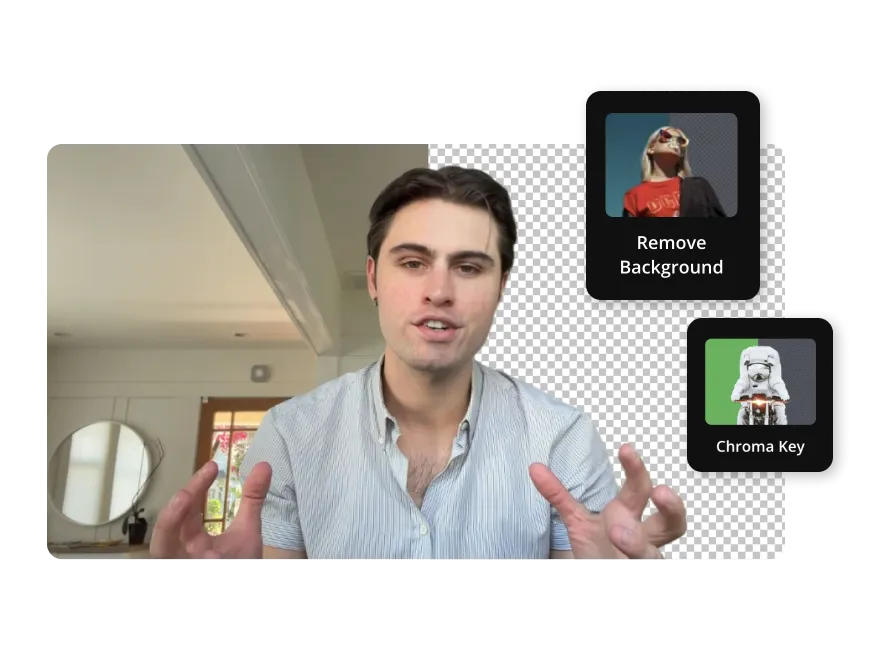
Take back control over your video background
Join thousands of professionals blurring backgrounds with Kapwing
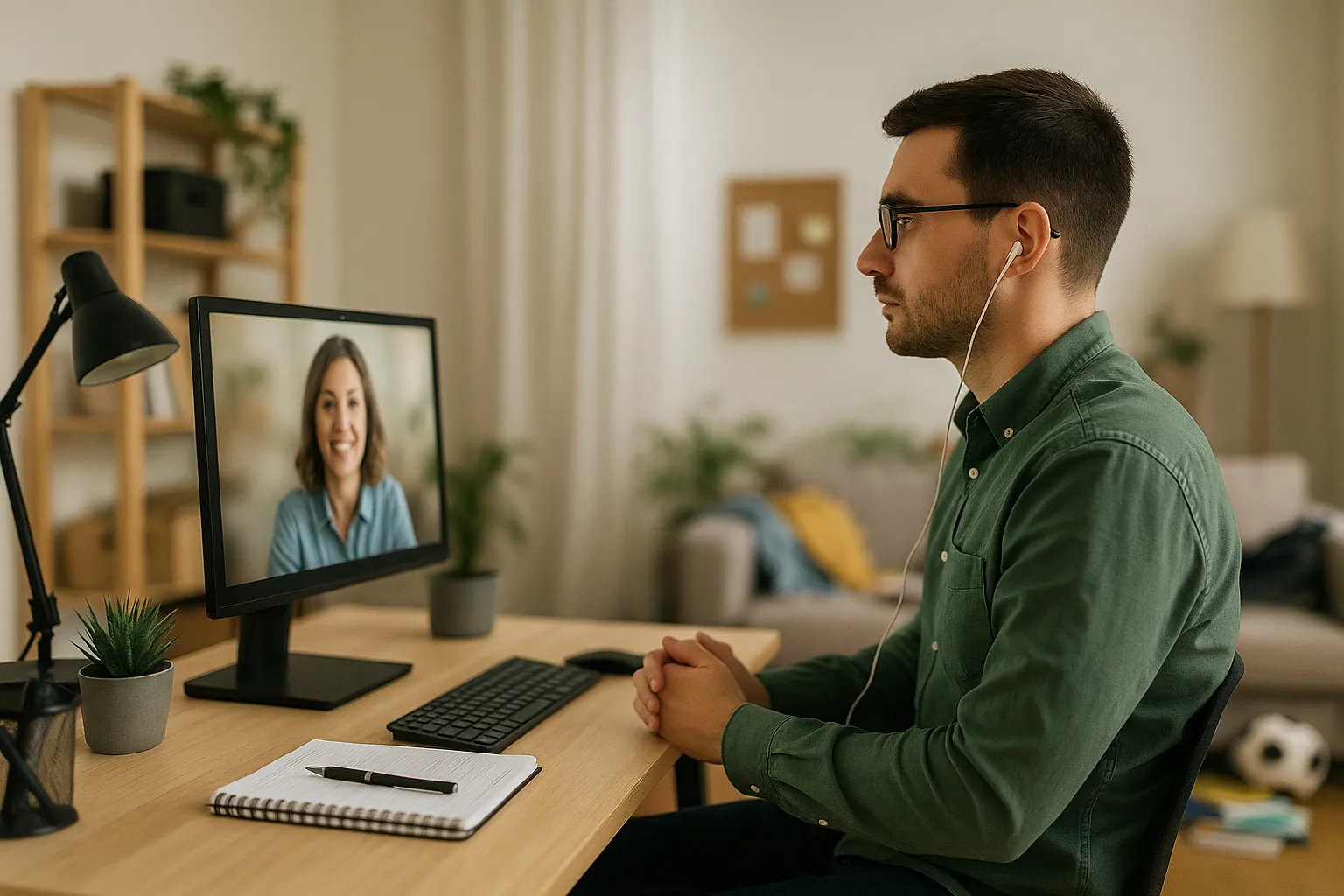
Remote Workers
Blur your video background in recorded meetings and presentations, keeping videos professional while working from home or traveling
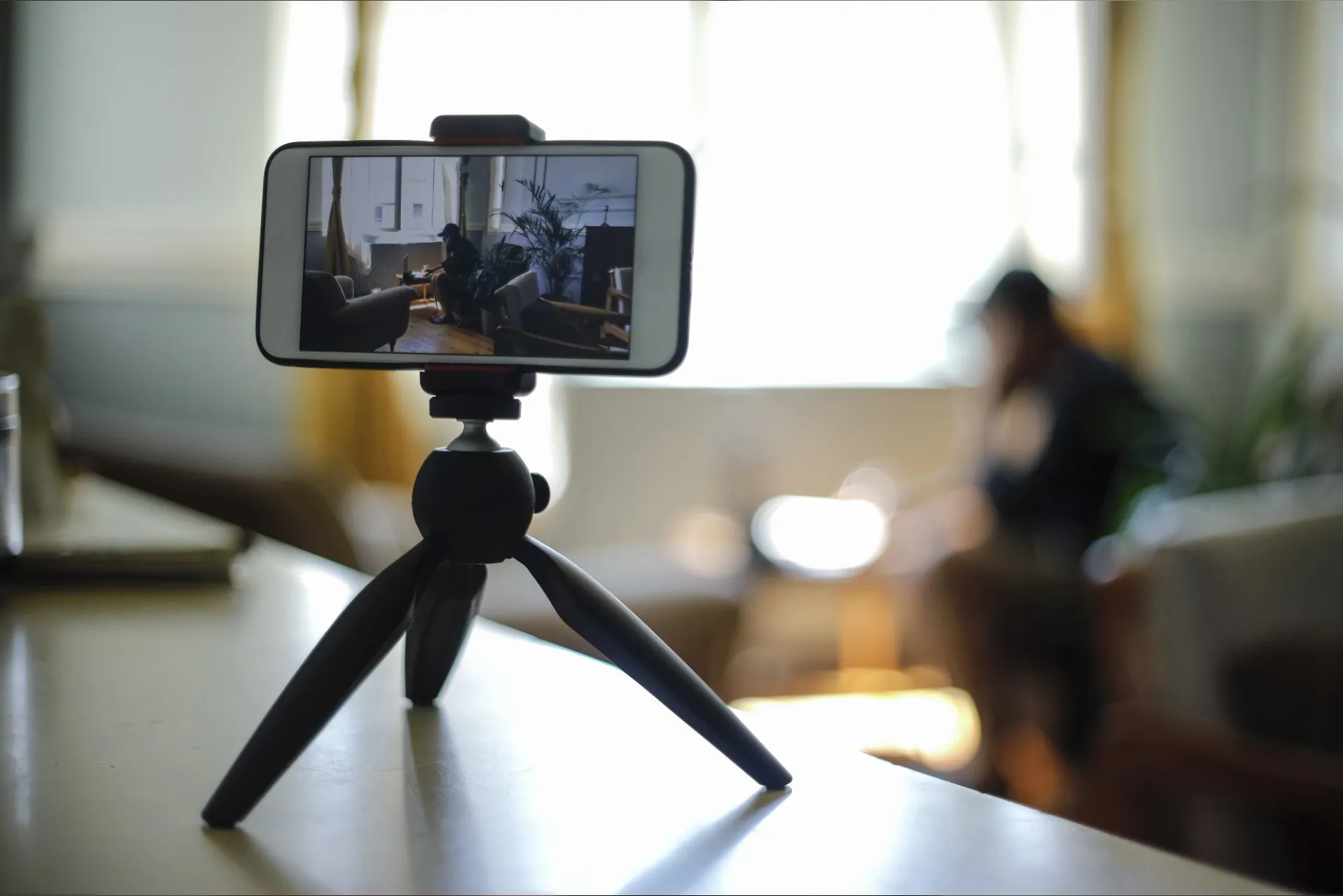
Content Creators
Reduce distractions with a video background blur when filming for TikTok, YouTube, and Reels on the go to reduce distractions

Business Professionals
Ensure that sensitive materials, like internal documents or confidential displays, are hidden by applying a background blur in company-wide or public video content

Journalists
Journalists and news agencies blur video backgrounds in outdoor interviews to protect identities, reduce distractions, or anonymize sensitive locations during post-production

Marketers
During product walkthroughs or feature reveals, a blurred background keeps attention on the product itself

Teachers
Remove background distractions while recording virtual lessons in non-classroom settings. Blur helps students stay focused and protects educator home privacy.
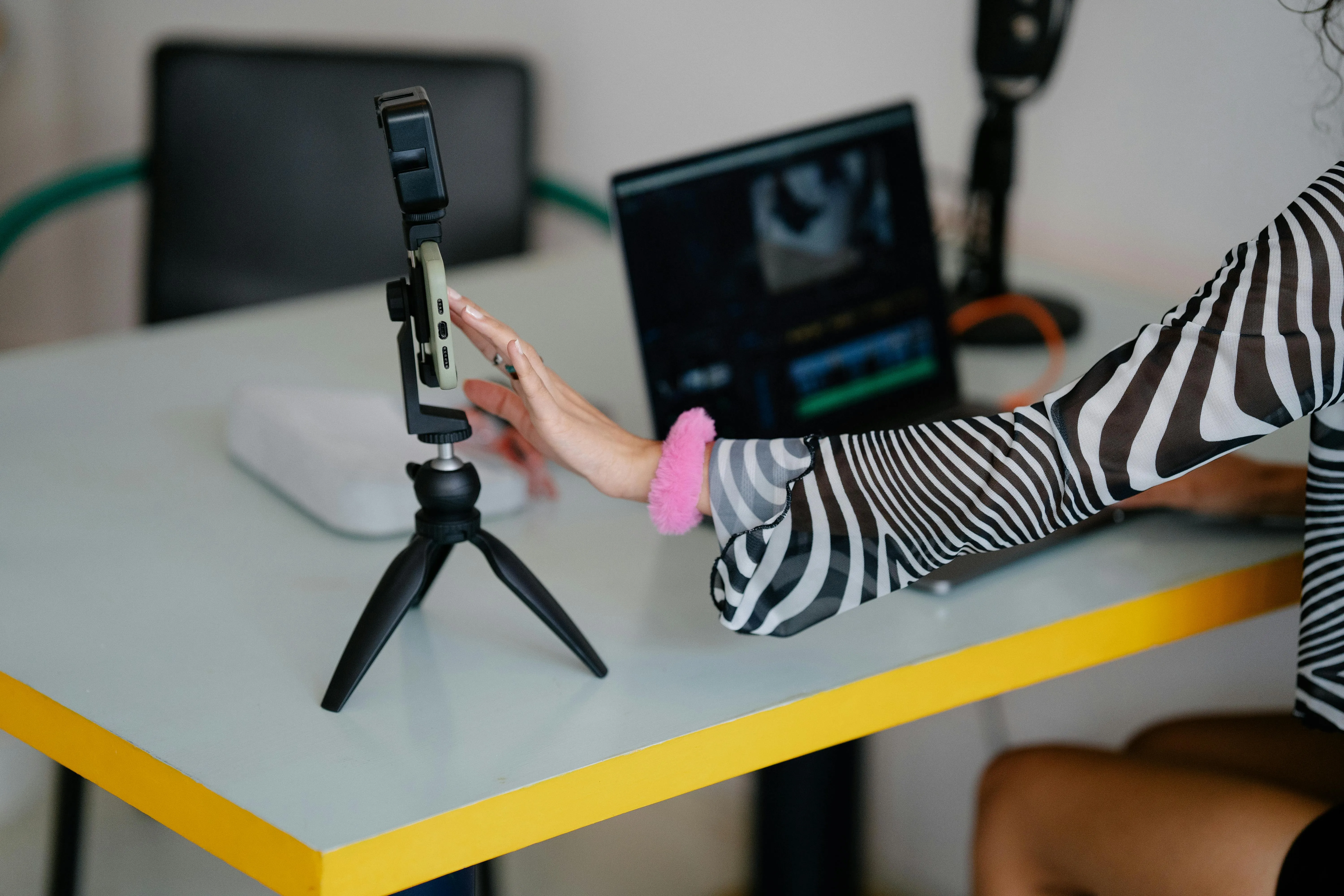
Mobile Editors
For on-the-go editors creating content on iPhone and Android, the automatic background blurrer streamlines recording to posting workflow
Already transforming video creation across industries
Hear directly from the teams who publish faster, collaborate better, and stay ahead.


How to Blur Video Background
- Step 1Upload Video
Click to upload your video or paste a YouTube, Vimeo, or Instagram link.
- Step 2Blur Background
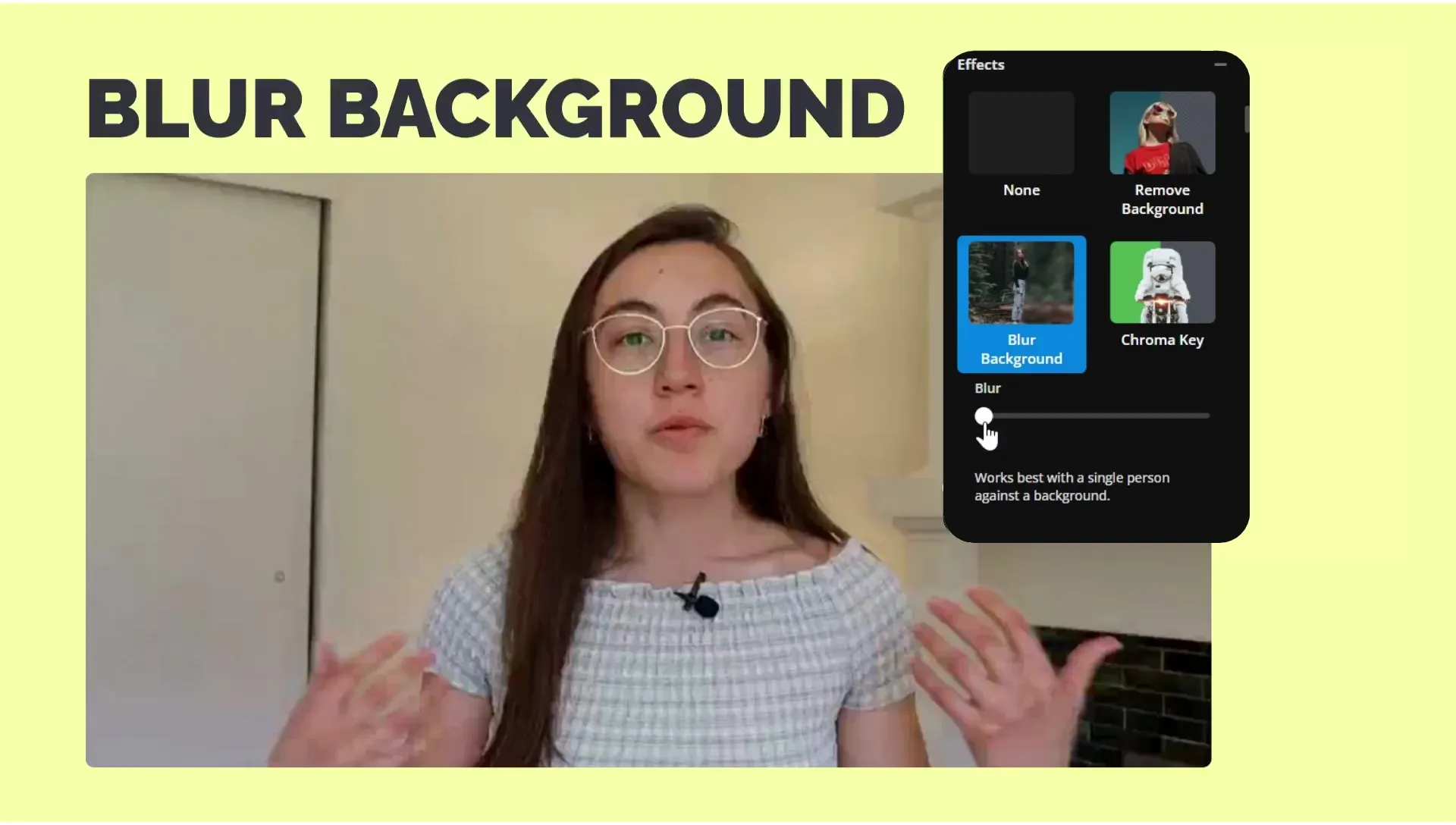
Select your video, then click "Blur Background" under Effects in the video tools menu.
- Step 3Adjust and Download
Use the slider to control blur intensity. Then click "Export Project" to download your blurred background video.
What's different about Kapwing?



Frequently Asked Questions
We have answers to the most common questions that our users ask.
Is Kapwing's Blur Video Background tool free?
Yes, the Blur Video Background tool is part of Kapwing’s free online video editor. You can get started without downloading any software. For advanced features, check the pricing page.
How to blur background in a video with Kapwing
To blur the background with Kapwing, open the video editing studio and upload your video. Then, select the video in the timeline editor. In the righthand editing tool sidebar, scroll down to Effects. Click "Blur Video Background" to instantly apply automatic background blurring. You can adjust the blur level using the slider.
What video file types does Kapwing support for blur edits?
Kapwing supports common video formats like MP4, MOV, and WebM. Once your video is edited, you can export and download it as an MP4, MOV, WebM, or GIF.
Can I add other effects to my video after blurring?
Yes, you can continue editing after applying a blurred video background. Add music, subtitles, transitions, or adjust the color grading, all within Kapwing's video editing studio.
Can I just the blur level?
Yes, after you click "Blur Background," a bur slider will appear. This simple tool lets you control the intensity of the effect so you can decide how visible or hidden the background of your video appears.
Can I blur the background in a vertical or square video?
Yes. Kapwing supports all aspect ratios, including 9:16 (vertical), 1:1 (square), and 16:9 (landscape). You can apply background blur to any format and resize your video for platforms like TikTok, Instagram, or YouTube Shorts.
How is background blur different from background removal?
Background blur softens and obscures the area behind the subject, while background removal completely removes it. If you remove the background on a video, you can replace it with a new background or leave it transparent.
How does blurring the background improve my video?
Backgrounds can be distracting, especially if you are not recording in a professional studio. Blurring the background can help you keep the focus on your subject, improving audience comprehension and giving your videos a more professional look. Kapwing's Blur Video Background tool helps you turn cluttered or unprofessional backgrounds into polished blurs, without the need for an expensive studio or complicated video editing.
Discover Resources
Tips, templates, and deep dives to help you create faster and share with confidence.
View all


Get started with your first video in just a few clicks. Join over 35 million creators who trust Kapwing to create more content in less time.