AI Montage Maker
Turn videos into montages with AI.
Free to start in your browser.
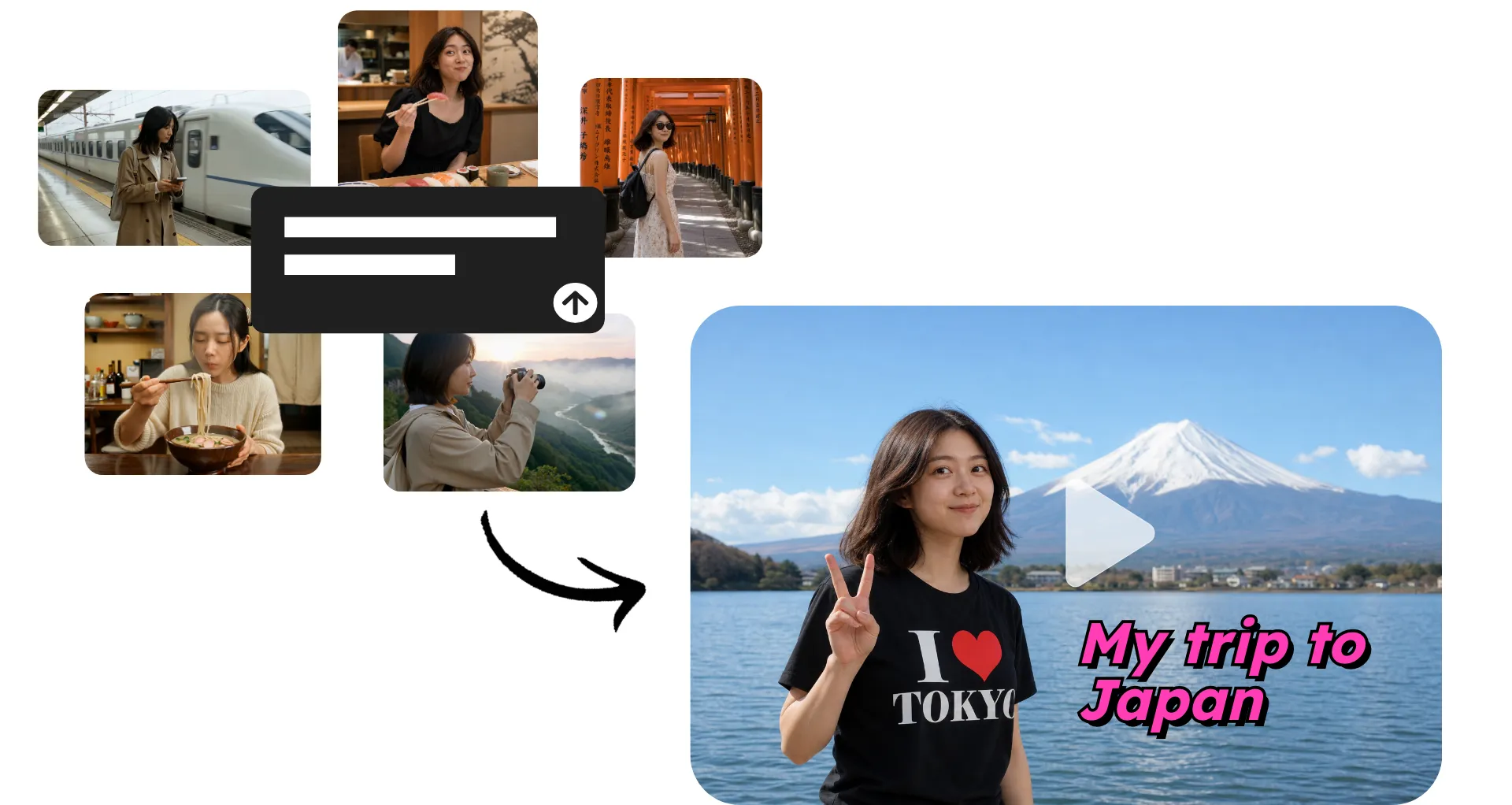
Build a complete montage — without tedious editing
Turn raw footage into fully edited montages with AI. Works in your browser.
Create and edit video montages with AI
Combine videos, photos, and other media into an AI montage without sorting through every file or assembling the edit by hand. Upload images, full videos, or selected clips and tell Kai, Kapwing’s AI video assistant, what you want to create. Kai can choose the best parts of your footage, trim what you don’t need, and assemble the selected moments into a structured montage.
Not happy with the first cut? Tell Kai to choose different moments, shorten slow sections, reorder the sequence, or change the pace of the montage. Keep refining the same edit with follow-up prompts, or open it in Kapwing Studio to adjust individual cuts yourself. When you’re done, export your montage as an MP4, MOV, or WebM, or share it directly to YouTube or TikTok.

How to create AI montages
Go from footage to ready-to-share montage in minutes
Upload
video clips and images to a new chat with Kai


Describe
the montage you want to create in a conversational prompt
Generate
and refine your video montage, then export in high resolution
Make montages for any moment
Create for games, trips, events, ads, and more. Export as MP4, MOV, or WebM.
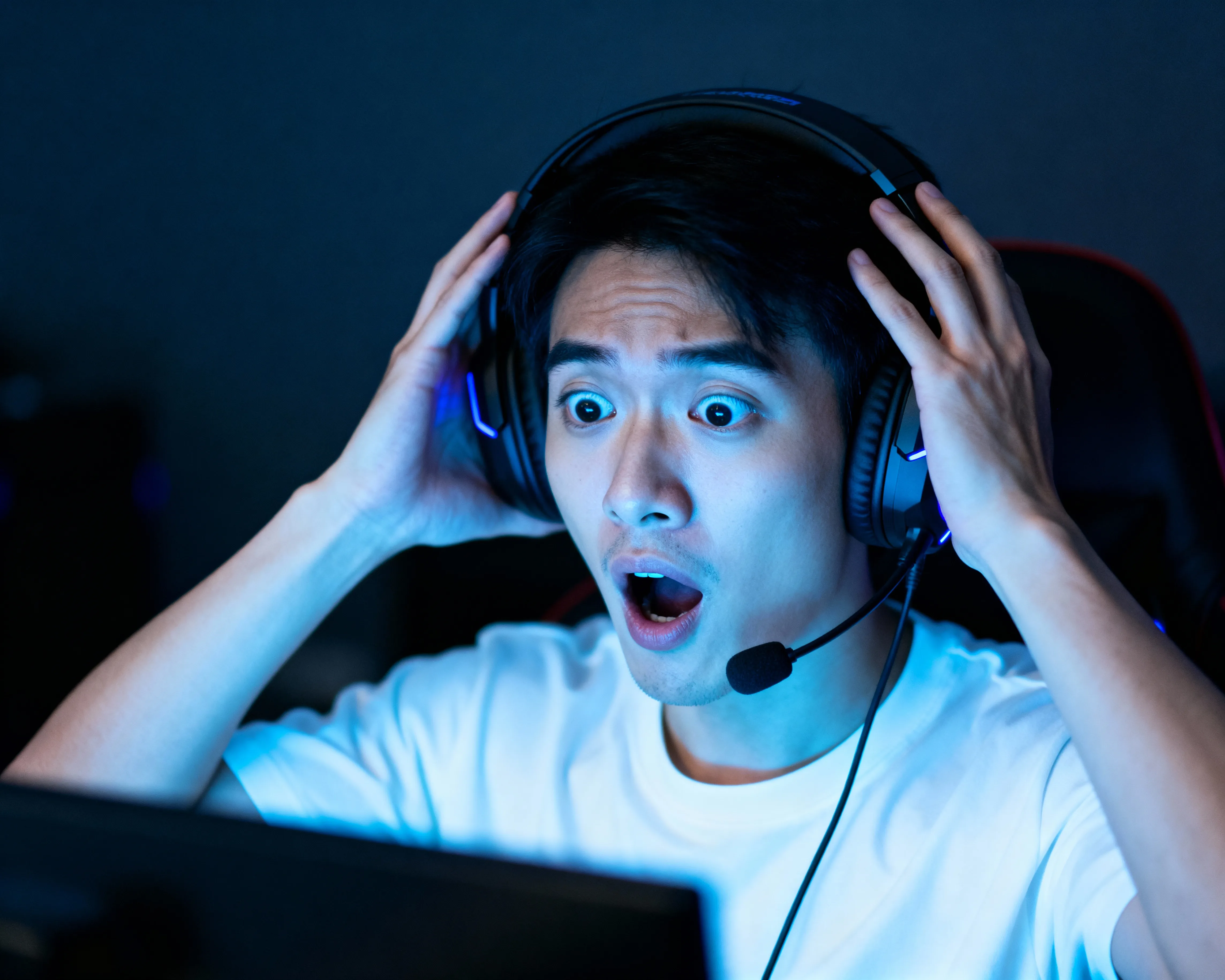
Gaming Montages
Show off wins, clutch plays, funny fails, and reactions in one fast-paced edit. Gamers and streamers can bring selected gameplay clips together, then prompt Kai to tighten the pacing, reorder scenes, or change transitions.
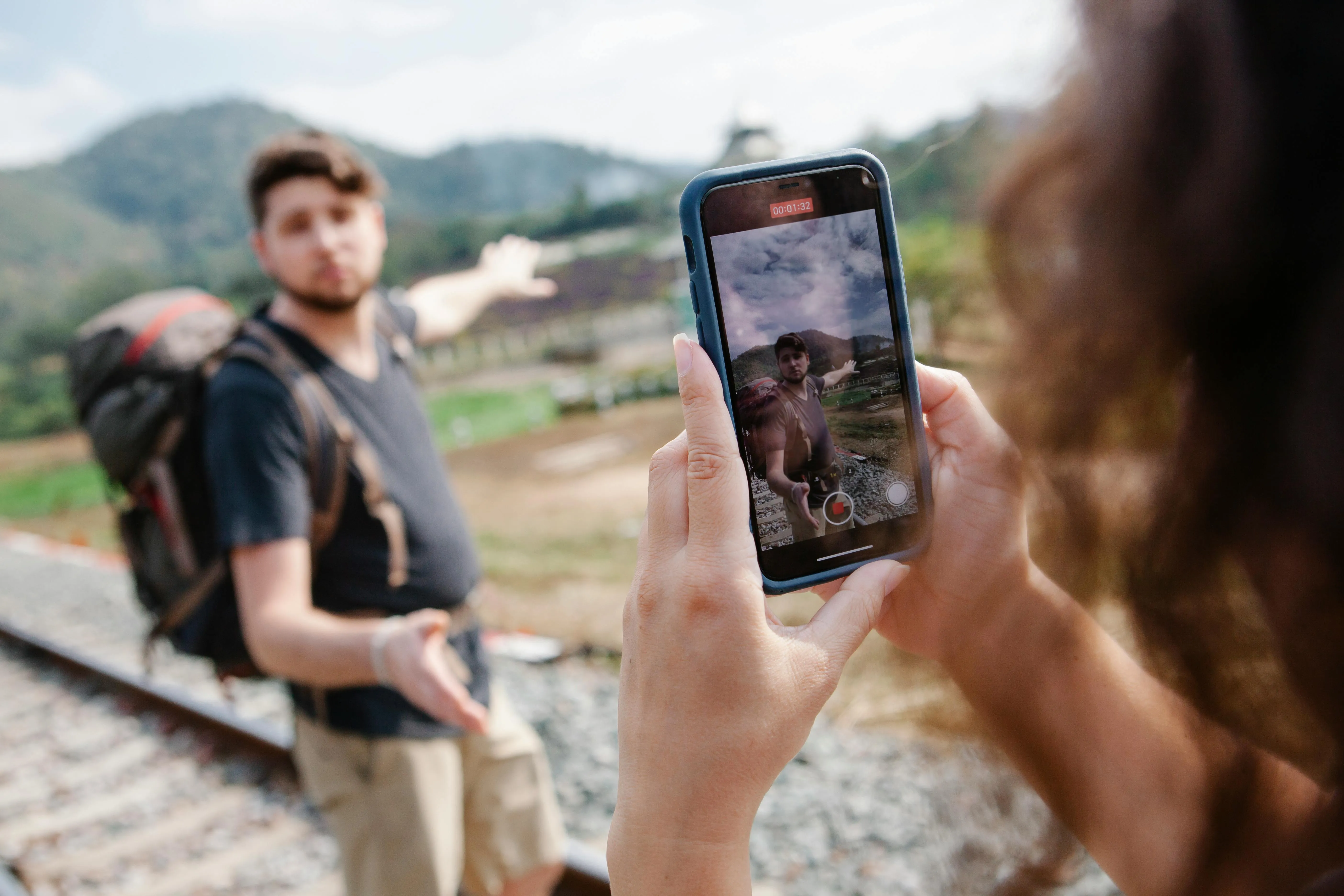
Travel Recaps
Turn vacation footage into a story worth sharing. Travel creators, vloggers, and families can mix photos with clips from different stops, activities, and days to capture a trip from start to finish.
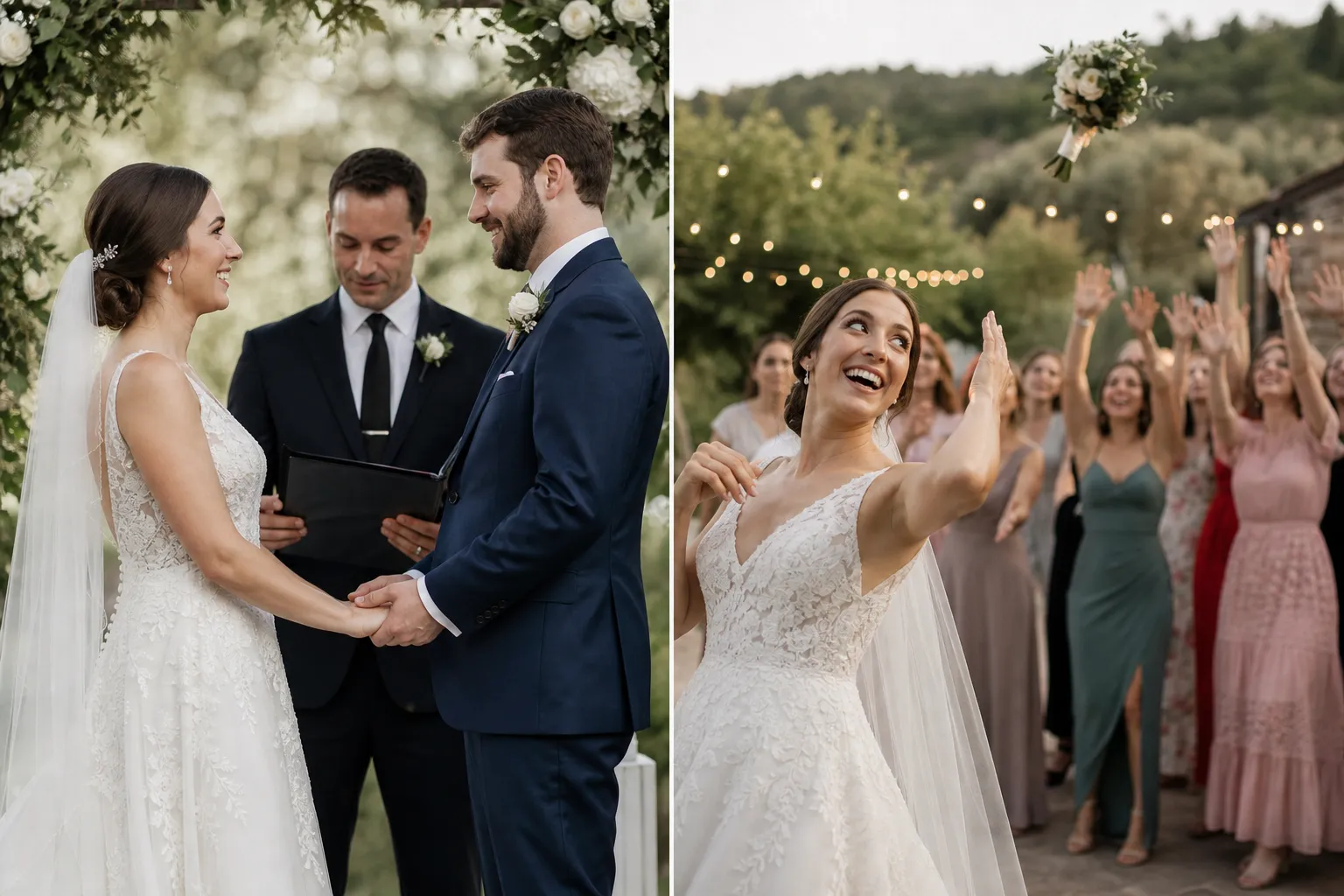
Event Videos
Combine footage from weddings, parties, sports events, and conferences into one recap. Event teams and creators can quickly bring together speeches, performances, and behind-the-scenes footage.
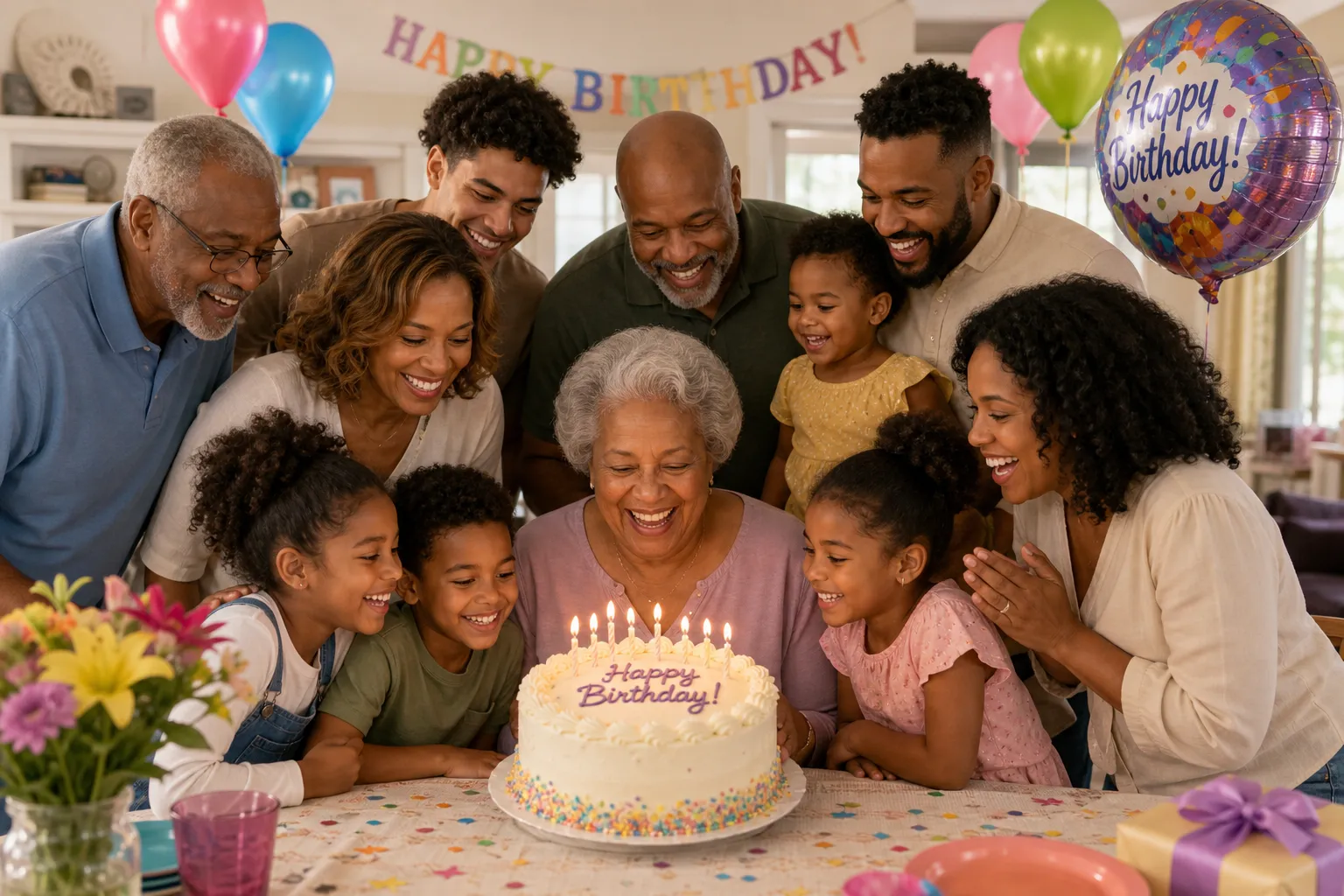
Photo Montages
Make a video from the photos that mark a person, milestone, or memory. Bring birthday photos into chronological order, revisit a graduation year, celebrate an anniversary, or mix family photos with video and music.
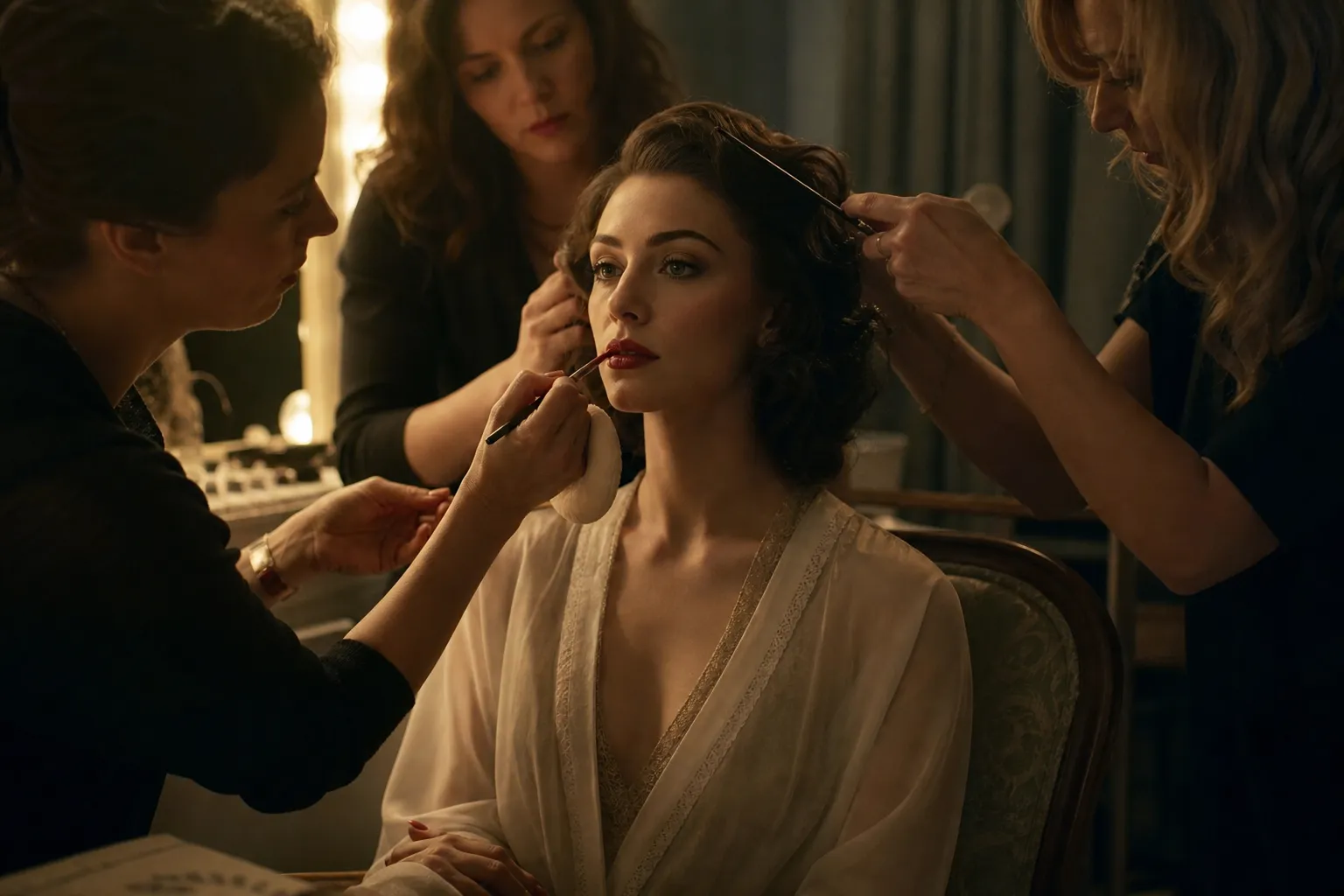
Cinematic Sequences
Filmmakers and video creators can turn a collection of shots into a montage sequence for a short film, documentary, or YouTube video. Use Kai to condense time, show progress, or move the story forward.
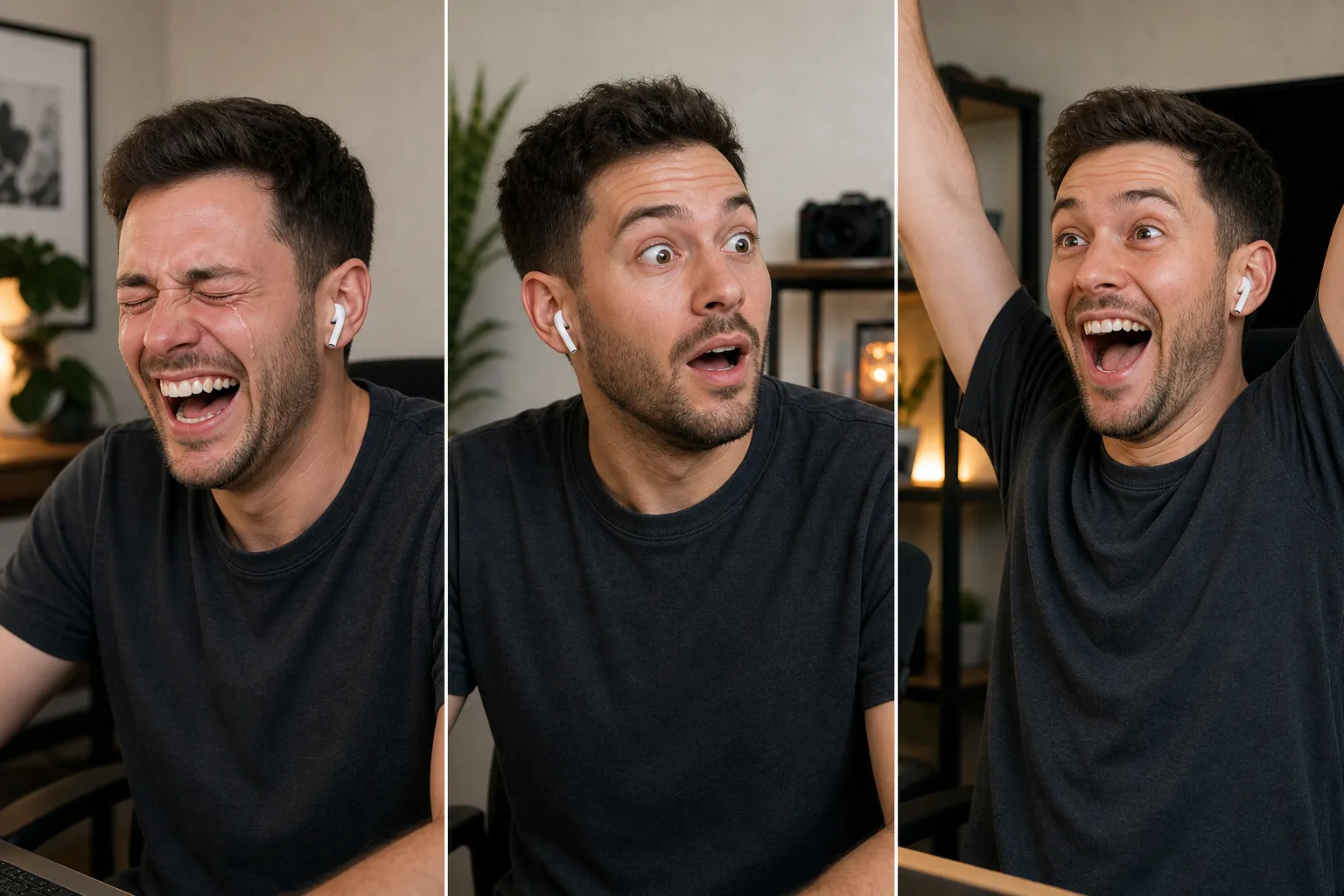
Video Compilations
Build themed compilations from clips that already belong together, from creator reactions and monthly roundups to progress updates and before-and-after videos
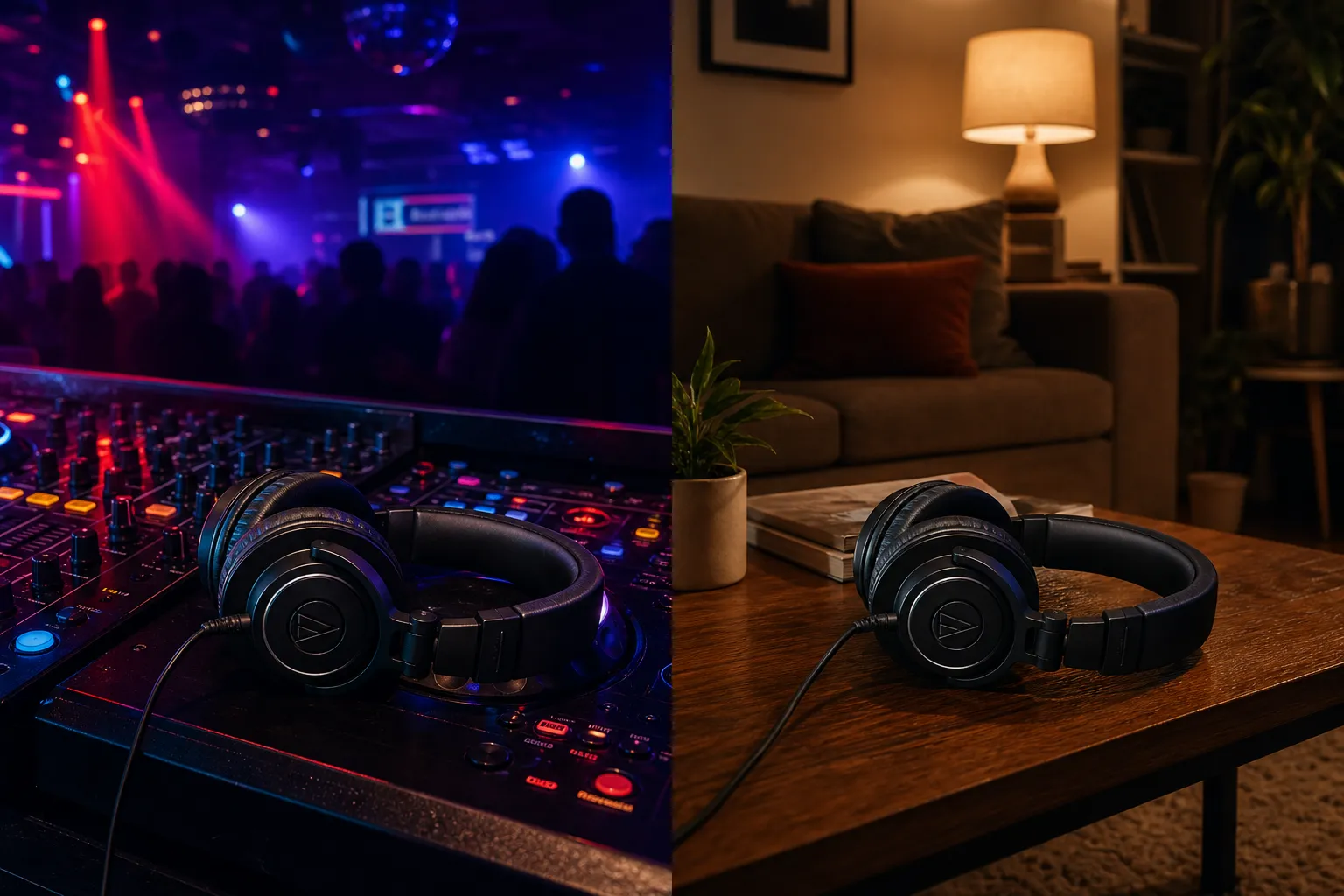
Product Ads
Marketing teams can turn product shots, demos, testimonials, and customer footage into quick-cut ads for social media and content marketing campaigns
Speed up editing with an AI video montage creator
Set the direction, then let AI assemble and shape your montage
Turn raw footage into a montage in one step
Skip reviewing recordings, picking clips, trimming footage, and assembling the timeline yourself. Upload full videos, photos, or other media and describe the montage you want. In one prompt, Kai can find the best moments, trim away what you don't need, and arrange the selected footage into a complete first cut.
Turn hours of vacation footage into a travel recap, combine recordings from an event into one video, or pull the strongest plays from gameplay and assemble them into a fast-paced compilation. Start with your raw material and the outcome you want instead of preparing every clip before you begin.
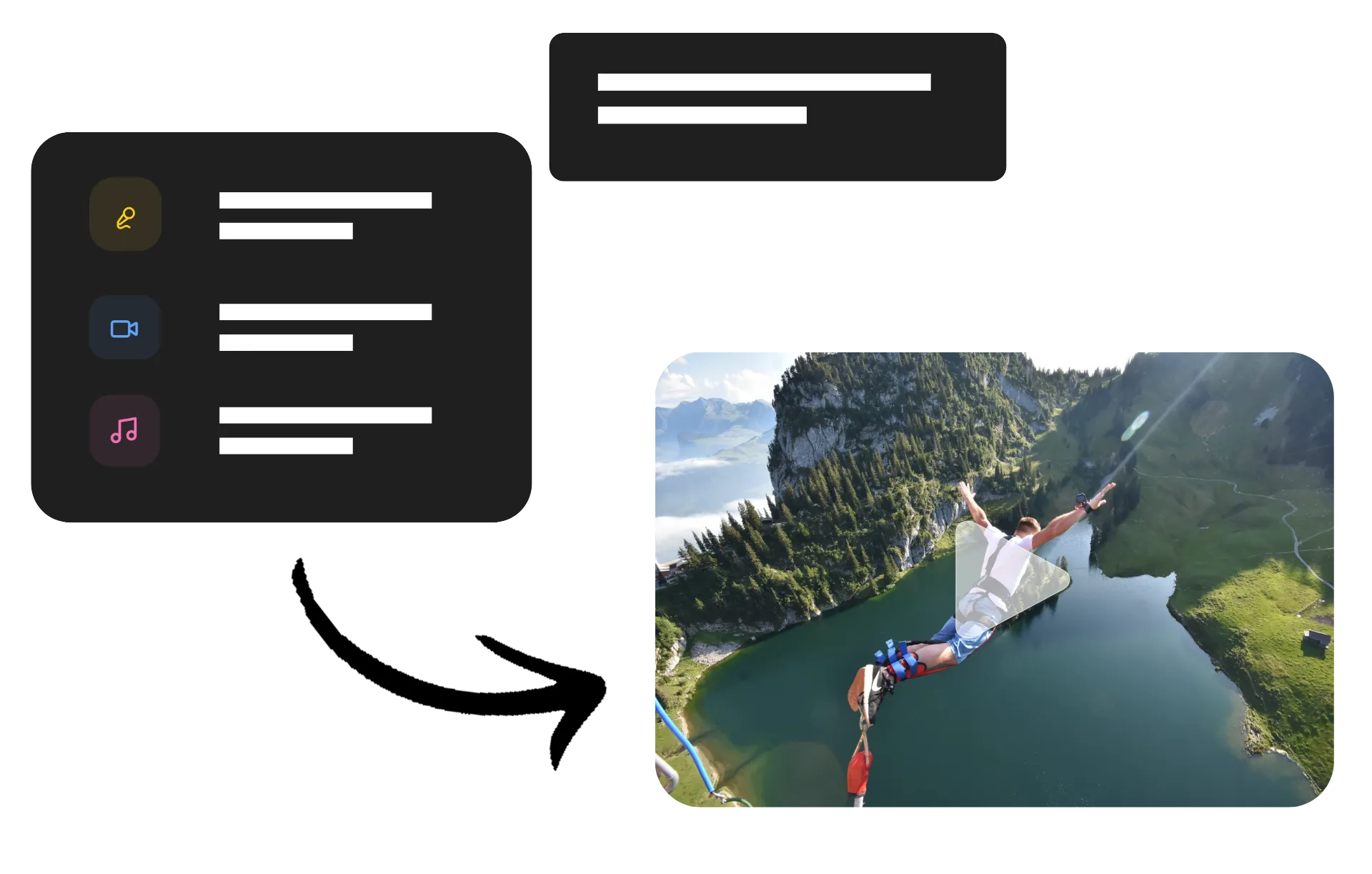
Make your montage stand out
A gaming montage and a travel recap shouldn't look, sound, or move the same way. Tell Kai how you want your video to feel and use AI to shape the pacing, transitions, visuals, and sound around your footage. Tighten gameplay around the action, slow down key moments in an event recap, or generate new visuals and B-roll when your source footage doesn't have the shot you need.
Add details created specifically for your montage instead of settling for stock assets. Ask Kai for a voiceover, custom music, or a hyper-specific sound effect, from the sound of an arcade win to rain hitting a tent. With Kapwing's AI Audio Generator, you can generate original songs, instrumentals, and SFX that match the moments in your edit.
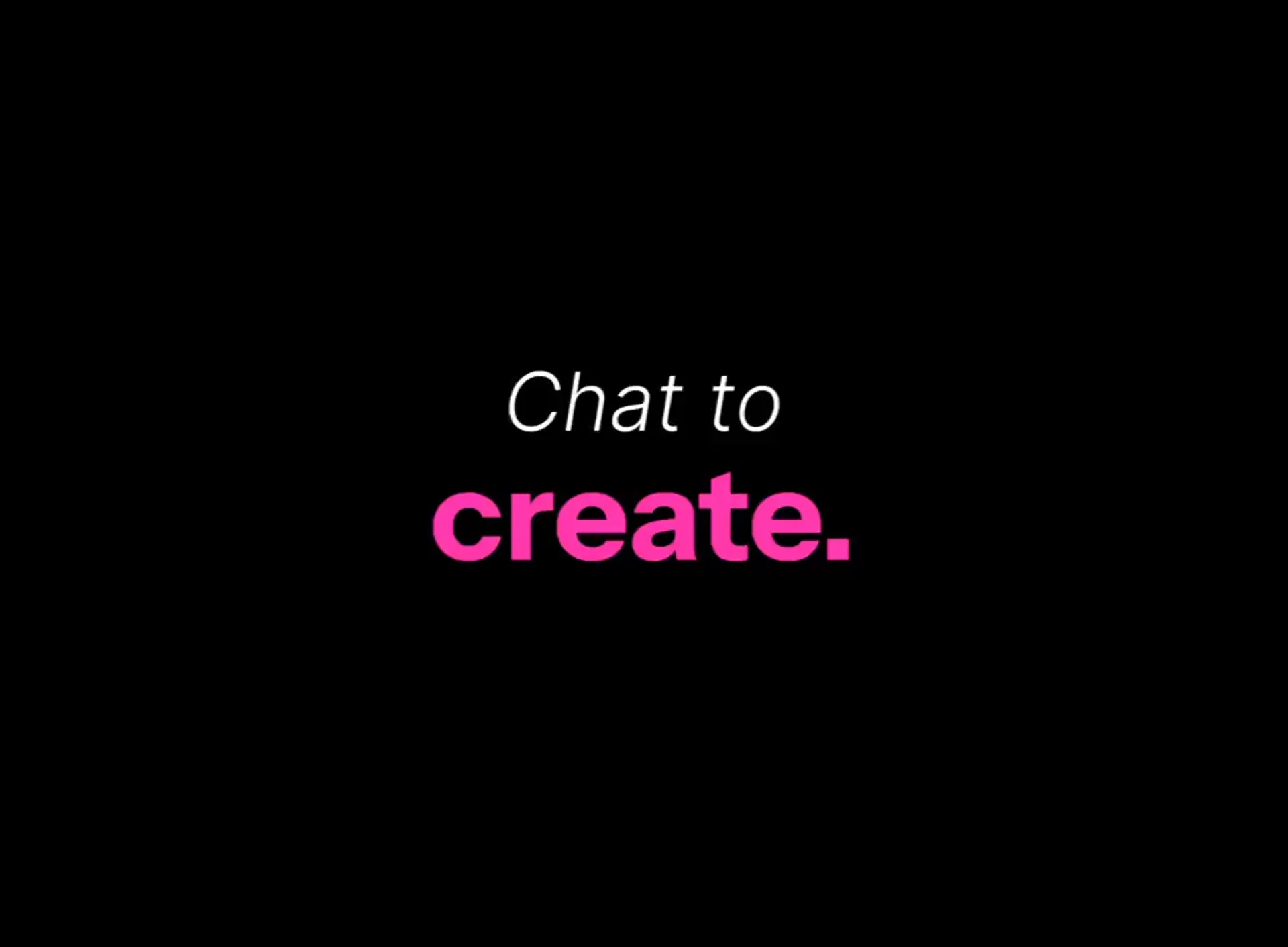
Edit your montage with prompts or by hand
Choose the fastest way to make each change. Ask Kai to shorten scenes, rearrange clips, adjust pacing, update transitions, or add captions across your montage. For precise edits, use the Kapwing Video Editor to trim a cut by a few frames, swap specific media, adjust timing, or fine-tune individual elements on the timeline.
Keep your Kai chat open alongside the Studio timeline to combine prompting and hands-on editing in the same project. Prefer to build the sequence yourself from the start? Use Kapwing’s Video Montage Maker to manually arrange videos, photos, music, and other media into your montage.
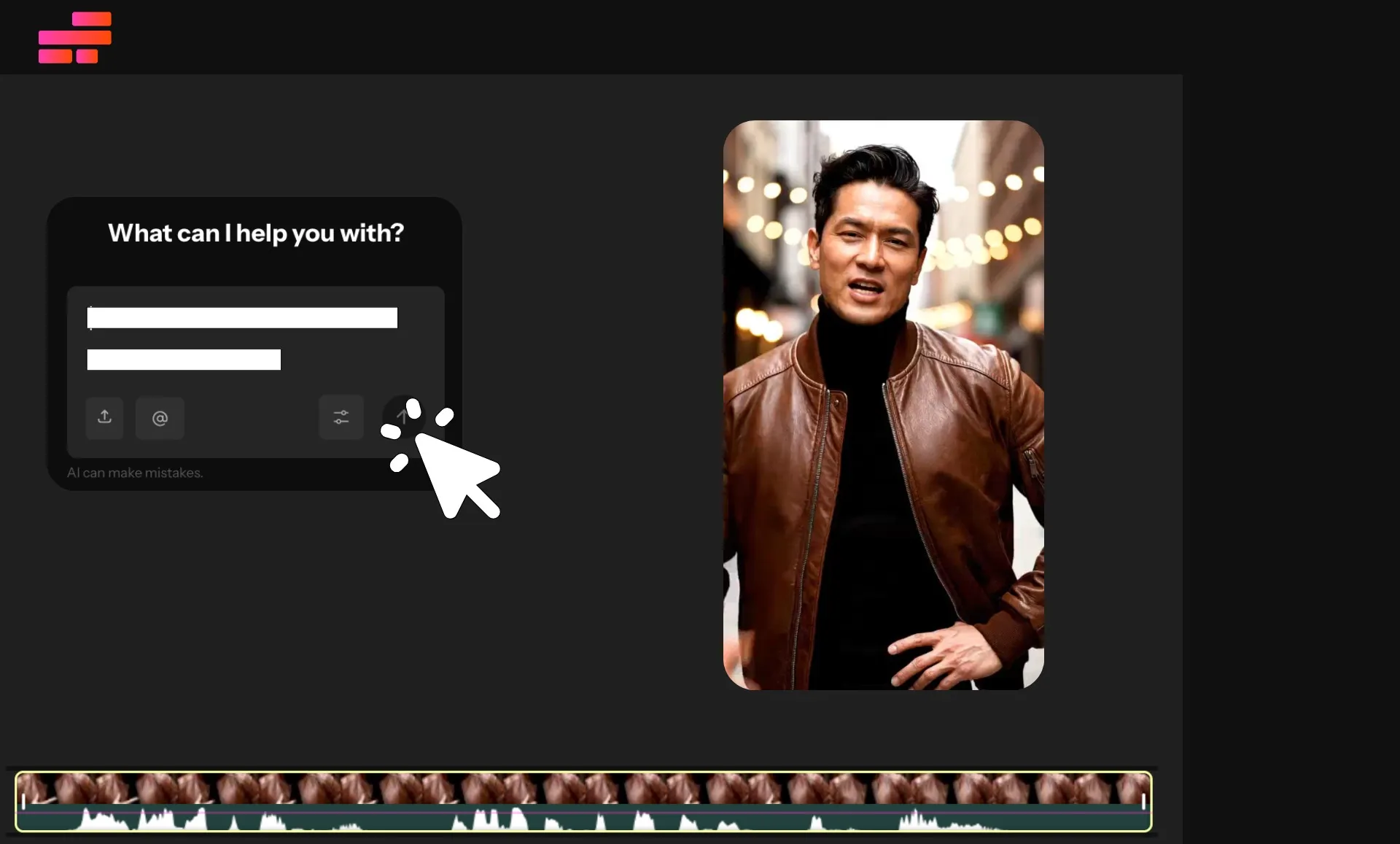
How to Create AI Video Montages

- Step 1Upload media
Create a new chat with Kai and click "Attach media" to upload your images and videos.
- Step 2Enter prompt
Type in a prompt describing the montage you want to create, including pacing, music, and order.
- Step 3Review and download
Click the arrow to have Kai create your video plan, then confirm to start editing. Once your montage is ready, edit with additional prompts or move to the Studio to fine-tune. Then download as high-resolution MP4, MOV, or WebM.
What's different about Kapwing?



Frequently Asked Questions
We have answers to the most common questions that our users ask.
Is the AI Montage Maker free?
Yes, anyone can try Kapwing’s AI toolkit for free. Our AI tools run on a credit system, with each feature costing a set number of credits. For maximum creativity and the best value, upgrade to a Pro account to unlock the full power of AI-driven content creation and remove watermarks on exported videos.
How to make a montage with AI
To make an AI montage, start by creating a chat with Kai. Click "Attach media" to upload your images and videos, then enter a prompt describing the montage you want to make. Include information like pacing, clip order, and whether you want Kai to find the best parts or use entire videos. You can also request background music, subtitles, or a title card. Review Kai's plan, then click "Confirm" to start generating.
Kai will build your AI montage within a few minutes, intelligently analyzing your footage and arranging it into a compelling video. When your montage is finished, you can edit it by entering additional prompts, or move to the Studio to fine-tune any aspect by hand. When you're ready, click "Export project" to download your video as MP4, MOV, or WebM, or share directly to social platforms like YouTube or TikTok.
What is an AI montage video maker?
An AI montage maker helps assemble videos, photos, and other media into one edited sequence with less manual timeline work. Instead of placing and adjusting every asset yourself, you can give the AI assistant your media and instructions for the montage you want to create.
With Kapwing, you can continue refining the resulting montage with AI or open the project in the video editor for hands-on changes.
What kinds of montages can I make?
Use an AI video montage creator for travel recaps, gaming montages, event videos, photo montages, campaign videos, memory videos, and video compilations. Start with your own collection of media and give Kai instructions for how you want it brought together.
The format works especially well when you have multiple photos and clips that need to become one structured video.
What's the difference between a montage and a highlight reel?
A montage combines different media into a sequence to tell a story, capture an experience, or communicate an idea. A highlight reel is more specifically focused on selecting standout moments from a longer recording or event.
If finding the key moments is your main goal, Kapwing's AI Video Highlight Maker is the more specialized tool. If you already have the media you want and need to assemble it into a complete video, jump right in with the AI Montage Maker.
Can I use AI to make a video compilation?
Yes, an AI compilation workflow can help bring a collection of related videos and photos into one sequence without manually assembling every piece. You can create compilations around a topic, event, person, campaign, time period, or recurring series.
After the first version is assembled, adjust the order, pacing, captions, transitions, and other elements with AI or edit them directly in Kapwing.
Can my montage include images and videos?
Yes, mix video clips and photos in the same montage to create travel recaps, event videos, birthday and graduation videos, gaming videos, campaign edits, and other mixed-media projects.
You can also add elements such as text, subtitles, music, graphics, and transitions to connect the different parts of the montage.
Can I edit the montage after creating it?
Yes, your AI montage remains editable in Kapwing. Continue giving Kai instructions to make broader changes, or open the project in Kapwing's Video Editor to adjust individual clips, timing, text, subtitles, audio, transitions, and other elements yourself.
This lets you use AI for the repetitive assembly work without giving up control over the final edit.
Can I make montages for Fortnite or other games?
Yes, you can use Kapwing as an AI gaming montage maker for Fortnite, Call of Duty, Valorant, Minecraft, Rocket League, Apex Legends, and other games. Upload full gameplay recordings or selected clips, then ask Kai to find standout moments, trim downtime, and assemble them into a fast-paced montage.
Guide the edit around the moments that matter for your game, from eliminations and wins to goals, builds, reactions, funny fails, or team plays. Then refine the pacing, transitions, music, sound effects, and other elements with AI or in Kapwing Studio.
Can AI arrange my montage in a specific order?
Yes, give Kai instructions about how you want the montage structured, then use follow-up prompts to revise the sequence. For example, you can organize a travel montage chronologically, group campaign footage by topic, or ask for changes to the order and pacing after seeing the first cut.
You can also move individual media manually in Kapwing's editor when you want precise control over the sequence.
Can I create AI montages for social media?
Yes, you can easily create short AI montages for Instagram, YouTube Shorts, TikTok, and other social platforms. Ask Kai to condense your footage, tighten the pacing, add captions, and resize the aspect ratio to 9:16, 1:1, or 16:9, depending on the platform you plan to post on.
You can also adapt the same project for multiple channels instead of rebuilding each version. Change the length, aspect ratio, opening, or clip selection with a prompt, then fine-tune each version in Kapwing Studio.
Discover Resources
Tips, templates, and deep dives to help you create faster and share with confidence.
View all

Get started with your first video in just a few clicks. Join over 35 million creators who trust Kapwing to create more content in less time.