Video Clearer
Clear, sharpen, and unblur any video for free.
Improve visible detail and fine-tune footage in an online studio.

Make blurry videos clearer
Improve blurry clips, refine the result, and keep your video looking clear when you share it.
Bring finer details into focus
Make blurry footage clearer before you share it. Kapwing’s online Video Clearer combines AI enhancement tools with manual adjustments to help improve soft recordings, fuzzy webcam clips, and videos that have lost quality during sharing.
Upload your video, choose the tools that suit your footage, and preview the changes. Improve visible detail with AI upscaling, adjust brightness and contrast, or reduce distracting grain with the AI video denoiser.
When you're ready, export in up to 4K or keep editing in the same browser-based workspace. For footage that also needs lighting, color, or stability fixes, explore Kapwing’s full video enhancer toolkit.
.webp)
How to unblur videos with Kapwing
Reduce pixelation, blur, and visual noise with online tools. Free to start.
Upload
your video to a new project in the Kapwing Studio.


Clear
your video by using coloring, blur, and lighting adjustments in the right sidebar. Or upscale and denoise in a chat with AI.
Export
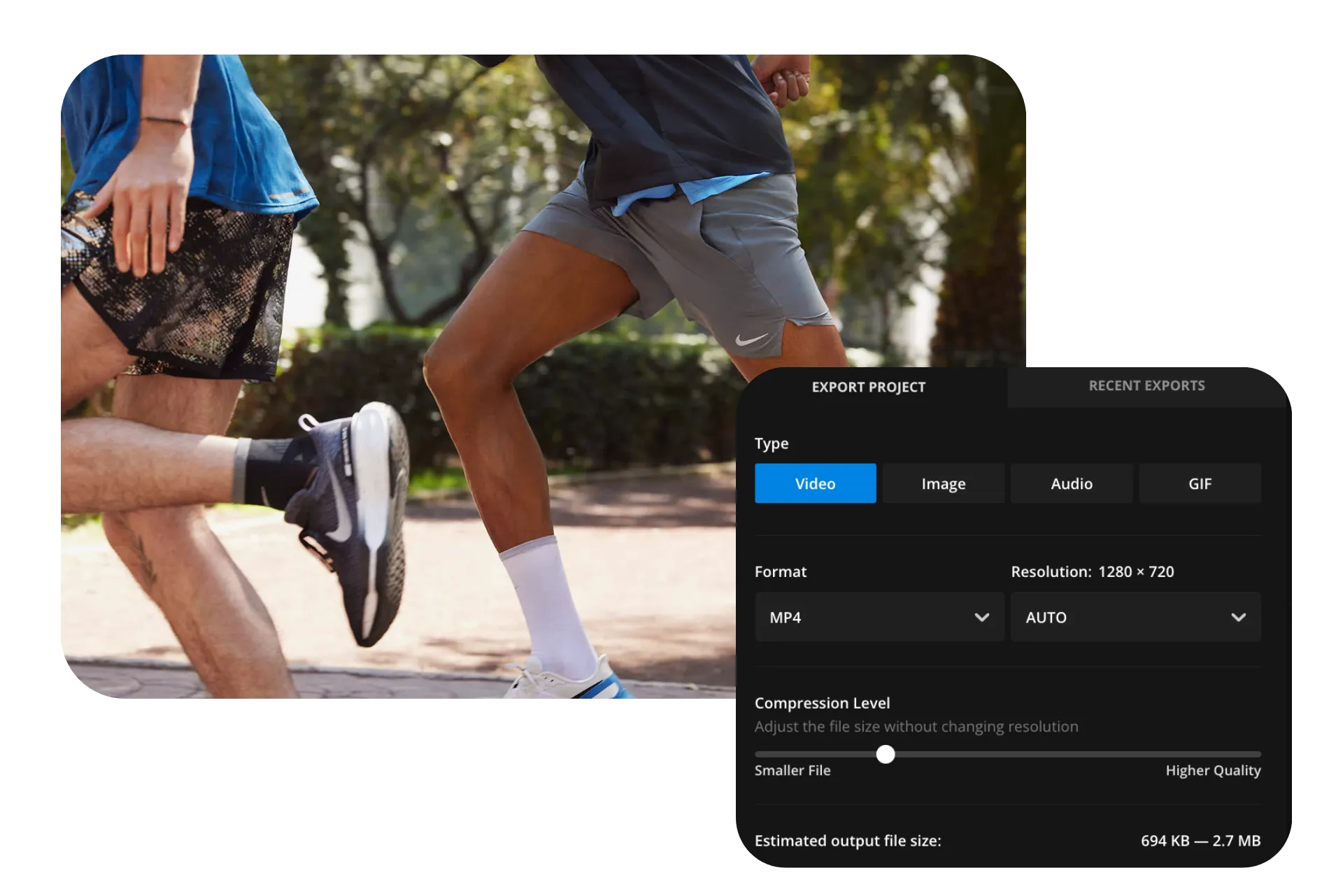
by clicking "Export project" at the upper right. Choose your compression and resolution settings, up to 4K.
Clear up your footage in an online studio
Fix blurry video with AI and manual studio tools
Unblur the details
Faces, product features, and other small details can look unfocused or blurred in low-resolution footage. Use Kapwing’s AI video upscaler to increase resolution and improve the appearance of detail before adding the clip to your project.
Preview the result to see what works for your recording. The improvement depends on the original footage: a slightly blurry clip offers more to work with than a severely out-of-focus recording. Start with the highest-quality version available to give your video the best chance of improving.

Refine and clarify every frame
Fine-tune your video after enhancement. Adjust brightness and contrast to make subjects easier to see, then balance saturation to keep colors looking natural. Sharpen details and adjust opacity and blur using free sliders — no downloads or app installations required.
If grain or speckling is obscuring detail, ask Kapwing's AI assistant, Kai, to reduce visual noise. Combine targeted AI improvements with manual controls instead of applying the same settings to every recording.

Keep videos clear when exporting
Preserve your improvements when you export and share. Choose an export resolution suited to your destination and avoid compressing the file more than necessary. Higher-quality export settings help retain detail, but they don’t replace improving the source footage.
For videos received through a messaging app, ask for the original file when possible. Edit that version, then share the finished video through a file link to avoid another round of messaging-app compression. Kapwing keeps your project online so you can return to it and make changes without repeatedly downloading and re-uploading the clip.
Small tweaks, big improvements
Take control of opacity, brightness, exposure, contrast, saturation, and blur
For a content creator, blurred video can be both a problem and solution depending on the project. Intentionally adding a blur helps highlight key elements, reduce distractions, create depth-of-field effects, and add a cinematic touch. On the other hand, removing blur by increasing resolution restores sharpness, corrects recording mishaps, and ensures every video has a clear finish.

Create clear, HD videos that keep viewers engaged
Hook audiences inside 8 seconds on every platform

Vlogs & Tutorials
Creators unblur YouTube vlogs and tutorial videos, sharpening quality directly in their browser. By adjusting brightness and contrast to make key elements stand out, videos look crystal clear in any resolution, from HD to 4K.
.webp)

Brand Partnerships
Influencers and advertising teams showcase brand partnerships and attract new commercial opportunities by using a Video Clearer to maintain the highest visual quality and resolution standards
.webp)
LinkedIn Videos
Businesses, HR, and recruitment professionals use the free Video Clearer to remove unwanted blur and enhance presentations or industry insight videos on LinkedIn's short-form video tab

Marketing & Advertising
Content marketers fine-tune product teasers and brand story videos, exporting in 1080p or 4K to ensure viewers have a smooth, distraction-free experience

Twitch Clips
Kapwing’s Video Clearer enhances Twitch stream footage by sharpening visuals and removing blur from gameplay recordings, ensuring both face cam and in-game action remain crisp and clear
.webp)
Customer Testimonials
Small business owners refine and enhance videos to ensure testimonial footage looks polished and professional, allowing the customer’s message to stand out clearly — even when recorded in challenging conditions

Training Videos
Video teams produce effective training materials by enhancing image and video clarity, ensuring instructions are clear, professional, and easy to understand for employees and customers
How to Make a Video Clearer
- Step 1Upload video
Upload your video file to Kapwing or add a URL link. Kapwing supports MP4, MOV, AVI, and more.
- Step 2Enhance video
With your video layer selected, use the right-hand sliders to make your video clearer by adjusting opacity, brightness, contrast, saturation, and blur. Stabilize your video and upscale resolution with one-click features in the same sidebar.
- Step 3Export and download
Continue making edits then click "Export project" to finalize your video. Once exported, download and share.
What's different about Kapwing?



Frequently Asked Questions
We have answers to the most common questions that our users ask.
Is Kapwing's Video Clearer tool free?
Yes, the Video Clearer tool is free for all users to try. A Free Account allows you to easily adjust brightness, contrast, opacity, saturation, and blur levels. When you upgrade to a Pro Account, you get access to exporting in 1080p and 4k video quality, plus all the premium AI features like the Video Stabilizer and B-Roll Generator.
Is there a Kapwing watermark on exports?
If you are using Kapwing on a Free account then all exports — including from the Video Clearer — will contain a watermark. Once you upgrade to a Pro account the watermark will be completely removed from all the videos you sharpen and edit.
How do I fix blurry or pixelated videos?
To improve the clarity of a blurry video, upload the file into Kapwing or paste the URL into our online editor. Then, adjust the settings for opacity, brightness, contrast, saturation, and blurring to improve the quality of the footage. Lastly, make sure to export the video as 1080p or 4K. When adjusting the compression level, opt for higher quality so you don’t affect the resolution during the export process.
You can also use AI tools to upscale video (increasing resolution up to 4x) and denoise video (removing visual noise and grain). These tools can help unblur videos that start at low resolution or with significant grain.
How to unblur a video on Android sent from iPhone
Videos sent through cellular networks are typically heavily compressed, leading to a loss of quality. Sometimes, file types sent between Android and iPhones are handled differently on each device, too, which leads to blurring. One way to preserve quality during Android-to-iPhone transfers is to use third-party messaging apps or file-sharing apps. You can also upload your video to Kapwing's Video Clearer prior to sending to unblur, enhance, and export in 4K. Or, you can sharpen the video's quality after receiving it using the tool's brightness, contrast, opacity, saturation, and blur level sliders.
Is there a better resolution than 1920x1080?
Yes, there are better resolutions than 1920x1080, also commonly called 1080p or Full HD. 3840x2160, or 4K, is the highest resolution possible on most PC screens, and contains four times as many pixels as 1080p. Some Mac models currently support even higher resolution, like 8K. Kapwing's online video clearer allows you to export your video files in both 1080p and 4K, as well as adjust the file level to avoid over-compressing.
Why do 1080p videos look blurry sometimes?
There are a handful of reasons why 1080p videos can sometimes look blurry. For example, the original footage quality could be very low-resolution, which forces its pixels to be stretched to fit high-resolution displays. Also, platforms like YouTube use a compression algorithm during uploads to make streaming faster, which can have the side effect of blurring video somewhat. Finally, the monitor's native resolution you're using might not match1080p.
Why is visual quality so important for social media videos?
There are three key reasons why a video's visual quality is critical when posting to social media:
- First Impressions Matter: Viewers are quickly scrolling through feeds, so high-quality video is much more likely to grab attention. Sharp, clear video with high resolution makes a good first impression, and gets viewers to watch for longer and engage.
- Brand Credibility: Consistent visual quality improves brand credibility. High-quality, polished videos look professional, showing that you care about your content and audience, which helps foster trust and loyalty.
- Improved Engagement: High-resolution, crystal clear videos are far likelier to be shared and engaged with. Platforms typically favor content that generates positive reactions, such as likes, shares, and comments, which only increase your videos' reach.
How do I make a blurry video clear?
To make a blurry video clearer, upload the file into Kapwing’s online editor or paste the video URL. Then, go to the "Edit" panel on the right-hand side and scroll down to the "Adjust" section. Next, slide the markers to adjust the settings for opacity, brightness, contrast, saturation, and blur level.
You can also use Kapwing's AI video enhancing tools, including Upscale and Denoise, to improve the clarity of your videos.
Can AI make a video clearer?
Yes, AI can make video content clearer. Try Upscale Video to intelligently increase the resolution of any video. Or try Denoise Video, which removes distracting visual grain in seconds. Kapwing also offers an AI stabilization tool that automatically stabilizes your video so it’s less shaky — which has a big impact on clarity. You can also use our easily adjustable settings for brightness, contrast, and saturation to improve the clarity of your videos. Then, choose a higher resolution like 1080p or 4K when exporting to preserve quality.
Discover Resources
Tips, templates, and deep dives to help you create faster and share with confidence.
View all


Get started with your first video in just a few clicks. Join over 35 million creators who trust Kapwing to create more content in less time.