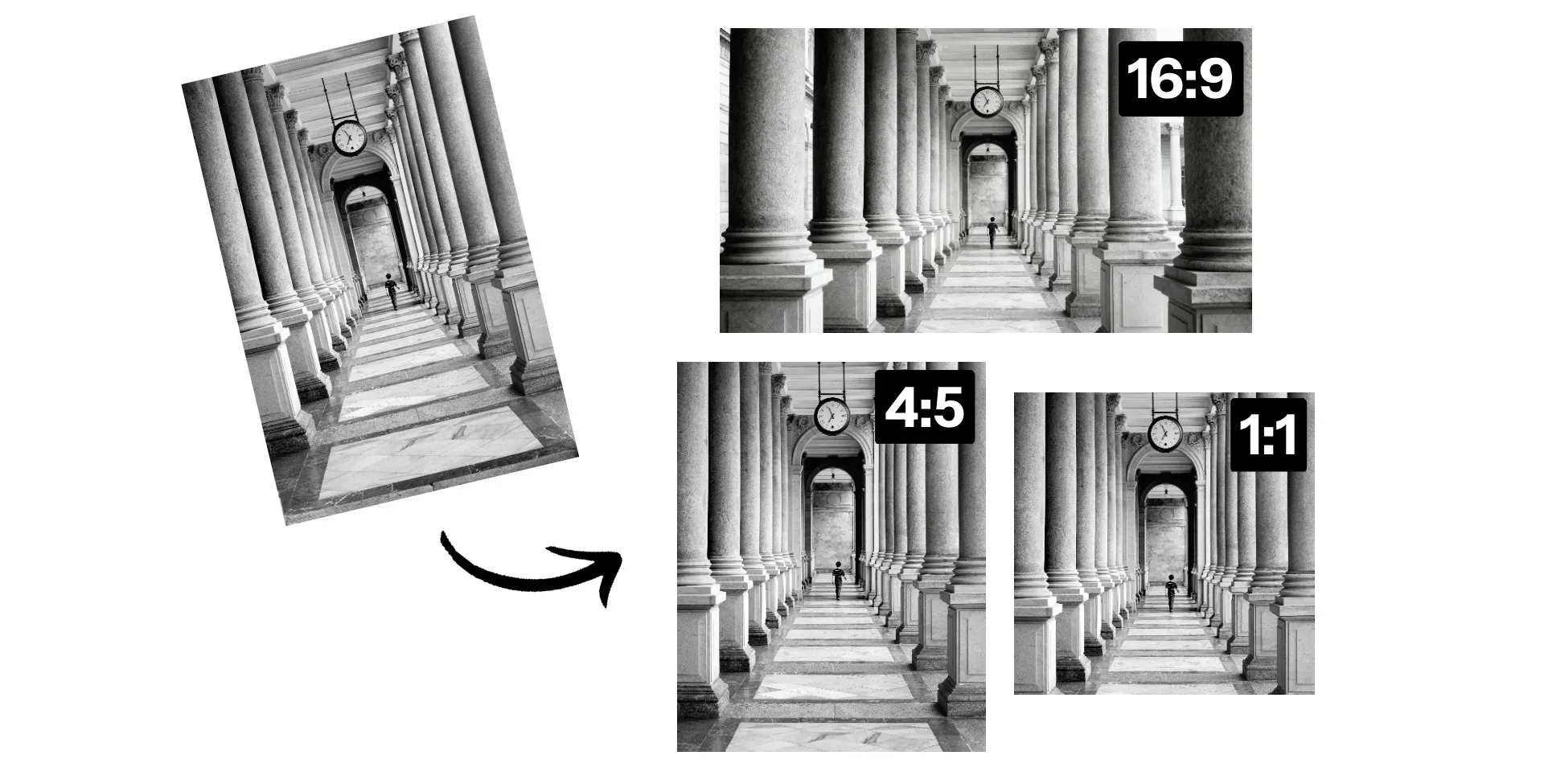
Resize images in seconds with built-in aspect ratios
Resize for any platform, crop images, fill gaps, and auto-enhance online
Change aspect ratio, maintain quality
Resize images to any aspect ratio without sacrificing resolution or detail. Kapwing’s Image Resizer makes it easy to adapt a single image for multiple platforms while keeping the original quality intact.
Choose from preset aspect ratios optimized for social media platforms like YouTube, Instagram, and LinkedIn, or enter exact pixel dimensions for custom sizing. Whether you’re preparing a square post, vertical story, or wide banner, Kapwing quickly adjusts your image to the format you need.

Shrink images without losing quality
Use an image shrinker that reduces photo dimensions while maintaining crisp details. Shrink image size with presets or custom cropping, then adjust export resolution to optimize file size.
Resize JPG and PNG files online to adapt for social media profile pictures, favicons, thumbnails, and websites.
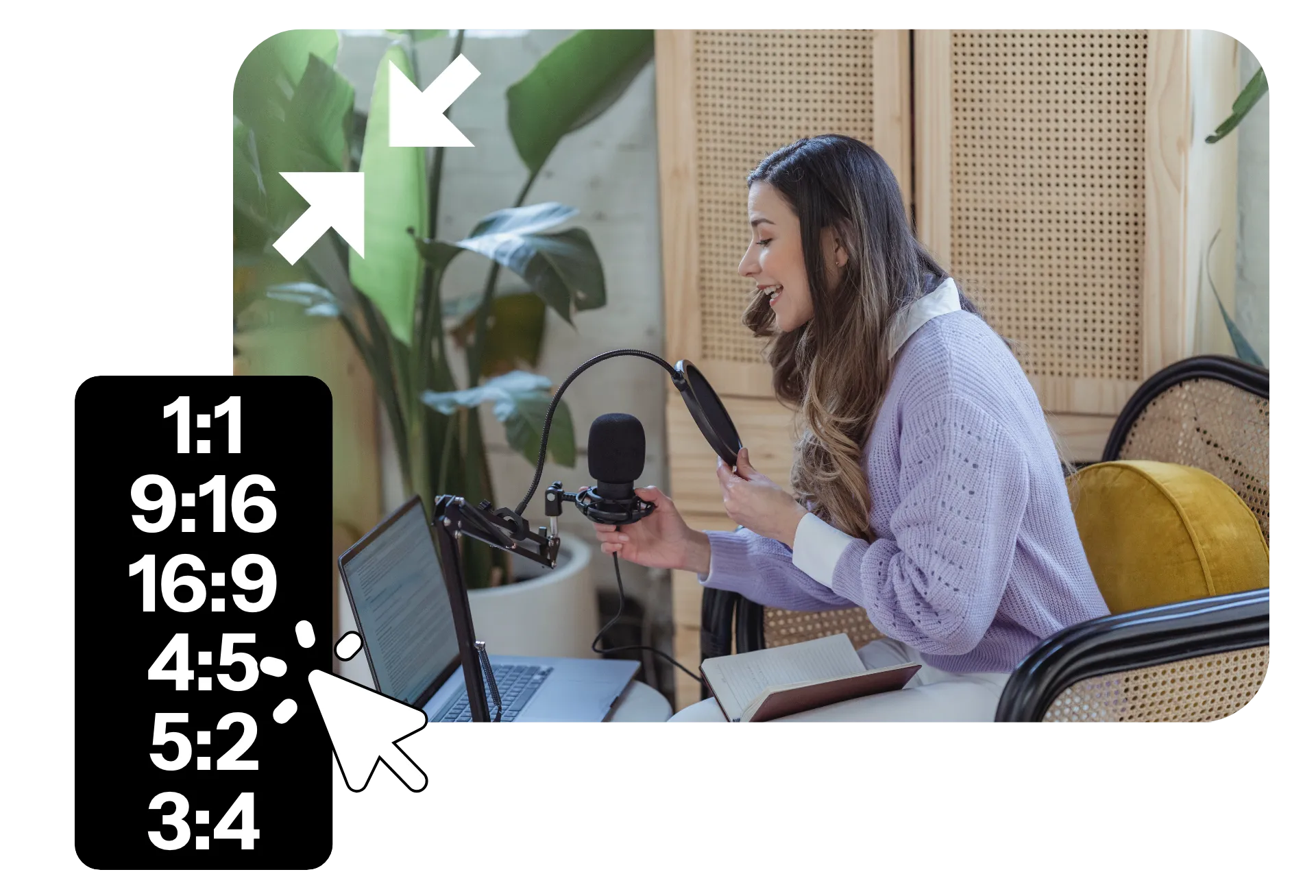
Extend to any size without blur
Expand images without cropping or awkward padding. Kapwing’s AI Image Extender analyzes your photo and expands the canvas with realistic visuals that match the original image.
Turn vertical 9:16 photos into square (1:1) or wide landscape formats like 5:2 while keeping every detail. AI-powered outpainting fills the extra space so your image looks natural, not stretched.
Already transforming video creation across industries
Hear directly from the teams who publish faster, collaborate better, and stay ahead.


Create high-performing content in minutes
Engage your audience by enhancing, editing, and repurposing images
Sharp, clear images with a single click
Skip hours of tedious editing and improve image quality quickly with Kapwing's AI-powered image enhancer.
It scopes out your image and applies the right brightness, contrast, and saturation—making it clearer and more eye-catching in a single step.

Automatically remove and replace backgrounds
Tracing images is tedious. Luckily, it’s pointless, too. Kapwing lets you get rid of messy backgrounds in one click so you can replace them with whatever you want.
Add solid color backgrounds, choose from our library of stock images, or even try our AI image generator to create something from scratch with a simple prompt.

Save your brand templates and automate your content creation
Resizing images for different platforms takes a lot of time, especially when you need to add on-brand captions. With Kapwing, you can store your own brand templates and styles alongside your logo, fonts, and colors in your Brand Kit. Now, every creator has what they need to create great content in seconds (instead of hours).

How to Resize Images Online
- Step 1Upload images
Upload the photo or image that you want to resize. You can choose a file or paste a link from Giphy, Twitter, etc. This image will be uploaded to the Kapwing editor and loaded for easy resizing.
- Step 2Resize images
Select your aspect ratio, cropping style and background color. You can also adjust the image to a custom size. If you want exact controls, you can click the custom sizing button to enter an exact pixel value for your image.
- Step 3Edit and download
Click Export and your final image will be produced. Go forth, enjoy your resized image, and share the newly resized image on your favorite social media platform.
What's different about Kapwing?



Frequently Asked Questions
We have answers to the most common questions that our users ask.
Is the Image Resizer free?
Yes, Kapwing's image shrinker and resizer is free for all users. For access to the full range of tools, including the AI-powered Extend Image, upgrade to a Pro account.
Is there a way to resize multiple images at once?
With Kapwing, it’s easy to resize images in seconds, making your workflow super fast. You can resize multiple images for the same platform (like Instagram posts or Stories) using our social media presets. Or, upload photos one at a time if you need to resize them for different use cases. Our resizing and cropping tools also offer safe zone guides so your images will never be cut off by your TikTok and Reels captions.
What are some ways I can resize an image with AI?
To resize an image with AI, use Kapwing’s Image Resizer. Choose the social media platform and post type to apply the right aspect ratios. Then, add padding to your image or fill in blank space with our AI-powered Image Expander feature, which auto-generates imagery to perfectly match your photo. You’ll receive multiple outputs to choose from, and you can always regenerate additional options to get the perfect look.
How to shrink an image without losing quality
Kapwing's image shrinker lets you resize photos without affecting image quality. Create a new project in the Kapwing studio, then click to upload your image. Click "Resize Project" in the righthand toolbar, then choose from presets for everything from YouTube thumbnails (16:9) to LinkedIn or Instagram squares (1:1). You can also type in custom dimensions to create other image sizes, like 5:2 landscape. The simple image resizer allows you to fine-tune your image dimensions in seconds.
How do I resize an image while keeping its quality?
To resize an image and retain its quality, crop the image and zoom in on a smaller portion. Or, if you need to make the image larger, you can use Kapwing’s Image Extender tool to AI-generate the rest of the photo with matching imagery (instead of adding blank padding on the sides). You can also try our Enhance feature to improve the quality of any resized image, making it clearer.
What file types does Kapwing support?
Kapwing supports all major image file types, including JPG, PNG, and WebP. You can upload and download your resized images in any of these formats. Resize JPG, resize PNG, or resize any other photo, all with a free online tool.
Discover Resources
Tips, templates, and deep dives to help you create faster and share with confidence.
View all

Get started with your first video in just a few clicks. Join over 35 million creators who trust Kapwing to create more content in less time.