Create video slideshows for free.
Combine images, videos, music, and text online.
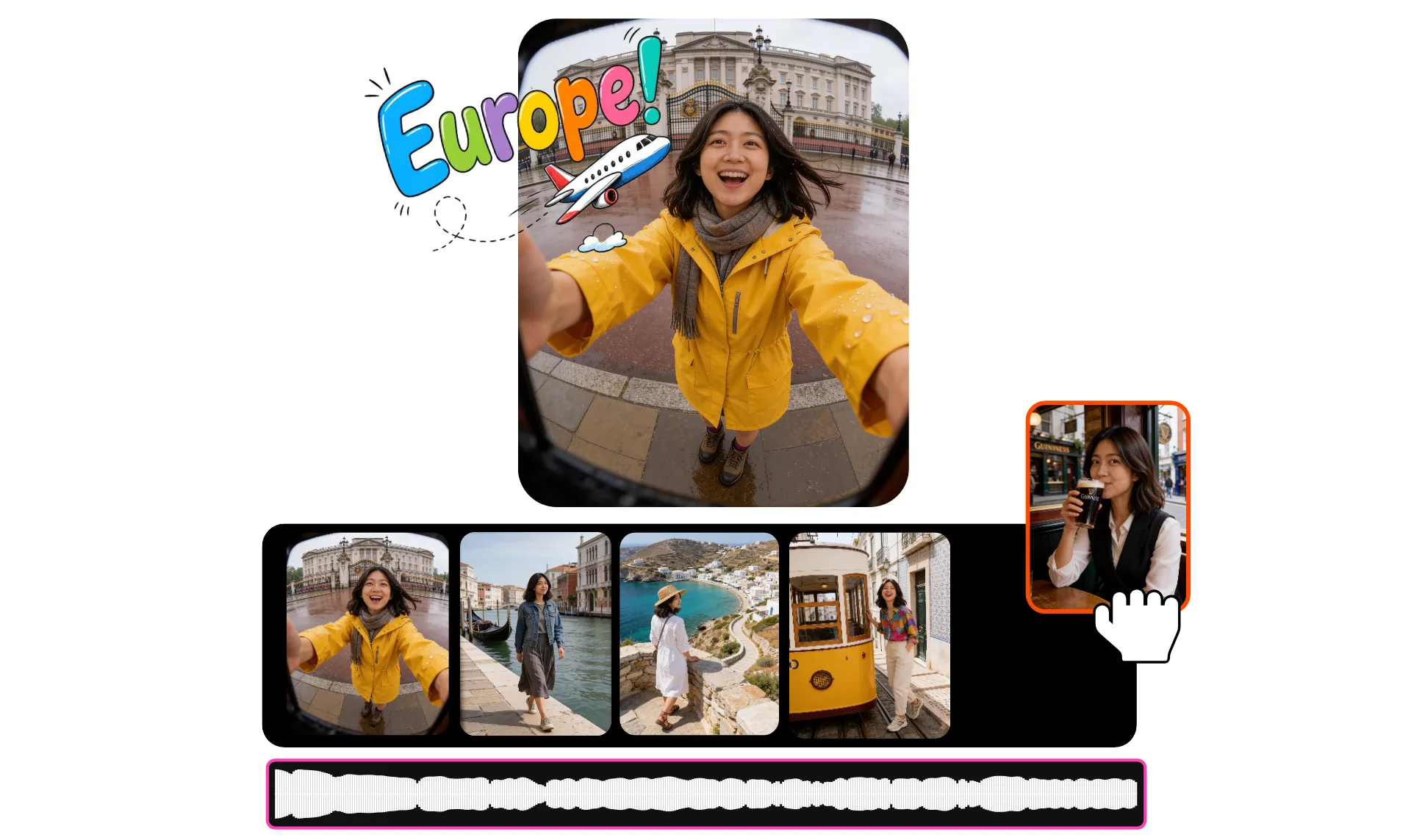
Make a slideshow video with photos, clips, and music
Arrange,
Customize every slide online
Kapwing’s free slideshow maker puts every slide on one timeline, so you can mix photos, video clips, and GIFs in any order.
Set how long each slide stays on screen, add titles and captions, place transitions between slides, and upload a soundtrack or choose one from the built-in stock library.
When you're ready to share, export one high-resolution MP4 to download, post, or play on a TV.

How to make a slideshow in 3 steps
Turn your photos into a slideshow in an online editor
Upload
your photos, clips, and music to a new project in Kapwing Studio


Arrange
slides on the timeline, adjusting order and duration for every element
Finish
your slideshow by adding transitions, music, text, or voiceovers, then download as MP4 or MOV
Create a slideshow for any occasion

Weddings
Couples can tell their story from first date to engagement and play it at the reception or rehearsal dinner

Memorial Tributes
Gather family photos into a gentle slideshow with soft fades and a meaningful song for a funeral or celebration of life

Birthday Surprises
Collect photos from friends and family, add captions and a favorite song, and share the link before the party

Graduation Videos
For senior nights and graduation parties, show the years in order from the first day of school to the final walk

Travel Recaps
Combine photos and short clips from every stop, add a map shot from the stock library, and post a vertical version to Reels
Product Showcases
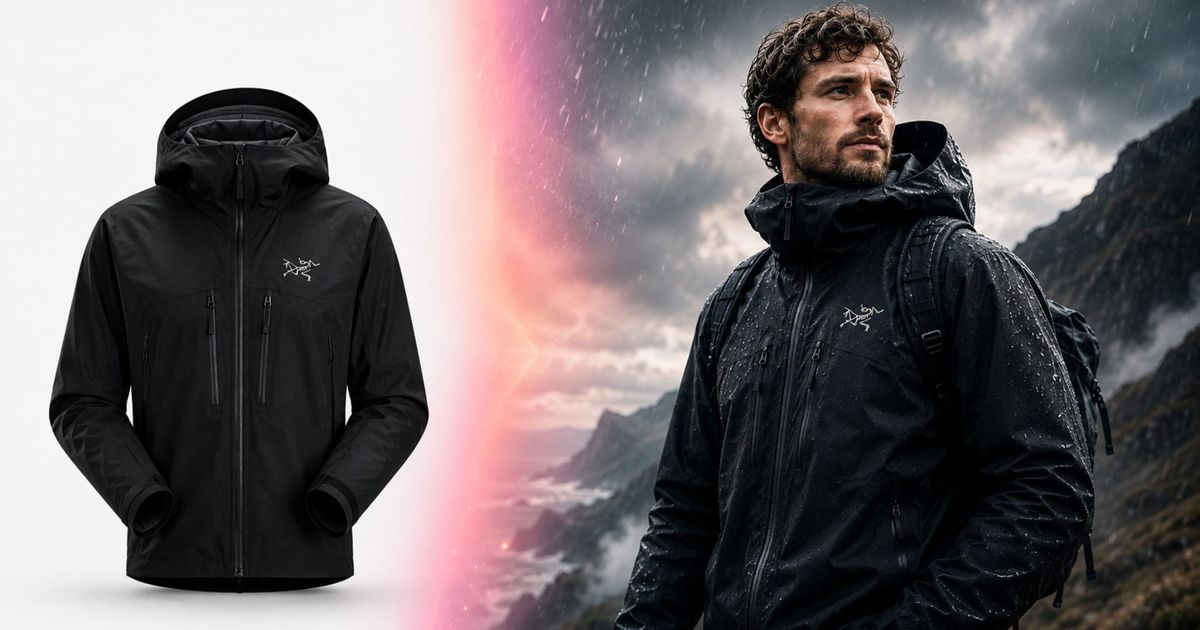
Small businesses can turn product photos into a looping video for a storefront screen, website, or social ad
Tell your story with a free photo slideshow maker
Arrange slides, add music and narration, and collaborate in real time
Arrange, fill, and customize every slide
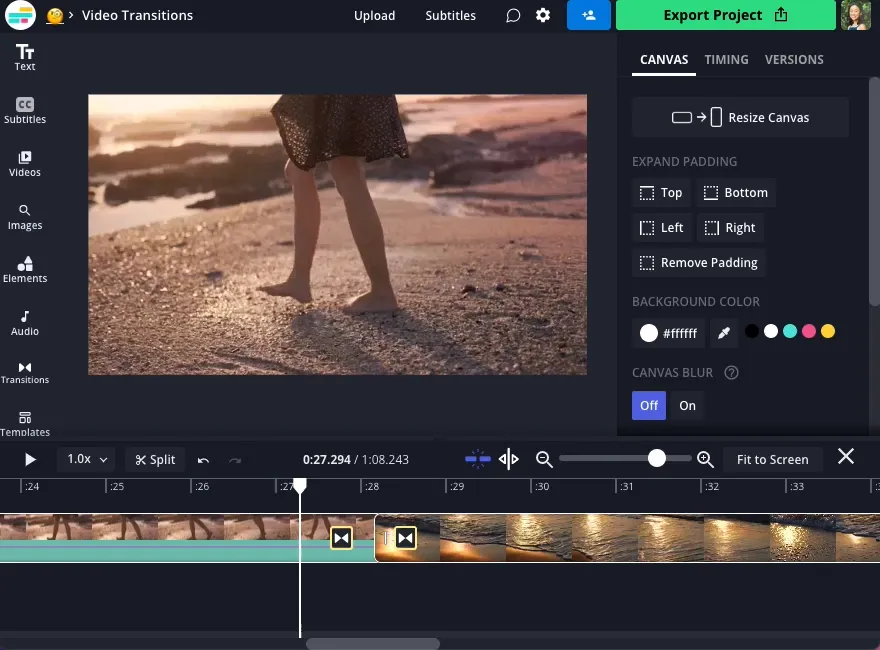
Drag photos and clips into order on the timeline and set how long each one stays on screen. Drop in any of 70+ preset transitions, like fades, cross dissolves, and wipes, and set each one to slow, default, or fast.
Fill gaps with royalty-free stock photos, video clips, and GIFs from the built-in library. You can also resize your project to 16:9 for a TV or YouTube, 9:16 for Reels and TikTok, or 1:1 for a feed post.
Add music, narration, and sound
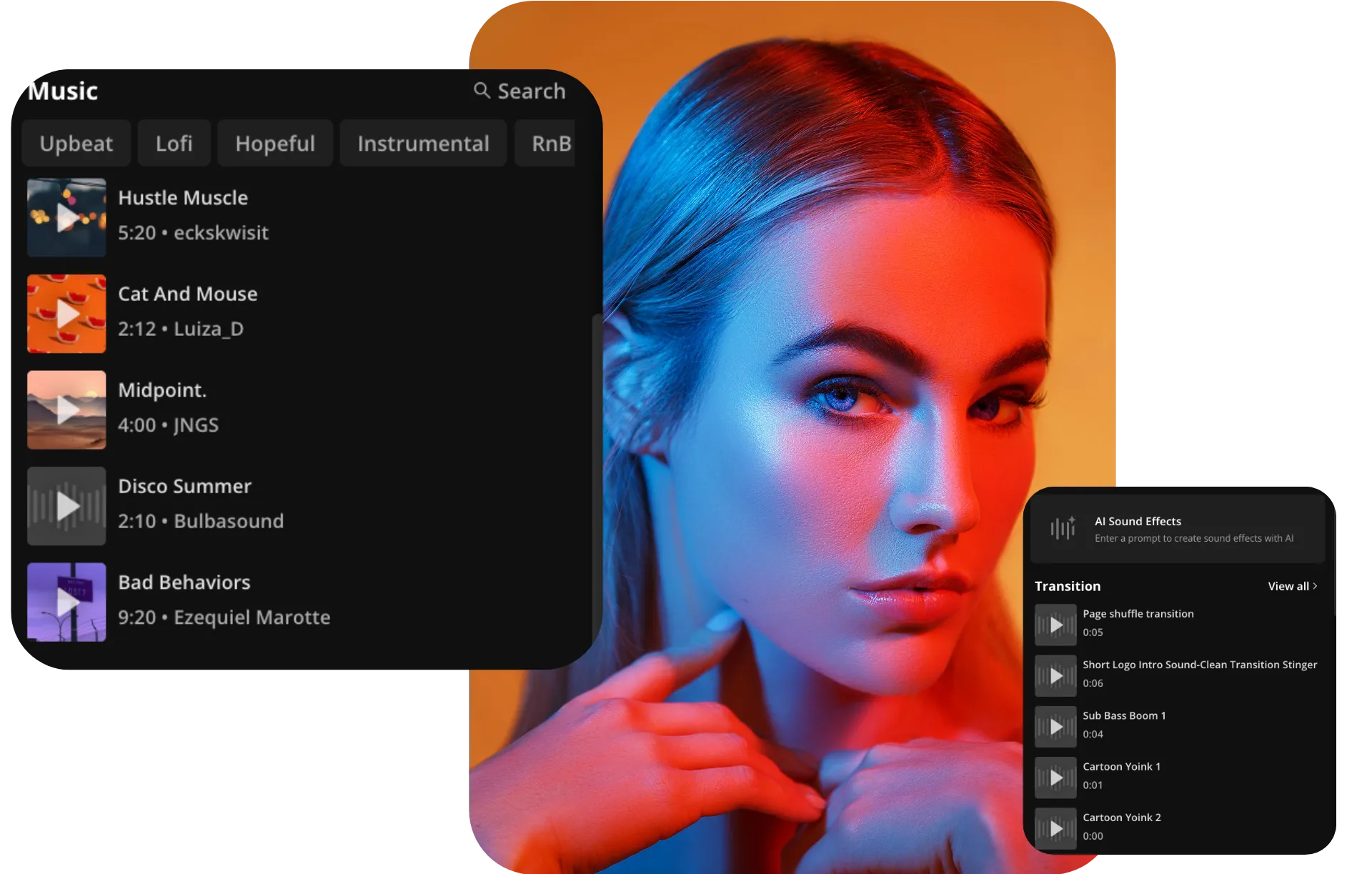
Create a video slideshow with music without leaving your browser. Pick a song from the music library, upload your own track, or generate an original one with the AI Song Generator. Record a voiceover in the editor to tell the story behind each photo, or type a script and turn it into narration with text to speech.
To present a slideshow, use the built-in screen and camera recorder to capture your slides while you talk through them, with your webcam in the corner. Trim, fade, and balance every audio layer so the music sits under your voice.
Build your slideshow together
Skip the work of chasing down photos from a dozen people. For a memorial tribute, a birthday surprise, or a retirement send-off, invite family, friends, or coworkers to a shared workspace where everyone uploads their own photos and clips to one media library.
Once the photos are in, build the slideshow at the same time. One person can arrange the slides while another adds captions or picks the music. Leave time-stamped comments on specific slides to suggest changes, then share a review link for a final sign-off.
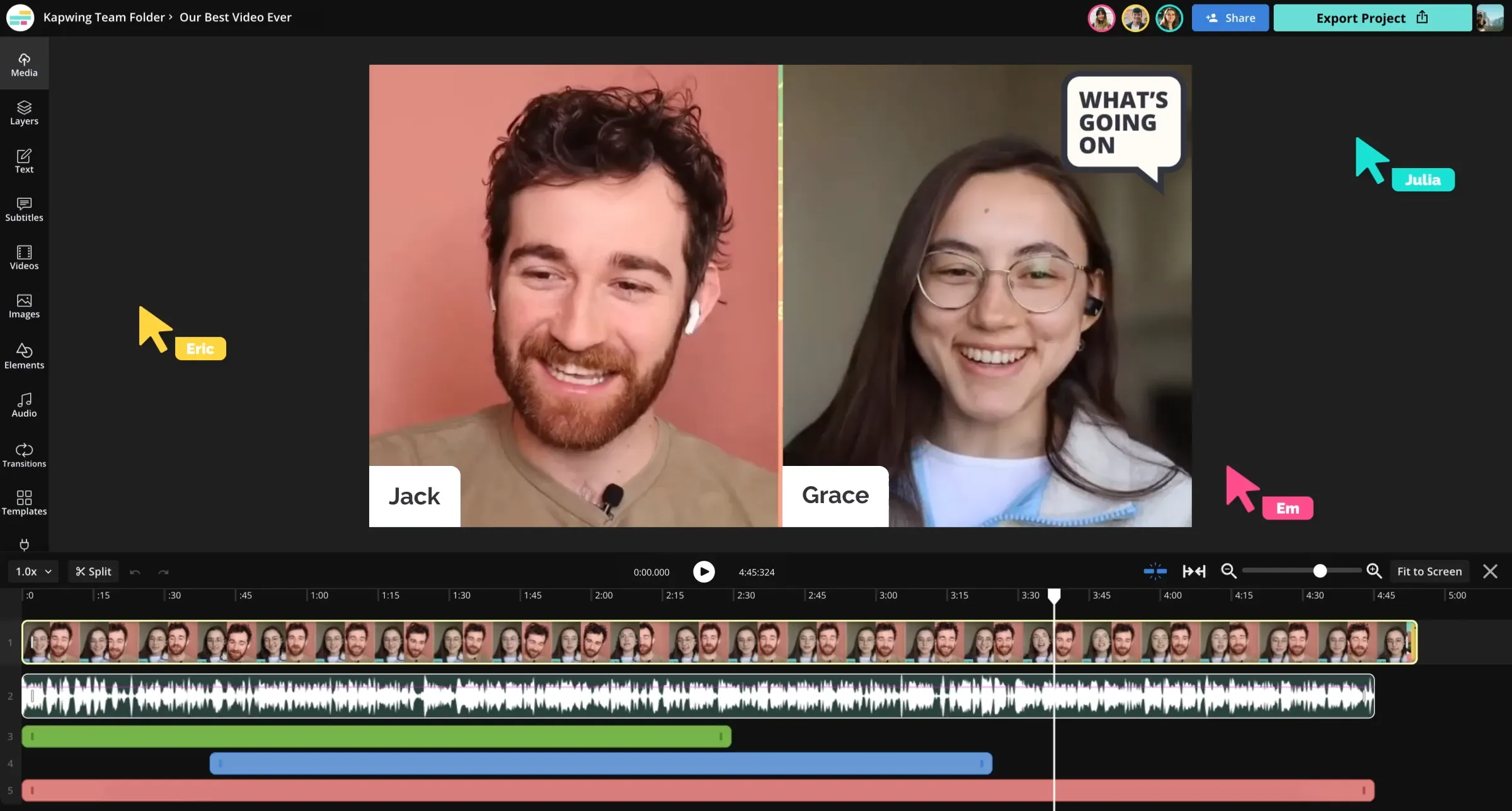
How to Create a Slideshow Online
- Step 1Upload media
Gather all the images, videos, and GIFs that you want to combine into a slideshow. Then, upload the media files (MOV, MP4, PNG, JPG, GIF, etc) to Kapwing's Video Slideshow Maker. You can choose a photo file or even paste a link from Instagram, Twitter, TikTok and more to import it directly.
- Step 2Arrange slideshow
Using the slideshow preview, rearrange the clips into the right order. Adjust the size of the slideshow so that it's square, landscape, or 9:16. Crop and set the duration of each clip. You can easily add music or a voice over to the slideshow to accompany your content. Insert text, stickers, and titles to make the video slideshow you desire.
- Step 3Export and share
Hit 'Export', and Kapwing will process your video slideshow. All of your photos will be combined into a new MP4 slideshow. Save the slideshow video and share it with your friends.
Make an AI slideshow
Generate individual elements for your slideshow — or have AI build it for you
Build a slideshow quickly with AI
Short on time or photos? Generate a missing image, turn a photo into a video clip, create a custom transition between two slides, or have Kai, Kapwing’s AI video assistant, build the whole slideshow from your raw uploads.
Upload your photos and clips and describe the slideshow you want: “Sort these by date, show each photo for 3 seconds, add cross dissolves, and end on the group shot.” Kai arranges the slides, sets the durations, and applies the transitions.
You can also generate relevant B-roll, custom music, or unique AI transitions between your clips or photos.
What's different about Kapwing?



Frequently Asked Questions
We have answers to the most common questions that our users ask.
Yes, you can make and export slideshows on the free plan. Free exports include a Kapwing watermark, export at 720p, and can be up to 4 minutes long. Upgrade to a paid plan to remove the watermark and export longer, higher-resolution videos.
To build a slideshow using Kapwing, start by creating a new project in the Studio. Click or drag to upload any images, videos, or songs you want to include. Arrange them on the timeline, dragging the ends of each file to adjust duration and trim videos.
Browse the image, video, and music stock libraries to fill in any gaps, or click the AI icon in the lefthand sidebar to generate something new. Add transitions between your slides using the righthand sidebar.
Embellish and enhance the slideshow with text, stickers, images, title slides, custom background color, animations, and more visual elements using Kapwing's intuitive video editing tools.
You can also resize your project to suit any platform, like 16:9 for display on a TV or YouTube channel and 9:16 for social media apps like TikTok and Instagram. When you're ready to share your slideshow, click "Export project" at the upper right to download in up to 4K resolution as MP4, MOV, or WebM.
Yes, upload any audio file you have the rights to use, choose a track from the music library, or create an original song with the AI Song Generator. You can trim, fade, and adjust the volume of any track.
Three to five seconds works for most photos to give your slideshow pacing that's easy to follow and not too slow. Give more time to group shots, photos with text, and the opening and closing slides. For a slideshow set to music, match slide lengths to the tempo of the song.
Pick a canvas size for where the slideshow will play. Use 16:9 for YouTube, TVs, projectors, and presentations, 9:16 for TikTok, Instagram Reels, Stories, and YouTube Shorts, and 1:1 for square feed posts. You can also enter a custom aspect ratio for a digital sign, website banner, or ad placement.
To post the same slideshow in more than one place, resize the canvas and choose Fit to Center to keep each full photo in frame or Fill and Crop to fill the screen edge to edge. Then export an MP4 for each platform and upload it to Facebook, Instagram, TikTok, YouTube, or LinkedIn like any other video.
Yes, you can export your slideshow in 16:9 as an MP4, then play it from a USB drive, cast it from your phone or laptop, or open the share link in a smart TV browser. Free exports play at 720p; a paid plan lets you export at a higher resolution so photos stay sharp on a large screen.
A few adjustments make a slideshow easier to watch from across a room. Show each photo for 5 to 7 seconds, a little longer than you would for a phone, and use slow fades or cross dissolves instead of fast wipes. Make titles and captions large, and keep them away from the edges of the frame, since some TVs crop the outer edges of the picture. For vertical photos, fill the empty sides with a background color or a blurred, enlarged copy of the same photo so the screen never shows black bars.
If the slideshow will play at an event, set the music volume evenly (or use Equalize Volume) so no song jumps out over the room, and add a closing slide that can stay on screen after the last photo. Play the file on the actual TV before the event to check the colors, text size, and sound.
A slideshow presents photos one at a time, with each slide on screen long enough for viewers to take it in. It usually follows an order, like a timeline of a couple’s relationship or room-by-room listing photos, and often pairs with captions or a voiceover.
A montage moves faster. It cuts together short video clips and photos, often to the beat of a song, to build energy or show a lot of moments in a short time, like a sports highlight reel or a travel recap for Reels.
You can make both in Kapwing. Use this slideshow maker when the photos are the focus and you want control over timing and captions, or try the Montage Maker for a quick, music-driven edit built mostly from video clips.
To pair one photo with a song or voiceover, use Add Music to Photo. It turns a single image and an audio track into a video in a few clicks, which works for album art, a quote card, or a podcast clip.
For a set of photos and a song with minimal editing, the Picture Video Maker gets you a finished video quickly. Use this slideshow maker when you want to set the order and timing of each slide, mix in video clips and stock media, add transitions and captions, or record narration.
You can also use the Convert Image to Video tool to quickly turn an image into an editable video project.
Kapwing supports PNG, JPG, GIF, 3PG, MOV, MP4, MPEG, WAV, AVI, FLV, and many more file types. The Kapwing Studio is also browser-based, so it works on Mac, PC, Windows, iPhones, iPads, Android, Chromebooks, and more.
Discover Resources
Tips, templates, and deep dives to help you create faster and share with confidence.
View all


Get started with your first video in just a few clicks. Join over 35 million creators who trust Kapwing to create more content in less time.