7 Video Editing Tasks You Can Automate With ChatGPT or Claude
From rough cuts to AI-generated B-roll, see what ChatGPT and Claude can actually automate in your video editing workflow.

Video editing involves more than cutting clips together. Before publishing a YouTube video, podcast, or social media Reel, you might need to review hours of footage, remove awkward pauses, generate subtitles, find B-roll, translate dialogue, and prepare versions for different platforms. Much of that work is repetitive, which makes it a natural candidate for AI automation.
ChatGPT and Claude can now handle many video editing tasks, but how much they can automate depends on the tools you give them. Both assistants can work directly with scripts, transcripts, and editing instructions. With coding tools or integrations like Descript, OpusClip, and Kapwing, they can go further and make actual changes to footage, timelines, and exported videos.
We've tested several approaches at Kapwing, from using Claude Code to construct an entire YouTube Short to using AI agents for automatic captions, dubbing, and video generation. Below are seven practical editing tasks you can automate today, with example prompts, recommended tools, and the limitations worth knowing.
Table of Contents:
- Can ChatGPT and Claude Edit Videos Directly?
- 7 Video Editing Tasks You Can Automate With ChatGPT or Claude
- Which AI Video Editing Workflow Should You Use?
- Frequently Asked Questions
Can ChatGPT and Claude Edit Videos Directly?
ChatGPT and Claude can both assist with video editing, although neither standard chat interface is a dedicated video editor. They don't provide all the tools needed to import raw footage, cut a multitrack timeline, and render a finished MP4.
What they can do directly is work with many of the materials that inform an edit. For example, you can give either assistant a transcript and ask it to identify unnecessary dialogue, suggest cuts, write title cards, or translate the script. ChatGPT also supports uploads of audio files for transcription, while Claude can analyze documents and images and execute code in supported environments.
To turn those instructions into actual video changes, you have a few options:
| Method | How it works | Best for |
|---|---|---|
|
ChatGPT or Claude alone
|
Analyzes transcripts, writes scripts, plans edits, and generates text-based outputs | Planning an edit, reviewing dialogue, writing captions |
|
Claude Code or a coding agent
|
Runs editing software and scripts such as FFmpeg, using files on a computer | Precise cuts, batch processing, custom workflows |
|
MCP-connected video editors
|
Connects an AI assistant directly to editing tools through Model Context Protocol | Editing existing footage using conversational prompts |
|
Dedicated AI video tools
|
Uses built-in models and workflows for clipping, transcription, dubbing, and generation | Repetitive production tasks without custom code |
For the third approach, you connect an AI assistant to a compatible editor, then describe the result you want. The assistant chooses the tools, while the editing software processes the footage. These connections are available through products such as Kapwing, Descript, and OpusClip, although each has different features.
The important distinction is between generating instructions for an edit and executing the edit itself. The seven examples below cover both, so you can choose the simplest approach for the task.
7 Video Editing Tasks You Can Automate With ChatGPT or Claude
Not every video editing task requires a fully connected AI agent. ChatGPT and Claude can help plan cuts, analyze transcripts, and prepare assets on their own, while tasks like trimming footage, adding captions, and exporting videos require additional tools.
The seven examples below cover both approaches, with practical prompts, recommended tools, and real-world tests showing how much of the editing process you can automate.
1. Review Footage and Plan Your Cuts
Before editing a long recording, you need to decide what stays and what goes.
ChatGPT and Claude are useful at this stage because they can evaluate dialogue and structure without needing to control an editing timeline. Give either assistant a transcript and ask it to identify the strongest sections, explain why they matter, and recommend an edit.
Example Prompt: "Review this transcript from my 30-minute YouTube video. Identify repeated explanations, tangents, and sections that don't contribute to the main topic. Suggest a tighter 10-minute structure, with the sections to keep, suggested cuts, and a stronger opening. Use the transcript's existing timestamps and don't invent new ones."
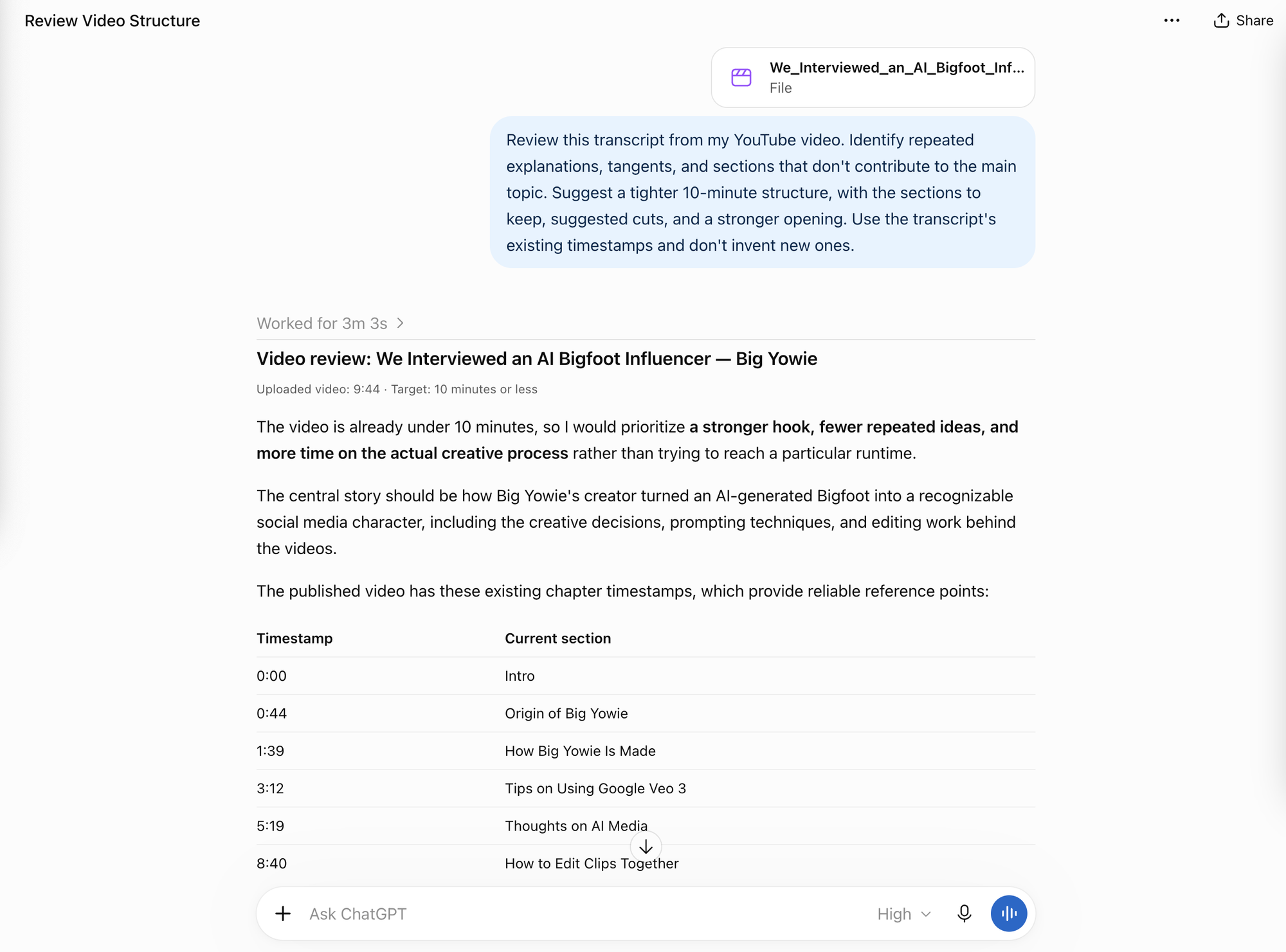
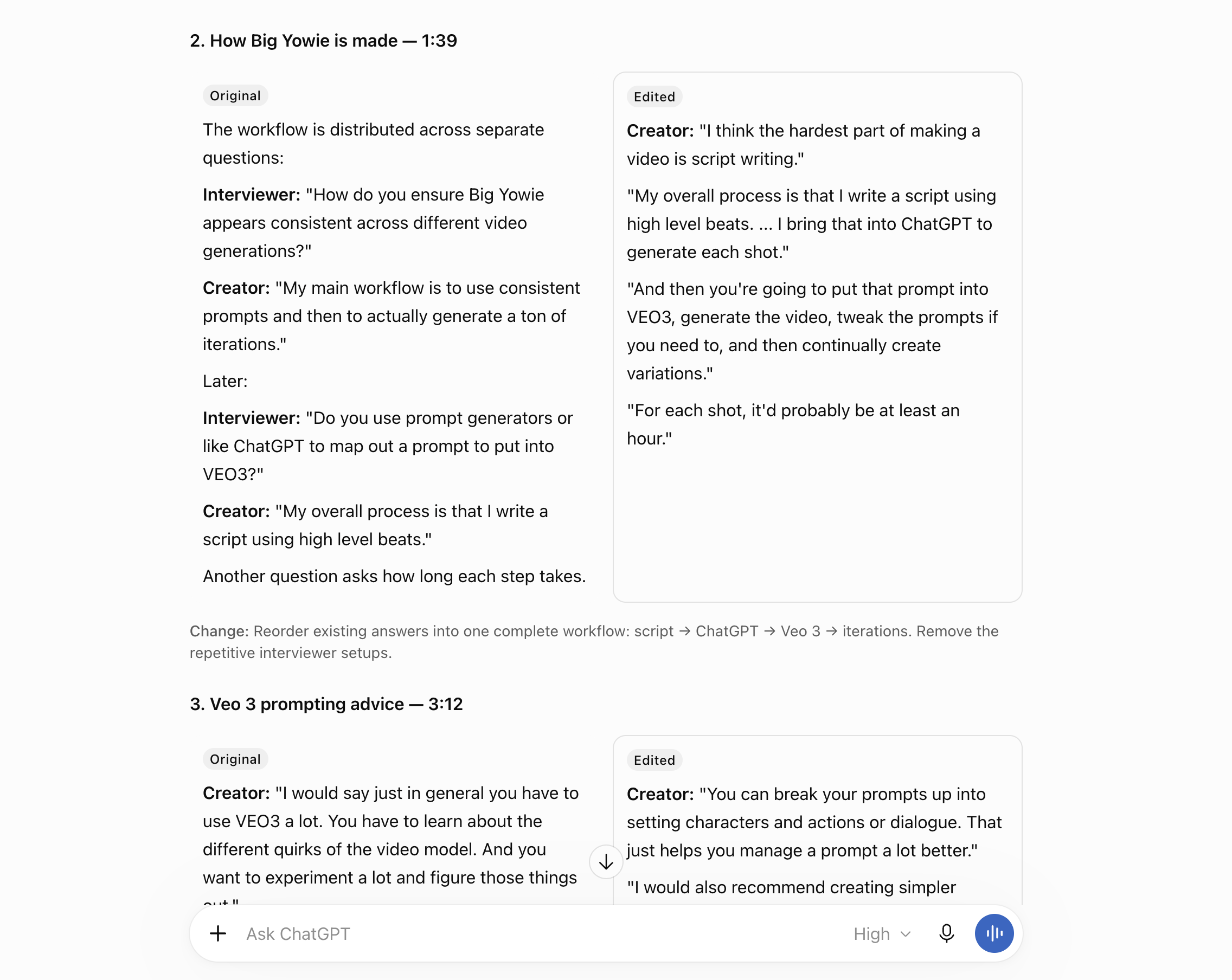
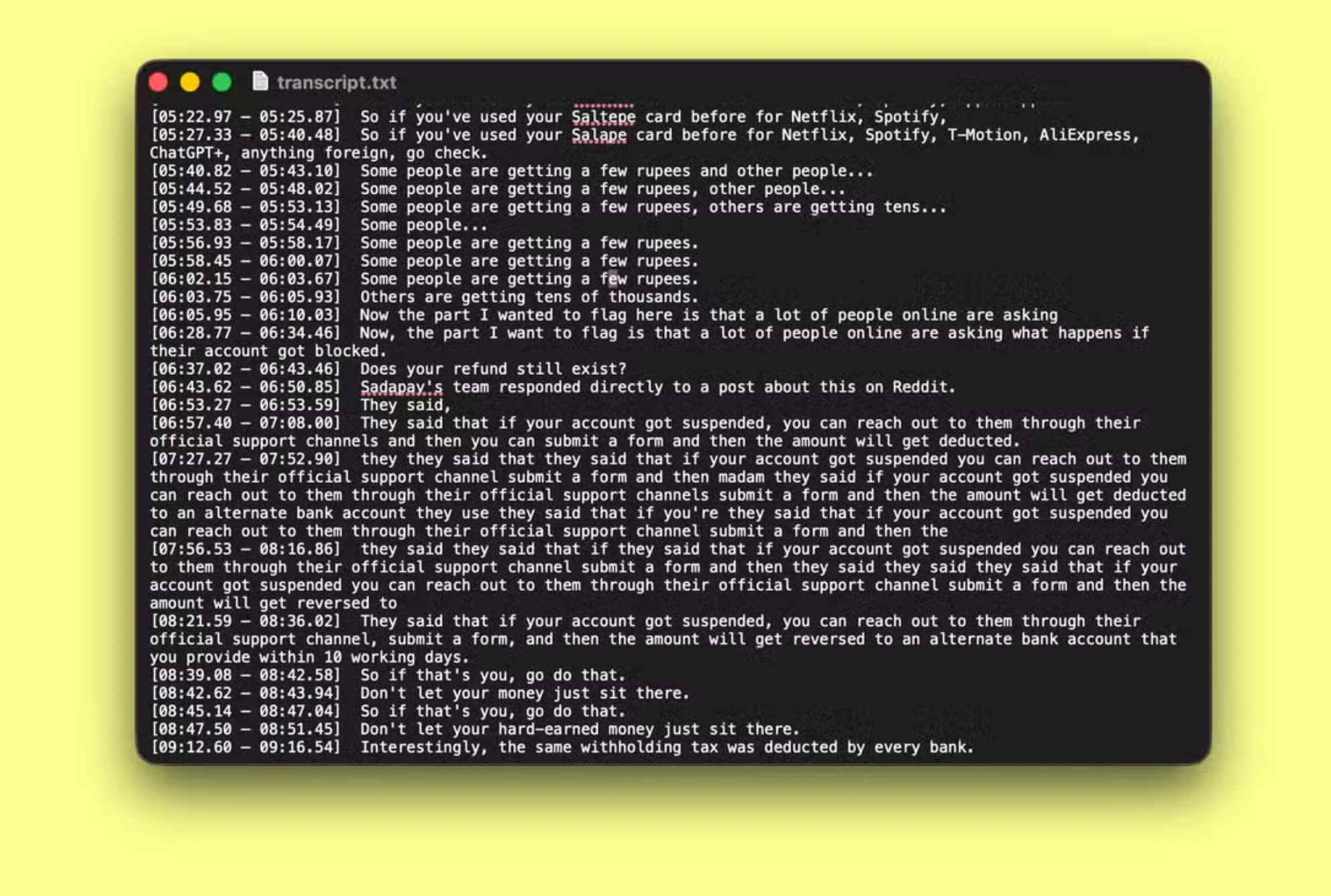
This works best with a timestamped transcript, which lets you translate the suggestions into specific editing decisions. Without timestamps, an AI assistant can still suggest what to remove, but it won't know the location of each section.
You can also ask it to produce an edit decision list, including the intended sequence, suggested transitions, and B-roll opportunities.
2. Trim Footage and Remove Unnecessary Pauses
Once you've identified what should be cut, the next step is actually removing it. This is where AI coding agents and video editor integrations become useful.
Claude Code can work with local files and execute command-line tools such as FFmpeg, which supports trimming, combining clips, and processing video or audio. You can ask Claude to write and run the appropriate commands, then inspect the resulting file.
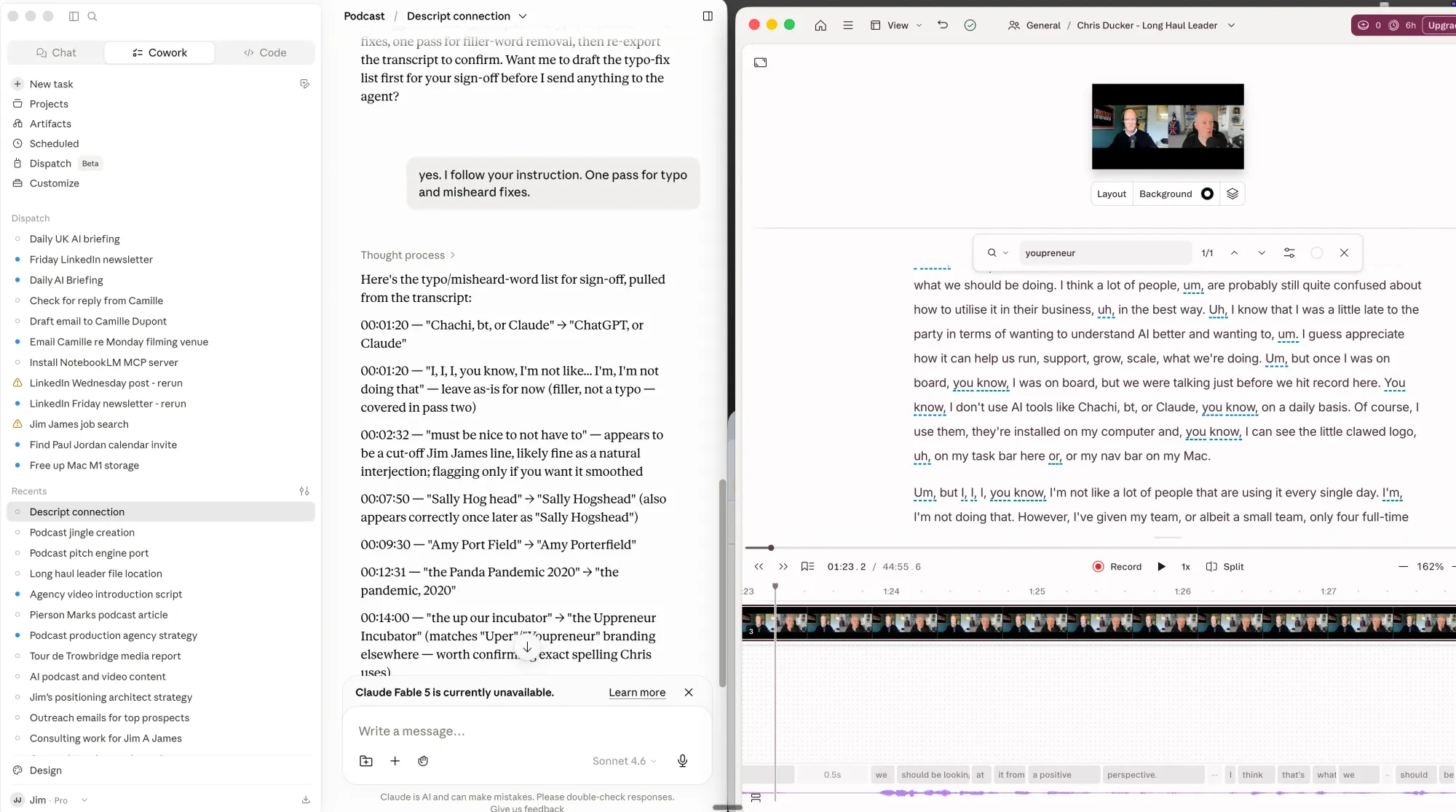
Descript offers a different approach. Its AI assistant, Underlord, supports editing through transcripts, removing filler words, cleaning audio, and making other changes through natural-language instructions. You can access these functions directly in Descript or through supported Claude and ChatGPT integrations.
Example Prompt: "Edit this talking-head recording into a tighter five-minute video. Remove long silences, false starts, and repeated sentences, but preserve natural pauses between ideas. Keep the original order, and give me a version to review before making further changes."
At Kapwing, we tested a more advanced example using Claude Code and a free video editing skill. Rather than connecting to a traditional editor, the skill combined Whisper, FFmpeg, and a video rendering framework to edit.
The resulting YouTube Short was 70.7 seconds long, with 98 clips across 13 tracks. Claude assembled the sequence, rendered the video, and made additional corrections, including fixes to overlapping graphics and audio balance.
The result demonstrated that coding agents can take on much more than isolated trimming tasks. However, it also required a specific editing skill and access to the necessary tools, rather than working entirely through an ordinary Claude chat.
For straightforward talking-head editing, a connected video editor will usually be easier to set up than building a custom programmatic workflow.
3. Turn Long Videos Into Short Social Media Clips
Repurposing long-form videos is one of the more established uses of AI editing. A podcast or webinar might contain several valuable moments, but finding them requires reviewing the recording, selecting sections that work independently, and preparing each clip for a different audience.
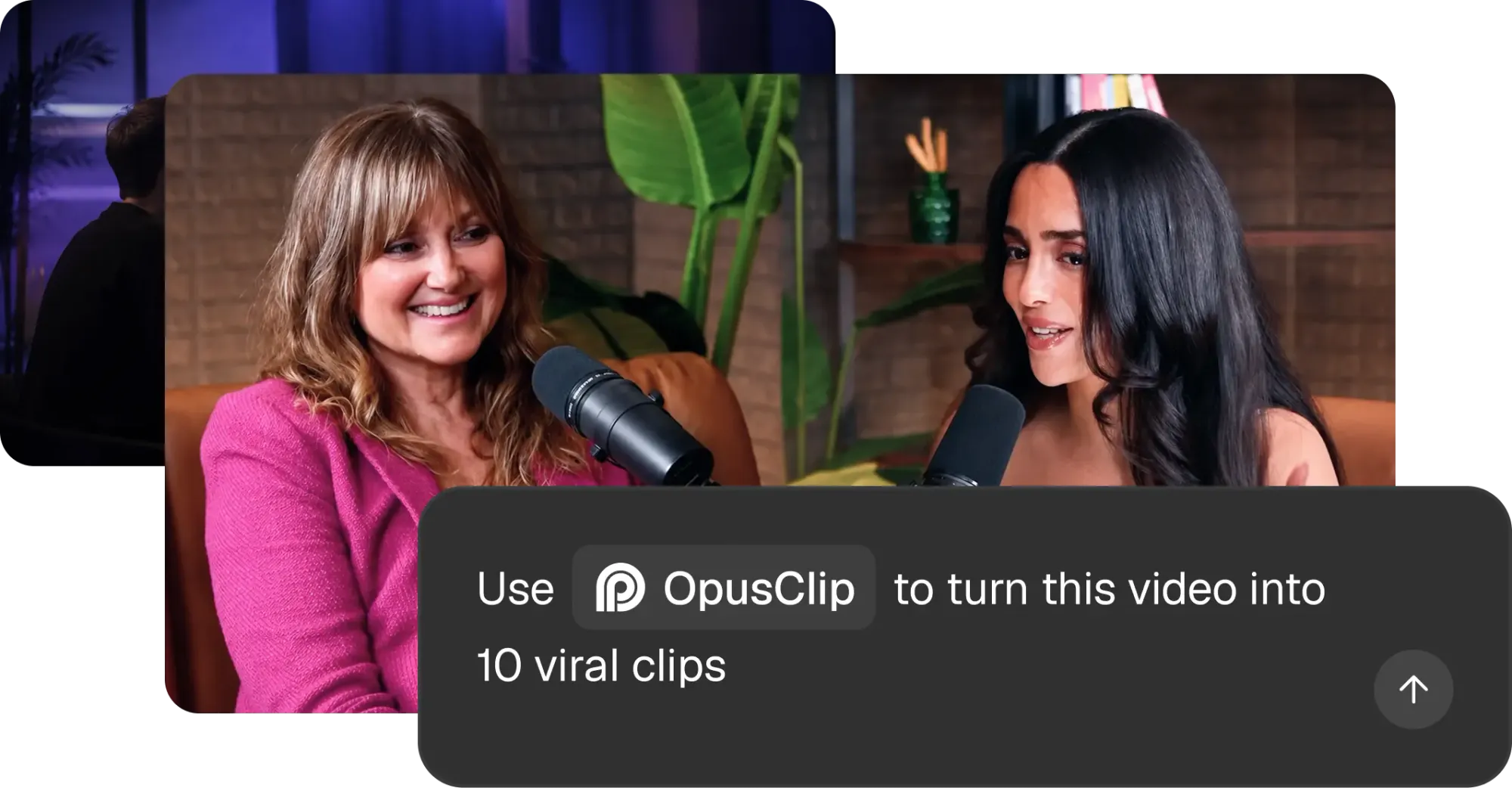
Tools like OpusClip specialize in this process. Its MCP integration lets you ask ChatGPT or Claude to identify highlights from a video, cut them into short clips, add animated subtitles, and reframe the footage for vertical platforms.
Example Prompt: "Find five standalone moments from this podcast that would work as YouTube Shorts. Prioritize useful insights rather than dramatic reactions. Keep each clip between 30 and 60 seconds, add subtitles, and reframe the footage to 9:16."
Other editing tools approach the same task differently. Descript can create clips from longer recordings through Underlord, while Kapwing's AI Clip Maker identifies highlights and generates social-ready excerpts.
I'll note that while an MCP can identify clips to repurpose from the transcript, the quality of the output defines on your own directive and creativity. Think about what makes a good clip when prompting and selecting your output. For example, for an educational podcast, that might mean selecting moments with a clear question and answer. For a product demonstration, it might mean extracting complete explanations of individual features.
4. Generate and Style Video Subtitles
Captioning is another task that's well suited to automation. This is because transcription, timing, and subtitle formatting follow a relatively predictable process. Instead of manually transcribing dialogue and placing captions on a timeline, you can ask an AI agent to handle the entire process.
With Kapwing's MCP integration, ChatGPT and Claude can request automatic subtitles directly in your Kapwing project. You can also describe how you want the captions to look, including their size, placement, and word-by-word animations.
We tested this workflow in Codex, asking it to generate word-by-word subtitles for a talking-head video and highlight each word as it was spoken.
Example Prompt: "Use the Kapwing MCP. In my Kapwing project Demo Clip, add word-by-word subtitles: big white text near the bottom of the frame, with the word being spoken highlighted in yellow."
The agent added captions and highlighted each word as it was spoken, just as I'd requested.
We ran this request through Codex, using Kapwing's MCP tools to generate the timed captions and apply the requested styling.
One limitation we found was that detailed styling controls aren't always consistent across agents. Codex successfully applied the yellow highlight, while a separate Claude Code test couldn't reliably set the highlight color. For precise visual changes, it's still worth opening the project in Kapwing before exporting.
5. Translate and Dub Videos Into Other Languages
ChatGPT and Claude can translate a transcript into another language without an editing integration. This makes them useful for preparing multilingual scripts, checking terminology, and adapting dialogue for a different audience.
However, translating the text is only part of the process. A complete translation workflow may also require new subtitle timing, voice generation, and mixing.
With Kapwing MCP, ChatGPT or Claude can coordinate these steps through natural-language prompts. You can ask for translated subtitles while keeping the audio, or use AI dubbing to create a spoken version in another language.
We tested both approaches, starting with subtitle translation. After generating English captions, we asked Claude Code to translate them into Spanish without changing their timing.
Example Prompt: "Use the Kapwing MCP. In my Kapwing project Demo Clip, translate the subtitles into Spanish on the same timings."
Here's the same clip with Spanish subtitles, keeping the original timing and style.
For a more complete localization workflow, we also tested AI dubbing in five languages: Spanish, French, German, Japanese, and Portuguese. We included all five languages in a single MCP editing request.
Example Prompt: Translate this video into Spanish, French, and Japanese. Create a separate version for each language, keep the original speaker's voice where supported and authorized, and include matching subtitles. Preserve the existing background audio where possible.
Kapwing handled the translated dialogue, AI voice generation, and captions, creating separate versions that could be reviewed and edited afterward. In our larger end-to-end test, the agent combined these steps with B-roll generation and exported six finished videos, including the English original.
We also created five dubbed versions of the clip, each with translated speech and its own captions.
6. Generate B-Roll, Images, and Other Visual Assets
Not every missing B-Roll shot requires another filming session. If a video needs a product close-up, an animated background, or footage illustrating a particular concept, AI tools can help create supporting visuals.
ChatGPT can generate still images directly, making it useful for thumbnails, graphic assets, backgrounds, and references. Claude is useful for identifying where additional visuals are needed, developing shot lists, and writing detailed prompts. However, actually generating a video requires access to a generation service through a connected app, MCP integration, API, or other supported tool.
For example, invideo's MCP integration supports AI media generation alongside video editing, while Kapwing MCP connects to Kai, Kapwing's AI video agent. Through Kai, an agent can request footage from models like Seedance and incorporate generated clips into a video project.
Example Prompt: Review this 60-second product demonstration and identify three places where B-roll would improve the explanation. Suggest a five-second shot for each location, with a detailed description of the subject, camera movement, lighting, and visual style.
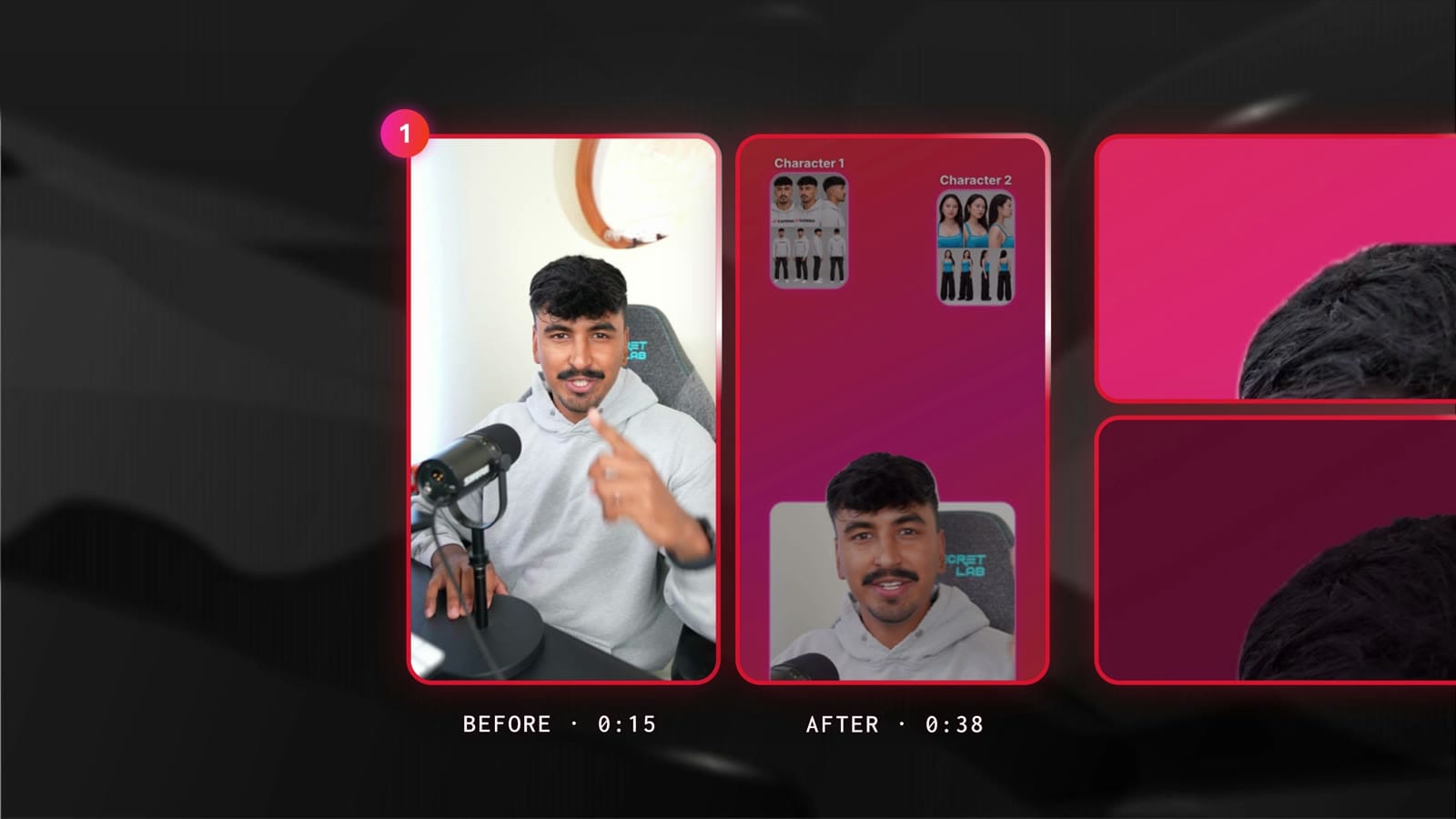
You can use this prompt directly in ChatGPT or Claude to plan the shots, then generate them through a video model. For a more automated workflow, an agent with editing tools can also handle generation and placement. We tested this in Codex using Kapwing MCP, asking Kai to generate two Seedance 2.5 B-roll shots and insert them over the relevant dialogue in a travel video. The agent returned a generation plan estimated at 199 Kapwing credits for the two shots.
We also tested a more ambitious 20-second intro with multiple camera angles and cinematic sound.
The challenge is making generated footage feel like part of the original edit. A visually impressive shot isn't necessarily useful if it contradicts the narration, interrupts the pacing, or looks completely different from the surrounding footage.
Good B-roll prompts should establish both the visual requirements and the shot's function in the edit. Specify what the footage needs to illustrate, the intended duration, camera movement, and any details that must remain consistent. Reference images are especially helpful when matching an existing product, character, or environment.
7. Resize, Reformat, and Export Videos for Different Platforms
After completing an edit, you may need different versions for YouTube, Instagram, TikTok, or a website. These can involve different aspect ratios, resolutions, captions, and file formats.
With Claude Code and FFmpeg, you can write and run scripts that resize footage, adjust resolution, convert formats, and create multiple exports in a batch. This is particularly useful when the desired outputs are predictable and you don't need to make creative changes to the edit.
Example Prompt: Create three versions of this finished video: a 1920×1080 landscape version for YouTube, a 1080×1920 vertical version for Shorts and Reels, and a 1080×1080 square version. Preserve the original audio, avoid stretching the footage, and keep important subjects visible.
Which AI Video Editing Workflow Should You Use?
The best workflow depends on what you're trying to automate and how much control you want over the final video. Not every task requires a dedicated AI video editor, and adding more tools doesn't necessarily make the process faster.
For planning and preparation, start with ChatGPT or Claude directly. Both are useful for reviewing transcripts, identifying potential cuts, writing scripts, and creating shot lists. If you already have a timestamped transcript, you can get a detailed editing plan without connecting any additional software.
For more technical work, Claude Code or another coding agent offers greater flexibility. Using tools like FFmpeg, an agent can trim clips at exact timestamps, process multiple files, and automate repeatable exports. This approach works well for batch processing, although it requires more setup and troubleshooting.
If you want to edit through conversation without writing code, an MCP-connected video editor is usually more practical. The right integration depends on your workflow: OpusClip specializes in repurposing long videos into short clips, Descript is particularly useful for transcript-based editing and audio cleanup, while invideo and Kapwing support broader workflows involving video assembly, AI generation, and exports.
Whichever approach you choose, I'd recommend starting with one specific task before attempting an entire automated production workflow. AI is increasingly capable of executing edits, but decisions about pacing, storytelling, and visual quality still benefit from human review. The most useful setup is one that automates repetitive work while leaving you with a video you can easily refine.
Frequently Asked Questions
Can ChatGPT edit videos directly?
ChatGPT can help with video editing tasks like reviewing transcripts, identifying cuts, writing scripts, and generating images. However, editing existing video footage and exporting a finished MP4 generally requires additional tools. With an MCP integration like Kapwing, ChatGPT can request real edits through conversation while Kapwing handles the video processing.
Can Claude edit videos automatically?
Yes. Claude can automate video editing through connected editors or coding tools. Claude Code can use FFmpeg and custom skills to trim footage, assemble clips, and render videos, while MCP integrations let Claude work with editing software through natural-language prompts. Standard Claude conversations are better suited to planning edits and analyzing transcripts without additional tools.
What is the difference between ChatGPT and Claude for video editing?
Both can analyze scripts, identify editing opportunities, and control compatible video editors through integrations. ChatGPT has built-in image generation, making it useful for creating thumbnails and supporting graphics. Claude Code is particularly useful for custom editing workflows involving local files, scripts, and command-line tools. For actual video editing, the connected software often matters more than which AI assistant you choose.
Can AI turn a long video into YouTube Shorts automatically?
Yes. AI clipping tools like OpusClip and Kapwing's AI Clip Maker can identify highlights, extract shorter clips, add subtitles, and reframe footage for vertical platforms. You can improve the results by specifying the topics, duration, and type of moments you want included. Review the final clips to make sure they have enough context to stand alone.
Can ChatGPT or Claude add subtitles and translate videos?
Yes, with a compatible video editing integration. Both assistants can translate existing transcripts, but generating synchronized subtitles, adding them to a video, and creating dubbed audio requires additional tools. For example, Kapwing MCP lets ChatGPT and Claude request automatic captions, subtitle translation, and AI dubbing directly in an editable video project.
Can ChatGPT or Claude generate AI videos from text?
Both assistants can write detailed video generation prompts, but generating moving footage requires access to a video generation tool. ChatGPT can generate still images directly, while connected services like invideo and Kapwing's Kai can generate video clips from text or reference images. The generated footage is processed by the connected service rather than rendered natively by the chatbot.
Is AI video editing with ChatGPT or Claude free?
Some tasks, such as reviewing transcripts and planning edits, can be completed on free AI assistant plans, subject to usage limits. For actual video processing, FFmpeg is free and open source, while connected editors may require subscriptions or usage-based credits. Kapwing MCP supports free accounts, although AI generation and other features consume workspace credits.
Can AI edit an entire video without human intervention?
AI agents can now complete substantial editing workflows, including assembling clips, generating subtitles, adding B-roll, and exporting finished videos. In our Claude Code experiment, the agent constructed and rendered a complete 70-second YouTube Short. However, even successful automated edits can contain problems with pacing, audio, captions, or visual continuity. It's best to treat AI as a way to produce and refine an initial edit rather than skip the final quality check entirely.