Convert MP4 to MOV
Convert MP4 to MOV for free.
Works in your browser. No watermark on Pro.
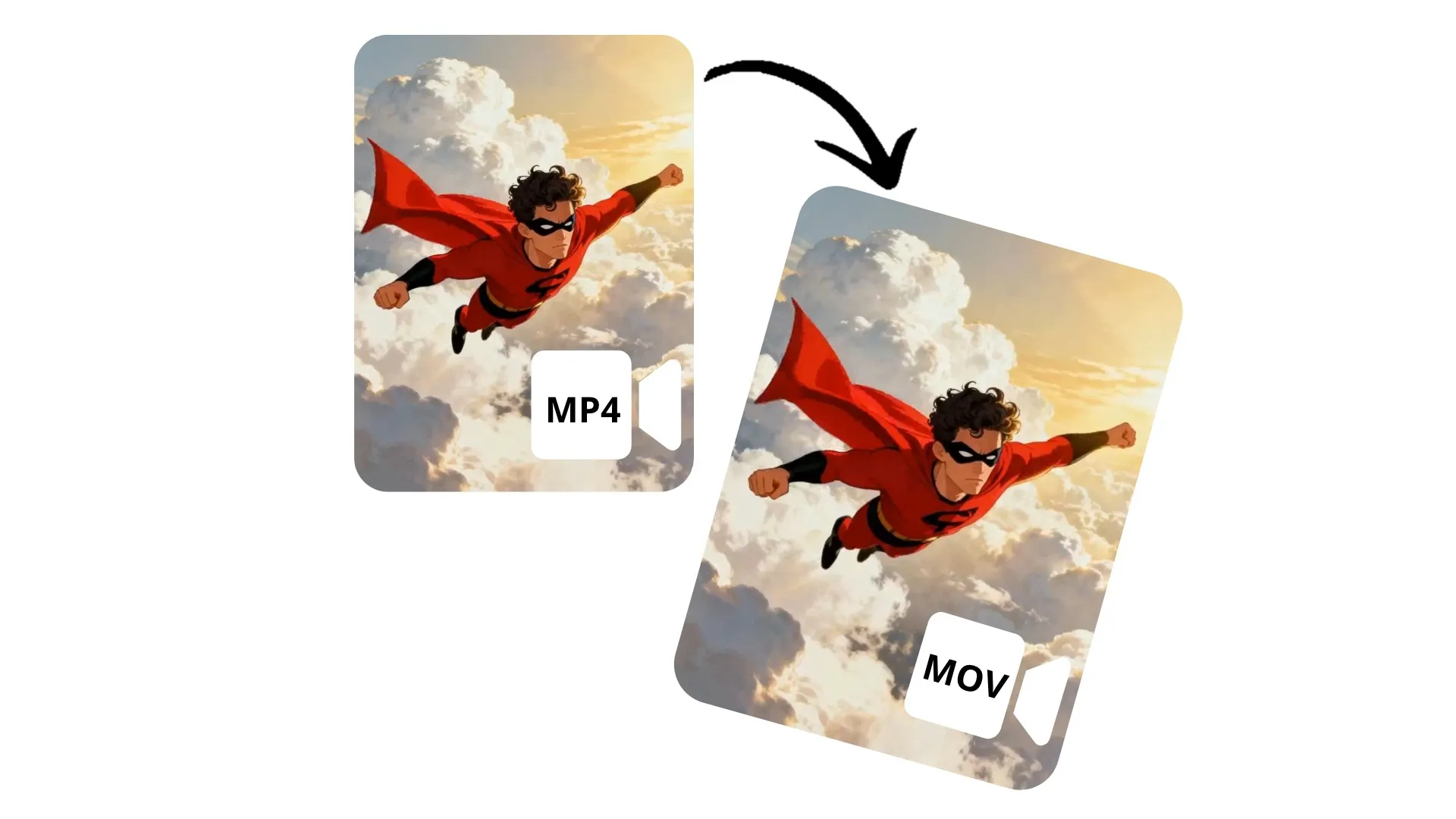
Transform MP4 to MOV in seconds — for free
Quickly change video formats using an online tool
Compatible video files at the click of a button
Easily convert videos from MP4 to MOV format with Kapwing's online MOV converter. Improve compatibility with Mac programs like Final Cut Pro, iMove, Motion, and QuickTime Player while preserving video quality.
Upload any MP4 file, then download it as a high quality Mac-compatible MOV video. Maintain full control over aspect ratio and resolution. Convert and download for free without leaving your browser.

Built into a powerful video editor
Kapwing's converter is fully integrated with an extensive video editing studio, so you can seamlessly convert files, collaboratively edit videos, and share to social media, all in the same online tool.
Apply one-click AI tools to stabilize shaking, correct eye contact, intelligently find scenes, and split vocals. Enhance audio in seconds, add text and image overlays, and automatically resize for any platform.
How to Convert MP4 to MOV
- Step 1Upload MP4
Create a new project in the Kapwing studio, then click to upload your MP4 file.
- Step 2Edit
Optionally, use Kapwing's full suite of video editing tools.
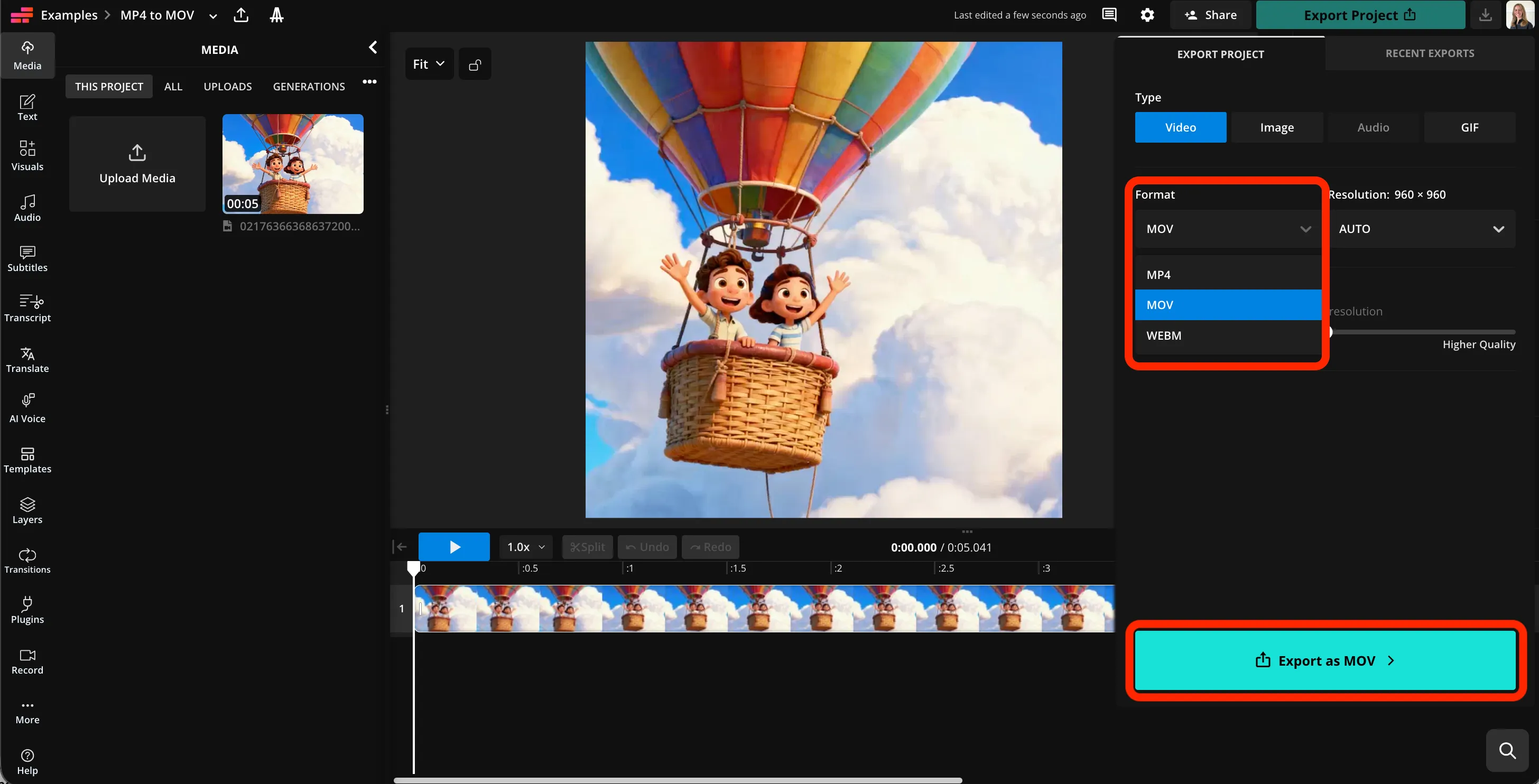
- Step 3Export MOV
Click "Export Project," then select MOV from the format dropdown menu. Download and save your MOV file.
What's different about Kapwing?



Already transforming video creation across industries
Hear directly from the teams who publish faster, collaborate better, and stay ahead.


Frequently Asked Questions
We have answers to the most common questions that our users ask.
Is the MP4 to MOV converter free?
Yes, Kapwing's MP4 to MOV converter is free for all users.
Is there a watermark on exports?
If you use Kapwing on a Free account, then all exports — including MP4 to MOV — contain a watermark. Once you upgrade to a Pro account, the watermark is completely removed from your creations.
How to convert MP4 to MOV with Kapwing
To convert MP4 to MOV, just create a new project in the Kapwing studio. Click to upload your MP4 file, then use any of Kapwing's video editing tools, including AI-powered audio enhancement, stabilizing, and eye contact, to make any adjustments to your video.
When you're ready to convert your video, click "Export Project" at the top right. In the video tab, click the dropdown menu under "Format." Select MOV from the list, then click "Export as MOV" at the bottom. Kapwing will convert your video to a downloadable MOV file.
Can I use Kapwing to edit my videos before converting?
Yes, Kapwing offers a full suite of video editing tools. After you upload your MP4, you can add subtitles, resize for any platform, adjust color, enhance audio, and more. Then you can convert and download your edited MOV file.
Why convert MP4 to MOV?
People usually convert MP4 to MOV for better compatibility with Apple software or professional video-editing workflows. MOV works more smoothly with MacBook tools like Final Cut Pro and supports editing-friendly codecs, additional metadata, and features like multiple audio tracks or transparency. The conversion doesn’t improve quality by itself unless the video is re-encoded with a higher-quality codec.
Can I convert to other file types?
Yes, you can use Kapwing to convert MP4 videos into MOV, WebM, and GIF formats. You can also convert MOV videos to MP4.
Will my video quality be affected?
No, Kapwing's converter transforms MP4 files to MOV while preserving the original resolution and video quality. If you want a smaller file, you can adjust the compression level using a slider.
Discover Resources
Tips, templates, and deep dives to help you create faster and share with confidence.
View all


Get started with your first video in just a few clicks. Join over 35 million creators who trust Kapwing to create more content in less time.