Blur faces, subjects, and backgrounds in videos with AI.
No watermark on Pro.
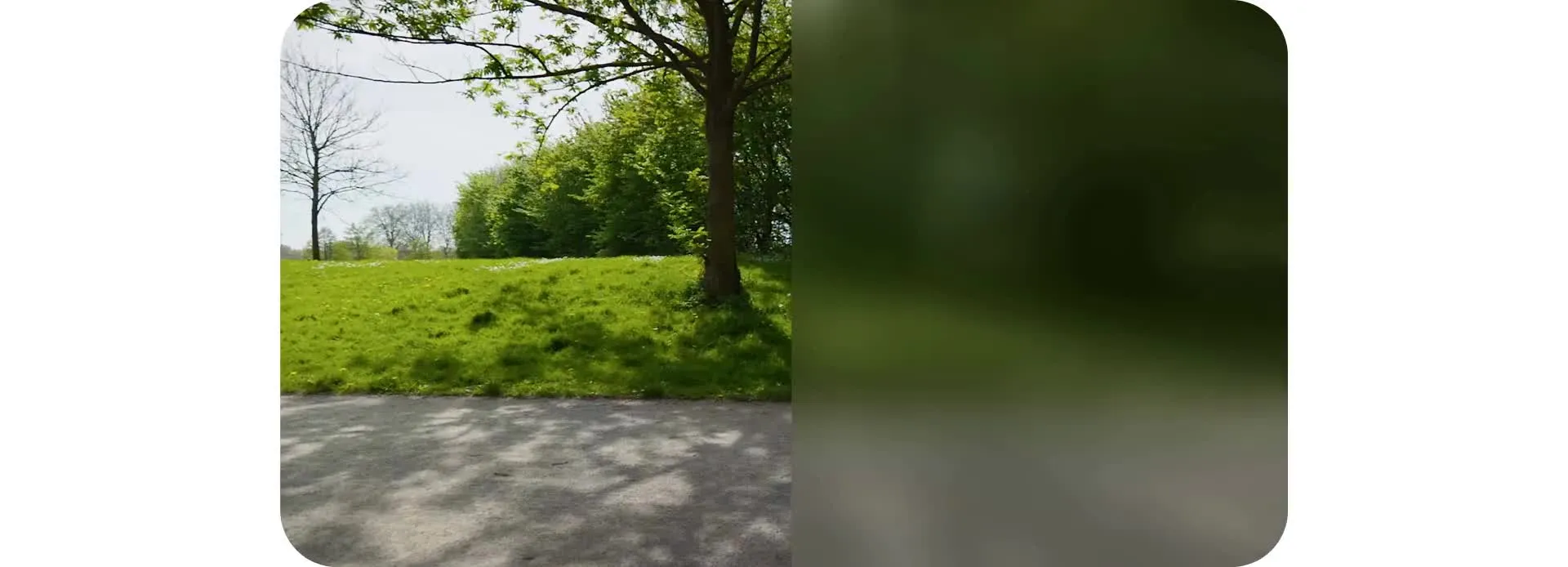
Automatically blur faces, objects, and backgrounds in videos
No manual editing or downloads. Add and adjust blur in your browser.
Add accurate blur in seconds
Blur any part of your video in seconds with Kapwing's AI-powered Blur Video tool. No manual masking, keyframing, or layer editing required. Simply describe what you want to blur—faces in a crowd, a moving subject, or the background—and Kapwing AI automatically creates a precise mask that tracks the object throughout your video.
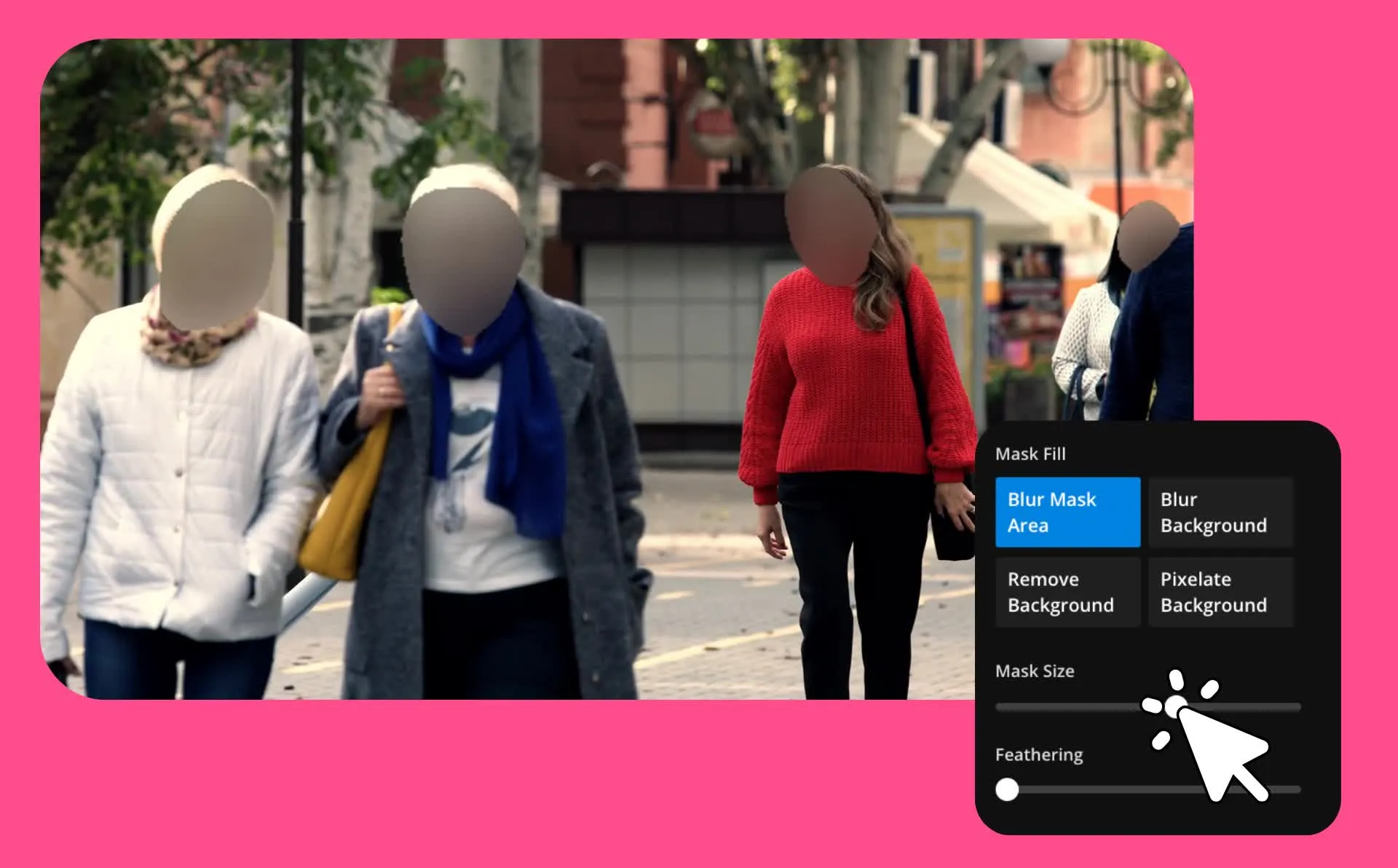
Need to make adjustments? Open your project in the Studio to fine-tune the blur effect. Edit foreground and background layers, resize the mask, and refine edges with blur and feathering controls for a cleaner result.
For full-frame blur, use Kapwing's free Blur slider to quickly adjust the intensity across your entire video. Export in MP4 or MOV up to 1080p or 4K resolution, ready to share anywhere.
How to blur video in less than a minute
No watermark on Pro. Download in up to 4K.
Upload
videos to a new chat with Kapwing AI


Blur
any area by describing it in a prompt
Export
in high resolution or fine-tune blur settings in the Studio
Add blur to video — without tedious editing
Censor, highlight, or stylize any video online with a quick blur effect
Hide sensitive information with automatic blur
Use Kapwing’s Blur Video tool to hide addresses, logos, license plates, faces, and other sensitive information in your footage. Tell Kai, Kapwing’s AI assistant, what you want to blur, then refine the result in the Studio by adjusting the mask size and feathering. Switch between blurring a specific subject and blurring the background with one click.
Protect privacy without painstaking manual masking. Add multiple blur zones to moving faces, objects, or areas of the frame without duplicating layers or setting keyframes.
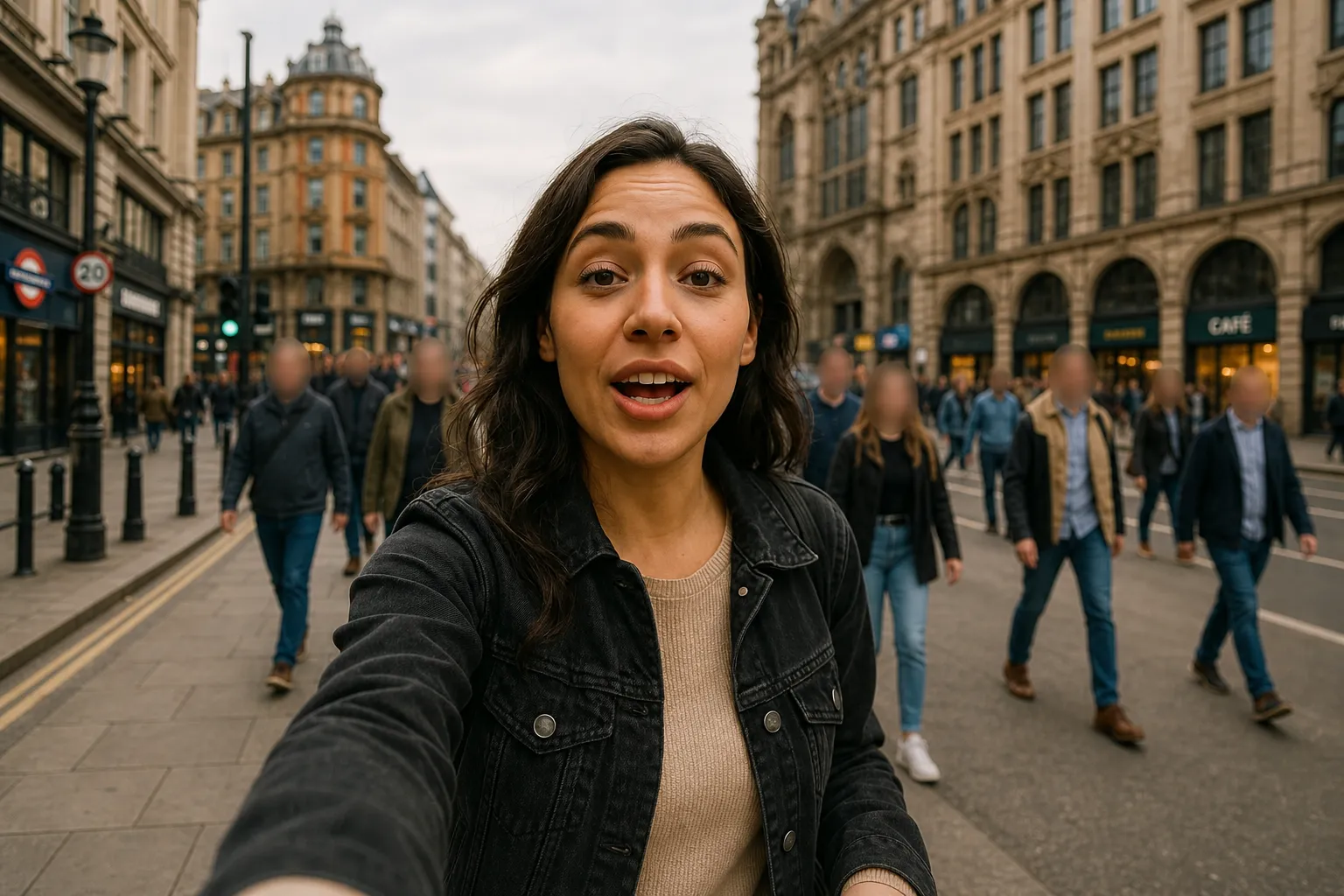
Stop the scroll with attention-focusing blur
Blur out distractions and keep your audience focused on your message. Built for content creators, marketers, and educators, Kapwing's Blur Video tool can turn simple recordings into scroll-stopping cinematic videos.
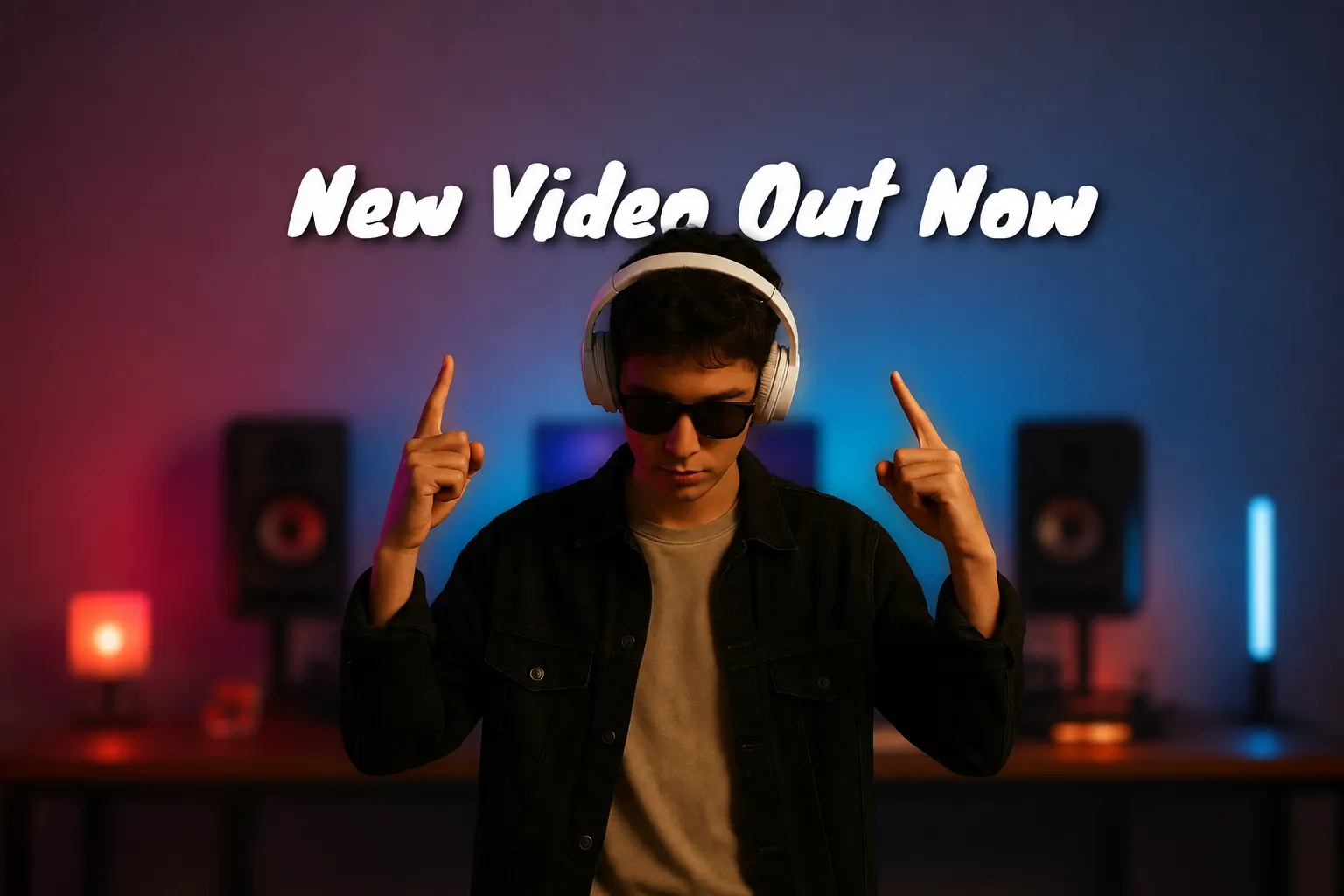
Soften the background to instantly add depth and highlight human or text subjects. Repurpose older content without reshoots by blurring out unwanted logos, text, and graphics. Increase content engagement with artistic blur effects.
Create custom blurred areas for free
Need more precise edits? Create multiple blur layers and use Kapwing's free in-studio Blur tool to target specific areas of your video. Blur moving objects with keyframes, blur the entire frame, or automatically blur the background with a single click.
No installs or technical editing: Kapwing's blurred video tool is fully browser-based, so you can quickly add blur to video from any device. Kapwing supports high-resolution MP4 and MOV files and offers direct export options to platforms like YouTube, TikTok, and Vimeo.

Enhance any video with targeted blur
Trusted by 35M+ creators worldwide. Export as HD MP4.
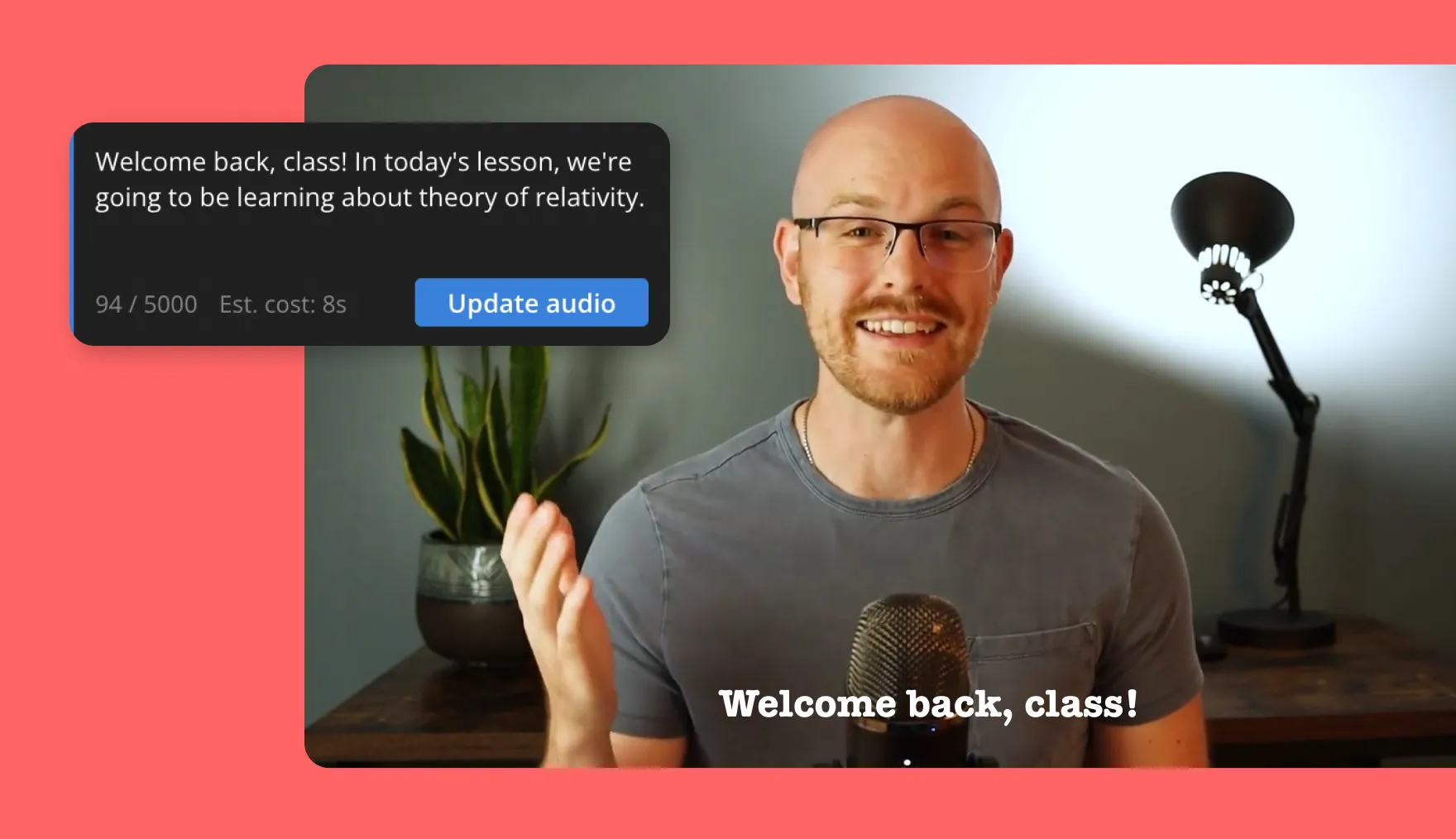
Social Media Clips
Creators on TikTok, Instagram, and YouTube blur faces, usernames, or private backgrounds before posting, protecting privacy and keeping videos compliant with platform standards

Product Demos
Marketers blur competitor logos, text, or sensitive screens in demo videos. Blurring ensures product demos stay polished, professional, and ready to share across platforms.
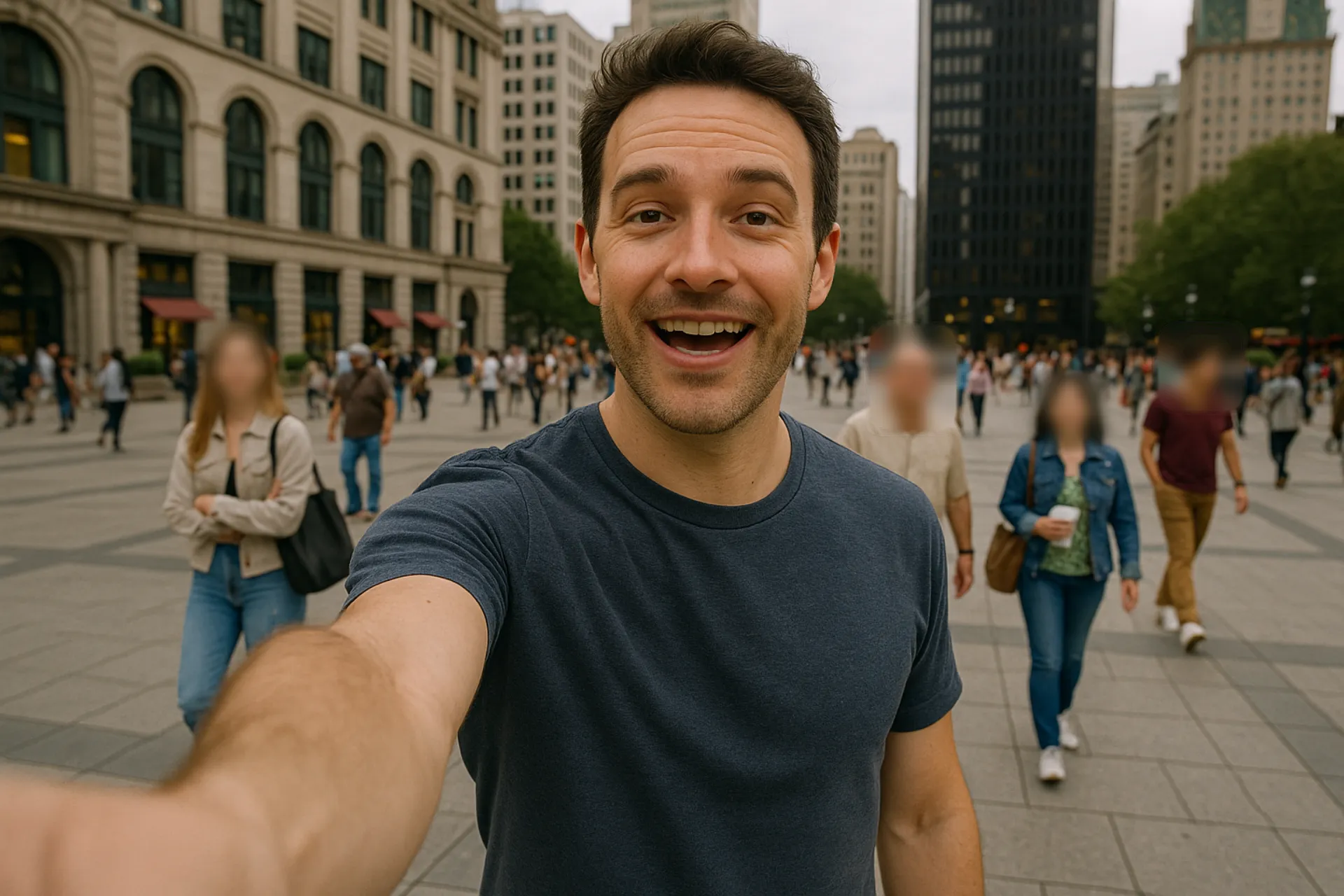
Recorded Lessons
Teachers blur student faces, names, or test answers in recorded lessons to follow privacy rules. Kapwing’s blur tool keeps class content safe to share while protecting students.
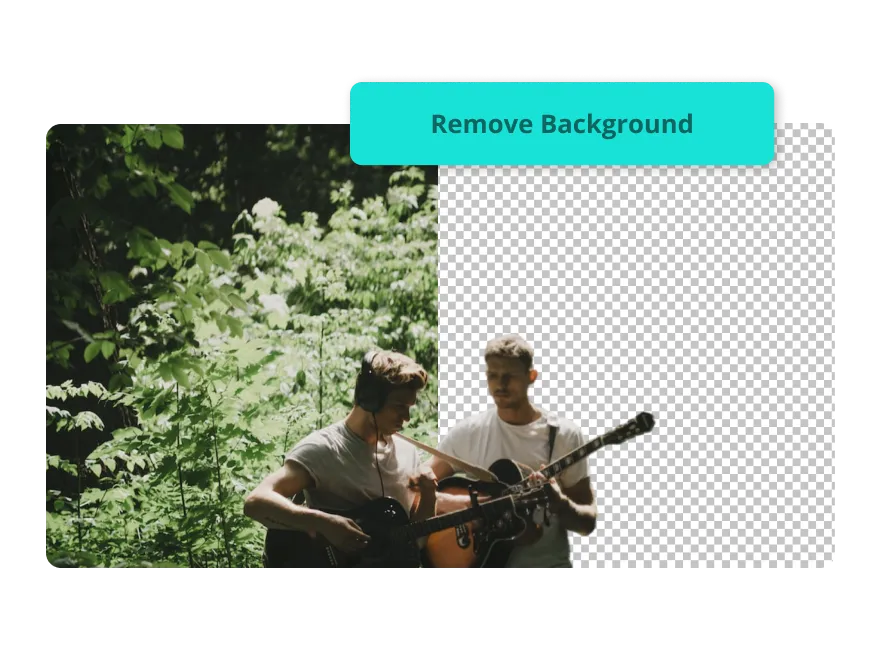
Creative Projects
Filmmakers and editors use blur to highlight a subject, soften a background, or add depth. Similar tools, like the automatic background remover make it easy to quickly change the look and feel of any video content.

Training Videos
HR and training teams blur employee names, IDs, or private data in onboarding videos. Blurring makes it easy to update existing footage without costly reshoots.

Music Videos
Artists and editors use blur in music videos to draw focus to performers, enhance visual style, and add dramatic emphasis to key moments on screen.

Field Interviews
Journalists and researchers blur faces, documents, or sensitive visuals in interviews. Blurring protects identities and ensures compliance with ethical and legal standards.
Blur video, part of a powerful editing studio
One online editor, hundreds of video editing tools. Start for free.
Add blur, then keep editing
Kapwing’s Blur Video tool is built into a professional online video editing studio, so you can blur faces, backgrounds, or sensitive details as part of your streamlined workflow.
Add text, images, and graphics to your video, or drop in B-roll and stock visuals to enhance your story. Remove backgrounds in a click, clean up your footage with smart AI edits, and keep everything on-brand with templates, fonts, and styles.
Generate automatic subtitles, translate into 100+ languages, or chat with Kapwing’s AI assistant to turn a prompt into a full video—ready to edit, blur, and share in minutes.
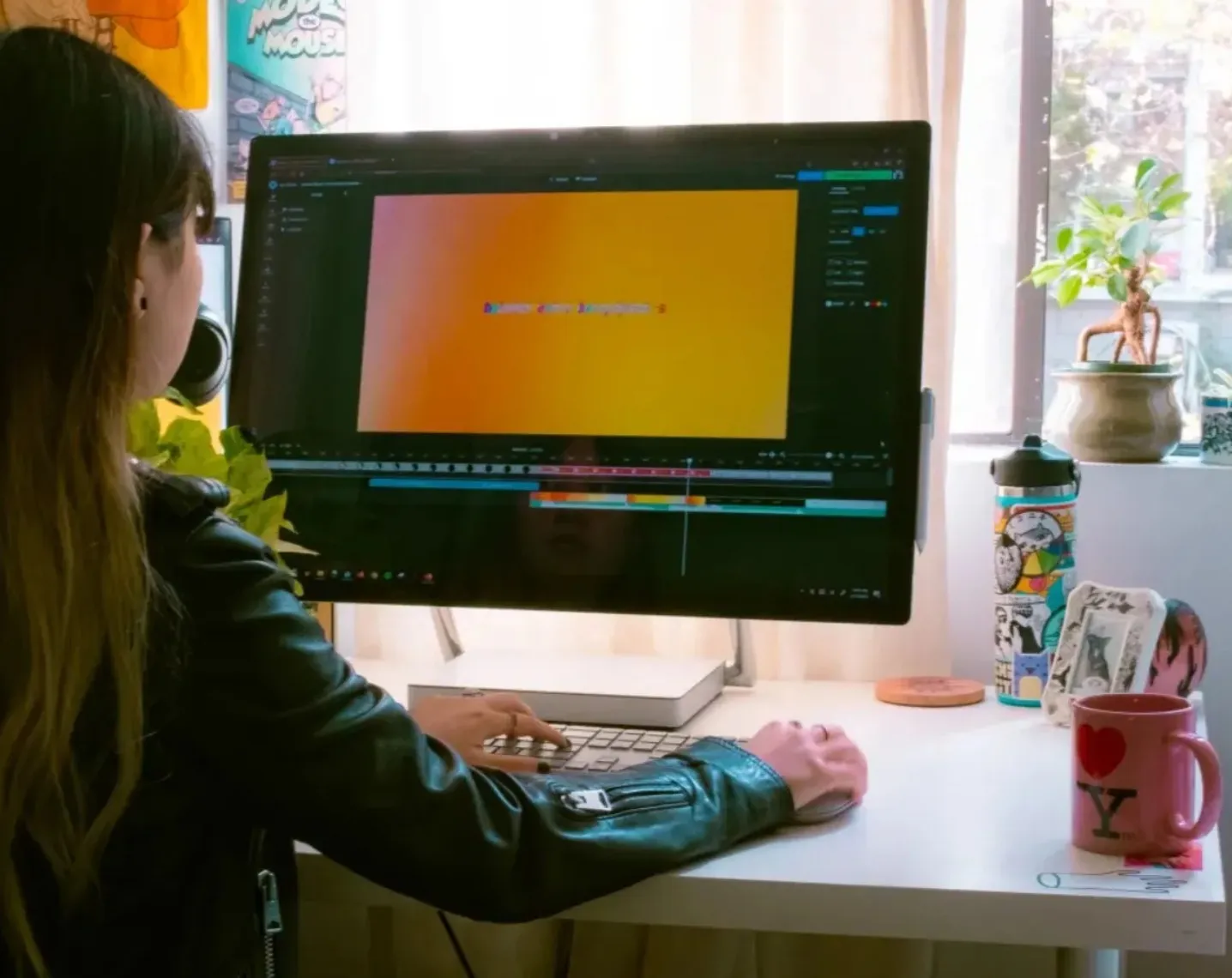
How to Blur Video Online
- Step 1Upload video
Create a new chat with Kapwing AI and upload your video.
- Step 2Blur
Enter a prompt describing the area you want to blur, then click the arrow to generate.
- Step 3Download
Click "Export Project" to download your blurred video, or move to the Studio to fine-tune.
What's different about Kapwing?



Already transforming video creation across industries
Hear directly from the teams who publish faster, collaborate better, and stay ahead.


Frequently Asked Questions
We have answers to the most common questions that our users ask.
Is the blur video tool free to use?
Yes, the blur tool is part of Kapwing’s free online video editor. You can get started without downloading any software. For advanced features, check the pricing page.
Can I use keyframes with the blur tool?
Yes, Kapwing supports keyframing with the blur tool, allowing you to adjust the position and intensity of the blur over time.
What file types does Kapwing support for blur edits?
Kapwing supports common formats like MP4, MOV, and WebM. Once your video is edited, you can export and download it as an MP4, WebM, MOV or GIF.
Can I add other effects to my video after blurring?
Yes, you can continue editing after applying a blur, like using Pixelate Video to change to a pixelated effect. Add music, subtitles, transitions, or adjust the color grading right inside Kapwing.
Can I blur multiple parts of the same video?
Yes, you can duplicate your video layer and apply separate blurs to different sections. This is helpful for hiding multiple faces, objects, or text.
Can I adjust the blur level?
Yes, the blur slider lets you control the intensity of the effect so you can decide how visible or hidden the blurred area appears.
How to blur a video on iPhone or Android
If you want to blur videos using your iPhone or other mobile device, just create a chat with Kapwing AI in your mobile browser. Upload your video and enter a prompt like "Blur the faces." Click the arrow to generate, then download as MP4 or move it to the Studio to adjust the blur size and feathering. You can also upload your video to the Studio, click to upload your video, select it in the timeline, and use the slider to add and just the blur.
Discover Resources
Tips, templates, and deep dives to help you create faster and share with confidence.
View all

Get started with your first video in just a few clicks. Join over 35 million creators who trust Kapwing to create more content in less time.