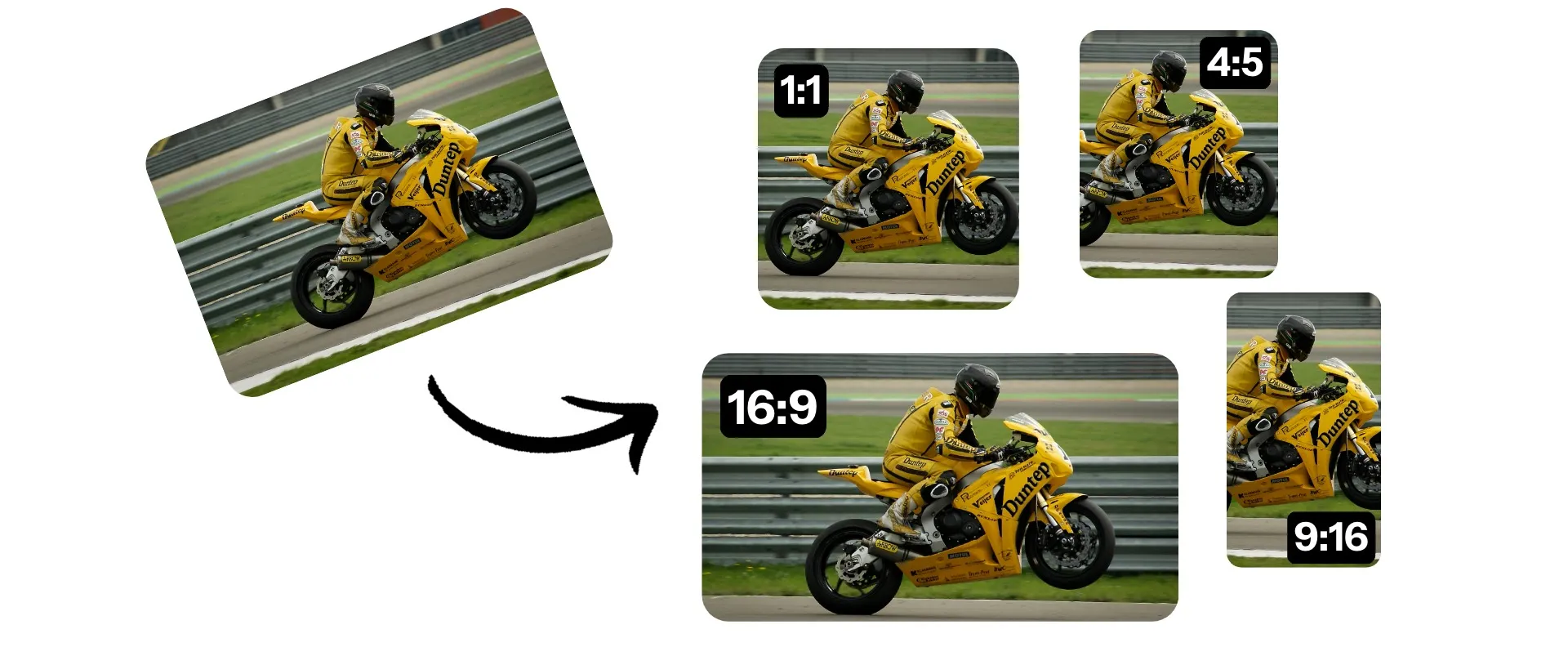
Resize video online for every social media platform
Change video aspect ratios for free
Auto-resize videos with one click
Turn one video into content for every platform that matters to your brand. Kapwing stores presets for social media platforms like TikTok, Instagram, and YouTube so you don’t have to keep track of the right aspect ratios.
Upload your video, click to resize, and get back to creating with Kapwing's comprehensive video editing studio. Download in high resolution or share directly to social media without leaving your browser.

Save your own aspect ratios and styles
Go beyond presets and save custom ratios directly to your workspace. With Kapwing's Video Resizer, you can change one video to work well anywhere, including non-standard embeds and overlays.
Duplicate your project, then resize video dimensions to fit each platform, from Instagram Reels and YouTube Shorts to LinkedIn and Facebook ads.
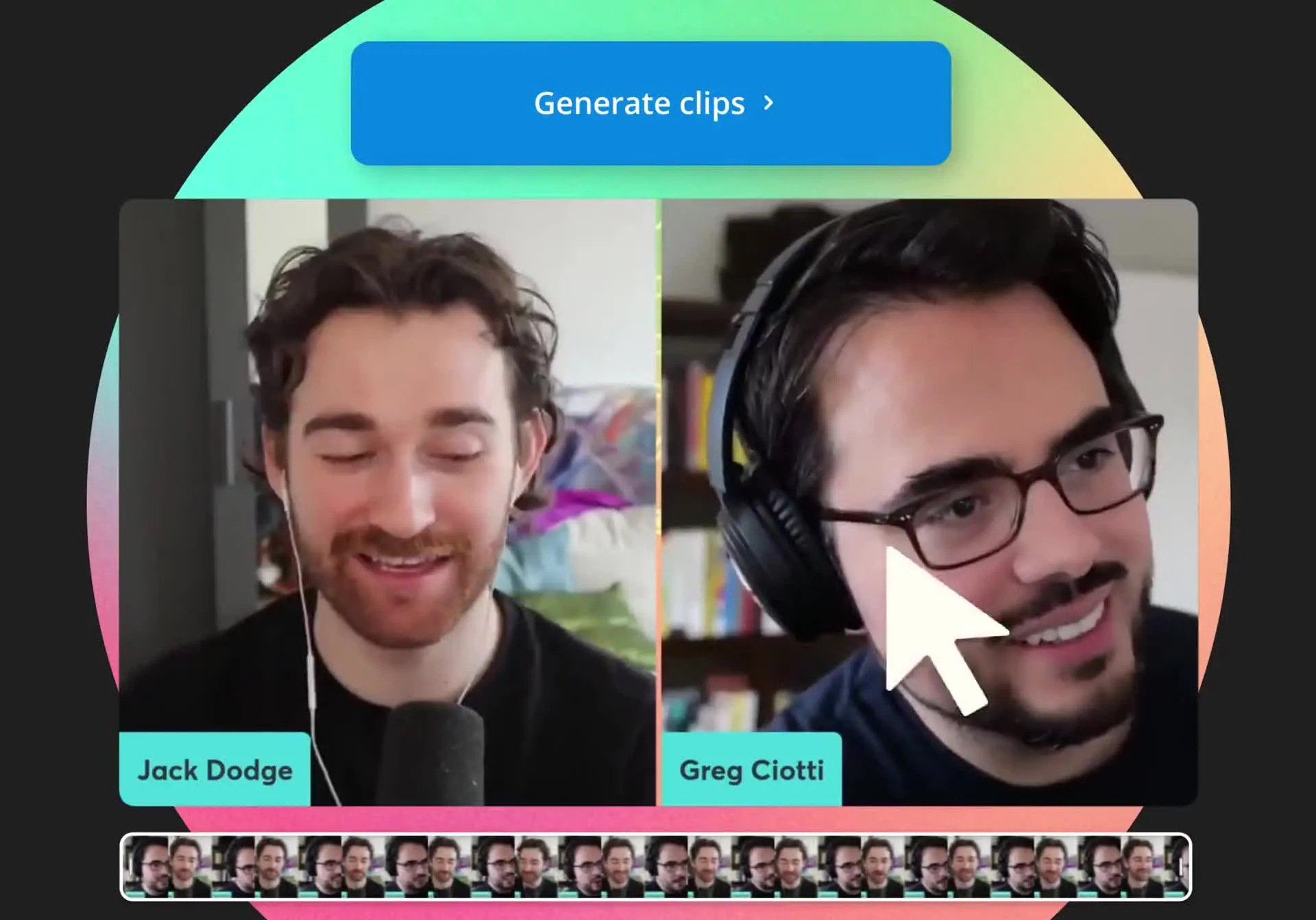
Get long-form content out as short, social-ready clips
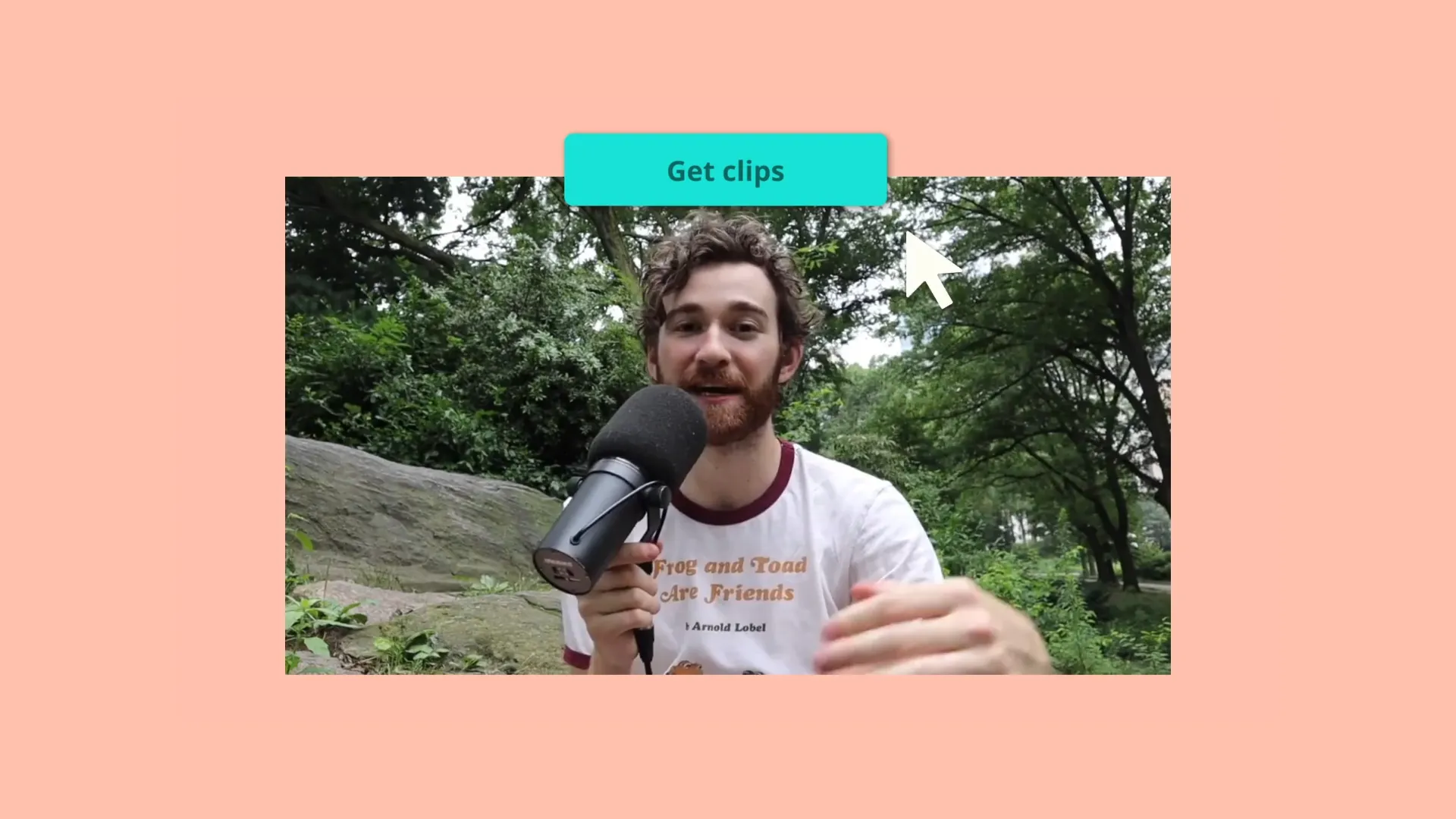
Tired of spending hours making clips from your long-form content? Just upload a video or paste a URL into Kapwing's Clip Generator.
Our AI will scan your footage and pull out the best clips, creating short-form video content complete with 9:16 aspect ratio and automatic animated subtitles.
Already transforming video creation across industries
Hear directly from the teams who publish faster, collaborate better, and stay ahead.


Repurpose content — without the manual editing
Resize, clip, and keep content focused in a powerful online studio
Turn long footage into focused highlights
Turn hours of footage into sharp, engaging highlight videos with the AI Video Highlight Maker. Upload long, unedited videos, prompt the AI with your focus and aspect ratio, and quickly generate a highlight reel intelligently resized for Instagram, TikTok, or any other platform.
Plus, with our branded templates, it’s easy to save your favorite subtitle styles, transitions, and effects to speed up every editing workflow.
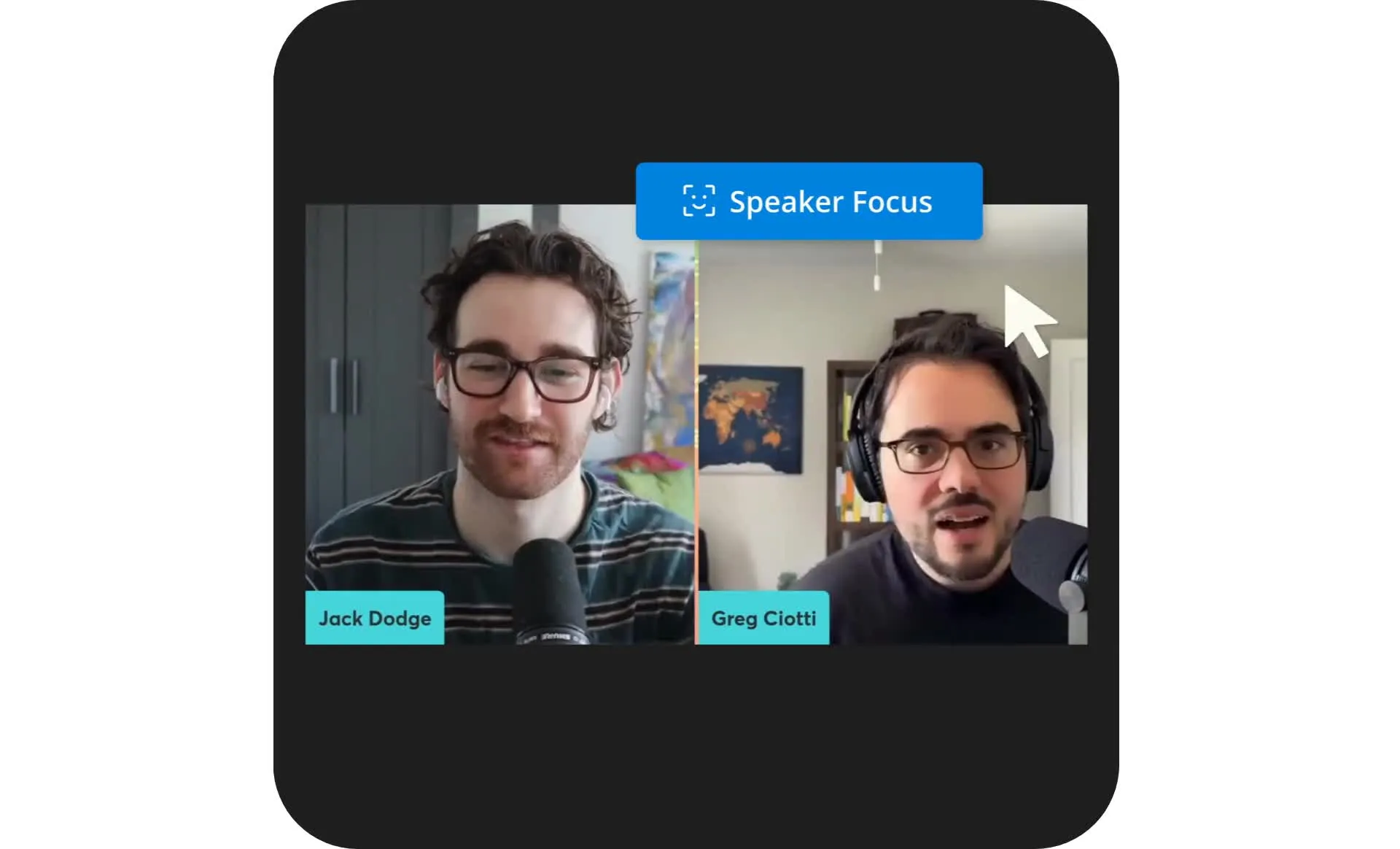
Resize without cropping out speakers
When speakers are far apart or at the edge of a recording, it seems impossible to salvage the footage for social media posts.
No need for tedious manual editing: Kapwing's AI-powered Speaker Focus tool intelligently scans your videos and keeps the focus on active speakers so they’re never cropped out of view.
How to Resize a Video
- Step 1Upload video
Start a new project and upload a video. Then, click on the video to select it as a layer.
- Step 2Resize video
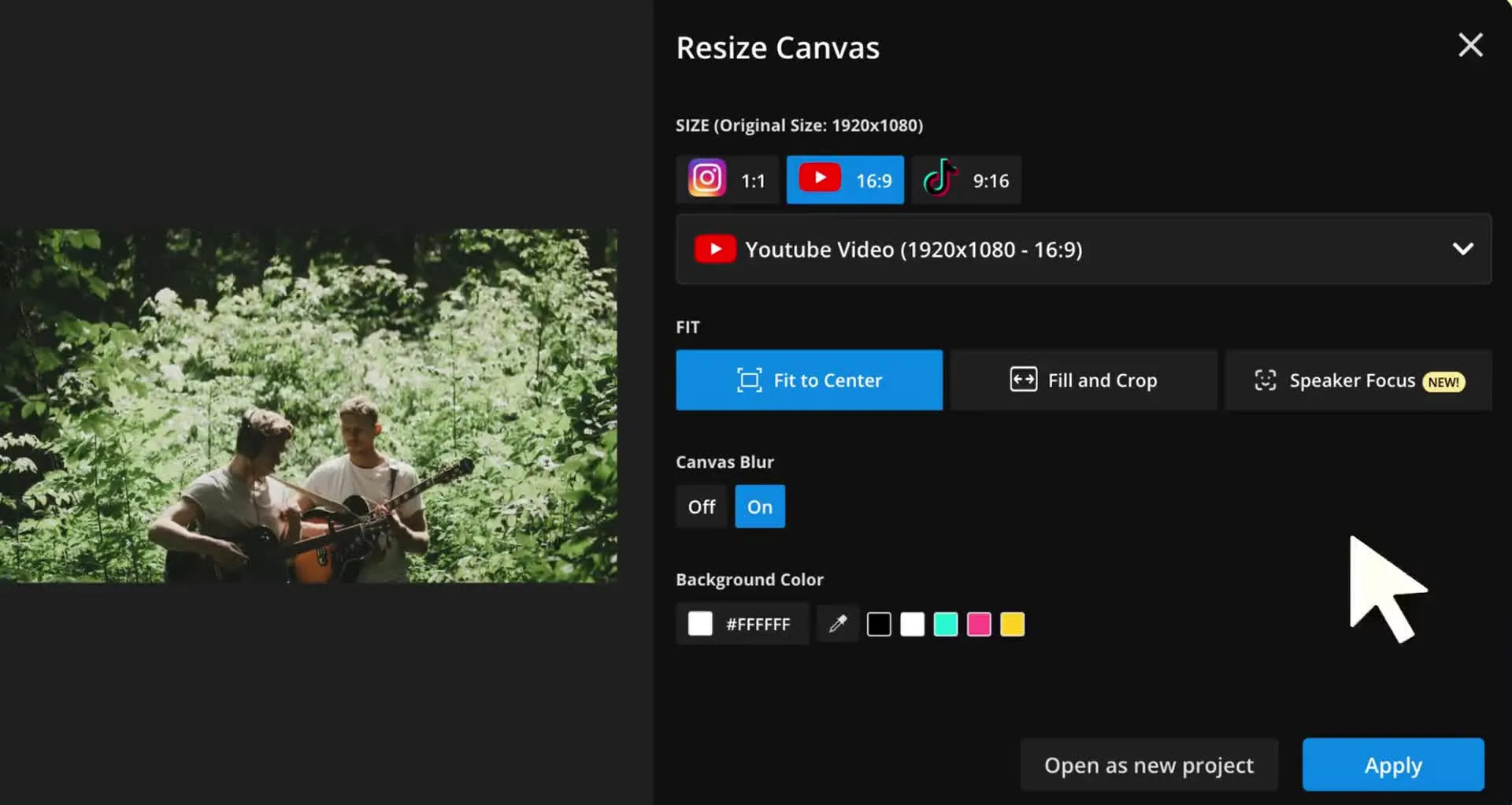
Click “Resize Canvas” in the right-hand sidebar. In a popup window, choose from several preset size ratios: YouTube (16:9), TikTok (9:16), Instagram Stories and Reels (9:16), Facebook posts (1.19:1), and more. You can also type in your own custom size and dimensions or drag the canvas to scale the video layer.
- Step 3Edit & export
Once your video is the perfect size, hit “Export Project.” You can now watch, download, and share your resized video on social media. Send the video link for anyone to watch, edit, comment, copy, and share in real time.
What's different about Kapwing?



Frequently Asked Questions
We have answers to the most common questions that our users ask.
Is the Resize Video tool free?
Yes, Kapwing's Resize Video tool is free for all users. For access to the full range of video editing tools, including AI-powered tools, upgrade to a Pro account.
How do I change the aspect ratio of videos?
To change the aspect ratio of a video, upload your content into Kapwing or paste the video’s URL. Then click “Resize Canvas” and choose the correct aspect ratio or social media platform you’re creating content for. Kapwing will then offer multiple ways to resize your video, including Fit to Center, Fill and Crop, and Speaker Focus, so you can zoom in on the right content or add margins. With Kapwing, it’s easy to test out different resizing options and choose your favorite.
Can I use Kapwing to resize videos for social media?
Yes, you can use Kapwing's Video Resizer to quickly adapt videos to fit any platform. Kapwing is the best platform for resizing videos for social media because it stores presets so you don’t have to remember the correct aspect ratios.
With the Clip Generator tool, you can resize and subtitle videos for social media in a single click. Kapwing also helps you repurpose long-form content by auto-generating social-ready clips for you.
Where can I resize my video to fit my story on Instagram?
To resize a video for Instagram Stories, use Kapwing’s free online video editor. Upload your video or paste the URL, click “Resize Canvas,” and select “Instagram Story.” You can then shorten the video simply by editing the transcript text. Next, add your desired subtitles and effects. Or, try our Repurpose tool to automatically produce short clips from a long-form video and post your favorites as Instagram Stories.
How can I resize a video without losing quality or stretching?
To resize a video without losing its quality, try Kapwing’s video resizing tool. Use the Speaker Focus tool to automatically center active speakers in every clip. The Fit to Center and Fill and Crop tools also give you two options for resizing videos without stretching the content. Just select from Kapwing’s social media presets to get the right aspect ratio and play around with these easy-click tools to get the look you’re after.
Can I resize video on Android or iPhone?
Yes, Kapwing's Video Resizer works on mobile and desktop browsers. Open the Kapwing studio in your Android or iPhone browser, then press to upload your video. Click to select the canvas, then click "Edit" in the bottom toolbar. Click "Resize Project" to change the aspect ratio of your video.
Keep editing with Kapwing's extensive library of video editing tools, then click "Export" at the top right when you're ready to save and share your video.
Can I resize video while maintaining aspect ratio?
Absolutely, you can adjust the resolution and compression level of your video in the "Export Project" settings. Choose from resolutions like 480p, 1080p, and 4K. Adjust compression level to change the file size without changing resolution by dragging the slider. Then click "Export" to download your video.
What file formats does Kapwing support?
Kapwing supports all major video file types, including MP4, MOV, and WebM. You can upload and download videos in any of these formats. For example, you can resize MP4 video, then convert it to MOV when you export.
Discover Resources
Tips, templates, and deep dives to help you create faster and share with confidence.
View all


Get started with your first video in just a few clicks. Join over 35 million creators who trust Kapwing to create more content in less time.