Instagram to YouTube Converter
Resize and convert Instagram videos for YouTube in one click

Make every Instagram video YouTube-ready
Automatically convert Instagram Reels, Stories, and Posts from 9:16 to 16:9
Convert videos from Instagram to YouTube in seconds
Automatically resize your video from 9:16 vertical to 16:9 horizontal without any manual editing. Choose to crop around the subject or add blurred or branded margins for a polished, YouTube-ready look.
Kapwing’s Instagram to YouTube Converter is built for creators who need to quickly repurpose Instagram content while adapting the aspect ratio for better engagement and reach on YouTube. Whether you’re sharing demo videos, podcast highlights, vlogs, or interviews, converting videos between social media formats has never been easier.
.webp)
Edit and combine multiple Instagram clips into one
Turn your Instagram content into a cohesive, YouTube-ready video with full manual control or smart AI assistance.
Kapwing’s drag-and-drop timeline makes it simple to trim, split, and arrange clips with built-in transitions. Alternatively, the AI-powered Clip Maker can automatically stitch together multiple Instagram clips or generate YouTube-ready highlights from long-form videos.
Create full videos or extract key moments using a blend of manual editing and AI — all within Kapwing’s browser-based workspace, no downloads required.
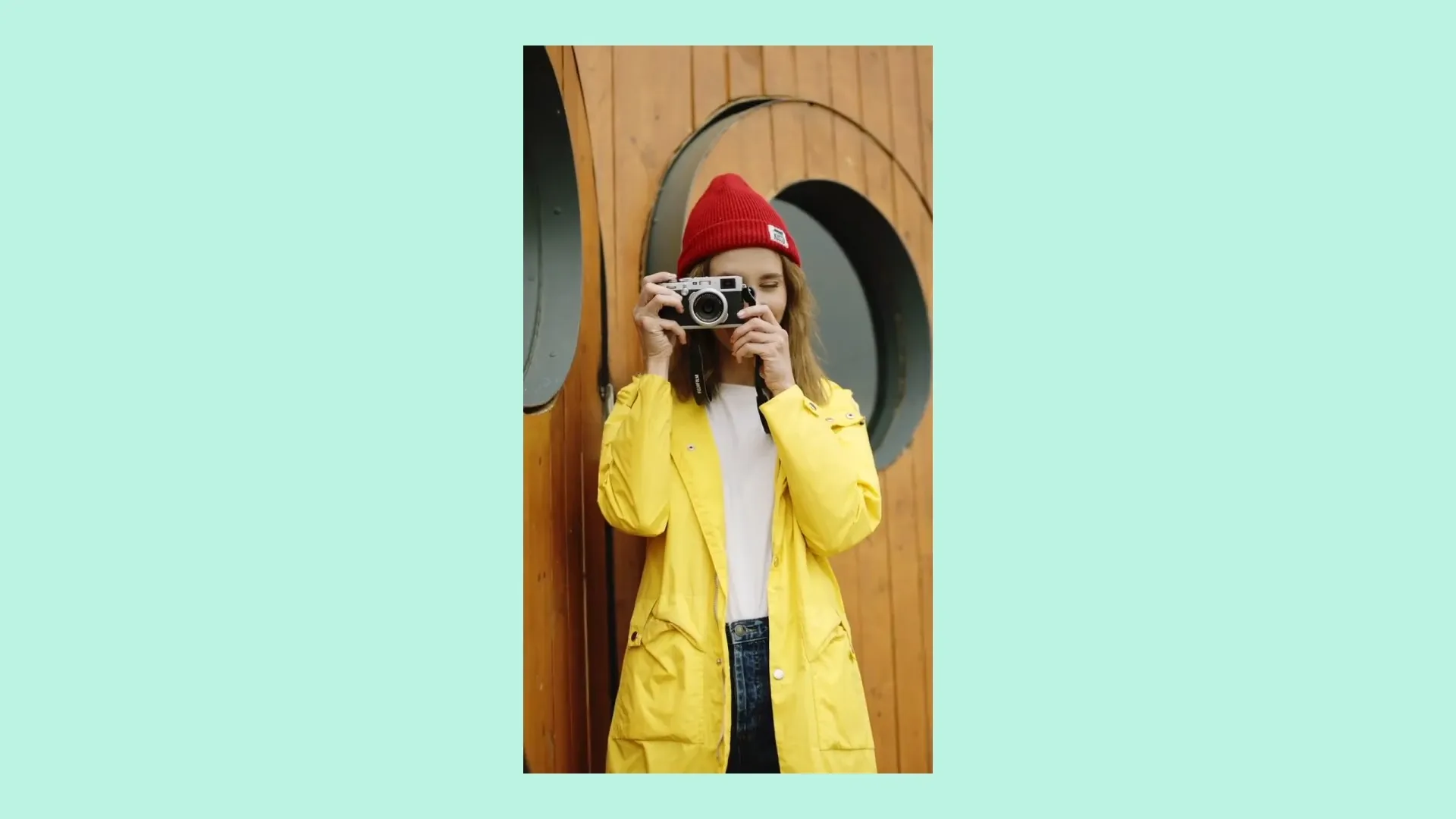
Style your video for YouTube-specific audiences
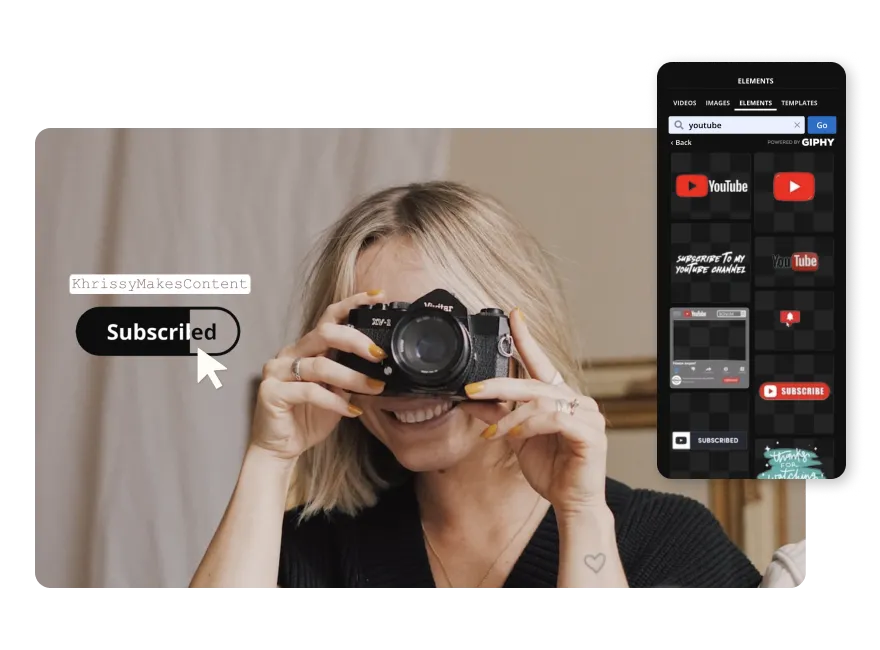
Kapwing makes it easy to tailor your content for YouTube with built-in templates, trending memes, and YouTube-specific editing styles. Add overlays, emojis, text, and quick cuts to match the pacing and visual style that performs well on the platform.
Use a Brand Kit to save and apply your fonts, colors, logos, and presets across projects — perfect for small businesses, marketing teams, and social media managers who understand the importance of visual consistency.
Already transforming video creation across industries
Hear directly from the teams who publish faster, collaborate better, and stay ahead.


Optimize from Instagram to YouTube, fast
Everything you need to repurpose, refine, and publish
Keep active speakers centered in-frame
When converting vertical videos featuring interviews, webinars, or multi-speaker content, framing can get tricky. Kapwing’s Auto Speaker Focus keeps the active speaker’s face centered, even as they move, by dynamically adjusting the crop.
It gives your YouTube content a cleaner, more professional look without requiring manual keyframing or reframing, and saves podcasters or panel-style creators a ton of time.
.webp)
Reach more people with accurate translations
If you're already repurposing content across platforms, it’s the perfect time to expand to a global audience. Kapwing’s built-in translation tools include Auto-Subtitles, Dubbing, and Lip Sync, making it easy to adapt your video for different languages.
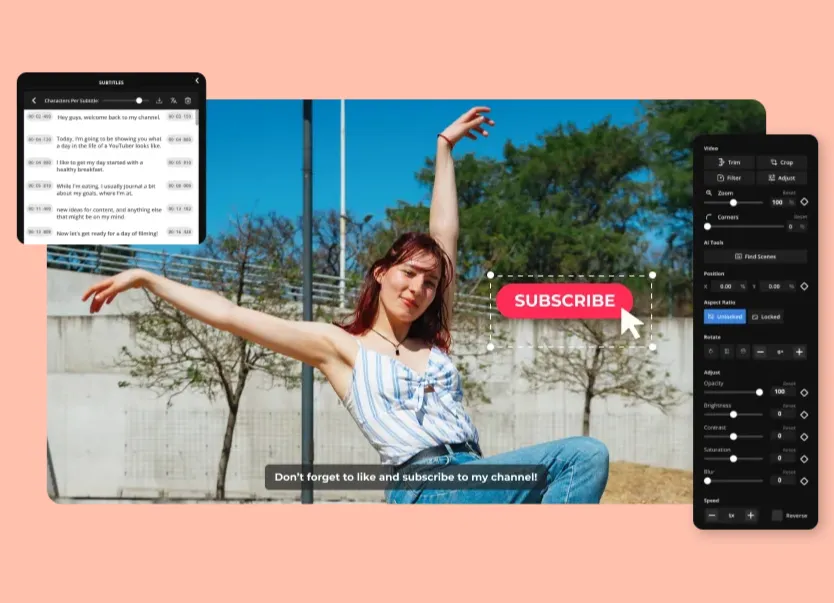
Subtitles are generated in seconds and can be fully customized with editable transcripts, fonts, and animations. Unlike YouTube’s often inaccurate auto-captions, Kapwing focuses on accuracy and flexibility, ensuring content remains clear, engaging, and accessible.

Publish directly to YouTube without leaving your browser
Once your video is resized, styled, and captioned, you can export it from Kapwing as an MP4 and publish directly to YouTube — no downloads or third-party tools required. You can even create YouTube thumbnails for your new upload with a host of image design tools and templates built into the editor.
Safe Zones that highlight where likes, comments, and buttons appear when published on YouTube Shorts is equally as valuable. For solo creators, marketers with tight deadlines, or anyone trying to post regularly, the all-in-one workflow helps you focus more on growth and less on file management.
Think Instagram. Think YouTube.
Join millions of creators turning Instagram content into engaging YouTube videos
.webp)
Podcast Clips
Podcasters convert from Instagram to YouTube, turning short audio-visual highlights into landscape interviews, Q&As, or show recaps with centered framing and cleaner presentation
.webp)
Brand Highlights
Social media managers turn Reels into 16:9 brand updates or campaign recaps for YouTube, maintaining momentum and engagement beyond their Instagram feed

Course Videos
Online coaches and educators use the Instagram to YouTube converter to convert short lessons into structured, YouTube-friendly course compilations for on-demand learning
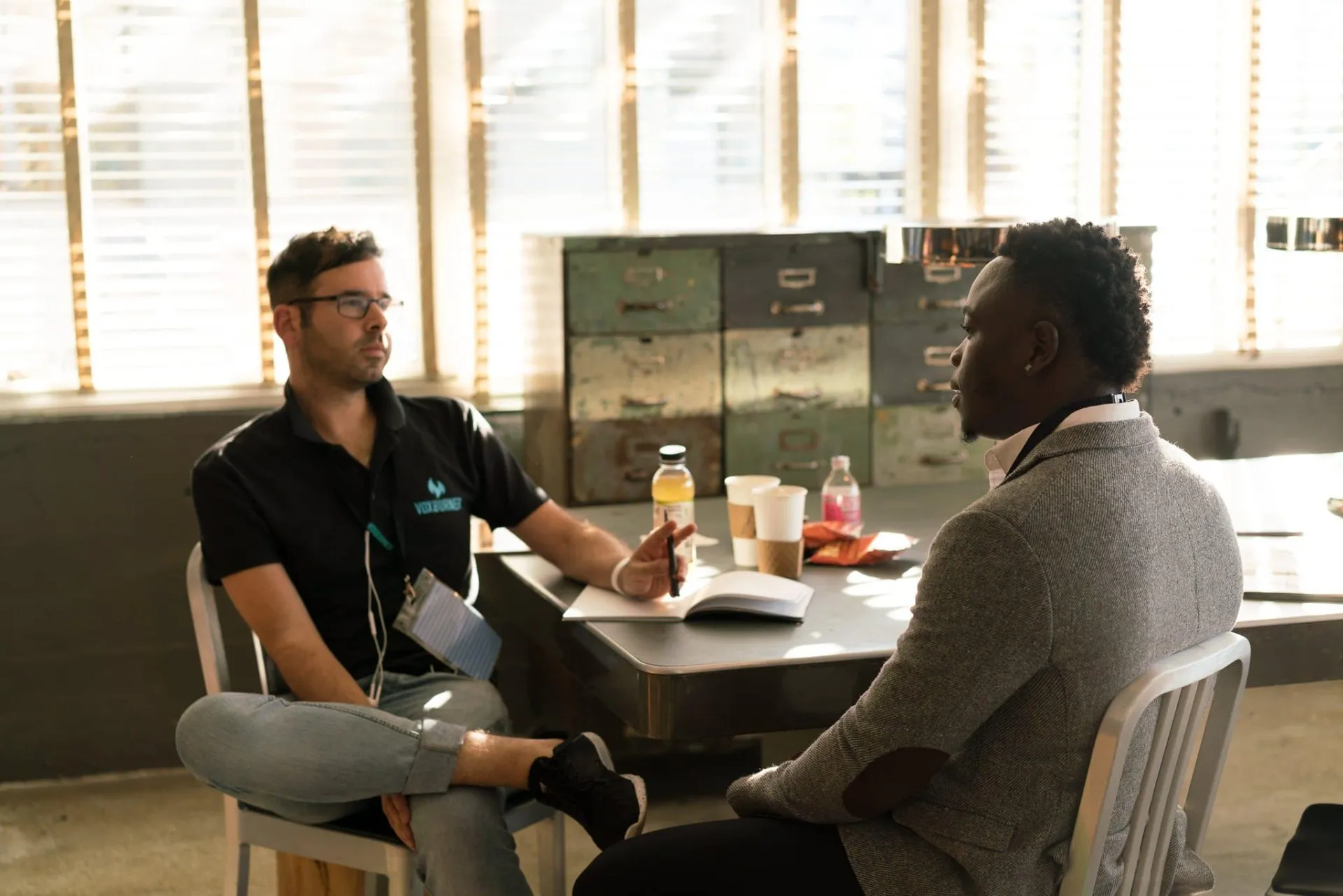
Interview Edits
Journalists and PR executives bring short social snippets into full 16:9 interviews for YouTube, stitching together segments without losing pacing or quality

Product Demos
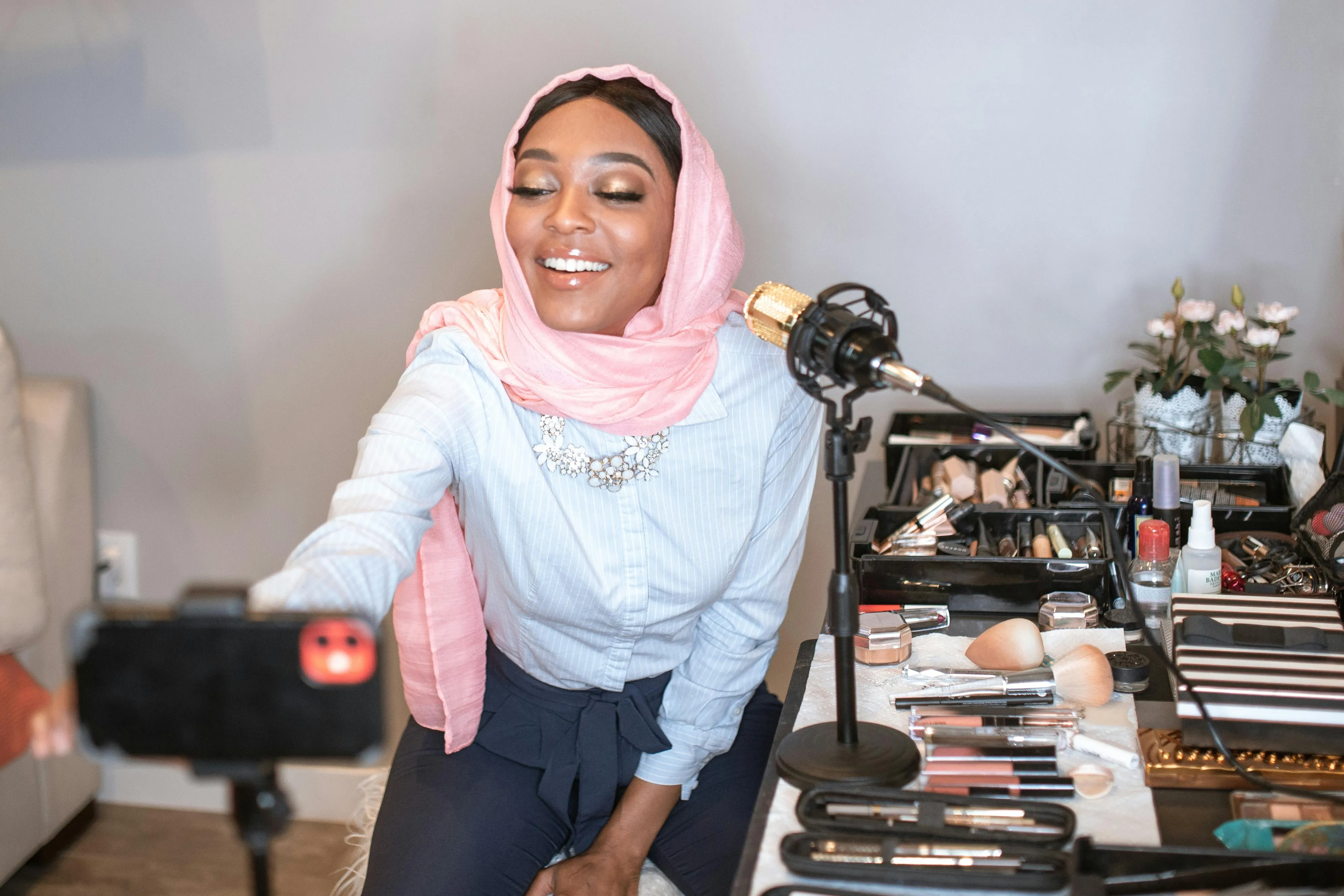
Beauty creators, small businesses, and ecommerce brands combine multiple clips from Instagram into horizontal videos for YouTube showcasing features, benefits, or tutorials

Thought Leadership
Executives and thought leaders clip together insights from Instagram videos and reformat them for YouTube, making their message accessible to a wider professional audience

Property Videos
Real estate professionals combine individual tours into YouTube videos like “Top 10 Condos in New York,” creating a new content series from repurposed Instagram clips
Testimonials
Marketers and PR teams convert Instagram testimonials and influencer reviews into branded YouTube compilations, adding captions, logos, and consistent formatting
How to Share Instagram videos to YouTube
- Step 1Add Instagram video
Download an Instagram video and upload it to Kapwing.com, or paste an Instagram URL directly into the studio. You can add multiple videos to the studio, dragging and dropping them into the editing timeline.
- Step 2Edit for YouTube
Use the 'Resize Project' tool on the right toolbar to switch to YouTube’s 16:9 aspect ratio, then customize with subtitles, translations, text, logos, automatic B-roll, and other AI-powered tools.
- Step 3Export and upload
When finished editing, export as an MP4 and post directly to YouTube using the 'Share' button or save to your mobile or desktop device.
*To use AI to automatically find clips or add them together, add your video to Kapwing's AI Clip Generator.
What's different about Kapwing?



Frequently Asked Questions
We have answers to the most common questions that our users ask.
Is the Instagram to YouTube tool free?
Yes, Kapwing's Repurpose Instagram to YouTube tool is free for all users. The free plan includes some limitations to other editor features and applies a small watermark to the final video.
Is there a watermark on exports?
If you are using Kapwing on a Free account then all exports will contain a watermark. Once you upgrade to a Pro account the watermark will be completely removed from your creations.
YouTube vs YouTube Shorts vs Instagram
- YouTube supports horizontal (16:9) videos that are generally long-form
- YouTube Shorts are vertical (9:16), under three minutes, and appear in a dedicated Shorts feed
- Instagram Videos are mostly vertical (9:16), although feed posts can vary
Kapwing allows you to quickly reformat between all three depending on your target platform.
What aspect ratio should I use on YouTube?
The standard aspect ratio for YouTube is 16:9 and 9:16 on YouTube Shorts.
What does repurposing mean?
Repurposing means taking existing content, such as an Instagram Reel or Story, and adapting it for another platform or audience. This could include changing the video’s aspect ratio, editing its length, adding subtitles, or updating visuals to match YouTube’s viewing experience. Repurposing saves time and maximizes the value of your content by extending its reach.
What’s the best video size for YouTube?
The recommended size for standard YouTube videos is 1920x1080 pixels, which corresponds to a 16:9 aspect ratio. This format is ideal for horizontal, long-form content. For YouTube Shorts, the preferred size is 1080x1920 pixels, or 9:16 aspect ratio, optimized for vertical viewing on mobile devices.
Can you use Kapwing on iPhone and Android?
Yes, Kapwing’s editing tools work seamlessly on mobile devices, including iPhone, Android, iPad, and desktop. To use the Instagram to YouTube converter on mobile, go to Kapwing.com in your browser and upload your video. Once it’s in the timeline, tap the “Project” button at the bottom of the screen and select the 16:9 aspect ratio to format it for YouTube.
What editing changes should I make for YouTube's style and algorithm?
YouTube favors videos that are engaging, watchable, and retain viewers. To optimize for the platform:
- Keep your intros concise and hook viewers in the first 10–15 seconds.
- Use clear visuals, captions, and graphics to make content easy to follow.
- Break longer videos into segments with chapter markers or transitions.
- Add background music, voice overs, or sound effects to enhance engagement.
- Use attention-grabbing thumbnails, titles, and descriptions for better click-through.
These edits help improve watch time and audience retention, which are key factors for YouTube’s algorithm.
Does YouTube penalize reposted or repurposed content?
YouTube doesn’t automatically penalize repurposed content, but original, engaging videos are favored. Add your own edits, commentary, or creative touches to make repurposed content unique and avoid copyright issues.
What is the best way to download an Instagram Reel for reuse?
To download an Instagram Reel for editing, copy the Reel’s URL and paste it into Kapwing. The video will automatically be added to your media library, where you can drag it onto the canvas for editing, trimming, or adding YouTube-ready enhancements.
Discover Resources
Tips, templates, and deep dives to help you create faster and share with confidence.
View all

Get started with your first video in just a few clicks. Join over 35 million creators who trust Kapwing to create more content in less time.