CLIP TWITCH A SHORTS
Ridimensiona, converti e modifica i clip di Twitch per YouTube Shorts
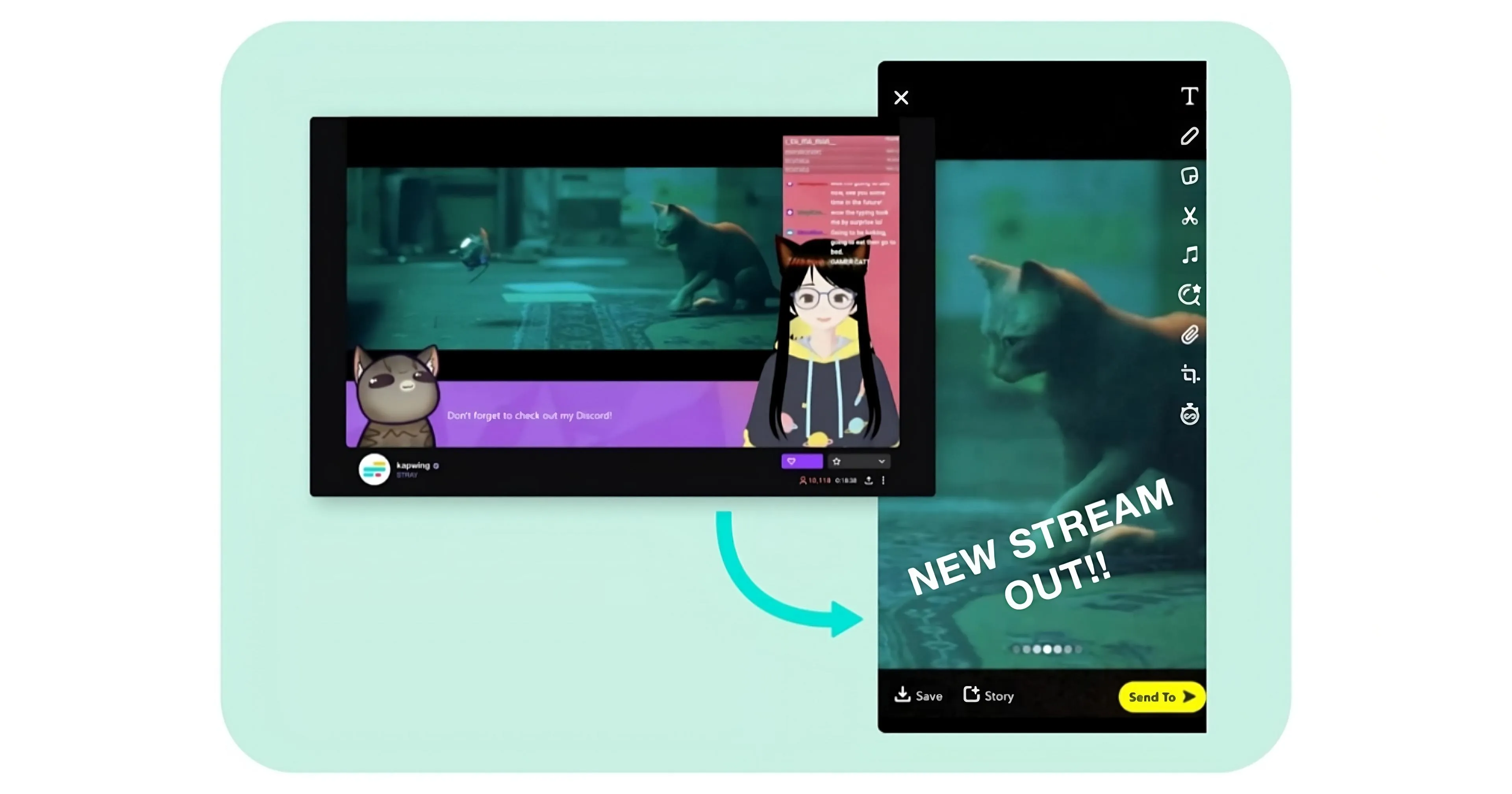
Cresci più velocemente — condividi i tuoi clip su YouTube Shorts
Usa l'IA per ridimensionare i video di Twitch, convertire i formati ed estrarre clip pronte per la condivisione
Converti i tuoi clip di Twitch in video verticali pronti per YouTube Shorts
Il convertitore gratuito da Twitch a YouTube Shorts di Kapwing è uno strumento di ridimensionamento automatico super facile da usare che trasforma i clip di Twitch da orizzontale (16:9) a verticale (9:16). Con i rapporti di aspetto per ogni piattaforma di social media disponibili nella barra degli strumenti in alto, puoi riutilizzare i tuoi contenuti con un solo clic.
Fai crescere velocemente la tua presenza online su più piattaforme con una soluzione semplificata che non richiede nessuna esperienza di editing precedente.
.webp)
Risparmia ore scansionando automaticamente i flussi Twitch per clip
Find the best moments from your streams without relying on Twitch clip suggestions, which are often out of context or too long for YouTube.
Kapwing's AI-powered Clip Maker automatically analyzes your video and identifies short, relevant highlights based on your prompt. You decide the length — whether it's 15-second highlights or 60-second moments — and the AI does the rest.
Every clip is fully customizable, so you can adapt the styles for different audiences, switching from Twitch to Shorts with new fonts, colors, layers, and uploads
.webp)
Keep your speakers front and center without losing quality
Carica rapidamente, ridimensiona e converti i clip di Twitch in YouTube Shorts senza perdere di vista il tuo speaker principale. Lo strumento Auto Speaker Focus di Kapwing centra automaticamente gli speaker attivi nei video con più personalità, semplificando il processo per risultati senza sforzo e raffinati.
.webp)
Boost your watch time with auto-generated captions
All suggested clips include automatically generated subtitles, improving video viewing times and accessibility. Customize your subtitles with over 100 colors, sizes and styles to match your Twitch aesthetic and attract a new audience.
Keep expanding your reach by automatically translating videos into over 100 languages with 99% accuracy. These features are built into the AI-powered clip converter and manual editing studio, giving creators complete control and flexibility for every project.
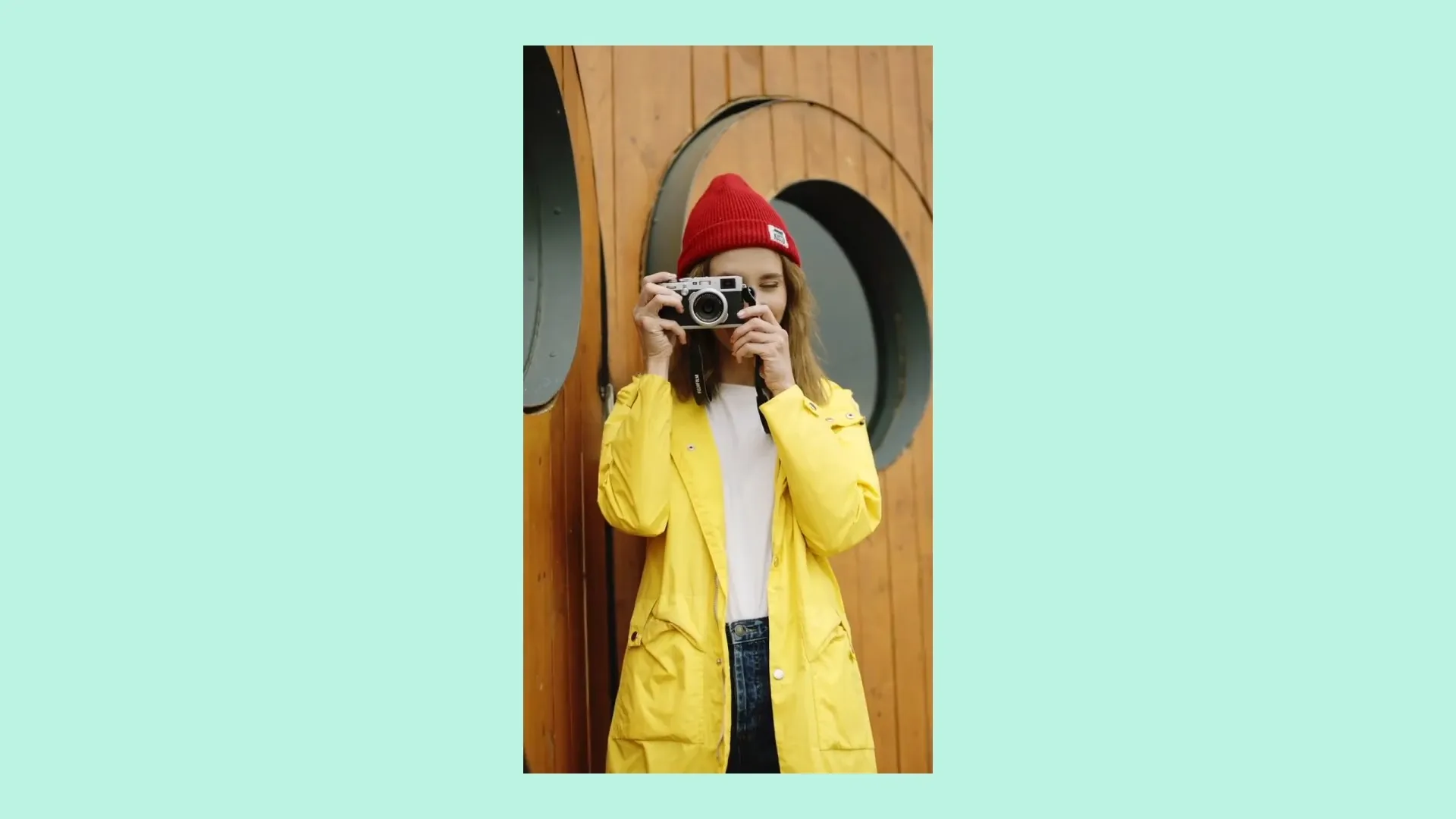
Personalizza i tuoi clip con design pronti per YouTube
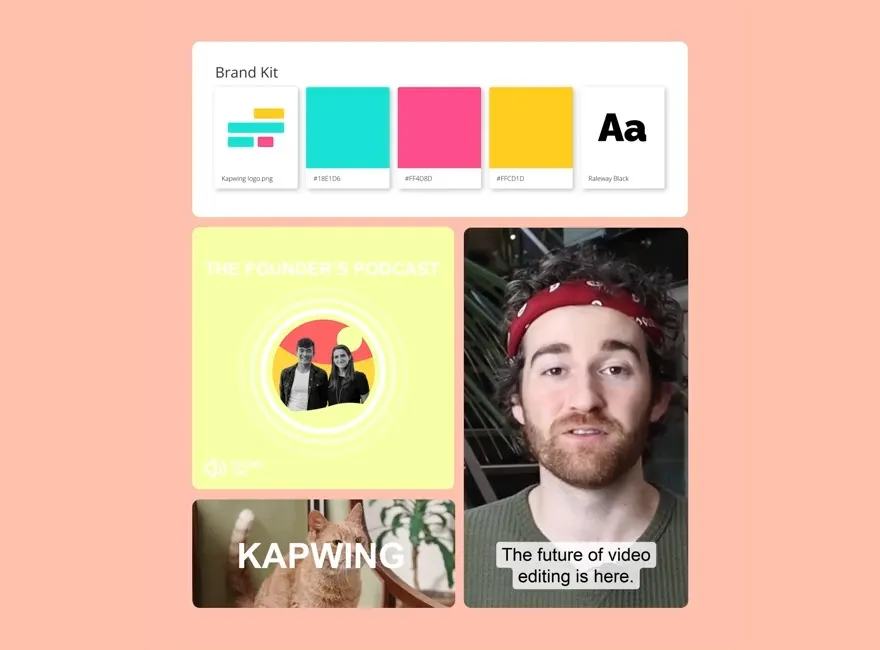
Save your favorite styles — like custom caption fonts, video transitions, and background music — and reuse them seamlessly across your projects. Keep things consistent and appealing with templates and designs made for YouTube's huge audience, all in one online editing platform.
Già rivoluzionando la creazione di video in diversi settori
Ascolta direttamente dai team che pubblicano più velocemente, collaborano meglio e rimangono sempre avanti.


Fai crescere il tuo pubblico con ogni clip
Milioni di creator si fidano di Kapwing per trasformare i stream di Twitch in contenuti Shorts condivisibili
.webp)
I Migliori Momenti di Gioco
I gaming streamer ridimensionano automaticamente i clip di Twitch per YT Shorts per condividere i momenti di gioco epici e le divertenti interazioni di squadra con i loro follower su YouTube
.webp)
Funny Clips
Twitch streamers reuse their videos for Shorts to share funny and spontaneous gaming moments or hilarious chat interactions with their fans, adding humorous captions as a final touch
Beauty Tutorial and Tips
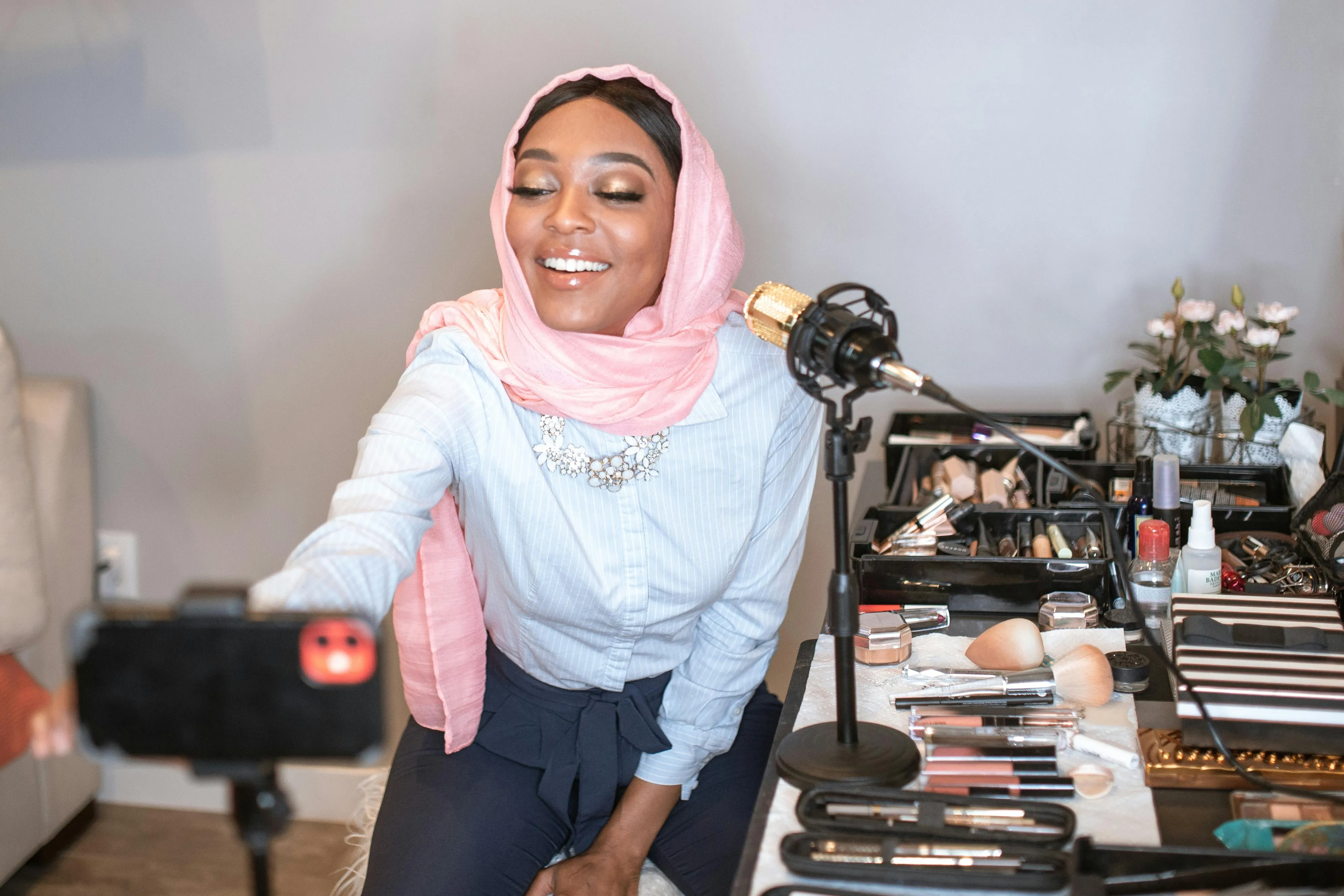
I beauty e body art streamer convertono i loro stream Twitch in Shorts mini-tutorial che condividono tecniche di applicazione del trucco, routine di skincare e recensioni di prodotti
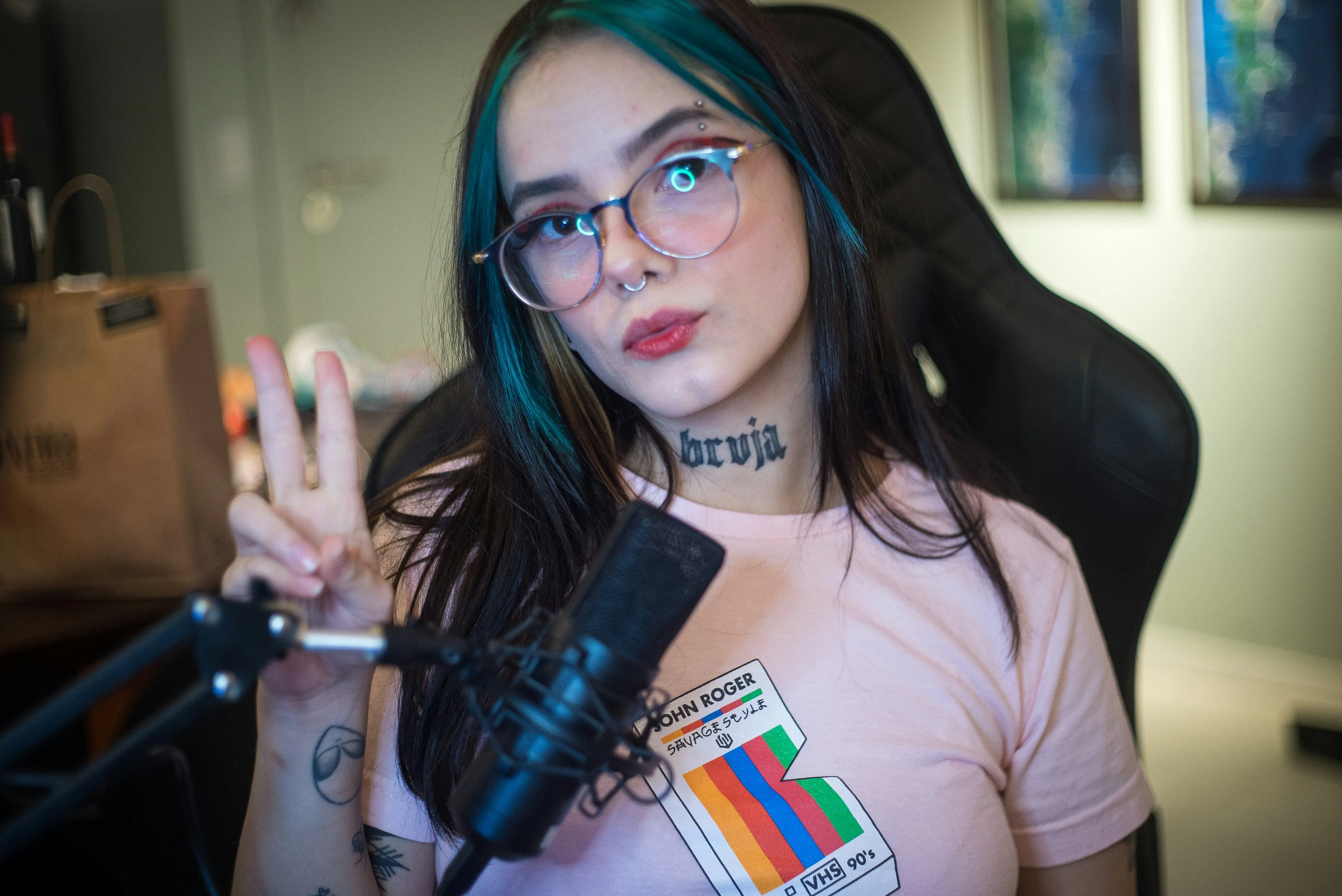
Funzionalità Domande e Risposte
Streamers extract and upload Twitch clips to YouTube Shorts for free, highlighting the best moments from their live Q&A sessions with fans and funny reactions to comments
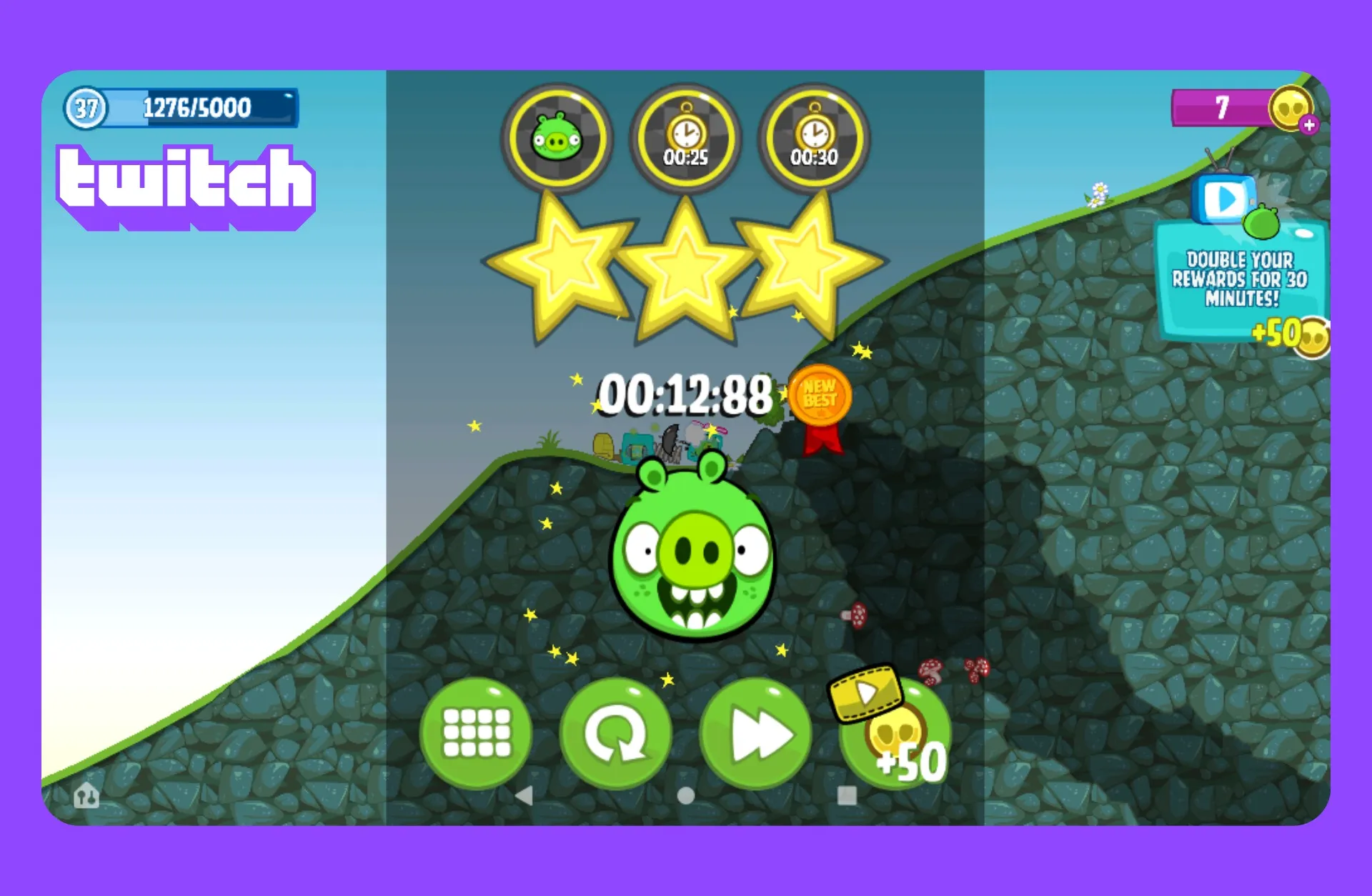
Risultati Speedrun
I gamer pubblicano clip su YouTube Shorts che si concentrano sui momenti più importanti delle loro speedrun, come i conto alla rovescia del timer, le mosse impressionanti, o i momenti esatti in cui stabiliscono nuovi record
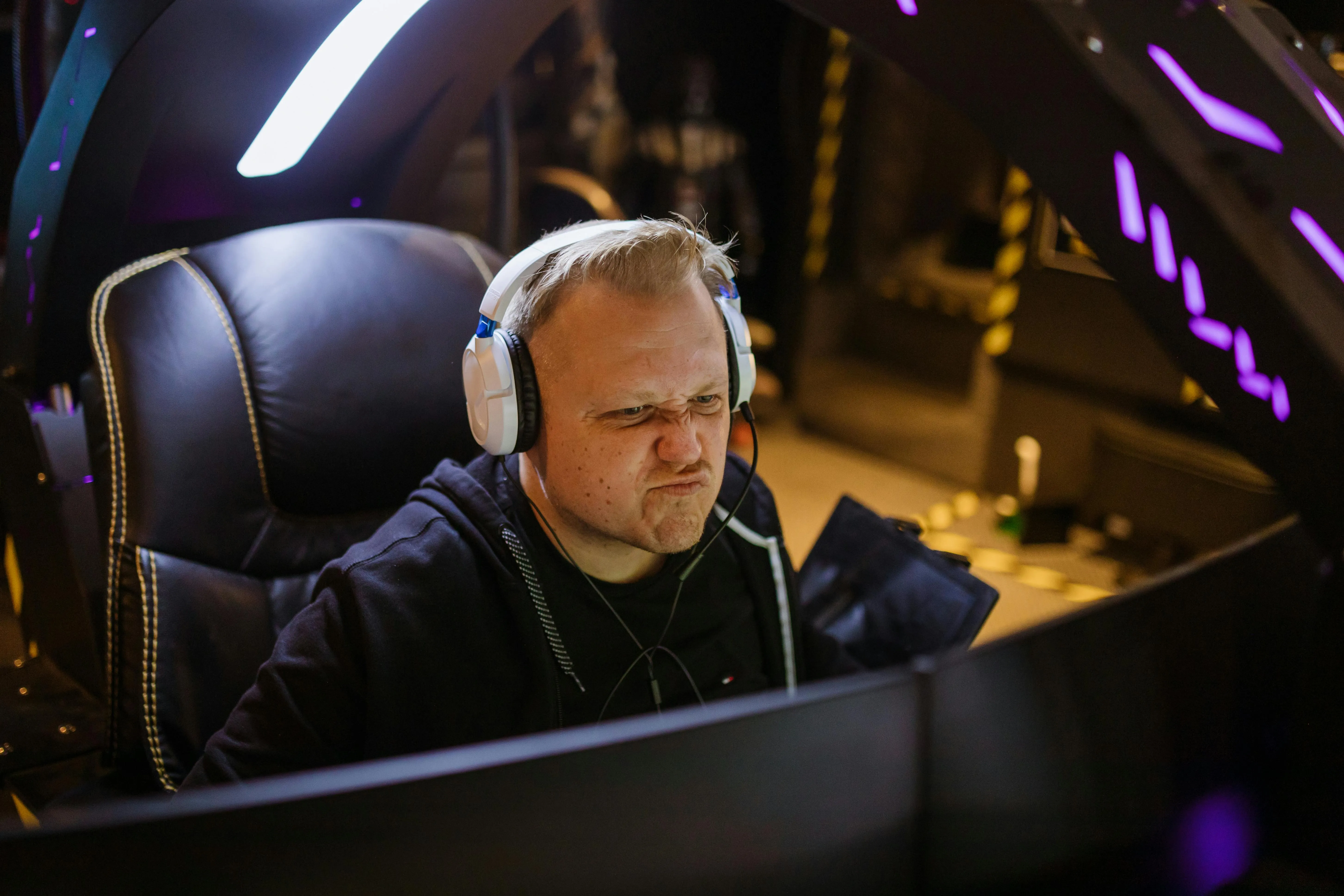
Reaction Clips
Kapwing's Auto Speaker Focus automatically zooms in on the streamer's face or gameplay, highlighting expressions and key moments without needing any manual editing
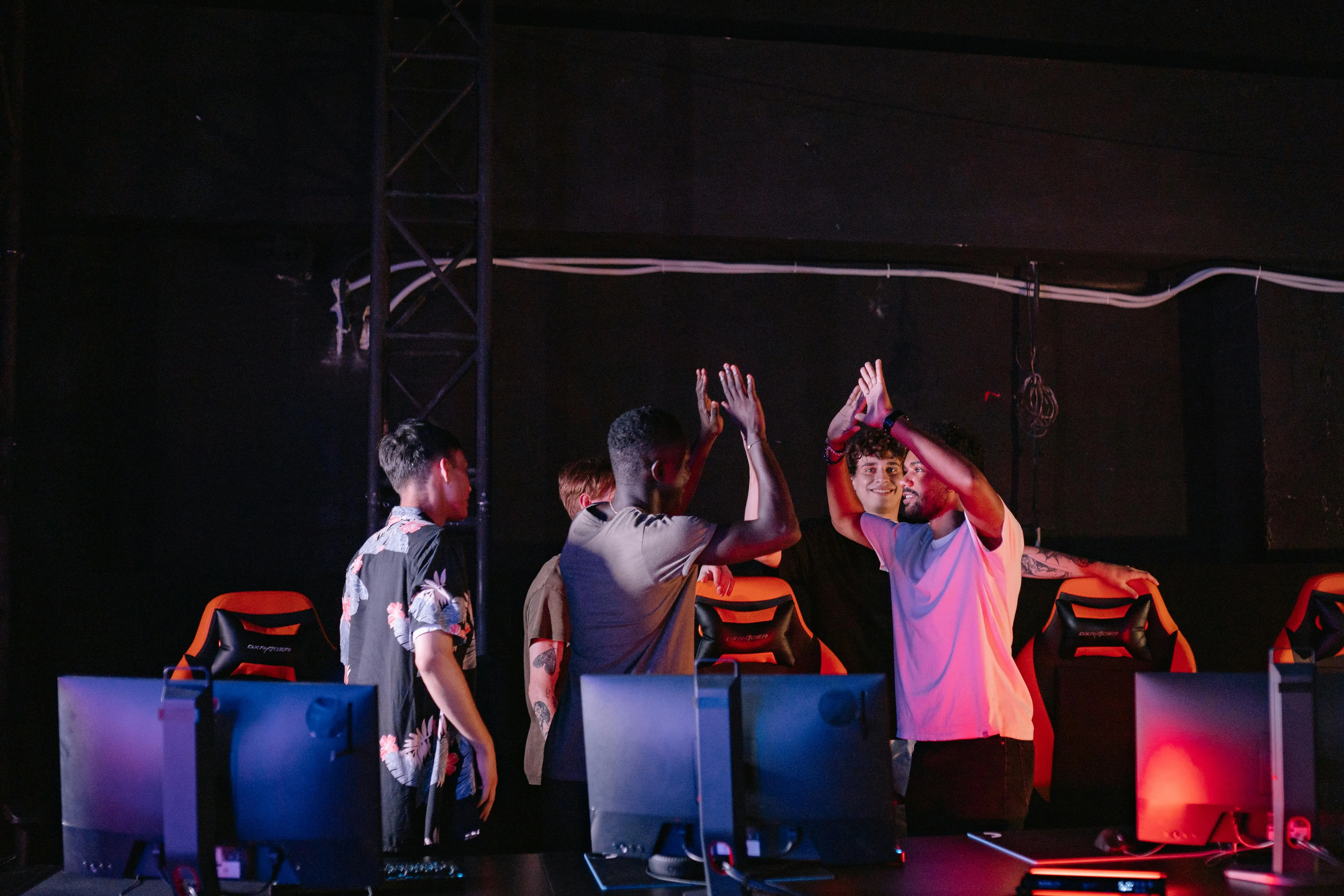
Tournament Summaries
Quickly crop out distracting streaming overlays or sidebars to turn Twitch tournament streams into highlight clips, leaderboard time-lapses, or mashups of epic moments and reactions
Come Condividere Clip di Twitch su YouTube Shorts
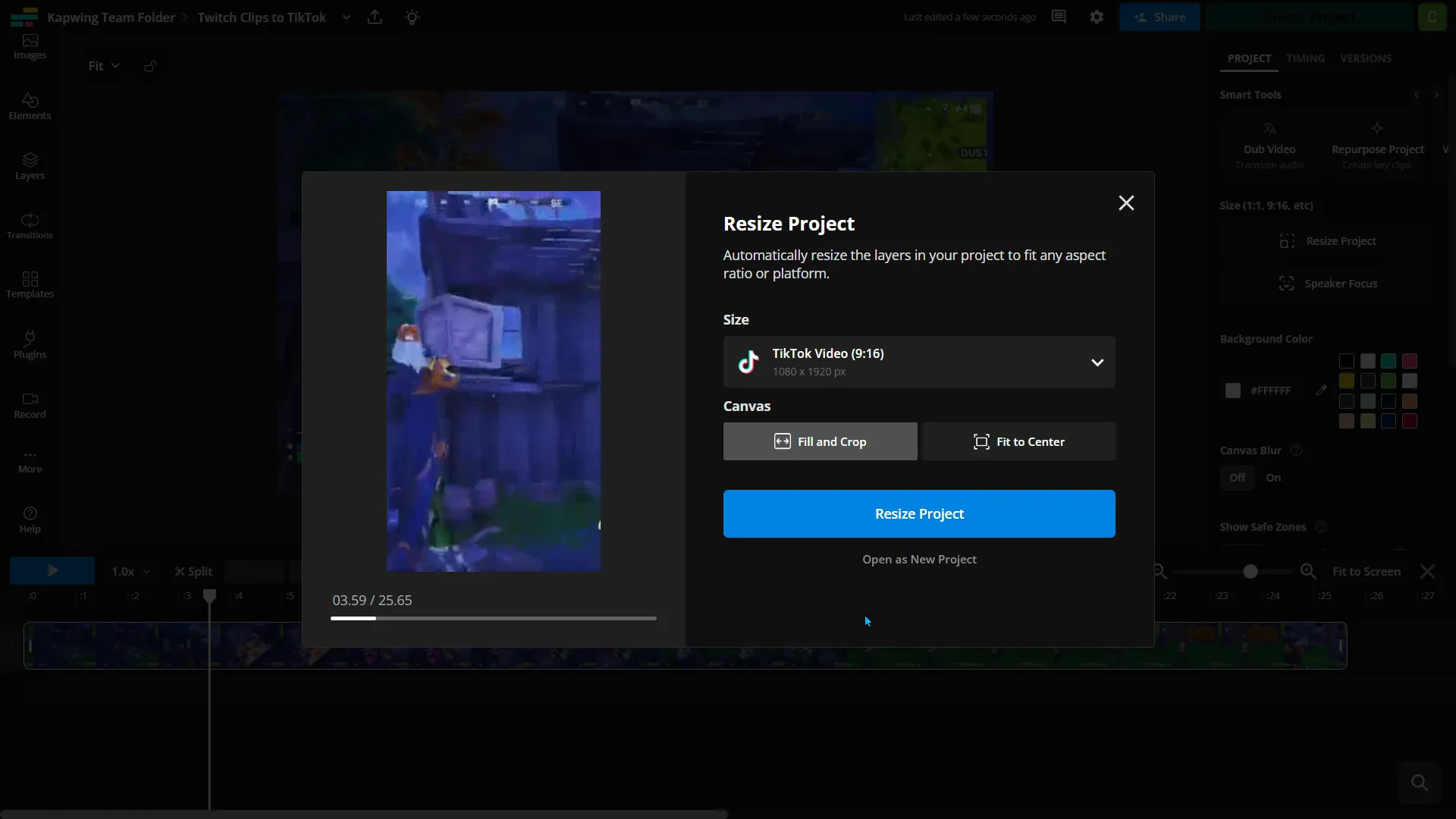
- Step 1Aggiungi video Twitch
Copia l'URL del tuo video da Twitch e incollalo in Kapwing oppure carica direttamente dal tuo dispositivo se hai il video scaricato
- Step 2Modifica video
Fai clic su "Ridimensiona progetto" nella barra degli strumenti a destra e ridimensiona i tuoi clip Twitch nel formato verticale (9:16) e scegli tra "Riempi e ritaglia" o "Adatta al centro"
- Step 3Esporta e pubblica
Fai gli ultimi ritocchi, esporta e scarica il file come MP4, e pubblica i clip su YouTube Shorts.
*Per usare l'AI per ridimensionare automaticamente e trovare clip nel tuo video, aggiungi il video di Twitch a Kapwing's Clip Generator e segui i passaggi.
Che cosa rende Kapwing diverso?



Domande Frequenti
Abbiamo le risposte alle domande più comuni che i nostri utenti ci fanno.
Is the Kapwing Twitch to Shorts tool free?
Sì, lo strumento Twitch to YouTube Shorts di Kapwing è gratuito per tutti gli utenti e include proporzioni predefinite per un ridimensionamento rapido e facile. Tuttavia, ti serve un account Pro per avere la qualità video 4k, i sottotitoli automatici illimitati e altre funzioni.
Is there a watermark on exports?
If you're using Kapwing with a free account, all exports — including those from the Twitch to Shorts tool — will have a watermark. Once you upgrade to a Pro account, the watermark will be completely removed from all the videos and images you create.
What is the right video size for YT Shorts?
For the best results:
- YouTube Shorts: 1080 x 1920 px (vertical)
- Standard YouTube video: 1920 x 1080 px (horizontal)
- Square clips for cross-sharing: 1080 x 1080 px
YouTube Shorts are designed to be full-screen vertical, so a 9:16 aspect ratio is the way to go.
Quali sono alcuni dei game stream più popolari su YouTube Shorts?
YouTube Shorts is a hot spot for gaming highlights, with popular titles like Fortnite, Minecraft, Call of Duty, Roblox, Apex Legends, and Genshin Impact. Lots of creators cut their Twitch streams into vertical Shorts to boost their reach and engagement.
Come faccio a creare clip di Twitch che meritano di essere condivise su Shorts?
Per creare clip di Twitch che valga la pena condividere su YouTube Shorts, concentrati su momenti brevi e ad alto impatto— come giocate epiche, reazioni divertenti o highlight emozionanti sotto i 60 secondi. Usa un layout verticale 9:16, aggiungi didascalie o sovrapposizioni per il contesto, e mantieni il clip veloce e coinvolgente.
Come trovo i miei clip su Twitch?
You can find your Twitch clips on the Clips page of your Creator Dashboard. Go to Creator Dashboard > Content > Clips. From here, you can sort and filter your clips, edit titles, and watch or share clips.
Come postare clip di Twitch su YT Shorts
Follow these five steps to grab a clip from Twitch and post it on YouTube Shorts:
- Download Your Twitch Clip: Save clips from Twitch by hitting "Share" and then "Download".
- Resize for Shorts: Use an editing tool like Kapwing's Twitch to Shorts converter to fit your clip into the vertical 9:16 format.
- Highlight the Best Moments: Trim your clip and focus on the most exciting or funny moments (we recommend clips under 60 seconds).
- Customize for Shorts: Add captions, overlays, or music to make your clip more engaging for YouTube viewers.
- Upload to YouTube Shorts: Post it straight through the YouTube app, throwing in a title, description, and hashtags to reach a wider audience.
Posso postare una clip di Twitch direttamente da Twitch a YouTube?
Nope, Twitch attualmente non ti permette di postare clip direttamente su YouTube. Per condividere una clip di Twitch su YouTube, devi prima scaricare la clip, poi modificarla o ridimensionarla (ad esempio, in un formato verticale 9:16 per Shorts) prima di caricarla sul tuo canale YouTube.
Come mantenere la tua webcam visibile quando converti in video verticali
I flussi Twitch sono solitamente orizzontali (16:9), ma YouTube Shorts sono verticali (9:16). Per preservare i tuoi contenuti, dovresti considerare:
- Ricadra il video: Ritaglia l'area di gioco mantenendo visibile l'overlay della webcam.
- Dividi lo schermo: Un altro metodo è aggiungere uno sfondo verticale o duplicare il gameplay come cornice verticale sfocata dietro il tuo clip, mantenendo sia il gameplay che la webcam visibili tramite uno split screen.
- Evidenzia l'azione: Concentrati sul momento principale del gameplay o sulla tua reazione; non cercare di inserire tutto dal flusso originale in un clip verticale.
Scopri le Risorse
Consigli, modelli e approfondimenti per aiutarti a creare più velocemente e condividere con sicurezza.
Visualizza tutto
Inizia con il tuo primo video in pochi click. Unisciti a oltre 35 milioni di creator che si fidano di Kapwing per creare più contenuti in meno tempo.