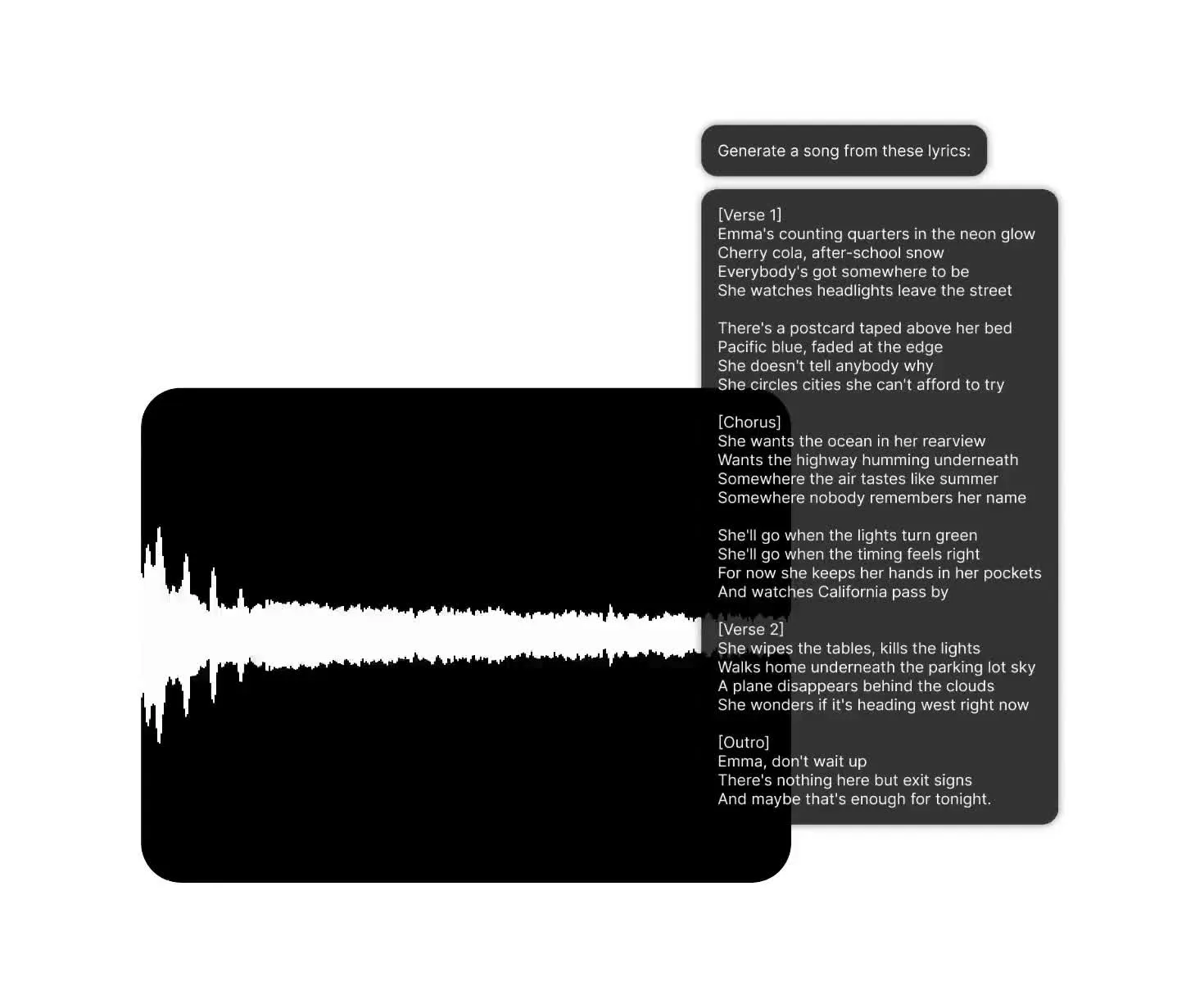
MiniMax Music 2.0 — lyrics to songs using AI
Test hooks. Draft music. Compare versions.
Your lyrics.
In any genre.
MiniMax Music 2.0 is Kapwing’s low-cost AI audio model for testing song ideas across genres, tempos, and vocal styles.
Keep your lyrics consistent while changing the tempo, instrumentation, or vocal delivery. Compare multiple audio versions, then bring the strongest track into the timeline editor to trim it, adjust the volume, add fades, and pair it with video.
Songwriters and producers use 2.0 to prototype hooks and arrangements, while video creators, podcasters, and marketing teams draft theme songs, intros, jingles, and campaign tracks in one online workflow.
MiniMax Music 2.0 in Three Steps
Free to start. Fully online.
Upload
the lyrics you want sung, with section tags for verses and choruses


Describe
the genre, mood, instruments, tempo, and vocal direction
Generate
your new AI song in minutes. Compare drafts, then edit in Kapwing.
Why choose MiniMax 2.0 in Kapwing
Test, compare, and edit songs in one online workflow
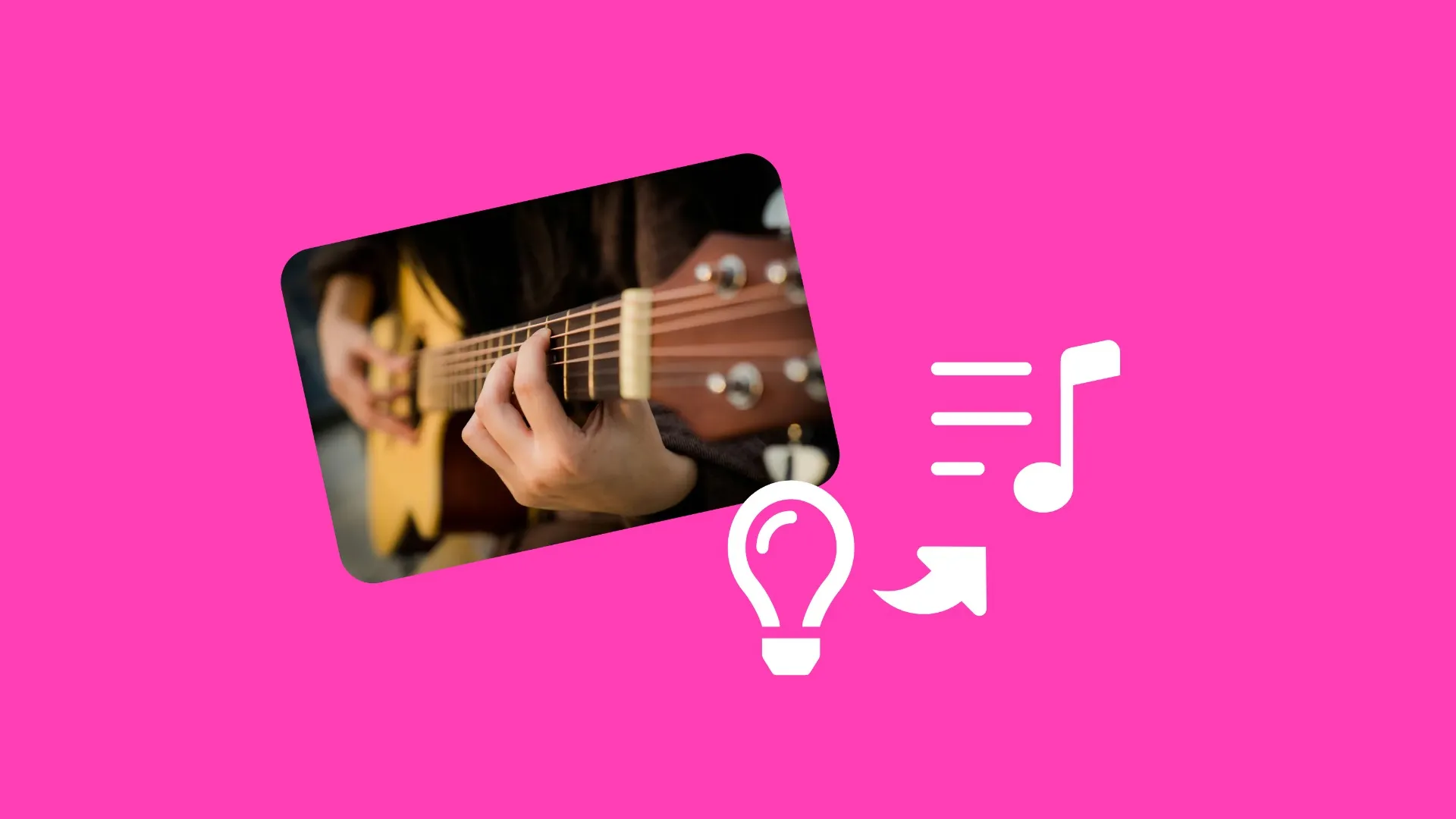
Play with hooks
Turn a chorus or short set of lyrics into a song draft before spending more credits on a higher-cost audio model
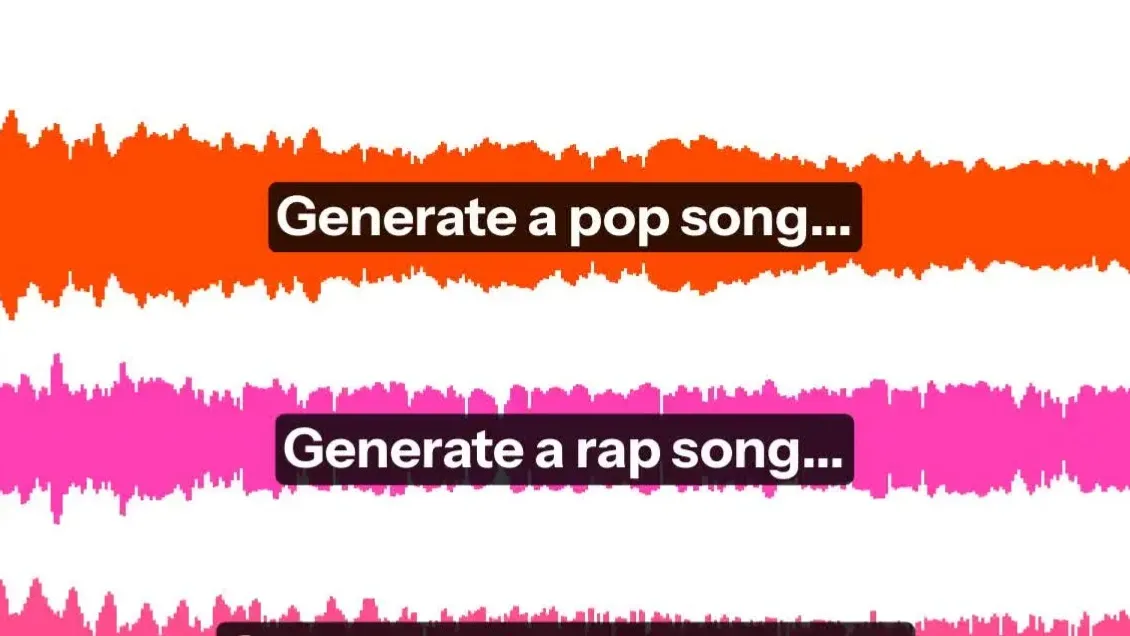
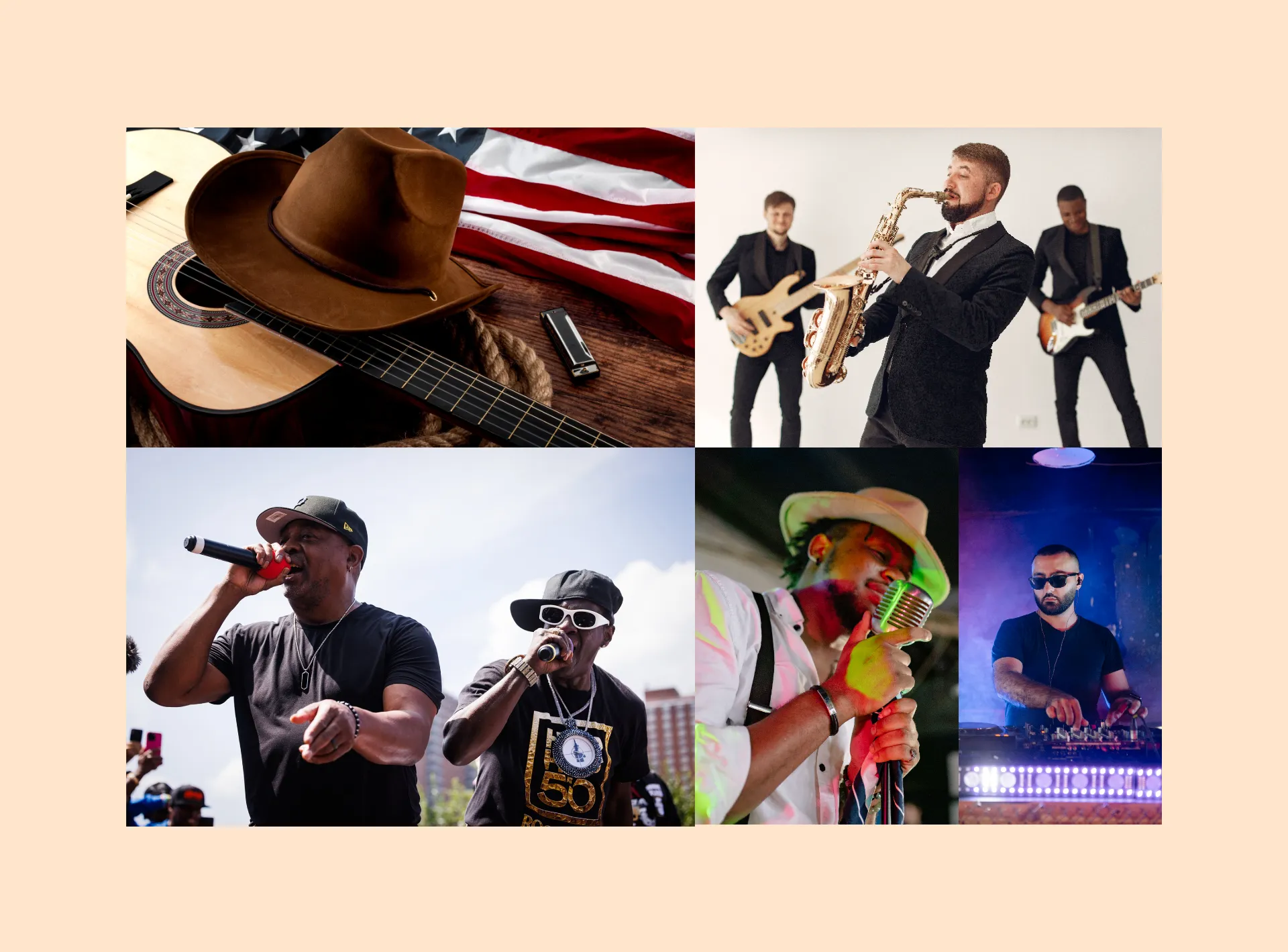
Explore genres
Hear your lyrics in pop, indie, electronic, country, and other genres, then compare which style fits best
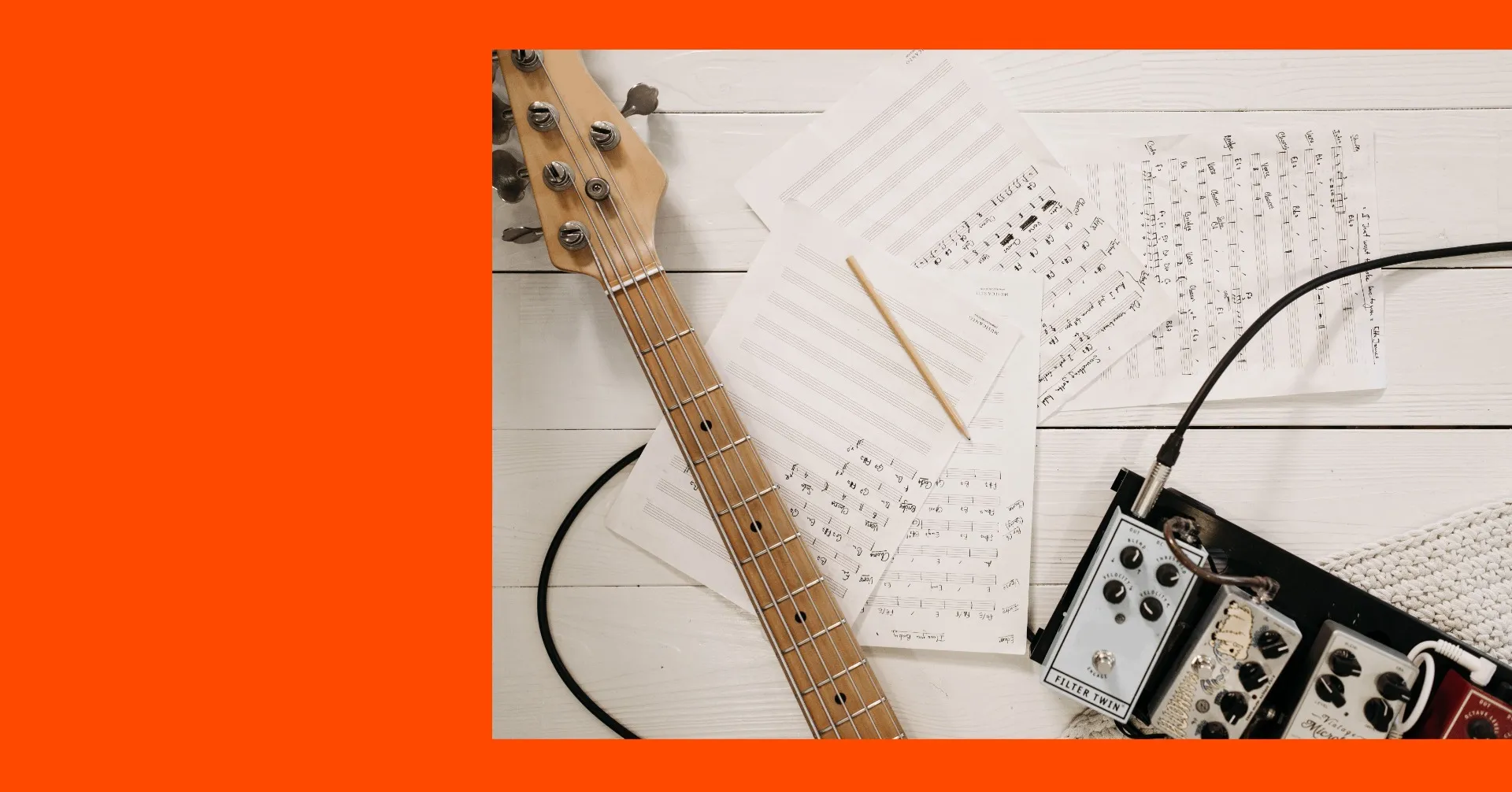
Draft campaign audio
Create early versions of jingles, theme songs, and branded hooks for pitches, rough cuts, and stakeholder review
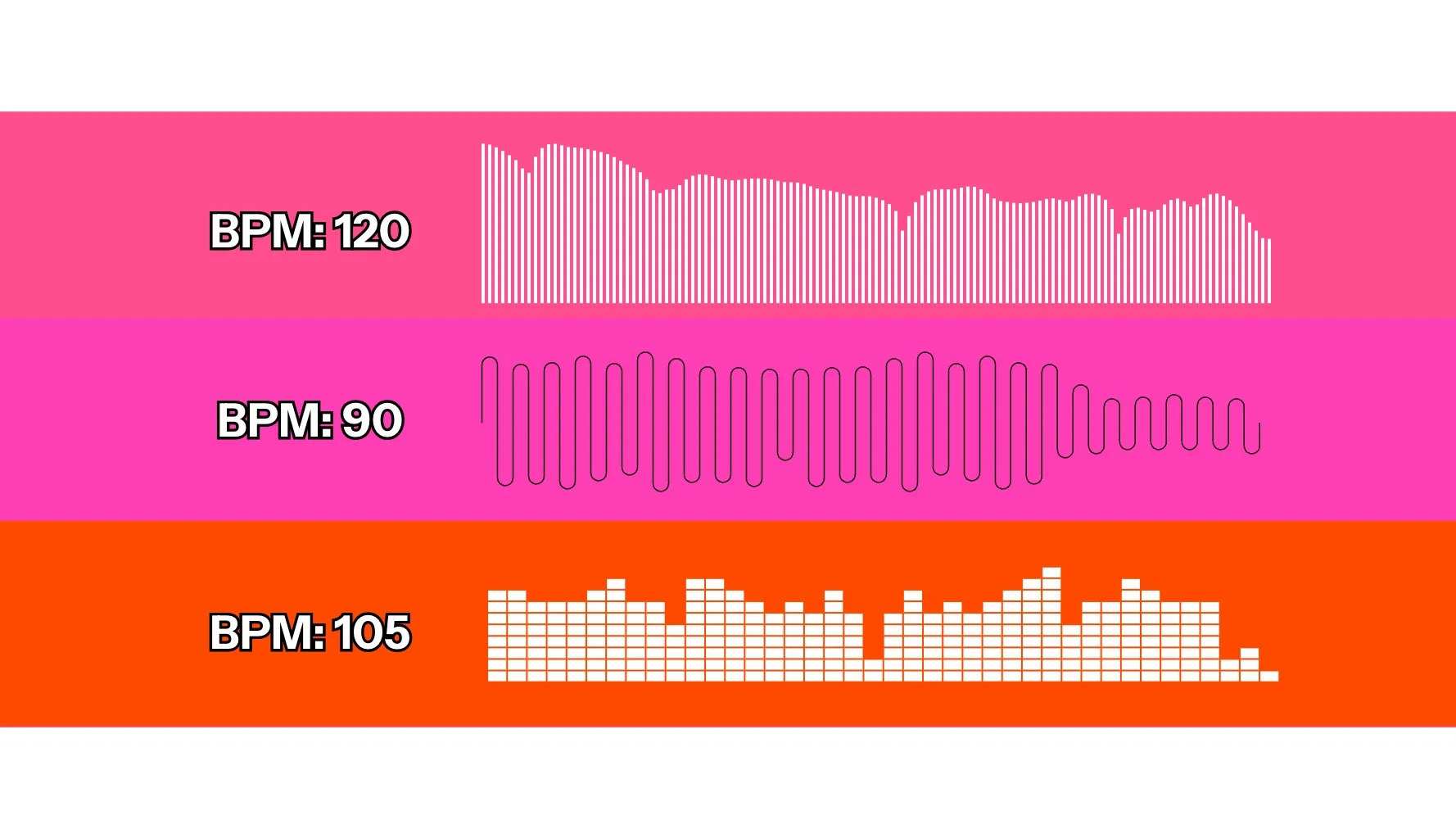
Compare arrangements
Keep the lyrics and genre consistent while testing tempos, vocal deliveries, and song structures
Create an editable first draft
Export your song as MP3, turn it into an MP4 video, or share an editable Kapwing project link
Generate.
Compare.
Edit.
MiniMax Music 2.0 keeps the workflow simple: your lyrics provide the words, while the prompt shapes how they sound.
Generate several lower-cost song drafts to compare hooks, genres, tempos, and arrangements before choosing the version to edit.
- Structure with
[Verse],[Chorus],[Bridge],[Hook], and[Outro] - Add up to 3,500 characters of lyrics
- Describe the genre, mood, instruments, tempo, and vocal delivery with 2,000 characters
- Trim, mix, and fade your preferred track in Kapwing’s timeline
- Use MiniMax Music 2.6 in the same workflow
- Combine the track with uploaded footage, add subtitles, or use an AI video model
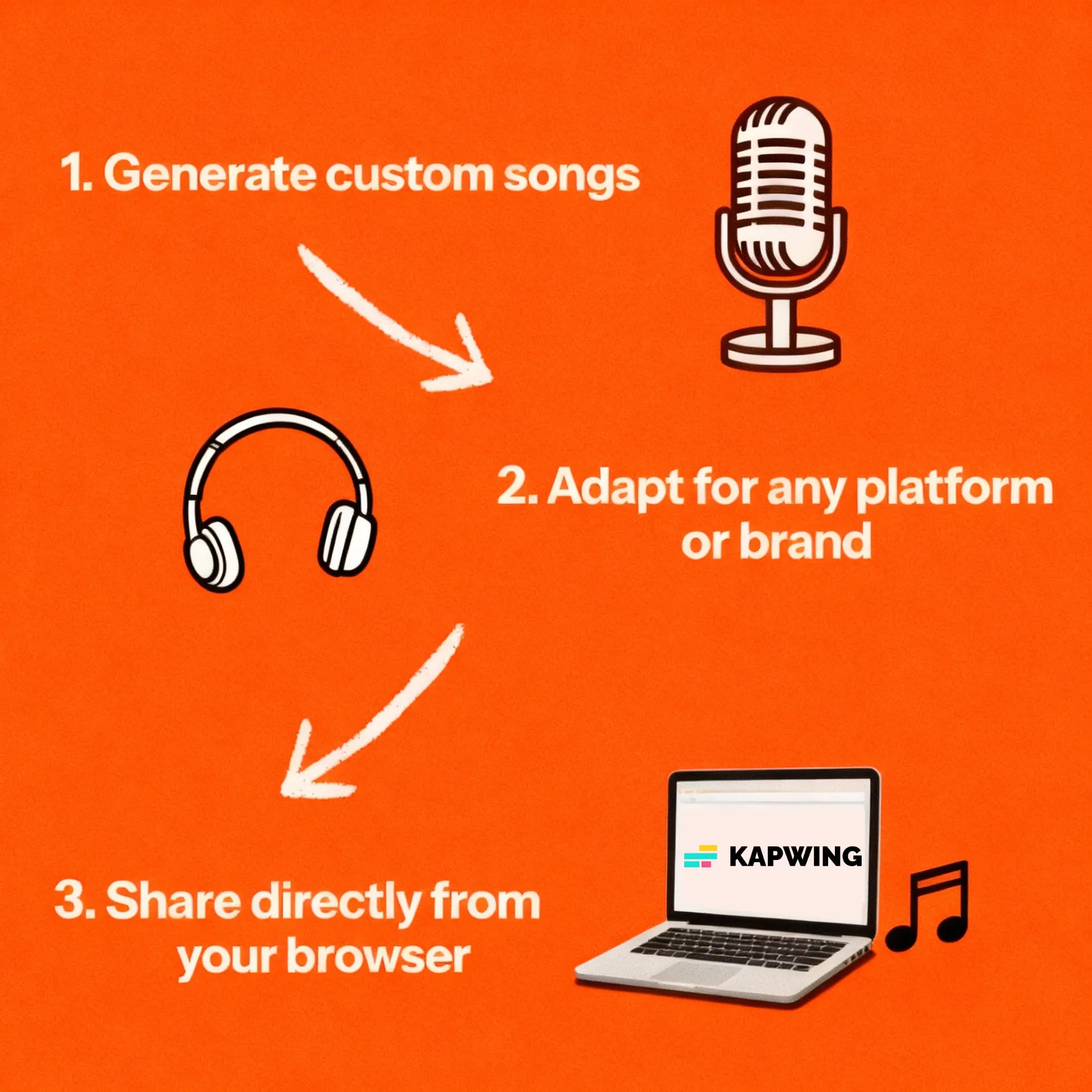
How to Use MiniMax Music 2.0 in Kapwing
- Step 1Add lyrics
Open Kai, select MiniMax Music 2.0, and paste the lyrics you want to turn into a song. Add section tags such as
[Verse]and[Chorus]to guide the arrangement. - Step 2Describe song
Describe the genre, mood, instruments, tempo, vocal style, and emotional tone you want to hear.
- Step 3Generate and edit
Generate a draft, adjust the prompt to compare more versions, then add your preferred track to Kapwing’s timeline to trim it, adjust the volume, add fades, or combine it with video.
Frequently Asked Questions
We have answers to the most common questions that our users ask.
What is MiniMax Music 2.0?
MiniMax Music 2.0 is Kapwing's low-cost MiniMax AI music generator. It turns lyrics you provide into a vocal track and is best used for early song ideas, hook tests, and creative drafts.
How do I use MiniMax Music 2.0 in Kapwing?
Open Kai, select MiniMax Music 2.0, paste your lyrics, and describe the musical style. Generate one or more drafts, then edit the strongest track in Kapwing.
Does MiniMax Music 2.0 require lyrics?
Yes. Kapwing uses Music 2.0 for requests with user-provided lyrics. If no lyrics are supplied, Kai routes the request to a compatible music model instead.
Can MiniMax Music 2.0 write lyrics automatically?
No. Kapwing's Music 2.0 workflow requires lyrics you provide. Choose Music 2.6 when you want the model to write lyrics from a concept.
Can MiniMax Music 2.0 generate instrumental music?
Not through Kapwing's current Music 2.0 integration. Choose Music 2.6 for explicit instrumental mode or Google Lyria 3 Pro for an instrumental-first soundtrack.
What should I include in a MiniMax Music 2.0 prompt?
Describe genre, mood, instruments, tempo, vocal style, and emotion. Keep production notes in the prompt and the words to be sung in the lyrics field.
Why choose Music 2.0 instead of Music 2.6?
Choose Music 2.0 when you already have lyrics and want lower-cost drafts or multiple quick variations. Choose Music 2.6 for automatic lyrics, instrumental mode, and a more expressive vocal treatment.
Discover Resources
Tips, templates, and deep dives to help you create faster and share with confidence.
View all


Get started with your first video in just a few clicks. Join over 35 million creators who trust Kapwing to create more content in less time.