YouTube to TikTok Converter
Take any YouTube video — resize for TikTok in one click
.webp)
One YouTube video to multiple TikToks — in seconds
Edit, resize, and convert in one online tool
Reach TikTok audiences with auto-resized videos
Kapwing’s AI-powered YouTube to TikTok Converter instantly resizes landscape (16:9) videos into vertical (9:16) TikTok-ready clips in under two seconds.
Simply choose a new aspect ratio and automatically transform YouTube videos into content optimized for TikTok, so you can create, post, and grow your presence on TikTok without unnecessary editing time.
.webp)
Use AI to instantly identify your best TikTok moments
Stop searching for CapCut alternatives — try Kapwing for free.
Kapwing’s AI Cli Maker automatically finds the best moments in your YouTube videos and stitches them into ready-to-post clips, with no manual trimming, splitting, or cutting.
By analyzing your video transcript, the tool surfaces high-impact, on-brand highlights and turns them into clips optimized for TikTok posts or Stories — in any length you choose.
.webp)
Deliver professional visuals with centered speakers
Quickly convert YouTube videos with multiple speakers into TikTok clips while maintaining each speaker’s position and clarity.
Kapwing’s Auto Speaker Focus centers the active speaker’s face, delivering a professional horizontal-to-vertical conversion. With intuitive one-click tools, it’s simple for anyone to use — no video editing experience needed.
.webp)
Use subtitles and translations to expand globally
YouTube's subtitles are notoriously inaccurate and translations can be limited. Kapwing's Subtitles Generator enhances watch times and gives you a professional edge over the competition with 1,000+ font styles and colors to choose from.
Looking to reach an even larger audience?
Auto-translate your videos into 100+ languages with 99% accuracy, effortlessly expanding your exposure on TikTok. These tools can be used on their own while editing or as part of the AI-powered clip converter process, giving creators complete control and flexibility over every project.

Customize your clips with styles tailored to TikTok
Access thousands of royalty-free dupes inspired by iconic TikTok fonts, layouts, memes, and filters.
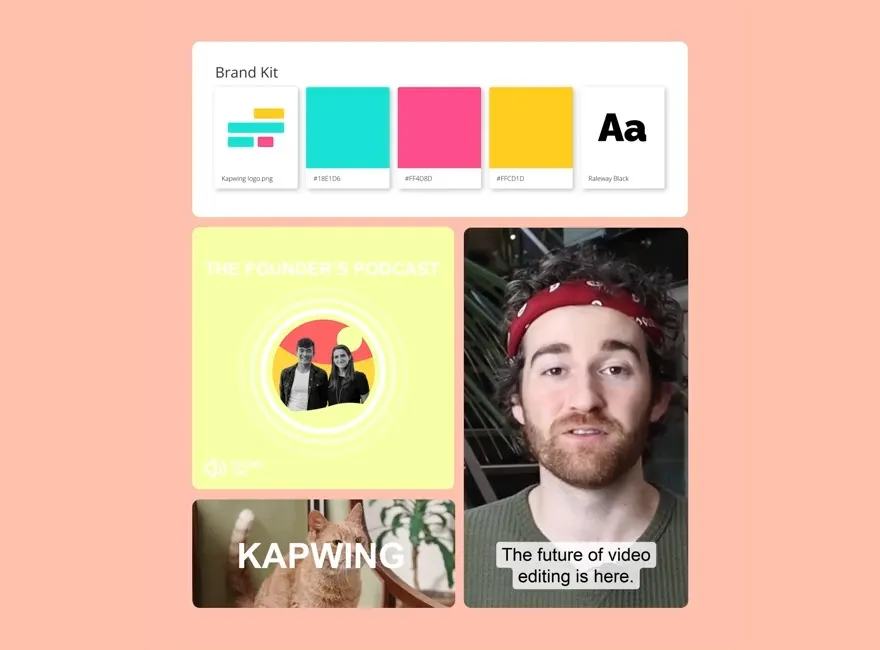
For ongoing content series, speed up production with Brand Kits that remove repetitive branding work by saving your preferred subtitle styles, transitions, and background music.
Kapwing helps you create consistently on-brand, scroll-stopping videos with templates and styles designed for TikTok’s Gen Z audience.
Already transforming video creation across industries
Hear directly from the teams who publish faster, collaborate better, and stay ahead.


Expand your reach with TikTok-ready clips
See how millions of creators repurpose YouTube videos with Kapwing

Streaming Highlights
Gaming streamers turn hours of gameplay on YouTube into fast-paced TikTok videos that showcase high scores, epic wins, or unexpected fails

Mini-Tutorials
Creators convert their detailed YouTube tutorials into series of punchy and informative clips for TikTok, driving new audiences to their full-length videos

Dance Clips
Musicians release full music videos on YouTube and use the online converter to turn hooks and choruses into TikTok dance challenges or trend-friendly clips

Vlog Recaps
YouTube vloggers use our YouTube to TikTok Converter to reformat their footage into short clips that highlight funny encounters, reactions, and scenic moments for TikTok audiences
.webp)
Interview Quotes
Influencers and small business owners accelerate cross-promotion for YouTube interviews by automatically extracting the best quotes, resizing for TikTok, and adding Speaker Auto-focus

Cooking Tips & Hacks
YouTube cooking channels convert long-form recipe videos into quick, digestible tips and hacks to reach TikTok’s audience across both posts and Stories
Podcast Promos
Kapwing's AI-powered YouTube to TikTok Converter helps podcasters pull the most impactful or controversial soundbites from episodes to post on TikTok in a vertical 9:16 format.
How to Share YouTube videos to TikTok
- Step 1Upload YouTube video
Upload your YouTube video to Kapwing.com, from any device.
- Step 2Resize and edit
Click "Resize project" in the right-hand toolbar and resize your YouTube video to vertical (9:16) TikTok format and choose from "Fill and crop" or "Fit to center".
- Step 3Export and post
Make any final edits, such as trimming, splitting, and cutting the video into shorter clips. Export and download the file as an MP4, then post the clips to Instagram.
*To use AI to automatically find and resize clips within your video, add the YouTube video to Kapwing's AI Clip Generator and ask the AI to extract your clips.
What's different about Kapwing?



Frequently Asked Questions
We have answers to the most common questions that our users ask.
Is the YouTube to TikTok Converter free?
Yes, Kapwing's YouTube to TikTok Converter is free for all users to try and includes preset aspect ratios to make resizing simple. However, to get unlimited access to 4k quality video and AI-powered features like auto-subtitling and translation, a Pro account is needed.
Is there a watermark on exports?
If you are using Kapwing on a Free account then all exports — including from the YouTube to TikTok Converter — will contain a watermark. Once you upgrade to a Pro account the watermark will be completely removed from your creations.
How to convert YouTube videos to TikTok
To convert horizontal video to vertical for TikTok, you'll need a tool that helps you easily change video between popular platform aspect ratios. Kapwing’s YouTube to TikTok Converter gives you a preset TikTok video format to click and turn a video from horizontal to vertical. Once you upload, you'll find the TikTok video size preset (9:16) on the top toolbar.
What is the maximum video length for TikTok?
Creators can record in-app videos of up to 10 minutes on TikTok. However, it's possible to upload videos to TikTok that are up to 60 minutes long. To get the best clips to post on TikTok, use Kapwing’s AI Clip Maker to automatically find the best highlights from a longer video you have — perfect for creating a range of clips from a 10-minute TikTok video.
What aspect ratio sizes are needed for TikTok?
The best aspect ratio for TikTok videos is 9:16, which ensures videos will fit well on smartphones. 1:1 (square) and 16:9 (landscape) aspect ratios can also be used to upload videos, but they may not fill phone screens as well.
Why should I convert a YouTube video into TikTok videos?
There are a lot reasons to convert YouTube videos into TikToks, but three key ones include:
- Reaching New Audiences: Convert YouTube to TikTok to attract new viewers. While there is audience overlap, repurposing YouTube videos can help you find new fans on TikTok.
- Maximizing Efforts: It takes a lot of time and effort to create content from scratch for several platforms. Convert YouTube videos into TikTok-friendly formats to save energy and increase every video's impact.
- Cross-Promoting: When publishing new YouTube videos, making TikTok clips of the best moments helps you cross-promote and build hype around new uploads, sending TikTok users to your YouTube channel.
Can you import clips to TikTok?
Yes, you can import clips to TikTok, trim them, and stitch them together with TikTok’s built-in editing tools. However, if you use TikTok to edit your video, you’ll be stuck with the TikTok watermark when you download it and post it elsewhere. It's recommended that you use a video editor that allows you to create and repurpose content across all platforms such as Kapwing.
How to clip YouTube videos for TikTok
Using Kapwing's AI Clip Generator you can automatically transform one long YouTube video into a series of shorter clips. Upload your video directly or paste the YouTube URL into the AI Clip Generator. Next, enter a prompt that includes the keyword "9:16 aspect ratio" and decide on other elements you want to add such as subtitles, voice over, and clip length. Finally, hit "Generate" to see your full YouTue video trimmed into smaller TikTok clips.
YouTube Shorts vs TikTok
YouTube Shorts and TikTok are both platforms for short-form vertical videos although they cater to slightly different audiences and purposes. TikTok is known for its viral trends, highly engaging algorithm, and a younger, Gen Z-dominated user base, making it a hub for creativity and entertainment. YouTube Shorts, on the other hand, leverages YouTube's vast ecosystem, giving creators access to an established audience and seamless integration with their long-form content.
- YouTube Shorts: Best for building revenue and integrating short-form content into a long-term monetization strategy. Shorts are tied to YouTube's Partner Program, allowing creators to earn ad revenue, and they help drive traffic to long-form videos, boosting overall channel growth.
- TikTok: Ideal for expanding brand exposure and reaching a younger, highly engaged audience. TikTok’s algorithm makes it easier for content to go viral, giving brands and creators a platform to rapidly grow their following and boost visibility.
What app is similar to CapCut?
There are several free and premium apps that are similar to CapCut, but the best choice for you depends on editing experienced and whether you're working on PC, Android, or iPhone. Here are a handful of great apps like CapCut:
- Kapwing: Our all-in-one, cloud-based editing platform is designed with social media creators in mind, and works seamlessly on PC, Mac, laptop, and desktop. A simple resize feature lets you instantly convert TikTok videos for other popular social channels. The AI-powered Clip Maker accelerates your production by auto-scanning long videos and generating short clips that have subtitles and transitions.
- InShot: This user-friendly app is great for mobile users, enabling quick edits with its intuitive interface and features for adding music, effects, and text. While not as feature-rich as some other apps, InShot does cater to beginners with its straightforward interface.
- DaVinci Resolve: A powerful video editor for PC and Mac, known for its high-end color grading and post-production capabilities. The learning curve is a bit steeper here, making DaVinci Resolve more suitable for experienced editors.
- KineMaster: This mobile video editor is a good CapCut alternative for Android and iOS users, offering a wide range of features like multi-layer editing, effects, and transitions, making it great for both beginners and pros. Note that the free version includes ads, and navigating the app can be a little confusing for newcomers.
- Filmora: This editing tool for PC and mobile is one of the closest alternatives to CapCut due to its simplicity and accessibility. This makes Filmora ideal for users looking for an easy-to-use interface with a range of creative features. Note that the free version applies a watermark to all exports.
Discover Resources
Tips, templates, and deep dives to help you create faster and share with confidence.
View all

Get started with your first video in just a few clicks. Join over 35 million creators who trust Kapwing to create more content in less time.