How to Do the "I'm So Sorry" AI TikTok Trend
Make your own video or image carousel to join the "I'm so sorry" AI trend on TikTok and Instagram
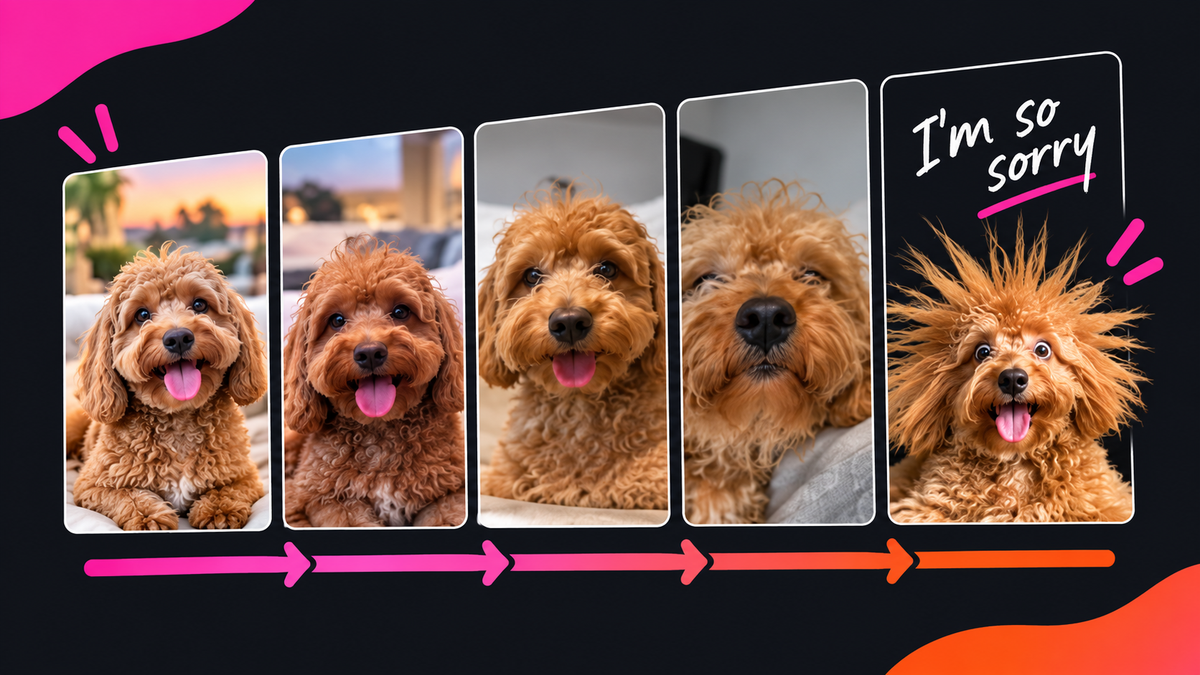
Generative AI photo editing tools have become easy enough that most people feel comfortable removing an object from an image, changing the background, or editing the appearance of a subject.
The “I’m so sorry” TikTok trend uses those same skills to create a meme-style video. Start with an AI-edited photo of yourself, then remove one fictitious detail at a time until your real photo emerges, with a punchline apology. Here is how to make your own “I’m so sorry” video or photo carousel.
What is the "I'm So Sorry" TikTok Trend?
The “I’m So Sorry” trend is a TikTok photo carousel, also shared as Instagram Reels, built from a series of edits of a single photo. The first slide shows an impressive version of a subject, usually yourself or a friend, with a confident caption. Each slide after that admits to one edit, until the last slide reveals the truth with the caption “I’m so sorry.”
There are two main ways creators are joining this trend. The first method is to include your authentic photo at the end of the series, along with the "I'm so sorry" apology text. The second puts the real photo second to last, then surprises viewers with one final, heavily edited image as a stronger punchline.
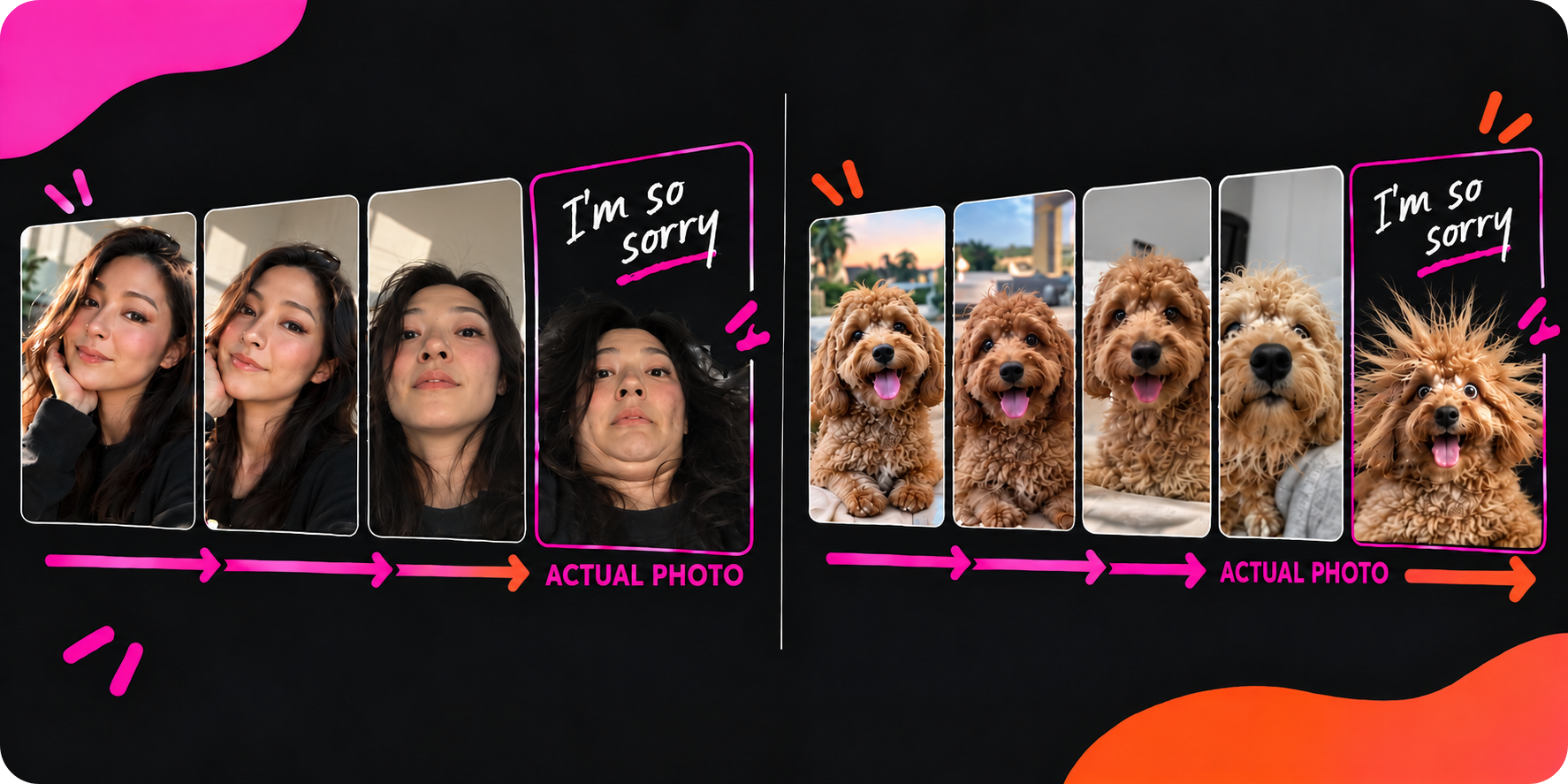
The second method tends to get more attention because of the absurdist nature of the edits. Here’s an example:
Example video from the "I'm so sorry" TikTok trend.
How to Generate "I'm So Sorry" Trend Images
Only simple AI prompts are required for this trend, but the process of creating the photos is less intuitive.
To keep everything consistent, you'll want to work backwards. Instead of creating your "perfect" image first, you'll begin by making a small change to your actual photo.
For your actual photo, use a clear, well-lit picture if you have one available. Blurry pictures, or ones where the subject's face is not clearly visible, will lead to worse results in your edits.
1. Use AI to Edit Your Original Image
Upload your photo to the AI Image Editor and prompt for a single, distinct change. Think of a glow-up style edit that makes your image more photogenic — a new haircut, larger muscles, or a fancy background.
Be specific in your request, ending the prompt with a note to leave everything else alone.
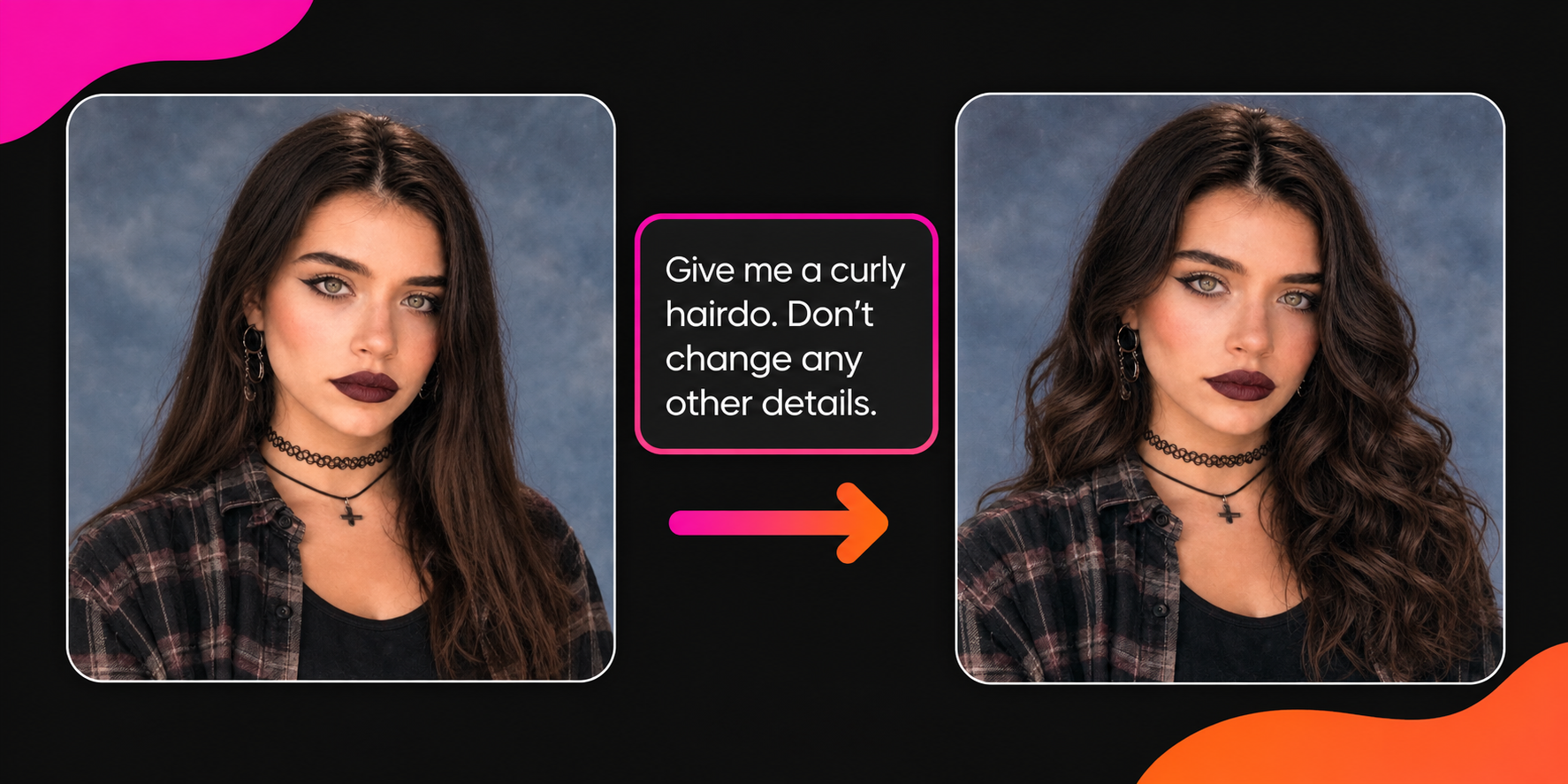
Note: For the most accurate results and highest likeness carryover, use the GPT Image 2 image model.
Example "I'm So Sorry" Edit Prompt
Edit this image by giving the subject larger, more defined muscles. Apply this change proportionally across the entire subject, as if they naturally had very large muscles. Leave all other details in the scene unchanged.
2. Edit Your Edited Image
Use the image you just generated as the base for your next change. From there, the process repeats the first step. Write a prompt that describes what should change and reinforces that nothing else should.
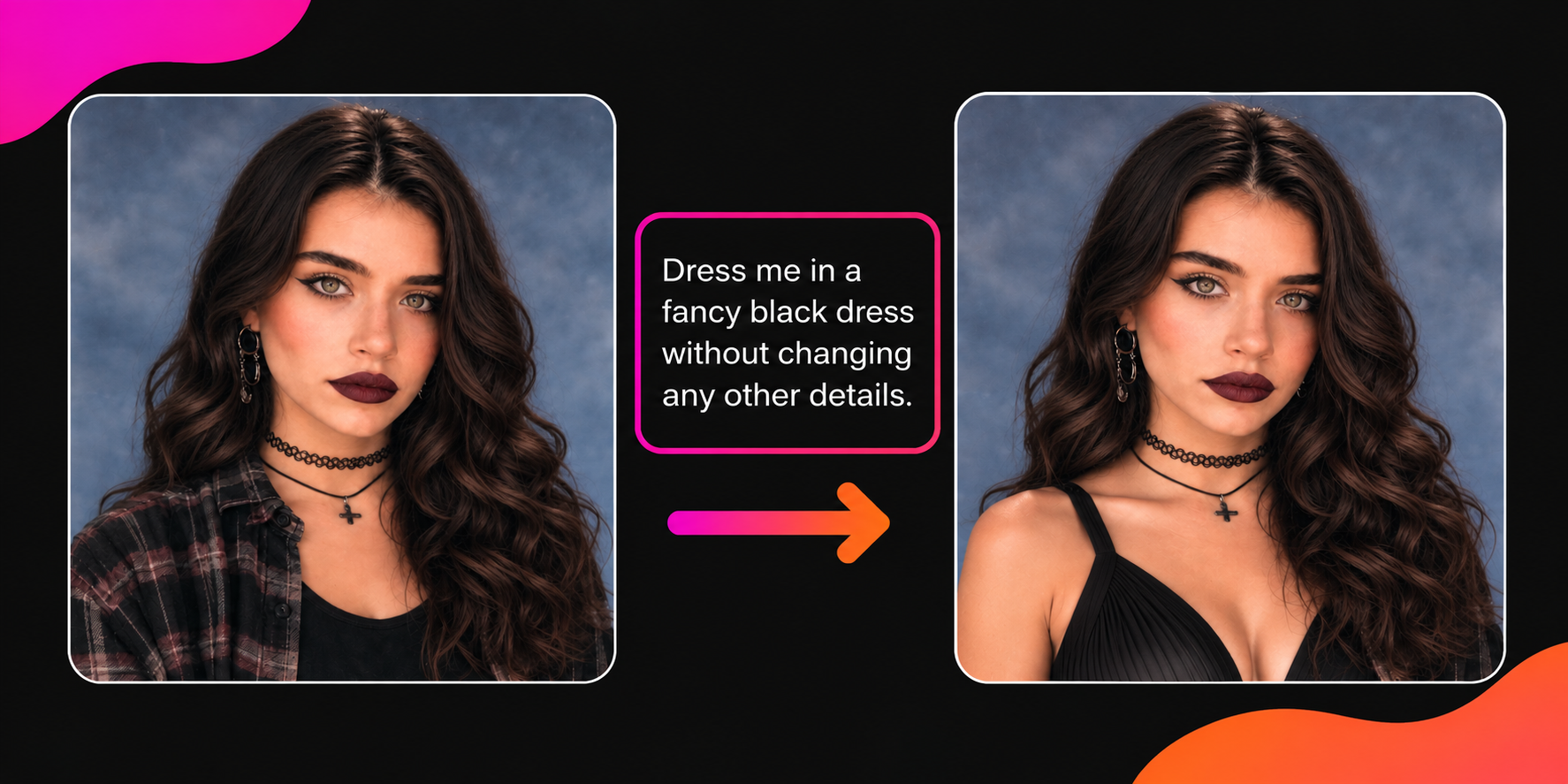
With each new edit, make sure you upload the newest version of your image. If you accidentally upload an earlier version, you’ll lose the previous edit, and your slides won’t build on each other the way the trend needs.
3. (Optional) Make Your Punchline Image
If you want to add a twist at the end of your “I’m so sorry” carousel, you can create one more edit to use as the final slide.
To do this, use your real image as the reference once more. Then, describe any changes you want to see. You can really go crazy here, making as many changes as you want. The more contrast between the generated photo and your reference, the funnier the result will be.
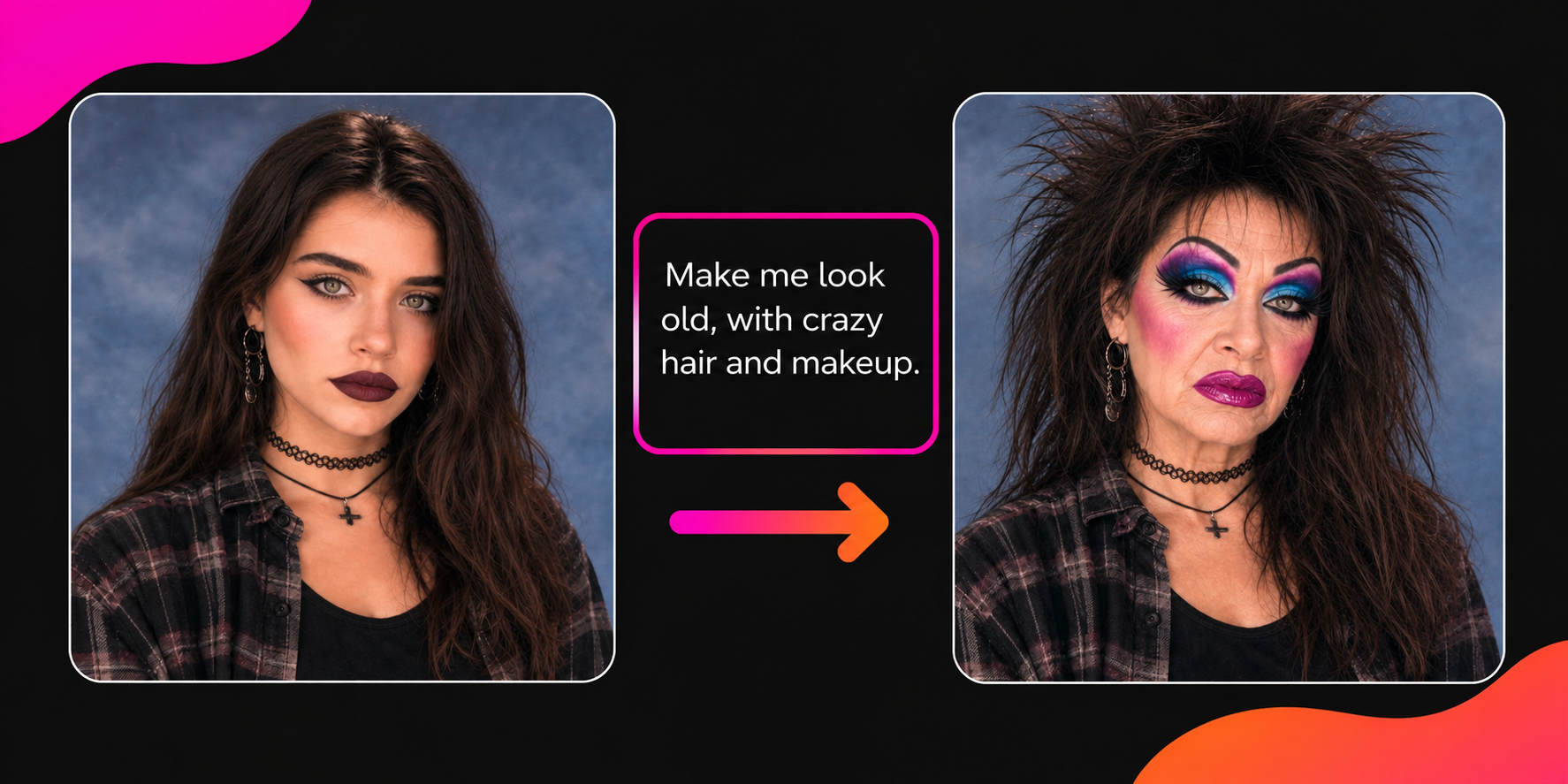
Example "I'm So Sorry" Punchline Prompt
Make the subject in this photo look approximately 50 years older, with a spiky haircut, and a bizarre facial expression. The output photo should look like it was authentically capturing the subject, not like an edited recreation of them.
4. Add Your Images to a Video Project
After generating your images, open the Kapwing studio to build your “I’m so sorry” trend video, complete with captions and trend audio. For the best fit on TikTok or Instagram, set your project size to 9:16. If any images don’t match, use the Image Resizer first.
To create the video, start by uploading your "perfect" image. This should be your most edited image that depicts the initial aesthetic users will see at the start of your post.
To turn your image into a video, tap the background of your project, then choose a duration under the "Project" settings. Your image will appear on the timeline at that length.
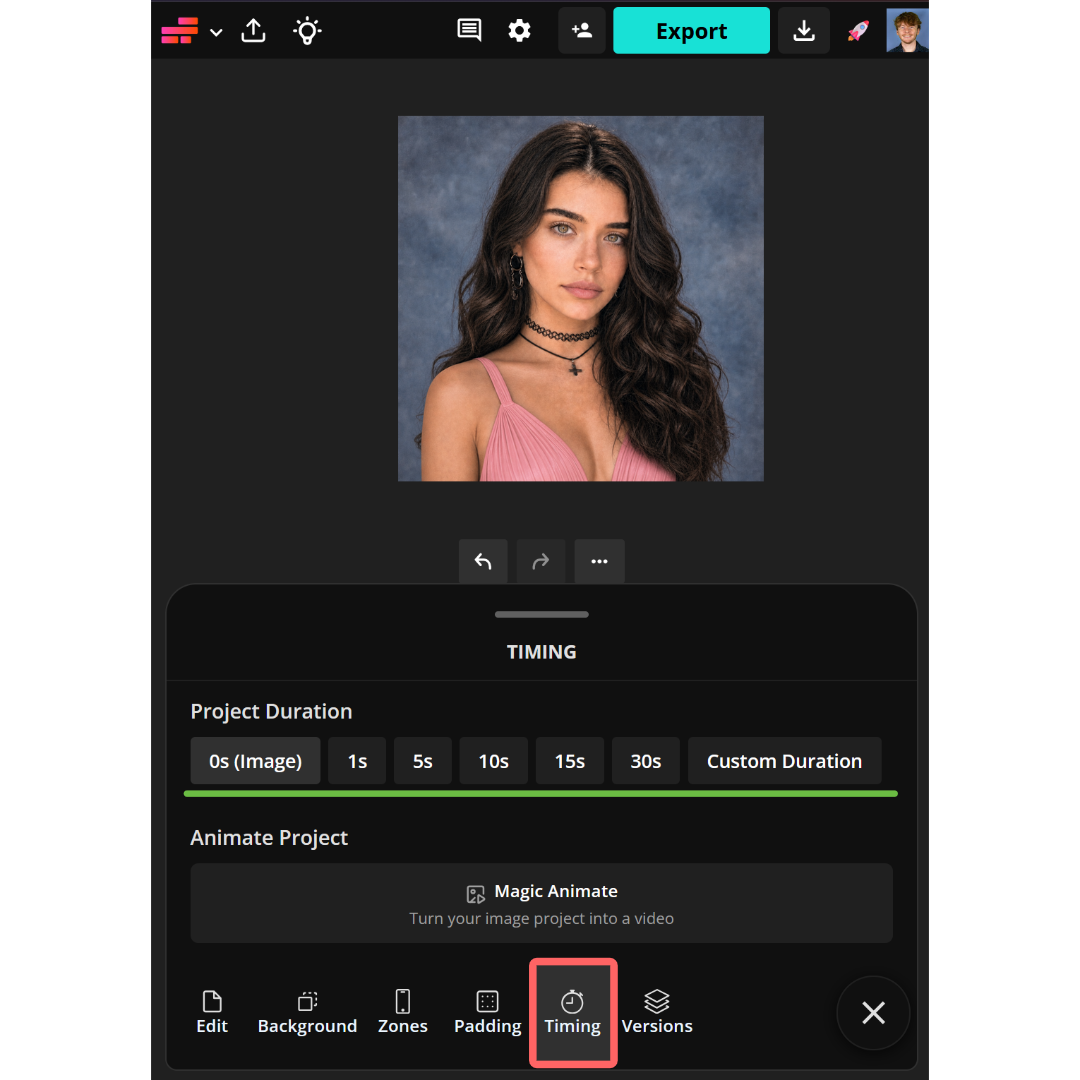
Add the rest of your images in order, from most edited to least edited, ending with your real photo. If you made a punchline image, place your real photo second to last and the punchline at the very end. Drag each image on the timeline so it starts right where the previous one ends, and keep their durations the same.
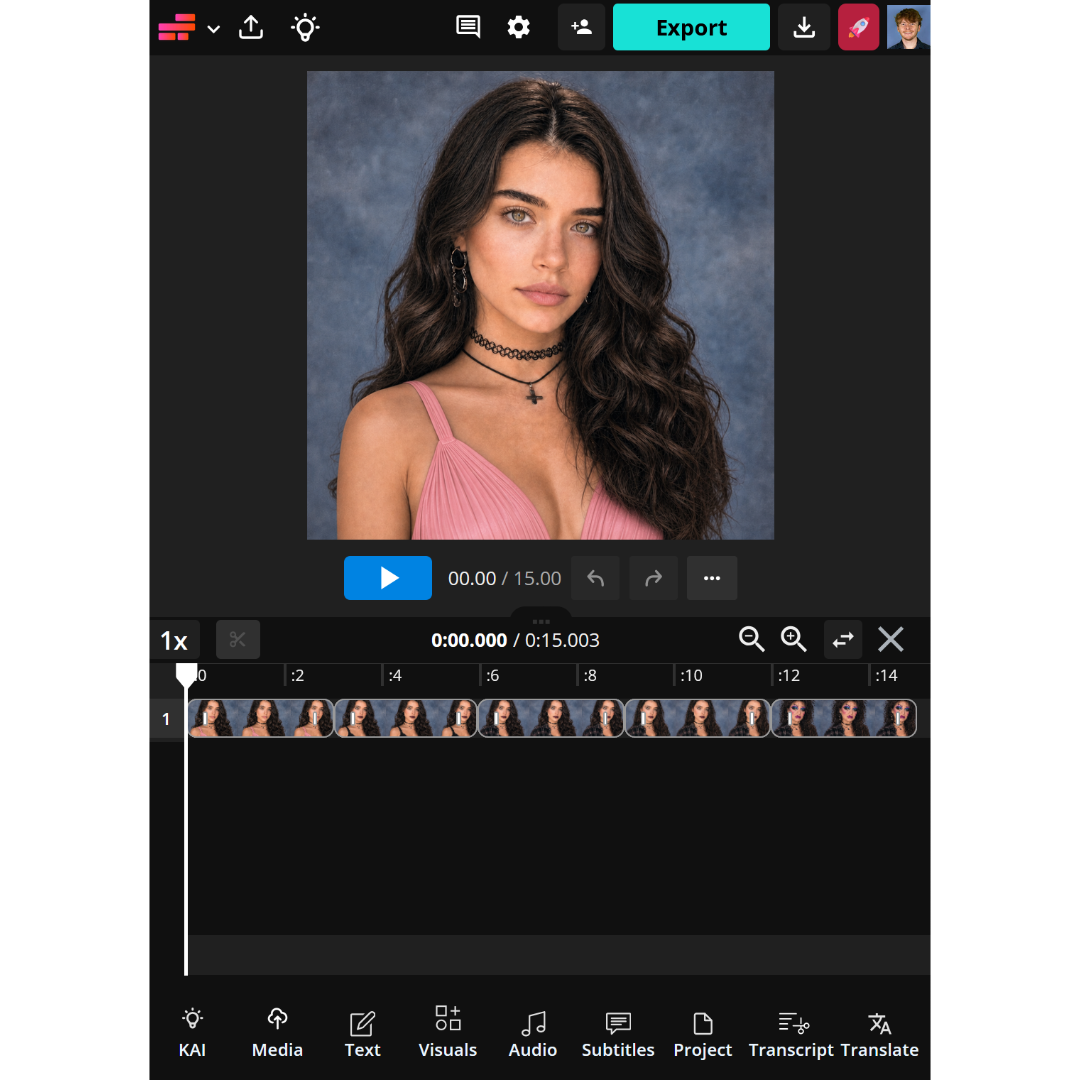
5. Add Captions
To add a text layer, open the "Text" tool at the bottom of the screen, then select the "Add Text" button. Once added, you can adjust the text color, size, and font in that same menu.
Your first caption should sound confident, like a regular post caption about a happy memory. Then, with each new image, your caption should admit to one of your edits.
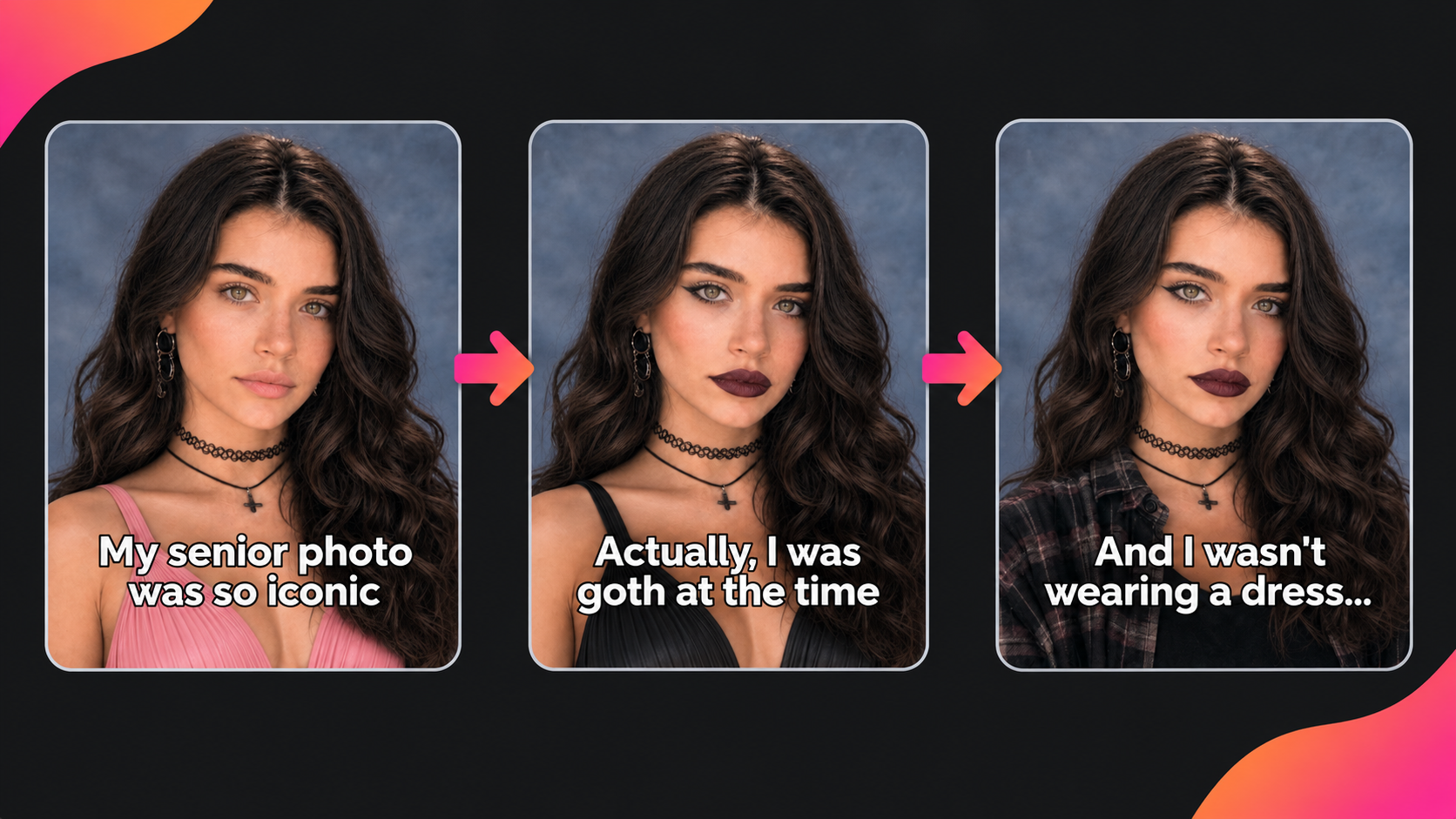
Remember, all of this is build up to the final "I'm so sorry" reveal, which will either be your real photo, or the punchline edit.
Note: Ensure your text layers are aligned exactly with your image layers on the video timeline. This will ensure the text doesn't drop or show on the wrong images.
Once you’re finished, export your video to share it on TikTok, Instagram, or directly with friends.
Your final video should look something like this.
"I'm So Sorry" Trend Frequently Asked Questions
When did the “I’m so sorry” trend start?
The trend started on TikTok in August 2026, when creators began posting edited selfies and couple photos that revealed the truth slide by slide. One of the earliest known posts, from @theywanthunter, passed 25 million views. The trend took off again in October 2026 when people started using it for childhood Halloween costume photos.
Is the “I’m so sorry” trend the same as “I’m so sorry I lied”?
Yes. Many creators caption their slides “I’m so sorry I lied,” so the trend goes by both names.
What is the “perdón” trend?
The perdón trend is the Spanish-language version of the “I’m so sorry” trend. It follows the same format but ends on “perdón,” Spanish for “sorry,” and went viral alongside the English version in October 2026.
Why does my face look different after each AI edit?
Small changes add up when you stack edits. To limit drift, start from a clear, well-lit photo, ask for one change per prompt, and end each prompt by asking the AI to leave everything else unchanged. If an edit changes your face, regenerate it rather than trying to fix it with another prompt.
Do I need to label my “I’m so sorry” post as AI-generated?
Yes. TikTok and Instagram require creators to label realistic AI-generated images, even when the final slide reveals the real photo.
Should I post the “I’m so sorry” trend as a carousel or a video?
Both work, and the best choice depends on where you’re posting. On TikTok, photo carousels are the most common format for this trend. Viewers swipe through each reveal at their own pace, and you can add the trend sound directly in the app. On Instagram, a video posted as a Reel will usually reach more people than a carousel, and it lets you time each reveal to the beat. A video also works on YouTube Shorts, so you can make it once and post it everywhere.
What song is used for the “I’m so sorry” trend?
There isn’t one official song. Most English posts use a TikTok original sound, while others use songs like Prince’s “Purple Rain.” To add the audio to your video, copy the link to any “I’m so sorry” TikTok post with the sound you want and paste it into the editor to import it. If you’re posting to TikTok, you can also add the sound in the app instead, which links your post to the trend’s sound page.