How to Do the Tiny Desk AI Trend (Prompts Included)
Recreate the viral Tiny Desk AI trend with your own characters using this ready-made video template.

The Tiny Desk AI video trend is taking over TikTok, with AI-generated versions of celebrities, football coaches, and fictional characters performing "Outstanding" in an NPR-style Tiny Desk concert.
The trend is inspired by Charlie Wilson's 2023 NPR Tiny Desk performance, particularly the moment when he and his band perform The Gap Band's "Outstanding." Creators are using AI to replace the original musicians with their own characters while recreating the recognizable camera movements, singing, and instrumental performances.
One of the most popular early examples featured college football coaches whose teams had just lost, reimagined as members of a Tiny Desk band.
@theburnerfromhe11 College Football’s Week 8 All-Loss Tiny Desk Concert 😭🎤 #alabama #collegefootball #indiana #georgia #texas ♬ original sound - The Burner
How to Make the Tiny Desk AI Trend
- What You Need to Make the Tiny Desk AI Trend
- Step 1: Create Five Character Reference Sheets
- Step 2: Turn the Tiny Desk Performance Into Four Motion References
- Step 3: Generate Each Tiny Desk Clip With Seedance 2.5
- Step 4: Combine the Four Clips in the Tiny Desk AI Template
- Frequently Asked Questions
What You Need to Make the Tiny Desk AI Trend
To recreate the trend, you'll need:
- Five character reference images: One for each person or character appearing in your Tiny Desk performance.
- Four motion-reference clips: Short sketch-style videos showing the movements, camera angles, and timing you want to recreate.
- An AI video generator: We're using Seedance 2.5 through Kai.
- A video editing template: To combine the four clips and synchronize them with "Outstanding."
Rather than asking AI to recreate the entire performance in one generation, we'll generate each section separately. Here's how the four clips are organized:
| Clip | Characters | Scene |
|---|---|---|
| Clip 1 | Characters 1, 2, 3 | Group performance |
| Clip 2 | Character 4 | Solo performance / close-up |
| Clip 3 | Character 5 | Instrumental solo |
| Clip 4 | Characters 1, 2, 3 | Return to group performance |
Step 1: Create Five Character Reference Sheets
Start by choosing the five people or characters you want to feature in your Tiny Desk concert. These can be real people, fictional characters, celebrities, or original AI-generated characters. The important thing is that each character has a clear reference image.
For the best results, choose images where:
- The subject's face is clearly visible.
- Their hairstyle and facial features are easy to identify.
- Their clothing and accessories aren't obscured.
- The image isn't heavily filtered or distorted.
If you're using photos with different lighting, angles, or image quality, it helps to standardize them before generating the videos. You can use the following prompt to create a consistent reference portrait.
AI Character Reference Prompt
Use the person or character in this image as the exact identity reference.
Create a clean waist-up reference portrait of the same subject, facing the camera at a slight three-quarter angle.
Preserve their facial features, hairstyle, skin tone, proportions, clothing, and recognizable details accurately.
Use soft, even lighting and a plain neutral background. Keep the expression relaxed and natural.
No additional people, no text, and no accessories covering the face.
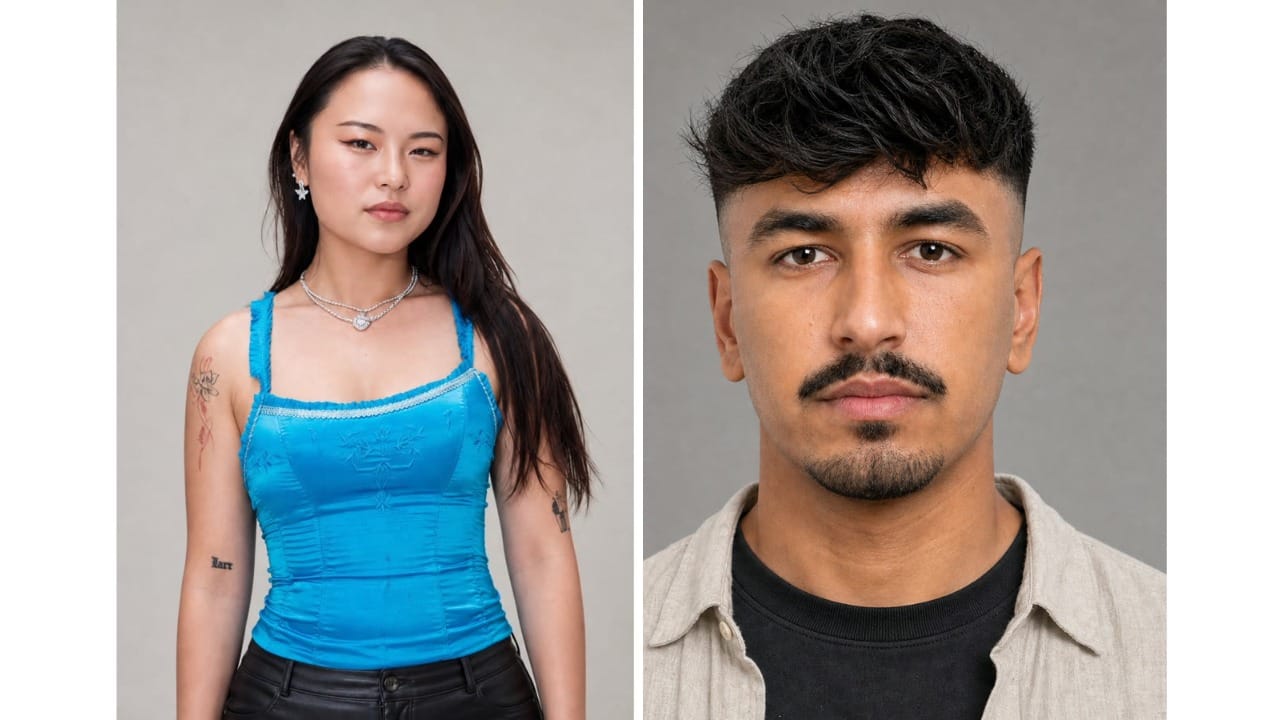
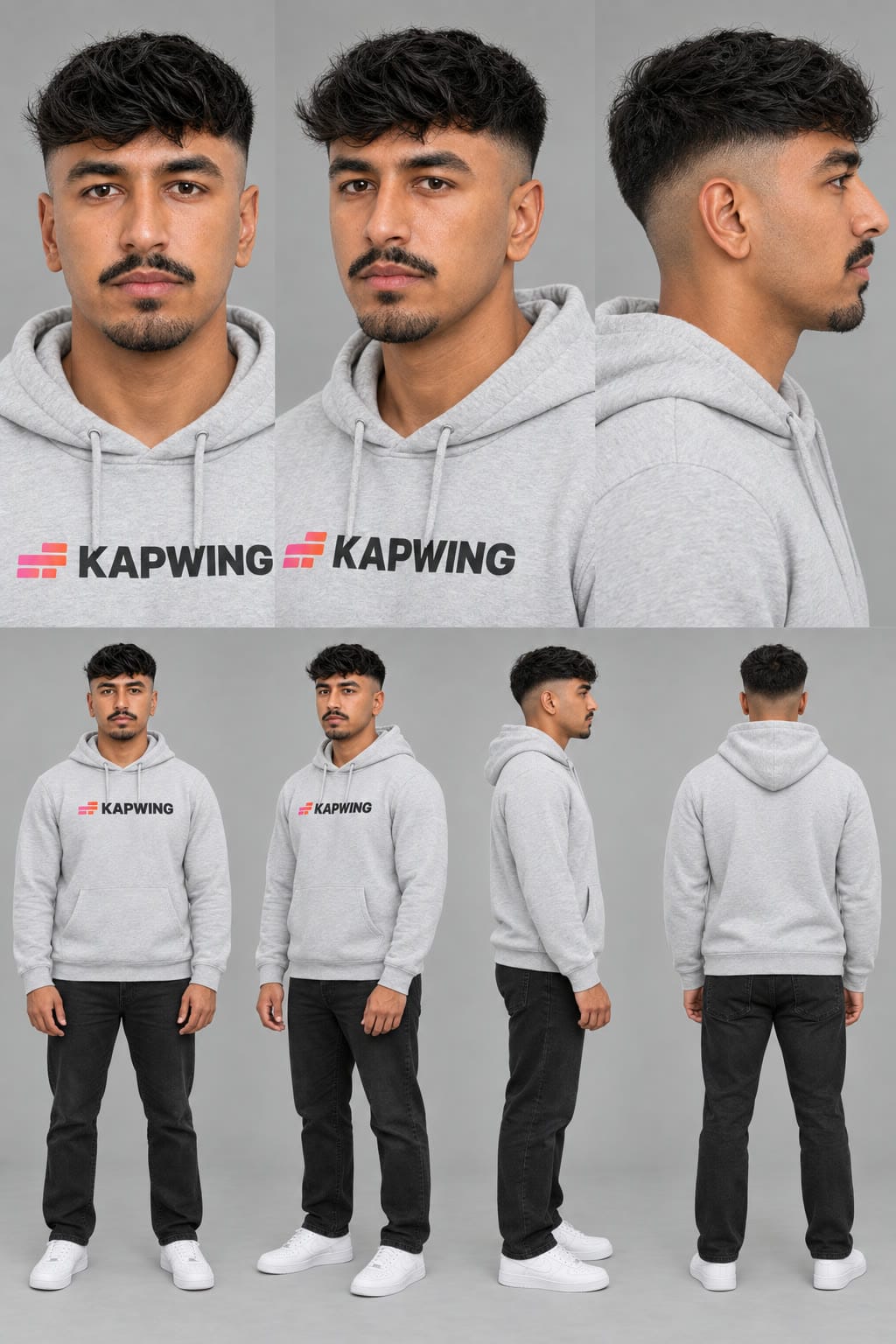
Next, open a Character Sheet Generator and create an AI character sheet for each of the five subjects. Character sheets provide multiple views of the same person, helping the AI maintain their appearance when the camera angle changes.
It's also worth deciding what each character should wear at this stage. For example, if you're making a version featuring football coaches, you might want each character to wear a recognizable team jacket or hoodie.
Including those outfits in the character references is more reliable than asking the AI to invent clothing during video generation.
Step 2: Turn the Tiny Desk Performance Into Four Motion References
Next, we need to recreate the camera movements and lighting from the original performance.
Instead of feeding the AI the original concert footage directly, we're using a sketch-style motion-reference technique. This involves converting the source footage into simple black-and-white outlines.
These outlines preserve the information we want the AI, while reducing the visual detail that might cause the model to reproduce the original performers rather than the characters we provide.
For this trend, we've divided the sequence into four sections.
- Clip 1: Group performance
The first reference features three performers together. This establishes the setting and introduces the band. - Clip 2: Solo close-up
The second reference focuses on a single character performing the prominent solo moment. - Clip 3: Instrumental solo
The third reference features one character performing the instrumental section. - Clip 4: Final group performance
The fourth reference returns to the same three characters from Clip 1.
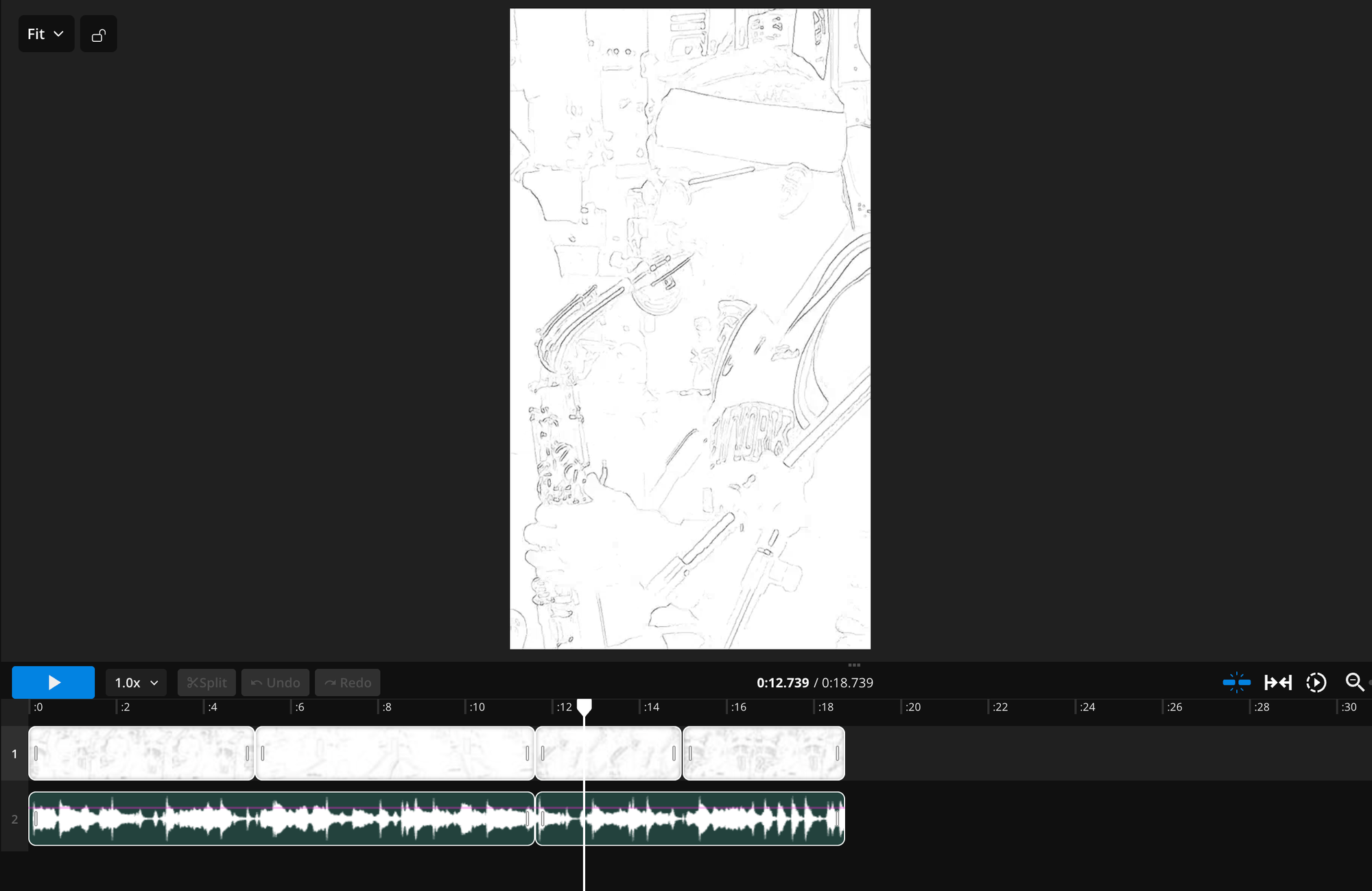
Keeping the clips separate means we can assign different character references to each generation without confusing the AI with too many identities at once.
It also means that if one performance doesn't look right, we only need to regenerate that section rather than starting the entire video again.
Step 3: Generate Each Tiny Desk Clip With Seedance 2.5
Now that we have our character sheets and motion references, we can generate the individual videos.
Open Kai, select Seedance 2.5, and upload the character references and motion-reference video for your first clip. We'll use slightly different prompts for the group performances and solo shots.
Generate Clip 1: Three-Person Group Performance
For the first clip, upload:
- Character sheet 1
- Character sheet 2
- Character sheet 3
- Motion-reference video 1
Copy the following prompt.
Tiny Desk AI Group Performance Prompt
Use #video_1 only as the reference for movement, body motion, mouth movement, timing, blocking, shot progression, and camera movement. Create a photorealistic live-action video of a Tiny Desk-style concert performance.
#image_1 replaces the first performer in #video_1.
#image_2 replaces the second performer in #video_1.
#image_3 replaces the third performer in #video_1.
Preserve each person's identity exactly from their character sheet, including facial features, hairstyle, body proportions, clothing, and recognizable details.
Rebuild the scene as an intimate office concert setting with wooden bookshelves, records, musical equipment, microphones, headphones, warm indoor lighting, and a red keyboard.
Generate Clip 2: Solo Performance
For the second clip, upload:
- Character sheet 4
- Motion-reference video 2
This section focuses on one character, so we can simplify the prompt:
Tiny Desk AI Solo Performance Prompt
Use #video_1 only as the reference for movement, facial expression, mouth movement, performance timing, framing, and camera movement.
Create a photorealistic live-action Tiny Desk-style concert video.
Replace the performer in #video_1 with #image_1.
Preserve the exact identity, hairstyle, facial features, clothing, and proportions shown in #image_1.
Recreate the warm indoor concert setting with wooden shelves, music equipment, microphones, and natural performance lighting.
Keep the character's face recognizable throughout the entire clip, including during exaggerated expressions and movement.
The most important thing to check here is facial consistency.
Because the character is featured in a close-up, any distortion around the eyes, mouth, or face will be more noticeable than in the wider group shots.
Generate Clip 3: Instrumental Solo
The third clip follows the same process, but this time we're recreating the instrumental performance.
Upload:
- Character sheet 5
- Motion-reference video 3
Tiny Desk AI Instrumental Solo Prompt
Use #video_1 only as the reference for body movement, hand positioning, instrument interaction, performance timing, framing, and camera movement.
Create a photorealistic live-action Tiny Desk-style concert video.
Replace the performer in #video_1 with #image_1.
Preserve the exact identity, facial features, hairstyle, clothing, and body proportions shown in #image_1.
The character is performing a saxophone solo in an intimate indoor concert setting.
The saxophone should remain realistic and consistent throughout the shot, with believable hand placement and natural interaction between the musician and the instrument.
AI video models can struggle with musical instruments, especially when fingers move quickly or the instrument crosses in front of the face.
If the instrument becomes distorted, regenerate this clip with a stronger instruction to preserve its shape and positioning.
Generate Clip 4: Final Three-Person Group Performance
For the final clip, we'll return to the same three characters from the opening.
Upload:
- Character sheet 1
- Character sheet 2
- Character sheet 3
- Motion-reference video 4
Reuse the group performance prompt from Clip 1, replacing the motion reference with the fourth clip.
Step 4: Combine the Four Clips in the Tiny Desk AI Template
Once all four generations are finished, the final step is to combine them into a single video and synchronize the performance with the song.
Open the Tiny Desk AI template. The template contains four video placeholders arranged in the correct sequence, with the audio track positioned underneath.
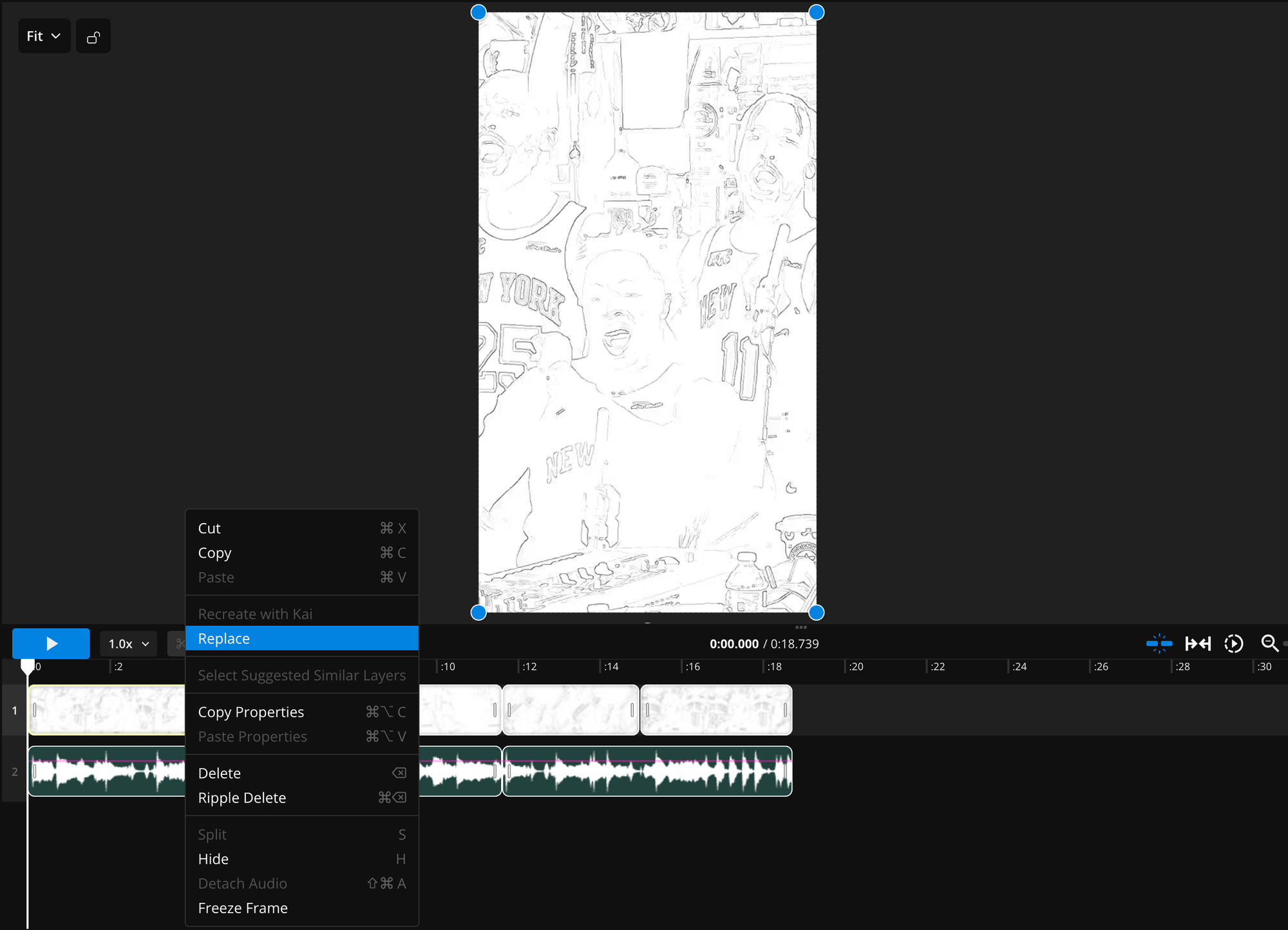
To assemble your video:
- Select the first video placeholder and click Replace.
- Upload your generated Clip 1.
- Repeat for Clips 2, 3, and 4, replacing the corresponding placeholders.
- Play the entire video and check that the transitions line up with the music.
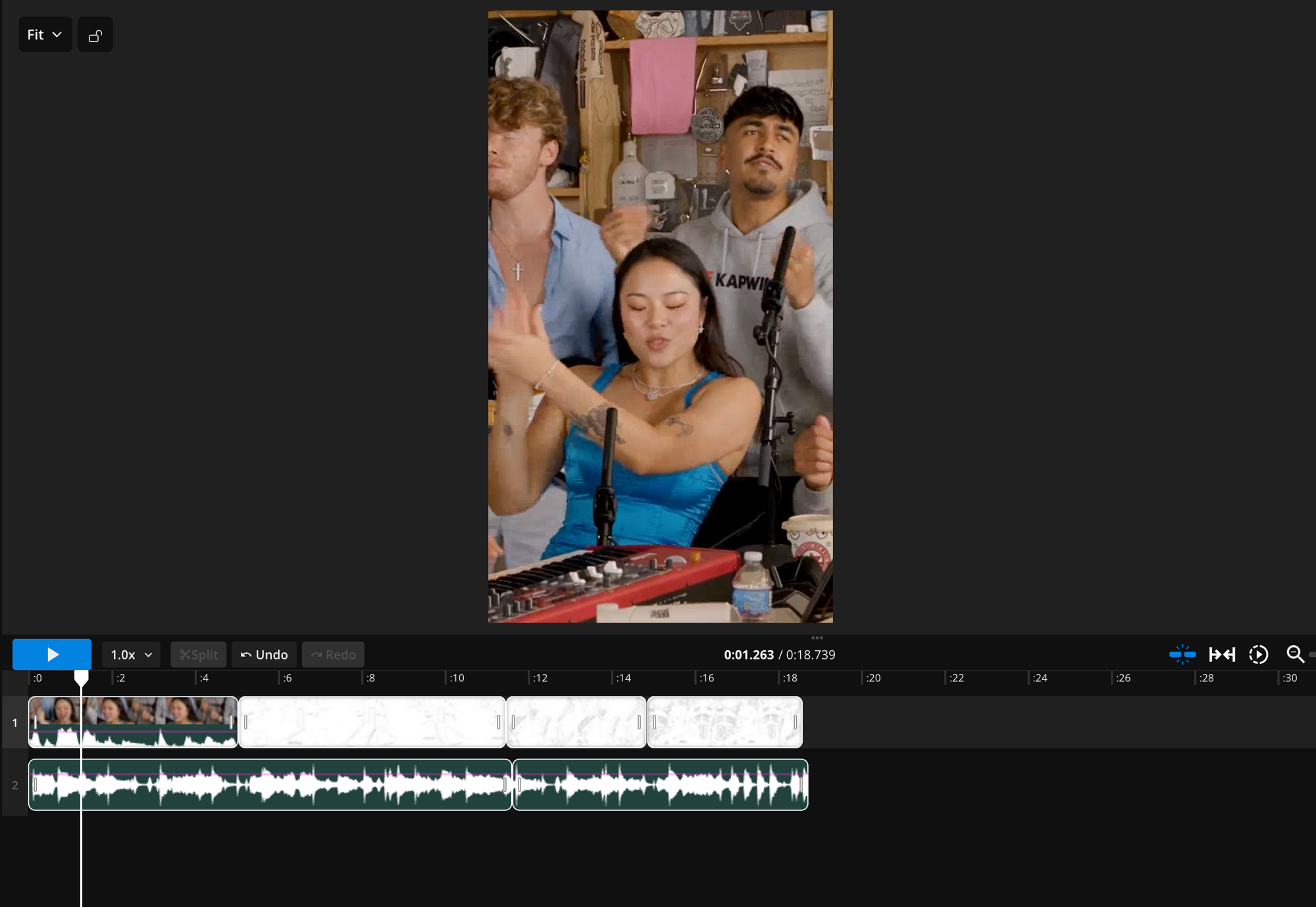
Because the clips were generated individually, some may be slightly longer or shorter than their intended positions in the template.
If a clip is too long, trim the beginning or end rather than changing its playback speed. This helps preserve the natural movements and performance timing.
Once you're happy with the result, click Export Project and download the video.
You can then share it on TikTok, Instagram Reels, or YouTube Shorts. Use the platforms' AI-generated content labels where required, and make sure you have permission to use the images and audio.
Frequently Asked Questions
What is the Tiny Desk AI trend?
The Tiny Desk AI trend is a viral TikTok trend where creators use AI to replace the musicians in a Tiny Desk-style concert with celebrities, fictional characters, friends, or other recognizable people. Most versions recreate Charlie Wilson's performance of "Outstanding," matching the original camera angles, movements, and music.
How do I use the Tiny Desk AI template?
Upload your four AI-generated video clips to the Tiny Desk AI template in Kapwing. Replace each video placeholder with the corresponding clip, then preview the finished video to make sure the performances align with the audio. Once everything is synchronized, export your video and share it on TikTok, Instagram Reels, or YouTube Shorts.
How many characters do I need for the Tiny Desk AI trend?
This template is designed for five unique characters across four video clips. The first and fourth clips feature the same three characters, while the second and third clips each feature one additional character.
What song is used in the Tiny Desk AI trend?
The trend uses "Outstanding" by The Gap Band, popularized in this format by Charlie Wilson's 2023 NPR Tiny Desk concert. The song's upbeat chorus and instrumental performances make it recognizable in AI-generated recreations.
What AI tool can I use to make the Tiny Desk trend?
You can use an AI video generator that supports character references and motion-guided video generation. Our tutorial uses Seedance 2.5 through Kai to generate four individual clips, which are then combined in Kapwing.
Can I make the Tiny Desk AI trend with my own photos?
Yes. You can use photos of yourself, your friends, or other people whose images you have permission to use. Create character reference sheets from those photos, then use an AI video generator to place the characters into the Tiny Desk performance.
Can I change the audio in the Tiny Desk AI template?
Yes. You can replace or adjust the audio in Kapwing's video editor. If you change the song, you may also need to trim or reposition your clips to match the new audio.
Why aren't my Tiny Desk AI clips syncing with the music?
AI-generated clips may have slightly different durations from the original motion references. To fix synchronization issues, trim or reposition each clip in the Kapwing timeline so the singing, gestures, and instrumental movements match the music.