How to Make a Video Resume (Script, Examples & AI Tools)
Turn your resume into a short, natural video script that highlights what you've done and why you're a good fit.

A video resume gives you something a traditional CV can't: the opportunity to introduce yourself, explain your experience, and show examples of your work. It can be particularly useful for creative, marketing, sales, and other communication-focused roles. In fact, a 2025 Canva survey of hiring managers found that 50% supported video cover letters, while 65% preferred resumes with interactive features like links and embedded videos.
That doesn't mean every employer wants a video application. A video resume works best as a supplement to your written CV, not a replacement. You still need the qualifications, experience, and keywords that hiring managers look for in a conventional application.
The good news is that making one doesn't require professional camera equipment or advanced editing skills. You can turn your existing CV into a script, record yourself with a phone or webcam, and use Kapwing to remove awkward pauses, improve your audio, add captions, and generate supporting visuals.
This guide covers the complete workflow, including how to make a video resume with AI without making it look or sound artificial.
Table of Contents
- What Is a Video Resume?
- How to Make a Video Resume
- Video Resume Example: A 75-Second Script
- Where to Share Your Video Resume
- Are Video Resumes Worth It?
What Is a Video Resume?
A video resume (also called a video CV) is a short video in which you introduce yourself, highlight your professional experience, and explain why you're a strong candidate for a particular role.
Unlike a written resume, which typically lists your education, skills, and work history, a video resume is selective. You're not supposed to read every bullet point on your CV. Instead, you choose two or three achievements that demonstrate your qualifications and explain them in a way that's engaging and easy to follow.
There are three common formats:
- Talking-head video: You speak directly to the camera, introducing yourself and describing your experience. This is the simplest and most versatile format.
- Portfolio-style video: You combine a short introduction with examples of projects, designs, presentations, or other work. This works particularly well for creative and technical roles.
- Narrated video resume: You use a voiceover alongside project footage, screen recordings, and graphics. This is an alternative for roles where demonstrating your work matters more than appearing on camera.
(hook)
How Long Should a Video Resume Be?
Aim for 60–90 seconds unless the employer specifies otherwise. Some applications allow up to two minutes, but shorter videos force you to prioritize your most relevant experience.
There isn't strong evidence that recruiters universally stop watching at a particular timestamp. As a practical rule, use the first 10–15 seconds to establish who you are, what role you're applying for, and why your experience is relevant.
How to Make a Video Resume
The easiest way to create a professional video resume is to work from what you already have: your written CV and the job description.
You'll use AI to build the script, record the introduction yourself, and edit everything into a finished video in Kapwing.
Step 1: Turn Your Written CV Into a Video Resume Script
Start by identifying the parts of your resume that are most relevant to the job you're applying for.
For example, if you're applying for a social media manager position, a hiring manager probably doesn't need a chronological explanation of every internship you've completed. They'll be more interested in the campaigns you've managed, the platforms you understand, and the results you've achieved.
The strongest video resume scripts follow the same principle as a good job interview answer: lead with the result, then explain how you achieved it.
Instead of saying:
"I have experience managing social media accounts, creating content calendars, and analyzing campaign performance."
You could say:
"At my last company, I helped increase Instagram engagement by 40% in six months by introducing a new content strategy built around short-form video."
The second version communicates the same experience, but gives the employer a more concrete reason to remember you.
Video Resume Script Structure
For an approximately 75–80-second video, use this structure:
| Section | Duration | What to Include |
|---|---|---|
| Introduction | 0–10 seconds | Your name, target role, and strongest selling point |
| Experience | 10–50 seconds | Two or three relevant achievements, ideally with measurable results |
| Why you're applying | 50–70 seconds | What interests you about the role or organization |
| Closing | 70–80 seconds | A brief thank-you and invitation to connect |
Treat these timings as a starting point, not a strict requirement. A video with a stronger 60-second script is better than one padded to reach 90 seconds.
Use AI to Write Your First Draft
You don't need to write the entire script from scratch. Tools like ChatGPT or an AI Script Generator can turn your existing qualifications into a more conversational introduction.
Copy and paste the following prompt, replacing the placeholders with your CV and the job description:
Video Resume Script Prompt
Write a 140–160-word spoken script for a professional video resume lasting approximately 60–80 seconds.
Structure:
- First 10 seconds: introduce my name, target role, and strongest relevant qualification.
- Next 40 seconds: highlight my two or three most relevant professional achievements.
- Next 20 seconds: explain why I'm interested in this specific position.
- Final 10 seconds: end with a natural, confident closing.
Use conversational language, short sentences, and contractions. Prioritize measurable results and specific examples over generic skills. Avoid buzzwords, clichés, and exaggerated enthusiasm.
Only use achievements and numbers explicitly supported by my CV. Do not invent accomplishments, job experience, or company details.
My CV: [PASTE CV]
Job description: [PASTE JOB DESCRIPTION]
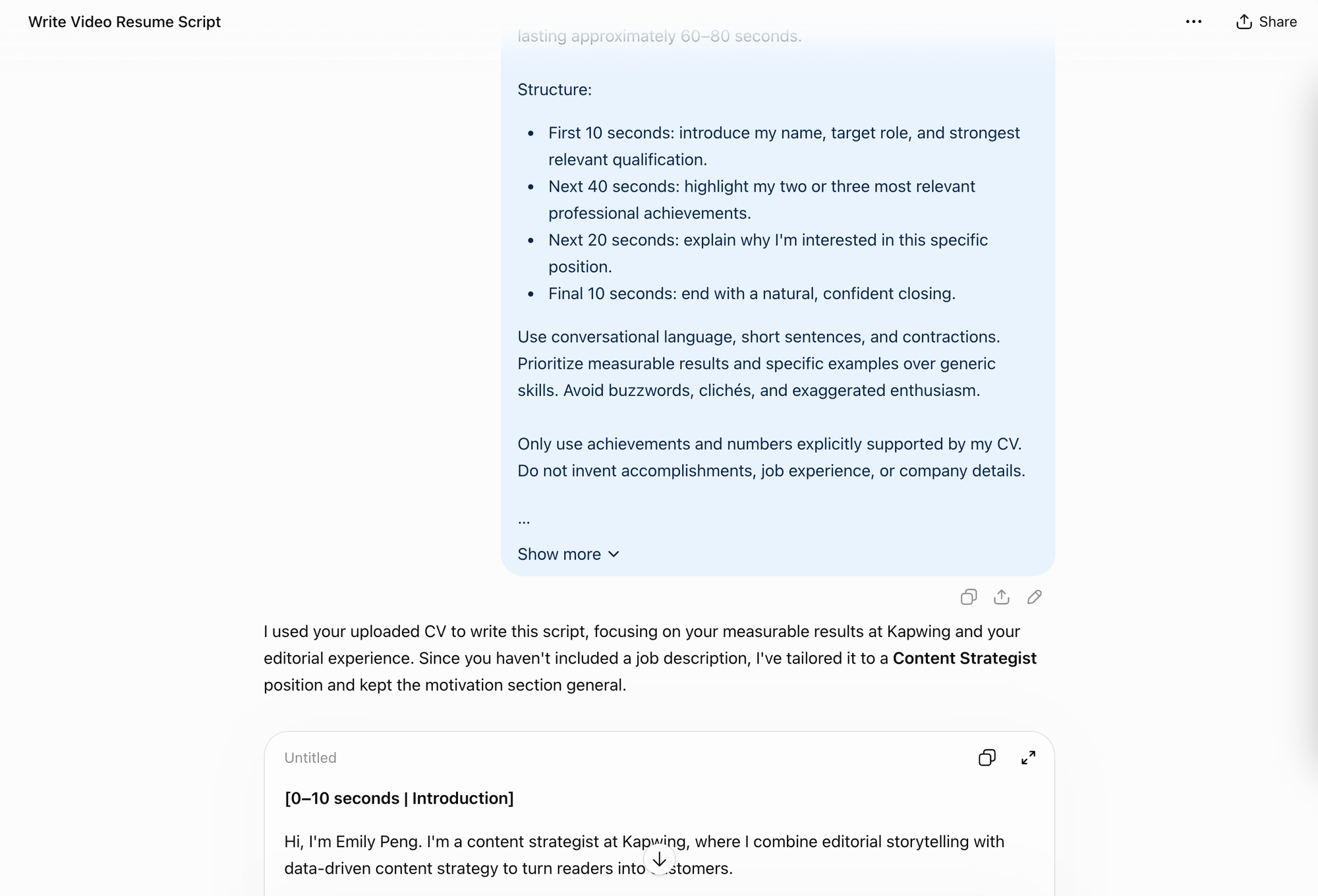
Once you've generated the script, read it aloud at your normal pace. Around 140–160 words is a useful target for a video lasting roughly 70 seconds, although the exact duration depends on how quickly you speak and where you pause.
One common mistake is keeping too much of the original resume language. Phrases like "results-driven professional" or "demonstrated excellence in cross-functional collaboration" might appear in written applications, but they sound unnatural when spoken.
Rewrite those sections as if you were explaining your experience to someone in an interview. If you stumble over a sentence, shorten it.
Step 2: Record Your Video Resume
You don't need a professional camera to record a video resume. A modern smartphone or laptop webcam is enough, provided the image is clear, the lighting is consistent, and your voice is easy to understand.
The most important setup decisions are surprisingly simple.
- Camera position: Place your camera at eye level and leave a small amount of space above your head. Record horizontally in 16:9 for a standard professional video, unless the employer requests a different aspect ratio or you're specifically creating content for a vertical social platform.
- Lighting: Face a window or another soft light source. Avoid positioning yourself directly in front of a bright window, which can leave your face underexposed.
- Audio: Record in a quiet room, away from fans, traffic, and other background noise. An external microphone can help, but even a phone's built-in microphone can produce acceptable results when it's positioned close enough.
- Background: Keep the setting clean and neutral. A desk, bookshelf, or uncluttered wall works. You don't need a virtual office or an elaborate setup.
For more detailed filming guidance, Purdue University's video resume resources cover practical camera and recording considerations.
If you find it difficult to remember your script while maintaining eye contact, use an online teleprompter.
The teleprompter displays your script while you record, with adjustable text size, scrolling speed, and position. You can move the text closer to your camera so your eyes don't have to travel across the screen.
To use it, open Kapwing and create a new project. Select Record from the Audio tab and open the Teleprompter.

Paste your video resume script into the text field. Adjust the scrolling speed, text size, and position to match your speaking pace.
A teleprompter is most useful when you treat the script as a guide rather than something to read word for word. Practice the introduction a few times before recording and use natural pauses between your achievements.

Step 3: Edit Your Video Resume in Kapwing
Once you've finished recording, the next step is to turn your raw footage into a polished 60–90-second video.
Most video resume editing doesn't require complicated effects. The biggest improvements come from cutting unnecessary footage, fixing distracting audio, and adding visual elements that support what you're saying.
You can do all three in an online video editor.
Remove Filler Words, Pauses, and Bad Takes
Upload your video to Kapwing and open the Transcript panel in the left sidebar.
Under Smart tools, select Auto Edit to automatically identify unnecessary footage, including silences, filler words, and unwanted takes.

This is particularly helpful if you've recorded several attempts at the same sentence or left long pauses between sections.
In Kapwing's AI video editing tests, Auto Edit reduced one 9-minute, 46-second talking-head recording to 5 minutes, 24 seconds in a single run. Its decisions varied between tests, which is why it's important to review the result rather than assume every cut is correct.
For a video resume, check that the editor hasn't removed a meaningful pause, an important qualifier, or part of an achievement.
Improve the Audio
Next, select your video or audio layer and use a Clean Audio tool to reduce distracting background noise and improve the clarity of your recording.
This is especially useful if you recorded in a room with a faint hum, echo, or inconsistent microphone volume.

Listen to the result before moving on. Aggressive audio processing can sometimes make speech sound unnatural, and a video resume should still sound like you.
You generally don't need background music. If you decide to include it, keep the volume low enough that it never competes with your voice.
Add Automatic Subtitles
Open Subtitles in Kapwing, select Auto Subtitles, and choose your video's spoken language. Kapwing will generate captions synchronized with your speech, which you can customize using different fonts, colors, and styles.
Keep the styling simple: readable text, sufficient contrast, and a consistent position near the bottom of the frame.

Review the generated transcript carefully, especially for your name, company names, technical terminology, and numbers. Auto-generated captions can occasionally misinterpret these details.
Subtitles also make the video easier to understand when someone views it without sound or in a noisy environment.
Add Visuals That Support Your Achievements
A good video resume doesn't need dramatic transitions or constant movement. However, adding examples of your work can make your qualifications convincing.
For instance, if you're talking about a successful marketing campaign, you could briefly show the campaign itself or a graph of its results. If you're a designer, you might display a few examples of your portfolio while describing your process.
Useful visual additions include:
- A lower-third displaying your name and professional title
- Screen recordings of projects, websites, or software you've worked on
- Portfolio images or short clips demonstrating your work
- Simple text overlays for impressive results or relevant qualifications
- A closing screen with your name and professional contact information
Step 4: Use AI to Generate Missing Video Footage
If you want to make your video resume more visual but don't have enough footage of your work, AI video generation can help fill the gaps. An AI Video Generator uses Kai, an AI video assistant that can generate footage from text prompts, reference images, and other media.
It also provides access to several video models, including Seedance 2.5, Veo 3, Kling, and MiniMax. These models offer different levels of control over camera movement, image references, and generated audio.
For a professional video resume, the most useful approach is to generate supporting footage rather than replace yourself with an AI presenter.
Generate AI B-Roll From a Real Image
Suppose you're applying for a product design role and want to introduce a project you've completed. You have a screenshot of the interface, but no recorded B-Roll footage showing it in context.
Instead of generating a fictional project from scratch, you can upload your screenshot to Kapwing and animate it into a short supporting clip.
Here's an example prompt:
AI B-Roll Prompt
Create a 5-second, 16:9 professional product showcase video using the uploaded screenshot as the visual reference.
Show the interface on a clean desktop monitor in a minimal, realistic workspace. Use a slow, subtle camera push-in toward the screen, with soft natural lighting and restrained movement.
Preserve the interface layout, text, colors, and overall design as closely as possible. Do not invent additional product features, interface elements, logos, or performance metrics.
No dialogue, presenter, or background music. The footage should feel like understated professional B-roll suitable for a portfolio video.
To create the clip, open Kai, upload your reference image, enter the prompt, and select a compatible image-to-video model.
Models like Seedance support reference-guided generation, while Veo 3 can be useful for videos that require precise beginning and ending frames.
Once you've generated the footage, add it to the editor and position it over the appropriate section of your narration.
Video Resume Example: A 75-Second Script
Here's what the finished script might look like for someone applying for a social media marketing position.
The candidate and achievements in this example are fictional, but the structure can be adapted to other industries.
Hi, I'm Alex, a social media marketer specializing in short-form video and organic audience growth.
Over the past three years, I've helped brands turn social content into measurable business results. At my last company, I developed a video-first content strategy that increased Instagram engagement by 40% in six months.
I also launched a TikTok series that reached more than 500,000 viewers, working across everything from content planning and production to performance analysis.
What interests me about this role is your team's focus on original creative work and building genuine connections with customers. That's the kind of environment where I do my best work.
I'd love the opportunity to bring my experience in content strategy, video production, and analytics to your team. Thanks for watching, and I look forward to connecting.
This script gives the viewer a clear picture of the candidate's experience without repeating a conventional resume.
You could make it more visual by showing examples of the TikTok series during the second achievement, adding a simple performance graphic, and finishing with a contact card.
For a creative role, these supporting visuals may be more persuasive than an elaborate opening animation or cinematic background.
Where to Share Your Video Resume
Once you're happy with the edit, export your project as an MP4. A 1080p, 16:9 video is a practical default for professional sharing, although the job application may specify different requirements.
Before submitting, watch the exported file on both desktop and mobile. Check the subtitle readability, volume, pacing, and whether any content has been cropped.
There are several ways to share your finished video:
| Platform | Recommended Approach |
|---|---|
| Job application | Submit a video file or link only where accepted or requested |
| Email application | Include a concise link alongside your written CV |
| Share a video post or link through your profile's available features | |
| Personal website | Embed the video alongside your portfolio and work samples |
| Creative portfolio | Place the video near relevant projects as a short introduction |
If you're adding the video to LinkedIn, be aware that the older Profile Video Cover Story feature is no longer available. Depending on your account's current features, you may be able to highlight a video or link in the Featured section.
For applications, always check the employer's instructions before including additional materials. Some recruitment systems only accept specific document types or may not allow external links.
If the job listing requests a PDF resume, keep that as the primary submission. A video resume should make it easier to understand your qualifications, not create extra work for the employer.
Are Video Resumes Worth It?
Video resumes can be useful, but the research is less conclusive than many career websites suggest.
A frequently cited Vault survey from 2007 found that 89% of surveyed employers were willing to watch a video resume, but only 17% had actually watched one. That distinction matters: interest in a format doesn't necessarily translate into adoption.
More recently, Canva's 2025 research found that half of hiring managers favored video cover letters. However, that doesn't establish that applicants who submit videos are more likely to receive interviews or job offers.
Whether a video resume is worth creating depends largely on the role, the application process, and the additional information your video communicates.
For candidates in video production, marketing, design, public speaking, or other presentation-heavy fields, the format can also serve as a work sample. For roles where the employer primarily evaluates technical qualifications or written experience, a traditional resume and relevant portfolio may be more useful.
There are also legitimate concerns about bias and accessibility. Showing a candidate on video can introduce information unrelated to their qualifications, and some employers avoid video-based applications as a result.
That's another reason to keep your video optional unless specifically requested, include subtitles, and make sure your written application stands independently.
Ultimately, the best video resume is the one that adds something meaningful to your application. A clear, well-recorded introduction with relevant achievements and real examples of your work is more valuable than a video that says very little.
Frequently Asked Questions
How long should a video resume be?
Most video resumes should be approximately 60–90 seconds long, although 30 seconds to two minutes can work depending on the application. If the employer specifies a maximum duration, follow that requirement. Focus on your strongest achievements rather than trying to summarize your entire career.
Can you make an entire video resume with AI?
Yes. Kapwing's AI Script to Video Generator can convert a written script into an editable video with generated or stock visuals, voiceover, captions, and music.
This is useful for creating a narrated portfolio video, especially if your work is better demonstrated visually than explained in a talking-head recording.
However, an entirely AI-generated video isn't necessarily the strongest choice for a job application.
One reason employers may appreciate a video resume is the opportunity to hear you communicate and get a better sense of your presentation style. Replacing your face and voice with an AI avatar can remove that advantage.
There are also accuracy concerns. An AI-generated presenter or fictional workplace might suggest you've done work, used equipment, or participated in situations that never actually occurred.
For most applications, a better balance is to record your introduction yourself, use real examples of your work wherever possible, and reserve AI generation for clearly illustrative material. Disclose AI-generated scenes when they could otherwise be mistaken for genuine footage.
Should I include a video resume with every job application?
No. Video resumes are most useful when they're relevant to the position or specifically requested by the employer. You should still submit a conventional written CV and follow the job application's instructions. Avoid attaching a large video file or sending unsolicited content if the employer has requested a particular format.
What should I say in a video resume?
Start with your name, target role, and a brief introduction to your professional experience. Follow with two or three achievements that demonstrate your qualifications, explain why you're interested in the position, and finish with a concise closing. Use measurable results wherever possible and tailor the script to the job description.
Should I use an AI avatar for my video resume?
An AI avatar can work for a narrated portfolio or creative demonstration, but it's usually less effective when the goal is to introduce yourself to an employer. A video resume is an opportunity to demonstrate your communication style and presentation skills, which an AI-generated presenter may not accurately represent.