7 Best Claude Skills for YouTubers (Free Downloads)
Seven free Claude skills that take the slow parts of running a YouTube channel off your plate, from the first idea to the upload.
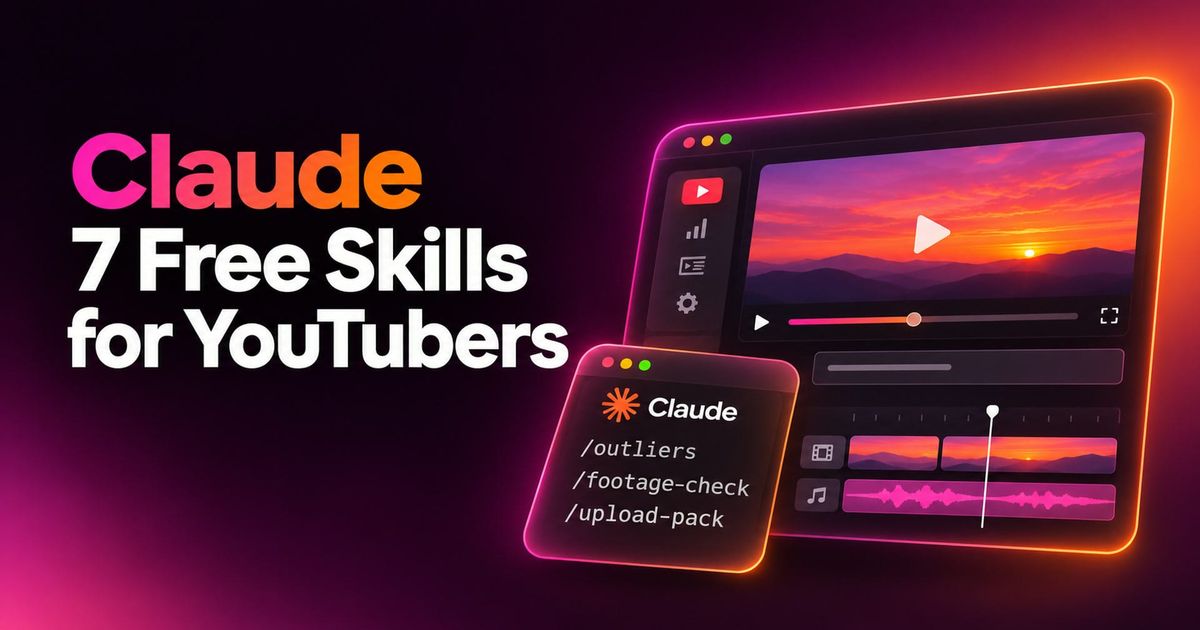
Claude Fable 5.2 is Anthropic's latest model, and creators are building impressive things with it. But if you run a YouTube channel, it is hard to know where to start, or what it can actually do for you.
So we built 7 Claude skills that turn it into your own small YouTube team, plus a bonus. There is a skill for every stage of making a video, from finding your next idea to the upload, and every skill is a free download.
They are not about getting AI to make your videos for you. They take the slow, repetitive parts of running a channel off your plate and hand you research, data and first drafts, so you can spend your time on the part only you can do: making the video.
Table of Contents
- What Are Claude Skills?
- How to Install the Free Claude Skills
- 7 Claude Skills for YouTubers
- Bonus: AI Dubbing for YouTube: Your Video in Other Languages
- How the Claude Skills Work Together
- Frequently Asked Questions
What Are Claude Skills?
A Claude skill is a folder with a text file that teaches Claude to do one job the way you would. You type a slash and the skill's name, and Claude runs that job. Skills work in Claude Code and in the Claude app.
These are the 7 skills, in the order you make a video:
- /outliers: find outlier videos and video ideas on your topic
- /youtube-script-researcher: script research and the top videos' hooks, before you write
- /footage-check: sync your audio and catch missed lines before you pack up
- /kai-rough-cut: a first cut with the bad takes and dead air cut out, in Kapwing
- /packaging: title ideas and thumbnail ideas
- /upload-pack: your upload checklist done: title, description, timestamps, tags and subtitles
- /community-post: a community post carousel and caption
The bonus, /make-it-global, dubs your video into other languages in your own voice, ready for YouTube's multi-language audio tracks.
How to Install the Free Claude Skills
Download all 8 skills in one file, or each skill on its own under its section below.
Download all 8 Claude skills
Every skill in this article plus the install steps, in one ZIP file.
ZIP archive
- Claude Code: unzip the file, then put each skill folder in your skills folder (
~/.claude/skills/). - Claude app: go to Customize, then Skills, and upload the skill's zip. Each skill has its own zip.
- Pick Claude Fable 5.2 as your model.
- Work from one folder per video. Each skill leaves its files there, and the next skill picks them up.
The skills are free downloads. Custom skills need a Claude plan that supports them. A few steps use accounts you already have: vidIQ for search volumes, and Kapwing credits for Kai and dubbing.
7 Claude Skills for YouTubers
Skill 1: Find YouTube Video Ideas That Are Already Working
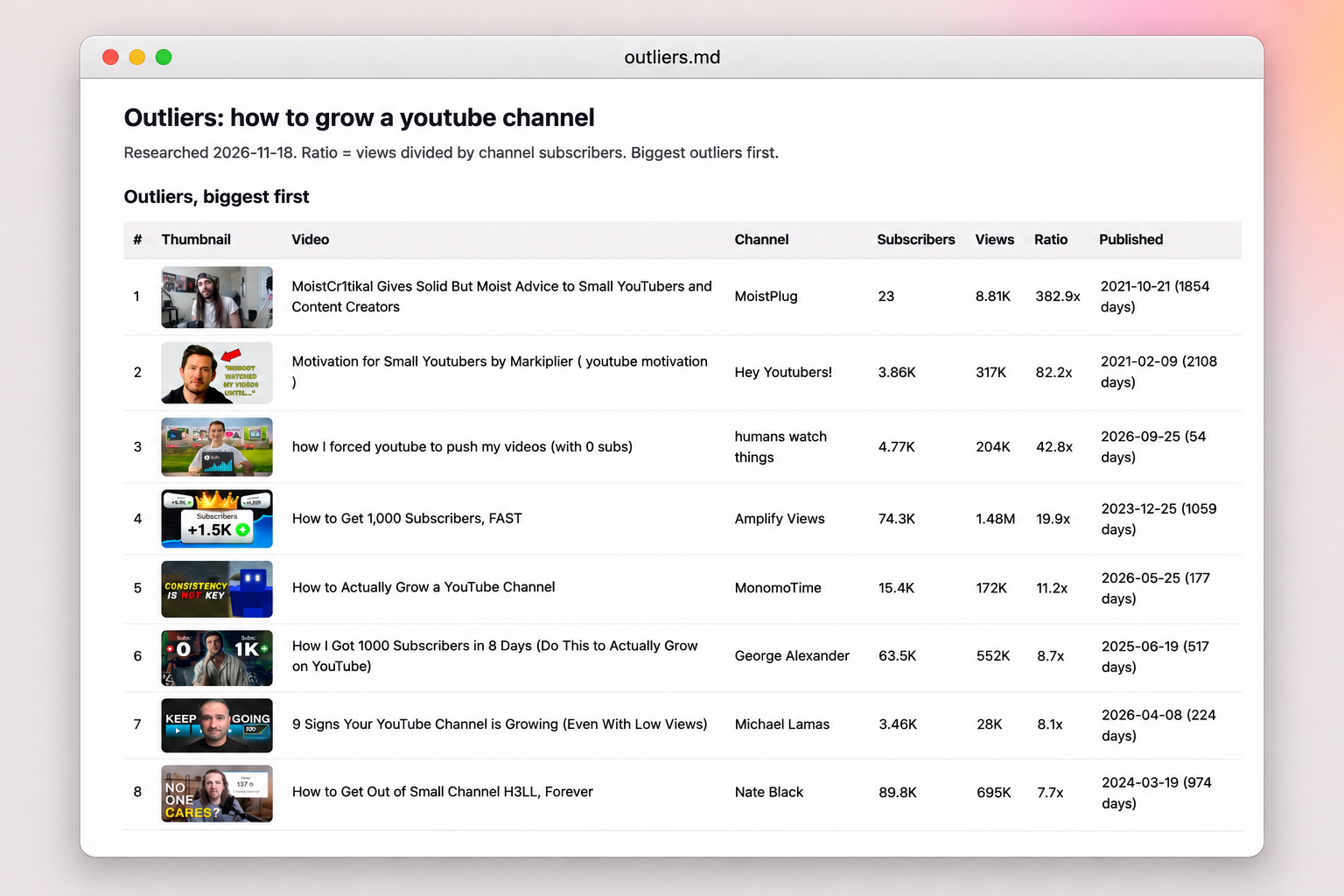
Most people pick their YouTube video ideas because they like them. The outliers skill finds the outlier videos on your topic, the ones getting far more views than their channel size, so you can see which ideas, titles and thumbnails viewers are already clicking on.
Using it is one line. In Claude Code, type /outliers and your topic, for example /outliers claude skills, and press Enter. Then it:
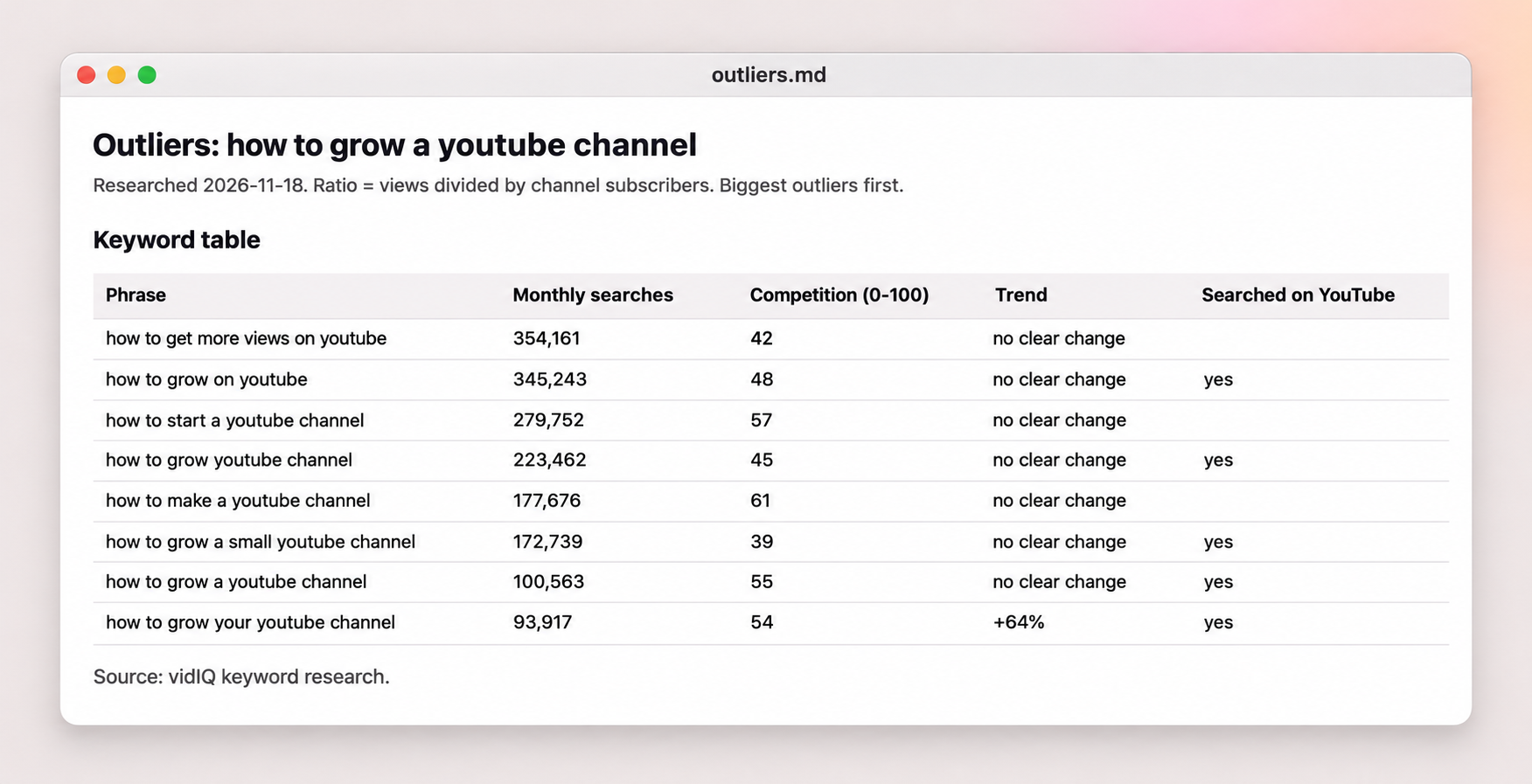
- Checks how many people search your topic using vidIQ, and builds a keyword table: every way people phrase the topic, how many times a month each is searched, how much competition there is, and whether searches are going up or down.
- Opens YouTube in your Chrome and searches every phrasing. You can watch it work.
- Compares every video's views with the size of the channel that made it, and ranks the biggest outliers first, with their thumbnails.
That comparison is the important part. A channel with 2 million subscribers getting 100,000 views is normal, because the views come from its subscribers. A channel with 1,200 subscribers getting 100,000 views means the idea, the title and the thumbnail did the work. That is the video worth learning from, because you can make one like it without a big channel behind you.
When we ran it for this article, the top result for "claude skills" had about 107,000 views on a channel with about 1,200 subscribers: 86 times more views than subscribers. Around 840,000 people search for Claude skills every month (vidIQ, November 2026).
Use it before you pick any video.
Skill 2: YouTube Script Writing: Do the Research Before You Write
YouTube script writing usually starts with a blank page: you open an empty doc and stare at it. What's your hook? What do you include? Has someone already made this exact video?
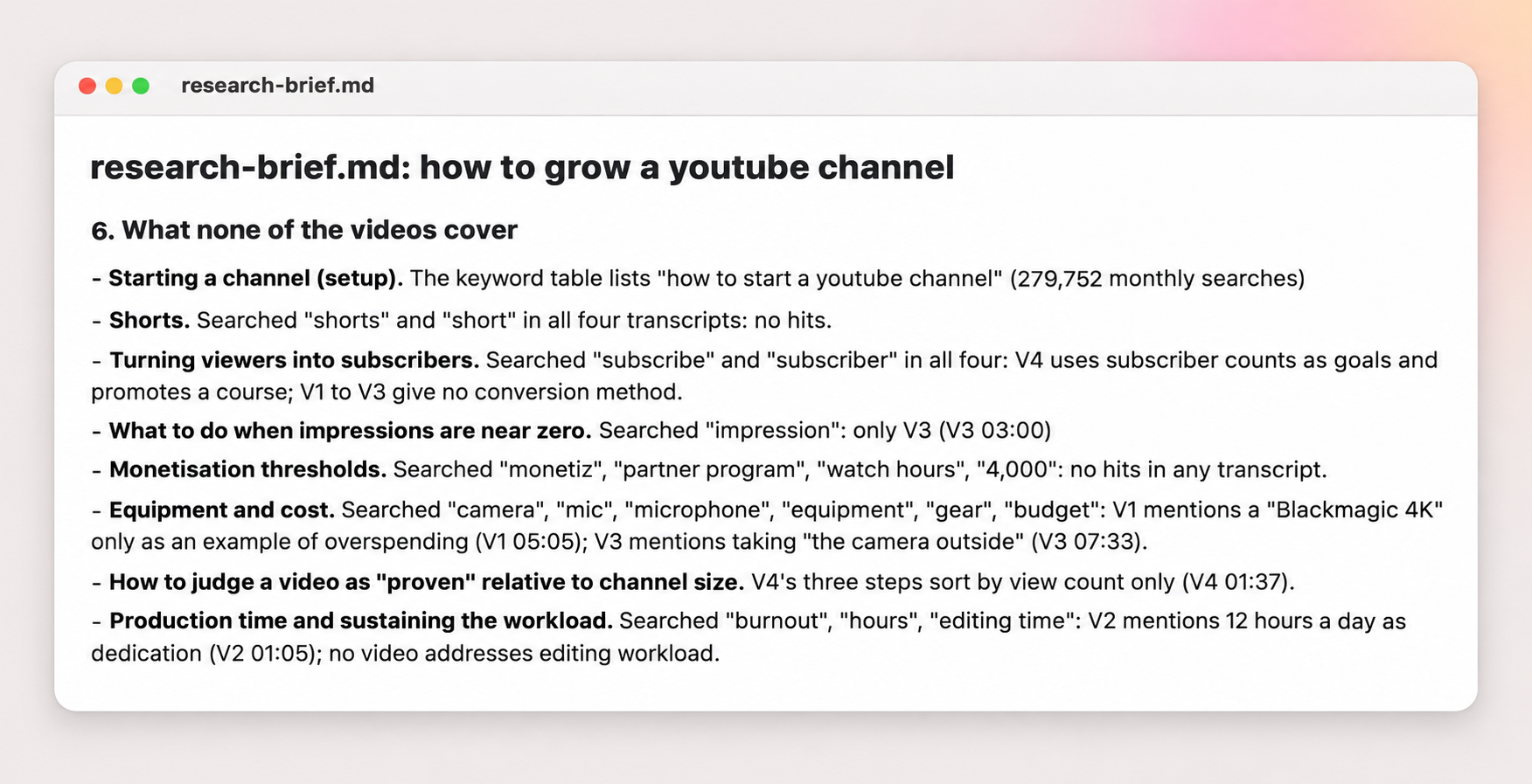
The script researcher does the script research you would normally spend hours on. It does not write your script. It picks up from skill 1: type /youtube-script-researcher and your topic, and it takes the top videos on that topic, pulls their transcripts and comments, and reads all of it for you. You get one research brief with:
- every useful point each video makes, with the video and the moment it came from
- the hook of each video (the first 30 seconds) side by side, word for word, so you can compare intros
- each video broken down section by section
- what viewers ask for and complain about in the comments, so you know what your video needs to answer
- what none of the videos cover
For this video, it read 11 of the biggest Claude skills videos. On one of them, 61 of 258 comments were people asking where the download was, because it sat behind a private group. That is why every skill here is a free download.
Use it once you have picked your idea, before you write a word.
Skill 3: Sync Audio and Video and Check Every Line Before You Pack Up
You finish filming and pack everything away, and only when you sit down to edit do you realize you skipped a line, or messed one up and never did another take. Now you need a pickup shot. The footage check skill does two jobs straight after you film:
- Syncs your audio. If you record your voice on a separate mic, it syncs the mic audio to your camera footage by matching the waveforms, so you never have to clap and line it up by hand.
- Checks every line. Type
/footage-check, point it at your footage and your script, and it transcribes what you said with Kapwing's transcription and compares it with your script line by line.
Kapwing's transcription writes down every stumble and restart as you said it, instead of tidying them up. Across our raw takes for an earlier video, it caught 14 restarts that another transcription tool had merged into clean sentences.
You get every line of your script marked as clean, messed up then retaken, or missed, with the time in your footage where each one is, so you know what you still need to record before you pack up.
Skill 4: AI Video Editing: Get Your First Rough Cut Done for You
Before you can do anything creative with your raw footage, you have to cut out every bad take, repeated line and long pause by hand. The Kai rough cut skill uses AI video editing to make that first cut for you, inside Kapwing.
It picks up from skill 3. Type /kai-rough-cut and point it at your footage. It uploads your raw recording to Kapwing and asks Kai, Kapwing's AI video agent, to keep the last good take of every line and cut the bad takes and dead air.
On a real take, it went in at 9 minutes 46 seconds and came back at 4 minutes 24 seconds, using 9 Kapwing credits. You get a normal Kapwing project with your cut on the timeline, not just a finished file. Kapwing groups the clips into blocks such as "48 Video Layers", but zoom in and every cut is its own clip, cut from your original footage.
AI will not get every cut perfect: this is your first cut, not the final edit. Play it through, and if a cut is in the wrong place, grab the edge of that clip in the Kapwing editor and adjust it yourself.
Skill 5: YouTube Thumbnail and Title Ideas Based on What Already Works
You can make a great video, but if nobody clicks on it, nobody sees it. Your title and thumbnail (your packaging) decide your click-through rate, and most of us leave them until the very end, when we are tired.
The packaging skill picks up from skill 1. Type /packaging and your video idea. It reads the outliers you found and uses those proven videos as inspiration to write title ideas and make thumbnail ideas in Kapwing, with Kai and GPT Image 2. Every title starts with the words people search for, and every thumbnail gets a score out of 25 against your own channel's best-performing thumbnails.
Treat the result as your baseline, not your finished thumbnail. Use what you found in skills 1 and 2 (what viewers click on, what they ask for in the comments, and what is missing) to push your title and thumbnail further.
Skill 6: How to Upload Videos on YouTube: Titles, Chapters and Tags Drafted for You
Jonny learned how to upload properly from Vanessa Lau's video, 18 Key Things I Do AFTER Uploading Youtube Videos to Get More Views. He turned her 18-step process into his own upload checklist, and his long-form tutorials went on to get hundreds of thousands of views, some a quarter of a million plus. But doing it properly takes time.
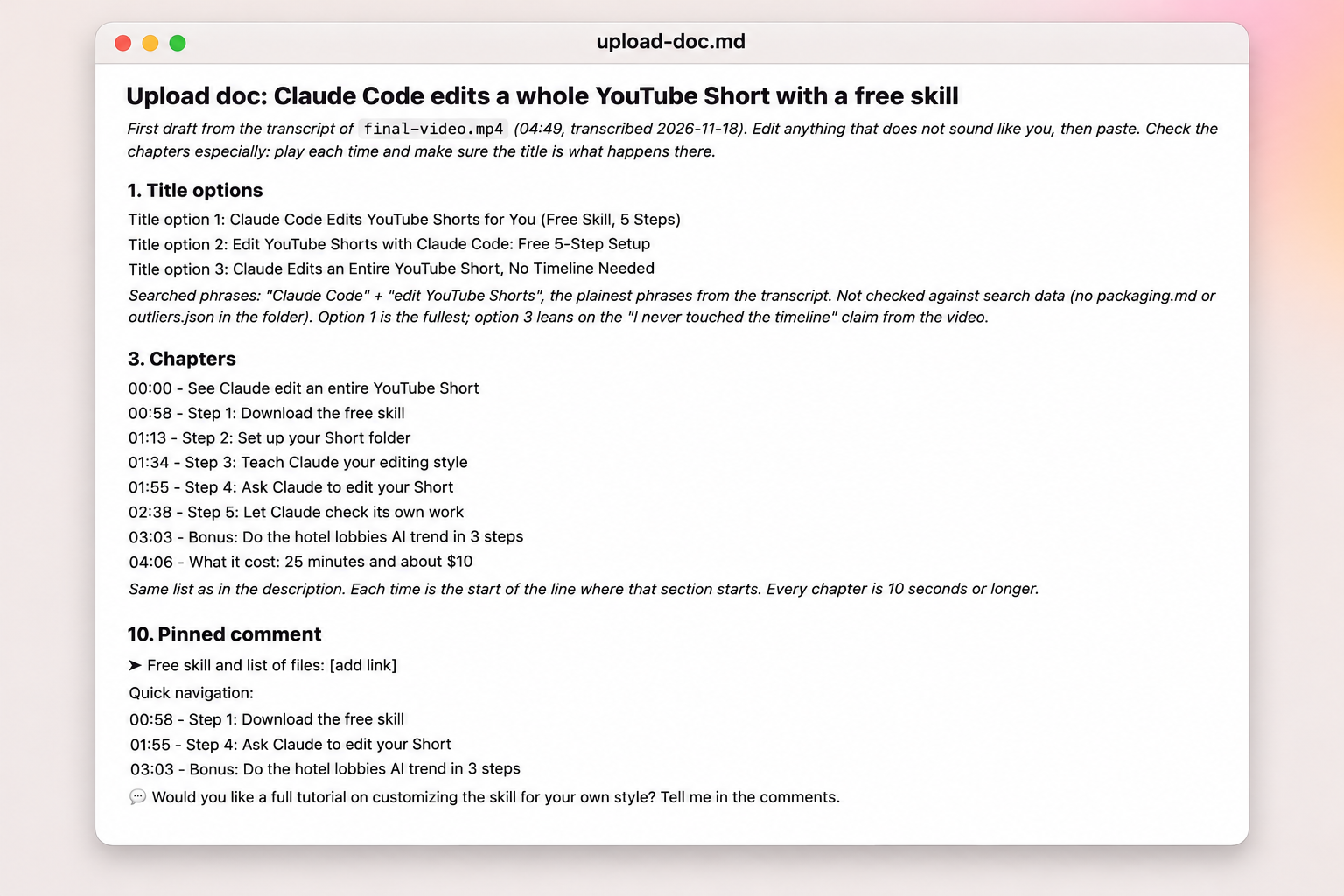
The upload pack skill turns that upload checklist into one command. Type /upload-pack and point it at your finished video. It transcribes the video with Kapwing and uses what you actually said to fill in everything YouTube Studio asks for, in order:
- title options built around the words people search for
- a description
- chapters (timestamps) taken from the real video
- tags, subtitles as an SRT file to upload, and your pinned comment
- suggestions for your end screen, cards and playlist
- a community post, ready for skill 7
Read it, change anything that does not sound like you, and paste it in. Check the chapters especially: every chapter title is a promise about what is at that point in the video. The chapters under our video were made with this skill.
Skill 7: Make YouTube Community Posts That Bring Subscribers Back
Your subscribers do not see every upload. A YouTube community post puts your video back in front of them, right in their feed, and an image carousel post gets people swiping, but a good one takes time to design.
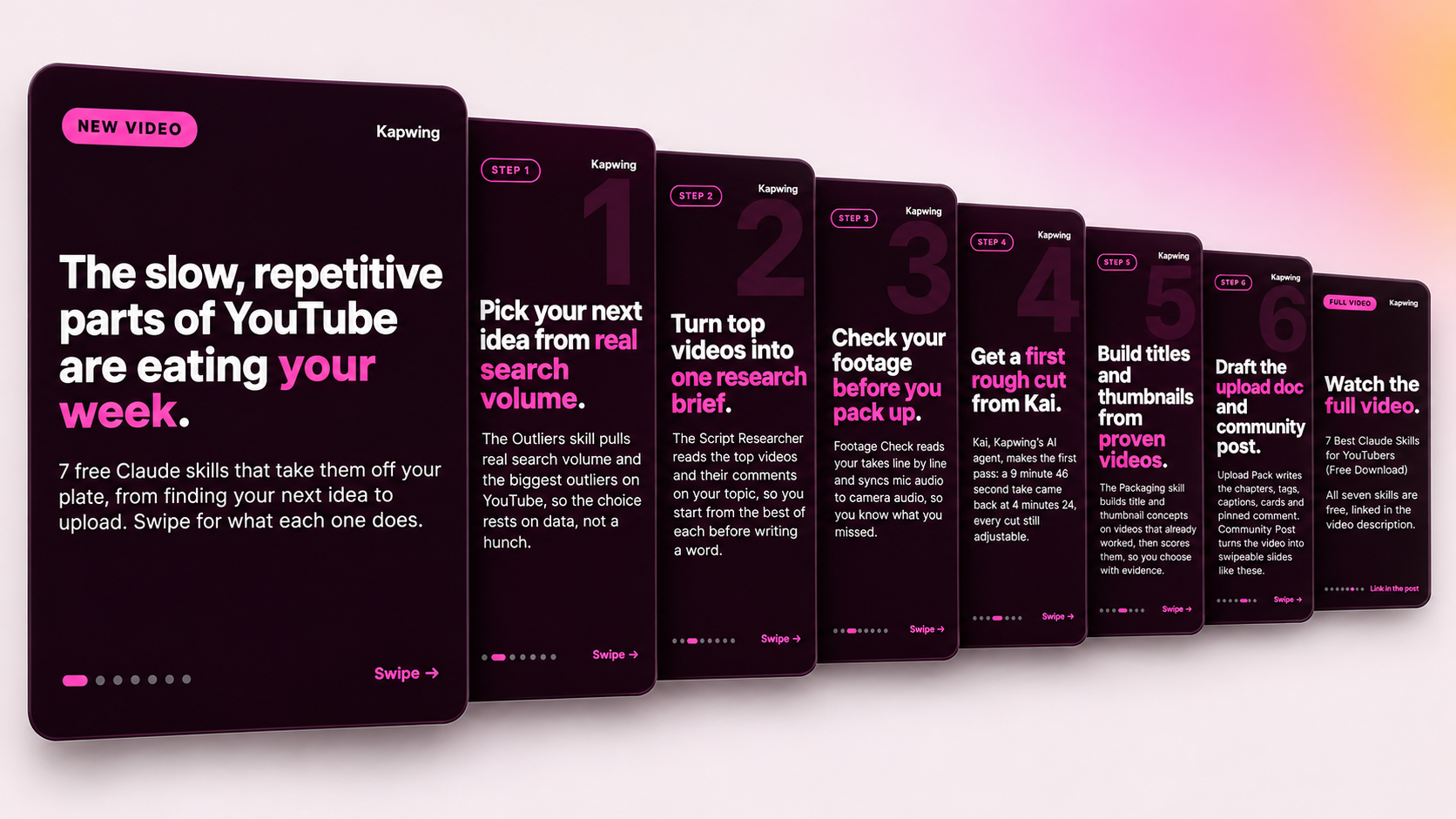
The community post skill picks up from the upload pack, which has already written your post. Type /community-post and it turns your video into an 8-image carousel post in YouTube's portrait size: a hook slide on the problem your video solves, one slide for each step, and a last slide that sends people to the full video. You set your own colors and fonts, and it writes the caption.
It is a first draft. Swipe through it, change any slide that is not right for your audience, and post it when you are happy.
Bonus: AI Dubbing for YouTube: Your Video in Other Languages
Getting your video into other languages used to mean paying translators and voice actors. The make it global skill does it with AI dubbing, in one run, inside Kapwing.
Type /make-it-global, point it at your finished video and pick your languages. It transcribes the video, translates it, adds subtitles and dubs it in your own voice, using a voice clone made from the video itself, so you can upload each language as a multi-language audio track on YouTube. A full 8-minute video went into 5 languages in 3 minutes 21 seconds in our test.
Every language comes back as its own Kapwing project, so play each one through before you post it. AI dubbing costs 20 Kapwing credits a minute for each language, and dubbing in your own voice needs Kapwing's Business plan.
For the full walkthrough, read how to translate and dub videos with Claude.
How the Claude Skills Work Together
Each skill leaves its files in your video folder, and the next one picks them up. Outliers feeds the script researcher and packaging, the footage check feeds the rough cut, and the upload pack feeds the community post.
None of these skills make your video for you. They give you the research, the data and a first draft, so you spend less time on the slow parts and more time making the calls only you can make.
Frequently Asked Questions
What are Claude skills?
A Claude skill is a folder with a text file that teaches Claude to do one job the way you would. You run it by typing a slash and the skill's name, in Claude Code or the Claude app.
Are these Claude skills free?
Yes. All 8 skills are free downloads. Custom skills need a Claude plan that supports them, and some steps use your own vidIQ account or Kapwing credits.
How do I install a Claude skill?
In Claude Code, unzip the download and put each skill folder in ~/.claude/skills/. In the Claude app, go to Customize, then Skills, and upload the skill's zip.
Which Claude model should I use with these skills?
We built them for Claude Fable 5.2, Anthropic's latest model. Pick it as your model in Claude Code or the Claude app before you run a skill.
Will these skills make my YouTube videos for me?
No. They handle research, checks and first drafts, from the keyword research to your upload checklist. You still write the script, film the video and make the creative calls.
Do I need all 8 Claude skills?
No. Each skill works on its own, so start with the stage that takes most of your week. Run in order, each skill picks up the files the previous skill left.
Can Claude edit my YouTube video?
The Kai rough cut skill makes your first cut in Kapwing, keeping the last good take of every line and cutting the bad takes. You get a normal Kapwing project to check and adjust in the editor.
How do I translate my YouTube video with Claude?
Use the make it global skill. It transcribes, translates, subtitles and dubs your video in Kapwing, with every language returned as its own project to review.