How to Make the Viral Cartoon Clone Dance Effect
The cartoon twin effect is pulling in millions of views — here’s how to recreate it with GPT Image 2 and Seedance 2.5.
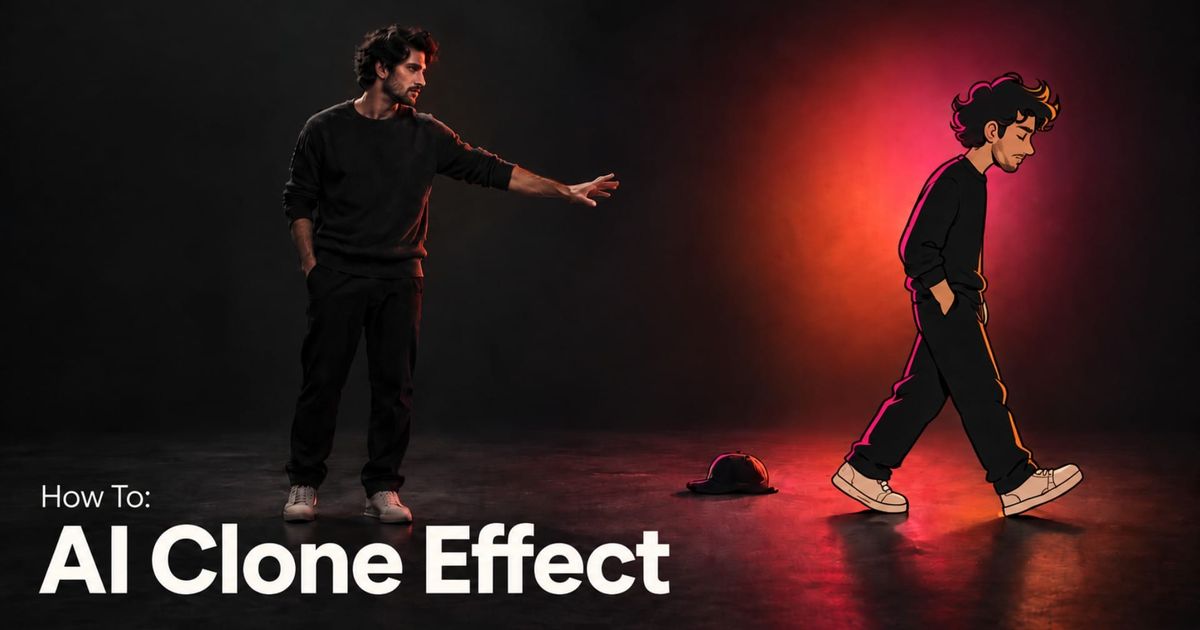
Putting an animated character next to a real person normally means drawing, compositing, tracking, and matching dozens of individual frames. With current image and video models, you can compress most of that process into a handful of references and one carefully structured video prompt.
For this example, I recreated the effect with a photorealistic version of a person standing beside their flat 2D cartoon twin. For the first nine seconds, the twin mirrors everything the person does. Then it gets visibly annoyed, throws its cap onto the grass, and walks out of frame.
The finished video was generated from one photo and a reusable AI character sheet. The important part was not simply telling an AI video model to “add a cartoon version of me.” It was separating identity, character design, staging, and timing into different steps so Seedance.
Table of Contents
- How to Create a Cartoon Twin of Yourself
- Step 1: Create Your Cartoon Twin
- Step 2: Plan the Scene and Timing
- Step 3: Generate the Cartoon Twin Video
- Finish the Video in Kapwing
- Best Practices for Cartoon Twin Videos
- Frequently Asked Questions
How to Create a Cartoon Twin of Yourself
The workflow has three main stages:
- Create a consistent cartoon version of yourself.
- Plan the scene and animation beats.
- Give Seedance 2.5 your human and cartoon references and generate the final clip.
The extra reference-building steps matter because this is a relatively demanding generation. Seedance has to preserve character consistency while executing a timed sequence of actions without blending their visual styles together.
Step 1: Create Your Cartoon Twin
Open Kai, attach a clear photo of yourself.
Select GPT Image 2 as the image model.
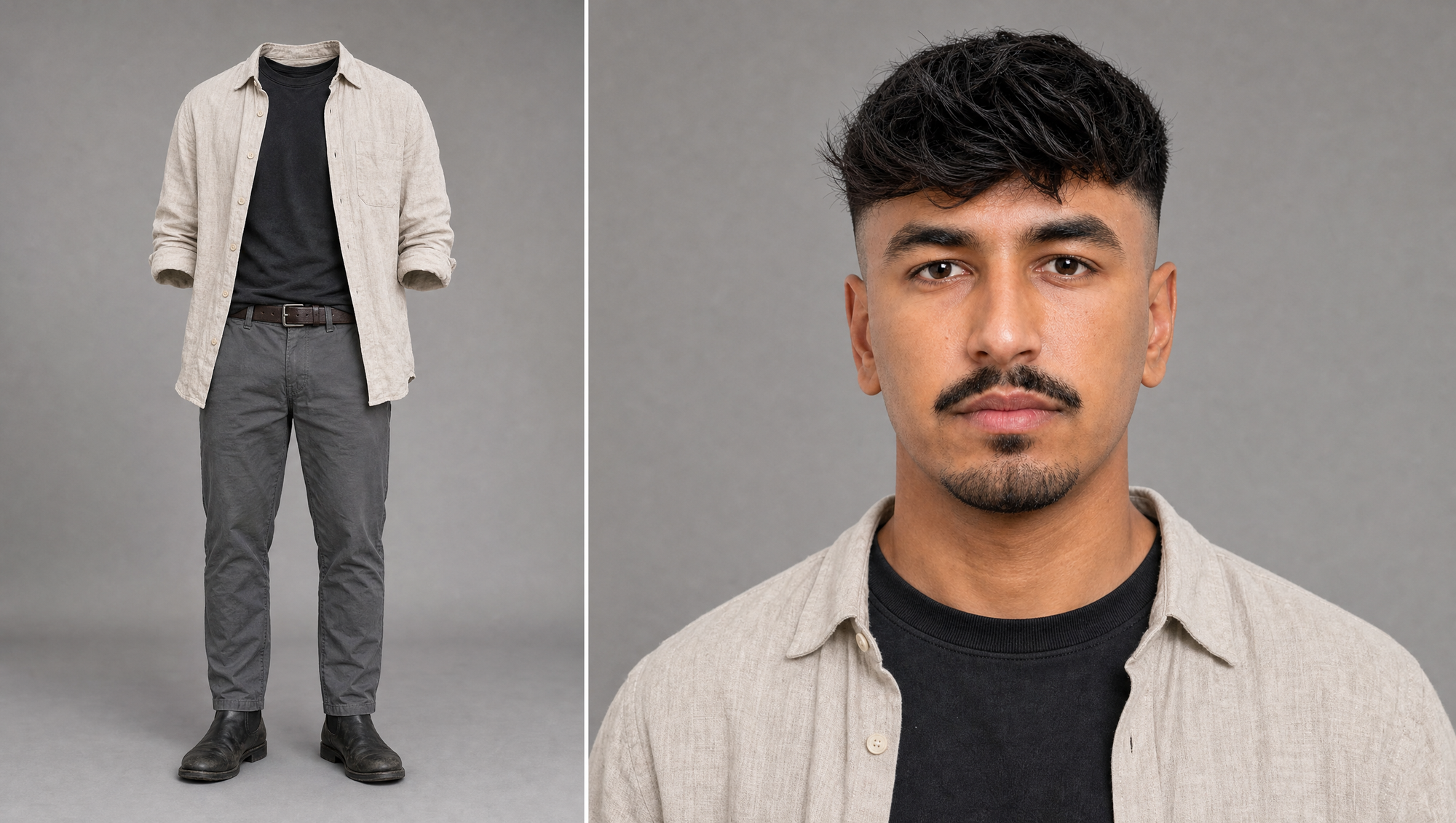
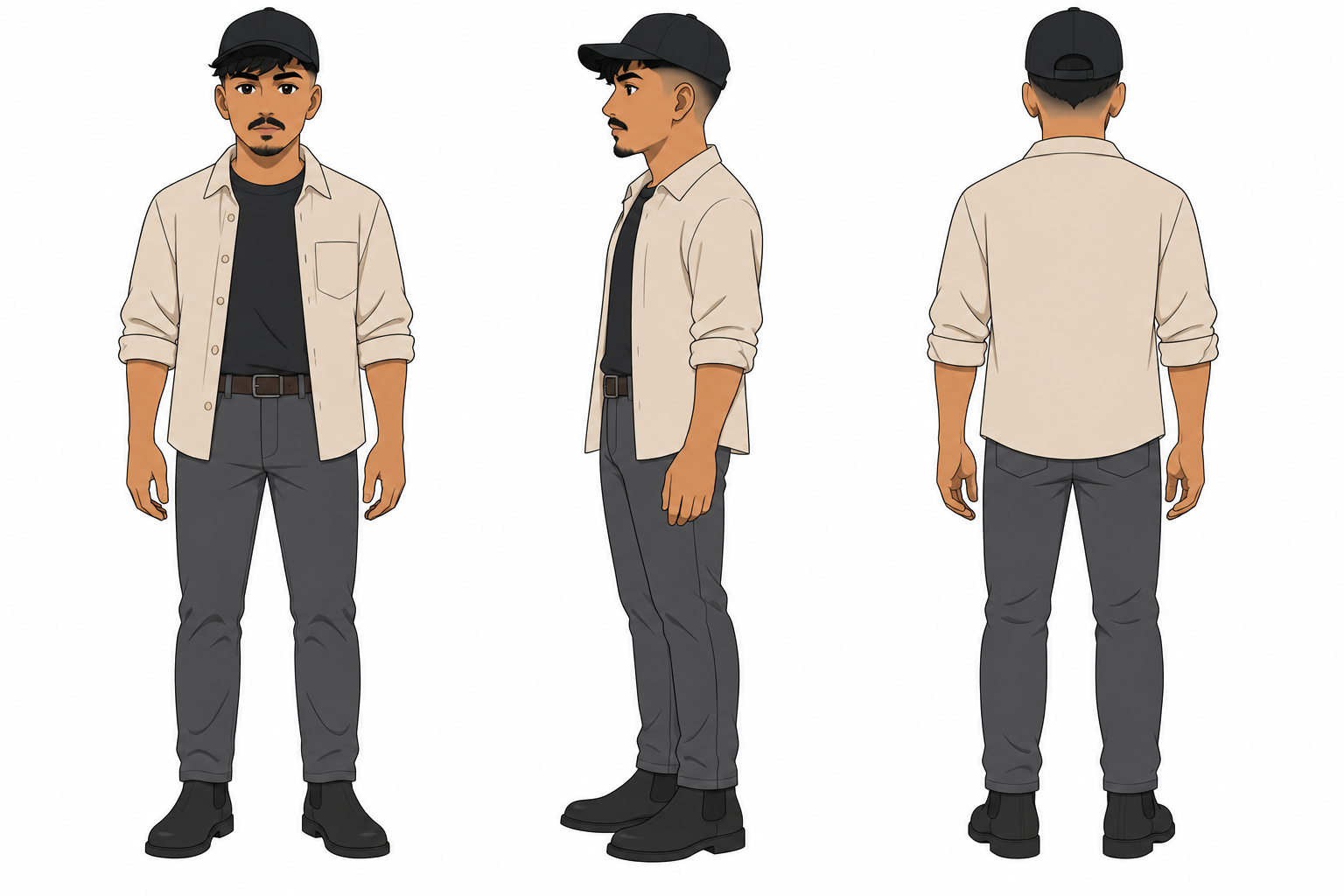
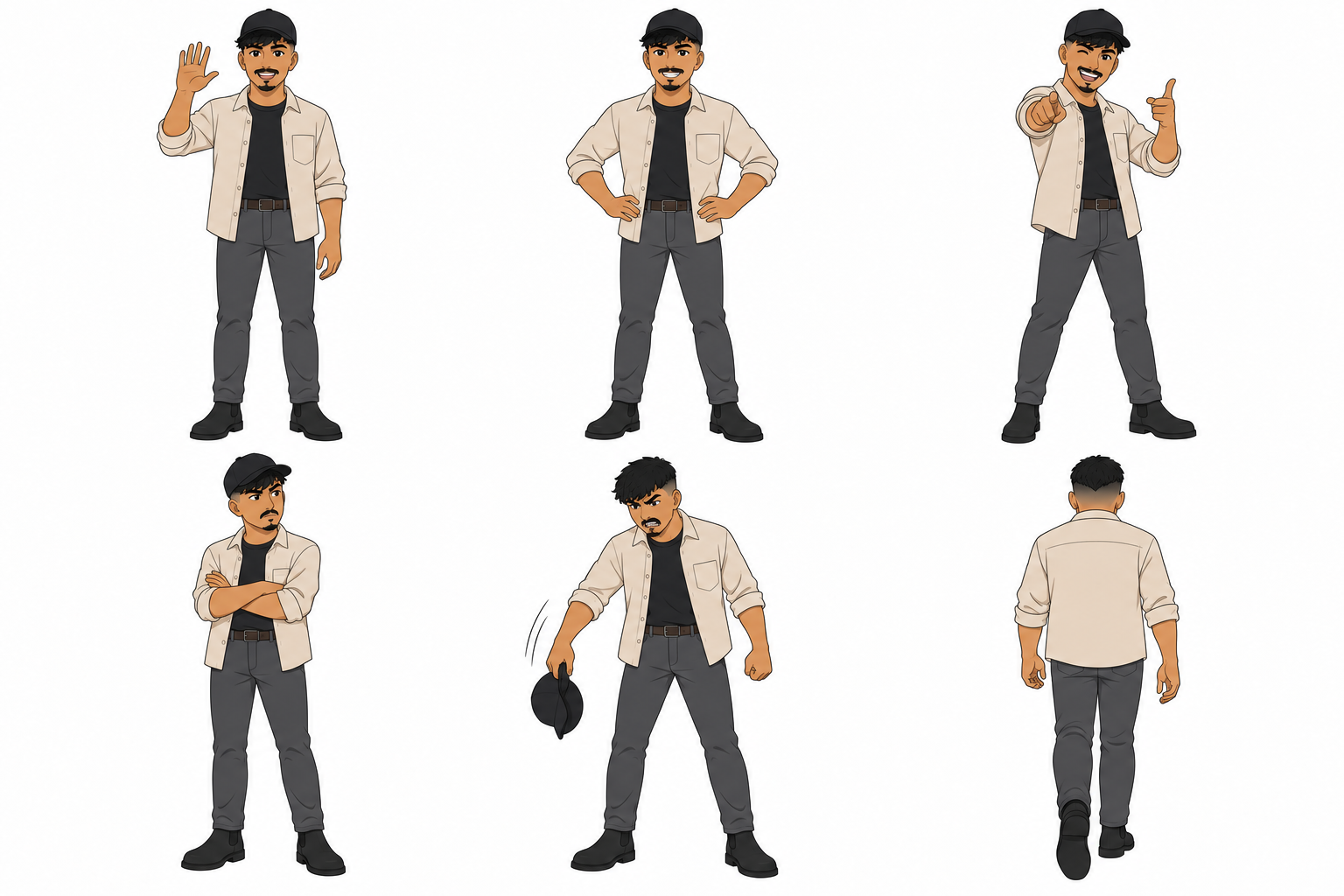
Your first goal is not to make the final scene. It is to create a character reference sheet that establishes what your twin looks like from multiple angles.
A strong cartoon twin reference should preserve recognizable identity traits while removing as much visual ambiguity as possible. Keep the background plain, show the full body, and use the same clothing in every view.
Cartoon Twin Character Sheet Prompt
Create a flat 2D hand-drawn cartoon version of the person in the attached photo. Use the photo as a likeness reference for their face, hairstyle, facial features, skin tone, body proportions, and clothing only. Ignore the photographic style completely and redraw the person as a simple flat 2D animated character.
Preserve the person’s recognizable appearance and outfit consistently across every view.
Create a character reference sheet with three full-body views arranged side by side on a plain white background, from left to right:
[VIEW 1] Full-body front view, standing in a relaxed neutral pose with arms at their sides, looking toward the viewer.
[VIEW 2] Full-body 90-degree left profile view.
[VIEW 3] Full-body rear view from directly behind.
Show the character from head to toe in every view. Keep the proportions, facial features, hairstyle, clothing, accessories, and overall design identical across all three views.
Style: flat 2D cel-animation character with a hand-drawn, animation-inspired look. Use clean, confident outlines of even weight, flat solid color fills, and minimal simple shading. No gradients, realistic rendering, or surface texture.
Simplify the facial features while preserving the person’s identity. Use clean graphic shapes for the eyes, nose, mouth, eyebrows, hair, and other defining features. Keep the anatomy natural and readable, with slightly stylized proportions suitable for a 2D animated character.
No text, labels, watermarks, background scenery, or additional figures. Not photorealistic, not 3D, not painterly, and not a photograph.
The most important instruction is near the beginning:
The photo is a likeness reference … ONLY; ignore its photographic style completely.
Without that distinction, image models often preserve the photographic treatment along with the person's identity, producing a semi-realistic illustration rather than a deliberately flat cartoon.
Once you have a character sheet, attach that image instead of your original photograph and generate a sheet showing the poses your animation will need.
This is partly a consistency test. If the character still looks recognizably identical while angry, turned away, moving, or removing an accessory, it is much more likely to survive a video generation intact.
Step 2: Plan the Scene and Timing
The next problem is choreography. A text video prompt (e.g. “make the cartoon copy me and then get annoyed”) gives the model considerable freedom over when each action happens. That is usually fine for atmospheric footage, but less useful for clips when timing is important.
For this example, I planned the clip around three phases:
- 0–9 seconds: the cartoon twin obediently mirrors the person.
- 9–13 seconds: the twin stops cooperating and gets angry.
- 13–15 seconds: the twin leaves and the person reacts.
That timeline gives the repetition enough time to establish itself before breaking the pattern.
Create an Empty Scene Reference
First, generate the location on its own. The important properties are wide framing, a static camera, and enough empty space for two full-body figures.
Here is the example prompt that we used:
A photorealistic still frame from a locked-off static wide shot, 9:16 vertical, of an empty sunny park lawn with nobody in it.

Bright green freshly mown grass fills the lower two thirds of the frame, seen from a camera at chest height about eight metres back, so there is room for two people to stand full length in the middle of the frame.

Behind the lawn a line of tall leafy trees and a few taller palm-like trees, low rolling green hills in the far distance, and a clear deep blue sky with no clouds across the top of the frame.

Hard afternoon sunlight from the upper left throwing crisp shadows across the grass. Shot on a phone camera, natural colours, sharp focus, no lens flare.

No people, no animals, no objects on the grass, no text, no watermarks.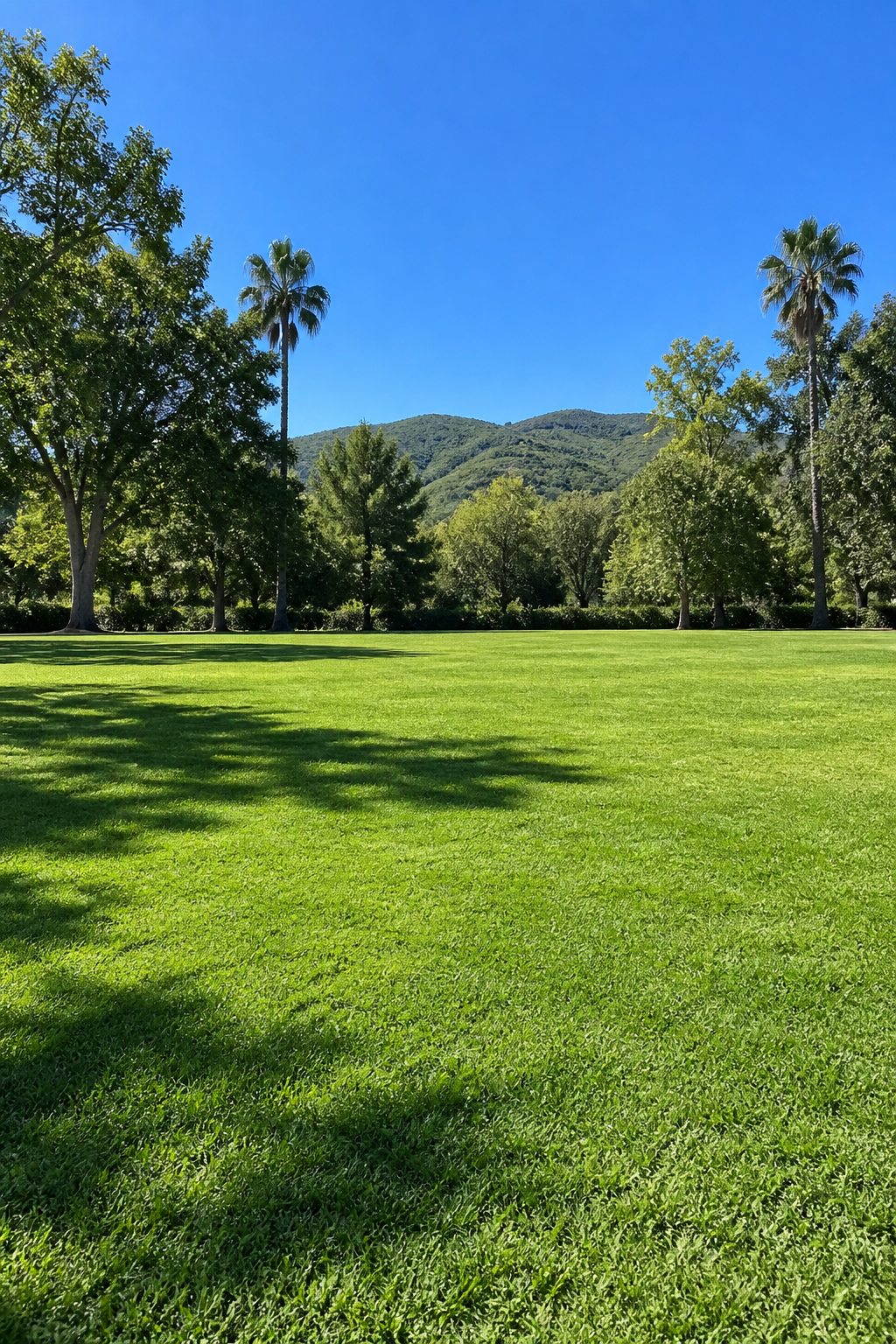
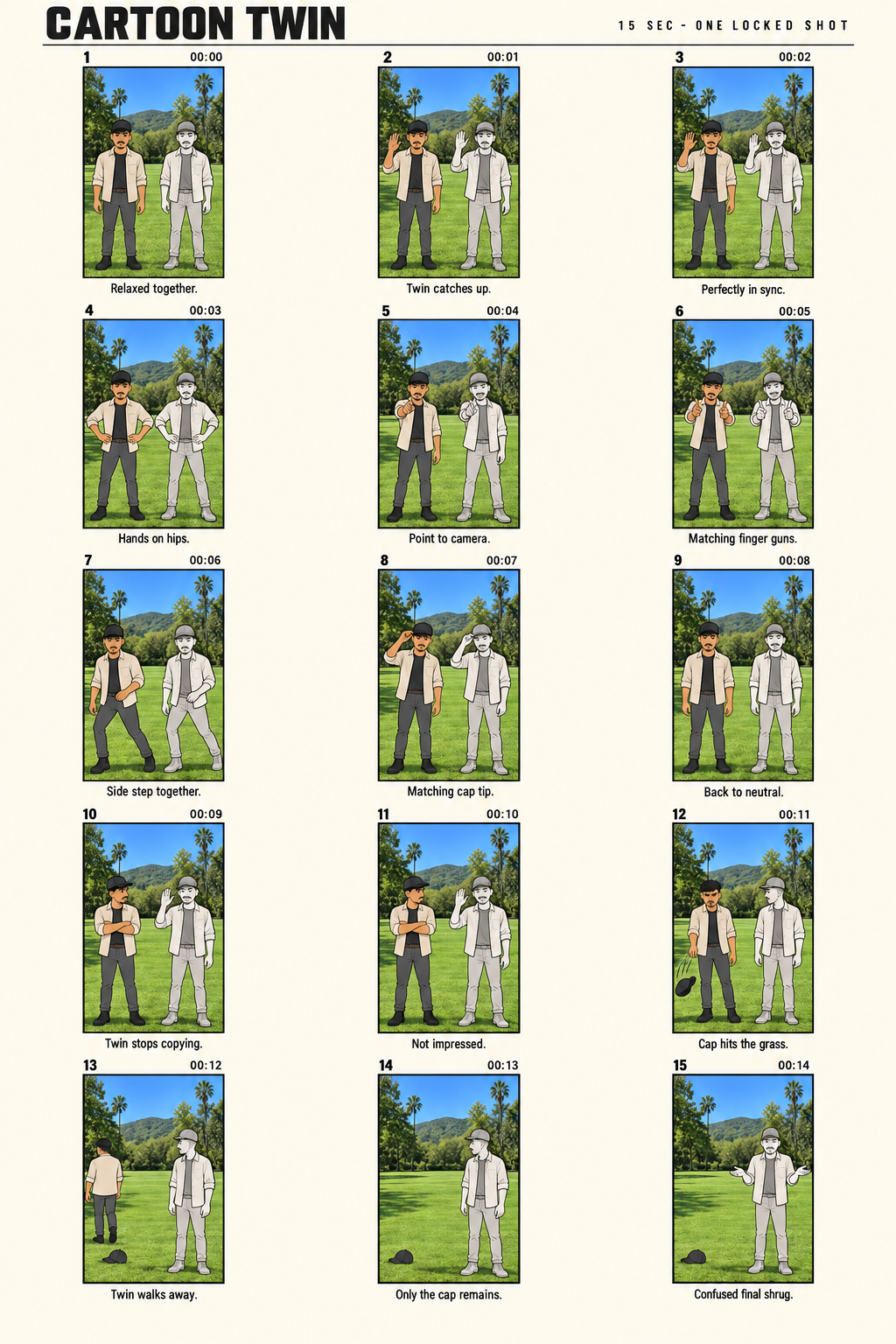
Build a 15-Second Storyboard
Next, attach the scene and your cartoon character sheet to GPT Image 2 and generate a storyboard.
A storyboard is optional, but it is one of the more useful ways to debug an AI video before generating it. You can see whether the scene has enough room, whether the sequence is readable, and whether the final action has enough time to land.
For this clip, I used the following prompt:
AI Clone Dancing Storyboard Prompt
Create a professional animation storyboard sheet for a 15-second vertical video. The page contains 15 small separate 9:16 panels arranged in a strict 5-row by 3-column grid.
Every panel uses the same locked-off static wide shot of the sunny park lawn from the first reference image.
The camera position and framing never change.
Two full-body figures stand side by side. On the RIGHT is the real man, represented as a loose monochrome grey line sketch placeholder.
On the LEFT is the flat 2D colour cartoon character from the second reference image, preserving his exact design.
Sequence:
00:00 — Both stand relaxed.
00:01 — Man begins waving; twin starts copying.
00:02 — Both wave.
00:03 — Both put hands on hips.
00:04 — Both point at camera.
00:05 — Both perform finger guns.
00:06 — Both make a small side step.
00:07 — Both tip their caps.
00:08 — Both return to neutral.
00:09 — Man continues posing; twin stops and folds its arms.
00:10 — Twin stares at the man, visibly fed up.
00:11 — Twin removes its cap angrily.
00:12 — Twin throws the cap onto the grass.
00:13 — Twin turns and walks out of frame.
00:14 — Man stands alone and shrugs at the camera. Keep all 15 frames visually consistent and clearly separated. No text inside the image frames.
Once you have a storyboard that you're satisfied with, translate it into a video prompt.
For ours, we used Claude.
Step 3: Generate the Cartoon Twin Video
Return to Kapwing AI and switch to Seedance 2.5. Paste the video prompt that you generated above, and attach your original photo and your finished cartoon twin character sheets.
The video prompt that we used is below:
AI Cartoon Twin Video Prompt
Shot: A single locked-off static wide shot, 9:16 vertical, 15 seconds. No camera movement.
Setting: Live-action footage of a sunny park lawn with bright green mown grass, a clear blue sky, tall trees and a few palms in the background, and low green hills in the distance. Hard afternoon sunlight creates crisp shadows on the grass.
Characters: Two figures stand side by side facing the camera, shown full-body from head to feet on the same patch of grass.
RIGHT — Real Person: The man from the first reference image. He remains completely photorealistic throughout the video, with realistic skin, hair, fabric, and lighting. He wears a plain black baseball cap, a cream linen overshirt worn open over a black crew-neck T-shirt, grey chino trousers with a brown belt, and black leather boots.
LEFT — Cartoon Twin: The character from the second reference image. He is a flat 2D hand-drawn cel-animation character with clean dark outlines and flat colour fills, preserving the same face, cap, and outfit. He is composited naturally into the live-action scene as if standing on the grass beside the real person, with one simple flat shadow beneath him.
The cartoon twin stays flat 2D for the entire clip. The real person stays photorealistic for the entire clip. The two visual styles never blend, swap, or transfer between characters. Nothing about the real person becomes drawn, outlined, animated, or cel-shaded.
Both characters maintain consistent proportions and scale throughout the video.
Timeline
0–9 seconds — Mirroring
The real person performs a simple, playful routine toward the camera. The cartoon twin copies each movement half a beat later, like a slightly delayed mirror.
- The real person waves with one hand; the twin waves.
- The real person puts both hands on his hips; the twin copies him.
- The real person points at the camera and grins; the twin points.
- The real person performs a small side step and finger guns; the twin repeats it.
- The real person tips his cap; the twin tips its cap.
9–11 seconds — The Twin Stops
The real person continues waving, but the cartoon twin suddenly stops copying.
The twin folds its arms, turns its head toward the real person, and stares at him with a flat, fed-up expression and one eyebrow raised.
11–13 seconds — The Twin Walks Away
The cartoon twin pulls off its cap and throws it onto the grass.
It turns its back on the real person and storms away toward the left until it exits the frame. The cartoon cap remains lying on the grass.
13–15 seconds — Reaction
The real person, still wearing his own cap, looks toward the empty space where the cartoon twin was standing.
He looks down at the discarded cartoon cap, turns back toward the camera, and shrugs with both palms up, confused.
Constraints
No text, captions, letters, numbers, logos, watermarks, or on-screen graphics.
Audio: Natural park ambience with a light breeze, distant birds, and soft footsteps on grass. No music. No speech.
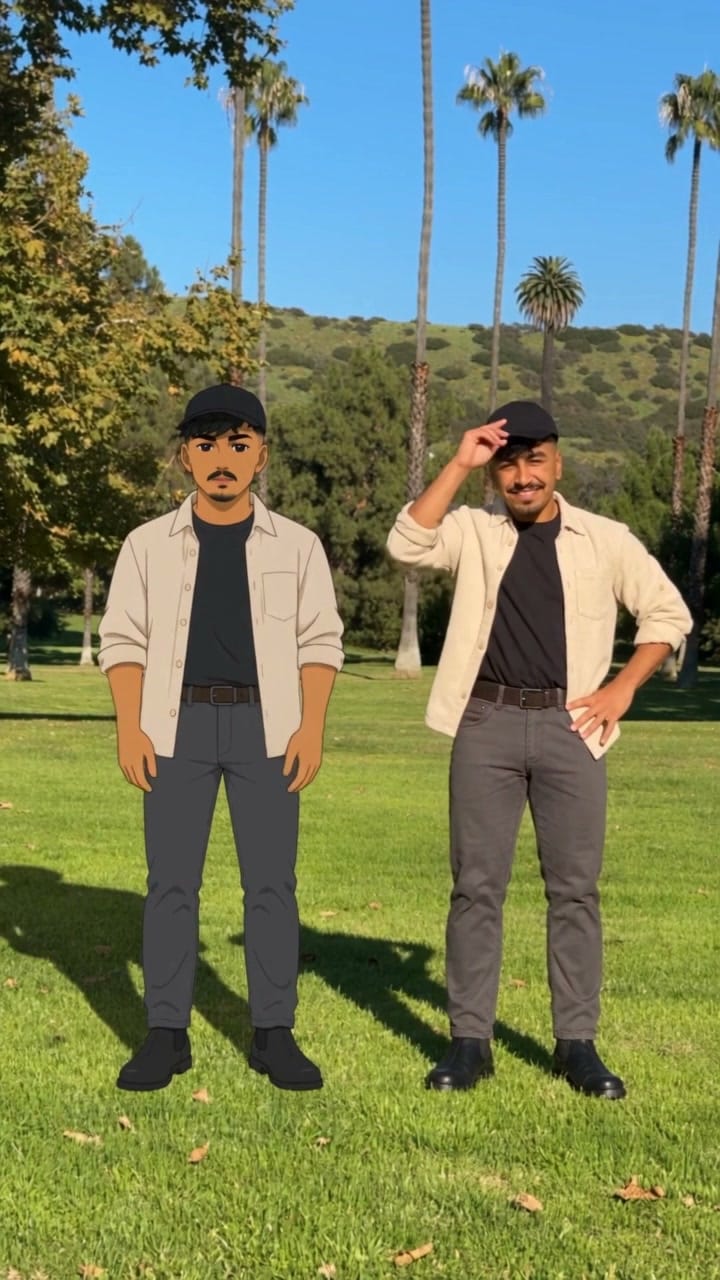
Treat the generated video as your main shot rather than the completely finished edit. Open it in the studio and clean up. You can:
- trim frames from the beginning or end
- add a reaction caption when the twin walks away
- add music or sound effects
- resize for Reels, TikTok, or Shorts

Best Practices for Cartoon Twin Videos
Keep the Cartoon Style Extremely Specific
“Cartoon” covers an enormous range of styles. If you want the visual contrast between the real person and the animated twin to read immediately, define the design using concrete attributes such as:
- flat colour fills
- uniform outlines
- limited shading
- simplified facial features
- no gradients
- no realistic rendering
- no 3D appearance
Build a Reusable Character Sheet First
Your first successful character sheet should become the persistent identity reference for that character. Future videos can change the environment, joke, pose, or story while continuing to attach the same sheet.
That turns the twin from a one-off effect into a reusable AI character.
Separate Identity References From Scene References
For the final video, attach images whose appearance matters. Describe temporary production decisions, such as the location or sequence of events, in the prompt.
This matters especially when mixing styles. Attaching an illustrated storyboard, for example, may unintentionally encourage the final video to adopt that illustrated treatment.
Explicitly Prevent Style Blending
Mixed-media shots are more difficult than generating either live action or animation alone. Repeat the distinction clearly:
- the person remains photoreal
- the twin remains flat 2D
- the two styles never swap
- the real person is never outlined or cel-shaded
This removes a common failure mode where the model gradually turns both subjects into the same visual style.
Use a Locked Camera for Character Interaction
A static wide shot is particularly effective for this type of video because both subjects stay visible and relatively stable in frame.
Once the base interaction works, you can experiment with more difficult setups such as tracking shots or moving cameras. But every added camera instruction introduces another variable the model has to solve alongside character consistency and choreography.
Give the Twin a Story, Not Just an Animation
The copying effect itself is technically interesting, but repetition without escalation becomes predictable quickly. The reason this example works as a short video is that the behavior changes:
copying → irritation → refusal → exit → reaction
That structure can be reused with completely different premises. Your twin could become jealous, bored, overly competitive, scared, distracted, or increasingly better at what you are doing.
Frequently Asked Questions
How do I make a cartoon version of myself with AI?
Start with a clear reference photo and use an image model such as GPT Image 2 to create a character sheet. Ask for multiple full-body angles on a plain background and explicitly tell the model to use your photo for identity rather than photographic style.
You can then reuse that image as a character reference in future image and video generations.
Why does my AI cartoon twin look photorealistic?
The model is probably carrying over the visual style of your reference photo as well as your identity.
Tell it that the photo is being used for face, hair, skin tone, and identity only, then specify the desired cartoon treatment separately. Include negative constraints such as not photorealistic, not 3D, and no realistic rendering.
Why do the person and cartoon become the same style?
This commonly happens when a video model tries to reconcile two radically different visual treatments.
Describe each subject independently and state that their styles remain separate for the entire clip. It also helps to use a dedicated cartoon character sheet rather than asking the video model to invent the cartoon design itself.
How do I keep an AI character consistent between videos?
Create a clean reference sheet and reuse the same image across generations.
Avoid repeatedly rebuilding the character from text because minor wording changes can alter facial features, proportions, clothing, or drawing style. Treat the reference sheet as the source of truth for the character's appearance.
Why does my AI video finish the action too early?
Narrative video models may compress a sequence when the timing is underspecified.
State the full duration near the beginning of the prompt, divide the sequence into explicit time ranges, and assign major actions to those ranges.
Instead of saying:
The twin copies him, gets annoyed and leaves.
write:
0–9 seconds: copying. 9–11 seconds: stops and folds arms. 11–13 seconds: throws cap and walks away. 13–15 seconds: reaction.
Do I need to record myself for the AI Twin Dancing Trend?
Not necessarily. In this workflow, Seedance 2.5 uses the attached photograph to generate the photoreal person as well as the cartoon reference to generate the twin.
If you need highly specific real-world movement, dialogue, or performance, using actual footage as part of a more traditional compositing workflow may give you greater control.
Can I make the cartoon twin look like a different animation style?
The workflow is not tied to this flat cel-animation look. You can create the initial character sheet in another consistent style, such as comic art, retro television animation, cut-paper collage, pixel art, or a simplified children's cartoon aesthetic.
The key is keeping that visual treatment consistent across the character sheet and explicitly preserving it in the video prompt.