How to Make AI Cartoon Animation of Yourself With Seedance 2.5
Turn yourself into a 3D animated character, then make it star in original stories or recreate your real-life movements and voice.

AI cartoon animations have become a popular format on Instagram, particularly short animated stories that look like scenes from a feature film. Some are convincing enough that viewers ask which movie they're from, even though the characters, dialogue, and animation were generated with AI.
You can now make these videos starring a cartoon version of yourself. There are two ways to approach it: generate an original animated story from a photo, or record yourself on camera and transfer your movements, expressions, and speech to a cartoon character. Both workflows use Kai and Seedance 2.5, but the preparation is different.
Table of Contents
- How to Make AI Cartoon Animation of Yourself
- Method 1: Turn a Photo of Yourself into an Animated Film
- Method 2: Turn a Video of Yourself Into a Cartoon Animation
- How Much Does AI Cartoon Animation Cost?
- Frequently Asked Questions
How to Make AI Cartoon Animation of Yourself
There are two methods, depending on how much control you want over the final animation.
Both methods use GPT Image 2 for reference images and Seedance 2.5 for video generation. You'll also need a clear photo of yourself and, depending on the workflow, either a short voice recording or a video under 15 seconds.
| Method | How it works | Best for |
|---|---|---|
|
01
Photo to animated film
|
Create a cartoon character sheet, build a 15-panel storyboard, and animate it with Seedance 2.5 | Original stories, animated skits, microdramas |
|
02
Video to cartoon
|
Record yourself, convert the footage into a motion reference, and replace yourself with your cartoon character | Talking-head videos, realistic gestures, personal content |
Method 1: Turn a Photo of Yourself into an Animated Film
This method lets you create an original animated story starring a cartoon version of yourself, without filming any footage.
You'll start with a single photo, turn it into a consistent AI character, and use a storyboard to guide the action, dialogue, and camera movements.
Step 1: Create a Cartoon Character Sheet
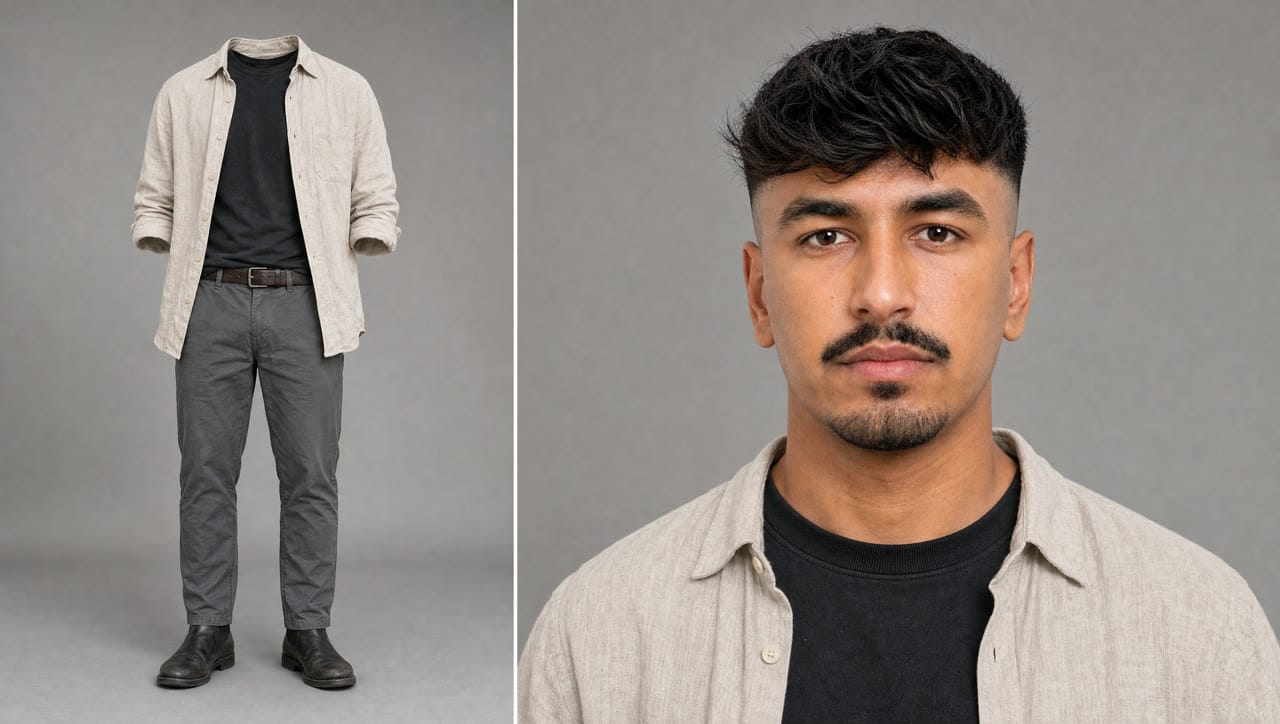
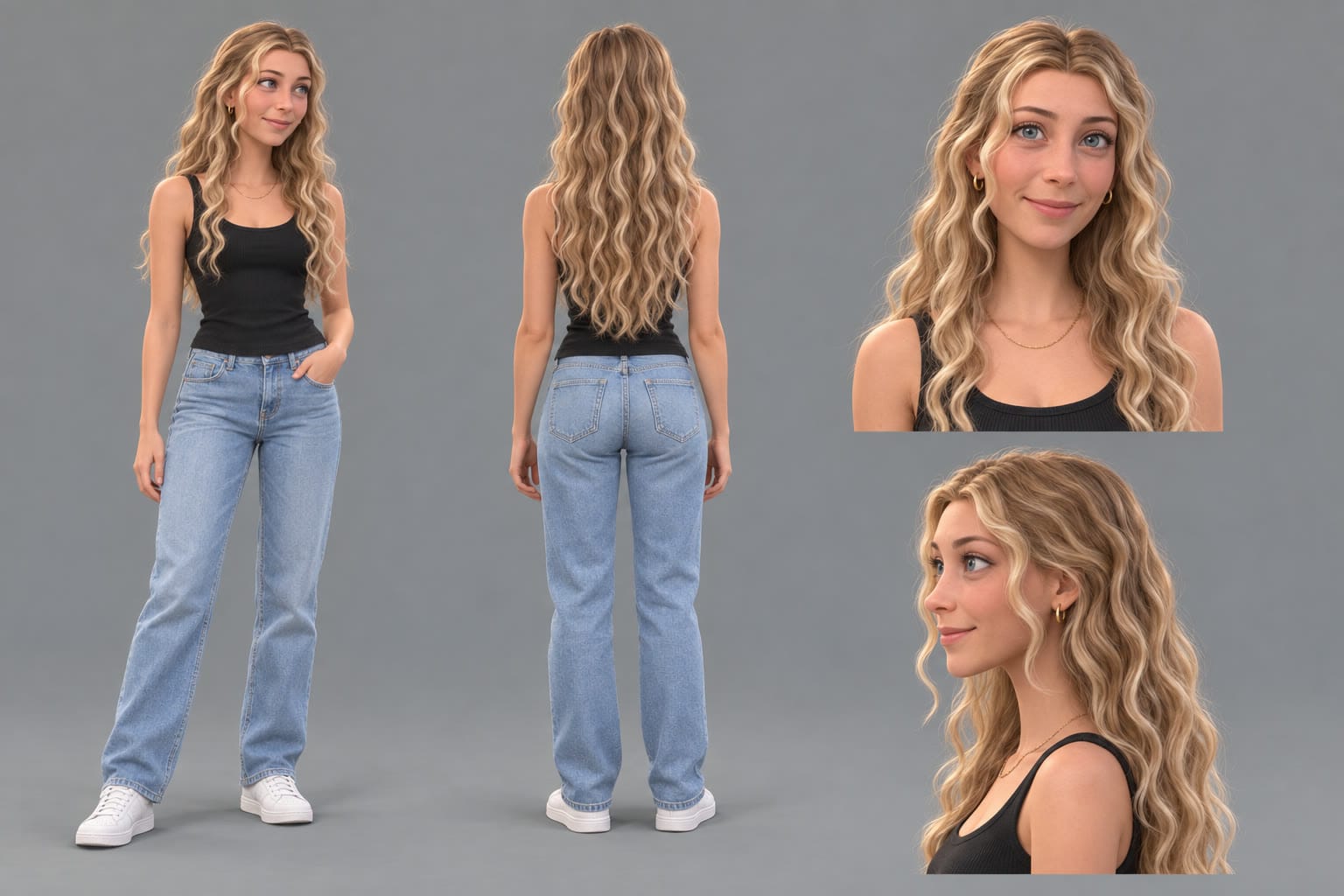
Start by opening an AI Character Sheet Generator. Upload a clear reference photo of yourself, open the settings menu, and select GPT Image 2 under Images.
You want a reusable reference sheet containing four views of the same character: a full-body front view, a rear view, a facial close-up, and a side profile. This gives the video model information about how your character should look even when they turn away from the camera.
Character Sheet Prompt
Create a stylised 3D animated-feature cartoon version of the person in the attached photo. Use the photo for facial likeness, hairstyle and skin tone ONLY, not its photographic style.
Character: [describe hair, eyebrows, eyes, facial hair, skin tone, build and outfit].
Show four consistent views on a neutral grey background:
1. Full-body front three-quarter view, head to feet.
2. Full-body rear view.
3. Front head-and-shoulders close-up.
4. 90-degree left profile close-up.
Modern feature-animation 3D cartoon, gently enlarged head, expressive eyes, simplified nose and jaw, real human anatomy and separate fingers. Smooth matte skin without photographic pores, sculpted hair strands, woven clothing with natural folds, soft studio lighting and gentle shadows.
Maintain identical identity, proportions, outfit and accessories across all views. No text, watermark, extra people, plastic surfaces or photorealism.
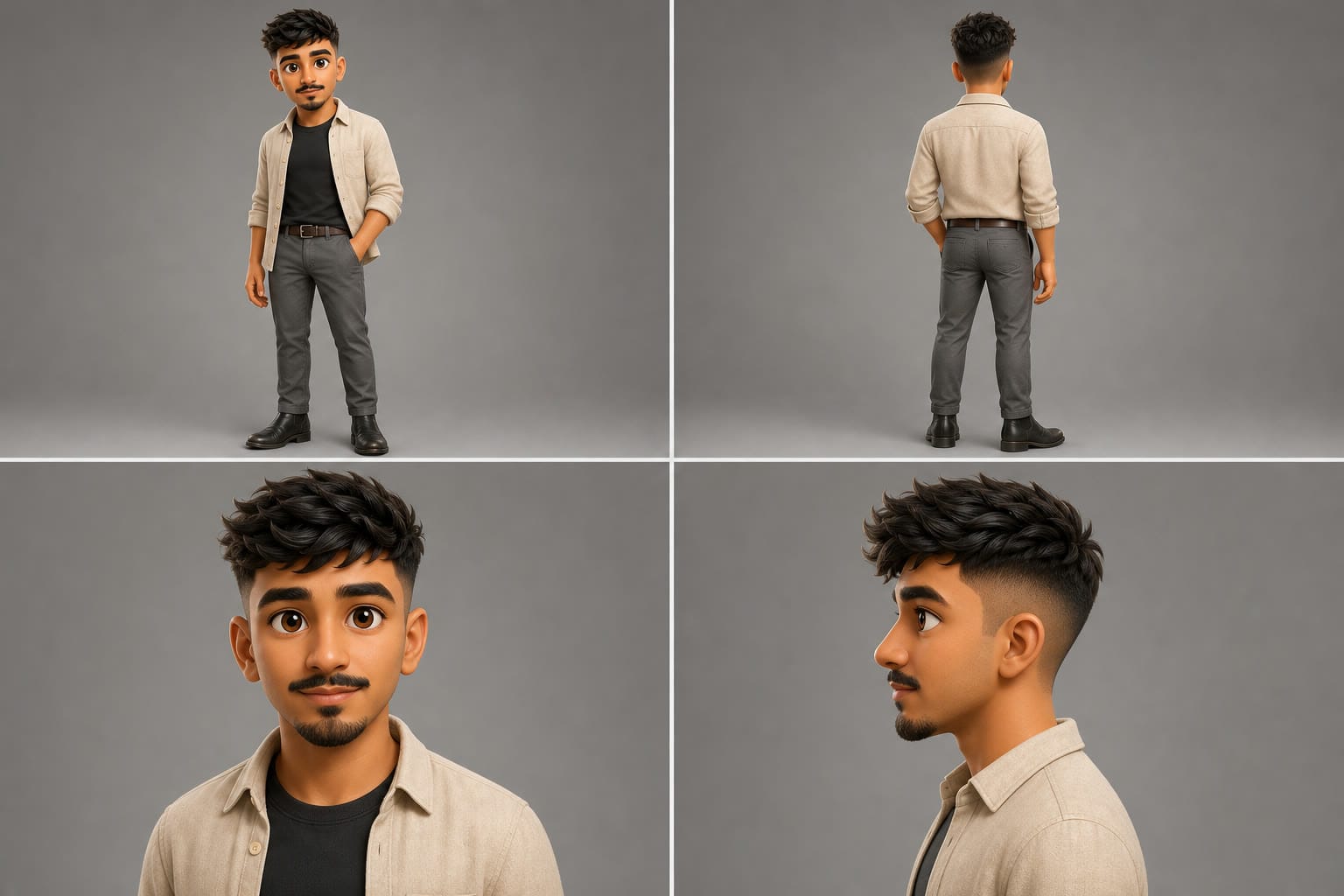
Review the result before continuing. Pay particular attention to facial likeness, the character's outfit, and whether the four views actually depict the same person. If anything looks inconsistent, request a revision in the same chat.
Once you're happy with it, download the character sheet. You can also reuse the image from your Kapwing media library in later generations.
Step 2: Build a 15-Panel Storyboard
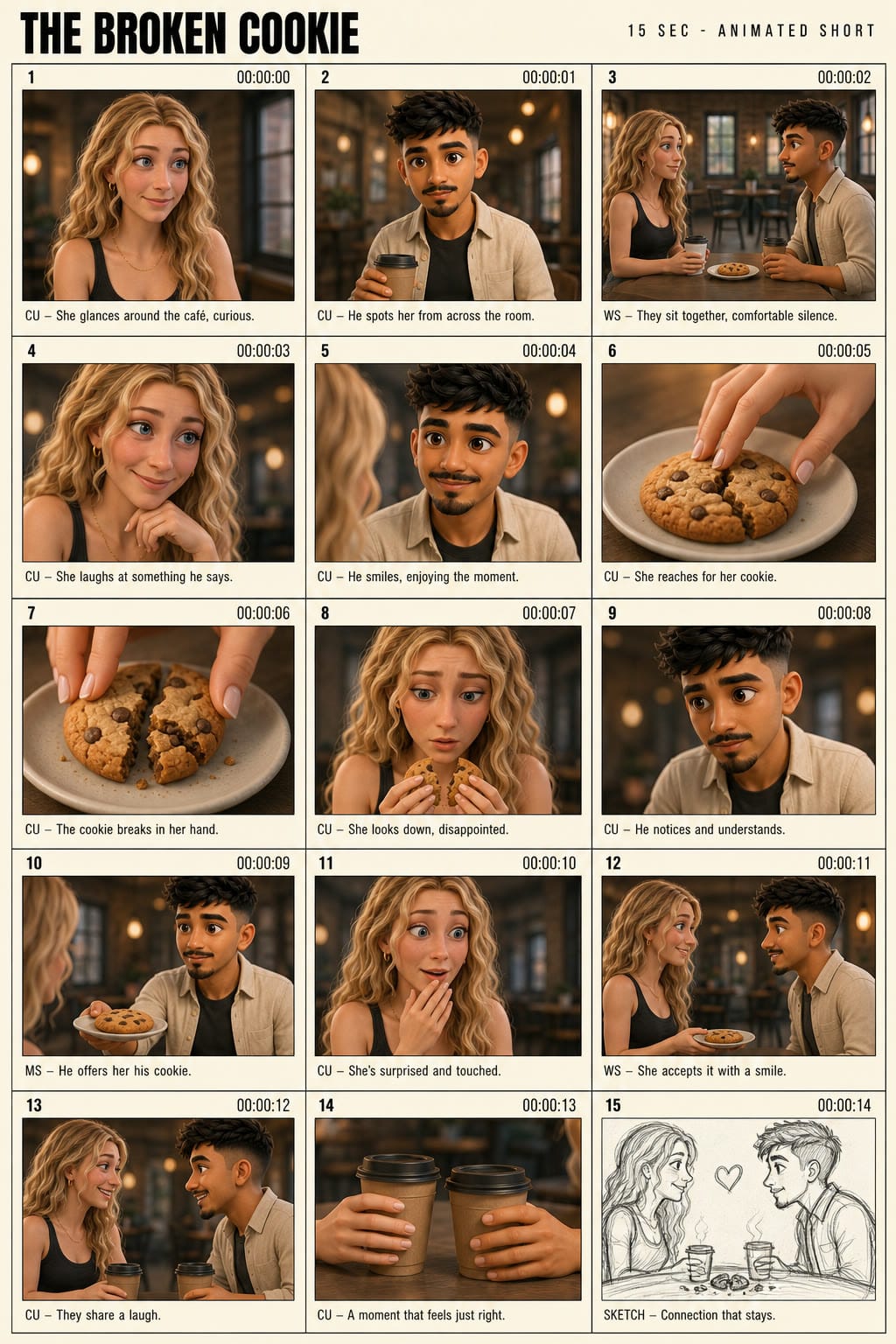
Next, plan what your cartoon will do. Instead of generating the entire animation from a single sentence, you'll create a storyboard containing 15 frames, each representing approximately one second of the finished video.
Start a new chat in Kai, attach your character sheet, set Images to GPT Image 2 and paste the prompt below. Fill in the 15 lines with your story, one plain sentence for each second.
AI Storyboard Prompt
A single flat image of a printed animation production storyboard sheet. This is a document, not a movie frame. The entire image is one tall portrait presentation page divided into 15 small separate rectangular panels arranged in a strict 5x3 grid: 5 rows down, 3 panels across each row. Every panel is a tall portrait 9:16 frame, all panels the same size, separated by clean gutters, each with a thin border.
Row 1 contains panels 1, 2 and 3 from left to right. Row 2 contains panels 4, 5 and 6. Row 3 contains panels 7, 8 and 9. Row 4 contains panels 10, 11 and 12. Row 5 contains panels 13, 14 and 15.
Title bar across the very top of the sheet reads [YOUR FILM TITLE] in large bold letters on the left, and on the right in smaller widely spaced capitals, 15 SEC - ANIMATED SHORT. Background of the sheet is warm cream board. Directly ABOVE each frame, on the board itself and outside the image area, sits the panel number on the left and the timecode on the right. Directly BELOW each frame, also outside the image area, sits one line of small condensed sans serif production type giving the shot type followed by a short scene note. Absolutely no text, numbers, labels or markings of any kind appear inside the panel images. Every panel image is completely clean edge to edge.
THE 15 PANELS:
Panel 1 [00:00] [SHOT TYPE]. [What happens in this one second, in one plain sentence.]
Panel 2 [00:01] [SHOT TYPE]. [What happens in this one second, in one plain sentence.]
Panel 3 [00:02] [SHOT TYPE]. [What happens in this one second, in one plain sentence.]
Panel 4 [00:03] [SHOT TYPE]. [What happens in this one second, in one plain sentence.]
Panel 5 [00:04] [SHOT TYPE]. [What happens in this one second, in one plain sentence.]
Panel 6 [00:05] [SHOT TYPE]. [What happens in this one second, in one plain sentence.]
Panel 7 [00:06] [SHOT TYPE]. [What happens in this one second, in one plain sentence.]
Panel 8 [00:07] [SHOT TYPE]. [What happens in this one second, in one plain sentence.]
Panel 9 [00:08] [SHOT TYPE]. [What happens in this one second, in one plain sentence.]
Panel 10 [00:09] [SHOT TYPE]. [What happens in this one second, in one plain sentence.]
Panel 11 [00:10] [SHOT TYPE]. [What happens in this one second, in one plain sentence.]
Panel 12 [00:11] [SHOT TYPE]. [What happens in this one second, in one plain sentence.]
Panel 13 [00:12] [SHOT TYPE]. [What happens in this one second, in one plain sentence.]
Panel 14 [00:13] [SHOT TYPE]. [What happens in this one second, in one plain sentence.]
Panel 15 [00:14] [SHOT TYPE]. [What happens in this one second, in one plain sentence.]
[YOUR CHARACTER'S NAME OR ROLE], identical in every panel they appear in: the character on the first reference image.
[SECOND CHARACTER, if you have one, delete this line if not], identical in every panel they appear in: the character on the second reference image.
INSIDE EACH PANEL (panels 1 to 14): modern feature-animation 3D characters made of real cloth and real skin, soft matte surfacing, woven fabric with visible weave and natural folds, hair sculpted as many distinct strands with a gentle sheen, warm soft skin with light scattering beneath it, large warm eyes with detailed irises and soft catchlights, gently caricatured proportions with a slightly larger head, real human anatomy with proper separate fingers. Soft global illumination, gentle diffuse shadows, cinematic shallow depth of field. [The place, in one sentence: the room, the light and the colours.] Not plastic, not a toy, not moulded, no glossy plastic sheen on skin. [If your last panel is a different look, say so here. Delete this sentence if not.]
Render the complete storyboard sheet: 15 small portrait panels in a strict 5x3 grid on one tall page, 9:16 aspect ratio, professional pre-production document, ultra sharp, high detail. Do not render a single large frame. Do not merge the panels. 15 separate small images on one sheet.
Use exactly these 15 panel descriptions in this order and do not invent a different story: [your story in one sentence]. [The characters] have no names, and no names appear anywhere on the sheet.
Step 3: Animate Your Storyboard With Seedance 2.5
With the storyboard approved, you're ready to animate it into a video. Open a new Kai chat and attach three files in this order: your storyboard, your character sheet, and a short recording of your voice.
The voice reference is particularly useful if you want the cartoon to speak. In the source testing, providing voice audio improved the creator's subjective lip-sync score from approximately 3/5 to 4–4.5/5.
Open the settings menu, choose Seedance 2.5 under Video Clips, and enter your animation instructions. Describe how the action progresses through the storyboard, when each line of dialogue should be spoken, and what happens in the final shot.
AI Animation Prompt
A single flat image of a printed animation production storyboard sheet. This is a document, not a movie frame. The entire image is one tall portrait presentation page divided into 15 small separate rectangular panels arranged in a strict 5x3 grid: 5 rows down, 3 panels across each row. Every panel is a tall portrait 9:16 frame, all panels the same size, separated by clean gutters, each with a thin border.
Row 1 contains panels 1, 2 and 3 from left to right. Row 2 contains panels 4, 5 and 6. Row 3 contains panels 7, 8 and 9. Row 4 contains panels 10, 11 and 12. Row 5 contains panels 13, 14 and 15.
Title bar across the very top of the sheet reads [YOUR FILM TITLE] in large bold letters on the left, and on the right in smaller widely spaced capitals, 15 SEC - ANIMATED SHORT. Background of the sheet is warm cream board. Directly ABOVE each frame, on the board itself and outside the image area, sits the panel number on the left and the timecode on the right. Directly BELOW each frame, also outside the image area, sits one line of small condensed sans serif production type giving the shot type followed by a short scene note. Absolutely no text, numbers, labels or markings of any kind appear inside the panel images. Every panel image is completely clean edge to edge.
THE 15 PANELS:
Panel 1 [00:00] [SHOT TYPE]. [What happens in this one second, in one plain sentence.]
Panel 2 [00:01] [SHOT TYPE]. [What happens in this one second, in one plain sentence.]
Panel 3 [00:02] [SHOT TYPE]. [What happens in this one second, in one plain sentence.]
Panel 4 [00:03] [SHOT TYPE]. [What happens in this one second, in one plain sentence.]
Panel 5 [00:04] [SHOT TYPE]. [What happens in this one second, in one plain sentence.]
Panel 6 [00:05] [SHOT TYPE]. [What happens in this one second, in one plain sentence.]
Panel 7 [00:06] [SHOT TYPE]. [What happens in this one second, in one plain sentence.]
Panel 8 [00:07] [SHOT TYPE]. [What happens in this one second, in one plain sentence.]
Panel 9 [00:08] [SHOT TYPE]. [What happens in this one second, in one plain sentence.]
Panel 10 [00:09] [SHOT TYPE]. [What happens in this one second, in one plain sentence.]
Panel 11 [00:10] [SHOT TYPE]. [What happens in this one second, in one plain sentence.]
Panel 12 [00:11] [SHOT TYPE]. [What happens in this one second, in one plain sentence.]
Panel 13 [00:12] [SHOT TYPE]. [What happens in this one second, in one plain sentence.]
Panel 14 [00:13] [SHOT TYPE]. [What happens in this one second, in one plain sentence.]
Panel 15 [00:14] [SHOT TYPE]. [What happens in this one second, in one plain sentence.]
[YOUR CHARACTER'S NAME OR ROLE], identical in every panel they appear in: the character on the first reference image.
[SECOND CHARACTER, if you have one, delete this line if not], identical in every panel they appear in: the character on the second reference image.
INSIDE EACH PANEL (panels 1 to 14): modern feature-animation 3D characters made of real cloth and real skin, soft matte surfacing, woven fabric with visible weave and natural folds, hair sculpted as many distinct strands with a gentle sheen, warm soft skin with light scattering beneath it, large warm eyes with detailed irises and soft catchlights, gently caricatured proportions with a slightly larger head, real human anatomy with proper separate fingers. Soft global illumination, gentle diffuse shadows, cinematic shallow depth of field. [The place, in one sentence: the room, the light and the colours.] Not plastic, not a toy, not moulded, no glossy plastic sheen on skin. [If your last panel is a different look, say so here. Delete this sentence if not.]
Render the complete storyboard sheet: 15 small portrait panels in a strict 5x3 grid on one tall page, 9:16 aspect ratio, professional pre-production document, ultra sharp, high detail. Do not render a single large frame. Do not merge the panels. 15 separate small images on one sheet.
Use exactly these 15 panel descriptions in this order and do not invent a different story: [your story in one sentence]. [The characters] have no names, and no names appear anywhere on the sheet.
Kapwing AI will present a generation plan and credit estimate before you confirm. The tested 15-second animation took approximately 6.5 minutes to generate, although processing times vary.
One small but important finding from testing: describe the final shot in words rather than telling the model to reproduce the last storyboard panel exactly. When the team used the latter instruction, Seedance rendered the storyboard panel itself on screen instead of treating it as an animation reference.
Once the video is generated, download it or select Edit to make adjustments in the studio editor.
Method 2: Turn a Video of Yourself Into a Cartoon Animation
The second method is better when you want the cartoon to reproduce a real performance. Instead of planning each shot, you'll film yourself and use that recording to guide the character's gestures, facial expressions, timing, and speech.
This is the method used for the talking-head cartoon in the source video. It requires more preparation, but gives you more control over the performance.
Step 1: Record Yourself on Camera
Record a short video of yourself speaking or performing an action, ideally around 10–12 seconds. Keep the camera stationary and make sure your face and hands are visible if you want the cartoon to reproduce those movements.
The original audio matters as much as the picture. Record somewhere quiet, avoid background music, and leave enough space between sentences for the model to distinguish each line.
Step 2: Convert Your Footage into a Motion Reference
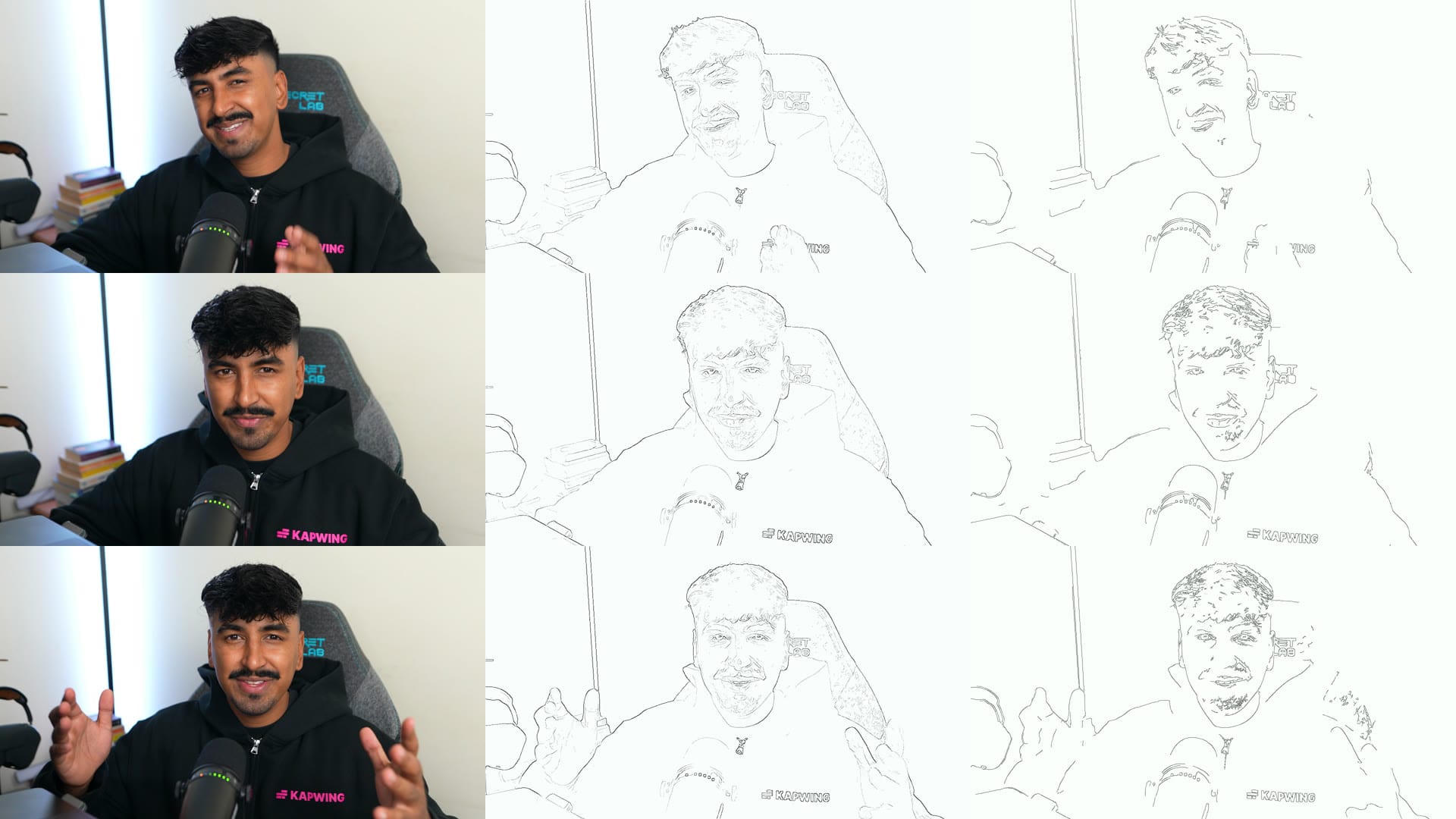
Rather than uploading the original footage directly, the tested workflow converts it into a line-drawing animation. This works best for motion transfer videos.
The drawing preserves your body movements, facial expressions, and mouth shapes while removing the photographic appearance.
The Motion Clip Kit converts the original recording into a line drawing, preserving the movements and facial expressions needed for AI cartoon animation.
We created a free Motion Clip Kit to automate this conversion on Mac.
Download and unzip the kit, then double-click Make Motion Clip.
Select your video and enter the second where the clip should begin, using 0 to start at the beginning.
The kit produces two versions: a silent line-drawing reference and another with your original voice included. Use the version containing your voice for the next step. The kit prepares the clip to fit its limits of under 15 seconds and 10 MB.
If FFmpeg isn't installed, you can install it on Mac using Homebrew:
brew install ffmpegThe first time you run the kit, macOS may require you to right-click the application and select Open.
Step 3: Replace Yourself with Your Cartoon Character
You'll now combine three references: your motion clip, your character sheet, and a cartoon version of the room where you recorded the video.
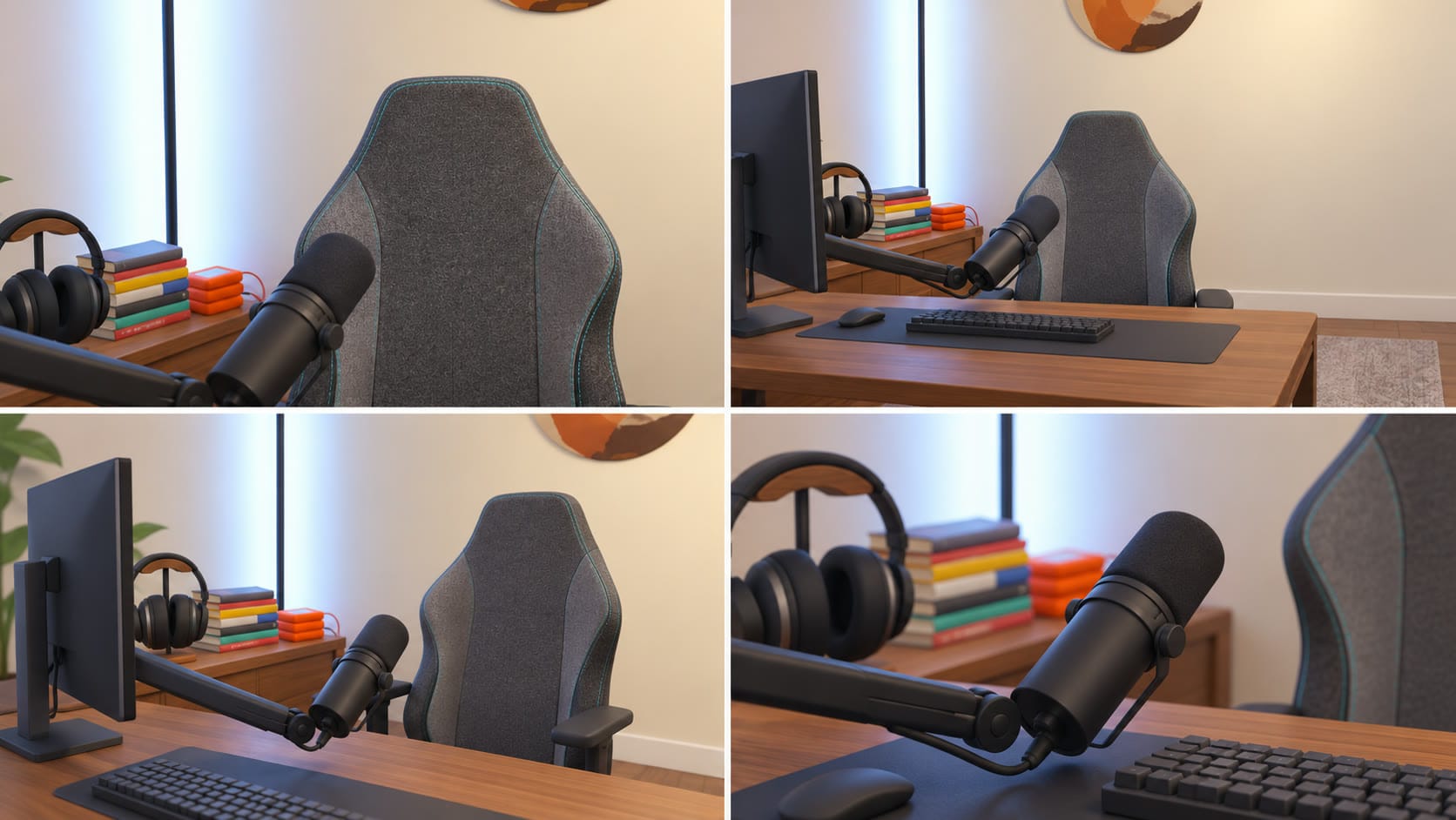
First, create the room reference. Take two or three photos of your recording space and upload them alongside your character sheet in a new Kai chat. Set Images to GPT Image 2 and ask for a four-view reference sheet of the empty room in the same 3D cartoon style.
The room sheet should preserve important details such as furniture, lighting, wall decorations, and the position of objects relative to the camera. This helps Seedance recreate the original environment instead of inventing a new background.
AI Room Reference Prompt
A stylised 3D animated-feature location reference sheet of the room in the attached room photos, redrawn in exactly the same modern feature-animation 3D style as the attached character sheet. The room photos are a reference for the room's layout, furniture, props, colours and lighting ONLY; ignore their photographic look and ignore any person in them completely. The character sheet is a style reference only; do not draw the character. The room is empty: no people, no figures, no hands anywhere.
The set: [describe your room in two or three sentences: for example a home studio with a desk in the foreground, a black podcast microphone on a boom arm angled towards the chair, a keyboard and the edge of a monitor on the left of the desk, over-ear headphones resting on the desk, and a chair behind the desk facing camera]. The wall, shelves, lights and every background detail exactly as in the room photos, in the same positions, same colours, same warm practical lighting.
Location reference sheet, four views of the same empty room, landscape layout, a 2x2 grid of equal 16:9 panels separated by thin white gutters on a neutral grey board:
[VIEW 1 - CAMERA ANGLE] The exact framing and eye level of the photo you filmed from, straight on to the empty chair, [the main prop in the lower foreground], the background wall behind the chair. This is the shot the video sees.
[VIEW 2 - WIDE] A wider establishing view from the same side, the whole desk, the chair and the full back wall visible.
[VIEW 3 - THREE-QUARTER LEFT] The same desk and chair from 45 degrees to the left, showing the depth between desk, chair and wall.
[VIEW 4 - DETAIL] A close detail of the desk surface: [the main props on it].
STYLE: modern feature-animation 3D, unmistakably animated and not a photograph, exactly matching the attached character sheet: soft matte surfacing, simplified clean shapes, materials with gentle texture, soft global illumination, gentle diffuse shadows, warm practical light. Consistent room, layout, colours and props across all four views. Not photorealistic, not plastic, not a toy. No people, no text, no labels, no watermarks.
Next create a cartoon character sheet of yourself.
You can use the same prompt as above.
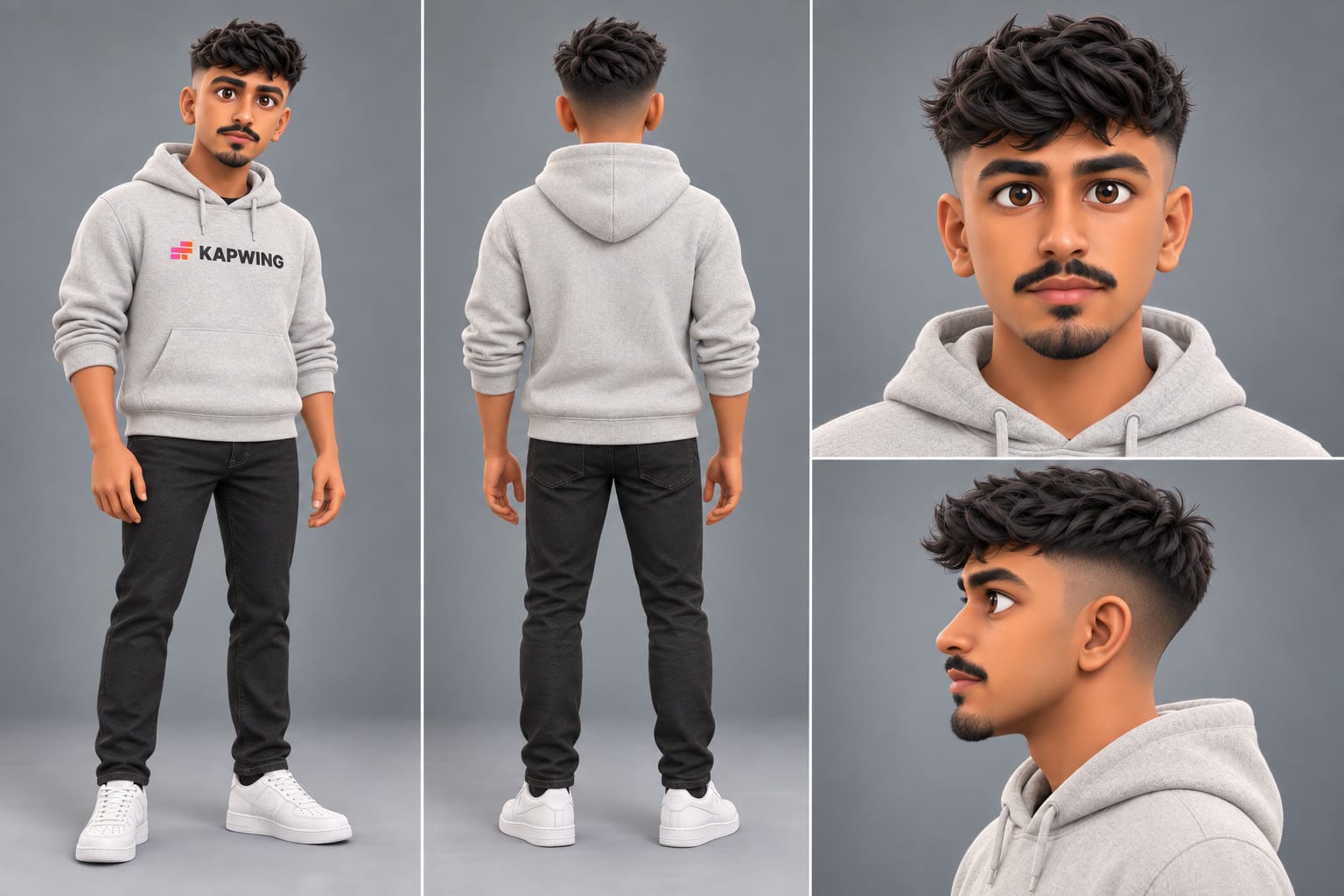
Once your room sheet is ready, start another Kai chat. Attach the motion clip with voice first, the character sheet second, and the room sheet third. Wait for each upload to finish before adding the next.
Select Seedance 2.5 under Video Clips and enter the swap prompt. The references should be mapped as follows:
| Reference | Purpose |
|---|---|
#video_1
|
Original movement, expressions, speech timing, framing |
#image_1
|
Cartoon character's identity, outfit, appearance |
#image_2
|
Cartoon room, furniture, lighting, background |
Cartoon Motion-Transfer Prompt
Use the input video #video_1 only as the reference for motion, head movement, facial expression, mouth movement, timing and camera framing. It is a line drawing; the output is NOT line art and NOT photoreal.
Replace the person in #video_1 with the stylised 3D animated cartoon character in #image_1 , exactly as in their character sheet: same face, same hair, same clothes. The setting is the room in #image_2 , exactly as in that location sheet: [list the things on your room sheet, for example the desk, the microphone on its boom arm, the headphones, the shelf, the lamp, the wall art], in the same positions, in the same stylised 3D cartoon look.
Style, held in every frame: modern feature-animation 3D cartoon, gently caricatured proportions with a slightly larger head and large expressive eyes, smooth simplified skin with no pores, hair as clean sculpted strands, soft matte surfaces, soft global illumination. The whole frame, the person and the room, is rendered as this cartoon, never as a photograph.
They are talking to camera. Word-level lip synchronisation: their lips form exactly these words at exactly these times, matching the mouth movement in #video_1 .
Dialogue ([0.0s] to [3.4s]): "[WHAT YOU SAY IN THAT STRETCH]"
Dialogue ([3.9s] to [6.4s]): "[WHAT YOU SAY NEXT]"
[One Dialogue line for each stretch of speech in your clip, with the seconds it starts and ends.]
The audio track of #video_1 is their voice saying the lines. Their lips move in perfect sync with the audio of #video_1 , word for word, from the first frame.
Use #video_1 , #image_1 and #image_2 as references only (Seedance 2.5 reference-to-video, one generation): none of the images is the first frame. The first frame matches the first frame of #video_1 : [who and where, for example the person seated at their desk behind the microphone].
They perform every head movement, expression and mouth movement of the person in #video_1 , frame for frame and perfectly in time. Same framing, locked-off camera. 16:9 landscape, the same length as #video_1 . One single generation, no separate scenes, no subtitles, no music. Bare wrists, no earphones, no jewellery[, plus anything the sketch shows that must not appear, for example no necklace and no pendant].
Before confirming the generation, check that Kai has planned one continuous video, rather than several separate clips. This is important because the motion reference should guide the entire performance.
Once generated, open the result in the Kapwing editor and replace the generated audio with your original recording if needed. You can also trim the result, add captions, and adjust the pacing before exporting.
The finished cartoon follows the original performance, recreating the speaker's facial expressions, hand gestures, and timing in a 3D animated style.
How Much Does AI Cartoon Animation Cost?
Kapwing AI displays an estimated credit cost before each generation. For the four Seedance 2.5 video generations documented in this workflow, the estimates ranged from 278 to 411 credits.
| Generation | Duration | Kapwing credits |
|---|---|---|
| Storyboard to animated film | 15 seconds | 348 |
| Video-to-cartoon swap | 10 seconds | 278 |
| Video-to-cartoon swap | 12 seconds | 335 |
| Video-to-cartoon swap | 15 seconds | 411 |
These estimates were recorded between September 26 and October 30, 2026, and may change. They exclude the additional GPT Image 2 generations used for character sheets, storyboards, and room sheets.
The model developer also publishes its own API pricing, but those rates are not directly equivalent to Kapwing credits. You can find the underlying model pricing in BytePlus's documentation.
Frequently Asked Questions
Can I turn a photo of myself into a cartoon animation?
Yes. You can upload a photo to Kapwing's AI Character Sheet Generator, create a consistent cartoon character, and animate that character with Seedance 2.5. You can generate an original story without filming yourself.
How do I make an AI cartoon video that looks like me?
Start with a clear portrait and generate a multi-angle character sheet. Reuse that same reference in every subsequent image and video generation to help preserve your facial features, hairstyle, and clothing.
Can AI turn a real video into a cartoon?
Yes. The workflow demonstrated here converts the original video into a line-drawing motion reference, then uses Seedance 2.5 to recreate the performance with a cartoon character and environment.
Can an AI cartoon speak in my own voice?
Yes. Seedance 2.5 can use a voice reference when generating dialogue. For the motion-transfer workflow, you can also restore your original audio in the Kapwing editor to preserve your actual voice.
How long can an AI cartoon animation be?
The storyboard method in this tutorial creates a 15-second animation. The included Motion Clip Kit prepares video references under 15 seconds. Longer projects can be assembled from multiple clips in the editor.
What is the best AI model for cartoon animation?
Seedance 2.5 is the model used in this tutorial because it supports reference-driven video generation, character animation, and dialogue. The best model depends on whether you're generating an original scene or recreating an existing performance.
How do I keep an AI cartoon character consistent between scenes?
Create a reference sheet showing multiple angles of the same character, then attach it to each generation. Keep clothing and facial details consistent and avoid introducing conflicting descriptions in later prompts.
Can I make AI cartoon animations for free?
You can download the Motion Clip Kit and prompt pack for free. Generating the reference images and animations in Kapwing AI requires credits, with costs shown before you confirm each generation.