How to Make the Viral AI Food Drip Effect Video
Make two Instagram posts interact with one AI-powered illusion.
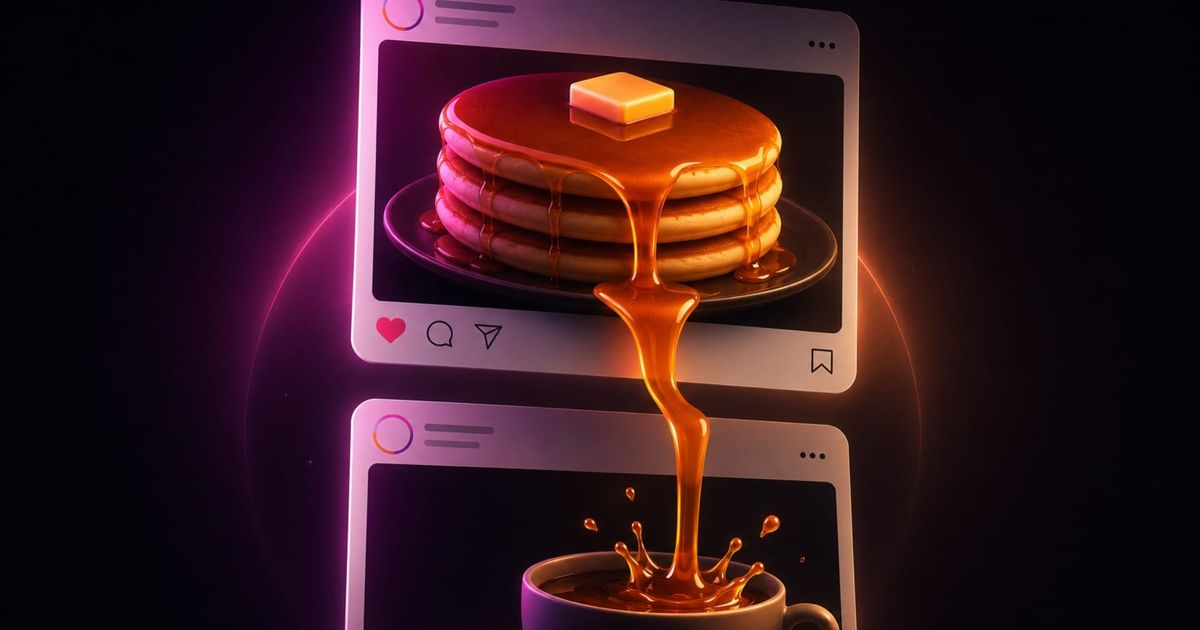
A new wave of Instagram AI trends treats the Reels interface as part of the creative canvas. The AI food drip effect is the latest example, making two separate posts appear to interact. The top post, usually featuring food, spills, drips, or stretches beyond its frame and into the post below.
Recreating the effect is less about complicated video editing than about choosing compatible source images, building a convincing visual relationship between them, and writing motion prompts that clearly distinguish what should move from what should remain fixed.
In this guide, I'll show you how to choose compatible images, build the feed from a template, and prompt the animation without distorting the interface.
Table of Contents
- What Is the AI Food Drip Trend?
- How to Make the AI Food Drip Effect
- 8 Ways to Use the Cross-Post Effect Beyond Food
- Frequently Asked Questions
What Is the AI Food Drip Trend?
The AI food drip trend is a cross-frame animation effect: two separate images are placed inside a static social media interface, usually Instagram. Then, image-to-video is used to create a physical interaction between them.
The popularized version of this trend usually features an image of food in the top post, with something like syrup, cheese, or sauce appearing to drip, stretch, or spill onto the image below. That simple visual setup creates the illusion that the two posts are connected, even though they remain separate images within the feed.
How to Make the AI Food Drip Effect
While a lot of existing workflows generate the entire image with one prompt, this workflow starts with two still images. You'll first choose a pair of images designed around the interaction you want to create, place them into a static Instagram feed, and then use that finished composition as the input for an image-to-video model.
While this may take more steps, it gives you much more control over the final result. By establishing the post layout before animating the image, the model doesn't have to generate the Instagram interface, position two independent references, and create the interaction simultaneously.
Step 1: Choose Two Images That Can Interact
Choose the interaction you want to create first, then find or generate images that make that interaction believable. For example, if you want a character in the bottom image to look up in joy, choose a top image of something that causes joy; a burst of candy, rather than a spilled, sticky sauce.
For the top image, materials with recognizable physical behavior works best:
- Maple syrup or honey that can drip
- Melted cheese that can stretch
- Chocolate or frosting that can melt
- Sauce that can pour
- Ice cream that can melt
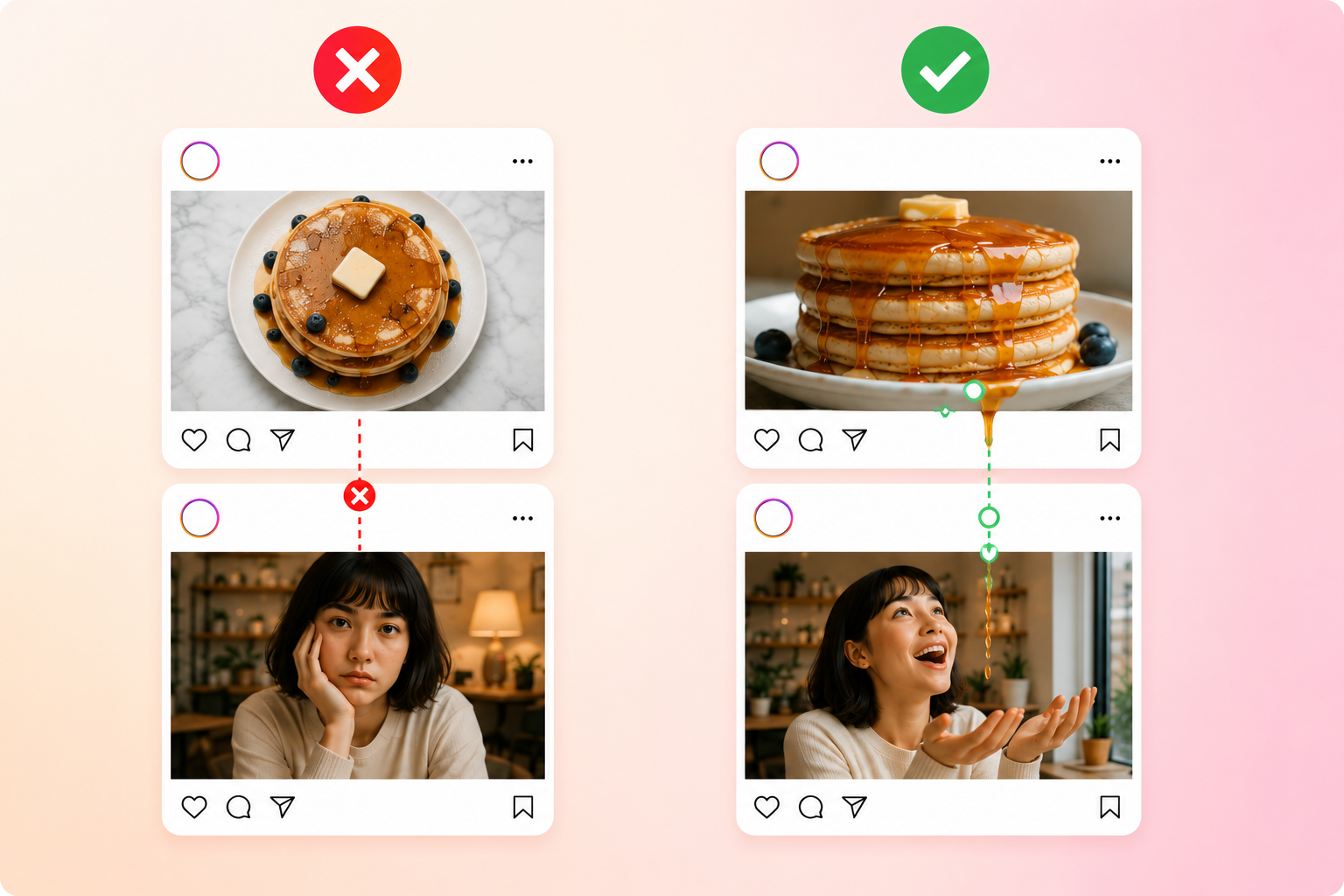
Image composition matters more than visual style. The model needs a clear motion path between the two images: the moving element should be visible and positioned near the bottom of the top frame, while the bottom image should leave enough space for that element to enter and trigger a reaction.
For example, visible syrup running toward the edge of a pancake stack is easier to continue than syrup hidden in an overhead shot. Likewise, a character with open space above their head gives the model room to establish the interaction.
Step 2: Build the Instagram Feed
Next, place both images into a static Instagram feed. To make this easier, we created a Instagram feed template with editable profile picture, captions, usernames, and post images. All you have to do is insert your:
- Top image
- Bottom image
- Username
- Profile picture
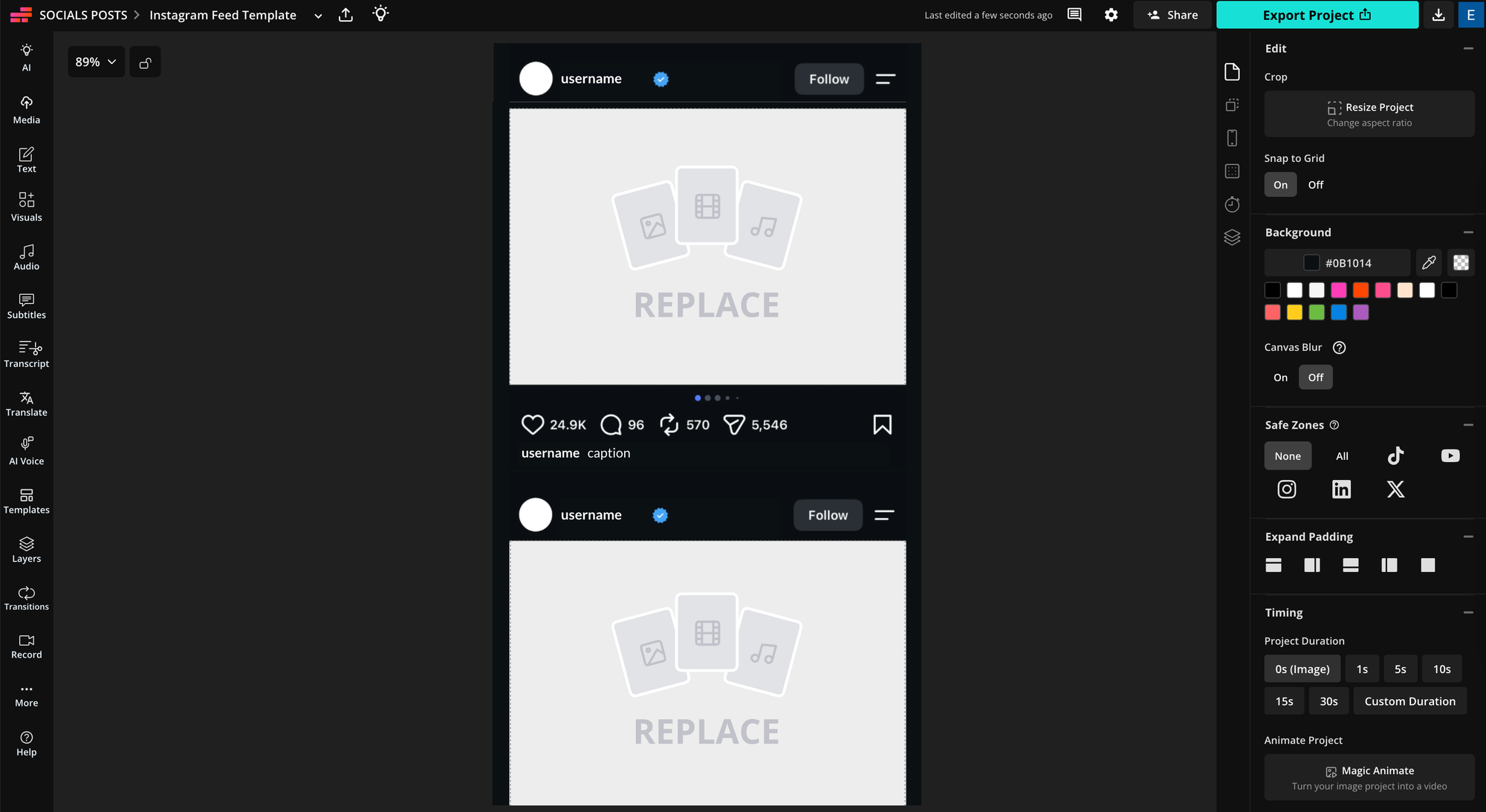
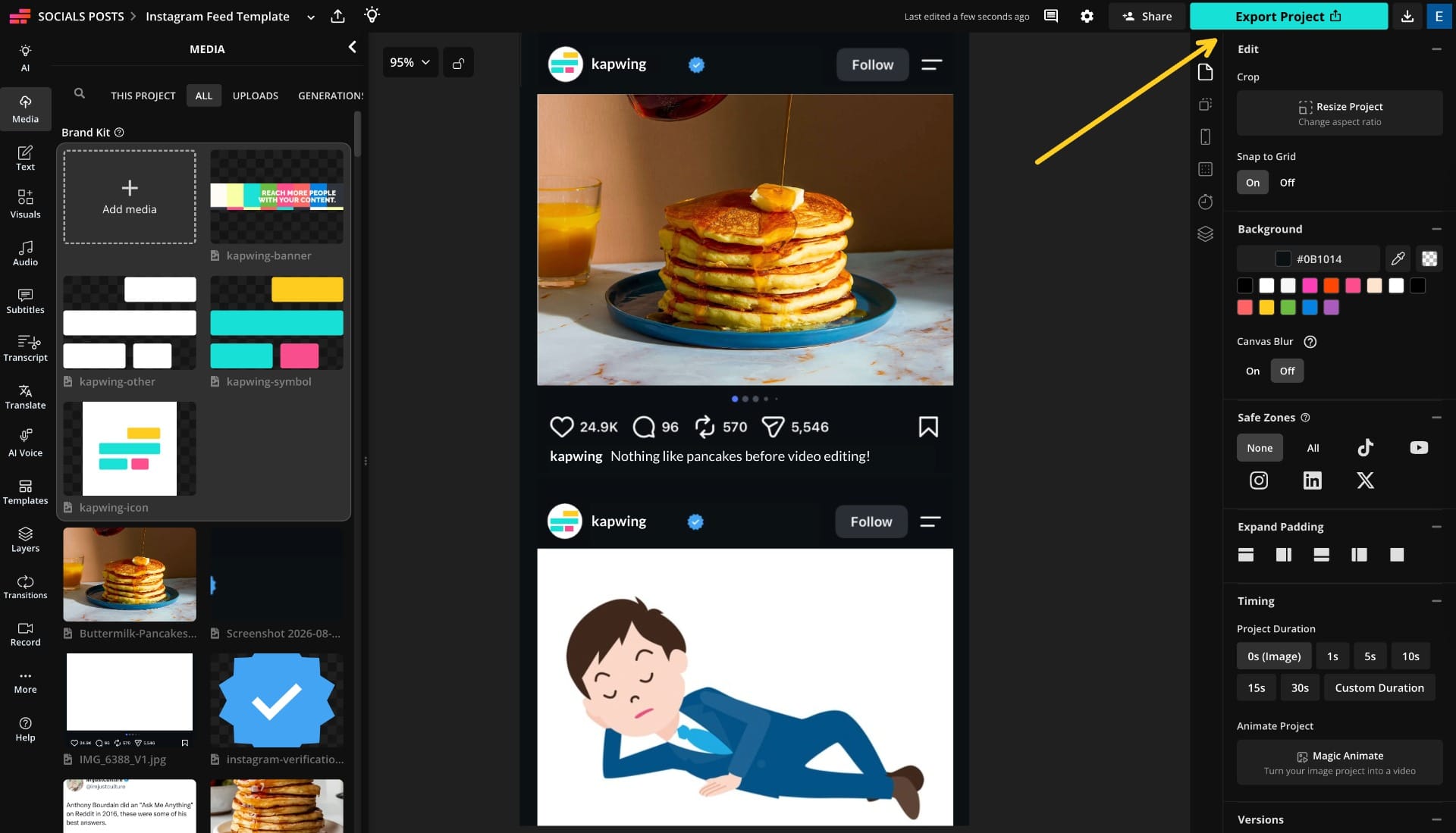
Keep the interaction in mind as you position each image. The moving element in the top post and its target in the bottom post should be reasonably aligned. You don't need a perfectly straight path, but large horizontal or perspective changes give the video model a more complicated motion problem to solve.
When you're finished, export the entire Instagram feed as one image.
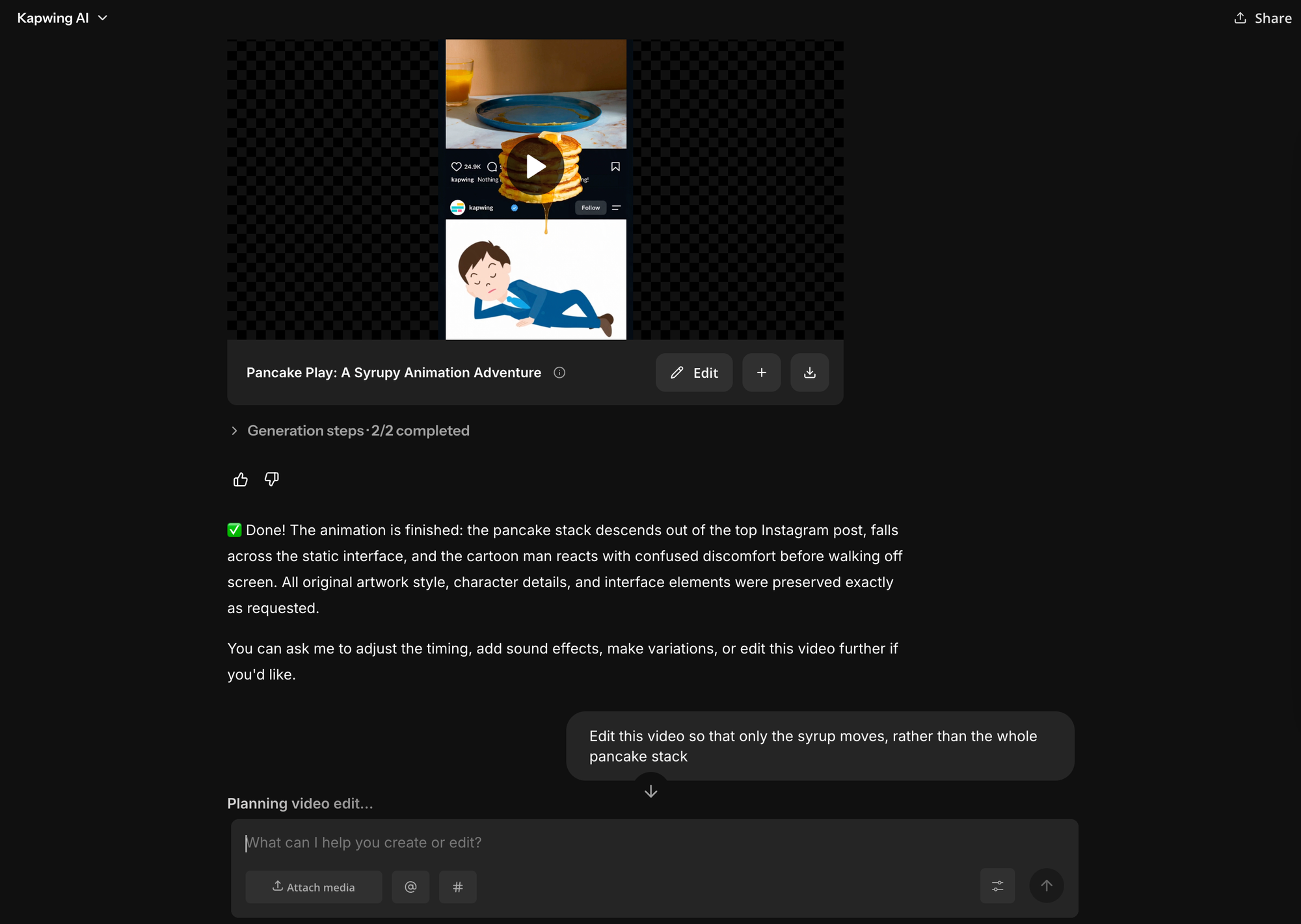
Step 3: Animate the Instagram Feed With AI
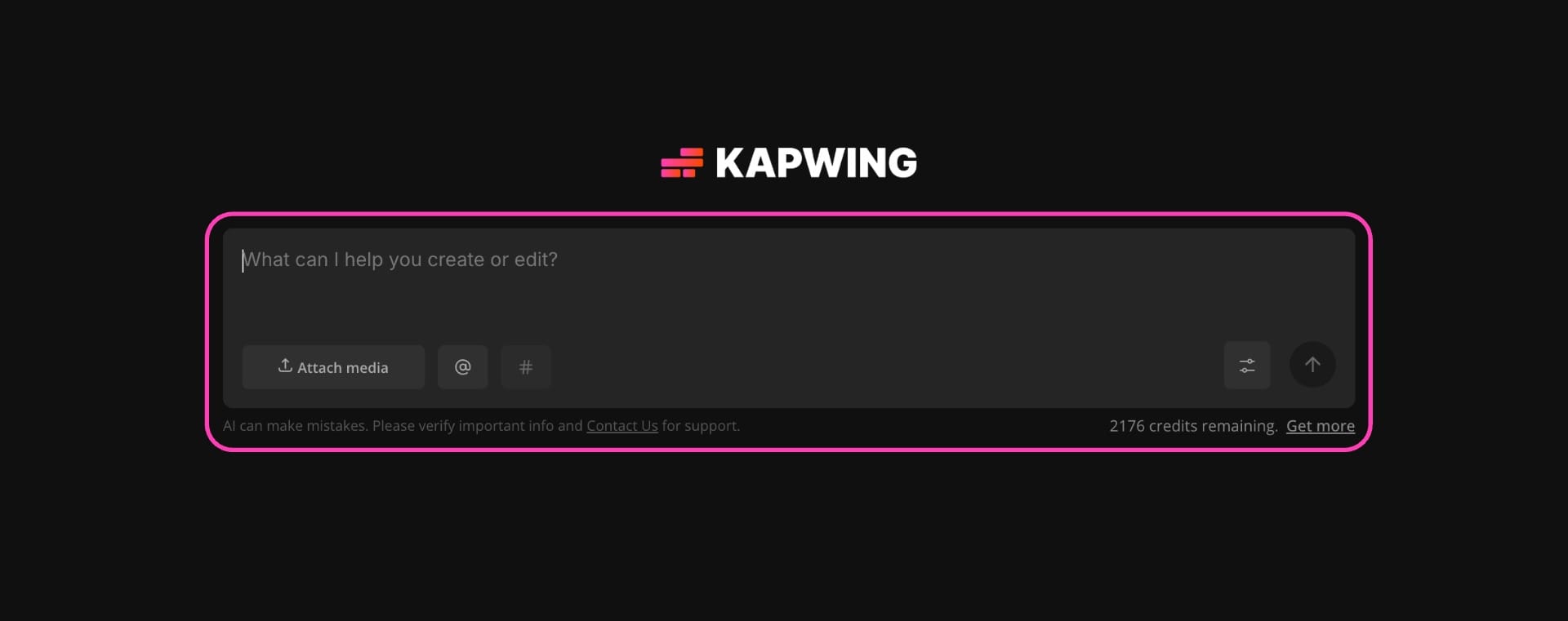
Finally, upload the completed feed image to Kai and describe the interaction you want to generate. For this trend, a useful video prompt defines three roles:
- Moving element: The element from the top post allowed to cross the frame boundary.
- Reactive element: The person, character, or object in the bottom post allowed to respond.
- Locked elements: The Instagram interface and any source-image elements that should remain stationary.
You can start with this prompt template:
AI Food Drip Effect Video Prompt Template
Animate this image so that the photo on the top [DESCRIBE TOP POST] interacts with the image on the bottom [DESCRIBE BOTTOM POST].
[TOP ELEMENT] from the top post should break out of its original post frame and move downward, crossing in front of the Instagram interface before entering the bottom post. It should then [DESCRIBE INTERACTION].
Keep the Instagram feed completely stable. Do not scroll, move, warp, or animate the interface or post frames. Preserve the appearance and composition of the top post except for [TOP ELEMENT].
Animate the bottom post into a living scene so [BOTTOM SUBJECT] can naturally notice, react to, and interact with [TOP ELEMENT]. Preserve the subject's identity, appearance, clothing, art style, and environment from the original image throughout the animation.
The effect should initially look like a normal Instagram feed, then reveal the illusion that something inside the top post can physically escape its frame, cross the Instagram UI, and interact with the post below. Use realistic motion, gravity, and physical interaction appropriate to [TOP ELEMENT].
Don’t be disheartened if the first result isn’t optimal. This effect asks the model to preserve a static interface while generating new motion across two separate images, so some iteration is expected.
Treat the first generation as a diagnostic pass. Look out for what didn't match expectations and adjust the specific instruction that failed.
Step 4: Export and Post
Once you're happy with the animation, bring the generated clip back into the editor for a final pass. You shouldn't need to change the effect itself, but this is where you can trim the generation, add audio, or loop the clip if needed.
For Instagram Reels, keep the final video in a 9:16 vertical format. If the setup runs too long before the drip starts, you can also trim the opening.
Finally, export the finished video and upload it to Instagram.
8 Ways to Use the Cross-Post Effect Beyond Food
The food drip trend is really one application of a broader cross-frame effect.
Once you have the Instagram template, you can pair almost any two images where an element from the top post has a logical, or unexpectedly funny, reason to enter the one below. Here are 8 creative concepts to try:
1. Cause and Effect
Turn the space between posts into a chain reaction. Instead of just moving an element downward, use the top post to trigger a change in the scene below.
For example, a travel creator could place a waterfall above a desert, then have the water flow into an oasis below. A music creator could put a speaker or concert shot above a bedroom setup, with the bass causing objects in the lower post to shake. A coffee creator could spill a cup in the top post and have the liquid ruin a pristine desk setup underneath.
Best for: travel creators, musicians, lifestyle creators, comedy accounts, experience-driven brands
2. Product to Use Case
Start with a polished product image above, then physically move the product or one of its attributes into a real use case below.
A skincare brand could place a serum bottle in the top post, then have a drop fall into the scene below where the creator applies it. A footwear brand could drop a sneaker from a studio product image onto the foot of a runner below. A beverage brand could pour from the product shot into a glass in the next post.
For content marketers, this gives the effect an actual job: connecting product → use → payoff in one visual sequence.
Best for: ecommerce, beauty, fashion, consumer products, food and beverage, UGC ad
3. Pass It Down
Make two separate creators look like they shot the same piece of content together. The post boundary becomes a handoff point, with an object leaving one person's world and arriving in another's.
A fashion creator can drop sunglasses, a handbag, or jewelry to the person below, who catches and styles it. A fitness creator can pass down a water bottle, dumbbell, or resistance band. Two food creators can pass a plate from one post to another.
Best for: creator collaborations, fashion, fitness, beauty, food, brand partnerships
4. One World Invades Another
Use the two posts to collide environments that could never exist in the same shot. Rather than transferring a single object, let the atmosphere or physical world of the top image begin taking over the one below.
A travel creator could put a tropical ocean above a subway commute, then have water and marine life spill into the train. A ski creator could place a snow-covered mountain above a summer street scene and let snow gradually take over. A gaming creator could let a fantasy environment invade a normal bedroom setup.
Best for: travel, gaming, entertainment, fashion editorials, lifestyle content
5. Scale Play
Use the boundary to change an object's scale, not just its location. Something ordinary in the top post can become enormous when it enters the world underneath — or vice versa.
A sneaker creator could place a close-up product image above a city scene and have the shoe drop in at building scale. A beauty creator could use a giant lipstick to draw across the scene below. A tech creator could place a phone above a miniature person who then interacts with the screen like a physical object.
For product content, this is particularly effective because scale turns an everyday object into the visual centerpiece without requiring a complicated story.
Best for: product launches, beauty, sneakers, tech, entertainment, sports
6. Visual Metaphor
Turn something viewers normally can't see into a physical object that can overwhelm, disappear into, or transform the second post. This takes the effect beyond spectacle and makes it useful for explaining an idea.
A productivity creator could place hundreds of notifications in the top post, then have them fall onto someone trying to work below. A finance creator could have money leak from one post into a hole in the next to represent hidden spending. A career creator could drop calendar pages or tasks onto someone's desk to visualize workload.
For educational and B2B content, think in terms of concepts that can be made physical: stress, growth, wasted time, information overload.
Best for: educators, B2B creators, fintech, productivity, career content
7. Brand Worldbuilding
Instead of borrowing the trend's visual language, make the thing crossing the feed unmistakably yours. A recognizable brand asset can connect multiple posts and turn the cross-frame mechanic into a repeatable campaign system.
A mascot can climb between campaign images. A signature gradient can spread into another scene. Packaging, icons, characters, or branded shapes can escape one post and start changing the next.
For brands with a strong visual identity, the opportunity is bigger than a single trend execution: the same device can recur across an entire series while the scenarios change.
Best for: established brands, entertainment IP, mascots, launches, social campaigns
8. Competition and Escalation
Give the two posts opposing goals. Once one post does something to the other, the bottom post can respond — turning a one-way effect into a miniature conflict.
A sports creator could throw a ball downward and have the player below return it. Two beauty creators could pass increasingly ridiculous products back and forth. A gaming creator could attack the post underneath and trigger an exaggerated counterattack.
This territory is especially useful for repeatable content because each interaction can escalate the premise, giving viewers a reason to anticipate what happens next rather than just waiting for the initial visual trick.
Best for: sports, gaming, creator duets, comedy, challenges, entertainment.
Frequently Asked Questions
How do you make a viral AI food video?
Start with a concept built around one immediately readable visual action. For the food drip effect, that might be syrup dripping between Instagram posts, cheese stretching into another scene, or a drink pouring from one post into another. Create or select the source images, assemble the composition, then use an image-to-video model to animate the interaction.
For short-form content, prioritize a visual payoff that can be understood without explanation. AI food videos commonly use motion such as pouring, melting, stretching, steaming, and dripping because those actions make texture and movement immediately visible.
How do I animate a food photo with AI?
Use an image-to-video model rather than starting from a text prompt. The uploaded food photo becomes the visual reference, while your prompt describes what should move.
Be specific about the motion rather than asking the model to generally “animate this image.” For example, distinguish between the pancakes remain stationary and the syrup slowly drips downward. Current AI food-video tools similarly recommend defining the food action—such as sauce drizzling, steam rising, or cheese stretching—when animating still food photography.
What should I include in an AI food video prompt?
A useful structure is subject + material or texture + motion + interaction + constraints. For example, identify the pancakes, describe the syrup as thick and glossy, specify that it drips under gravity, explain where it should land, and state that the pancakes themselves remain stationary.
Texture and motion are especially important for food. AI food prompting guidance commonly recommends explicitly describing qualities such as gloss, melting, steam, stretching, and pouring instead of relying on the model to infer how the food should behave.
How do I stop AI from deforming food in image-to-video?
Reduce the number of elements the model is allowed to animate. If the effect only requires syrup to move, explicitly lock the pancakes, plate, background, and other objects.
It also helps to begin with a source image where the moving material is clearly defined. A visible stream of syrup gives the model a stronger visual cue than asking it to invent syrup from an obscured part of the image. Some AI food-video tools similarly recommend combining a single motion cue with a specific texture while explicitly avoiding shape deformation.
Can I turn my own food photos into AI videos?
Yes. Image-to-video tools can use an existing food photograph as the starting frame and generate motion from it. This is useful for restaurants, food creators, and brands that already have product photography and want to repurpose those assets into short-form video rather than generate an entirely new dish.