How to Edit Videos Like a YouTuber
A guide to YouTube storytelling and audience retention

The most engaging YouTube videos often strike a balance between polished editing and natural, authentic storytelling that doesn't feel overproduced.
Screenshots help support a claim. B-roll replaces the talking head when viewers need context. A subtle zoom draws attention to an important number. Sound effects give transitions more impact. Music fades when the next sentence needs room to breathe.
For this guide, we've adapted the editing workflow of YouTube creator and Kapwing channel host Jonny Shapland, showing how he plans, edits, and polishes videos to keep viewers engaged.
The goal isn't to use every technique in every video. It's to understand what viewers need at each moment and choose the right edit to deliver it.
Table of Contents
- Organize Your Video Before You Edit
- Research What Your Viewer Actually Wants to See
- Plan What Viewers See and When
- Set Up Your Fonts, Colors, and Visual Assets
- Make the Rough Cut First
- Obsess Over the First 10–15 Seconds
- Use Open Loops to Keep Viewers Interested
- Show the Evidence Instead of Repeating the Narration
- Build Each Section as a Visual Composition
- Use Motion and Pattern Interrupts to Direct Attention
- Build Sound Design Into the Edit
- Use Music to Unify the Video
- Review the Video Before You Export
- Use Audience Retention to Improve the Next Edit
1. Organize Your Video Before You Edit
Fast editing starts by reducing the number of decisions you need to make once you're on the timeline.
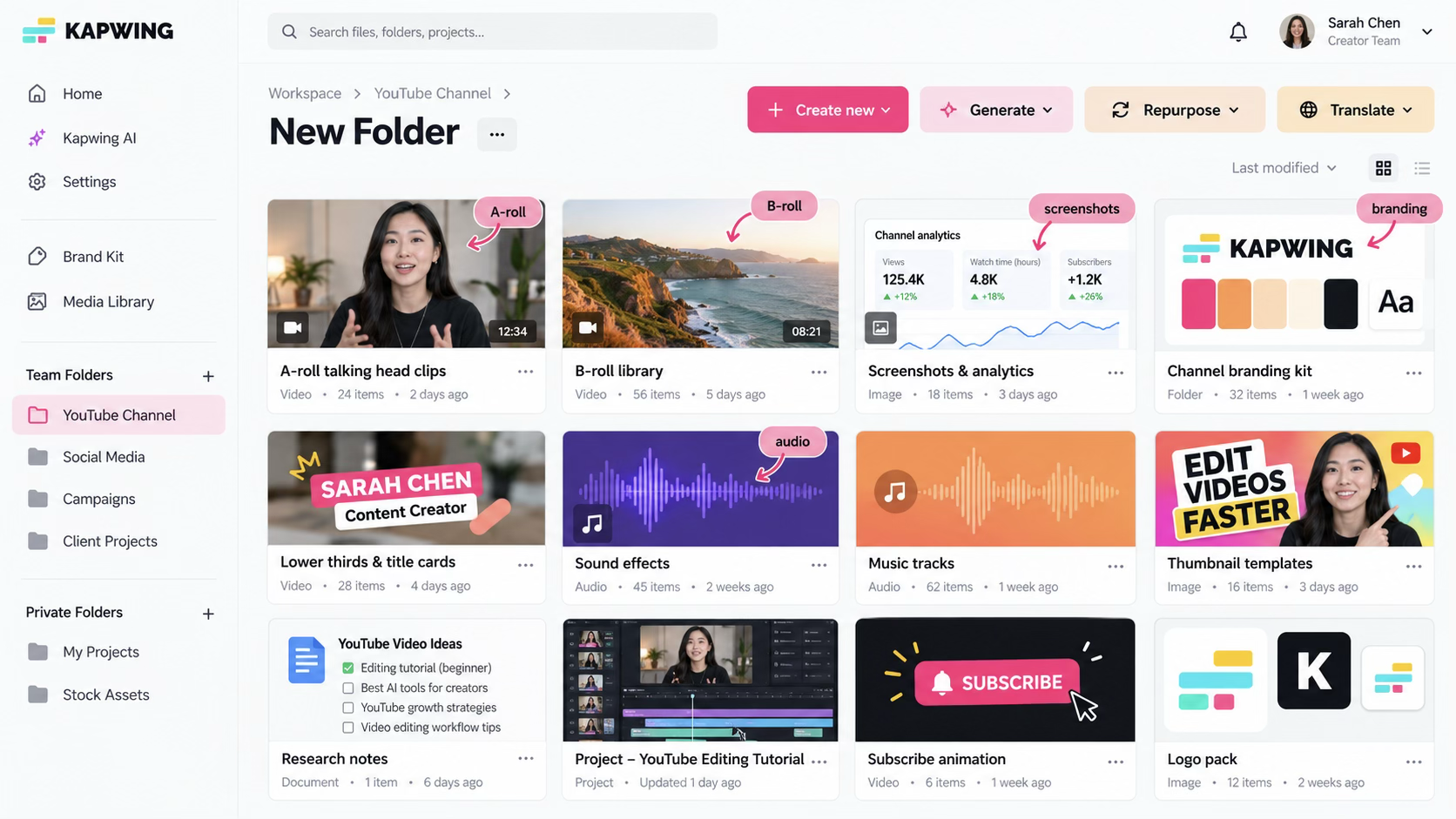
Shapland's structure separates assets into five categories:
- A-roll contains the footage carrying the main story or explanation.
- B-roll holds supporting footage, screen recordings, screenshots, product shots, and visual references.
- Thumbnails store the custom graphics used for the video's cover.
- Channel assets contain things you'll use repeatedly: logos, backgrounds, sound effects, title treatments, intro graphics, subscribe animations, and other recurring elements.
- Research holds the planning material that guides the edit.
You can quickly replicate that structure in Kapwing using Workspace folders and a repeatable Brand Kit. The exact folder names matter less than having an obvious home for the things you're likely to need while editing.
The benefit is simple: you don't want to interrupt your editing workflow every time you need to find a screenshot, logo, sound effect, or reference video.
Organization also becomes more useful later in the workflow. Once your research starts producing screenshots, analytics, examples, references, and failed attempts, you already know where each piece can live.
2. Research What Your Viewer Actually Wants to See
Before editing, Shapland studies what's already working for a specific video concept.
Start by watching three successful YouTube videos on the same or a closely related topic. The goal isn't to copy their edits, but to understand how they meet viewer expectations and keep people interested.
Look beyond the transitions and animations and ask:
- What promise does the title and thumbnail make?
- What does the creator show within the first 10–20 seconds?
- Which claims are supported by visual evidence?
- What questions are answered immediately, and which are left until later?
- How does the video introduce new information or change direction?
- What does the viewer learn or gain by the end?
These questions matter because viewers arrive with expectations already established by the title and thumbnail.
YouTube's audience retention guidance measures how many viewers are still watching after the first 30 seconds. Strong intro retention can indicate that the opening matched those expectations and gave viewers a reason to continue watching.
When researching successful videos, focus less on how frequently the creator makes cuts and more on how quickly they demonstrate the value promised by the title.
Identify the Questions Viewers Want Answered
Imagine someone has only seen your video's title and thumbnail. What would they need to learn or see before feeling satisfied?
Suppose your title is "I Copied a Viral AI Influencer and Gained 2.5M Followers."
The obvious question is "How did they do it?" But that's too broad to guide an edit. Break it into smaller questions:
- Who is this influencer, and what made them successful?
- Is the 2.5 million figure legitimate, and how quickly did the growth happen?
- What tools and workflow were used?
- How difficult was the process to replicate?
- What failed along the way?
- What ultimately made the difference?
- Could someone else repeat the results?
For each question, consider what evidence you can show.
Growth claims need analytics, account screenshots, or dates. Questions about tools benefit from interface recordings. A failed attempt becomes more convincing when viewers can see the unsuccessful result.
The most useful questions often come from the gap between what viewers know is possible and what they can achieve themselves. They may have seen cinematic AI videos, consistent characters, or accurate motion transfer, but still struggle to replicate those results. Your video should explain what's missing and demonstrate how to achieve a similar outcome.
Decide Which Questions to Answer First
Some questions need immediate answers. Withholding them creates confusion rather than curiosity.
If the title references an unfamiliar influencer, introduce them early. If the premise revolves around an impressive statistic, provide evidence. If the tutorial teaches viewers to recreate a particular result, show what that result looks like before explaining the steps.
Other questions become more valuable once viewers have more context.
For example, explaining why an AI video failed is more useful after showing the original attempt. Revealing the change that finally made an experiment successful has more impact once viewers understand what wasn't working.
The distinction is simple: answer questions early when viewers need that information to understand or trust the video. Save answers for later only when the preceding context makes them more useful.
With those questions identified, you can begin planning when each answer should appear and what viewers need to see alongside it.
3. Plan What Viewers See and When
A traditional storyboard maps shots.
For this kind of YouTube editing, it can be more useful to map information.
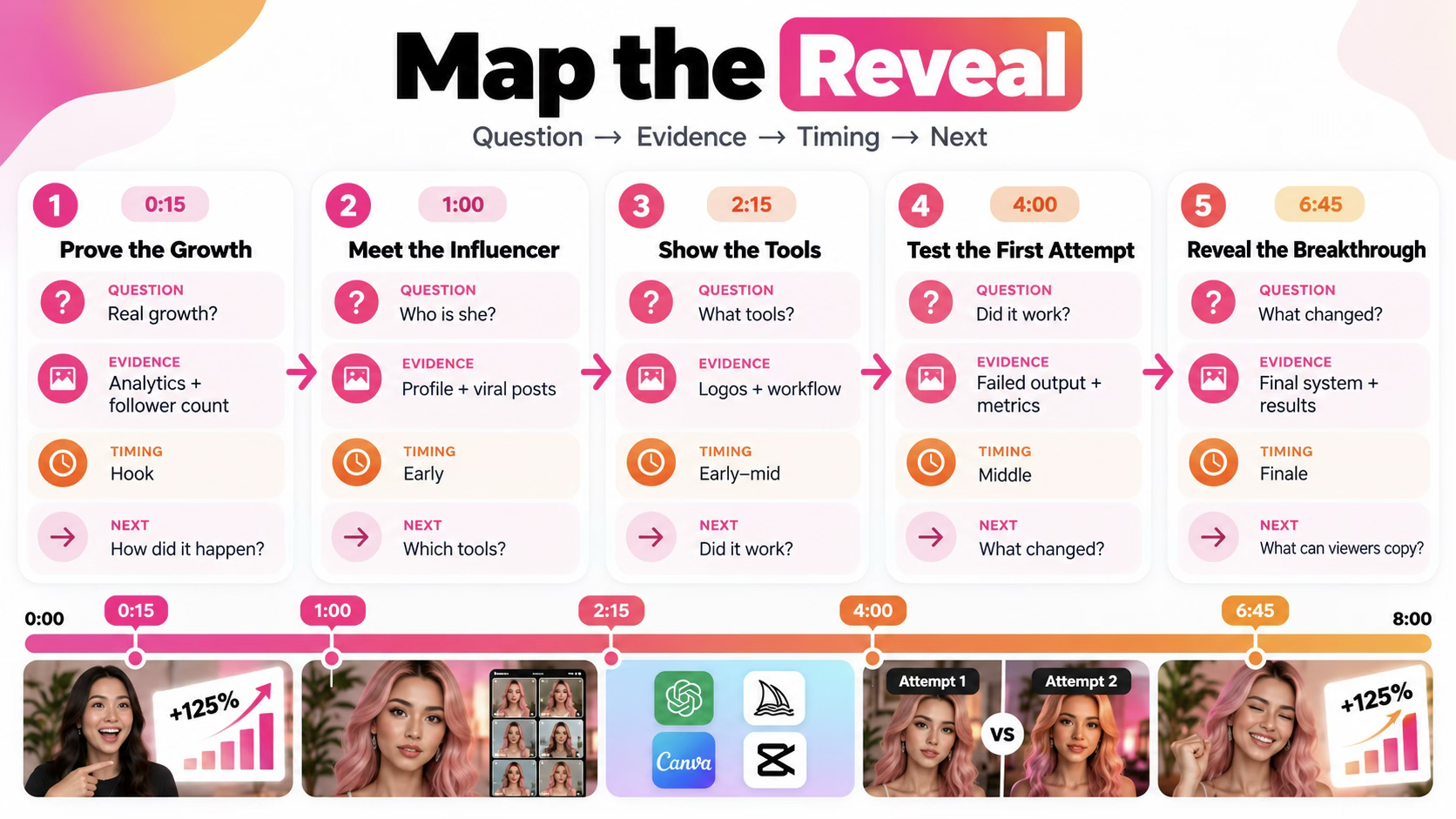
For every important viewer question, decide what evidence can answer it, when that answer should arrive, and what it leads to next — a new question, a decision, or something the viewer can use.
A simple map could look like this:
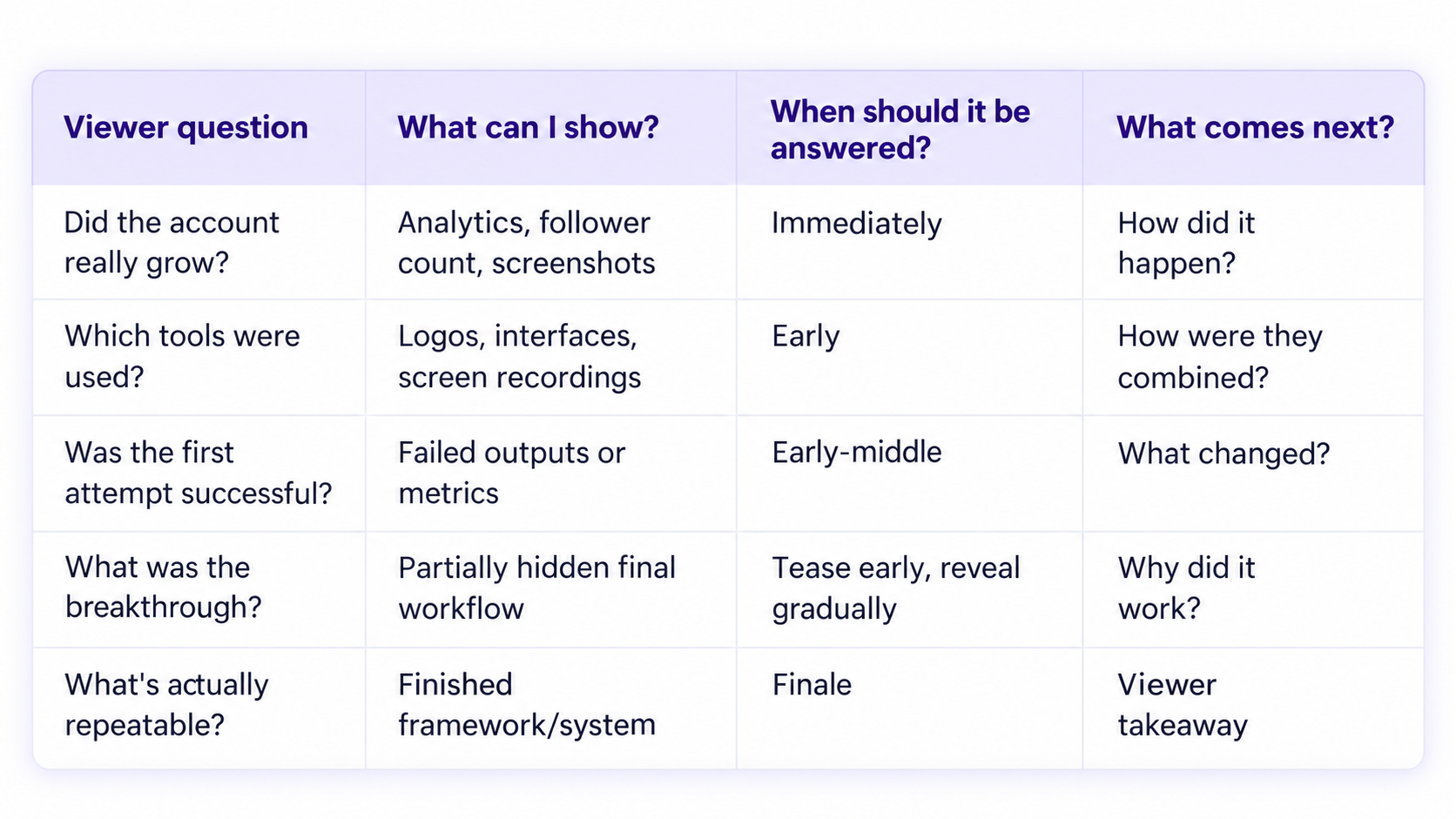
This creates a simple plan for when to answer each viewer question, what to show onscreen, and how each answer leads into the next part of the video.
Add two more columns to help the map guide your actual edit on the timeline:
- Visual treatment: talking head, screenshot, animation, B-roll, screen recording, diagram, comparison, timeline, etc.
- Audio treatment: continuous music, music change, silence, impact, riser, UI sound, ambience, or no added audio.
Now the map covers both what the viewer learns and how they experience it.
Use the Map to Fix Sequencing Before Editing
If you're explaining a complicated process before viewers understand why it matters, move the proof or outcome earlier.
If two consecutive sections answer the same question, combine them.
If the finale introduces an entirely new insight that the rest of the video hasn't prepared the viewer to understand, either plant the idea earlier or rethink the ending.
And if five important questions can be answered quickly, don't manufacture minutes of setup around them.
The reveal map should help you discover the video's natural runtime, not give you excuses to stretch it.
4. Set Up Your Fonts, Colors, and Visual Assets
If every video starts with a new font, new text treatments, new backgrounds, new transitions, and new animation behaviors, you're spending editing time on decisions you could have made once.
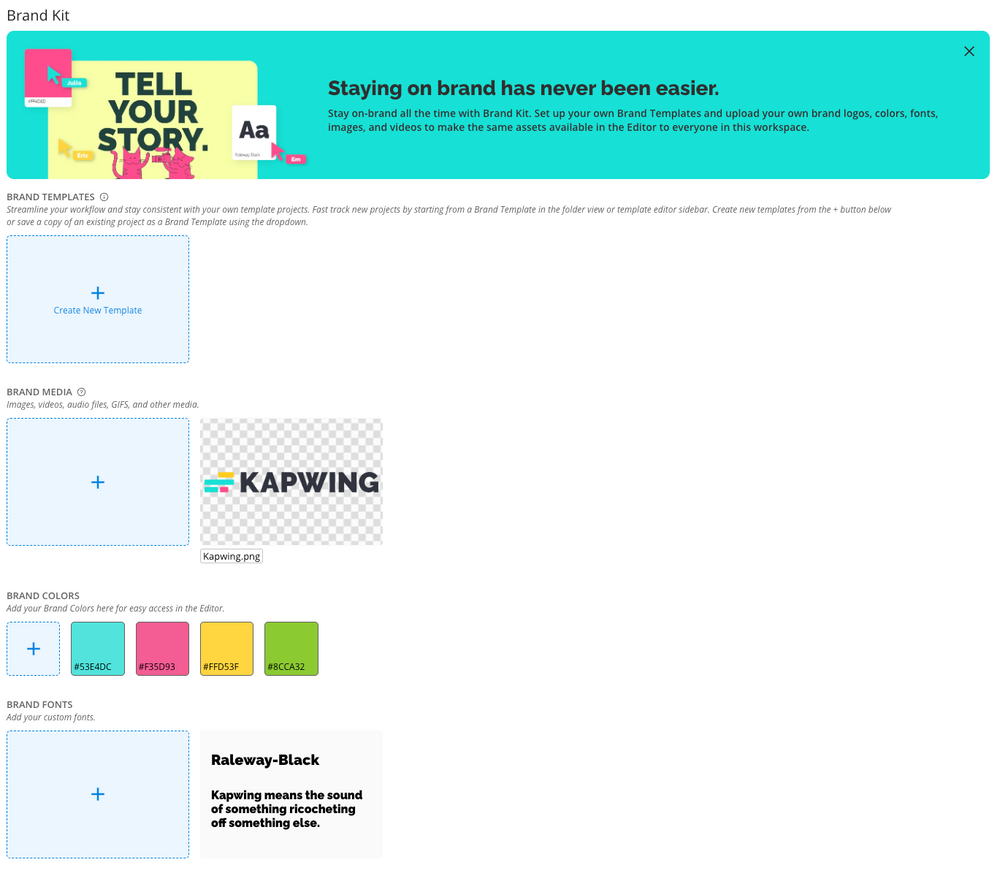
Kapwing’s Brand Kit can store colors, fonts, logos, text styles, subtitle styles, and reusable brand media. Build enough range into it so that consistency doesn't turn into obvious repetition.
Keep only a few background treatments, recurring text styles, transitions, and animation types. Shapland recommends using a small selection of backgrounds and overlays that you can reuse across videos. These might include gradients, grids, subtle textures, or darkened edges. Keep two or three text colors available so your titles remain readable against different backgrounds.
Treat these as reusable building blocks, not a fixed template. Once they're ready, you can spend more time deciding what a scene should communicate and less time rebuilding its visual elements.
5. Make the Rough Cut First
Before adding motion graphics, sound effects, or elaborate visual sequences, make the spoken video work. Upload the A-roll to Kapwing and assemble the primary footage on the timeline.
- Start by arranging your A-roll in the order you want the story to unfold.
- Remove mistakes, repeated explanations, and unnecessary pauses, then split or rearrange clips to improve the flow.
- Watch the rough cut before adding B-roll, animations, or sound effects.
For dialogue-heavy footage, generate a transcript, which allows you to edit the video directly through the transcript by finding and deleting unwanted words and lines.
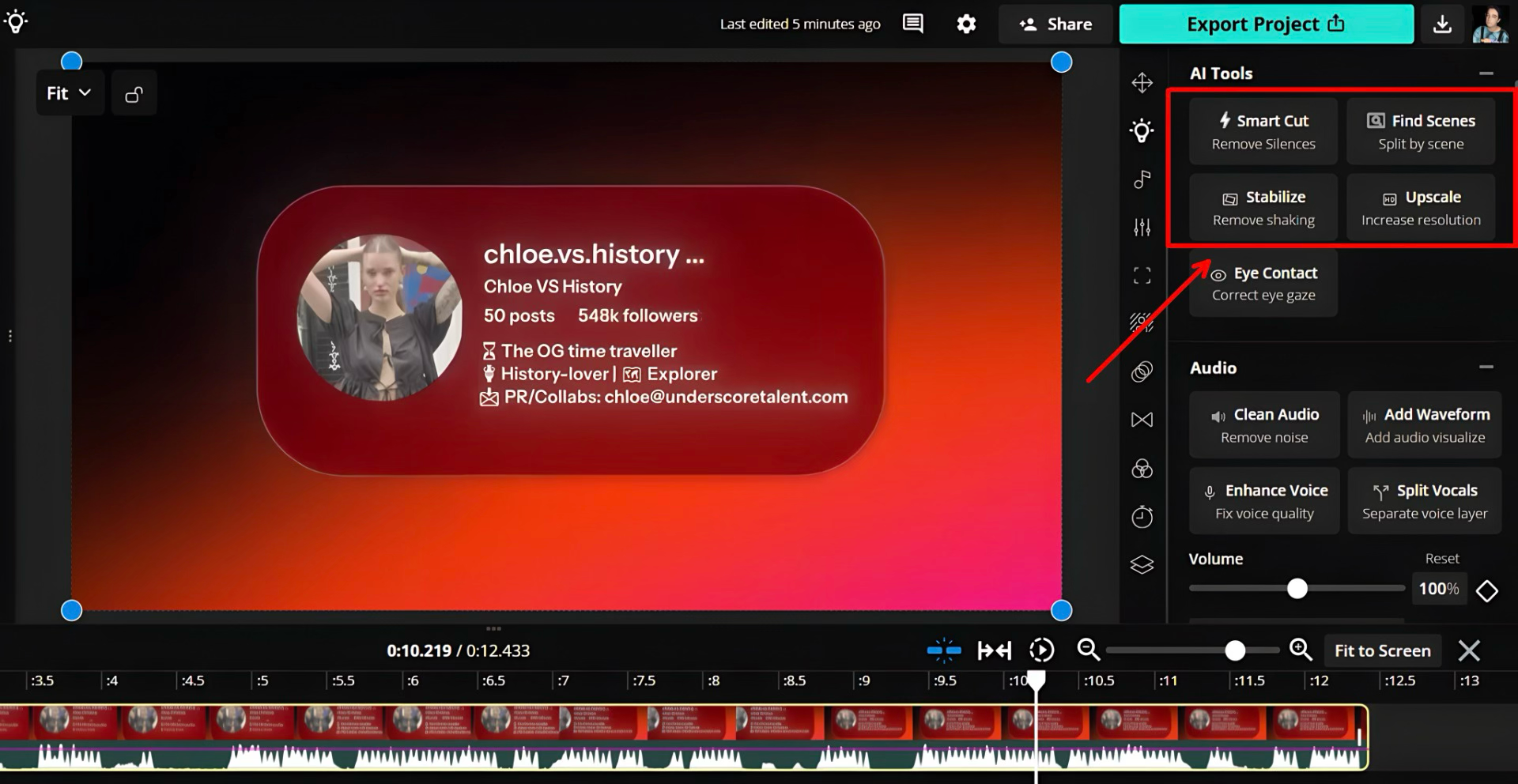
By clicking the AI Tools tab in the right-hand menu, you can access time-saving features like Smart Cut to detect and remove unwanted silence. Use Find Scenes to automatically locate the scene changes in your video and make splits, and use Stabilize to smooth out shaky footage.
The first pass is all about the story, not polish: remove setup you don't need, tighten repeated ideas, cut dead space, and make sure every section either adds understanding or develops the central question.
If a section does neither — and doesn't deliver useful value on its own — shorten it or cut it.
6. Obsess Over the First 10–15 Seconds
The video opening deserves disproportionate attention because viewers are still deciding whether the video they clicked is the video they're actually getting.
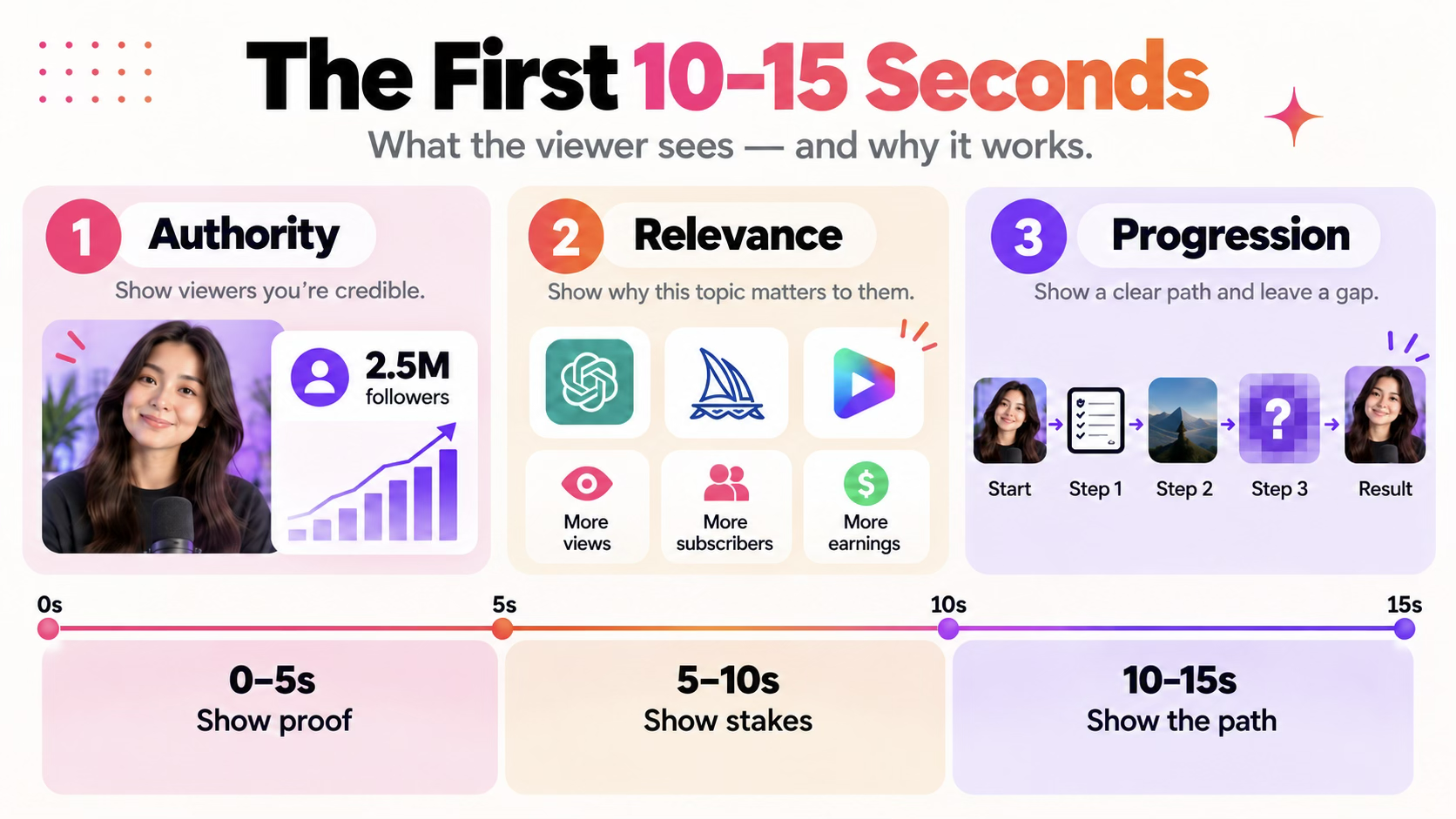
Shapland puts especially heavy emphasis on roughly the first 10–15 seconds. His opening framework asks the video to establish three things quickly:
- Authority: Why should I believe this?
- Relevance: What recognizable outcome does the viewer want?
- Progression: What kind of result, experiment, transformation, or process am I about to watch?
Shapland narrows his focus to the first 10–15 seconds to establish the hook. YouTube measures intro retention over the first 30 seconds, making this a useful checkpoint for whether the opening meets viewer expectations and gives them a reason to continue watching.
- Weak: “Today we're going to explore AI influencers and show you some interesting tools.”
- Stronger: “I tried recreating an AI influencer with 2.5 million followers. Here's what worked, what failed, and the workflow I'd actually use again.”
Shapland uses this pattern repeatedly: show the result before explaining the mechanism. A finished transformation, a striking metric, or a clear before-and-after gives the viewer something concrete to believe in before the tutorial asks them to invest attention in the process.
But don't confuse this with “withhold all useful information.”
The opening should make the viewer feel naturally oriented and interested instead of deliberately under-informed.
Answer the First Objection Next
Once the hook has established the promise, use the next beat to address the objection most likely to stop the viewer from buying into it.
The goal isn't to eliminate every objection in the first 30 seconds. Remove the one or two most likely to keep the viewer from caring about what comes next.
In the AI-influencer example, the obvious skepticism might be that this is another "use AI and get rich quick" pitch. Instead of arguing against that abstractly, show the comparison: a traditional character-production workflow with specialized tools and long production times versus what newer AI tools make possible.
7. Use Open Loops to Keep Viewers Interested
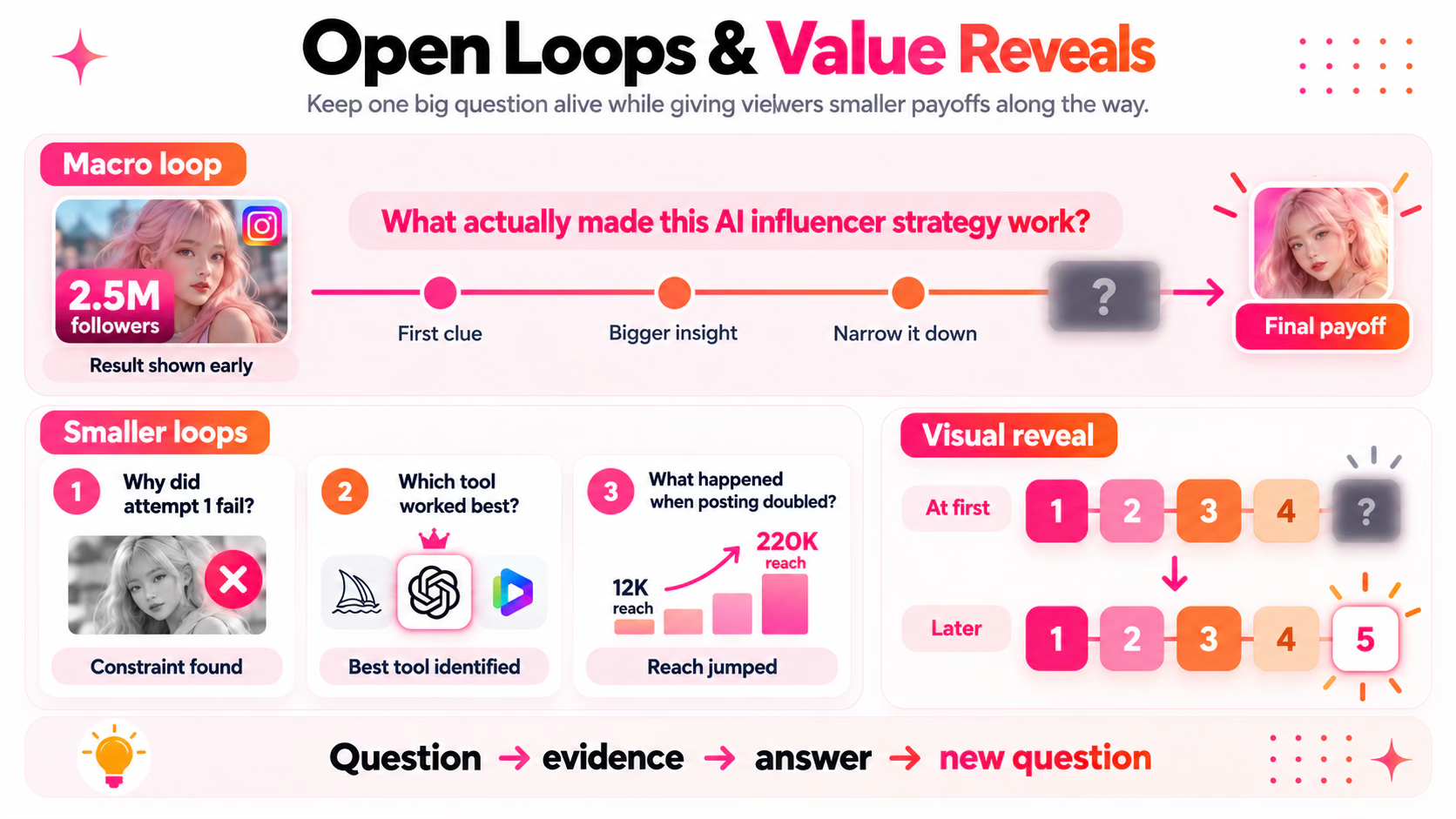
An open loop is unresolved information the viewer reasonably expects the video to complete. It can be powerful, but it isn't a requirement for every single video.
Experiments, challenges, investigations, transformations, and comparisons naturally lend themselves to larger unresolved questions: Which approach worked? What caused the result? Can the outcome be repeated?
Straight tutorials and reference videos work differently. If somebody searches “how to remove a background from a video,” hiding the crucial step simply to increase watch time makes the content less useful.
The rule is simple: delay information only when context increases its value. Withholding an answer just to imitate a retention technique makes the video less useful, not more engaging.
Pay Off Smaller Questions Along the Way
A ten-minute video can't survive on one promise made at second ten.
The viewer should keep receiving useful answers to useful questions:
- Why did the first attempt fail?
- Which tool produced the most usable character?
- What happened when the posting strategy changed?
- Which variable mattered more than expected?
A useful rhythm is: question → evidence → answer → new question
This way, the viewer gets paid back continuously while the larger question becomes more precise.
The middle of the loop should also narrow the problem. A failed approach rules something out. A comparison removes one explanation. A successful test makes the remaining possibilities more specific. By the time the larger answer arrives, the viewer should have a more precise version of the original question — not the same vague question postponed until later.
Make the Loop Visible When it Helps
Open loops don't need to occur only within spoken narration. In fact, it’s often better if they don’t.
Show five parts of a system with the fifth obscured. Reveal pieces of a timeline as the viewer reaches them. Return to the same diagram with another section filled in.
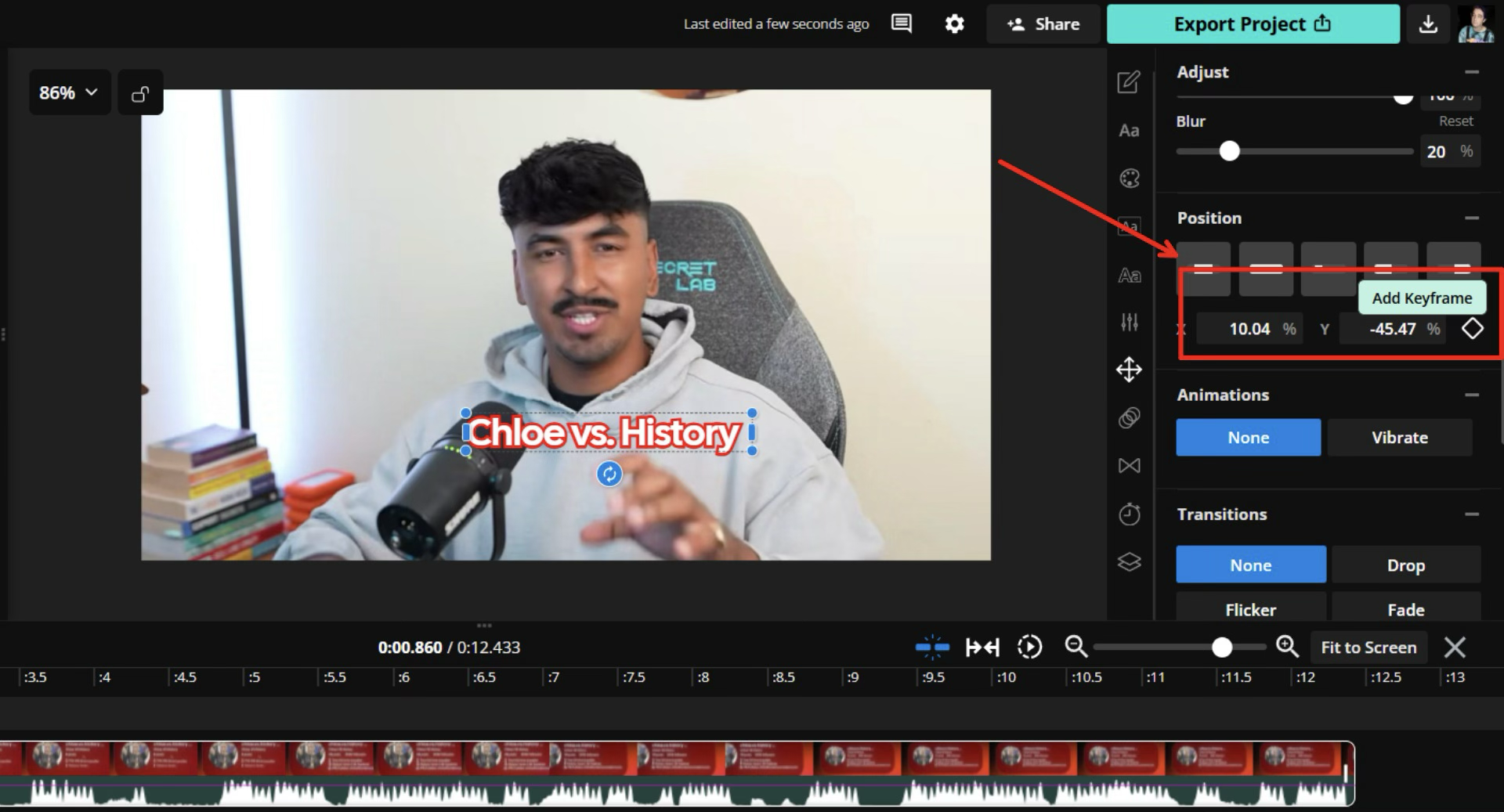
Kapwing's keyframes can animate position and zoom across separate video, image, GIF, text, and shape layers, which makes these progressive compositions possible.
But the missing element has to matter.
If revealing it doesn't change the viewer's understanding, it wasn't really a payoff. It was decoration disguised as suspense, or worse, an empty promise.
8. Show the Evidence Instead of Repeating the Narration
“Show, don't tell,” is one of Shapland’s primary recurring editing principles. It sounds simple enough, but in YouTube editing it has a very specific application.
When the narration makes a claim that can be demonstrated, show the evidence rather than putting the same sentence onscreen as text.
If someone says they made $100,000 using AI tools, displaying $100,000 in giant typography doesn't prove anything.
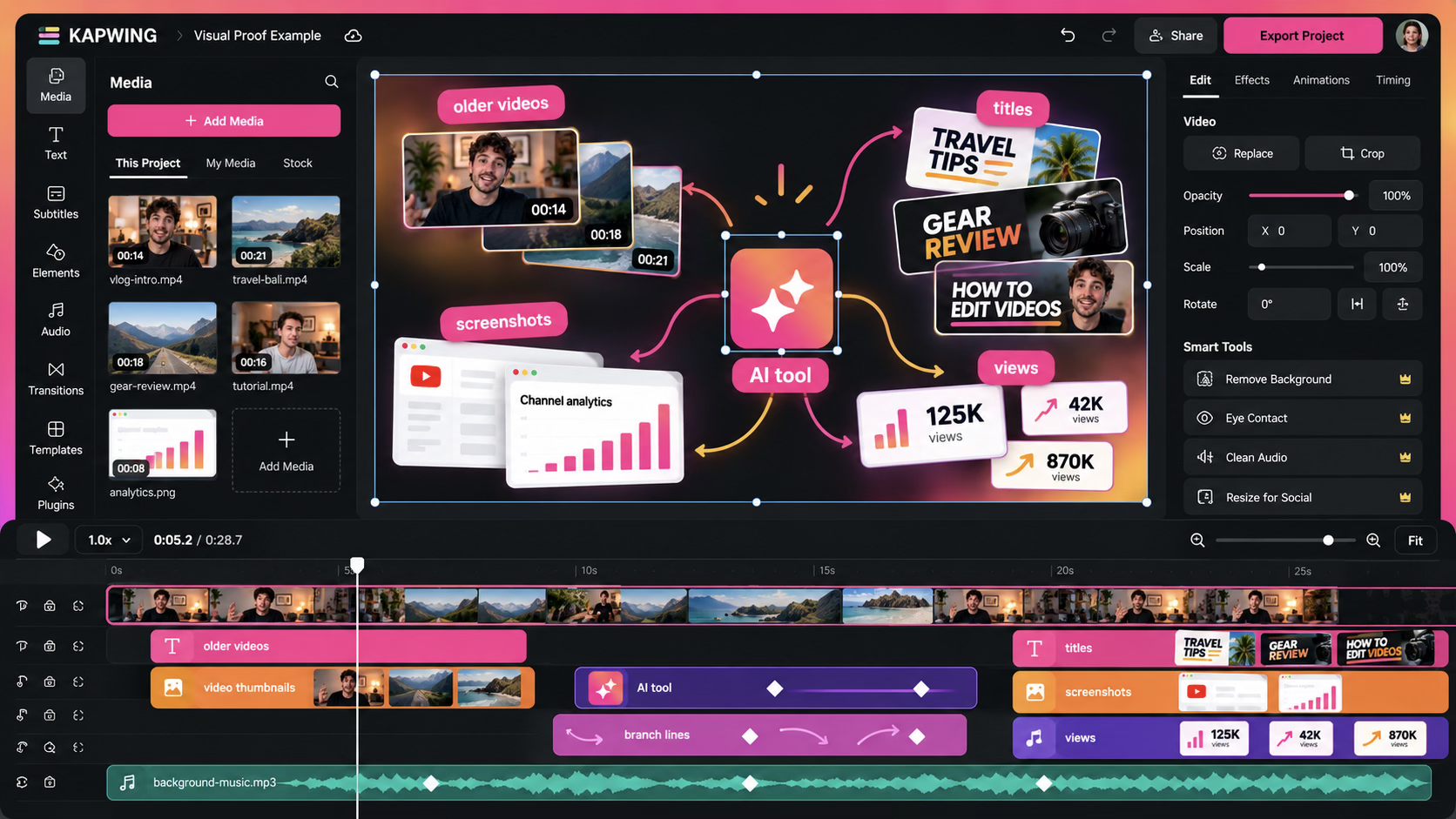
Instead, you might put the main tool in the center of the frame and branch outward to previous videos documenting the process, their titles, screenshots, and view counts.
Now the visual contributes information the narration doesn't. The viewer sees relationships and evidence rather than a decorative transcription of the sentence.
Use Contrast When the Difference is the Lesson
Some ideas are easier to understand comparatively than descriptively. Shapland frequently shows the weaker version and the improved version back-to-back: zoom versus dolly, an undirected scene versus one built around specific camera moves, or failed lip-sync attempts versus the working method.
When the value of an editing choice depends on what changed, show both states. A before-and-after, side-by-side comparison, or quick A/B sequence can explain the benefit faster than another paragraph of narration.
The same principle works for progression.
Instead of only saying:
“It took us ten months to build this system,” move visually through the stages to give that timeframe a shape viewers can grasp:
- 10 months ago → scriptwriting → ideation → organization → titles → final system
And if one part of that system still isn't resolved, the same composition can explain what happened so far while setting up what comes next.
9. Build Each Section as a Visual Composition
Once your rough cut is complete and you've identified which claims need visual evidence, it's time to bring those elements together on the timeline.
In Shapland's workflow, many explanatory moments combine three elements: information arranged within the frame, motion that directs attention, and sound that reinforces the visual change.
Your talking-head footage can remain the foundation of the video without needing to appear in every shot. The challenge is deciding when to keep the host onscreen and when another visual would explain the point more effectively.
Combine A-Roll, B-Roll, and Graphics
Start with your A-roll on the timeline, then identify moments where another visual could help the viewer understand what's being said.
For example:
- Website or software references: Replace the talking head with a screen recording showing the relevant interface.
- Tool comparisons: Show both tools side by side so viewers can compare them directly.
- Statistics and growth: Display analytics or a chart, then highlight the figures being discussed.
- Previous experiments: Insert screenshots or footage from earlier attempts to provide context.
In Kapwing's Video Editor, you can upload your own screenshots, screen recordings, and B-roll, or use the Visuals library to find images, GIFs, and graphics.
Place these assets on separate layers so they can appear over your A-roll or replace it entirely. Resize and position each element to create the composition you need.
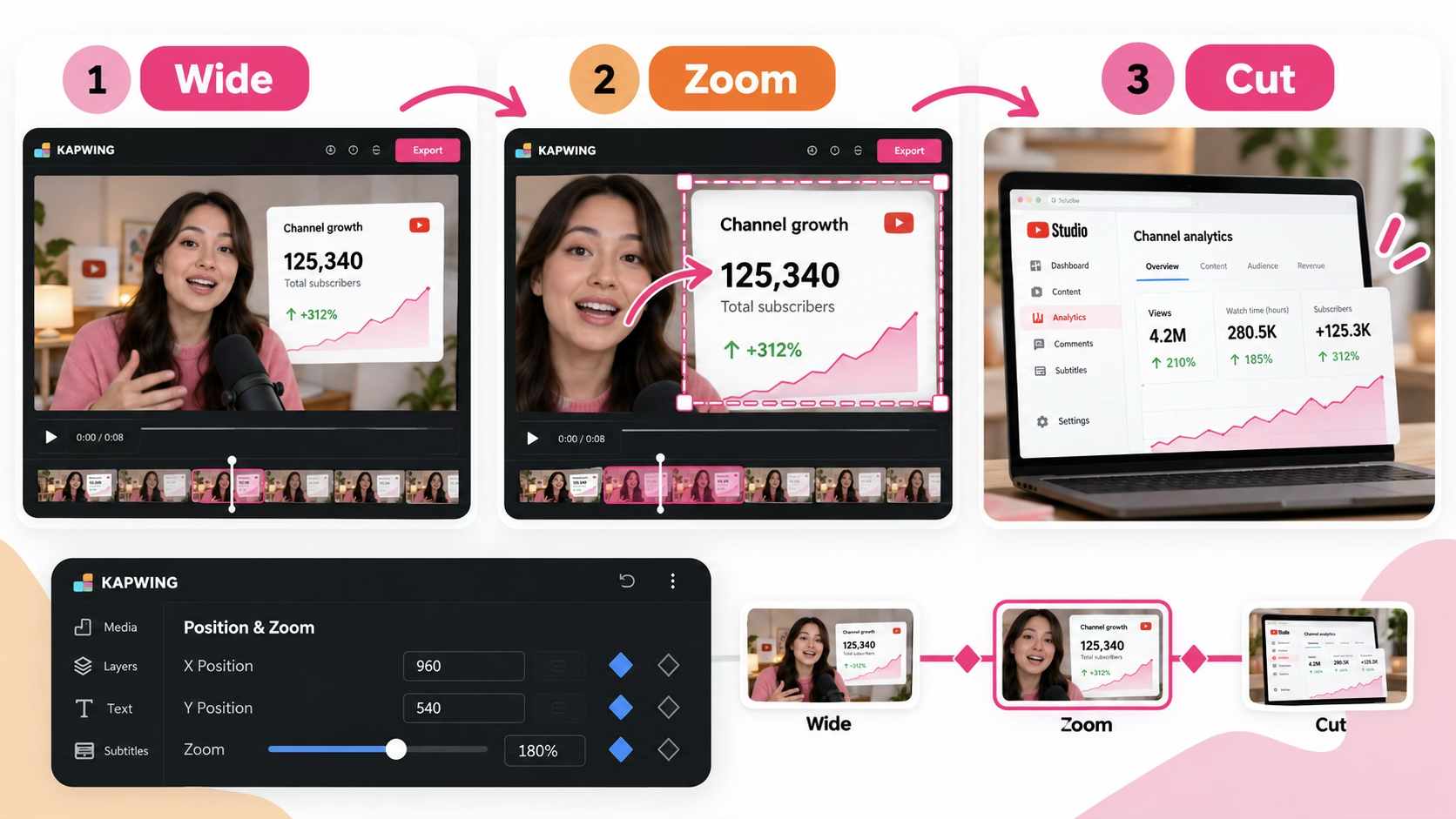
For example, when explaining how an AI influencer gained followers, you might begin with the host, transition to a screenshot of the account, and then zoom toward the analytics as the growth figures are discussed.
The visuals should add information that the narration alone cannot communicate as effectively.
Use Multiple Visuals When They Help Explain a Point
Not every section needs to switch between full-screen footage and a talking head.
Sometimes it's more effective to keep multiple elements visible within the same frame.
A comparison might show two AI-generated videos side by side. A software explanation could show the host alongside a screen recording. A breakdown of an editing workflow might combine screenshots, text labels, and arrows to demonstrate how different steps connect.
You can arrange multiple assets in Kapwing using separate layers, or use its Split Screen Video Editor to display clips alongside each other.
Build the composition around the information viewers need to understand, rather than trying to fill every available space.
Give Viewers Time to Understand the Visual
Adding the right visual is only half the job. Viewers also need enough time to process it.
A complicated analytics dashboard may need several seconds onscreen, especially if the narration references multiple figures. A quick screenshot of a familiar website might need much less time.
When editing, ask yourself three questions:
- What should viewers be looking at right now?
- Does the visual explain something, provide evidence, or prepare them for what comes next?
- Have they had enough time to understand it before the next visual appears?
Don't feel compelled to introduce a new image with every sentence. Sometimes leaving a composition onscreen for longer makes the explanation easier to follow.
Once the visual elements are in place, you can use motion, zooms, and transitions to direct attention between them.
10. Use Motion and Pattern Interrupts to Direct Attention
Motion matters, but constant movement isn't the aim of a high-retention YouTube edit. Its most useful job is to change attention.
- A screenshot can enter slightly enlarged and settle into place. Then, when the narration mentions a specific number, a position-and-zoom keyframe can move toward that metric.
- Several icons can enter independently before the frame pulls back and shows how they connect.
- A diagram can reveal another section only when that section becomes relevant.
Kapwing's keyframes support position and zoom changes that can create those movements.
Don't Animate Just Because the Frame is Static
Research on multimedia learning offers a useful parallel here.
Research into how people learn from multimedia supports two useful editing principles: remove unnecessary information and use visual cues to highlight what's important.
Applied to YouTube editing, that means adding movement when it helps viewers follow an explanation, rather than simply keeping the screen busy:
- When discussing a specific creator’s platform earnings, a zoom becomes useful when it takes the viewer toward the numbers being discussed.
- In a software tutorial, highlighting helps viewers identify the button they need.
Use Pattern Interrupts to Mark Meaningful Changes
A pattern interrupt is a noticeable change in what the viewer sees or hears.
That might be a talking head cutting to B-roll, a screenshot replacing the host, an interface zoom, a background change, animated text, a sound accent, or even a moment of silence.
Use the stronger interruptions when something actually changes: time, location, stage of the process, argument, emotional register, or level of importance.
A straight cut can sometimes be enough, but when you use an interruption, it should focus on clarifying the shift instead of becoming another edit done for the sake of wanting more onscreen movement.
11. Build Sound Design Into the Edit
After the visual structure works, make a dedicated audio pass. Shapland treats sound as an important part of the editing process. It gives motion more impact, creates rhythm, and helps separate visual moments feel like part of one continuous video.
Break the pass into five practical steps.
Clear the Dialogue First
Dialogue carries the core meaning of an explanatory YouTube video. Background noise can make speech harder to follow, so clean the voice before layering music or decorative effects around it.
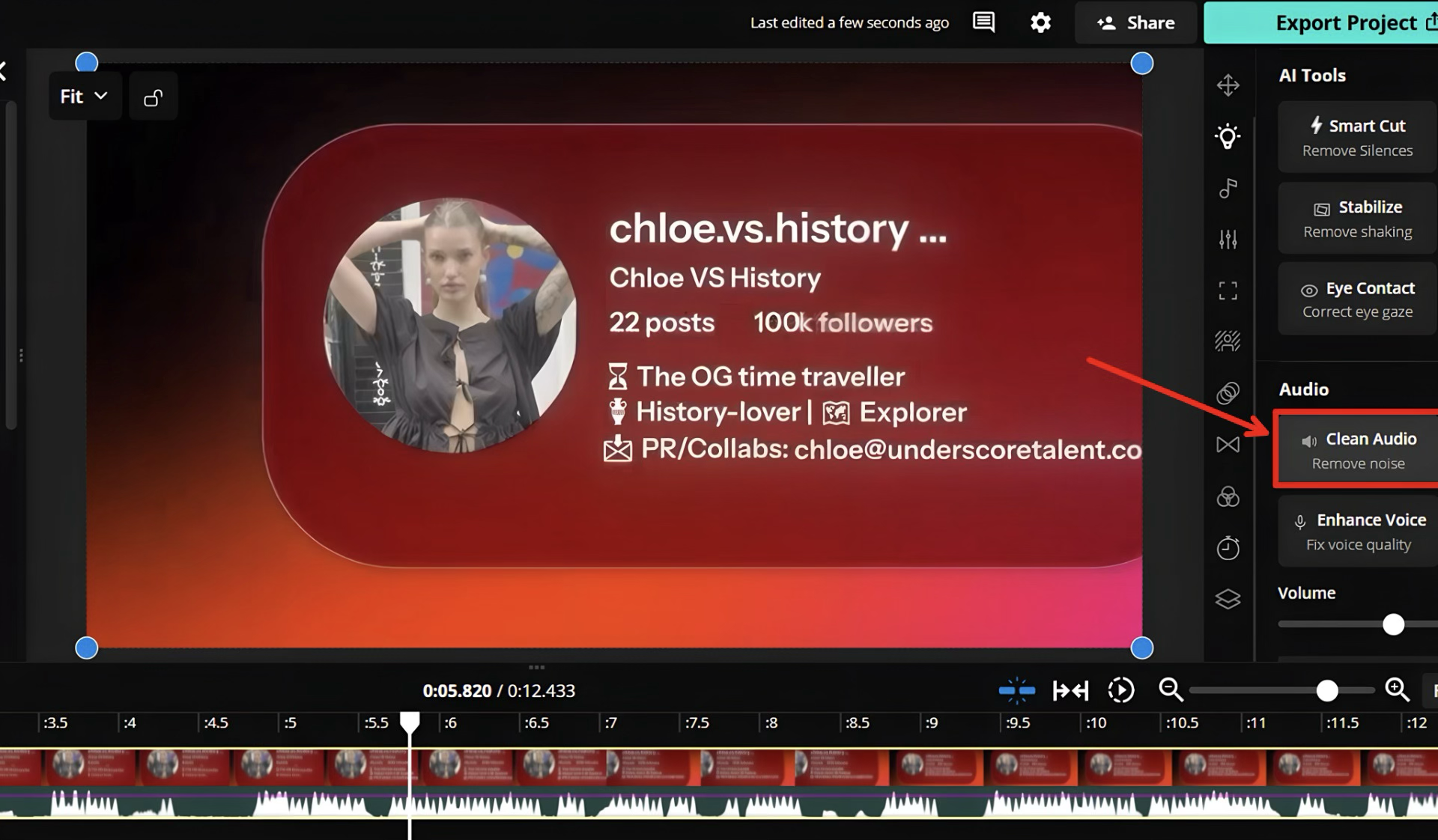
Select your voice track in Kapwing, open the AI Tools tab in the right-hand menu, and use Clean Audio to reduce distracting noise and echo before you build the rest of the mix.
Add Effects Selectively
Sound effects work best when they reinforce an onscreen action or mark a meaningful transition. Too many unrelated cues can make the mix feel busy and flatten the pacing you were trying to create.
Use Kapwing's Sound Effects Library to build a small, consistent sonic vocabulary around recurring actions:
- Motion Graphics: A text card sliding into place gets a soft whoosh.
- B-Roll or Insets: A UI or website selection gets a sharp click.
- The Hook or Breakthrough: A major statistical chart or result gets a restrained impact.
Sync Sound to the Frame
For short visual cues, timing usually matters more than loudness. The sound should feel attached to the action it supports.
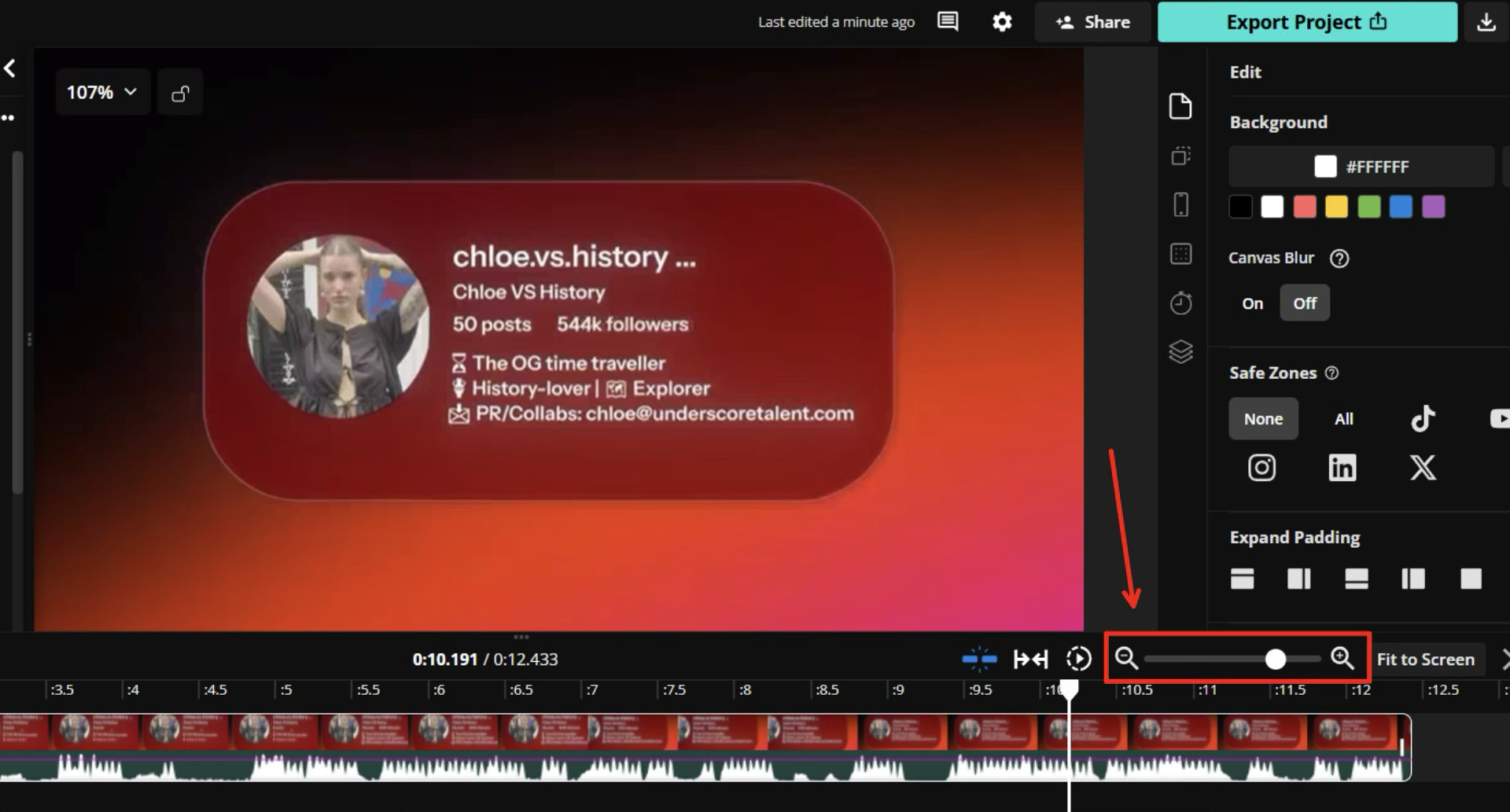
Use the zoom slider at the bottom right of the Kapwing timeline to get close to the waveform, then align the strongest part of the effect with the frame where the visual action lands.
Bridge Cuts With Pre-Laps
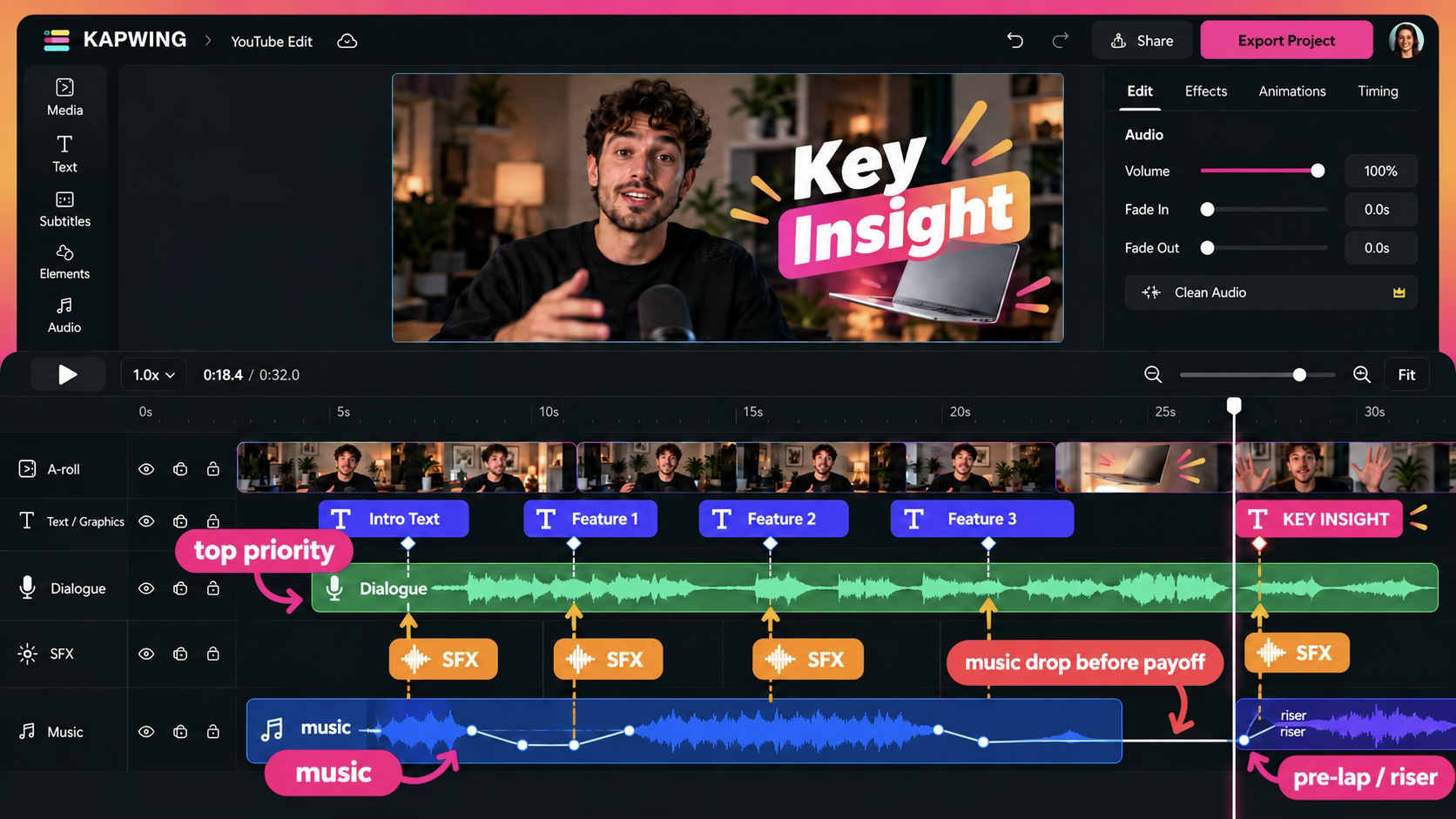
Audio can make two shots feel connected before the viewer consciously registers the cut. Instead of waiting for the new picture to appear, let part of the incoming sound begin slightly early.
Drag an incoming riser, ambience, or effect slightly to the left so it starts before the visual change. The ear begins preparing for the next beat before the eye sees it.
Use Silence for Contrast
If music has been running steadily, a brief drop before an important line or reveal can give that moment more space. Contrast often does more than adding another impact sound.
Use Kapwing's Split Tool (or press S on your keyboard) to create a short gap in the background music before a major insight.
Let the voice land in that space, then bring the music back when the next section begins.
12. Use Music to Unify the Video
Shapland's working order is: intro → main visual edit → sound design → music.
Music comes late because the edit has to reveal its pacing first. Choose tracks by narrative function, not topic. Ask yourself: should this section feel curious, tense, uncertain, energetic, or resolved?
Let one track carry a section while its emotional state stays stable. Change, reduce, or remove it when the video's state changes—not every time the visuals do.
Kapwing's Audio library includes music and sound effects, and Smart Music can recommend tracks from a video's transcript and sentiment. Volume adjustments and fades let a track sit under narration, rise during a montage, or disappear before a reveal.
Keep the hierarchy simple: dialogue carries meaning, effects mark actions and transitions, and music supplies continuity and emotional direction. When one layer becomes noticeably more important, give it room.
13. Review the Video Before You Export
Before exporting, stop reviewing the video only as its editor. Watch it as someone who has just seen the thumbnail and title and decided to click.
Ask yourself:
- Does the opening confirm the promise quickly?
- Do the biggest claims receive visual proof?
- Are there any unanswered questions that have a reason to remain unanswered?
- Does useful information continue to arrive throughout the edit?
- Are there two sections that are doing essentially the same job?
- Do the visuals all explain, prove, or meaningfully set something up?
- Are there stretches where neither the information nor the presentation develops?
- Does the sound support the beat without fighting the voice?
- Does the viewer leave with something they can use—a method, framework, prompt, comparison, or next step?
- Does every deliberate loop eventually close?
Then do one more pass with an even simpler test:
- Clarify: Does this edit make something easier to understand?
- Prove: Does it make a claim more credible?
- Pace: Does it improve how quickly or comfortably the viewer receives the information?
- Signal: Does it direct attention toward what matters now or what matters next?
An edit doesn't have to perform all four jobs, but if it performs none of them, ask whether it belongs. That applies to the flashy edits too. Sometimes removing the edit can be the edit.
14. Use Audience Retention to Improve the Next Edit
You won't know whether every editing decision worked until viewers have watched the finished video.
Once your video has accumulated enough data, open YouTube Studio and select the video from the Content tab. Open Analytics, then find the Audience Retention report under Overview or Engagement.
YouTube's audience retention report highlights several types of viewer behavior:
- Intro retention: The percentage of viewers still watching after the first 30 seconds.
- Dips: Moments where viewers skipped ahead or stopped watching.
- Spikes: Sections that viewers watched again or shared.
- Top moments: Sections where relatively few viewers stopped watching.
Each metric can reveal something about how viewers responded to your editing choices.
Identify Where Viewers Lose Interest
Start by looking for significant dips in the retention graph, then watch the corresponding sections of your video.
If viewers consistently leave during a lengthy introduction, consider whether the result or visual proof should appear earlier.
If retention drops during a long screen recording, the explanation might benefit from a closer zoom, clearer visual cues, or a brief return to the talking head.
A drop during a technical explanation could indicate that too much information is arriving at once. Breaking the process into smaller steps may make it easier to follow.
However, don't assume every dip is caused by poor editing. Viewers may skip because they've already found the information they need, or because a particular section isn't relevant to them.
Look for patterns across multiple videos before making significant changes.
Learn From Your Strongest Moments
Your highest-retention sections can be just as informative as the weakest ones.
If comparisons and before-and-after demonstrations consistently perform well, consider where similar visual techniques could strengthen future videos.
YouTube also recommends reviewing top moments that occur late in a video and considering whether compelling material could appear earlier, when more viewers are still watching.
Spikes deserve closer inspection, too.
A spike might indicate an especially useful explanation that viewers wanted to watch again. But it can also mean the section wasn't clear enough the first time.
For example, if viewers repeatedly rewatch a complicated editing workflow, consider whether additional labels, slower pacing, or smaller steps would make the explanation easier to understand.
Turn Retention Data Into Better Editing Decisions
Compare the retention graph with the structure you originally planned.
Look for recurring patterns between your editing choices and viewer behavior. Perhaps your strongest videos introduce visual evidence earlier, keep software demonstrations shorter, or use comparisons to explain complicated ideas.
Use those observations to guide the next edit rather than treating individual spikes and dips as definitive answers.
That's where Shapland's workflow comes full circle. You start by identifying what viewers need, plan what to show, and build the edit around those needs. After publishing, audience retention data helps you understand how viewers responded.
Good YouTube editing isn't about filling every second with movement, effects, or transitions. It's about making videos easier to understand, more convincing, and more enjoyable to watch.
The more you understand how viewers respond to your editing decisions, the better equipped you'll be to make the next video.