How to Create Consistent AI Characters with Seedance 2.0
Learn the 3-step workflow for creating consistent AI characters with Seedance 2.0.
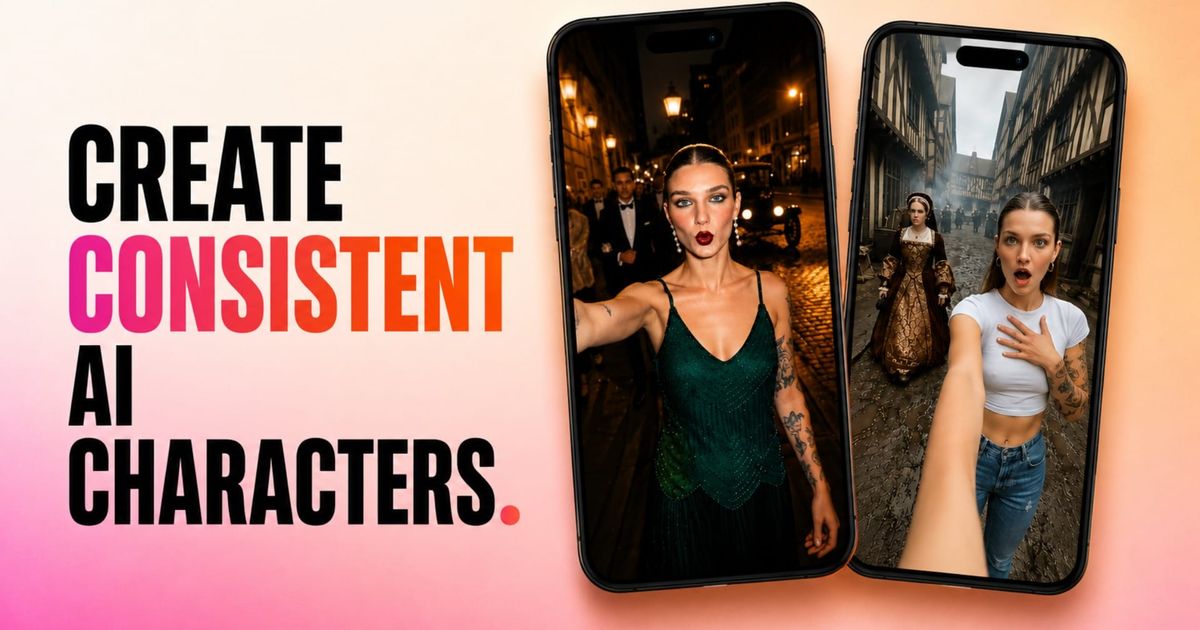
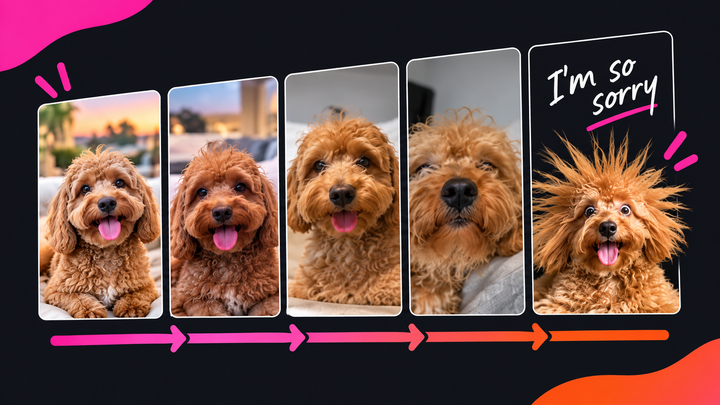
Generating realistic AI videos has become surprisingly easy. Creating a character that stays consistent across every generation has not. You can generate an AI character that looks perfect in one image, only to have their face subtly change in the next. After a few generations, you're no longer working with the same character that you started with.
While this is a huge issue for many modern creators, you don't need longer prompts or dozens of iterations to solve it. Instead, you need a workflow built around reusable reference assets. By creating a face reference, locking your visual style, building a character sheet, and using Seedance 2.0's reference capabilities, you can generate videos where your character looks and sounds like the same person from scene to scene.
In this guide, we'll walk through that complete workflow using GPT Image 2, Claude, Seedance 2.0, and Kapwing, so you can build AI influencers, recurring presenters, or fictional characters that remain consistent across every video.
Table of Contents
- How to Create Consistent AI Characters
- Best Practices for Creating Consistent AI Characters
- Frequently Asked Questions
How to Create Consistent AI Characters
The consistency of an AI character is what separates AI slop from high quality content.
Take Chloe vs History as an example: with more than 350,000 YouTube subscribers, the channel proves that consistent AI characters can build a recognizable brand and loyal audience.
@chloe.vs.history I can’t even imagine what it was like and this video will never show the true picture #ww1 #wewillrememberthem #lestweforget #historytok ♬ original sound - Chloe VS History
The secret to creating a consistent AI character isn't writing the perfect prompt, but building reusable reference assets. This workflow is built around three stages.
First, you'll establish your character's identity by locking their face and style. Next, you'll create reusable reference assets that preserve this identity. Finally, you'll use these references to generate and edit AI videos with Seedance 2.0 and Kapwing.
Step 1: Build Your Character Foundation
Before you generate a single video, you need to define what makes your character recognizable. Rather than relying on text prompts to recreate the same person every time, you'll create two reusable reference images that establish your character's identity: a face reference and a consistent visual style.
These references become the foundation for every image and video you generate moving forward.
Create a Face Reference Image
Start with a clear, front-facing selfie taken in even lighting with a neutral facial expression. Avoid hats, sunglasses, or heavy shadows, as these can make it harder for AI models to accurately reproduce facial features.
Inside Kapwing AI (Kai), click Attach Media and upload your selfie. In the model selector (on the bottom right of the prompt box), choose GPT Image 2, then paste the prompt below.
1a. AI Character Sheet Portrait Prompt
Clean front-facing head-and-shoulders identity portrait of this exact man. Dead-on to camera, eyes level with the lens, neutral resting expression, mouth closed, direct calm gaze. Identity matches the input photo 100% — same facial structure, same features, same hair, same skin, no drift, no idealisation, no beautification.
Natural skin texture with visible pores, fine detail in the eyebrows, eyelashes and stubble, realistic skin tone with no smoothing or retouching. Plain black crew-neck t-shirt, shoulders square to camera.
Flat neutral grey studio background. Soft even clinical lighting from the front, balanced exposure, no harsh shadows, no rim light, no mood lighting, ~5500K neutral white balance.
Shot on 35mm lens, photorealistic RAW photograph quality, sharp throughout, zero retouching.
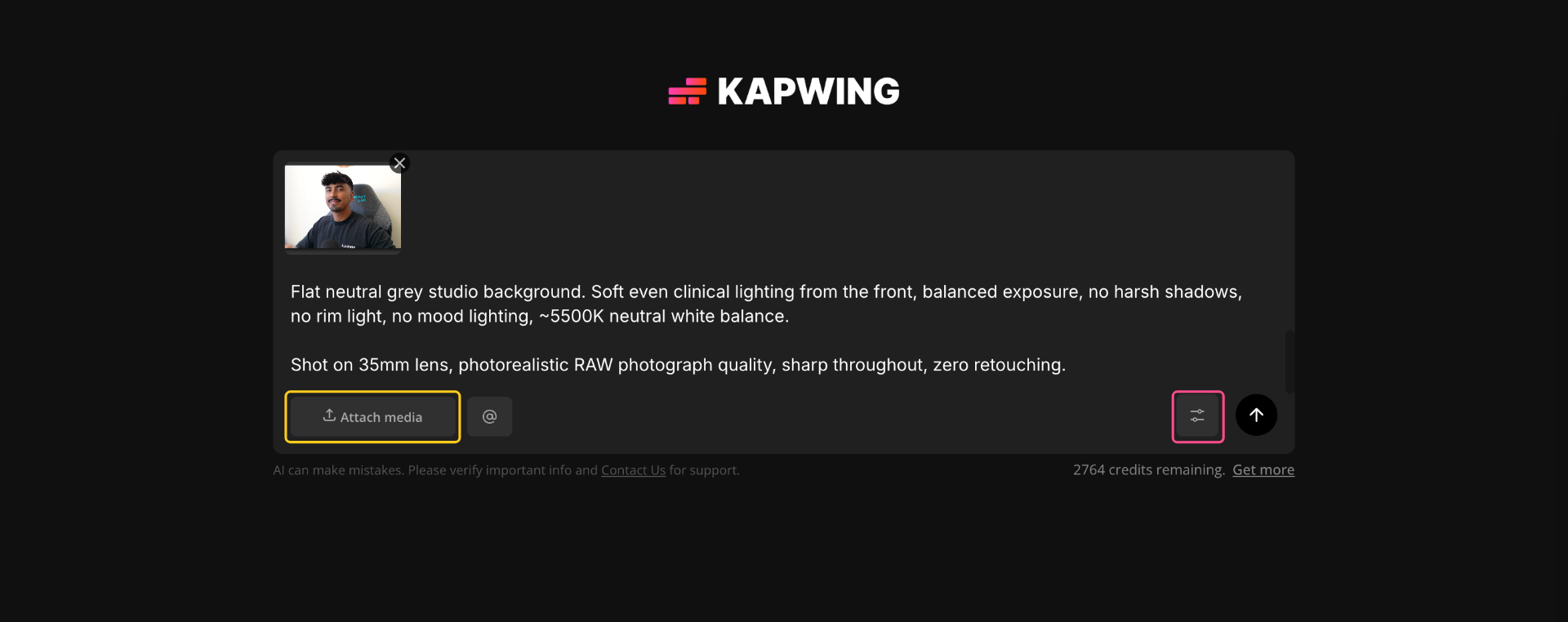
Instead of choosing the first result, generate a small batch and compare them. Look for the version that best preserves your facial features, skin texture, and natural expression. This image will become the primary identity reference for every future generation, so it's worth taking the time to get it right.
Once you've selected your favorite, save it with a recognizable filename. Avoid editing or regenerating this image later—every future reference should point back to this original version.

Lock Your Visual Style
Your character's face is only one part of character consistency. Camera movement, lighting, color grading, framing, and lens choice all influence whether separate clips feel like they're part of the same project. Rather than describing your visual style from scratch every time, you can create a reusable cinematography prompt that you'll include in every video generation.
To begin, find a still image from a film, advertisement, or photograph that matches the visual style you're aiming for. This should capture the lighting, composition, color palette, and camera characteristics you want to recreate.
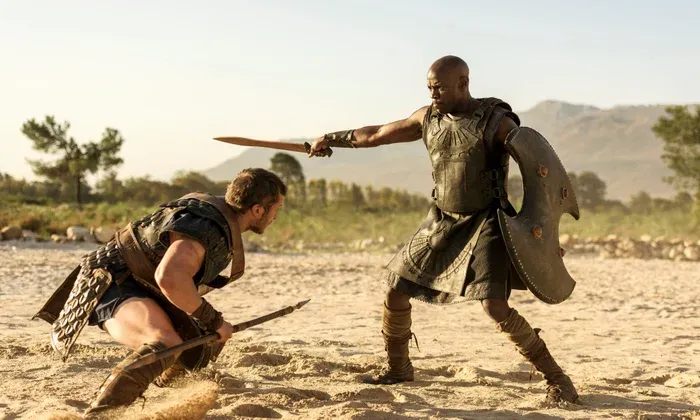
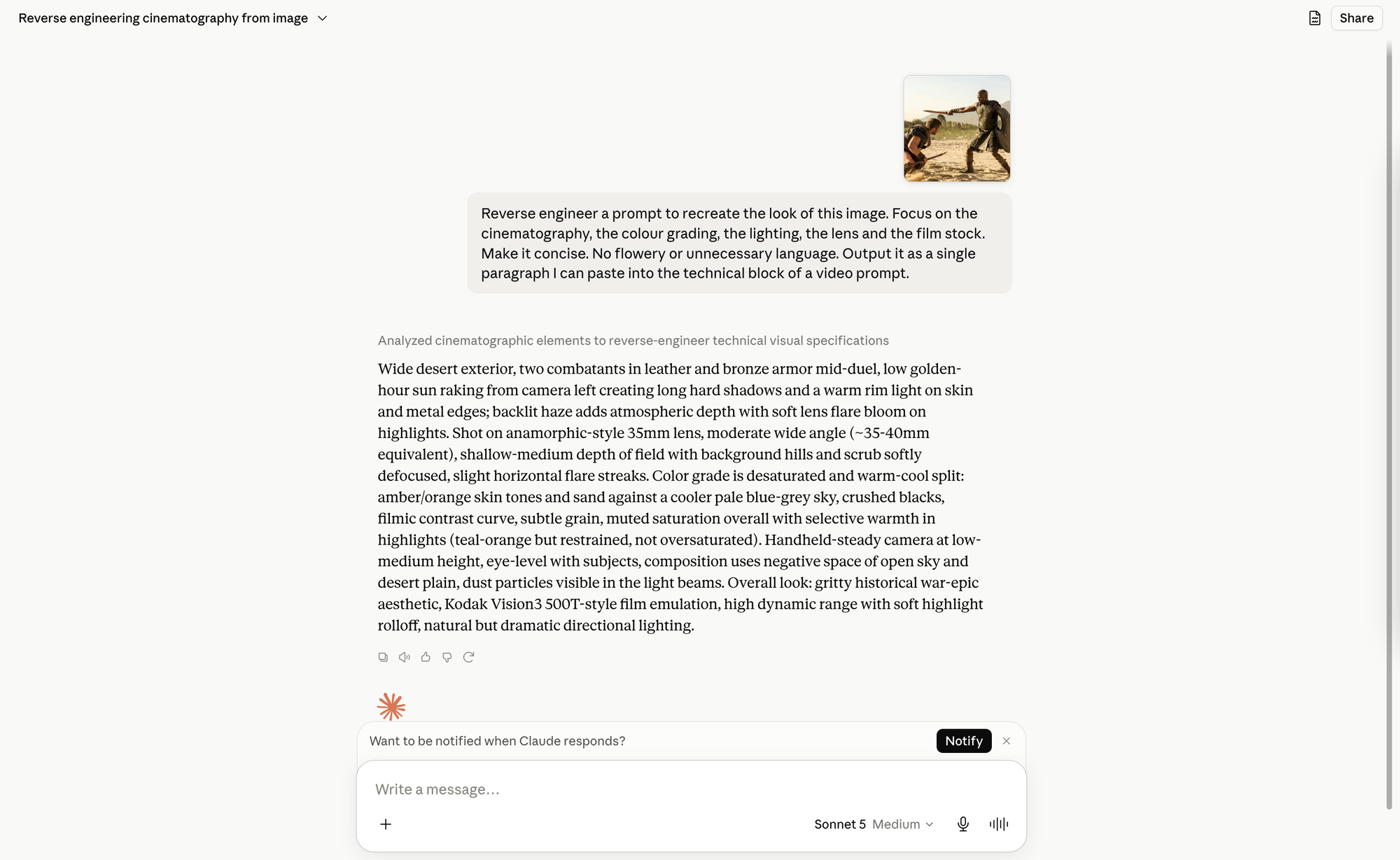
Next, open Claude, upload the reference image, and use the prompt below.
1b. Claude Visual Style Definer Prompt
Reverse engineer a prompt to recreate the look of this image. Focus on the cinematography, the colour grading, the lighting, the lens and the film stock. Make it concise. No flowery or unnecessary language. Output it as a single paragraph I can paste into the technical block of a video prompt.
Claude will generate a concise description of the cinematography, including lighting, lens, camera movement, and color grading.
Save this output—you'll reuse it in every prompt throughout your project.
Step 2: Build Reusable Character References
Now that you've established your character's identity, the next step is packaging it into reusable assets.
In this step, you'll build a character reference sheet, save it inside Kapwing, and attach an AI voice. Once complete, these assets become your reusable character profile.
Create an AI Character Reference Sheet
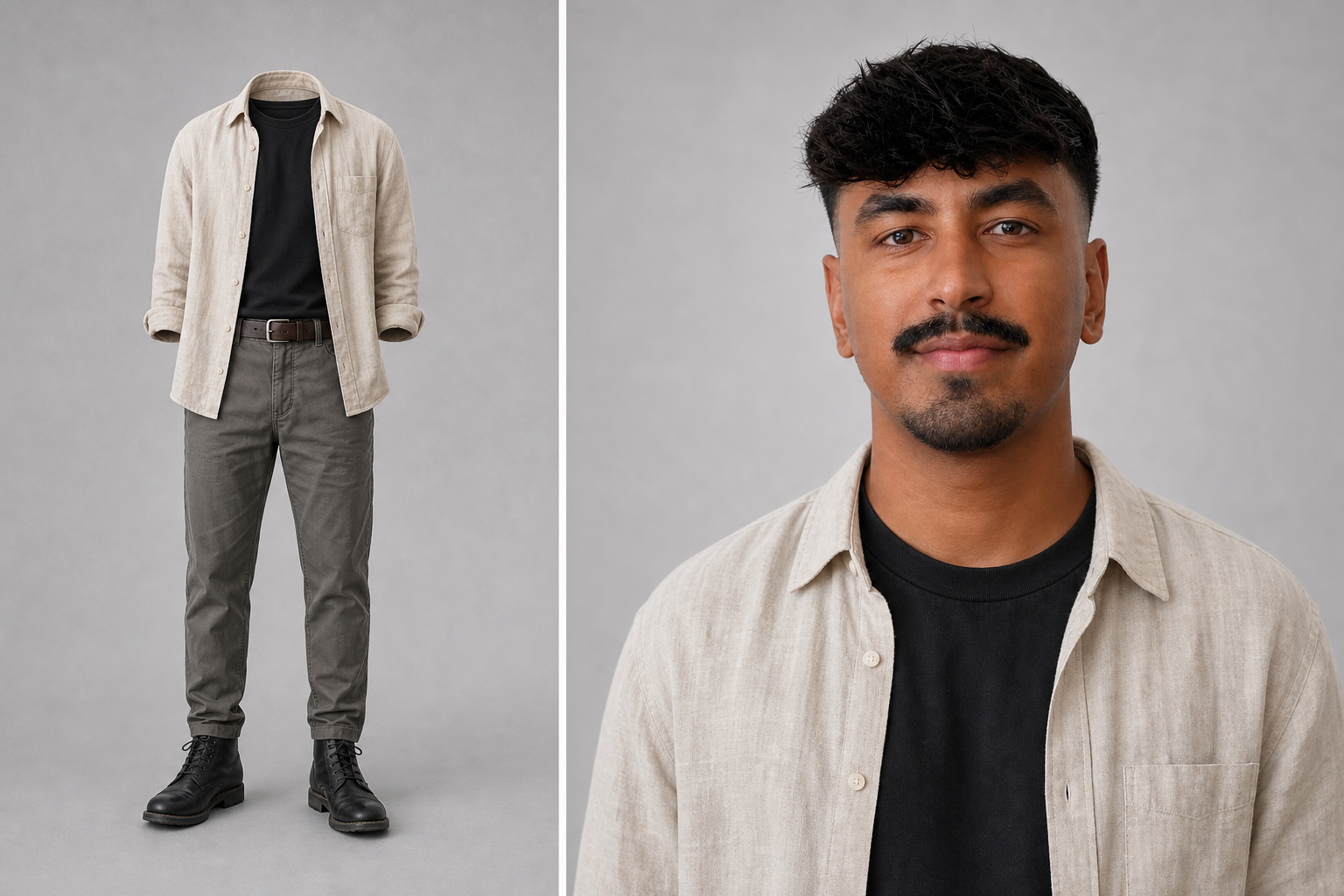
A character reference sheet combines your character's face and wardrobe into a single reusable image. This allows the model to consistently reproduce not only facial features, but also clothing, accessories, and overall styling.
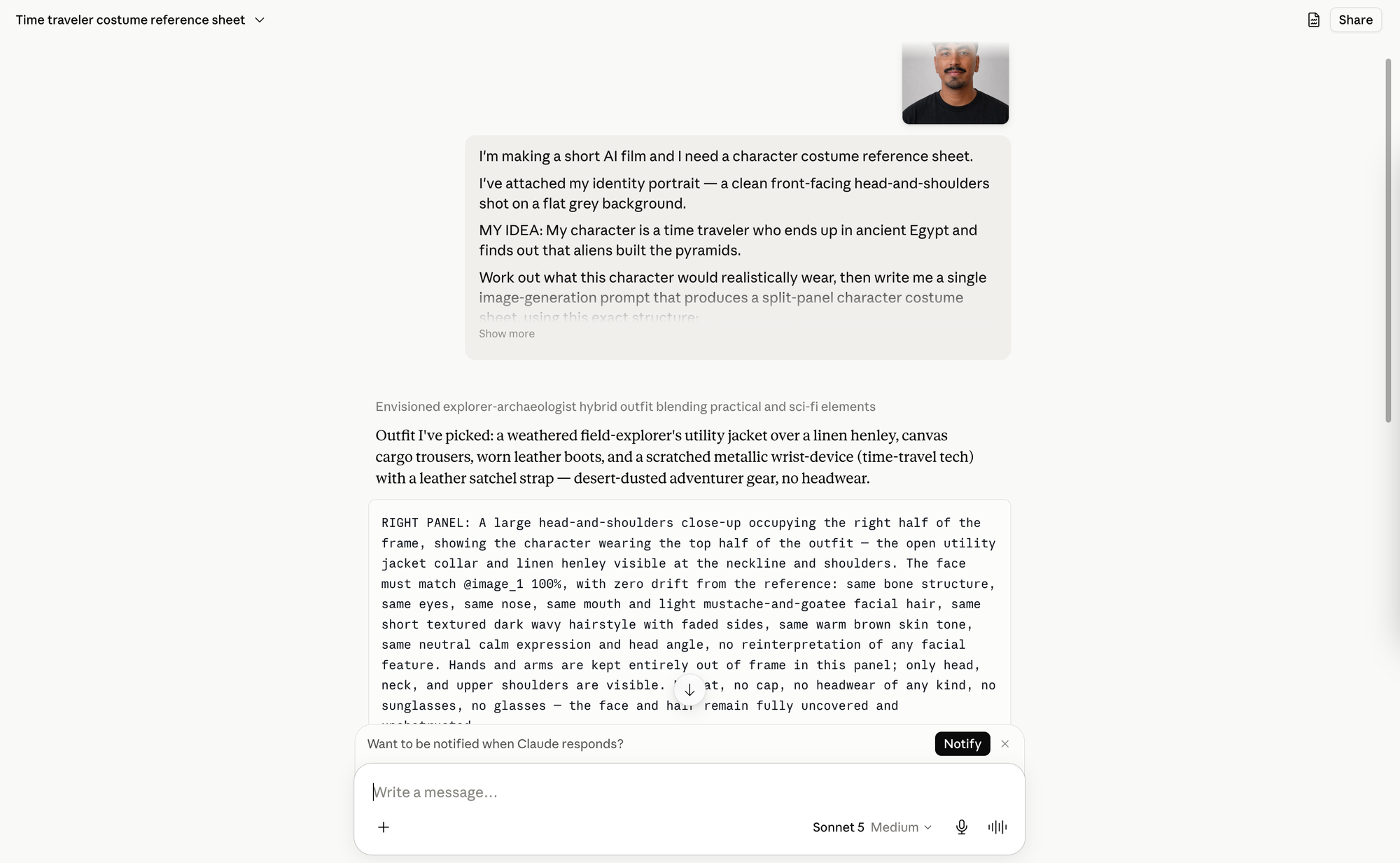
Rather than manually describing every garment yourself, you can use Claude to generate a detailed wardrobe prompt based on your character and the story you're trying to tell. Upload your face reference to Claude, describe your character in one or two sentences, and use the prompt below.
2a. AI Character Reference Sheet Prompt
I'm making a short AI film and I need a character costume reference sheet.
I've attached my identity portrait — a clean front-facing head-and-shoulders shot on a flat grey background.
MY IDEA: [one or two lines — who your character is, where and when they are, what happens]
Work out what this character would realistically wear, then write me a single image-generation prompt that produces a split-panel character costume sheet, using this exact structure:
RIGHT panel — a large head-and-shoulders close-up of the character wearing the top half of the outfit. Reference my attached portrait as @image_1 and state that the face must match it 100% with no drift, keeping the same identity, features, hair and skin.
LEFT panel — the full outfit only, ghost-mannequin style: invisible body, garments floating and styled as worn, no person, no head. Describe every garment in physical detail — fabric, weight, cut, colour, wear, fit, how it sits on the body. Include footwear and accessories, or explicitly state there are none.
LAYOUT — split composition with a clear vertical divide, outfit wide on the left, head close-up on the right.
BACKGROUND AND LIGHT — seamless neutral grey studio backdrop, even soft neutral studio light, balanced exposure, no harsh shadows, ~5500K neutral white balance, no environmental or coloured lighting.
STYLE — clean studio character-reference sheet, photoreal, sharp detail, natural skin tones, fabrics reading as real material with visible weave and wear.
Rules for the prompt you write me:
- Both panels must show the SAME outfit
- Explicitly exclude anything that hides the face: no hats, no caps, no headwear, no sunglasses, no glasses
- Keep hands and arms out of the right panel
- Write it as flowing prose in labelled sections, not bullet points
Before the prompt, tell me in one short line what outfit you've chosen for the character, so I can redirect you if it's not what I pictured.
Then output the finished prompt in a single code block.
Review Claude's suggested outfit before generating the image. If it doesn't match your vision, just ask Claude to revise it.
Once you're happy with the prompt, return to Kai, upload your face reference, select GPT Image 2, paste the generated prompt, and create your character sheet.
The finished reference should contain a close-up portrait alongside the complete outfit so both identity and wardrobe remain consistent throughout future generations.
Save Your Character in Kapwing
With your character sheet complete, you can turn it into a reusable AI character. Click the @ button in the Kai prompt box, and select Add Character.
Upload your character sheet as the likeness reference.
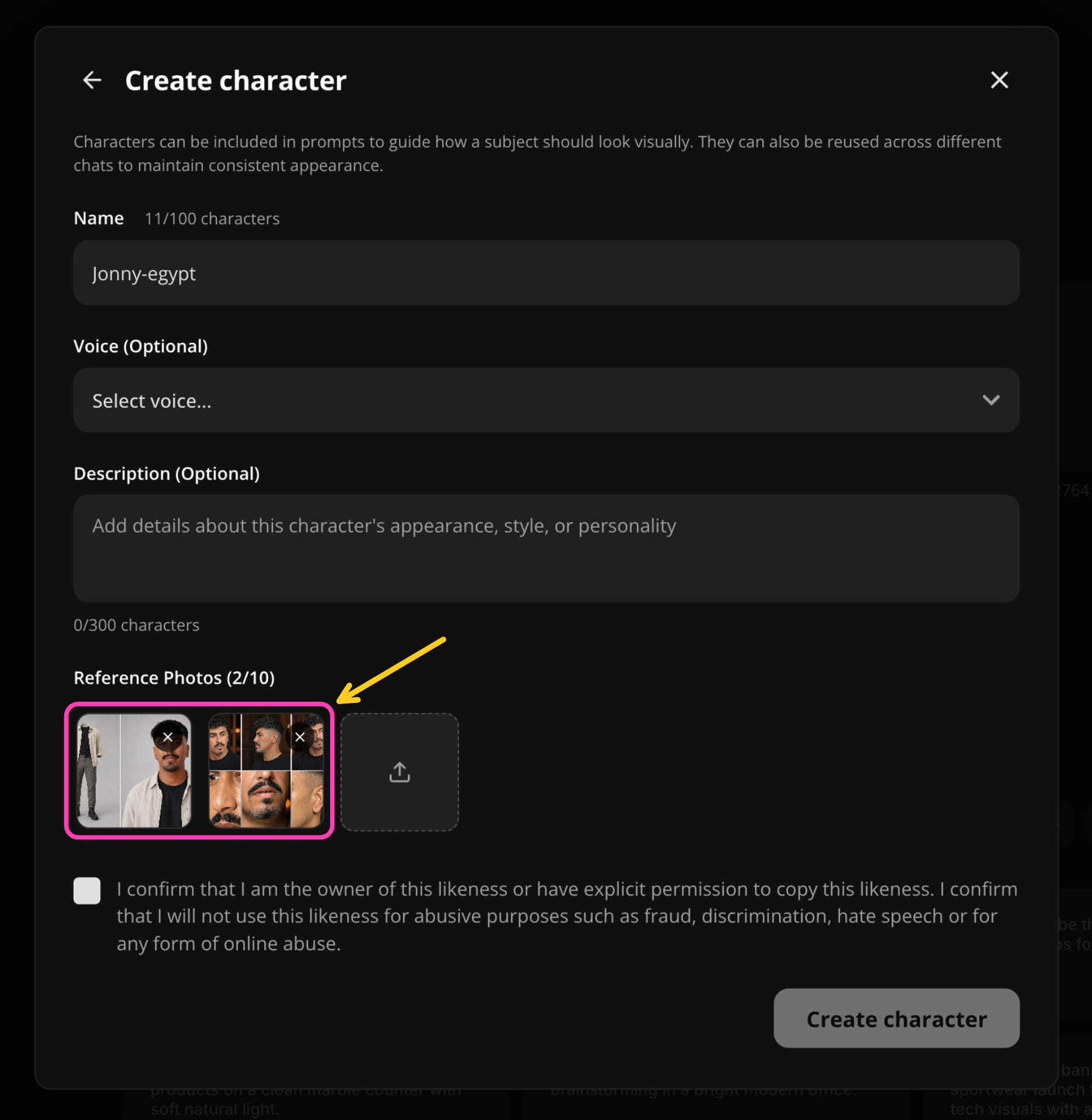
If your character will be speaking, clone a voice by selecting Create Voice Clone. You can either record a sample directly inside Kapwing or upload an existing recording.
Once processing is complete, assign the cloned voice to your character before saving.
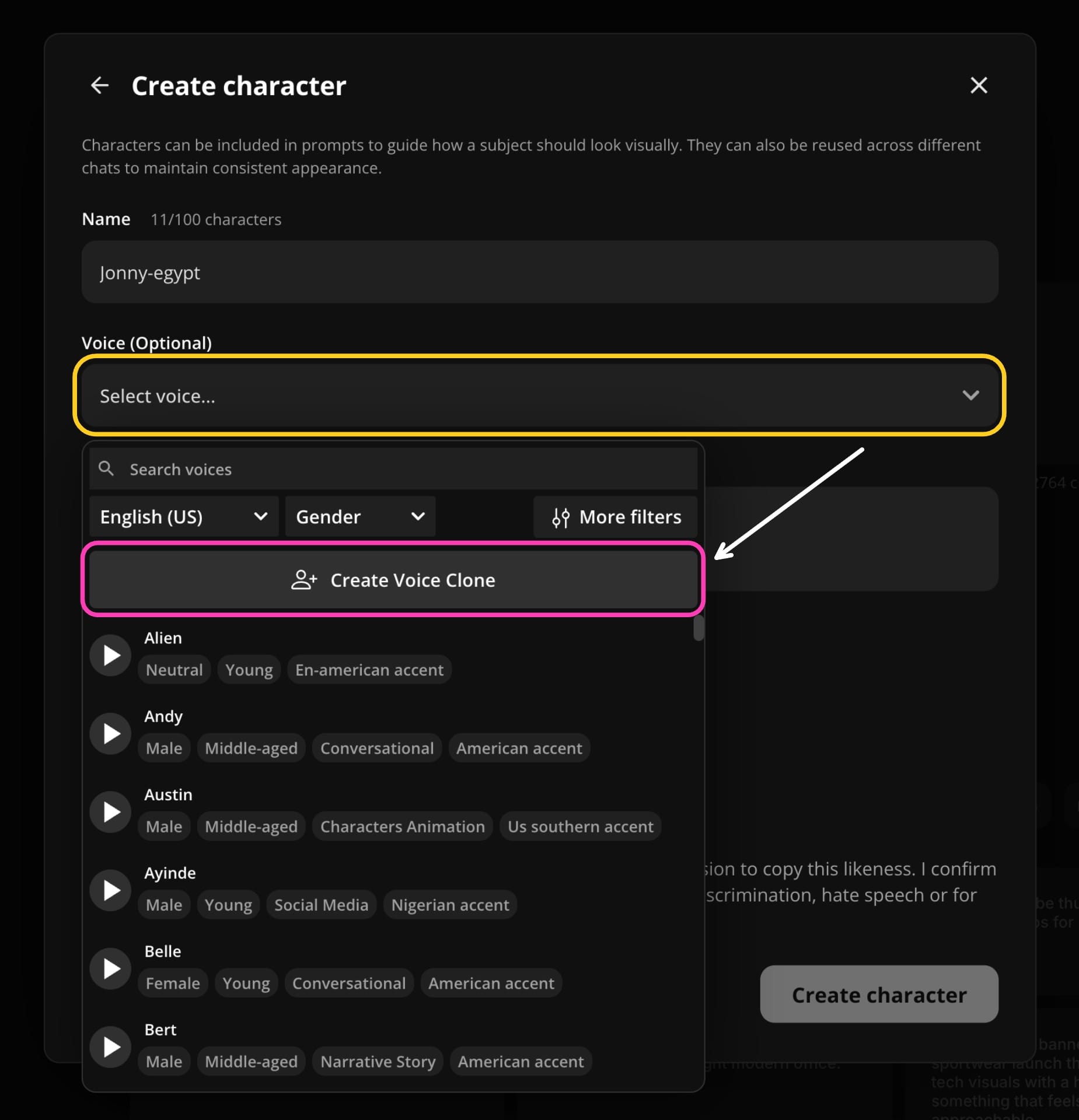
From this point forward, you can reference your saved character directly inside prompts instead of repeatedly uploading individual assets.
Kai will automatically reuse the associated face, wardrobe, and voice, making it much easier to maintain consistency across multiple generations.
Step 3: Generate Consistent AI Videos
With your character built, the final stage is turning them into finished videos.
Rather than describing every scene manually, you'll use Claude to generate a script, convert it into Seedance prompts, then generate each scene with Kai.
Write Your Script
If you already have a video idea, you can ask Claude to write your script, rather than creating it all yourself.
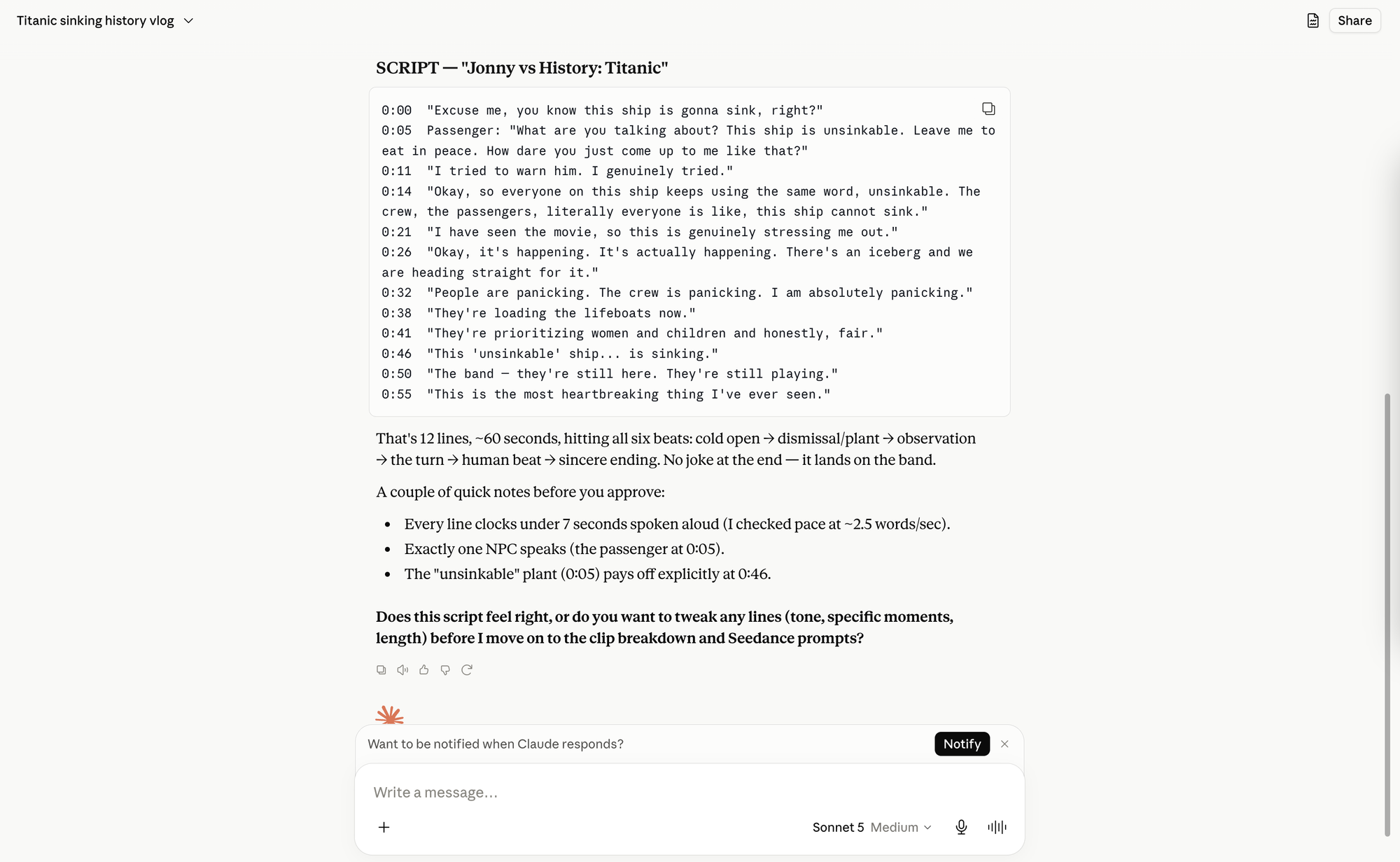
In the YouTube workflow, this is done using the History Vlog Method Claude Skill. Attaching this zip file will help Claude generate a complete first draft from a one-line concept. For example, you might prompt:
"Help me create a history vlog about the sinking of the Titanic."
Claude returns a structured script with dialogue and pacing. If it's too long or doesn't match the tone you're looking for, continue refining it conversationally.
Turn Your Script into Video Prompts
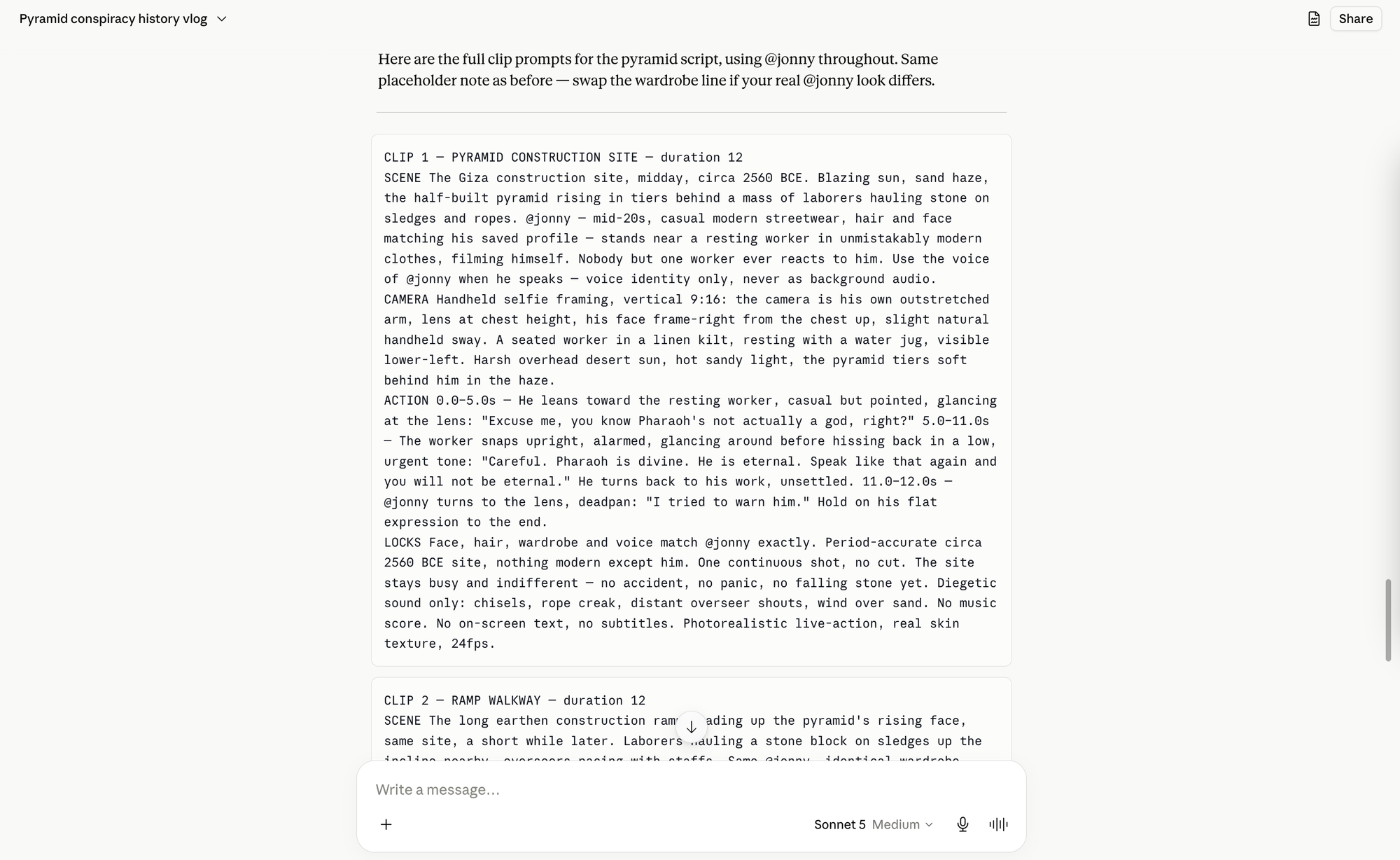
Once you're happy with the script, paste it back into Claude and say: "turn the script into prompts using the character [your character's name]".
Claude will reference the character you built in Kapwing and, for each scene, write out how long the clip should be and how it should be styled, using the same locked face, voice and cinematography language from steps 1 and 2.
The example prompts from the video that we generated is below:
Jonny in Egypt Claude Example Prompt
CLIP 1 — GIZA CONSTRUCTION SITE — duration 15s
SCENE
Giza, 2560 BC. An enormous flat-topped stepped limestone structure, two-thirds built, dominates the sky over a bare sand plateau. @jonny-egypt stands in the midground, dwarfed by the mass behind him, calm and focused. Labourers move across the ramp in the far distance. Use the voice of @jonny-egypt when he speaks — voice identity only, never as background audio.
CAMERA
Handheld, slow steady drift, never locked off. Anamorphic 2.39:1, 21:9, no lens flare, fine film grain, deep focus. Hard high midday sun, bleached white light, pale gold sand, blue-white sky haze, deep hard-edged shadows, neutral daylight white balance.
ACTION
0.0–7.0s — He walks a few paces across bare sand, stops, turns to the lens: "Giza. 2560 BC. Eight years into building the great pyramids. Two point three million blocks, two hundred feet high, lined up with the stars."
7.0–15.0s — Holding eye contact: "Nobody has ever been able to explain how they were built. So I've come to watch it live. With my own eyes." On the last word he looks up past the camera.
LOCKS
Face, wardrobe and voice match @jonny-egypt exactly. Structure is unfinished, no pointed apex. No vehicles, no scaffolding, no modern objects anywhere in frame. Labourers stay in the far distance and never react to him. Diegetic sound only, no music score. No on-screen text.
Generate Videos with Seedance 2.0
With your character built, the final step is turning them into a finished video.
You'll reuse the reference assets you've already created: your saved character, voice clone, and cinematography prompt. This lets you focus on what's changing between scenes—the dialogue, action, and environment—while keeping everything else consistent.
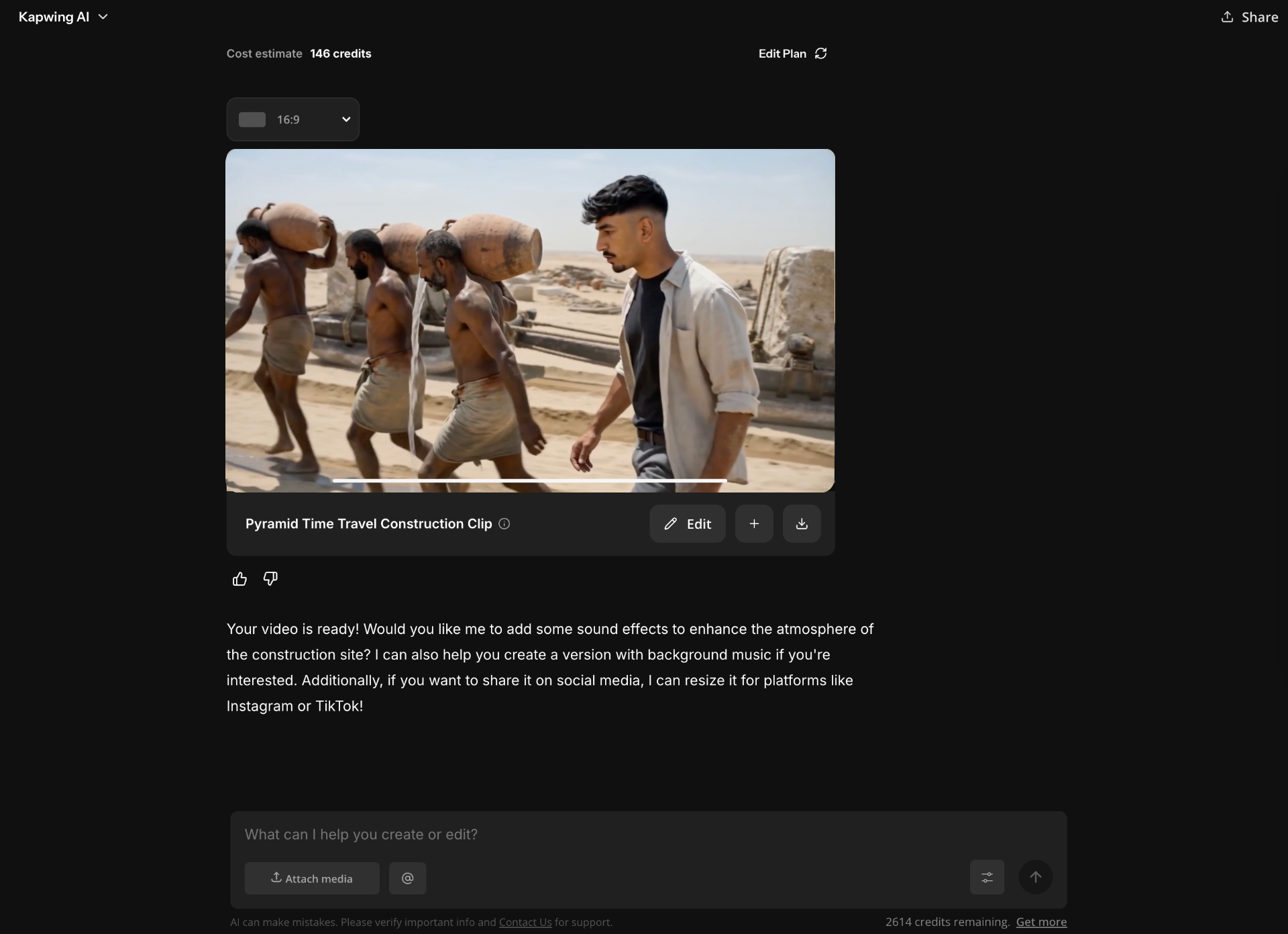
Open Kai, paste each scene prompt, making sure to select Seedance 2.0 as the video model. If a scene needs refinement, regenerate only that clip instead of the entire project.
Edit Your AI Videos in Kapwing
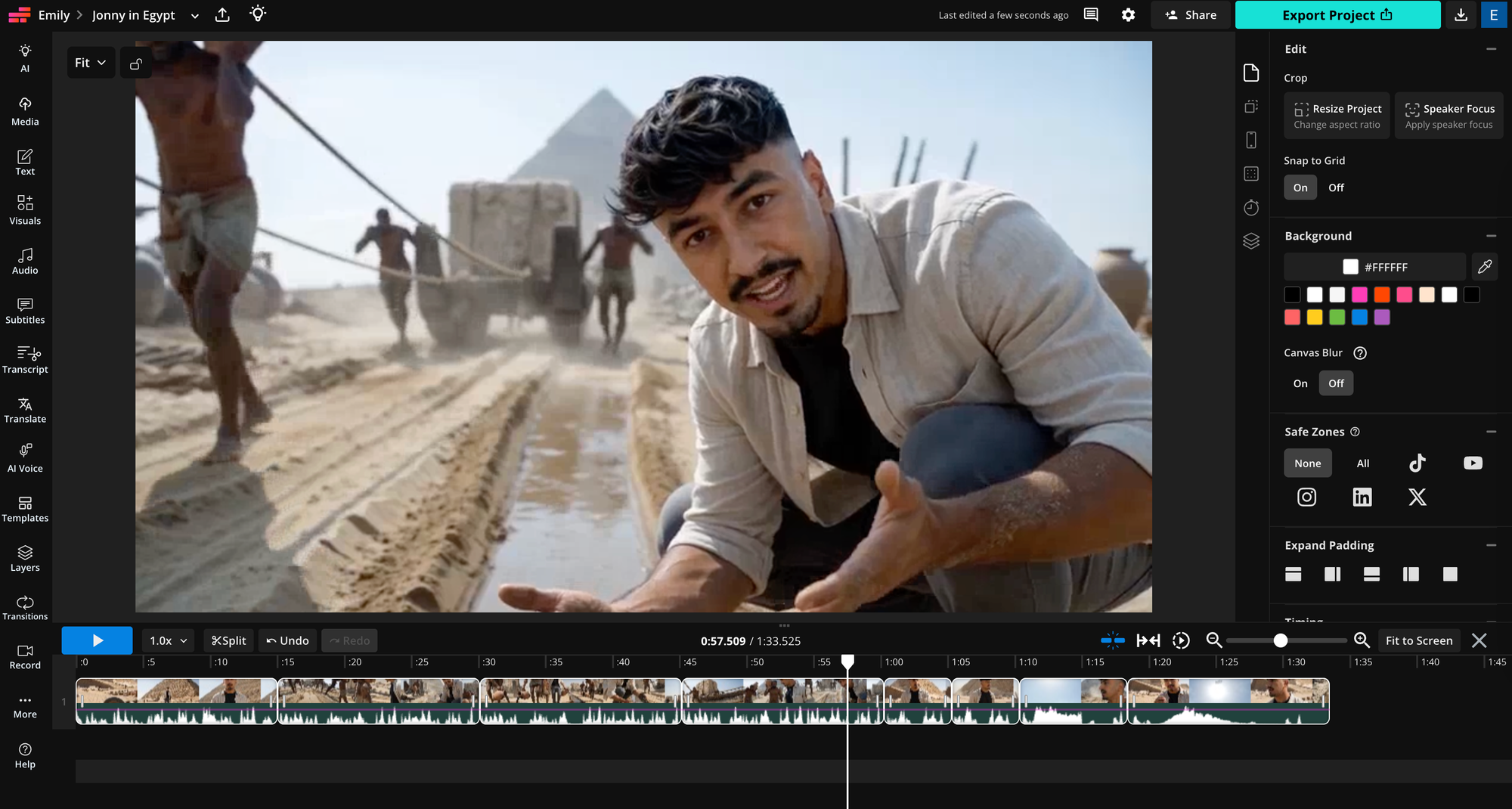
Once your scenes have finished generating, open them in the Studio to assemble your final video.
The first thing to do is make sure that your project is set to the correct aspect ratio. For example, 9:16 for TikTok, Instagram Reels, and YouTube Shorts. Next, add each generated clip to the timeline in order.
From there, you can refine the pacing by trimming clips, rearranging scenes, or regenerating individual shots without affecting the rest of your project.
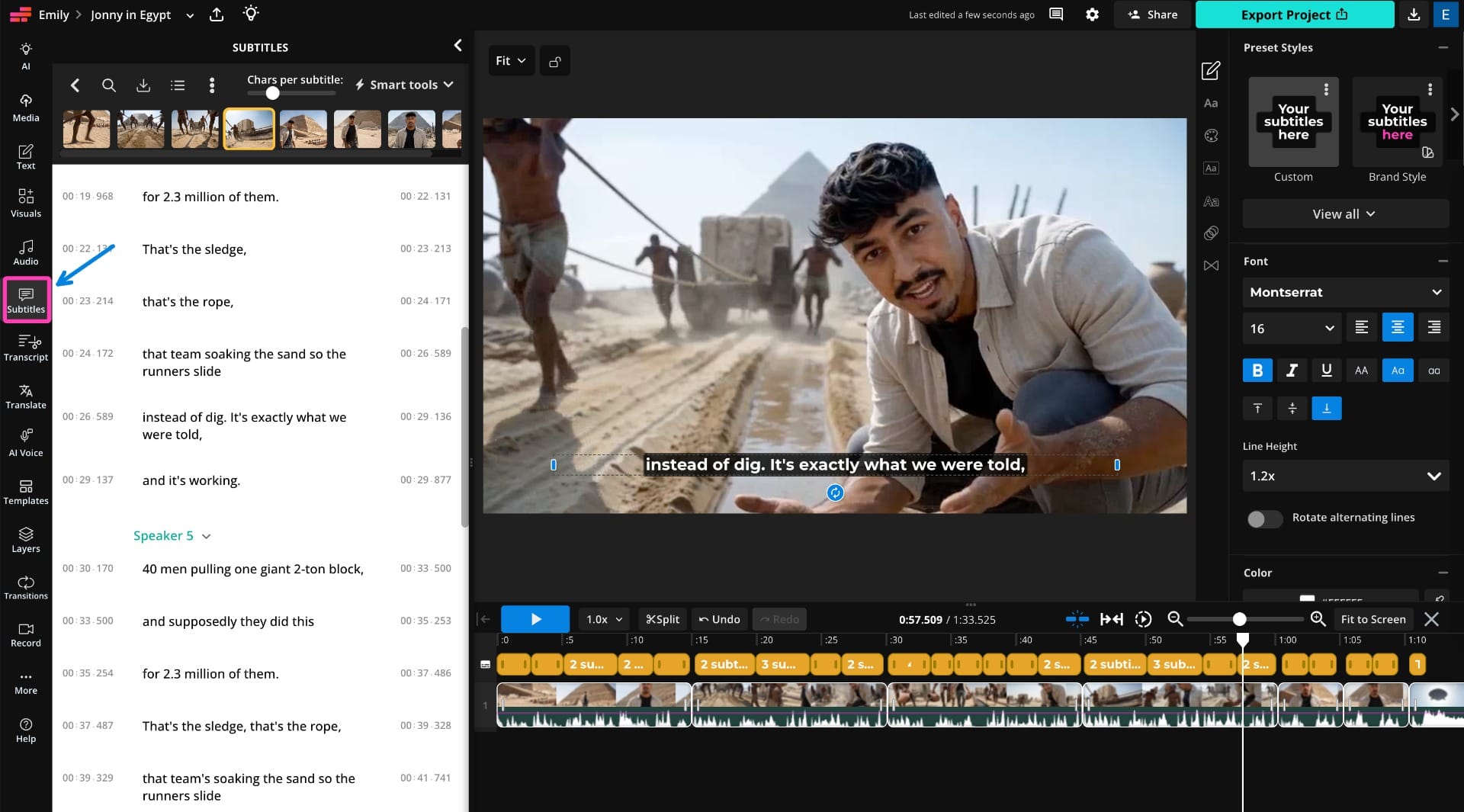
You can also generate captions by selecting Subtitles from the left-hand toolbar and clicking Auto Subtitle. Kapwing will automatically transcribe your video's dialogue, which you can then edit and style directly within the editor.
Experiment with different fonts and layouts to match your project's aesthetic. For this guide, we used an all-caps serif font with a drop shadow positioned in the lower third, but you can customize your subtitles to your own style.
Best Practices for Creating Consistent AI Characters
Even with strong prompts, maintaining character consistency depends on reusing the same reference assets throughout your project.
The following best practices will help you produce more reliable results while avoiding the most common causes of character drift.
Keep One Master Face Reference
Your face reference should become the source of truth for every future generation. Once you've selected your final portrait, avoid regenerating or editing it midway through a project. Even small changes can compound over multiple generations and cause your character's appearance to drift.
Reuse the Same Cinematography Prompt
Your cinematography prompt is just as important as your face reference. Reusing the same lighting, lens, framing, color grading, and camera movement across every prompt helps separate clips feel like they're part of the same production instead of unrelated generations.
Use High-Quality Voice References
If you're cloning a voice, record your sample in a quiet environment with minimal background noise. A clean recording produces more natural and consistent speech, especially across longer projects.
Generate Multiple Variations Before Moving On
Don't settle for the first generation. Whether you're creating your face reference, character sheet, or video clips, generating a few variations and selecting the strongest result will produce a much more consistent final project.
Keep Your Reference Assets Organized
Store your face reference, character sheet, cinematography prompt, and voice clone together. Reusing the same assets across every generation is the simplest way to maintain consistency from your first scene to your last.
Frequently Asked Questions
What is the best AI model for creating consistent AI characters?
Models that support reference images generally produce the most consistent results. In this workflow, GPT Image 2 is used to create reference assets, while Seedance 2.0 generates videos using those references to preserve your character's appearance and voice across multiple scenes.
Why do AI characters change between generations?
Most AI models don't remember previous generations unless you provide reusable references. Without a face reference, character sheet, or consistent visual style, the model recreates your character from scratch each time, often introducing small changes that become more noticeable over multiple generations.
How many reference images do I need to create an AI character?
One high-quality face reference is enough to get started, but adding a character reference sheet gives the model additional information about your character's clothing and overall appearance. More advanced workflows can incorporate multiple reference images for different angles and expressions.
Why is my AI character still inconsistent?
Character drift usually happens when one or more reference assets change between generations. Make sure you're consistently reusing the same face reference, character sheet, voice clone, and cinematography prompt throughout your workflow. If you're still seeing inconsistencies, try simplifying your prompts so the model has fewer new variables to interpret.