How to Add Captions to a Video on Slack
Learn how to add captions to a Slack video using Slack’s native closed captions or Kapwing’s automatic caption generator
Slack - the messaging platform - is built for quick updates, but your video still has to work when a teammate is commuting, sitting in a meeting, or watching with the sound off. Captions make product demos, walkthroughs, project updates, Loom recordings, conference snippets, and announcements more accessible and easier to follow.
Fortunately, there are two straightforward ways to add captions to a video on Slack:
- Use Slack’s native closed captions for a video clip.
- Add permanent captions before uploading the video to Slack.
Slack’s native method is the quickest option for a casual update. Kapwing is better when the wording needs to be reviewed, the captions should always appear, or you want the video to follow a particular brand style.
In this guide, we’ll walk through both methods and explain when to use each one.
Can you add captions to a video in Slack?
In Slack, you have a few options when it comes to adding subtitles onto a video:
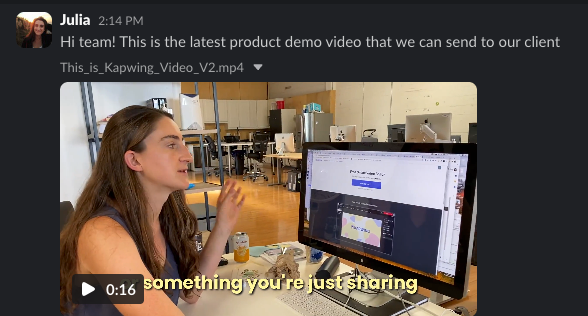
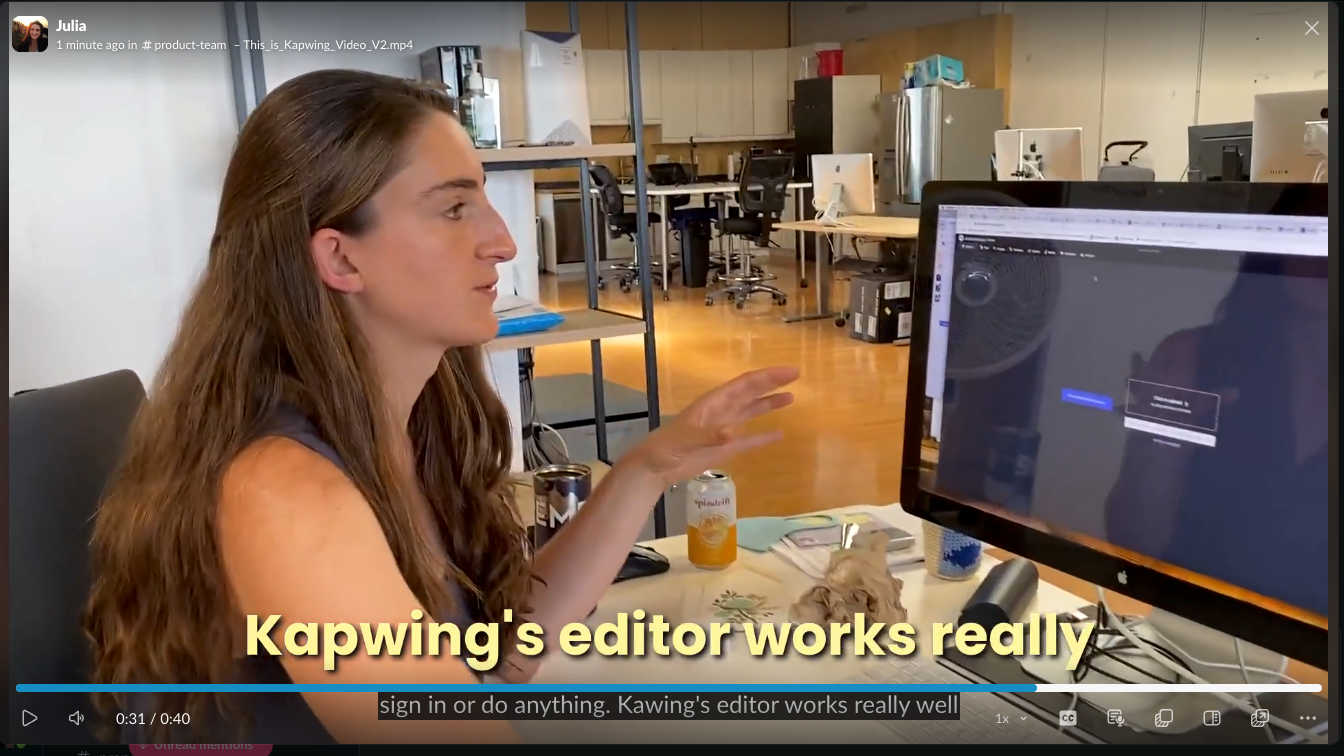
- Closed Captions – Auto-generated subtitles overlaid natively at the bottom of the video player. The user can decide to turn them on or off when watching the video.
- Open Captions – Subtitles are burned into the MP4. The creator has more control over what they look, where they show up on the video, and the spelling of the specific words.
How to Add Closed Captions in Slack
Anyone can turn on closed captions for a video or audio file posted in Slack, weather you're a viewer or author of a message.
Slack says that closed captions are available for all video and audio clips. Transcripts and captions, however, are opt-in by default: after a clip is shared, someone must select Generate transcript unless a workspace owner or admin has enabled automatic transcription.
Note: Slack video clips are limited to five minutes. If your video is longer, use the second method in this guide and upload the finished video as a regular file instead.
Generate Closed Captions on Desktop Slack App
To add closed captions when posting a video, post the video file in a new message and click "CC" to generate the transcription for that file.
If you don't see the "CC" icon, find the "Turn on Captions" option under the gear icon in the bottom right corner of the uploaded video. Slack will show a "Caption processing..." loading indicator until the transcription completes.
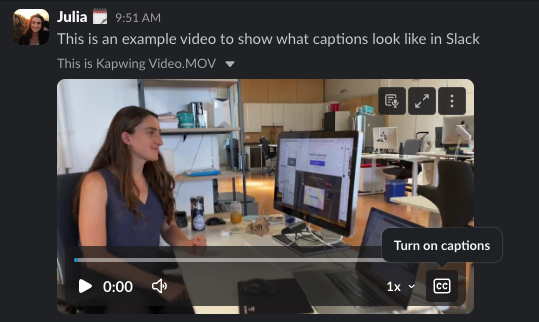
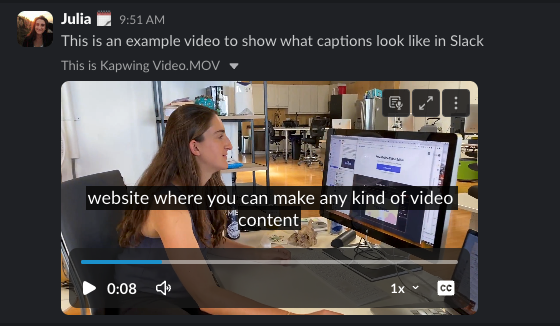
With captions on, Slack shows the captions in white font on a black background at the bottom of the video.
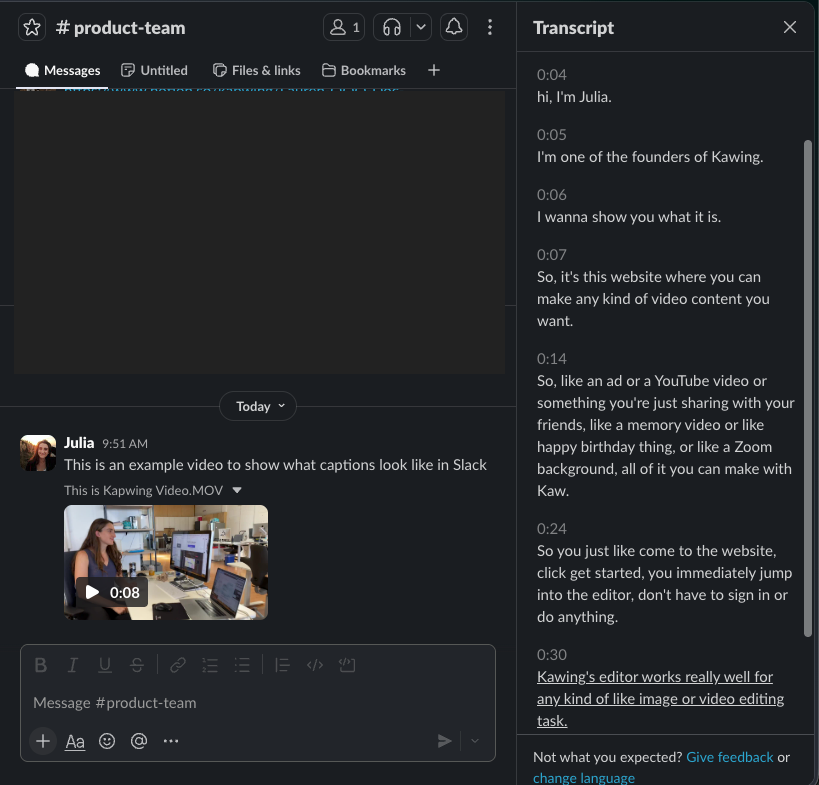
Once captions have been generated, Slack also shows the detected speech under the "View Transcript" button. This shows the full text of the video, timestamped and chunked, so that it's easy to skim, search, or copy-paste.
Generate Closed Captions on Slack Mobile App
On the Slack iOS app, users can opt in to showing captions using the "CC" button in the video viewer. They will appear below the video when viewed in the full-screen experience.
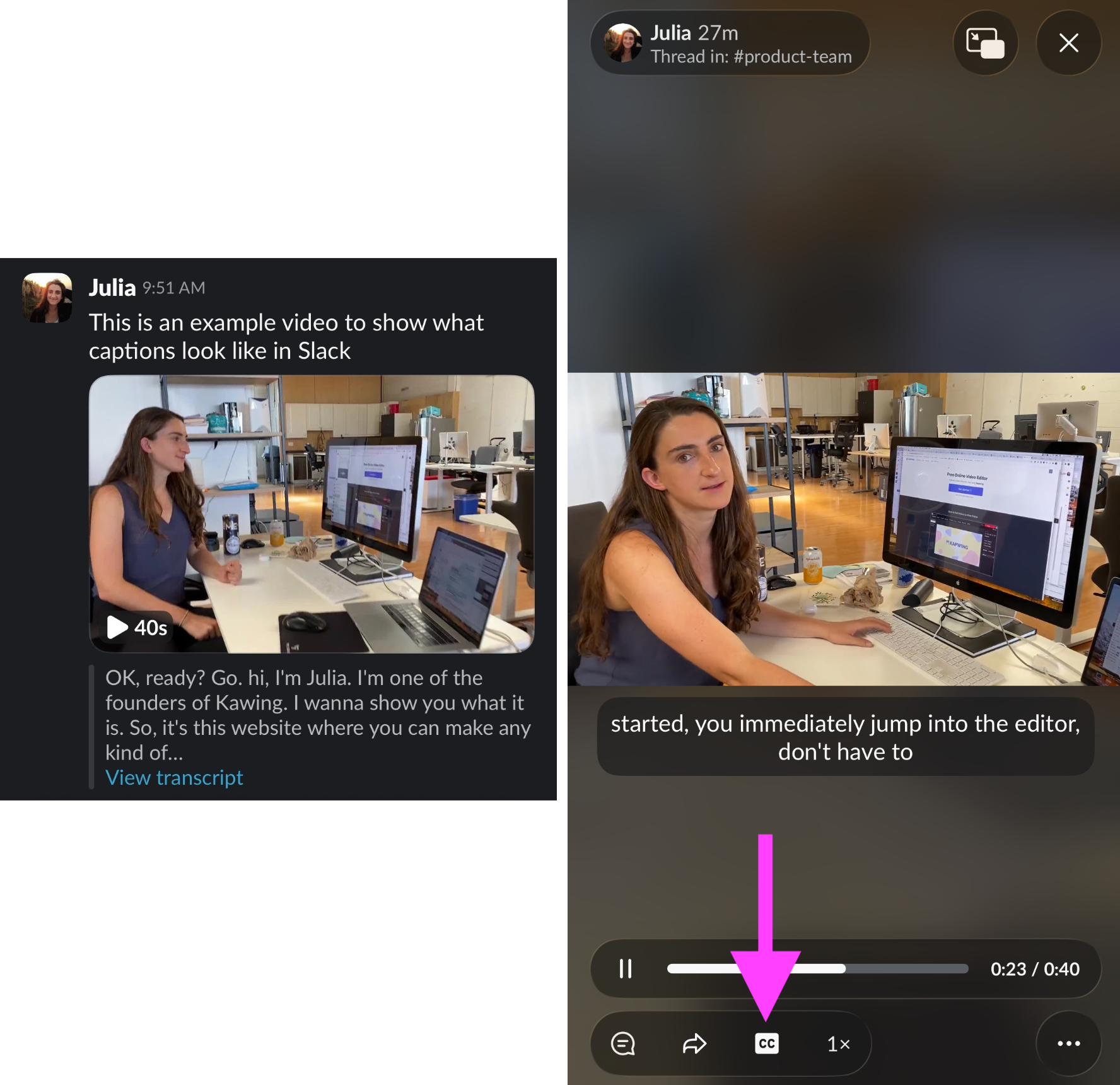
After the captions or transcript have been generated, a transcript preview will show below the video upload in the Slack message as well.
According to Slack's changelog, the platform added this captions feature in September 2021.
When to use Slack’s native captions
Native captions are convenient, but convenience comes with less control. For example, the native captions may contain misspellings which can misguide the viewer for product terminology, teammate's names, or brand lingo. The native captions may also cover crucial parts of the video, like a Loom speaker's face, text labels, or parts of a powerpoint presentation. Finally, you might have videos that are longer than 5 minutes, meaning that Slack will not generate native captions for you.
Choose native captions when:
- The clip is under five minutes.
- The video is a low-stakes internal message.
- You do not need custom styling.
- It is fine for viewers to turn captions on themselves.
- You want a transcript attached to the Slack clip.
For a training video, executive announcement, customer-facing demo, or any recording with names and technical vocabulary, reviewable captions are usually the safer choice.
How to add multilingual captions to a Slack Video
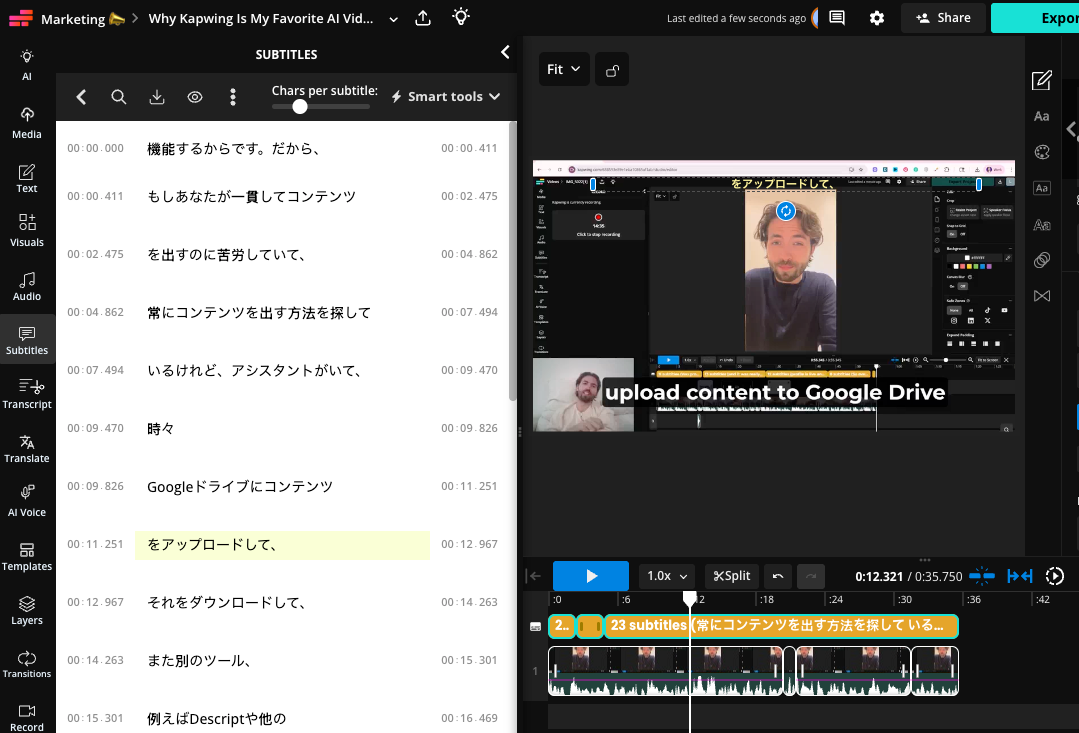
Slack's native captions only supports captions in one language, the original language of the video. It auto-detects the language to generate captions. If you want to add subtitles in a different language, you will need to use a third-party editor to add captions before uploading your video to Slack.
Try Kapwing's Captions Translator or AI Dubbing tool to add subtitles in a different language before sharing.
How to Add Open Captions in Slack
If you want captions to appear for everyone automatically, embed them in the video before sharing it. These are called open captions or burned-in captions because the text becomes part of the exported video. The subtitles will remain on the video if it is downloaded and shared on other platforms, so they are ideal for references, marketing clips, or product announcements.
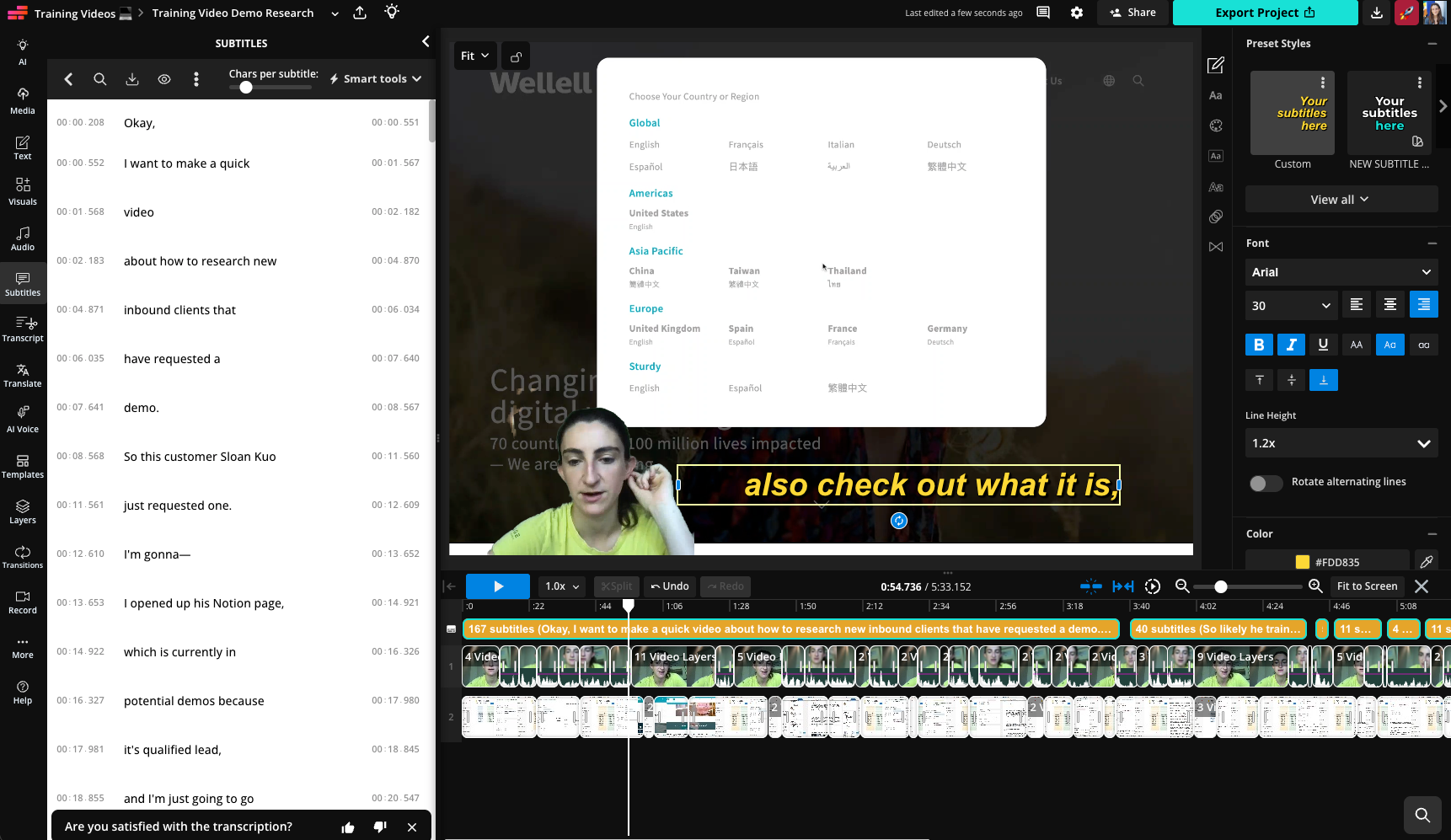
Available on desktop and mobile web, Kapwing’s automatic subtitle generator creates a timed transcript that you can correct, style, and export with your video. This gives you control over what the captions say and how they look in Slack.
Here's how to add open captions on a Slack video before posting:
- Upload your video. Open Kapwing’s online video editor and add the file from your device or a supported source.
- Generate a first caption draft. Use the automatic subtitle generator to transcribe the speech and create timed captions. Choose the spoken language before processing or the "auto-detect" option. If your video already has an SRT or VTT file, you can upload that instead of generating a new transcript.
- Correct the transcript and timing. In the subtitle editor, fix names, acronyms, punctuation, and line breaks. There may be proper nouns, brand terms, or numbers typed phonetically that you want to adjust. Play the video from the start and check every caption against the audio.
- Style the captions: Change the font, positioning, alignment, animations, and width of the captions to ensure that they do not cover up crucial on-screen content. If multiple people at your company make videos, save the final subtitle styling to your Brand Kit. That keeps fonts, colors, and caption placement consistent across team updates.
- Export the captioned video. If the file is heavy, compress the video while checking that small text stays sharp.
- Upload to Slack. Add the exported file to a channel or direct message, include a message or summary, and wait for the preview to finish processing.
Should You Use Closed or Open Captions on Slack?
Neither format is best in every situation. Use Slack’s closed captions when speed matters and the video is a short, casual clip. Viewers can switch the text on or off, and you can generate a separate transcript inside Slack.
Use open captions from Kapwing when the captions need to be visible by default, reviewed for accuracy, styled consistently, or preserved when the video is downloaded and shared somewhere else. Kapwing also supports translating the captions into another language, so it's ideal for communications in a multilingual workforce.
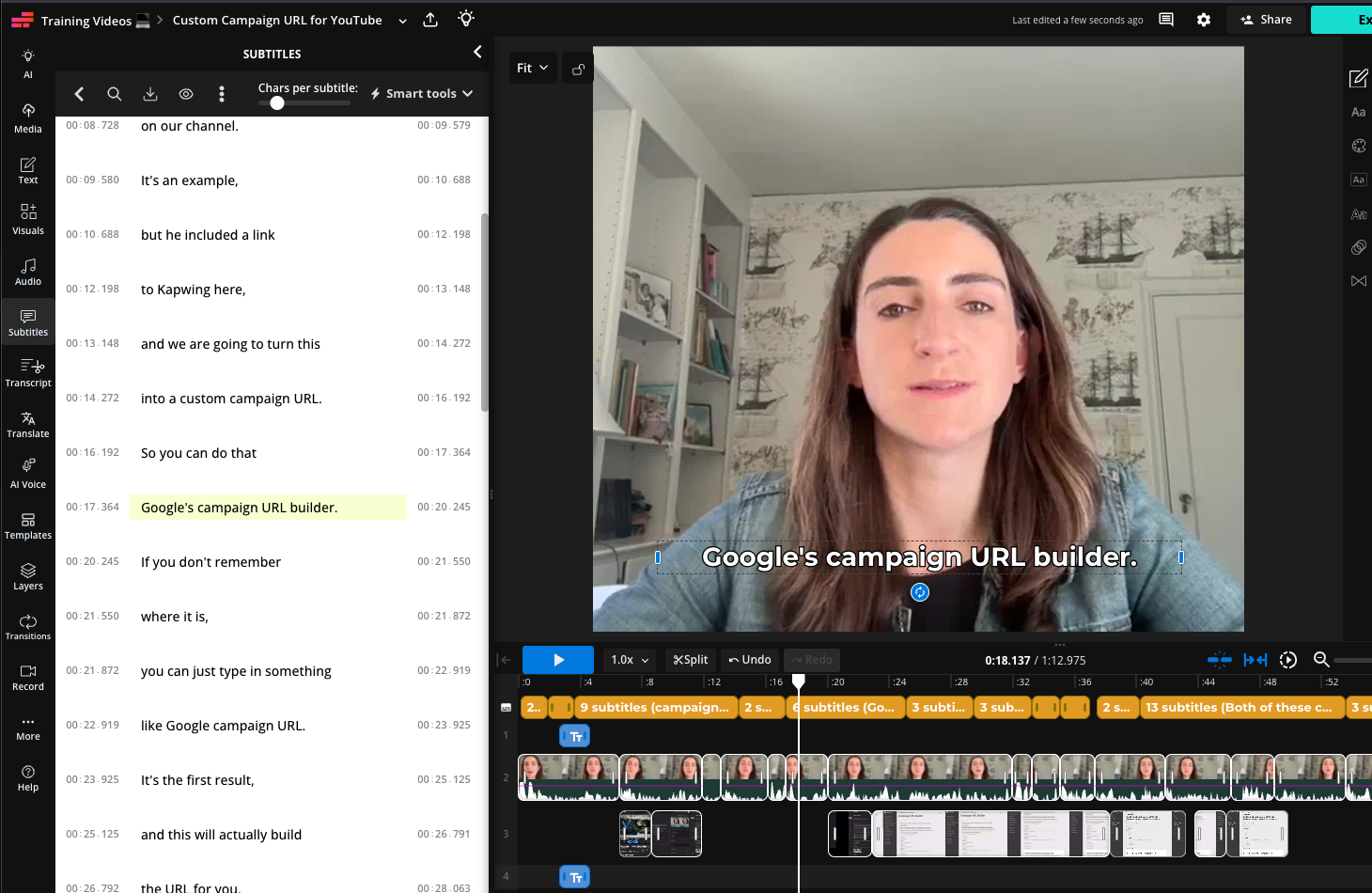
Open captions also allow you to leave timed annotations that are not directly related to the speech in the video. For example, including meaningful sounds such as [notification chime], [laughter], or [applause]. The W3C’s caption guidance notes that captions should communicate both speech and the non-speech audio needed to understand the content.
You also can use both methods. If you upload a video with accurate open captions, viewers can still generate a written transcript in the Slack viewer. For an important announcement, that small amount of redundancy helps people absorb the information in whichever format works best for them.
Slack Video Captions FAQ
Does Slack automatically caption videos?
No, Slack does not automatically caption videos unless the Workspace has transcription on my default. However, there is automatically a CC option for all videos 5 minutes or shorter in duration.
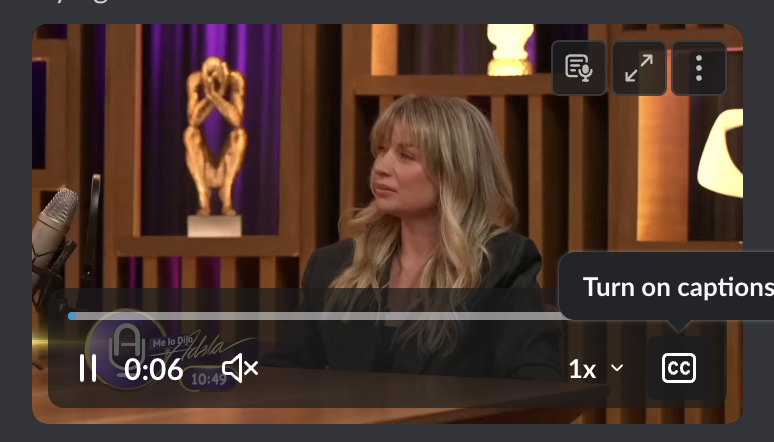
Slack provides closed captions for video clips, but a viewer may need to click the CC icon to generate and display them. Video transcripts are opt-in by default: select Generate transcript after sharing the clip, unless your workspace has automatic transcription enabled.
Can I upload an SRT file to a Slack video?
No. Slack’s official help documentation does not describe a way to attach an SRT or VTT file to an uploaded video and have it appear as a selectable caption track. Slack users can upload an SRT file to Slack to share it with colleagues, but uploading an SRT as a separate Slack file does not connect it to the video player.
If you already have an SRT or VTT file, import it into Kapwing, embed the captions in the video, and upload the finished MP4.
Can I edit Slack’s automatic video captions?
Slack does not have a caption editor for refining the generated text. If you need control over spelling, timing, speaker labels, or sound descriptions, edit the captions in a video editor before uploading.
How long can a Slack video upload be?
According to Slack's Help Center, Slack video clips can be up to five minutes long. Regular file uploads can be up to 1 GB.
To share a longer video in Slack or a video file larger than 1 GB, upload it to Kapwing, export, and shared via the URL in a Slack message. Or, compress your video to make it smaller and compatible with Slack's requirement.
Does Slack have live captions for video calls?
Yes. Slack huddles support live captions, and desktop users can choose to turn captions on automatically in Preferences > Audio & video. Huddle captions are separate from captions on prerecorded video clips.
What is the difference between captions and a transcript in Slack?
Captions are synchronized with the video and appear while it plays. A transcript presents the spoken content as text that can be read separately. For the most accessible experience, accurate captions and a useful transcript or written summary can work together. Slack's native transcripts do not have speaker labels and cannot be downloaded as a TXT file; use Kapwing's transcriber to download speaker labels or a text file.
Make Every Slack Video Easier to Watch
For a quick message, Slack’s native closed captions may be all you need. Record or upload a clip, generate the transcript, and let teammates turn captions on in the player.
When accuracy, styling, or always-on visibility matters, add captions before you upload. With Kapwing, you can generate a transcript, correct the details, create a readable caption style, and export a Slack-ready MP4 from the same browser-based editor. You can also make other changes, like cutting out silences, recording the screen and camera at the same time, or adding text annotations.
That extra review takes only a few minutes, and it turns a video from “watch this when you can use sound” into an update the whole team can use right away.