Claude Video Editing: How to Translate and Dub Videos (Full Setup)
Learn how to use Claude and the Kapwing MCP to translate, dub, and sub videos
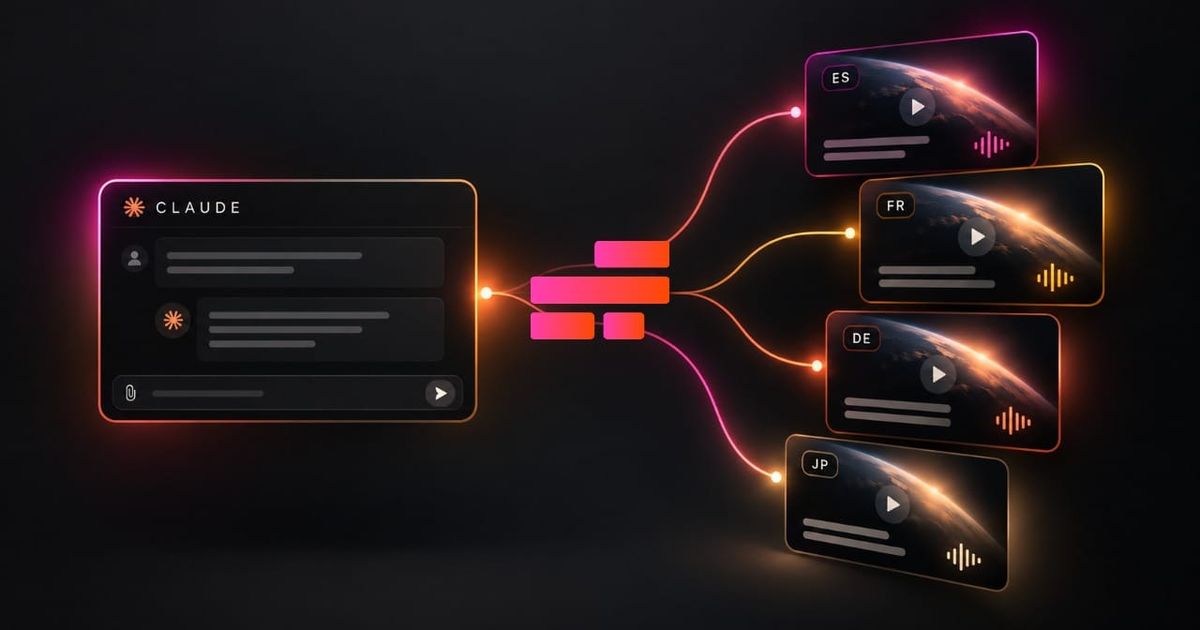
Claude can now translate video subtitles, dub speech into different languages, and create multiple language versions of the same video through the Kapwing MCP. With three free skills installed, you can manage the process directly from Claude Code or Codex, without having to repeat the same editing steps for every language.
We tested the workflow on two videos: a 45-second podcast featuring two speakers and a 21-second talking-head clip. The podcast was captioned and dubbed into Spanish, French and Japanese, while the talking-head video was dubbed into five languages in 76 seconds.
This guide covers how to connect Claude to Kapwing, install the skills, and use them to caption, translate and dub your own footage. It also explains what happens to the original audio, how multiple speakers are handled, and what to check before publishing a translated video.
Table of Contents:
- How Claude Video Translation Works
- How to Translate and Dub Videos With Claude
- Best Practices for Translating and Dubbing Videos With Claude
- Can You Translate Videos With Claude Without Installing Skills?
- Frequently Asked Questions
How Claude Video Translation Works
Claude doesn't process video files on its own. Instead, it uses the Model Context Protocol (MCP), an open standard that allows AI assistants to communicate with external applications and tools.
The Kapwing MCP gives Claude access to 48 Kapwing tools, including those for uploading footage, transcribing dialogue, creating subtitles, translating speech, dubbing audio and exporting videos. You can describe an editing task in natural language, and Claude coordinates the necessary tools to complete it.
For video translation, there are three distinct workflows:
| Task | What happens | When to use it |
|---|---|---|
| Video captioning | Transcribes speech and adds timed, word-by-word captions in the original language. | When you want captions for a podcast, tutorial, or social video. |
| Subtitle translation | Translates dialogue into captions in another language while keeping the original audio. | When viewers need to understand a video without replacing the speaker's voice. |
| AI video dubbing | Translates dialogue and generates speech in the target language with matching captions. | When you want viewers to hear the video in their own language. |
Swipe horizontally to view the full table.
All three workflows are available through the Kapwing MCP, but you can make them easier to repeat by installing three skills: /captions, /translate and /dubbing.
Each skill gives Claude instructions for carrying out a particular editing process, including creating the project and exporting the result.
What you need before getting started
| Requirement | Purpose |
|---|---|
| Claude desktop, Claude Code or Codex | The AI assistant used to issue editing instructions |
| Kapwing account | The workspace where your videos and translated projects are saved |
| Kapwing MCP connector | Gives your assistant access to Kapwing's editing tools |
| Three free language skills | Provides commands for captioning, translation and dubbing |
| Original video file | The footage you want to translate, caption or dub |
How to Translate and Dub Videos With Claude
The setup involves connecting Claude to Kapwing, then adding the three skills. Once configured, you can use short commands to generate captioned, translated and dubbed versions of your footage.
We'll use Claude Code for the main examples, but the Kapwing MCP also works with the Claude desktop app and Codex.
Step 1: Connect Kapwing to Claude
To get started, you need to authorise Claude to access your Kapwing workspace.
The connection process depends on which version of Claude you're using.
Using the Claude Desktop App
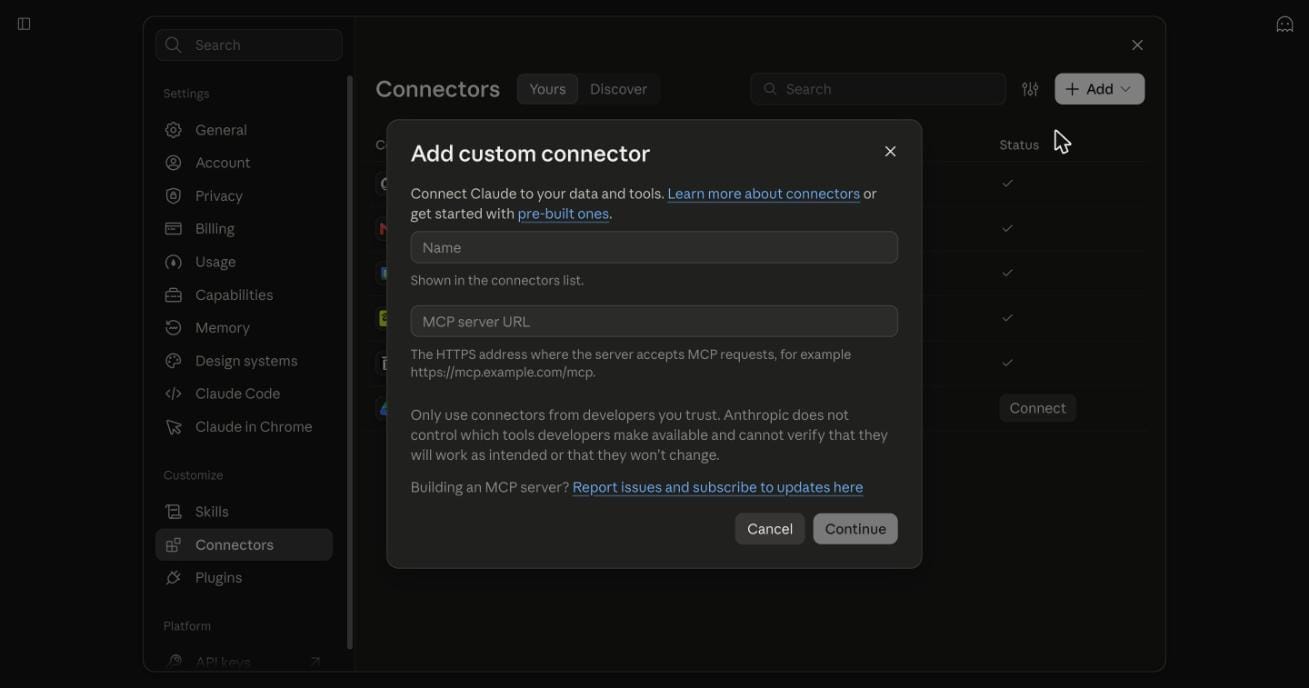
Open Settings, select Customize, then navigate to Connectors. Click + Add and choose Add custom connector.
Enter Kapwing as the connector name and paste the following address into the MCP server URL field:
https://www.kapwing.com/mcp
Click Continue and sign in to your Kapwing account when the authentication window opens.
Using Claude Code
If you prefer working in a terminal, you can add the connector using a single command:
claude mcp add --transport http kapwing https://www.kapwing.com/mcp
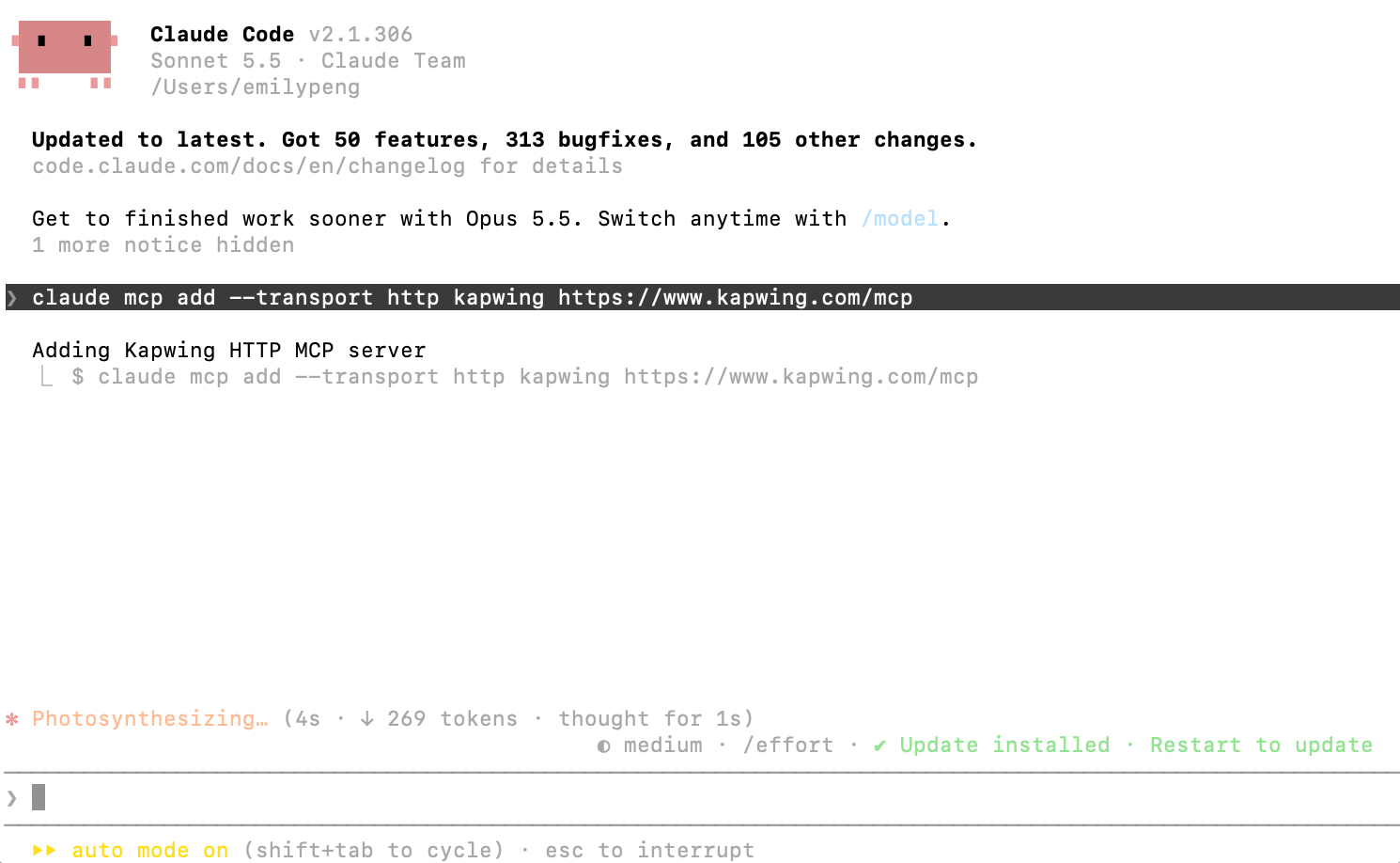
After running it, type /mcp inside Claude Code.
Select kapwing from the list of connectors and choose Authenticate to complete the sign-in process.
Using Codex
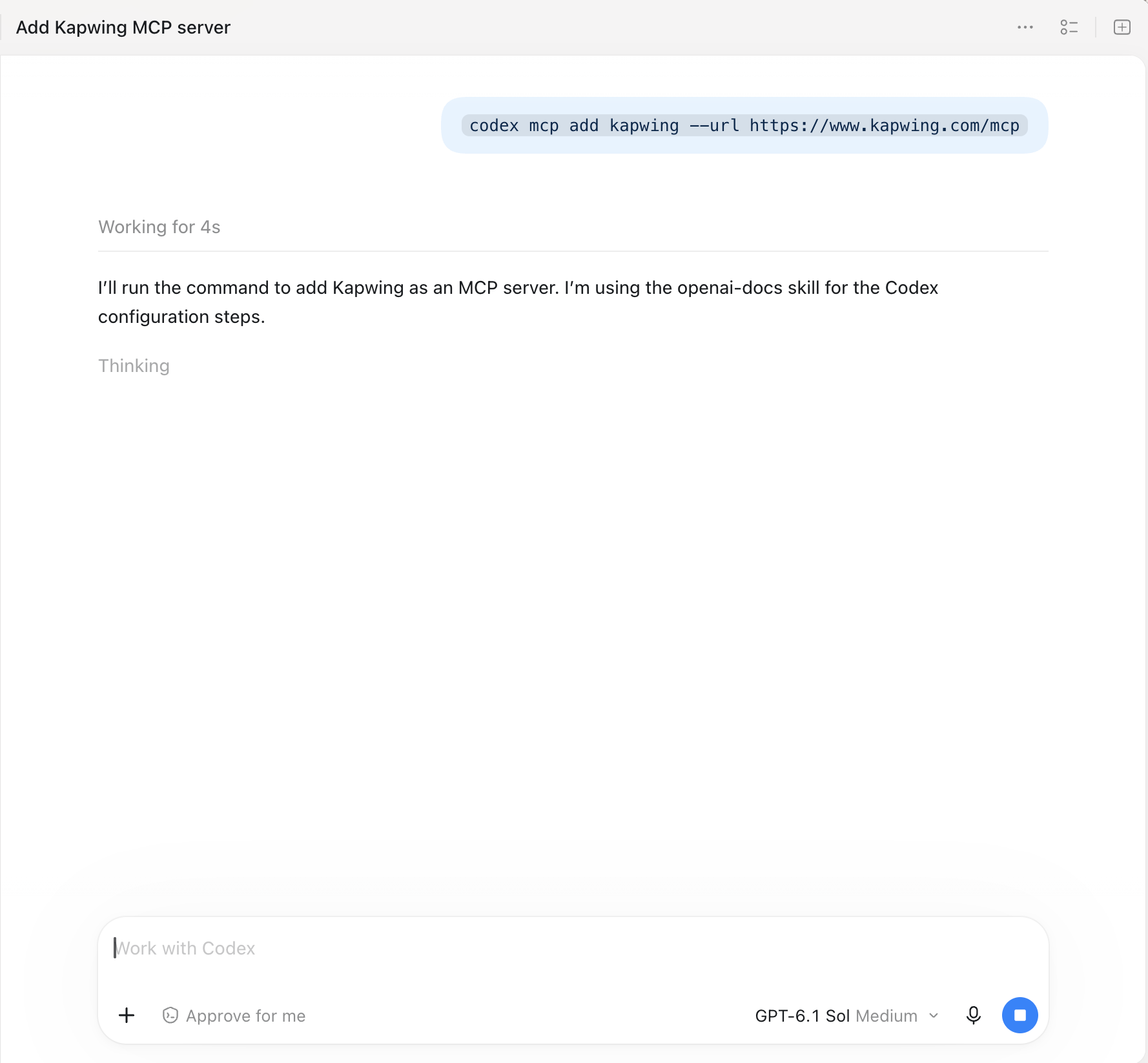
Add the Kapwing MCP server:
codex mcp add kapwing --url https://www.kapwing.com/mcp
Then authenticate your connection:
codex mcp login kapwing
When the browser window opens, approve the connection by clicking Allow. Complete this promptly, as the authentication request can expire.
Once your account is connected, the assistant can use Kapwing's tools to create projects, process videos and return exported files without requiring you to perform those actions manually in the editor.
Step 2: Install the three Kapwing video editing skills
Connecting the MCP gives Claude access to Kapwing's tools, but a skill tells it how to combine those tools into a particular workflow.
For example, generating captions requires several operations: uploading the footage, transcribing the speech, creating the captions and exporting the video. A skill provides the instructions so you don't have to describe every step each time.
There are three skills used in this tutorial:
/captionstranscribes the original dialogue and generates word-by-word captions./translatetranslates video dialogue into captions in another language without changing the audio./dubbingcreates translated voice tracks and captions in one or more languages.
Download the ZIP file
Get the files you need to follow along with this tutorial.
ZIP archive
The download includes all three skills in a single ZIP file. After downloading it, open your terminal in the folder containing the file. To extract and install the skills into the Claude Code and Codex, use:
unzip kapwing-language-skills.zip
for s in captions dubbing translate; do mkdir -p ~/.claude/skills/$s ~/.agents/skills/$s; cp $s/SKILL.md ~/.claude/skills/$s/; cp $s/SKILL.md ~/.agents/skills/$s/; done
This copies each skill's instructions into the locations where Claude Code and Codex can find them. Start a new session after installation so the skills are recognized.
Step 3: Add word-by-word captions to a video
Open Claude Code in the folder that holds your video. Type /captions, followed by the name of the video file, and press enter.
Claude uploads the video to your Kapwing workspace, transcribes everything said, adds word-by-word captions and exports the finished MP4 back into your folder.
In our test, the transcription of the 45-second podcast took approximately 17 seconds. The resulting video had captions following both speakers' dialogue.
This caption style is common in TikTok videos, where creators often want on-screen text to follow the pace of the speaker.
Because the captions are generated from the audio, you don't need to transcribe the conversation or time each word.
Step 4: Translate video subtitles into another language
Once you have the original dialogue, the next step is to translate the subtitles. We'll use the same podcast clip, but this time generate Spanish subtitles while keeping the original English speech.
Enter the following command in Claude Code:
/translate podcast.mp4 to SpanishClaude uses Kapwing to transcribe and translate the dialogue, then adds Spanish captions to the video. Since the original file is already in your Kapwing workspace, the workflow can reuse that asset rather than uploading it again.
One detail worth checking is caption readability. Different languages use different sentence structures, and a phrase that takes a few words in English might require more space in Spanish or Japanese.
Although the translated captions follow the original timing, it's worth reviewing whether viewers have enough time.
Step 5: Dub a video using AI voice cloning
Translated subtitles allow viewers to understand the video, but dubbing creates a different viewing experience. Rather than reading the translation, viewers can listen to the dialogue in their own language.
For this test, we used the /dubbing skill to translate the podcast's English dialogue into Spanish speech.
/dubbing podcast.mp4 to SpanishClaude sends the video to Kapwing's AI dubbing tools, which translate the dialogue and generate a new audio track in Spanish. The process uses voice cloning to recreate characteristics of the original speakers' voices.
This was particularly noticeable in the podcast example because the source footage had two speakers. Kapwing identified them separately and generated a distinct voice for each person.
We also created French and Japanese dubs of the same podcast.
In the demonstrated run, generating the three language versions took approximately one minute.
Dubbing also shouldn't be confused with lip synchronisation. The /dubbing workflow replaces the spoken audio, but the speaker's mouth movements remain as originally filmed.
Kapwing's editor offers a separate lip sync option for adjusting mouth movements on a dubbed project.
Step 6: Dub one video into multiple languages at once
You don't have to submit a separate request for every language. The dubbing skill can accept several languages in the same command, allowing Claude to coordinate the translations together.
To test this, we used a 21-second talking-head video and requested five languages: Spanish, French, German, Portuguese and Japanese.
/dubbing talking-head.mp4 to Spanish, French, German, Portuguese and JapaneseClaude submitted the five dubbing requests to Kapwing at the same time. All five dubs were generated in 76 seconds, under a minute and a half, before each version was exported as a separate MP4.
You can also ask Claude to translate the text through the same Kapwing MCP connection. Be specific about any words that should remain unchanged, particularly product names or technical terminology.
Translate this post caption into Spanish, French, German, Portuguese and Japanese with the Kapwing MCP. Leave the words Kapwing and Claude Code exactly as they are.Step 7: Review, edit and publish your translated videos
Every video generated through these workflows is saved as a project in your Kapwing workspace. Claude can return the project link, allowing you to open each version in the editor rather than treating the generated MP4 as a final, unchangeable result.
Before exporting, review the translated captions and listen to the dubbed dialogue. Check that names and technical terms have been translated correctly, captions appear at the right moments, and sentences sound natural in their target language. You can correct the text, adjust styling or make other changes directly in Kapwing.
Once you've reviewed the videos, there are several ways to publish them.
YouTube: Add multiple language audio tracks
YouTube allows eligible creators to attach different language tracks to the same video, letting viewers choose their preferred audio language from the settings.
This can be useful when you already have an established video or channel and want to serve viewers in several languages without uploading an entirely separate video for each audience.
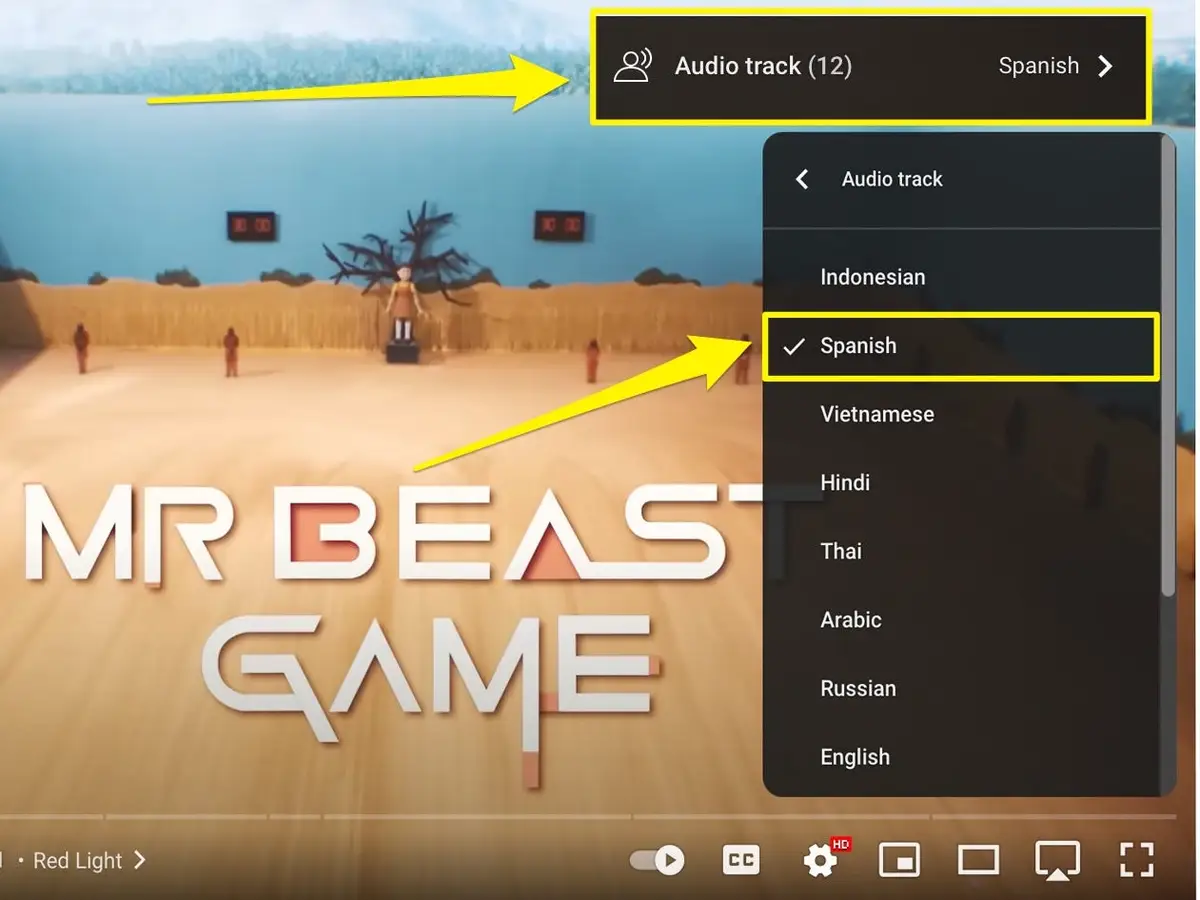
According to YouTube's September 2025 announcement, creators uploading multi-language audio tracks received, on average, over a quarter of their watch time from views in languages other than the video's primary language.
To use this feature, you'll need to download the audio of each dub, rather than uploading the full translated MP4 as an additional audio track. YouTube Studio supports adding these tracks to eligible videos, including Shorts.
Instagram: Test translated content using Trial Reels
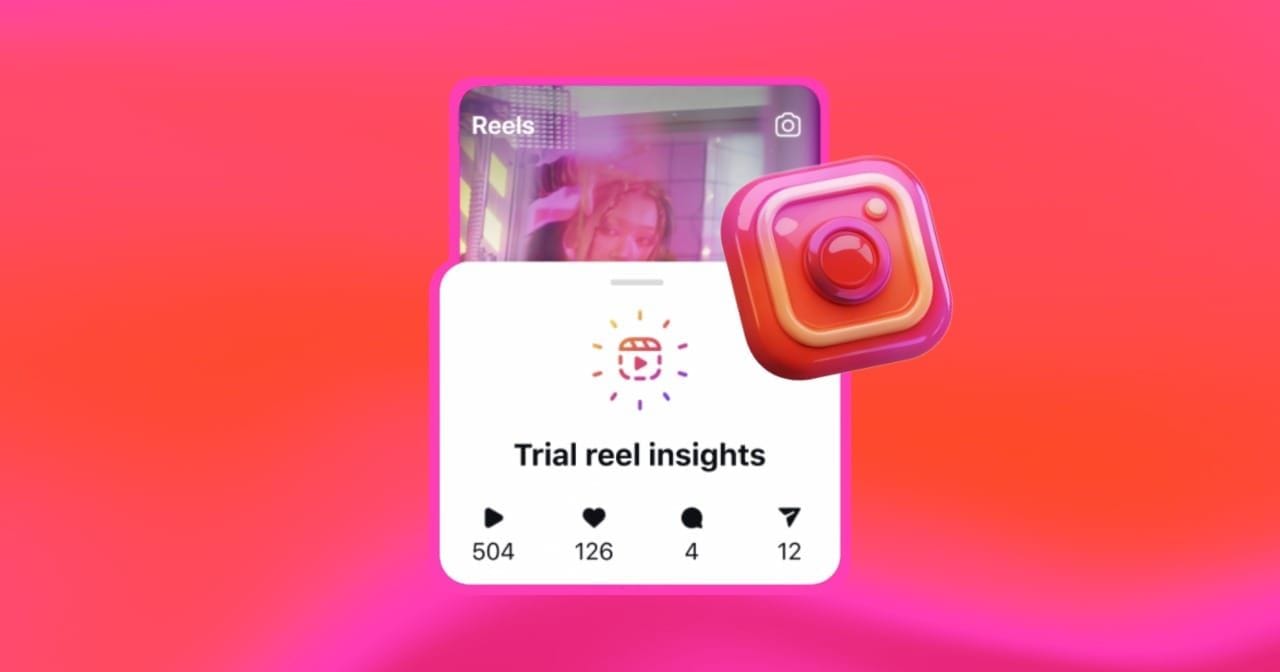
Instagram Trial Reels provide a way to test different versions of a video with people who don't already follow your account.
For example, you could publish Spanish, French and German versions of the same clip as separate trials, then compare their engagement to see which versions perform well with new viewers.
Instagram doesn't let you specify which language audience should receive a Trial Reel. The platform chooses who sees each test, so results should be interpreted as an indication of content performance rather than a controlled comparison between language audiences.
Best Practices for Translating and Dubbing Videos With Claude
AI translation can handle much of the production work, but the quality of the final video still depends on the source footage, the languages requested and the editorial review that follows.
Start with clear, dialogue-focused footage
Talking-head videos and podcasts are good candidates for translation and dubbing because the spoken dialogue is usually the main element viewers need to understand.
For the best results, start with footage where the speech is clearly recorded and speakers can be distinguished from one another. This makes transcription easier and gives the dubbing workflow a stronger source for identifying each person's voice.
Request all your target languages together
If you already know which languages you need, include them in one dubbing command. This avoids repeating the same instructions for each version and lets Claude coordinate multiple translation requests.
Our five-language test generated its dubs in 76 seconds, although the exact time will vary between projects. You can review and export each language separately once the generation is complete.
Specify any words that shouldn't be translated
Names, brands and technical terminology can be difficult to translate consistently, particularly when they have a separate meaning in the target language.
Tell Claude which terms must remain unchanged when requesting translations. After generation, inspect each version to make sure those terms have been preserved and that the surrounding text still reads naturally.
Review captions in the Kapwing editor
Translated captions can contain literal phrasing or timing that needs adjustment. A sentence may be accurate in isolation but awkward in the context of the video, especially when the original dialogue contains humour, idioms or informal expressions.
Open each generated project in Kapwing and read through the captions before exporting. Make corrections to the text and presentation where necessary, rather than relying on the initial translation as the finished version.
Have a fluent speaker check important translations
For educational content, branded videos and material involving specialised terminology, a review by someone fluent in the target language is worthwhile.
Native or fluent speakers can catch issues that aren't necessarily grammatical mistakes, such as phrasing that sounds unnatural or expressions that don't carry the intended meaning. This is especially valuable for languages you don't speak yourself.
Can You Translate Videos With Claude Without Installing Skills?
Yes. The three skills make captioning, translation and dubbing easier to repeat, but they're not required to access Kapwing's tools.
With the Kapwing MCP connected, you can ask Claude Code or Codex to complete a video translation workflow using an ordinary written instruction. The assistant identifies the tools needed and carries out the sequence.
We tested this in Codex without installing a skill. The request was:
Plain-English video translation prompt
Use the Kapwing MCP to translate my-video.mp4 (in this folder) into Spanish: add Spanish word-by-word captions, export it, and download the finished MP4 into this folder as my-video-es.mp4. Tell me the editor link at the end.
Codex found the Kapwing workspace, uploaded the video, transcribed and translated the dialogue, added the Spanish captions, exported the finished MP4 and downloaded it to the specified folder. It also returned the editor link.
For occasional edits, writing the request directly may be sufficient. If captioning or translation is a regular part of your production process, the skills provide a more consistent starting point.
Frequently Asked Questions
Why can't Claude find the Kapwing tools?
The connector may not have completed authentication, or you may be using a session that started before Kapwing was added. Check that the connection is authorised and start a new session if necessary.
In Claude Code, run claude mcp get kapwing to inspect the connection. In Codex, codex mcp list shows the configured MCP servers.
Why does the Kapwing sign-in time out in Codex?
The authentication window can expire if the sign-in request isn't approved promptly. Run codex mcp login kapwing again and click Allow in the browser when the page opens.
Once the connection is authorised, you should be able to use the Kapwing tools from your Codex session.
Can I use Claude to translate videos without the three skills?
Yes. The skills are reusable instructions rather than separate video processing tools. As long as the Kapwing MCP is connected, Claude Code or Codex can use its tools through a detailed natural-language request.
In our Codex test, the assistant completed the full Spanish subtitle translation workflow without a skill installed, including exporting the finished video.
How do I move captions to the middle of the screen?
Open the editor link returned by Claude and move the playhead to a moment when captions are visible. Select a caption and drag its text box towards the centre of the frame.
The caption group can be repositioned together, so you don't need to move every word individually.
Does AI dubbing automatically match the speaker's lip movements?
No. The dubbing workflow translates and replaces the speech, but the original mouth movements remain unchanged.
If you want to adjust the mouth movements to match the translated dialogue, Kapwing's editor provides a separate Apply Lip Sync feature where available.
Can Claude dub a video with two speakers?
Yes. Kapwing's dubbing tools can identify multiple speakers and recreate their voices separately. In our podcast test, both speakers retained recognisably distinct voices in the Spanish, French and Japanese dubs.
The result should still be reviewed, particularly when speakers have similar voices or their dialogue overlaps.
How many languages can Claude translate in one command?
The dubbing skill accepts multiple languages in a single request. In our demonstration, we generated Spanish, French, German, Portuguese and Japanese dubs together, producing five separate translated videos.
If you're translating a larger collection of videos, you can use the same workflow repeatedly with different source files and language selections.