How to Add Subtitles to a Video on Snapchat
Does Snap support auto-generated subtitles on video uploads? Yes, although styling is more limited than other platforms. Learn more about Snap videos and how to caption them.

Adding subtitles to your Snapchat videos makes them easier to follow with the sound off, more accessible to viewers who are deaf or hard of hearing, and easier to understand when there’s background noise or fast dialogue. More than 50% of viewers prefer watching videos with subtitles on, according to a 2025 poll by Preply.
Snapchat has added better captioning tools. You can now automatically generate captions from the audio in a Snap or add more customizable subtitles to your video before uploading it to Snapchat.
In this guide, we’ll cover both methods:
- Use Snapchat’s automatic captions
- Add custom subtitles with Kapwing before uploading to Snapchat
For a quick Snap with clear audio, Snapchat’s automatic caption tool is usually the easiest option. For videos you want to publish to Spotlight, reuse on other platforms, translate into another language, or customize with branded subtitles, adding your captions before uploading gives you much more control.
How to Automatically Add Captions on Snapchat
The fastest way to subtitle a Snapchat video is with Snapchat’s built-in automatic caption generator.
The app can automatically generate captions from the audio in your Snap using the quotation mark icon on the Preview screen. Once Snapchat generates the text, you can edit it and change its position, size, and rotation.
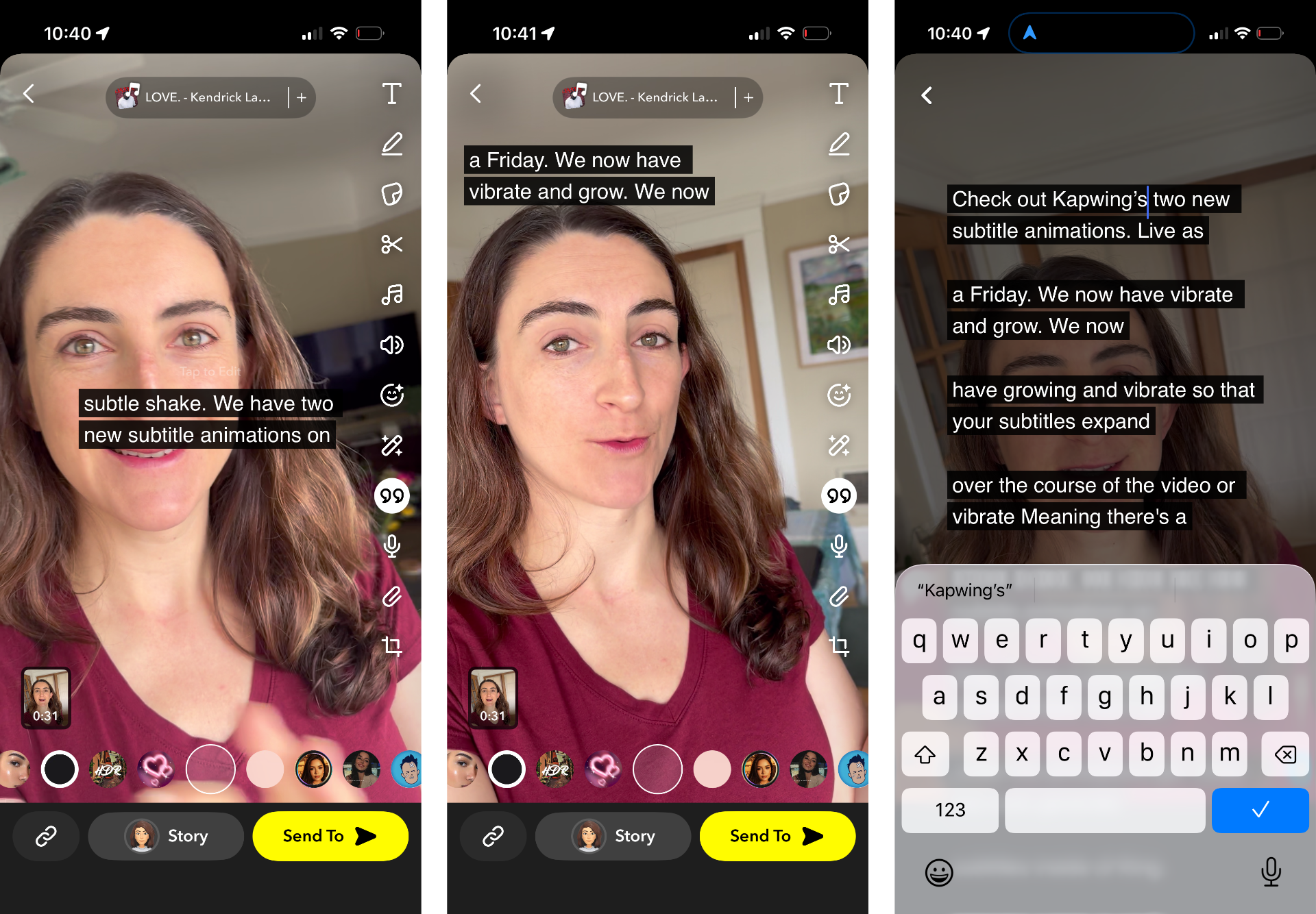
To generate captions in Snapchat, follow these steps:
- Upload or film your video. Click "Edit" to enter Snapchat's native editor.
- Click the "Quotation" icon to generate subtitles automatically. The process should only take a moment for a short Snap.
- Make any edits to the text. Position the captions on screen. You can drag, resize, and rotate the caption block on the canvas.
- Publish
Note: Creators do not need to pay or join Snapchat+ to get automatic subtitles on their video uploads. The new snap "AI Caption" feature - found under the T icon - is a generative AI feature that tries to add a tredy text overlay on your video, not animated subtitles.
How to Edit the Captions in Snap
Creators can edit automatically-generated captions in Slack. Tap on the captions and scroll to change words that have been misspelled or transcribed incorrectly.
This step is especially important for business accounts and creators. A misspelled product name or person’s name is much more noticeable when it appears in large text on screen. Business accounts and creators should take care to correct mispellings.
However, there are a few limitations with the automatically-generated Snap captions:
- Font: The default font appears to be Arial with no bolding or styling. There is no way to adjust this in the Caption editor.
- Color: When it comes to the subtitle style, the Snap auto-captions will be white with a black background.
- Size and Spacing: You cannot change the number of words that appear on each line or change the line spacing.
Also note that if you turn off the captions, and turn them back on, any edits that you made will not be preserved. Be careful to make your edits all at once so that you don't lose your work, or use a third party snap editor instead.
How to Add Custom Snapchat Subtitles with Kapwing
Snapchat’s native tools work well for casual videos, but they have seveveral important limitation. Your subtitle design and editing workflow are constrained by Snapchat’s editor, meaning it is impossible to add captions with fast animations, bold font, colors, and word-by-word transitions featured by popular Snap publishers.
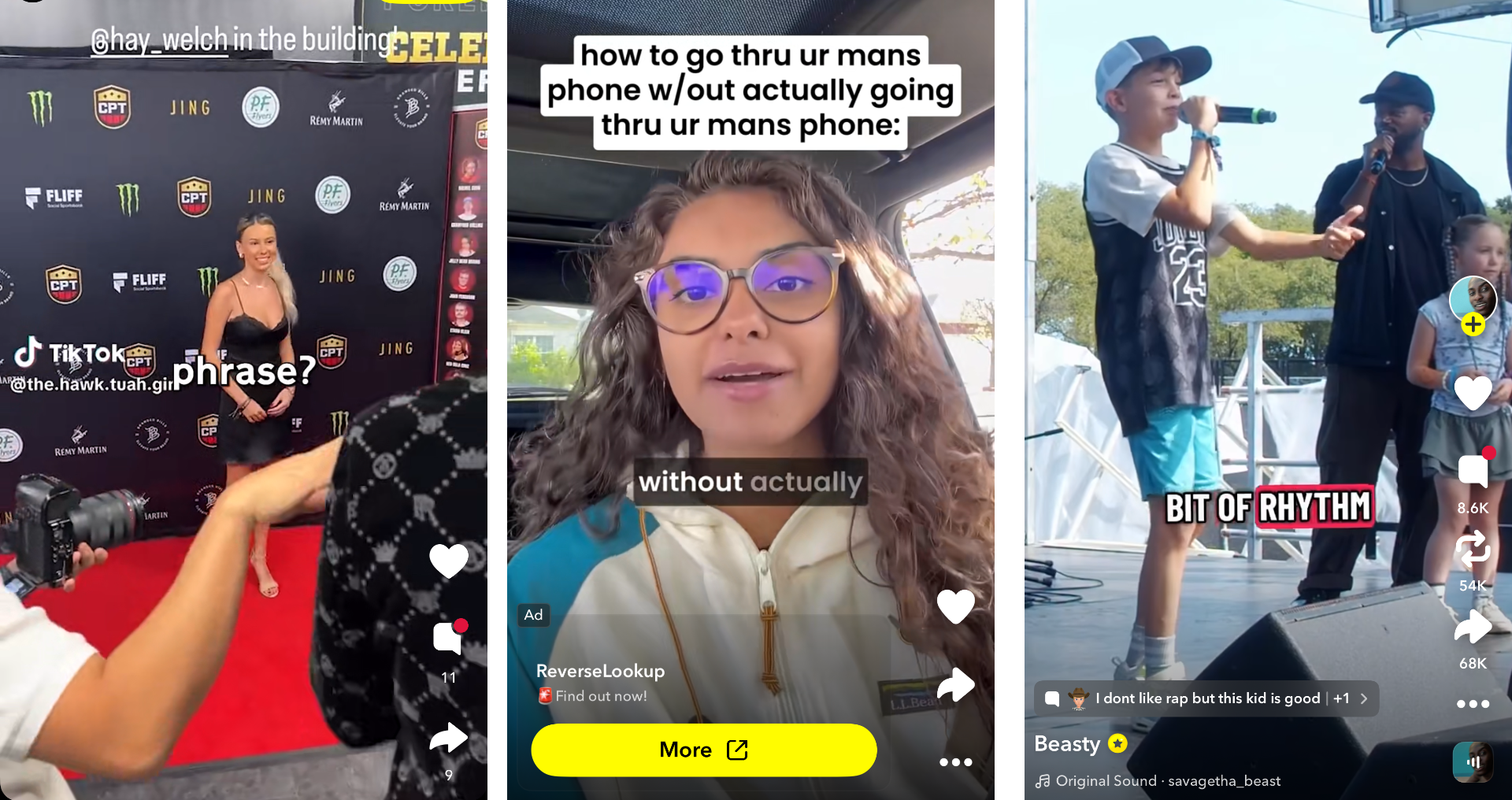
If you want more control, you can add your subtitles before uploading the video.
This is particularly useful for:
- Spotlight creators
- Businesses
- Marketing teams
- Influencers
- Podcast clips
- Interview clips
- Multilingual content
- Videos being cross-posted to TikTok, Reels, and Shorts
- Creators who want animated or branded subtitles
Using Kapwing, you can automatically transcribe a video, correct the transcript, customize the subtitle design, translate the captions, and permanently embed them into the video.
Here’s how to add subtitles to a video with Kapwing:
- Upload your snapchat video to Kapwing
- Select "Subtitles" and generate captions. Kapwing will use AI to transcribe the audio of the video.
- Correct any issues with the transcript
- Click "Edit Style" to select from preset library of styles or create your own style with animations, font options
- Spacing: Use the "Chars per subtitle" slider to change the length of each subtitle.
- Export and download
- Upload to Snap
From the Subtitles tab, Kapwing will automatically create time-synced captions and add them to your video timeline. You can also upload an existing SRT or VTT subtitle file instead if you already have one.
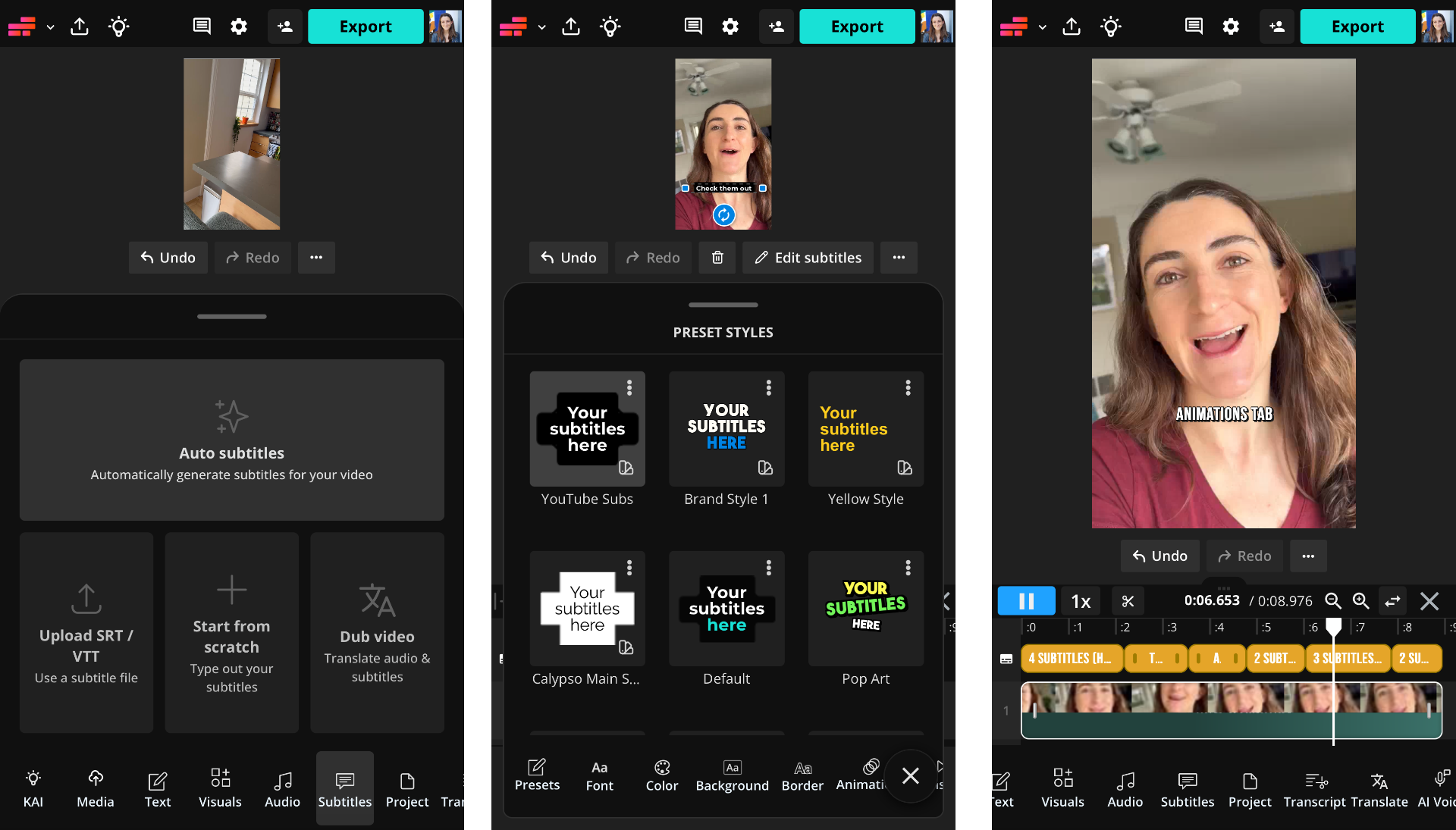
Kapwing lets you modify the timing, spelling, and styling of the subtitles easily from either desktop or from mobile web. Kapwing supports customization including:
- Font
- Font size
- Font color
- Background color
- Outline
- Drop shadow
- Alignment
- Capitalization
- Line spacing
- Caption width
- Animated word highlighting
- Subtitle transitions
For short-form content, pay particular attention to pacing. You don't want viewers reading one caption while the speaker is already two sentences ahead. For Snapchat videos, readability matters more than elaborate styling.
Once Kapwing exports your video, the subtitles will be permanently embedded in the exported Mp4 file. These are often called open captions or burned-in subtitles because they become part of the video itself rather than a separate caption file. The text remains visible when you upload the finished video to Snapchat.
Kapwing is particularly useful if you're publishing the same video to multiple social platforms. Rather than recreating your captions in Snapchat, TikTok, Instagram, and YouTube separately, you can subtitle the master video once and upload the finished version everywhere.
If the video is intended for Spotlight, you can also upload Spotlight content from Snapchat’s desktop creator interface at profile.snapchat.com. Snapchat currently allows creators to drag and drop a video from a computer, select Spotlight Snaps, add Topics, and publish from the web.
Snapchat Auto Captions vs. Custom Subtitles: Which Should You Use?
There isn't one captioning method that's best for every Snap.
- For a casual video to friends or a quick Story update, Snapchat auto captions are the fastest option.
- If you're making content for an audience rather than just sending a Snap to friends, adding subtitles before uploading is usually the most flexible workflow.
A creator posting an interview clip to Snapchat Spotlight, TikTok, Instagram Reels, and YouTube Shorts, for example, would otherwise need to generate and proofread captions four separate time. By creating one subtitled master video instead, the captions stay consistent everywhere.
Tips for Making Better Snapchat Subtitles
Adding subtitles only helps if people can actually read them. Here are some best practices for creators who want to maximize the reach and impact of their Snap videos.
Keep captions short
Avoid filling the screen with an entire paragraph. Instead, break dialogue into short, natural phrases that viewers can understand at a glance.
If the speaker says:
"Yesterday I went downtown because I wanted to try this new coffee shop everyone keeps talking about."
Don't display the entire sentence at once. Break it into smaller sections such as:
"Yesterday I went downtown" | "to try this new coffee shop" | "everyone keeps talking about."
That creates a much more natural viewing experience.
On Kapwing, you can input a new line in a single caption to break it into two lines. Slide the "Maximum Characters" slider to reduce the length of your subtitles globally.
Use strong contrast
White text against a bright sky is nearly invisible. If your footage has a lot of visual variation, use an outline, shadow, or solid background behind the text.
Accessibility guidance generally recommends making captions legible through clear typography, strong contrast, and synchronization with the audio.
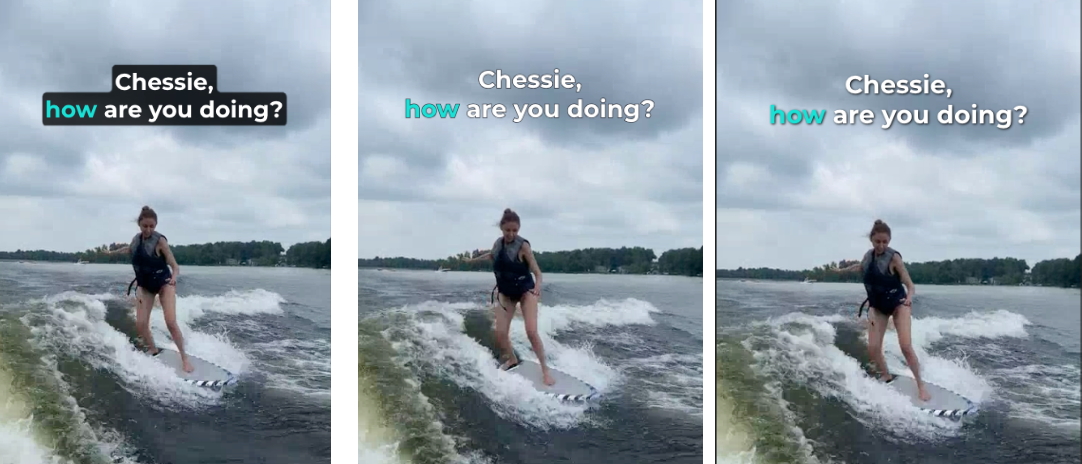
Don't cover faces
Captions should complement the video, not obscure the subject.
Talking-head videos in particular often have limited empty space, so test your caption positioning through several sections of the clip. Snap's auto-captions are centered in the middle of the screen my default, so make sure to move them to avoid the face of your speaker.
Proofread auto captions
No automatic transcription system is perfect. The five seconds you spend proofreading your captions can prevent an embarrassing typo from becoming one of the biggest visual elements in your video.
Pay special attention to proper nouns.
Caption important sounds when accessibility matters
Subtitles generally represent spoken dialogue, whereas accessibility-focused captions can also communicate meaningful non-speech audio.
For example: [door slams] or [laughter].
These details give viewers who can't hear the audio - like people riding the bus - more information about what's happening.
Can You Add Subtitles to Snapchat Discover Videos?
Viewers can enable subtitles on some Discover content, but this works differently from adding captions to your own Snap.
If subtitles are available, Snapchat says viewers can:
- Tap the three-dot menu
- Select Subtitles
- Choose a language
- Tap Done
Not every piece of Discover content offers subtitles. Choosing to display captions is separate from the creator-side caption tools used for regular video Snaps.
Can You Upload an SRT File to Snapchat?
No. There's not currently support for SRT or VTT upload workflow for ordinary video Snaps.
If you already have an SRT file, the easiest workaround is to use a video editor such as Kapwing to add that subtitle file to your video and export the finished video with the subtitles embedded. Kapwing currently supports uploading SRT and VTT files directly into the subtitle editor.
You can then upload the exported video to Snapchat normally.
How Do You Add Subtitles to a Snapchat Story?
Snap Stories are the same as other Snap videos. You can choose between generating captions or adding them before uploading.
To publish on your Snap story, select My Story when publishing within the app.
Why Add Subtitles to Snapchat Videos?
Subtitles started primarily as an accessibility feature, but they have increasingly become part of how people normally consume video.
Recent research collected by Kapwing found that more than half of Americans use subtitles at least some of the time, while approximately one-third report using them always or often. That makes captions valuable even when your audience can hear the video perfectly well.
People watch videos:
- In public places
- While commuting
- With their phone muted
- In noisy rooms
- While listening to something else
- In a language they don't speak fluently
On fast-moving vertical platforms like Snapchat, captions also give viewers another visual cue that can help them understand your video immediately. Thankfully, in 2026, creators don't need to manually transcribe every video.
For a quick video, use Snapchat's built-in automatic captions. For more precise control, add the subtitles before uploading with a tool like Kapwing. Either way, a few extra seconds spent captioning your video can make your Snap significantly easier for more people to watch.