A Complete Guide to TikTok Subtitles
80% of viewers are likelier to finish a video when captions are available.
Subtitles have become an essential part of creating successful TikTok videos. Not only do they make content more accessible for viewers who are deaf or hard of hearing, but they also help audiences follow along when watching without sound. In fact, research has found that 80% of viewers are more likely to finish a video when captions are available.
TikTok's Auto Captions feature makes it easy to add subtitles, but creating effective ones often involves more. Choosing the right style, positioning text correctly, ensuring readability, and maintaining accurate timing can all significantly improve the viewing experience. These small but important adjustments can make your content easier to follow and ultimately keep viewers engaged.
In this guide, we'll cover everything you need to know about TikTok subtitles. From using TikTok's built-in subtitle tools and creating custom subtitles to optimizing their placement, following subtitle best practices, exploring popular TikTok subtitle styles, and understanding how subtitles can influence watch time, accessibility, and overall video performance.
Table of Contents
- Can You Add Subtitles Directly in TikTok?
- How to Add and Edit Subtitles on TikTok
- Best Practices For Subtitles on TikTok
- Popular TikTok Subtitle Styles (With Creator Examples)
- Do Subtitles Help Performance on TikTok?
- Frequently Asked Questions
Can You Add Subtitles Directly in TikTok?
TikTok includes a built-in Auto Captions feature that automatically transcribes spoken audio into on-screen subtitles. It is available whenever you record or upload a video through the TikTok app. Creators can review and edit the generated transcript before publishing to correct transcription errors.
TikTok's native subtitle tool includes several built-in capabilities:
- Automatic speech-to-text transcription
- Manual editing before publishing, allowing creators to correct transcription errors
- Support for different languages, including options such as English, Spanish, Portuguese, German, Italian, Korean, Mandarin Chinese, and Turkish, with availability varying based on your app version, device model, and region
- Viewer support for turning captions on or off
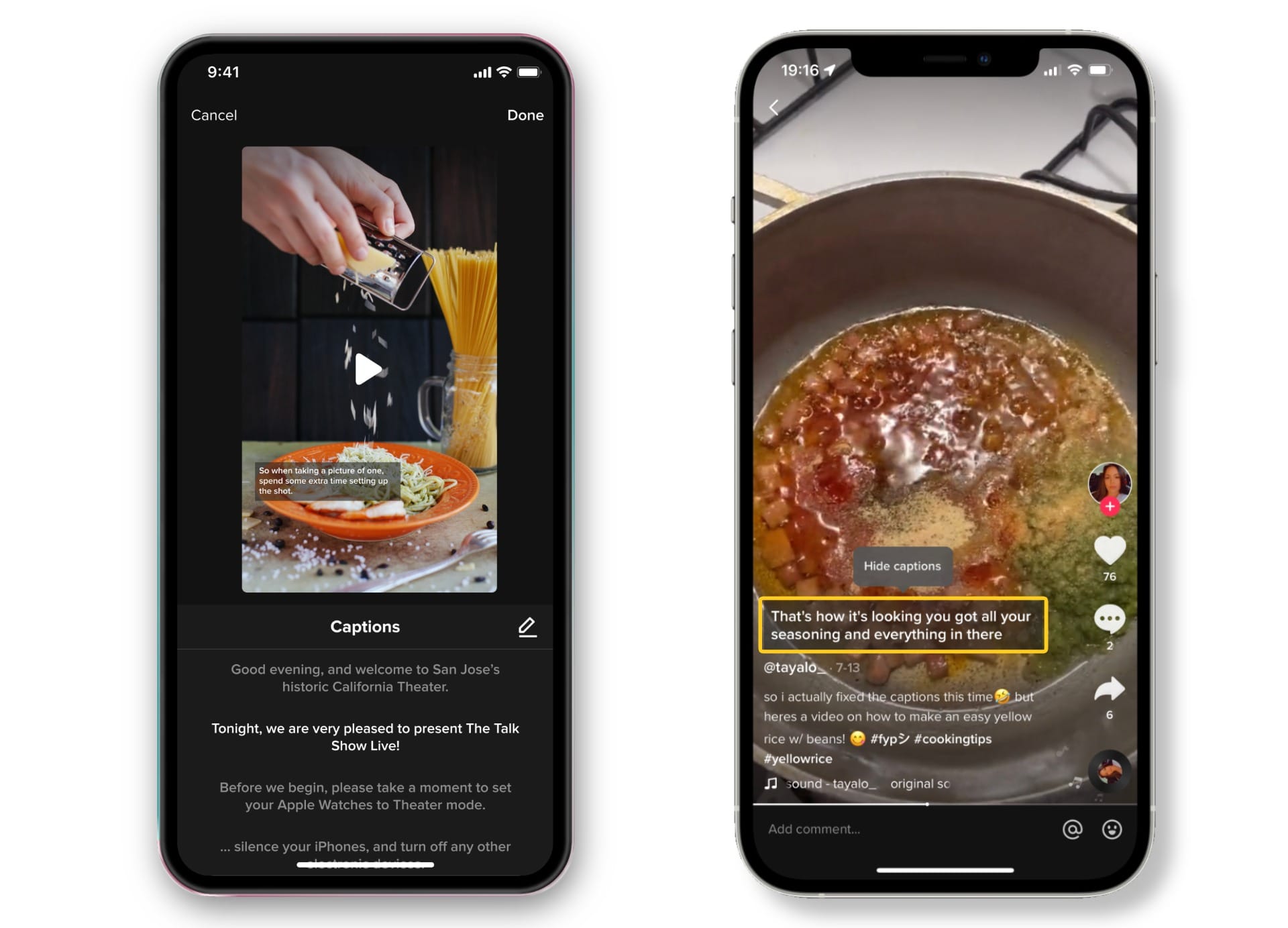
While TikTok's Auto Captions feature is a convenient way to add subtitles without leaving the app, options for adjusting fonts, animations, and branding are minimal. The accuracy of automatically generated subtitles can also vary depending on factors such as audio quality, background noise, and accents.
Additionally, some subtitle features and supported languages may differ depending on your device, operating system, app version, and region as TikTok continues to roll out updates.
How to Add and Edit Subtitles On TikTok
There are two main ways to add subtitles to TikTok videos. The first is to use TikTok's built-in Auto Captions feature, which transcribes your audio directly in the app. The second is to create subtitles before uploading using a video editor like Kapwing, giving you greater control over accuracy, styling, and branding.
The best option depends on whether you prioritize speed and convenience or customization and creative flexibility.
How To Add Subtitles In TikTok
If you're looking for the quickest way to add subtitles, TikTok's built-in Auto Captions feature is the easiest option. It transcribes your video's spoken audio directly within the app, allowing you to make corrections before publishing.
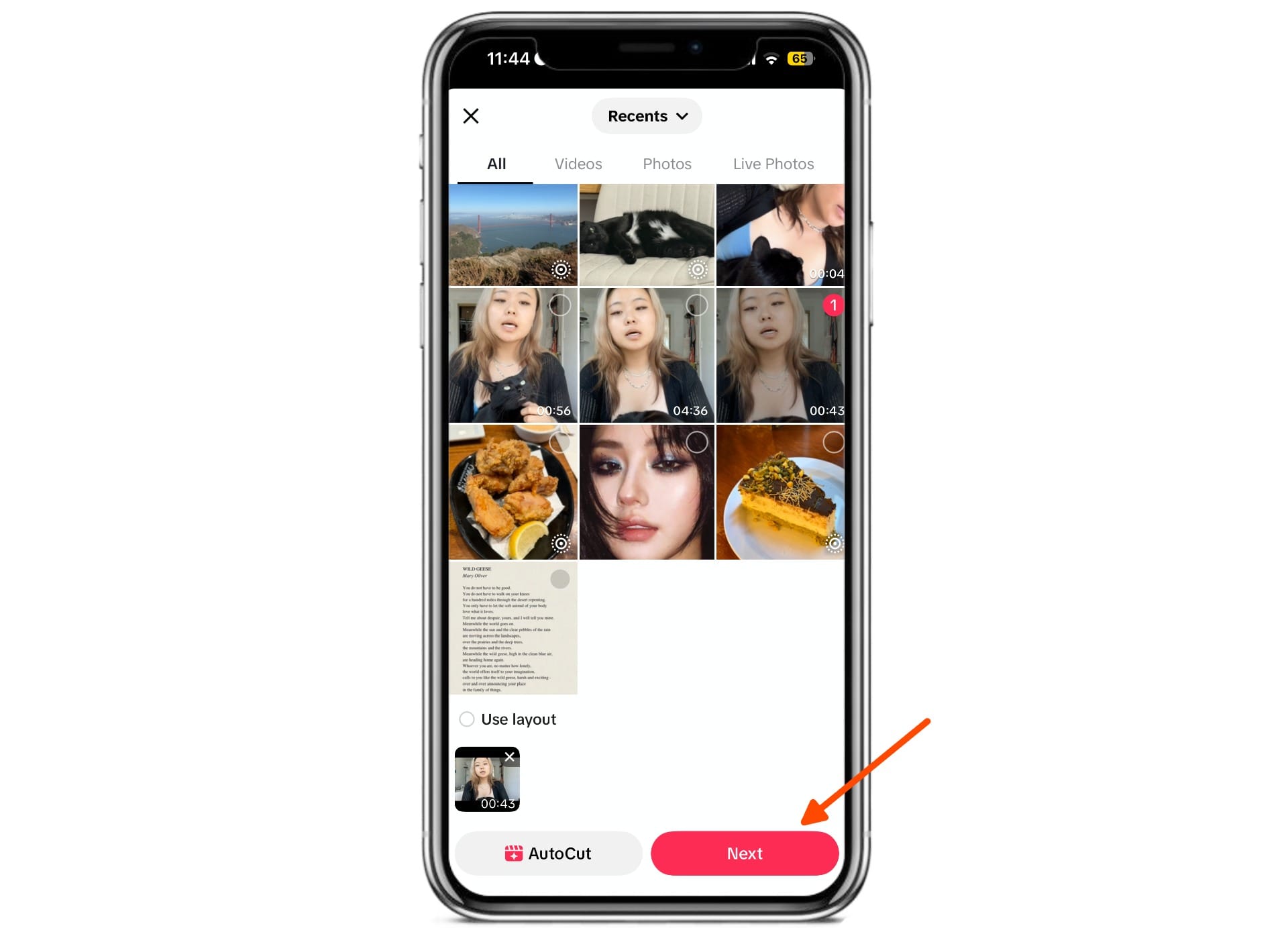
Step 1: Record or Upload Your Video
Open TikTok and either record a new video or upload one from your camera roll.
Tap Next to access TikTok's editing tools.
Step 2: Generate Auto Captions
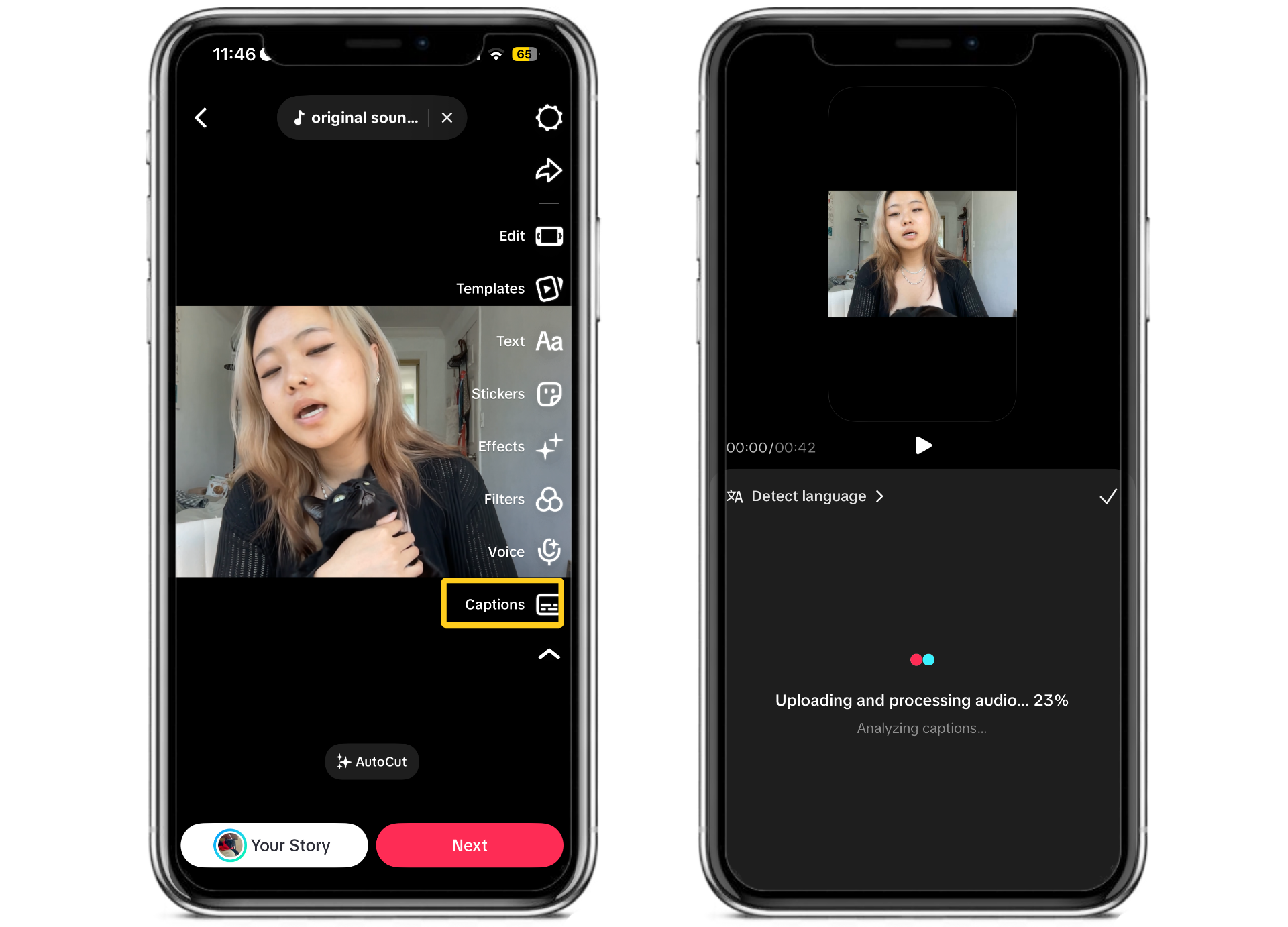
Tap Auto Captions from the editing menu. TikTok will analyze your audio and automatically generate subtitles using speech recognition. Depending on the length of your video, this usually takes a few seconds.
Tip: Auto captions work best when your audio is clear, with reduced background noise and only one person speaking at a time.
Step 3: Review and Customize Your Subtitles
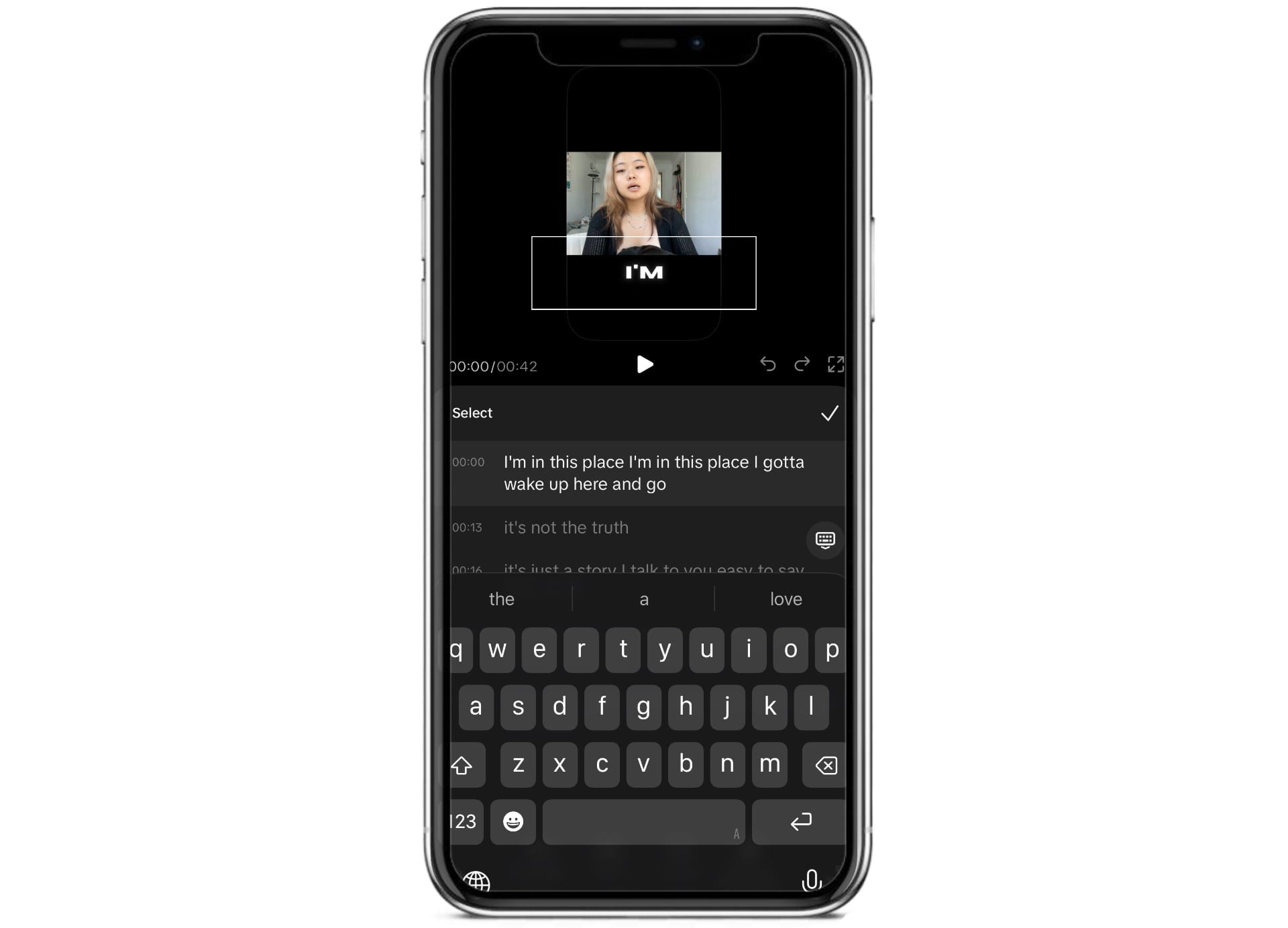
Never publish without reviewing your subtitles. Even with clear audio, automatic transcription can misinterpret names, technical terms, slang, or accents. In the video that I used, TikTok mis-transcribed the entire first half.
Make sure to carefully check:
- Spelling mistakes
- Punctuation
- Timing
- Brand names or product names
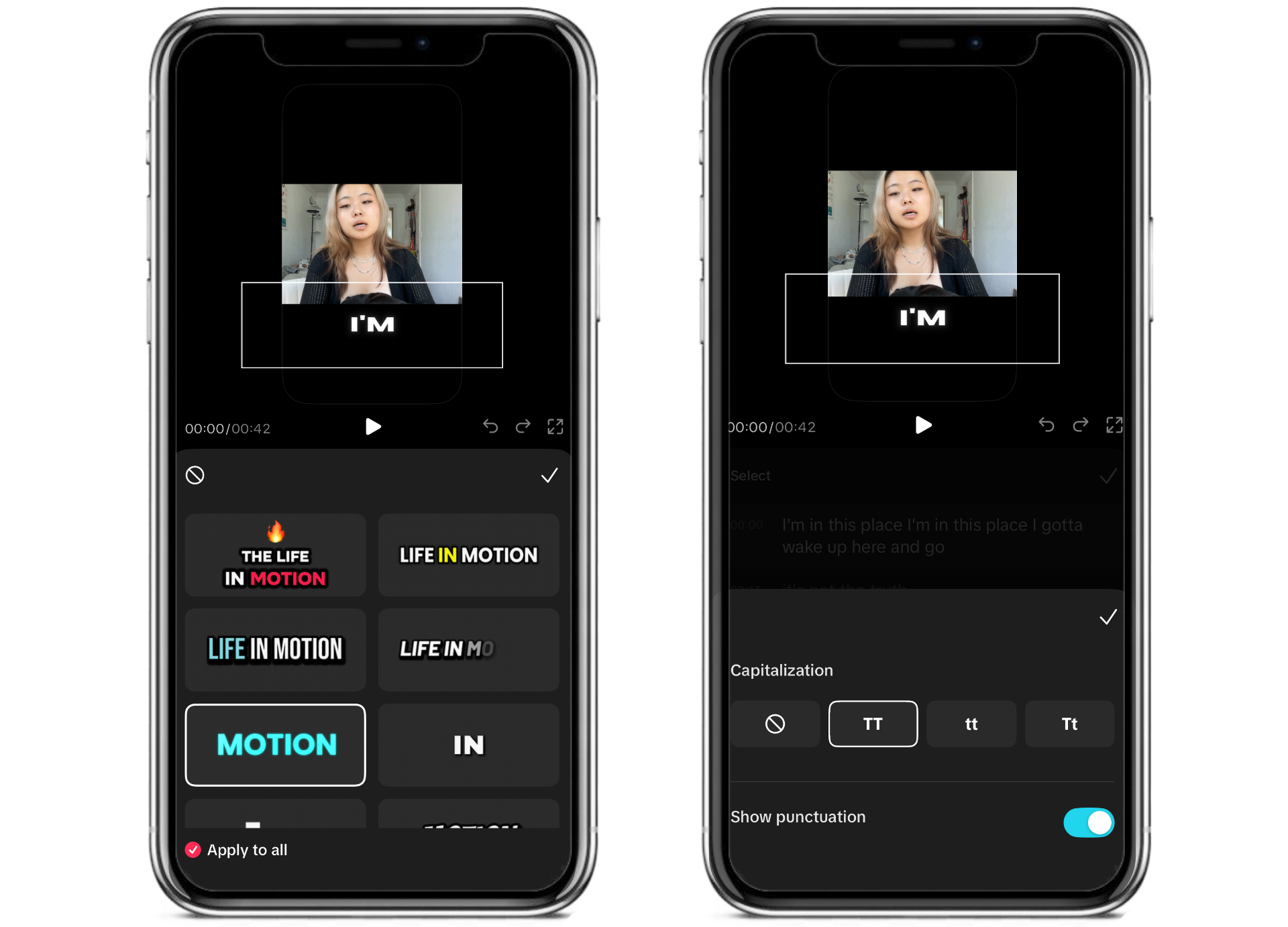
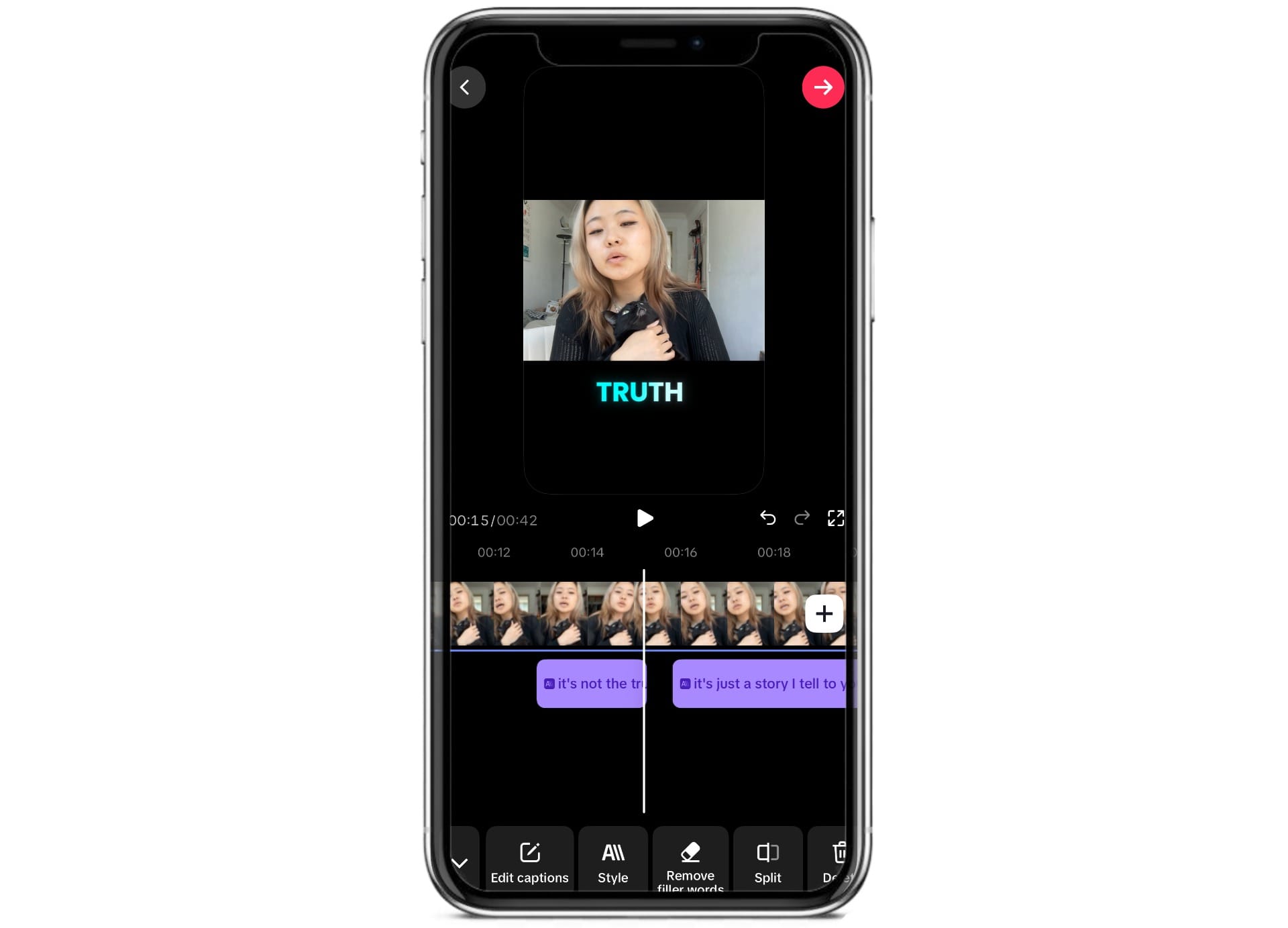
Once you've reviewed the transcript, you can also customize how your subtitles look. Tap the Style button (located in the center of the bottom toolbar) to change the appearance.
You can also adjust the text case, switching between sentence case and ALL CAPS, to better match your content and improve readability.
Step 4: Preview Before Publishing
Watch your entire video once with subtitles enabled. Look for captions that appear too early or too late, overlap TikTok's interface, or disappear before viewers have enough time to read them.
Once you're happy, publish your video.
How to Create Custom TikTok Subtitles
While TikTok’s built-in Auto Captions feature is convenient, many creators choose to create their subtitles before uploading their videos. Creating custom subtitles gives you control over the appearance, timing, and placement of your captions.
This can help maintain brand identity and deliver a better viewing experience. It’s also preferred when repurposing content across platforms.
Step 1: Upload Your Video
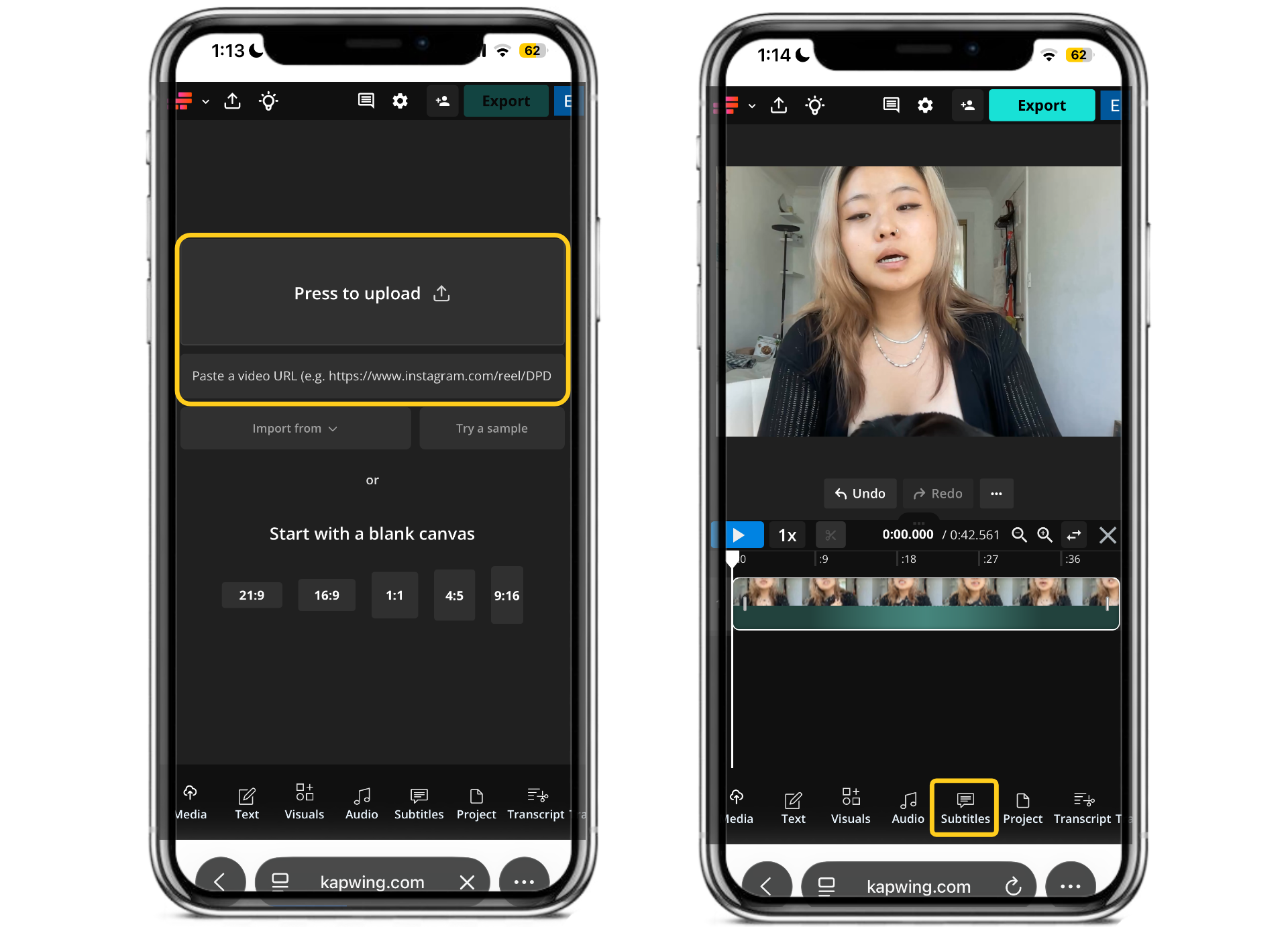
Open Kapwing and upload your TikTok video from your device, cloud storage, or by pasting a video URL.
Once your video has loaded into the editor, select Subtitles from the toolbar to begin generating captions.
Step 2: Generate AI Subtitles
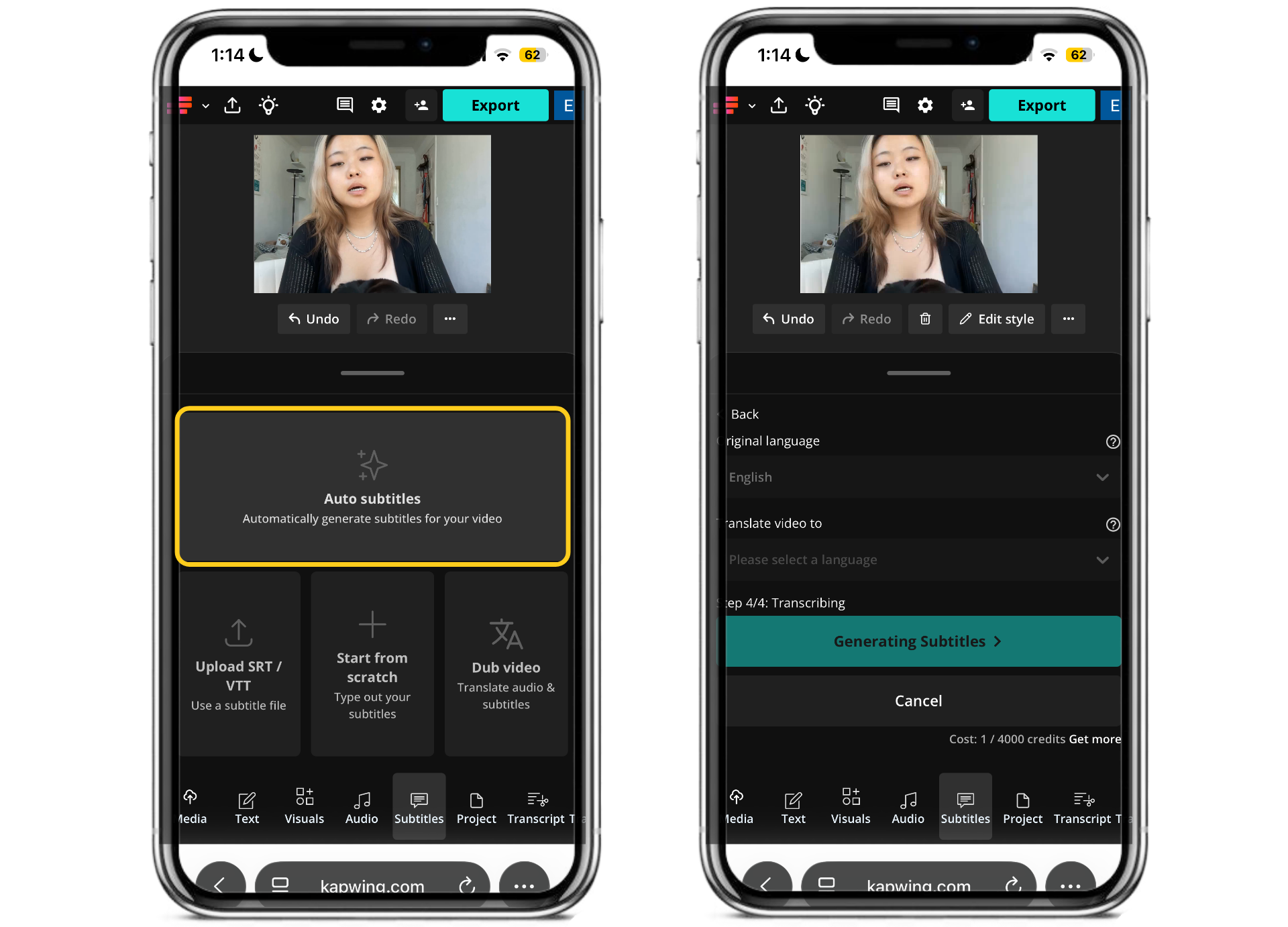
Click Auto Subtitles and select your video's spoken language.
Kapwing will automatically transcribe your audio into subtitles, generating accurate captions in just a few seconds.
Step 3: Review and Edit Your Transcript
Compared to the TikTok auto-captions feature, I found that Kapwing did a much better job at accurately transcribing my video – in this case, a cover of a song.
However, it's still important to edit the transcript before exporting your video. Check for spelling mistakes, punctuation errors, incorrect names, and industry-specific terminology that transcription may have missed.
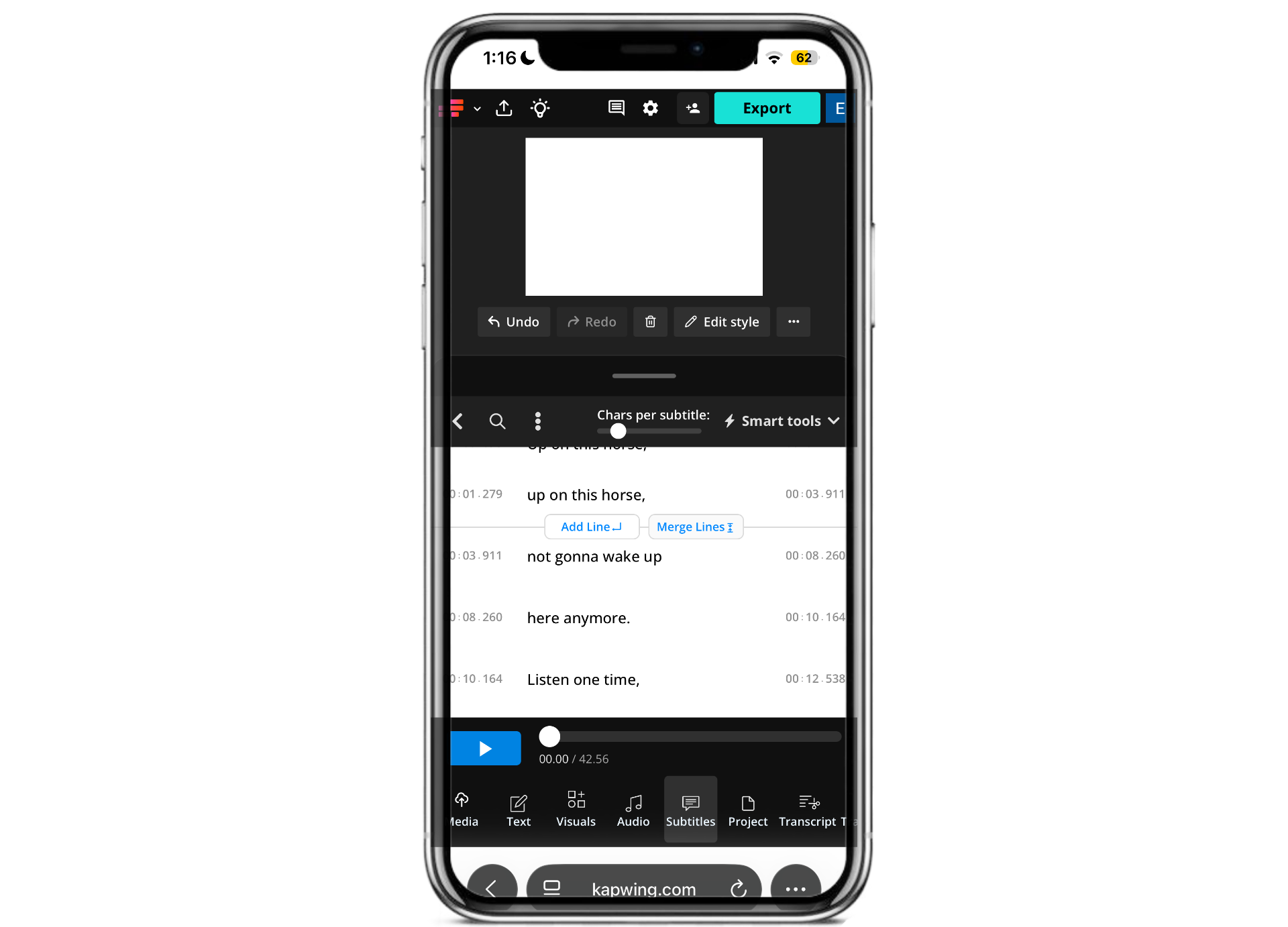
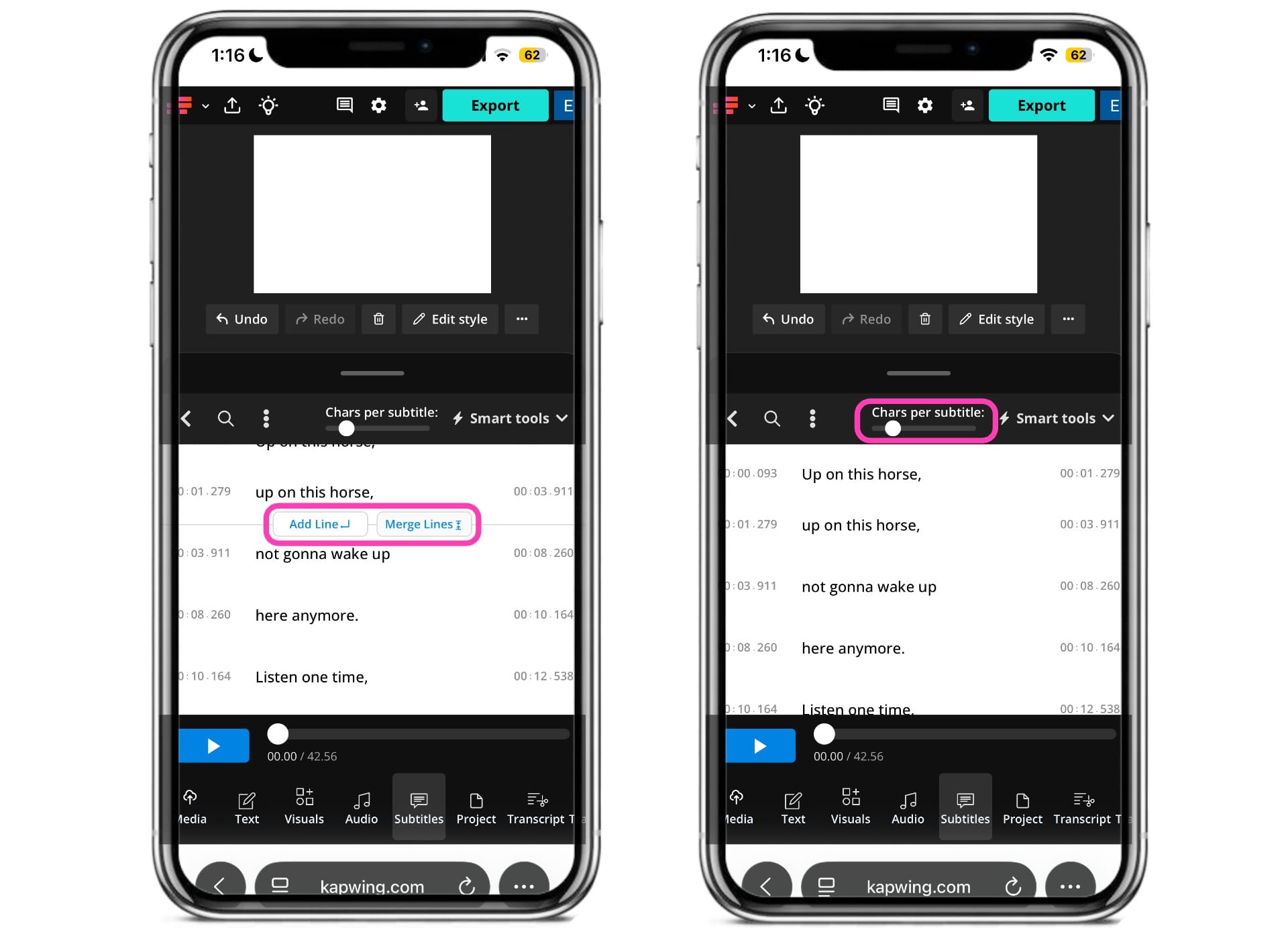
This is also a good opportunity to split longer captions into shorter, easier-to-read lines and ensure each subtitle stays on screen long enough for viewers to comfortably read it.
You can do this by adding or merging lines in the subtitle editor. You can also adjust the number of characters per subtitle by adjusting the slider at the top of the editor.
Step 4: Customize Your Subtitle Style
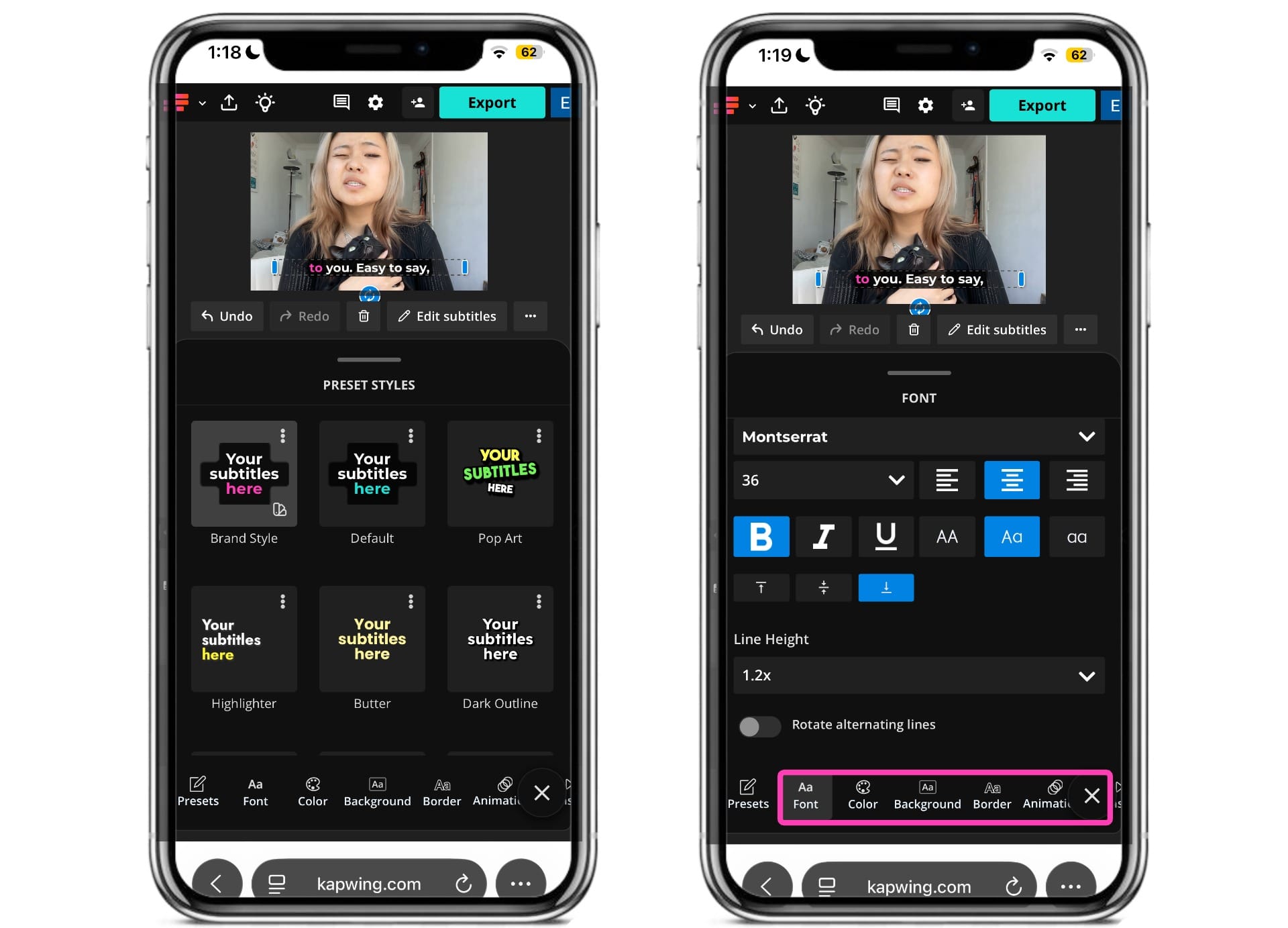
Once you're happy with your subtitle accuracy, you can customize your subtitle style. Click on the "Edit Style" button right beneath the video preview.
You can use one of Kapwing's preset styles, upload a brand style, or customize your own by changing the font, color, background, border, and animation.
Step 5: Finalize Your Video and Export
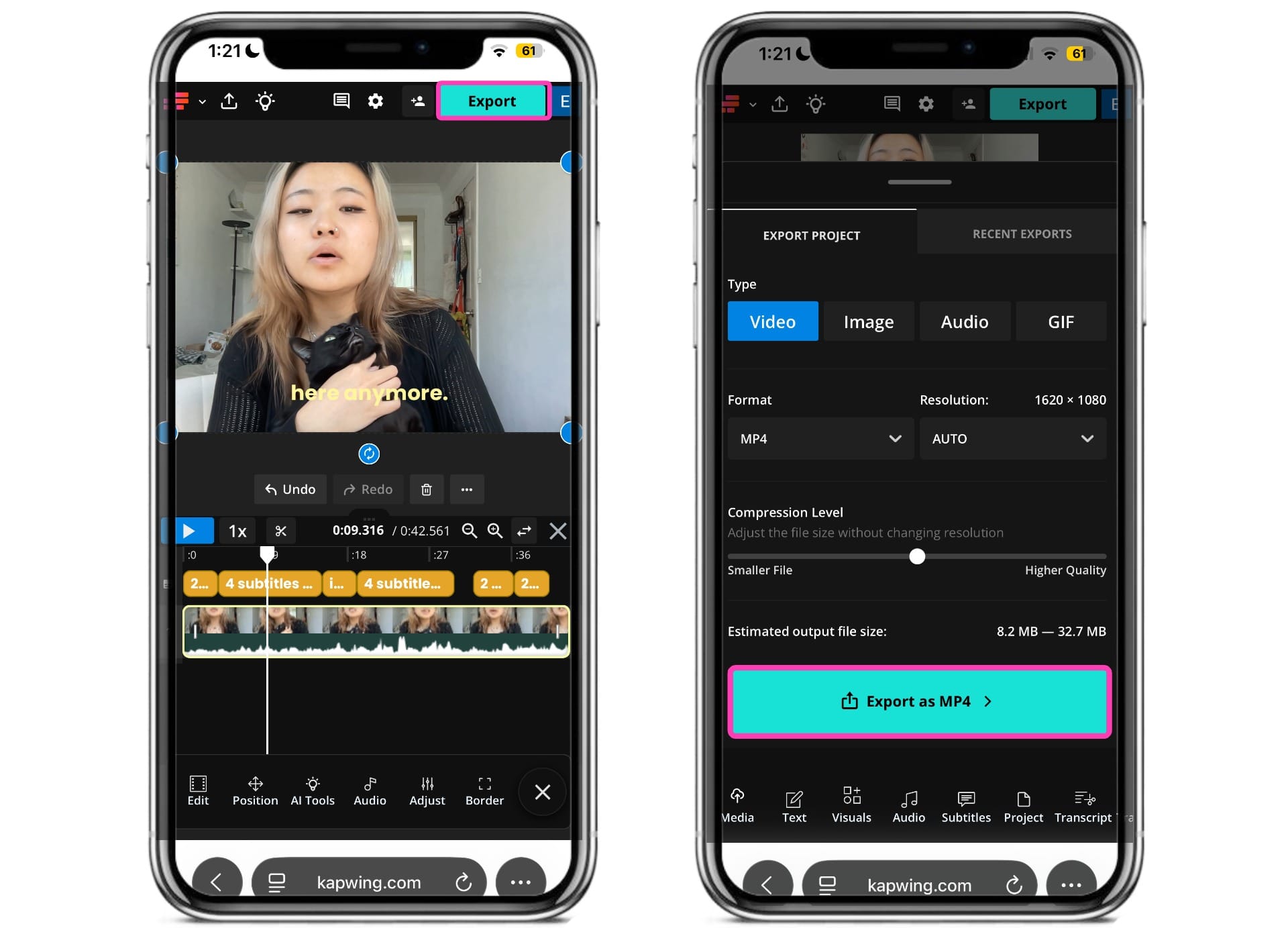
Once you finalize your subtitles, you can continue editing your video in the studio, adding transitions, incorporating B-roll, adjusting audio, or applying video effects.
When you're happy with your result, export your video. Kapwing exports videos with burned-in subtitles. As a result, they'll always appear regardless of whether viewers have captions enabled.
Best Practices For Subtitles on TikTok
Adding subtitles is only the first step. How you format and position them can have a significant impact on readability, viewer retention, and overall engagement.
Well-designed subtitles should feel like a natural extension of your video, helping viewers follow along without distracting from the content itself. Here are the key best practices to follow when creating TikTok subtitles.
Position Subtitles Within TikTok's Safe Zone
Make sure to place your subtitles within TikTok's safe zone.
TikTok's interface includes several on-screen elements, including the caption, username, engagement buttons, and navigation bar. Placing subtitles too close to the edges of the screen can cause them to be obscured by the UI.
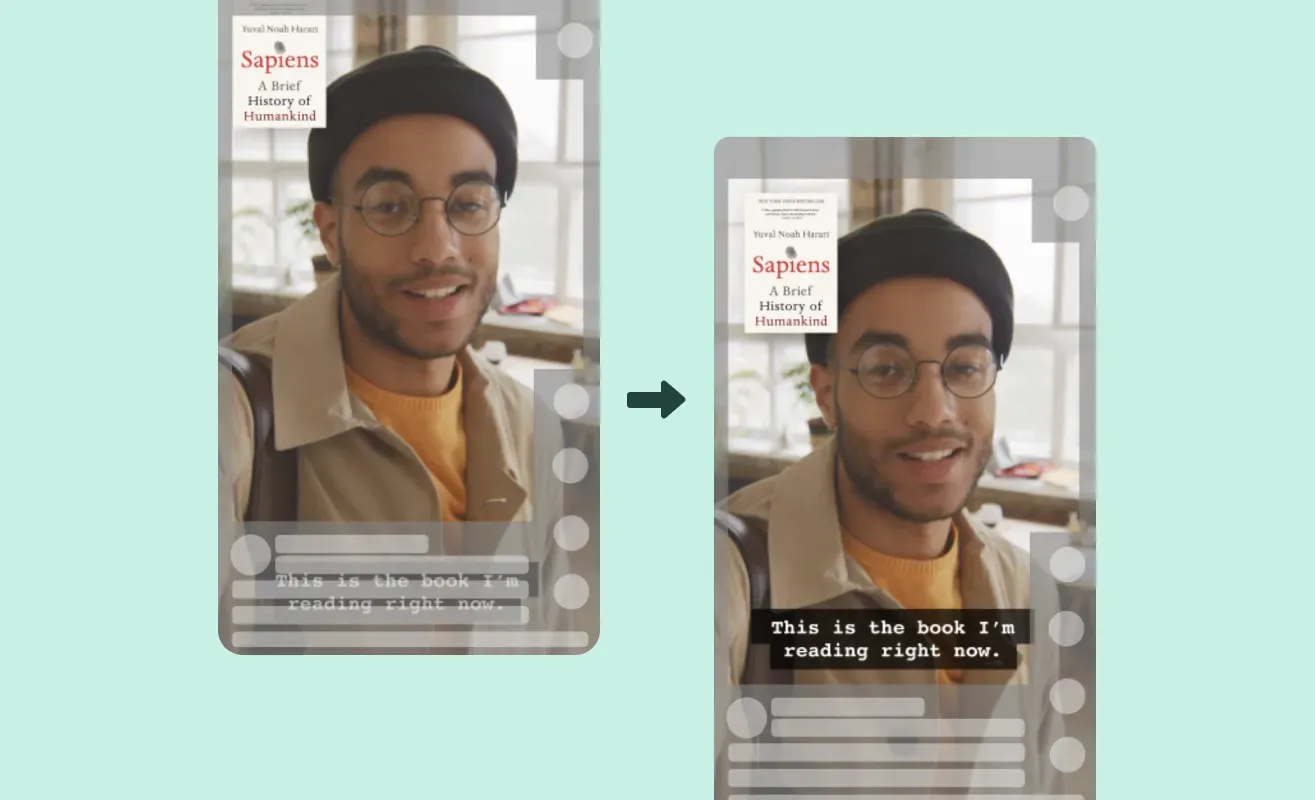
If you're repurposing your content across TikTok, Instagram Reels, and YouTube Shorts, it's important to design your subtitles for every platform from the start.
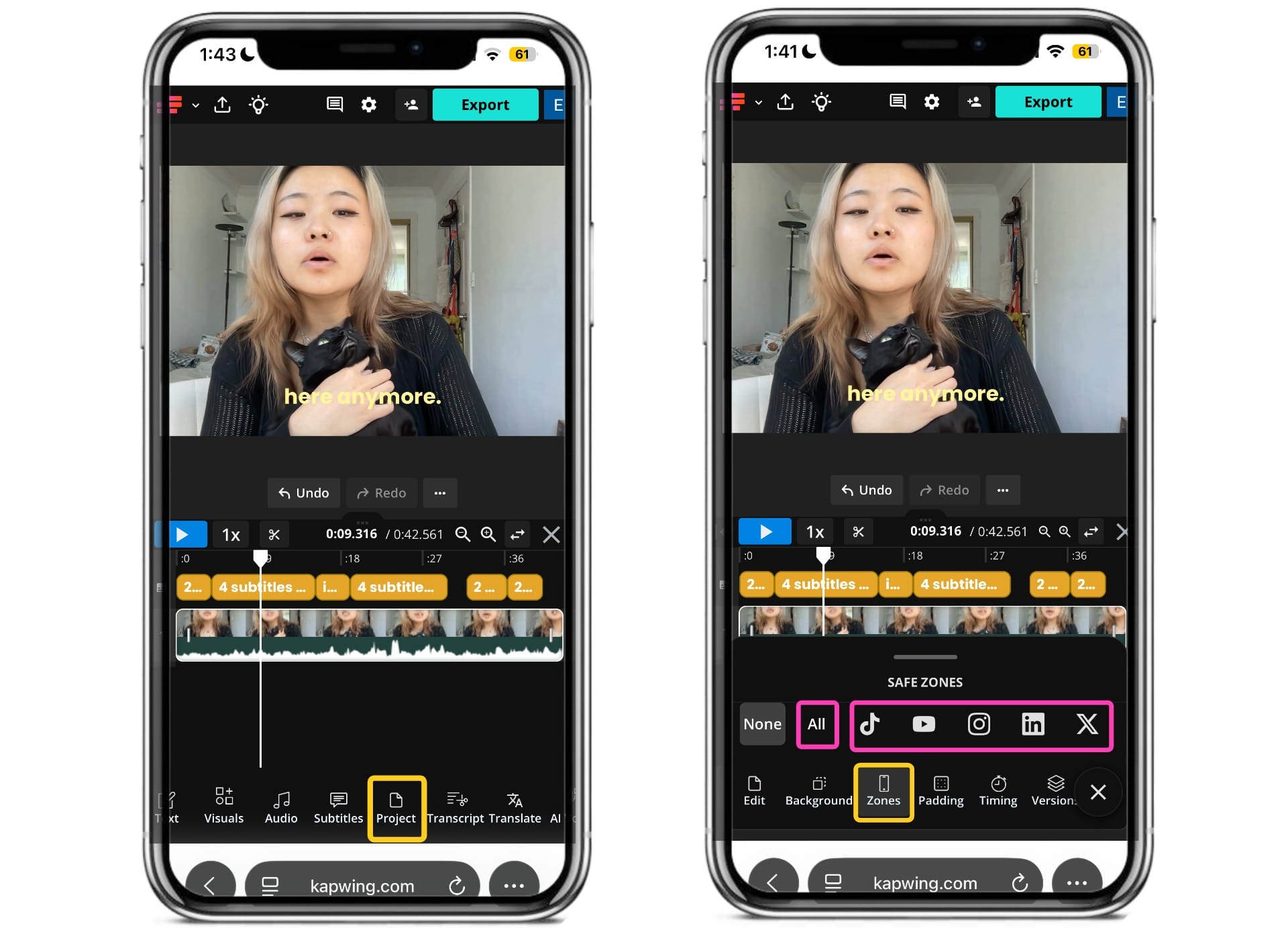
To make this easier, Kapwing includes Safe Zone overlays. Open the Zones tab under Project. You can preview your video using the All view, which displays the safe zones for the major short-form platforms at once.
You can also switch to individual platform overlays. This makes it easy to ensure your captions aren't covered by platform UI before exporting your video.
Don't Subtitle Every Single Word
Subtitles should improve comprehension, not simply mirror every sound you make. While it's important to preserve your message, you don't need to include every filler word, pause, or verbal habit.
When reviewing your subtitles, consider removing filler words:
- "Um..."
- "Uh..."
- "Like..."
- "You know..."
- Repeated words
- False starts
Editing your captions for clarity creates a smoother reading experience while keeping the spoken audio feeling natural.
Keep Each Subtitle Short and Easy to Read
Most viewers don't read every subtitle from beginning to end. Instead, they scan captions while watching the visuals. Because of this, subtitles should be broken into short, meaningful phrases that viewers can read at a glance.
Split captions at natural pauses in speech instead of arbitrary character counts. Well-timed, bite-sized captions reduce cognitive effort, improve readability, and make it easier for viewers to keep up with both the visuals and the dialogue.
Instead of this:
Today I'm going to show you how to make the perfect iced coffee at home using only three ingredients.
Try this:
Today I'll show you
how to make
the perfect iced coffee
with just three ingredients.
Create a Consistent Subtitle Style
Your subtitle style should become part of your visual identity. Using the same font, colors, sizing, positioning, and animation across every video makes your content instantly recognizable, even before viewers see your username.
A great example is Alex Hormozi, whose caption style (bold with yellow keyword highlights) have become so distinctive that many creators now refer to it simply as the "Hormozi style".
Rather than recreating your subtitle design for every video, save it as a reusable template. By using a Brand Kit, you can save your preferred fonts, colors, logos, and brand assets, making it easy to apply a consistent style across content.
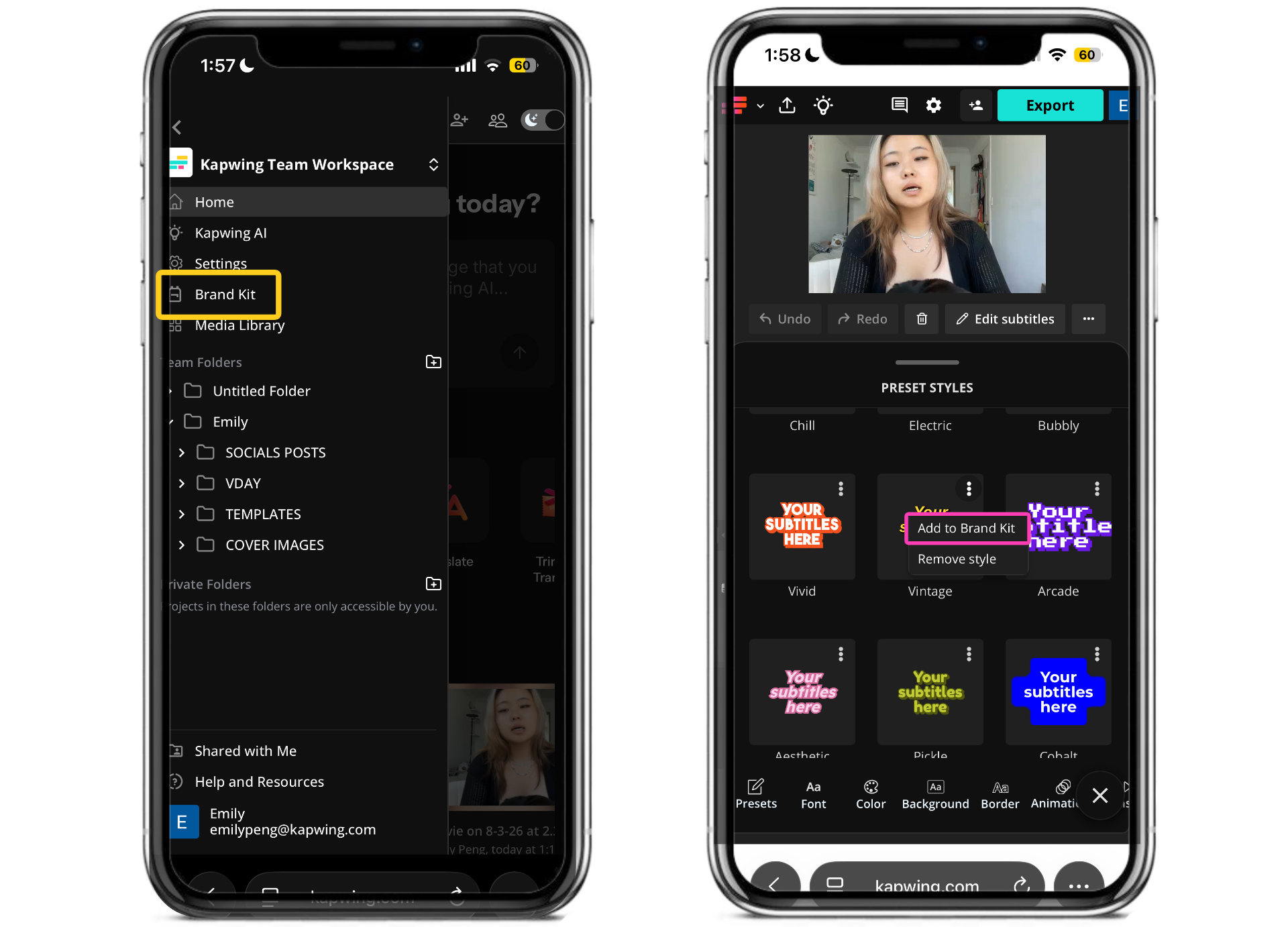
To access your brand kit, navigate to the menu in your workspace. From there, you can upload preferred fonts and colors for your subtitles.
You can also save subtitle presents to your brand kit by clicking on the three dots beside it and selecting "Add to Brand Kit".
Make Your Hook Visible Before It's Heard
The first few seconds of a TikTok video determine whether someone keeps watching or scrolls away. Since many viewers watch without sound, your opening subtitle should communicate the value of your video immediately—even before they've heard the audio.
Instead of opening with filler like "Hey guys..." or "So today I wanted to...", lead with the key takeaway or curiosity-driving statement. For example:
❌ "Hey everyone..."
✅ "You're probably editing TikTok subtitles wrong."
Popular TikTok Subtitle Styles (With Creator Examples)
Subtitles on TikTok have evolved from being just a video accessibility feature. On a platform where most users scroll with sound off, your subtitles influence how professional your content seems, reinforce your brand, and improves viewer retention. While there’s no single “best” TikTok subtitle style, certain formats have become strongly associated with specific content niches and creator types.
Below are some of the most popular TikTok subtitle styles, along with examples of creators who use them and the types of content they’re best suited for.
Hormozi Style
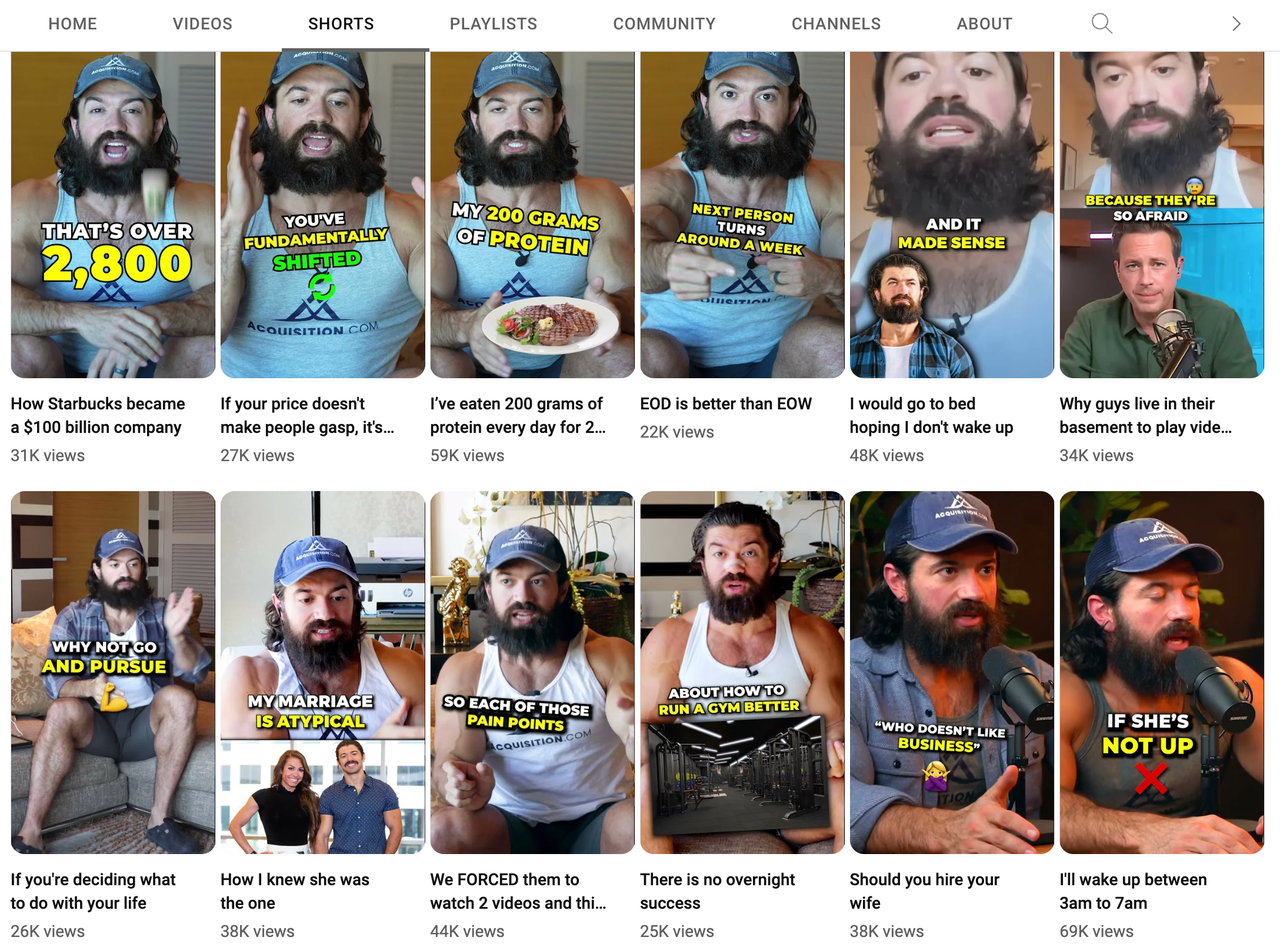
Popularized by Alex Hormozi and adopted by many business creators, the Hormozi style is one of the most recognizable subtitle formats on TikTok.
It uses bold, all-caps text, fast word-by-word animations, and highlighted keywords to keep viewers engaged throughout the video.
If you want to recreate this high-retention editing style, you can start with a Hormozi Subtitle Template and customize it to match your own brand.
Common characteristics
- ALL CAPS typography
- Word-by-word animations
- Yellow or colored keyword highlights
- Thick black outline or shadow
- Fast-paced transitions
Best for
- Business
- Marketing
- Finance
- Self-improvement
Podcast Style
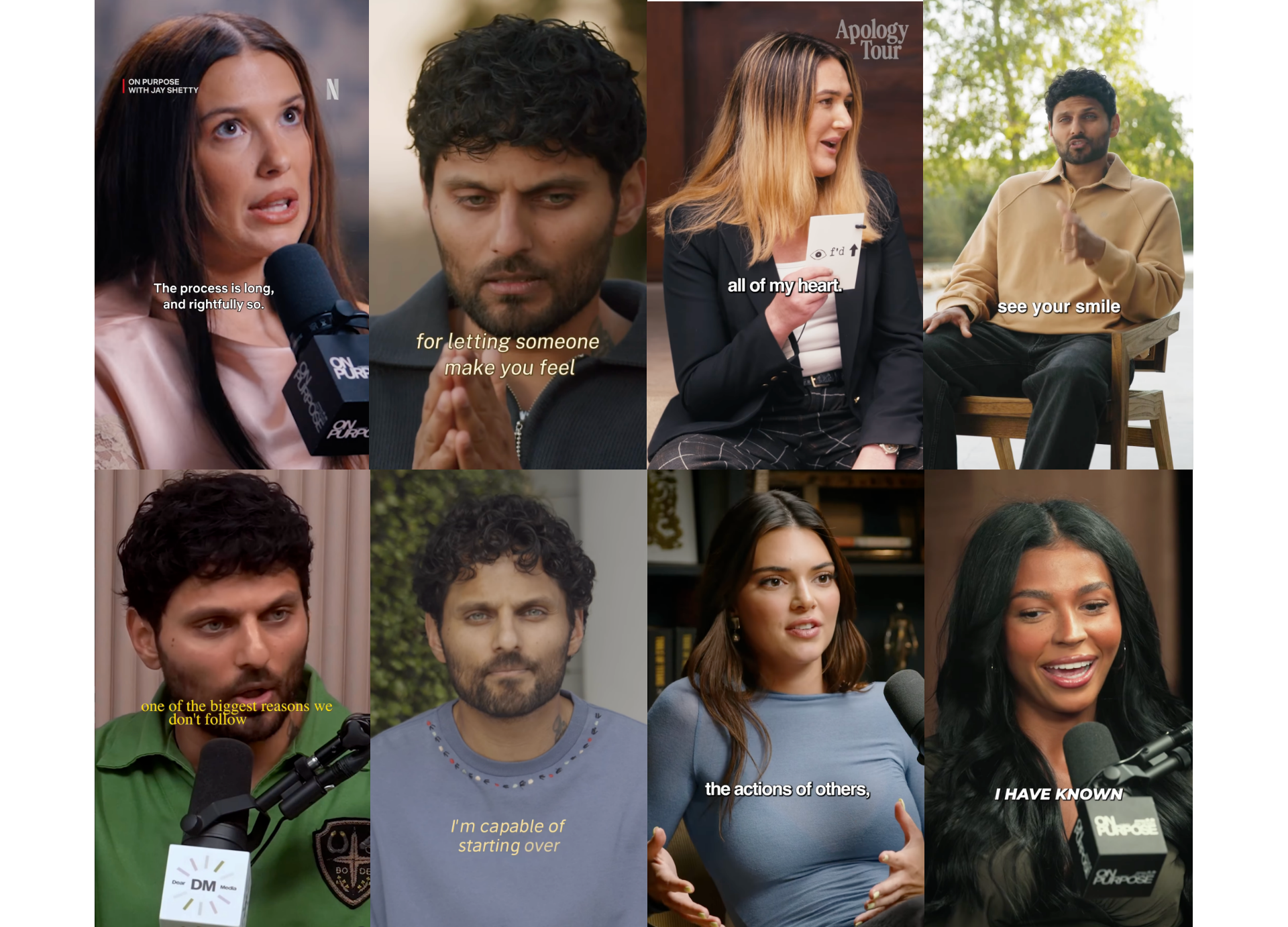
With podcast clips dominating TikTok, this subtitle style has become increasingly popular among creators repurposing long-form conversations into short-form content. Rather than displaying one word at a time, subtitles appear in short phrases that match the speaker's natural rhythm. You'll commonly see this style in clips from Jay Shetty.
This Word by Word Subtitle Template recreates this clean, conversation-first aesthetic, making it easy to subtitle interviews and talking-head videos.
Common characteristics
- Large centered captions
- Phrase-by-phrase timing
- Minimal animation
- High readability
Best for
- Podcast clips
- Interviews
- Talking-head videos
- Commentary
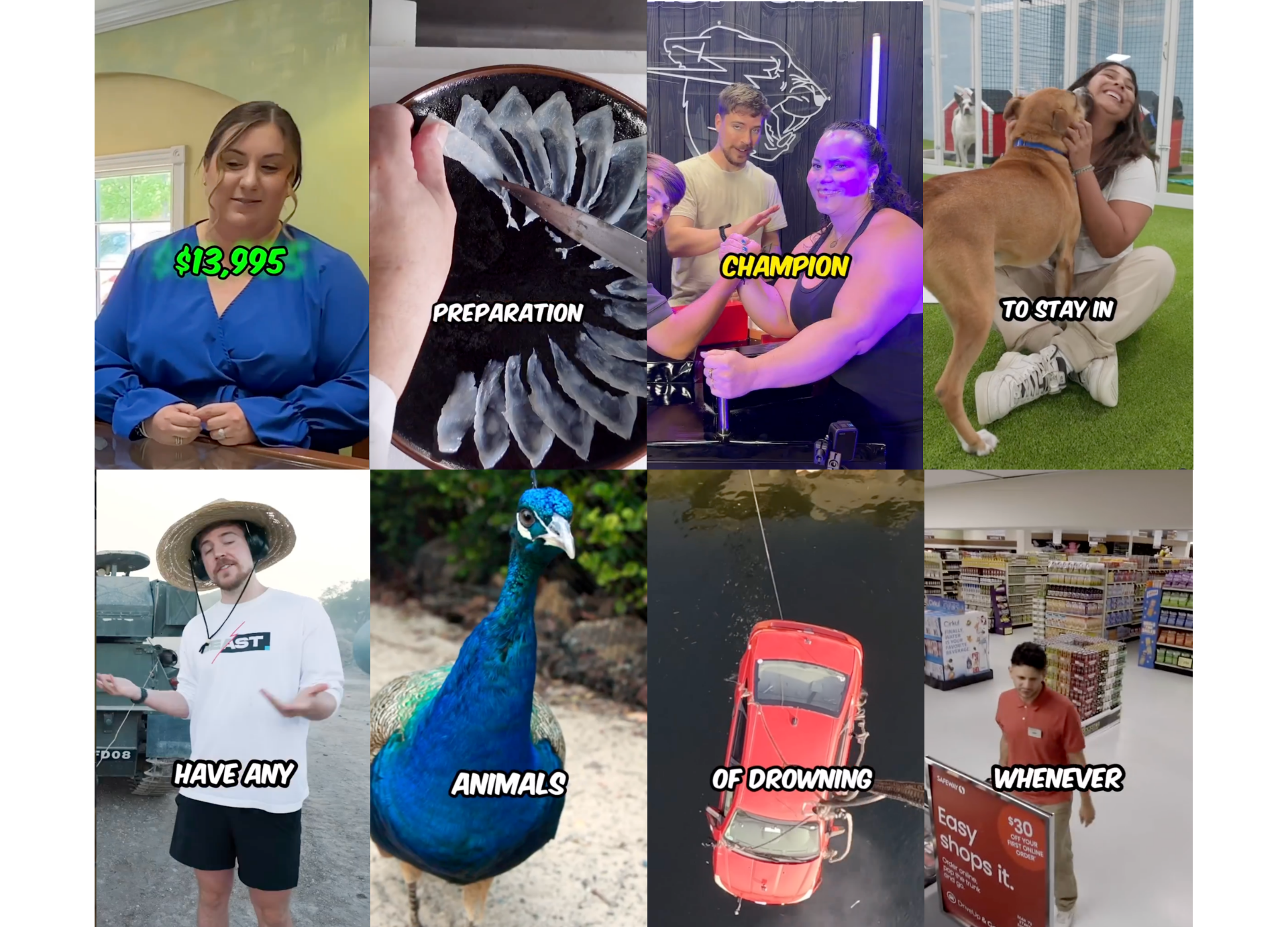
Beast Style
Inspired by high-retention YouTube and TikTok creators like MrBeast, this style is often large, bold, and animated. It works in sync with cuts, sound effects, and pacing to reinforce emphasis and maintain attention.
The goal is to increase energy and guide attention through fast-moving, highly edited content.
If you're creating fast-paced entertainment content, this Mobile First Subtitle Template uses the same font and animations as popular creators.
Common characteristics
- Large bold typography
- Colorful keyword emphasis
- Rapid transitions
- Animations synchronized with cuts and sound effects
Best for
- Challenges
- Gaming
- Comedy
- Entertainment
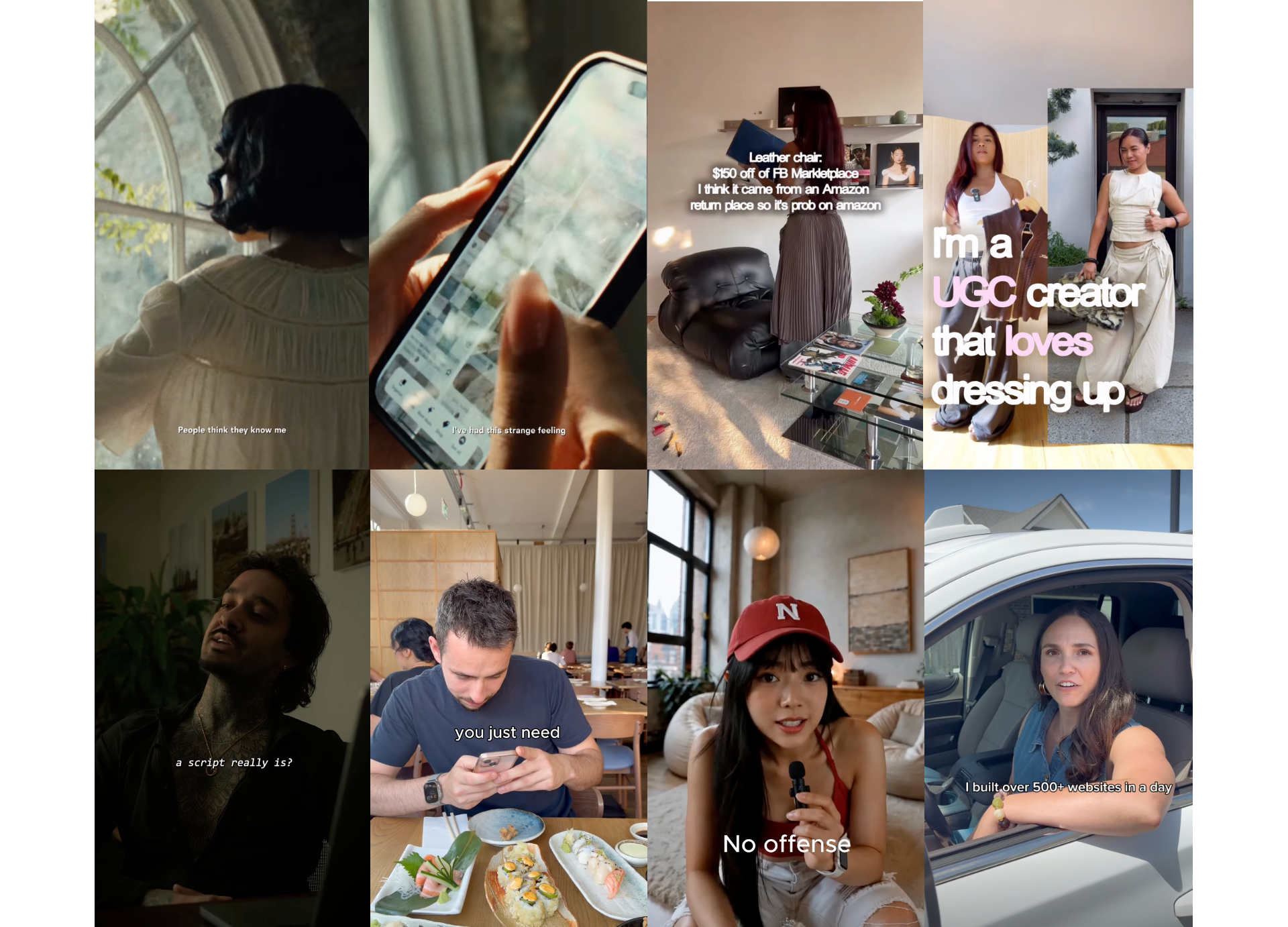
Premium Minimal Style
Often seen in content from lifestyle creators, this style favors understated typography and restrained animation.
Rather than demanding attention, the subtitles complement the visuals with clean layouts, premium fonts, and subtle movement, creating a more refined aesthetic.
Kapwing's Retro TV Subtitle is designed for creators who want captions that don't distract from their content.
Common characteristics
- Minimal animations
- Elegant typography
- Neutral color palette
- Consistent lower-third positioning
Best for
- Founder content
- Luxury brands
- Finance
- Professional personal brands
Do Subtitles Help Performance on TikTok?
While subtitles aren't a direct ranking signal in TikTok's algorithm, they can improve several metrics that contribute to stronger video performance, including watch time, completion rate, accessibility, and viewer engagement.
Here are some of the most compelling subtitle statistics behind why creators should subtitle their videos.
Watch with sound off
Most mobile viewers watch without audio at least some of the time.
Finish more videos
Improve completion and retention.
Social videos are muted
Silent viewing makes captions essential.
Watch in public
Audio is often impractical in shared spaces.
More YouTube views
Subtitles can support reach and discovery.
Gen Z expects captions
Subtitles are part of the default experience.
Turn the sound on
Captions can encourage deeper engagement.
Need captions for clarity
Many videos are difficult to follow without them.
Taken together, these statistics highlight why subtitles have become a standard feature of successful short-form content. While adding captions alone won't guarantee more views, they reduce friction for viewers, improve accessibility, and make it easier for audiences to engage with your content.
Over time, this added clarity and inclusivity can contribute to stronger overall performance and a more consistent viewing experience across your audience.
Frequently Asked Questions
Can I upload an SRT subtitle file to TikTok?
No, TikTok doesn't currently support uploading standalone SRT subtitle files through its standard video publishing workflow. Instead, creators can either use TikTok's built-in Auto Captions feature to generate subtitles after uploading or create burned-in subtitles before publishing. Burned-in subtitles are permanently embedded into the video, ensuring they appear consistently across TikTok, Instagram Reels, YouTube Shorts, and other social media platforms.
Does TikTok have automatic subtitles?
Yes. TikTok includes a built-in Auto Captions feature that automatically transcribes spoken dialogue into subtitles using speech recognition. Before publishing, you can review and edit the generated transcript to correct any mistakes.
Can you edit TikTok subtitles after posting?
No. Once a TikTok video has been published, you can't edit its subtitles independently. If you need to correct your captions, you'll need to edit the video and upload it again.
What's the difference between subtitles and captions?
The terms are often used interchangeably on TikTok, but they have slightly different meanings. Subtitles transcribe spoken dialogue, while captions can also include non-speech audio such as music, sound effects, or speaker identification. For most TikTok creators, however, the terms refer to the same on-screen text.
Can I customize the appearance of TikTok subtitles?
TikTok allows some basic subtitle customization, depending on your device, app version, and region. If you need more control over fonts, colors, animations, positioning, or branding, it's best to create subtitles before uploading using a video editor like Kapwing.
Should I use TikTok Auto Captions or create custom subtitles?
It depends on your workflow. TikTok's Auto Captions are the fastest option for adding subtitles directly within the app, while custom subtitles offer significantly more control over styling, placement, animations, and branding. If you're creating content for multiple platforms or want a consistent visual identity, custom subtitles are typically the better choice.
Do subtitles improve TikTok views?
Subtitles aren't a direct ranking factor in TikTok's algorithm, but they can improve viewer retention, accessibility, and engagement by making videos easier to follow—particularly for viewers watching without sound. Higher retention and watch time can contribute to stronger overall video performance.
Can I use the same subtitles on TikTok, Instagram Reels, and YouTube Shorts?
Yes. If you create burned-in subtitles before uploading, the same video can be shared across TikTok, Instagram Reels, YouTube Shorts, and other social platforms without recreating your captions. Just make sure your subtitles are positioned within universal safe zones so they aren't covered by each platform's interface.
What is the best subtitle style for TikTok?
There's no single best subtitle style—it depends on your content. Business creators often use the Hormozi style to emphasize key ideas, podcast creators favor clean phrase-based captions, while entertainment creators tend to use bold animated subtitles. The most important thing is choosing a style that fits your content and using it consistently across your videos.