How to Make AI Dancing Videos (With Dance Video Library)
Dance videos are the leading category on TikTok — now they're being made with AI
Dance videos have been a pillar of social media trends for over a decade. Today, dance content on TikTok outperforms the next leading category by more than 3 million median views — roughly 25% higher engagement.
Now, in 2026, AI is reshaping the dance format altogether.
AI dancing video trends — including viral formats like the Dancing Baby AI trend — have made it possible to animate almost any subject. Using an AI dance generator, you can make pictures dance, turn static images into dancing videos, or apply choreography to pets, products, or characters.
In this guide, you’ll learn how to make AI dancing videos step-by-step, how to turn images into dance clips, and how to use a built-in dance video library to create your own moves — let's go 🕺.
Table of Contents
Which AI Models Support Dance Generation?
While any AI video model can generate dance-like movement from a text prompt, text-only prompting does not reliably reproduce specific choreography. In our testing, models relying solely on text produced general rhythmic motion rather than precise, step-by-step adherence to choreographic instructions. For consistent movement replication, motion control or reference-based guidance is required.
This distinction is critical. Generic rhythmic movement may resemble dancing, but it does not enable users to recreate specific choreography. Without motion-level control, the output becomes unpredictable. Since each generation consumes credits, vague or unusable results create unnecessary cost and friction.
To demonstrate this limitation, we tested several leading text-to-video AI video models with the same instruction:
"Generate a video of a woman doing the YMCA dance."
Here is how each text-to-video AI model performed: Grok Imagine, Hailuo 2.3, LTX 2 Pro, Pika 2.5, Seedance Pro, Sora 2, Veo 3.1, Wan 2.6.
Note: Sora 2 failed to generate an output following the test prompt. The error displayed above is the exact message provided by Sora.
As demonstrated, text-based prompting alone does not reliably reproduce specific dance choreography. None of the tested models consistently recreated the exact YMCA movement patterns. Instead, each interpreted the prompt subjectively, generating loosely synchronized movement rather than recognizable, trend-accurate choreography. In other words, AI slop.
This is not a quality flaw in the models themselves. It reflects a structural limitation of text-only prompting. Without a concrete motion reference, the model must infer choreography from training data, which results in generalized dance-like motion rather than precise step sequences.
Reproducing specific dance trends requires reference-based motion control. Models such as Kling Motion Control enable this by allowing users to guide movement using a source video, rather than relying on text interpretation alone.
Kling Motion Control, powered by the Kling 2.6 video model, solves this limitation by supporting reference-based motion input. Instead of relying on text alone, you can upload a video of the exact dance you want to replicate. The model uses that reference to guide movement, transferring choreography to your subject with far greater accuracy and consistency.
This makes Kling Motion Control particularly effective for generating dancing dog, cat, baby, or celebrity videos that follow recognizable choreography rather than generic, improvised motion.
How to Access Kling Motion Control
Kling Motion Control is available through several platforms, each designed for different types of content creators:
- Kling AI - Best for early adopters and professionals who need the latest features immediately. As the source platform, Kling AI releases new model versions and updates first, often weeks before other platforms. They also provide a curated dance reference video library.
- Kapwing - Best for social media creators and content producers who need a complete video production workflow. Kapwing integrates Kling Motion Control directly into a full-featured video editor, allowing you to generate AI dance videos and immediately add music, captions, resize for social media, apply templates, and make advanced edits.
- Imagine.art - Best for users who want a straightforward, no-frills experience. Imagine.art offers a clean, streamlined interface focused solely on motion control generation without additional editing features.
- Higgsfield - Best for longer-form content and experimental projects. Higgsfield supports generation lengths up to 30 seconds and includes proprietary video effects. This makes it suitable for extended dance sequences or creative projects requiring longer outputs, though post-production options are limited.
For creators making dance videos specifically for social media, Kapwing offers the most complete workflow.
The integrated editor means you can generate your AI dance video and edit it for social media without having to download, re-upload, and manage files across multiple tools.
How to Make an AI Dancing Video (Best Method)
The fastest way to create an AI dance video is to use Kapwing’s AI Dance Video Maker, which is supported by Kling Motion Control for more accurate choreography.
1. Upload Your Media
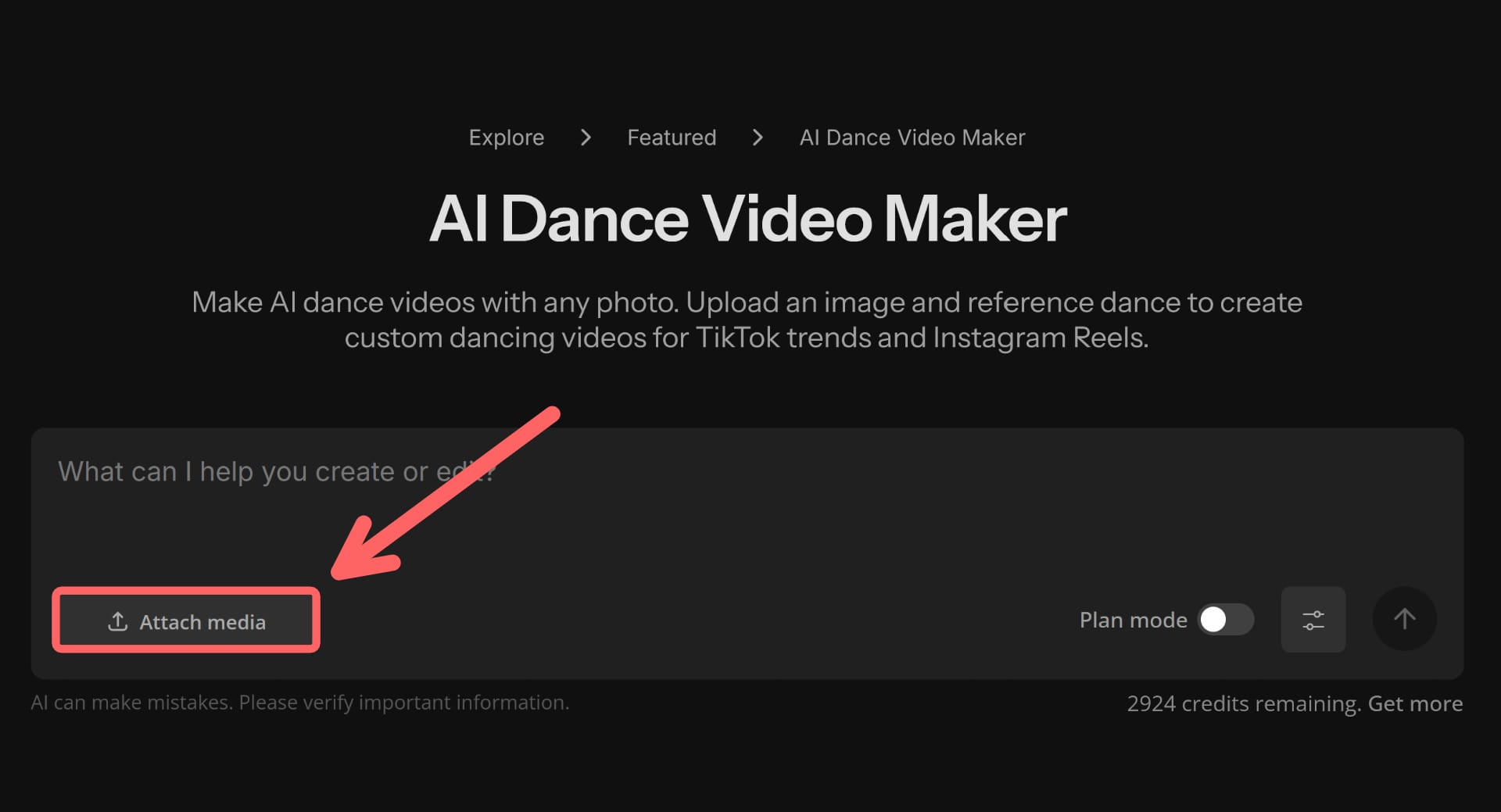
Follow the link to the Dance Generator and select the "Attach Media" button to upload two files:
Subject Image
A clear photo of your subject (person, pet, baby, or anyone you want dancing). For the best results, use an image where the subject has an upright posture and high contrast against their background.
Dance Reference Video
The dance you want to replicate. It can be anything ranging from a video downloaded from TikTok to a choreography you recorded.
Keep in mind, your dance video must meet these specifications to successfully generate:
- File Types - MOV, MP4, or AVI
- Duration - 3 to 10 seconds (longer clips must be trimmed)
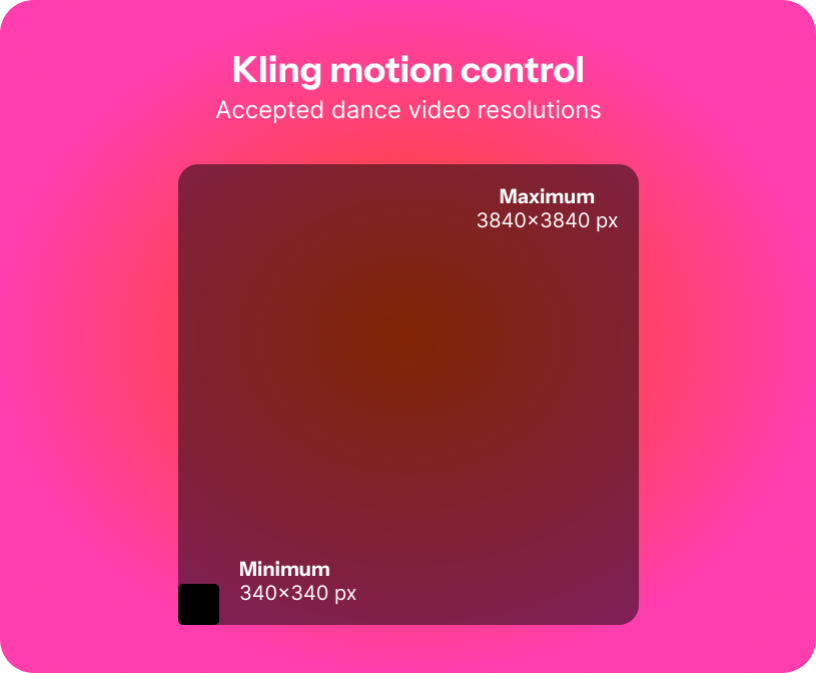
- Resolution - Between 340 x 340 and 3840 x 3840 pixels (720p to 4K)
If you don't already have a dance reference video, you can open the library below.
Right-click to save one of the pre-optimized videos and use it as your reference video.
2. Generate Your Video
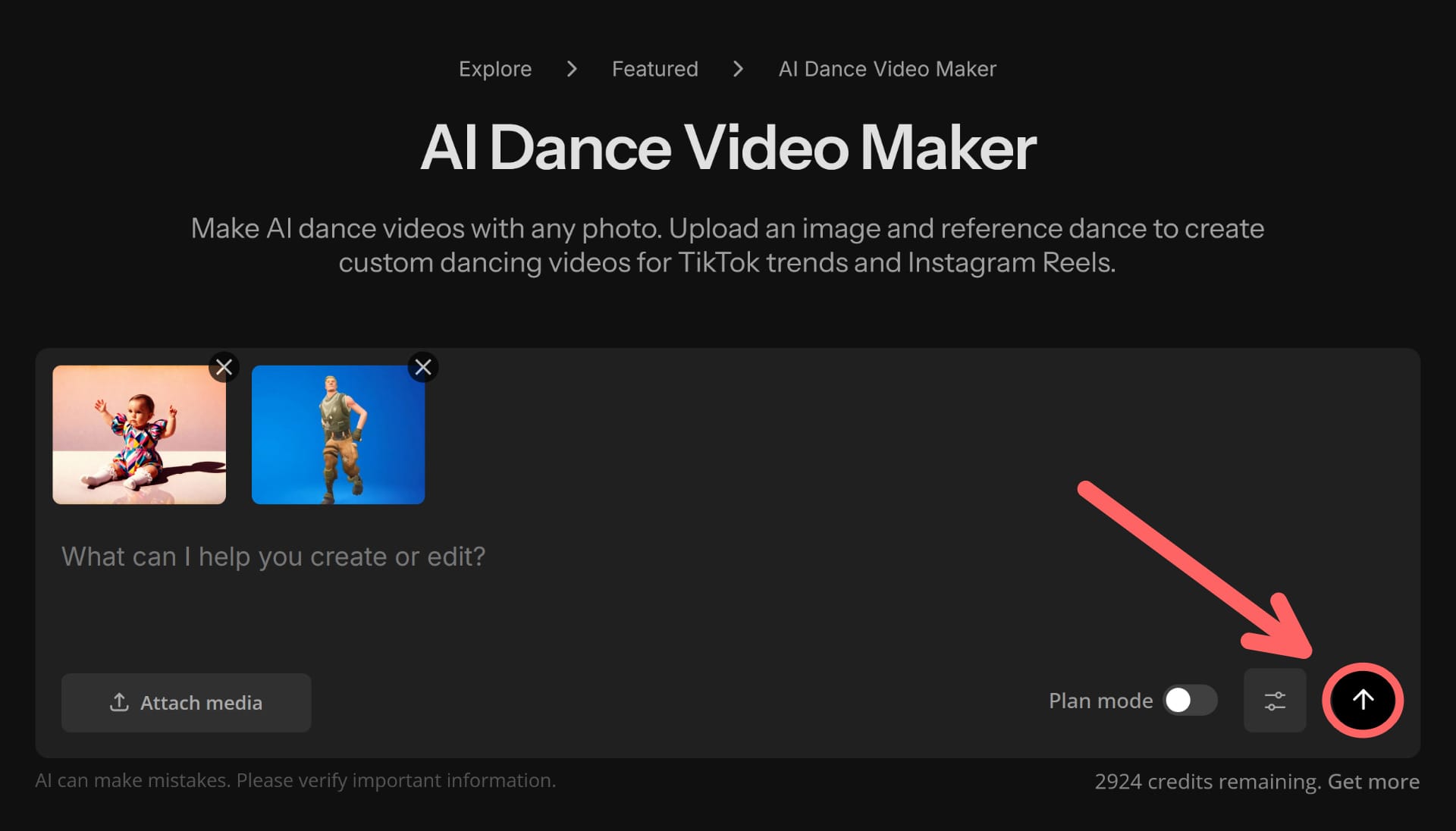
With the Kapwing AI dancing model, you do not need to enter a prompt after uploading your media.
To generate, click the send button.
The process takes a few minutes but runs in the background, so you don't need to stay on the tab.
3. Edit and Download
Once generated, download the file directly or open it in the integrated editor to make adjustments.
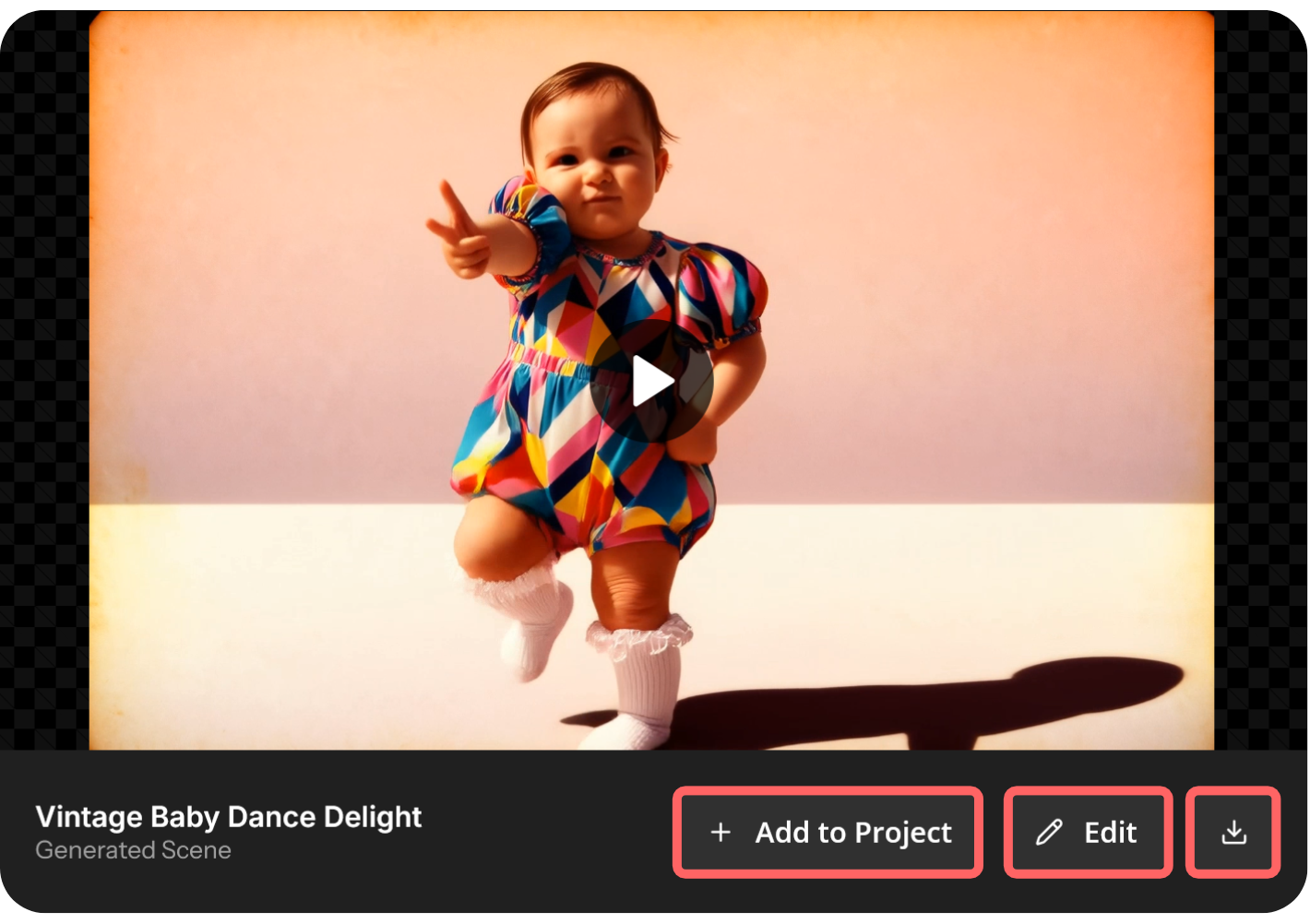
Common edits for dance videos:
- Resize to vertical aspect ratios for social media
- Add background music that matches the energy of the choreography
- Include captions or subtitles for better engagement on muted autoplay