How to Turn One Clip Into 4 Camera Angles With AI (Seedance 2.5)
One camera, four angles. Here's how to fake a multi-camera shoot with AI.
Filming with multiple cameras usually means setting up several cameras, recording the same performance from different positions, and cutting between the footage afterward. If you only have one camera, your options are more limited. You can crop or zoom into the footage, but you can't reveal a new perspective.
With Seedance 2.5, you can upload one video and ask AI to recreate the same performance from different camera positions. The goal is to keep the subject, action, dialogue, and timing consistent while changing only where the camera sits.
I tested this with a short talking-head video, real CCTV footage, and a product shot. The results weren't perfect, but they showed that it's possible to create a convincing multi-camera edit from a single recording.
In this guide, I'll walk through the workflow I used with a free Claude skill and Seedance 2.5, including the exact prompt, tested examples, costs, and what to do when the camera angles don't turn out as expected.
Table of Contents:
- How to Make a Multi-Camera Edit From One Clip
- Best Practices for Consistent AI Camera Angles
- Frequently Asked Questions
How to Make a Multi-Camera Edit From One Clip
The workflow has two main parts: use Claude to write a camera-direction prompt, then run that prompt through Seedance 2.5 in Kai. You can also generate a lower-resolution preview before committing to the final version.
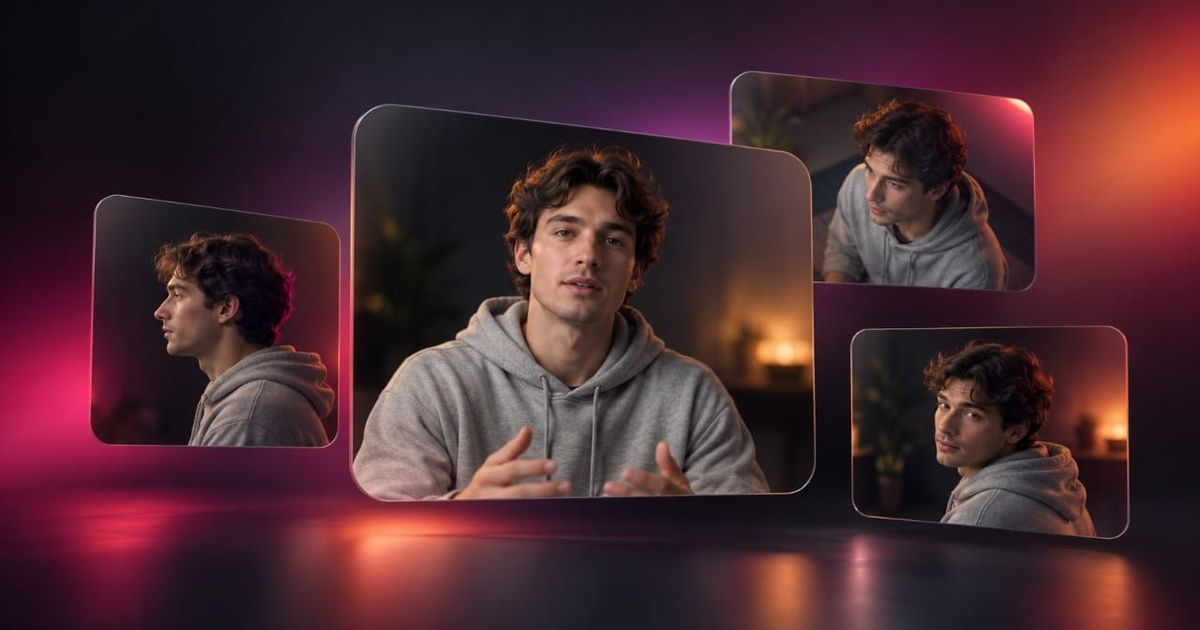
For this tutorial, I used a 4.8-second clip of someone talking directly to a stationary camera. The AI generated three distinct camera angles: the original front-facing shot, a 90-degree side profile, and a high three-quarter angle.
The video's title says four angles, but this particular example uses three because it's so short. The longer talking-head workflow is designed to request four camera positions, with enough time between cuts for each one to register.
Step 1: Use Claude to Generate Your Camera-Angle Prompt
A basic instruction like "show this video from four different camera angles" leaves too much room for interpretation. The model might generate a different performance, change the background, restart the dialogue, or return to the original angle.
Instead, I used a custom Claude skill called Multicam Angles. It analyzes the source clip and writes a structured prompt that specifies the camera positions, exact cut timings, and details that need to remain consistent.
To use the skill, open Claude and navigate to Customize → Skills. Upload the skill as a ZIP file and enable it. If the Skills feature isn't available, check that code execution and file creation are enabled under Settings → Capabilities.
Start a new chat, attach your original video, and enter:
Make me the camera angles.
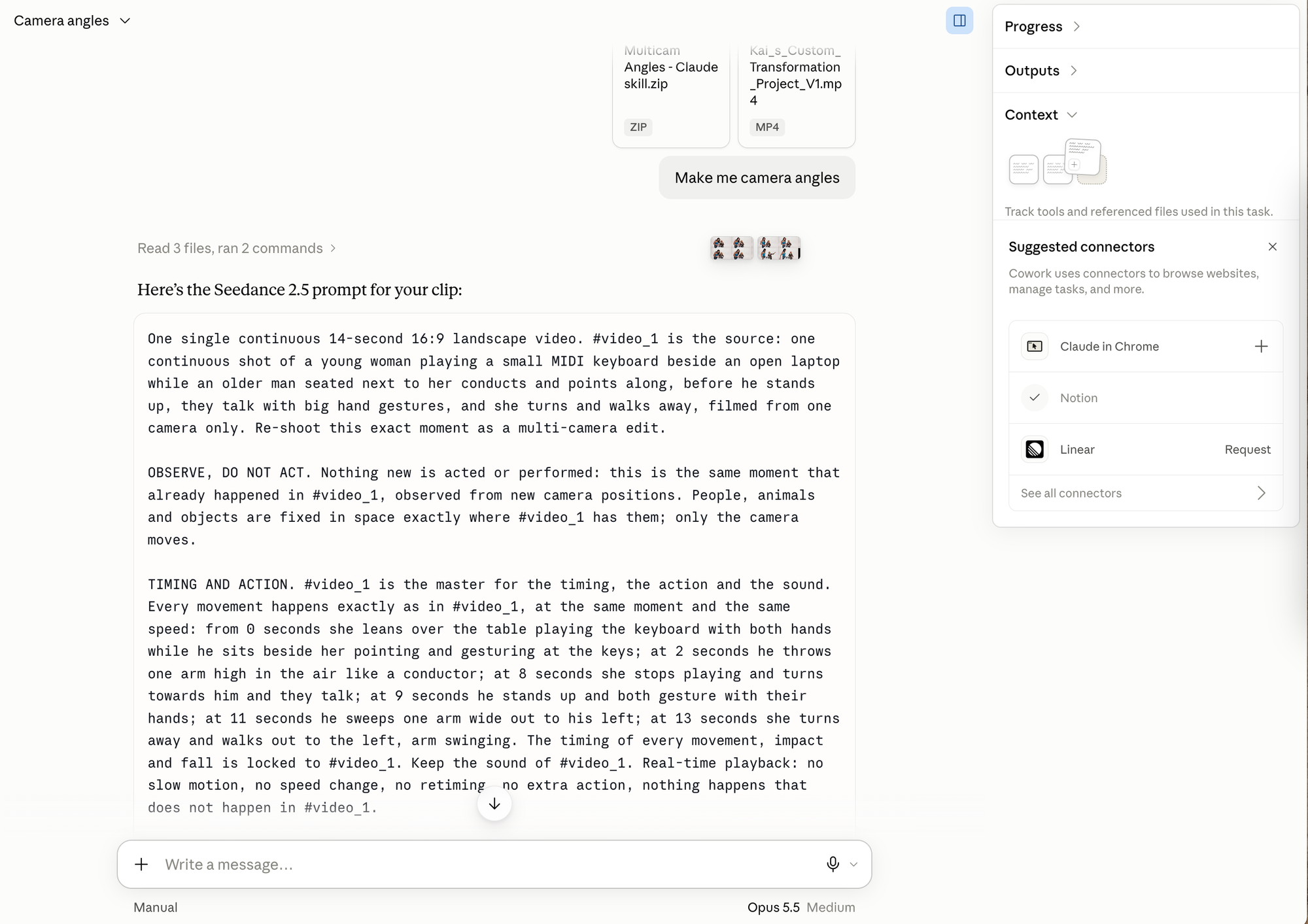
Claude will examine the footage and prepare a single prompt based on its length, framing, and visible environment. If it can't process your video directly, provide 3 screenshots showing the beginning, middle, and end, along with the duration.
Here's the complete prompt Claude generated for my talking-head example. It's specific to the person and room in my source video, so use the skill or templates to adapt those details to your own footage.
Example Claude Prompt
Attach: The original video as #video_1.
One single continuous 5-second 16:9 landscape video. #video_1 is the source: one continuous take of a person talking to camera, filmed from one fixed camera only. Re-shoot this exact take as a multi-camera edit.
VOICE AND TIMING. #video_1 is the master for the timing, the audio and every word. Keep the audio of #video_1 exactly: the same voice, the same words, the same pace, spoken once, never restarting. Do not summarise, shorten, rewrite, replace, mute or invent any dialogue. Their lips match the audio of #video_1 at every moment, in every angle. Real-time playback: no speed change, no retiming.
PERSON AND ROOM. Keep everything from #video_1 exactly: the same person, face, hair, skin, clothing and body, a light heather-grey pullover hoodie with a small black print on the chest, the same room with a plain cream wall, a tall window with a pale curtain and a stack of colourful books on a small wooden shelf to the left, a dark grey gaming chair behind him on the right, and a black broadcast microphone on a stand in the lower left of the frame, the same light. The lights do not move with the camera: shadows stay where the room's lights put them in every shot. The ONLY thing that changes between cuts is where the camera is.
CUTS. Instant hard cuts only, and only in the natural pauses and breaths between phrases, never in the middle of a word. Spread the cuts evenly across the take.
CUT 1: the original camera, exactly as #video_1.
CUT 2 (from 2.1 seconds, the breath just before his first "this side"): a true 90-degree side profile at eye level from the window side of the room (the left of the original frame), medium close-up, the camera exactly perpendicular to the way he faces, looking across him to the plain cream wall; he keeps talking towards the original camera.
CUT 3 (from 3.9 seconds, the breath just before his second "this side"): a high three-quarter angle roughly 40 degrees above eye level from the plain-wall side of the room (the right of the original frame), about 35 degrees off centre, tilted down, medium shot; he keeps talking towards the original camera.
Every shot is visibly different from the one before it. No two neighbouring shots look the same. No shot is a zoomed-in or cropped version of another: every cut puts the camera in a new position in the room. In every shot the full head stays in frame with room above the hair.
NOT ALLOWED. No transitions, no dissolves, no zooms, no camera movement within a shot, no new background, furniture or props, no visible cameras or rigs, no text, captions or logos.Make this ONE single Seedance 2.5 generation of the whole prompt exactly as written: no separate scenes, no assembly step.
One limitation is worth understanding: AI isn't recovering footage from cameras that actually existed. It has to reconstruct parts of the subject and environment that the original recording never showed.
That's why I prefer new camera positions that reveal as little unfamiliar background as possible.
Step 2: Generate the New Angles With Seedance 2.5 in Kapwing
Once you have the prompt, open Kai and start a new chat.
Click Attach media and upload the same video you provided to Claude. This is important: the clip should be attached as a source video, not selected as a first-frame image. The prompt refers to it as #video_1, so Kapwing needs access to the full recording, including its movement and timing.
Next, paste your camera-angle prompt into the chat. Open Model Preferences and set Video Clips to Seedance 2.5.
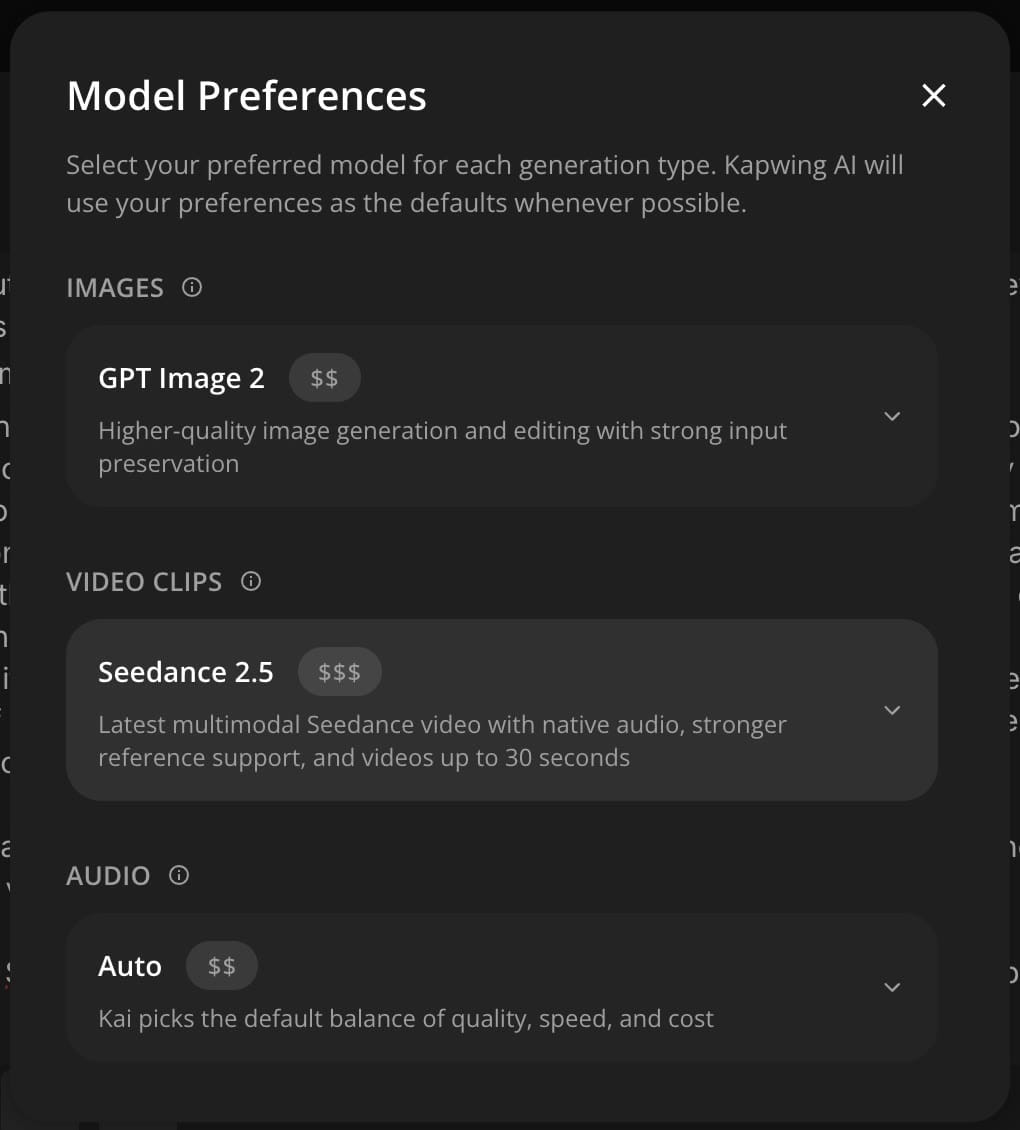
Send the prompt. Kai will display its proposed generation steps and a credit estimate before generating the video. Review the plan and make sure it calls for one continuous Seedance 2.5 generation, rather than several independent scenes.
For my 4.8-second talking-head clip, the estimate was 134 Kapwing credits. Once I approved the plan by clicking Confirm, the finished video arrived in the chat a few minutes later.
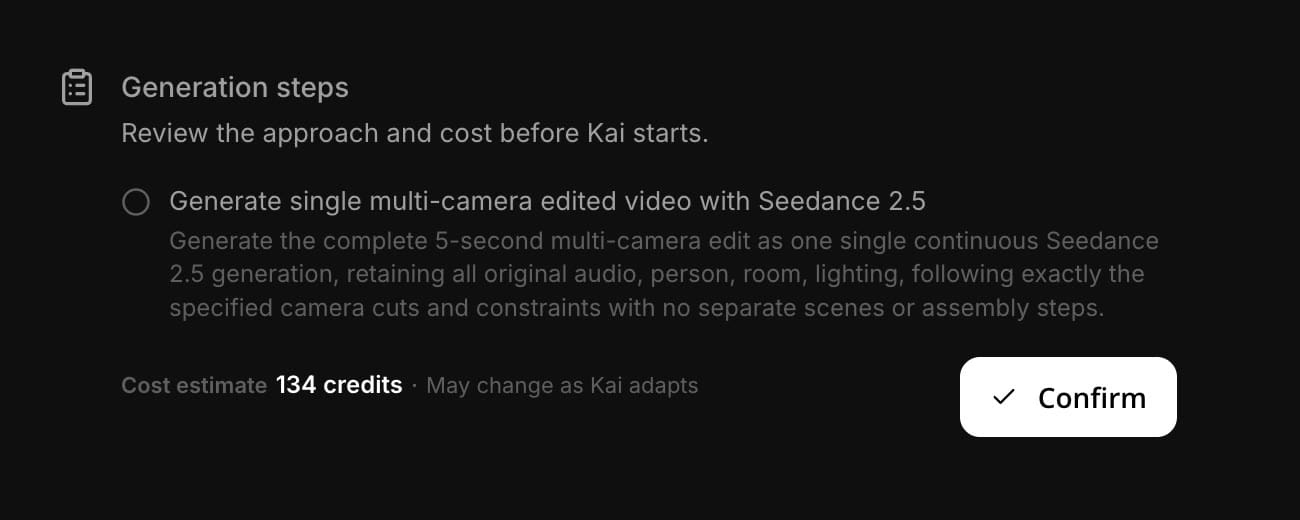

The changes were substantial enough to feel like separate cameras rather than crops. The original speech and timing were preserved, although it's still important to inspect the lip movements and background at full size for inconsistencies.
From here, you can Download the result or click Edit to open it in Kapwing's video editor.
Step 3: Generate a Draft Before Paying for Full Quality
You don't necessarily need to generate the final-quality video on your first attempt. Seedance 2.5 also supports a lower-resolution draft workflow, which is useful when you're testing camera positions or refining the prompt.
To request a draft, append this sentence to the end of your camera-angle prompt:
Generate it in Seedance 2.5 draft mode first: a 480p draft preview, so I can approve it and then finish that same draft at full resolution from its draft ID. Do not generate the full resolution version yet.Kapwing AI will generate a 480p preview of the multi-camera edit. Watch the entire clip and check whether every new shot is visibly different, the cuts happen at the intended moments, and the subject's appearance stays consistent.
That draft is the one I want. Finish that exact draft at full quality from its draft ID: the same take, the same shots, the same timing and the same sound, rendered as the final full quality Seedance 2.5 video. Do not generate a new video and do not change anything in it.This tells the model to finish the approved draft rather than create a completely different interpretation of the prompt.
Step 4: Create AI Camera Angles for Other Types of Footage
The same technique isn't limited to talking-head videos. You can also apply it to product demonstrations, action footage, sports clips, and other recordings captured from a fixed camera.
For these clips, I use Template B, which changes the approach slightly. Rather than prioritizing dialogue, it focuses on preserving timing and physical movement.
It also generally works better with just two or three shots, positioned relatively close to the original camera's line of sight. The farther the camera moves around a subject, the more of the scene AI has to reconstruct.
Example 1: Turning CCTV Footage Into a Cinematic Sequence
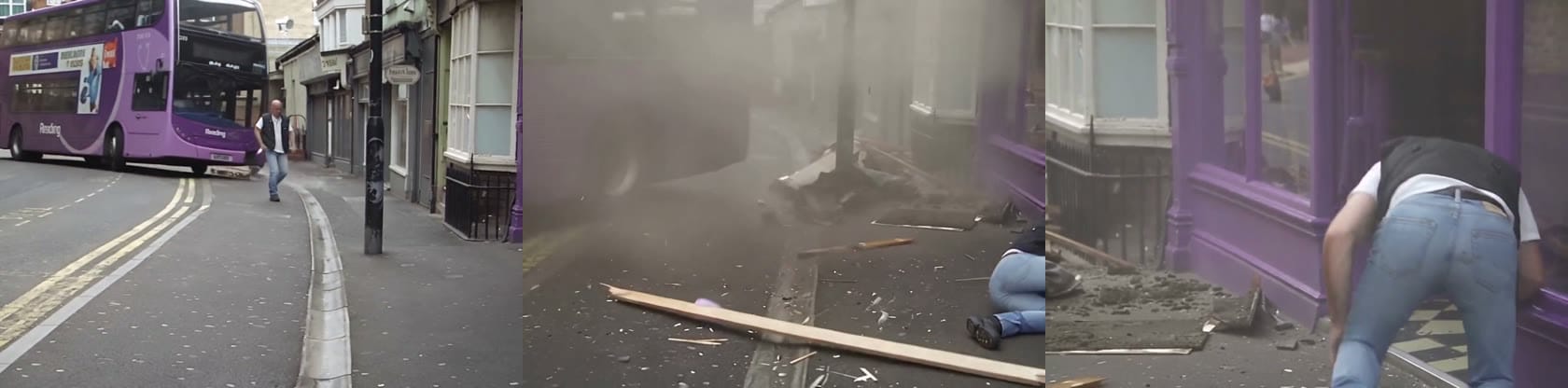
I started with a real CCTV clip of a purple double-decker bus mounting the pavement outside a pub. The original footage captures the entire incident from one elevated security-camera position.
The prompt preserved the bus's movement, the moment it hit the building, the man's fall, and the surrounding environment. It then assigned three shots to different stages of the action:
- 0–3.2 seconds: A street-level angle looking up the road as the bus approaches.
- 3.2–6 seconds: A camera positioned to the left, showing the bus hitting the pub frontage and the man being knocked down.
- 6–10 seconds: A closer view of the man getting back up.
Example 2: Making a Multi-Camera Product Video
For my second test, I used a free product clip from Pexels. It shows a hand pouring cold brew coffee into a glass of milk and ice. I asked Seedance 2.5 to recreate the pour from three positions:
- Low hero angle: The camera sits at table level and looks up at the glass.
- High angle: The camera looks down into the glass as the coffee pours over the ice.
- Three-quarter angle: The camera shifts approximately 45 degrees to the right, with the milk bottle in the foreground.

The last two worked well. The overhead shot revealed the top of the glass, while the three-quarter shot created a noticeably different composition with the milk bottle partially obscuring the glass.
The first angle was less successful. Despite the prompt asking for a low camera position, the result stayed relatively close to the original front-facing view.
Step 5: Choose the Best Angles and Finish Your Video
I recommend reviewing each camera position separately rather than judging the entire generation at once. A clip might have an excellent side profile but an awkward third shot, or a great composition with inconsistent facial features.
You can generate two or three versions of the same prompt, then click Edit to open the results in Kapwing's editor. Split the clips around the camera changes, keep the strongest segments, and arrange them on the timeline.
When combining footage from multiple generations, pay particular attention to synchronization. The original clip should remain your reference for speech and action timing. If necessary, use its audio as the master track and mute the audio from the generated alternatives.
This is also where I would make conventional editing adjustments. Cropping for a closer shot, trimming an awkward cut, adding subtitles, or adjusting the pacing is usually easier in the editor than generating the entire video again.
Best Practices for Consistent AI Camera Angles
After testing this workflow on different types of footage, I found that a few production choices made a bigger difference than adding more instructions to the prompt.
1. Choose Camera Positions That Create New Information
A tighter version of the same front-facing shot isn't really a new camera angle. You can create that with a crop or digital zoom.
Instead, use AI for positions that reveal something the original camera couldn't see: a true side profile, an overhead perspective, a low-angle view, or a camera shifted around the subject.
Be precise about height and orientation. "True 90-degree side profile" is considerably more useful than "side view" because it tells the model exactly where to place the camera.
2. Keep the Environment Simple and Physically Consistent
The biggest challenge is reconstructing the parts of a scene hidden from the original camera.
Imagine filming someone in front of a bookshelf. If you move the camera to the opposite side of the room, the AI has to invent everything behind them. That can introduce new furniture, windows, or architectural details.
For talking-head footage, I prefer having one visually busy side and one plain side. Put the new camera on the busier side of the room and point it toward the simpler background. That reduces how much unfamiliar scenery the model needs to create.
You should also explicitly preserve the lighting. A camera change shouldn't cause the shadows to move or the light source to switch sides.
3. Give the Model Natural Places to Cut
A multi-camera edit should feel like continuous footage, not a series of unrelated video generations.
For talking-head videos, leave short pauses between phrases. These give the AI natural moments to switch angles without cutting through a word. An 8–10-second clip is a practical starting point because it provides room for several distinct shots without becoming too expensive to test.
For action footage, place cuts around meaningful events instead: when someone changes direction, an object enters the frame, or a movement reaches its peak.
The timing of the original recording should remain fixed across every shot.
4. Preserve the Original Action, Not Just Its Appearance
A consistent multi-camera video needs more than a matching background and character.
If a glass is already half full in the source, it should still be half full when the camera changes. If someone raises their hand at three seconds, that movement should happen at three seconds from every viewpoint.
Describe the starting frame accurately, anchor important actions to timestamps, and explicitly prohibit additional movement or dialogue. For complex action, use fewer camera changes. Every new cut creates another opportunity for objects or movements to become inconsistent.
Finally, be particularly specific about the last shot. Both my CCTV and product tests showed why it's important to tell the model that the final angle must be distinct from the original.
Frequently Asked Questions
Can AI really create multiple camera angles from one video?
Yes. Video models such as Seedance 2.5 can use an existing clip as a reference and generate new views of the same scene. However, these are AI reconstructions rather than footage from actual additional cameras. The result may contain invented background details or inconsistencies that need reviewing.
How can I change the camera angle of a video with AI?
Upload your original video to Kapwing AI as a reference, select Seedance 2.5, and describe the new camera positions in your prompt. Specify the camera height, direction, framing, cut timing, and which details must stay unchanged. A structured prompt generally gives you more control than a simple instruction to change the angle.
Can I make four camera angles from one clip?
Yes, although the practical number depends on the source length and complexity. The workflow is designed to request four camera positions for longer talking-head clips. My 4.8-second test used three positions because there wasn't enough time for four distinct shots to be useful.
Does AI multi-camera editing preserve the original audio?
It can. In my talking-head test, the generated video retained the original voice, dialogue, and timing. The prompt explicitly instructed Seedance 2.5 to use the original audio without rewriting or restarting the speech. However, audio preservation and lip synchronization should always be checked before publishing.
Why do my AI-generated camera angles look the same?
The model may be interpreting your instructions as a change in framing rather than a change in camera position. Replace vague terms such as "another angle" with a precise description: for example, "a camera at eye level, exactly 90 degrees to the subject's left." Also specify that no new shot should match the original camera position.
Can I generate multiple camera angles for vertical videos?
Yes. Seedance 2.5 supports vertical video, including 9:16 footage for TikTok, Instagram Reels, and YouTube Shorts. Specify the original aspect ratio in your prompt and make sure the new angles preserve the subject within the vertical frame.
What kinds of videos work best for AI multi-camera editing?
Talking-head videos, interviews, product demonstrations, and simple action sequences are good candidates, particularly when the original camera is stationary. Scenes with a complicated background, rapid movement, or frequent interactions between multiple subjects are generally harder to reconstruct consistently.