How to Save and Download Videos from X
Save a video from X as an MP4 by importing the URL into Kapwing and exporting

If you want to watch a video offline, send it to a friend, or include the video in an editing project, you will need to save a video from X (formerly Twitter) to your Desktop or camera roll. In this article, we'll show you how to quickly import an X video using the URL and download it.
The process works on desktop and mobile, and no software or app install is required. It's free, although the free version will have a watermark on the bottom of the video.
On desktop, right-click the video and select Copy Video Address. On the X app on your phone, long-tap the video and tap Copy Video Link. Then open Kapwing, import the link, and export your video.
Below, we walk through each device, explain where to find your downloaded file, and cover what to try if a link won't import.
How to download X videos on desktop
You can save an X video from your browser on a Windows PC, Mac, or Chromebook.
Step 1: Copy the video address from X
Open X and find the post containing the video you want to save. Right-click directly on the video and click “Copy Video Address.”
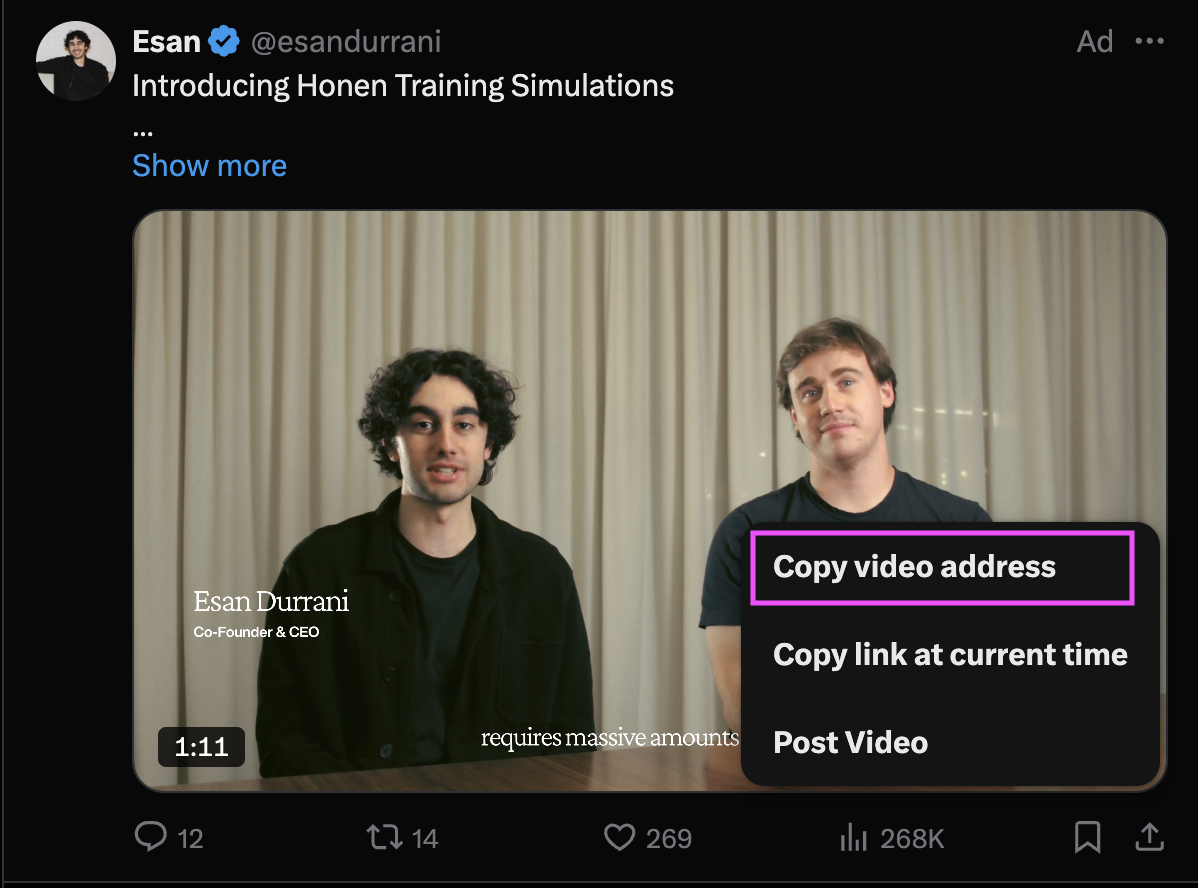
Make sure you're clicking the video itself rather than the surrounding text, the account's profile picture, or the share icon on the base of the Tweet.
Step 2: Import the URL into Kapwing
Open Kapwing's video editor in another browser tab and start a project. Paste the copied address into the URL field in the upload menu.
If you're already inside the editor, open Media → Upload to access the upload options and paste your link.
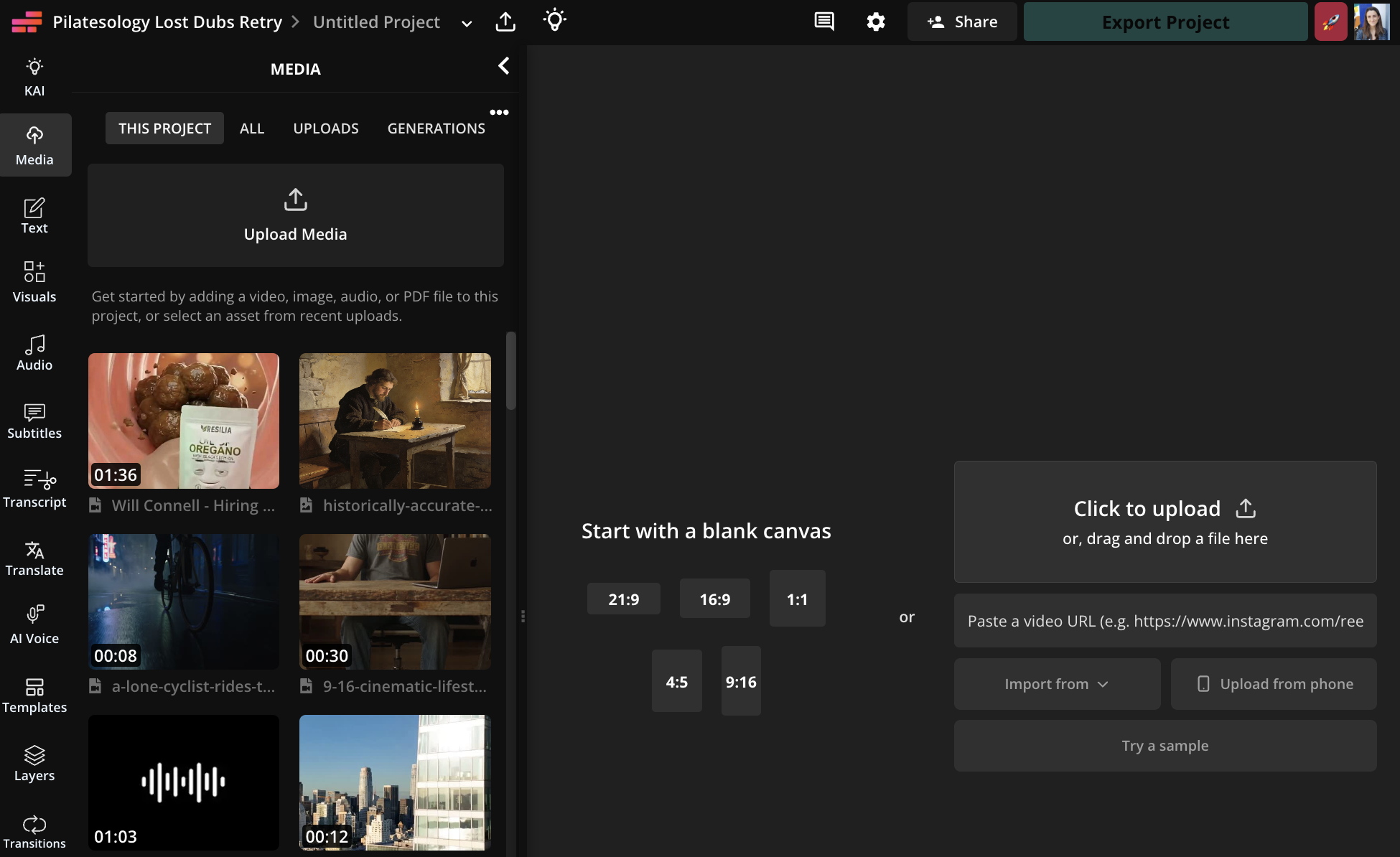
Wait for the import to finish. If the clip appears in your media collection but isn't yet on the canvas, add it to the timeline. Play it to check that you've imported the right video.
Step 3: Make any edits you need
If you just want to save the clip, you can click "Export" to get the downloadable MP4.
Otherwise, use the Kapwing editor to prepare the video
- Trim the beginning or end to keep the moment you need
- Resize the video to the preferred aspect ratio
- Add a title or combine the clip with other footage
For example, you could turn your brand's product demo on X into a shorter, captioned clip for another social channel. Review any automatically generated subtitles before exporting.
Step 4: Export and download
Click Export Project, choose MP4, and select the available export settings that suit your project. Start the export, then wait for processing to finish.
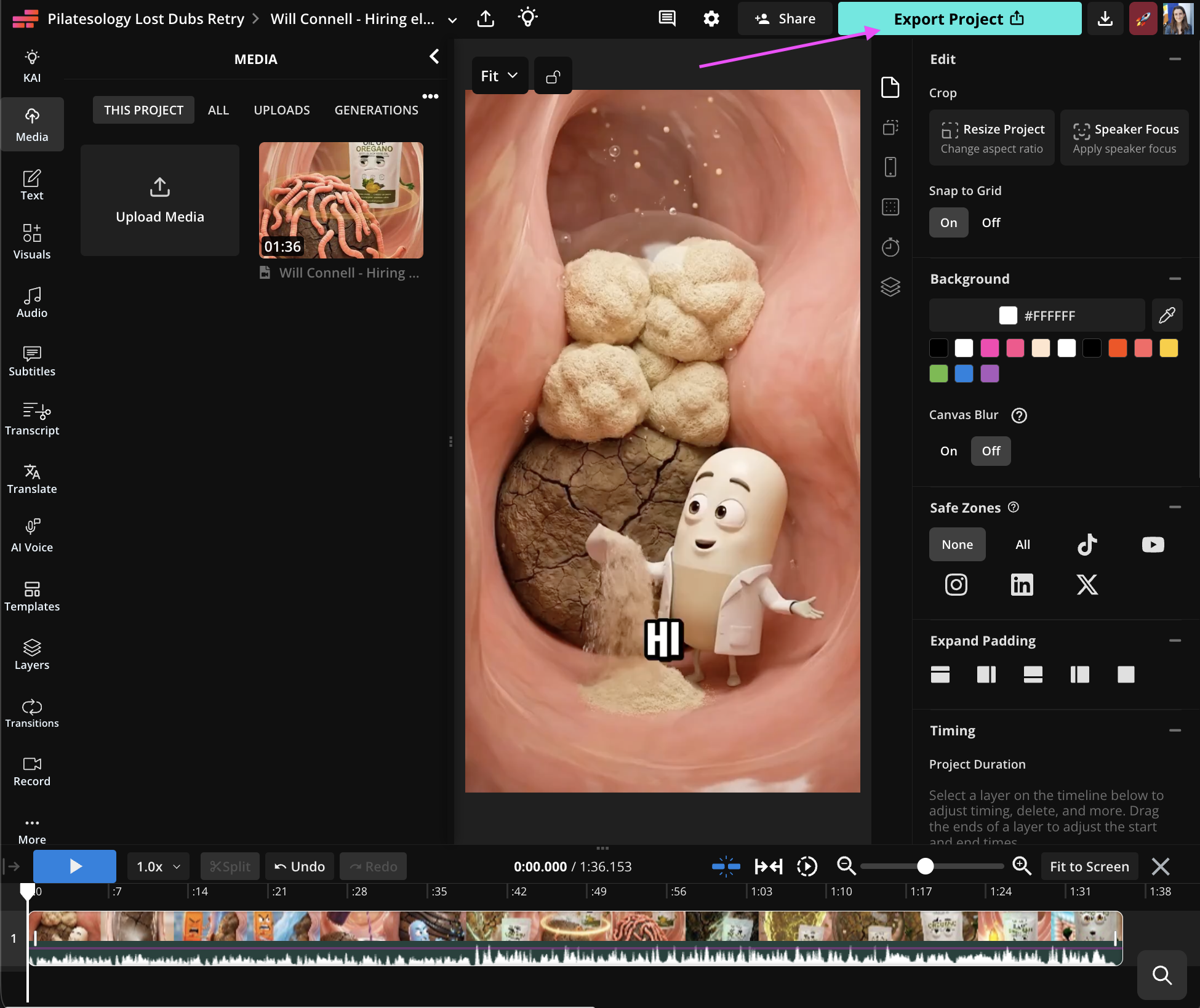
Click Download to save the completed file. You'll usually find it in your computer's Downloads folder, unless your browser asks you to choose another location.
How to download X videos on mobile
You can also import and export X videos using Kapwing in your phone's browser.
Step 1: Copy the video link
Open the video on X. Long-tap on the video and tap “Copy Video Link.”
If that option doesn't appear in your version of X, use the post's Share menu and choose Copy Link instead. Menu wording can vary between the app and mobile website.
Step 2: Paste the link into Kapwing
Open Kapwing in your mobile browser and start a project. Paste the copied URL into the upload menu's URL field.
Wait for the video to import, then add it to the timeline if needed. You can keep the full clip or make edits before downloading.
Step 3: Export the video as an MP4
Tap Export Project, choose MP4, and start the export. Once processing finishes, tap Download or Download file.
Exporting prepares your video; downloading saves the resulting file to your phone. Be sure to complete both steps.
Step 4: Find the video on your phone
On iPhone: Open your browser's downloads list and select the downloaded video. Tap the Share icon, then Save Video to add it to Photos. The exact controls may vary with your iOS version.
On Android: Download the finished export from your browser. If you don't immediately see it in your gallery, check your browser's Downloads list or your phone's file manager.
Can you download videos directly from X?
Yes, X offers a built-in download option for eligible videos to Premium subscribers. According to X's video help page, open the video, tap the three-dot menu, and select Download video.
Not every post qualifies. Creators can disable downloads, and X says videos posted before July 25, 2023 aren't available through this feature.
Kapwing provides a separate URL-import workflow that also lets you edit the clip before exporting. You don't need X Premium to use Kapwing's import feature, although the linked media must be accessible to Kapwing.
How to download captions from X
X doesn't offer a built-in option to download a video's captions as a separate subtitle file or text transcript. If the subtitles are already burned into the video, they will be imported with the video into Kapwing. But closed captions will not be imported. To get a downloadable version of the dialogue, you'll need to transcribe the X video with an automatic caption generator like Kapwing:
- Import the X video. Copy its video link and paste it into Kapwing using the desktop or mobile steps above.
- Generate captions. Add the video to the timeline, open Subtitles, and select Auto Subtitles.
- Review the text. Correct any misheard words, names, or punctuation, and check the caption timing against the audio.
- Download your captions or transcript. Use the download arrow in the subtitles panel to save an SRT or VTT file with timestamps, or burn the captions directly into the video.
Kapwing generates these captions from the video's audio; it doesn't retrieve X's existing caption track. If you'd like the captions to appear directly on your downloaded video, style them in Kapwing and export the project as an MP4 instead.
Why won't an X video import?
First, check that you've copied the link to the video or its post, rather than a profile or search results page. Open the link yourself to confirm that the post is still available.
To bring a video into Kapwing, the linked media must be public or shareable. If a video is private on X, it won't be able to import.
Frequently asked questions
Can I download X videos for free?
You can start with Kapwing's Free plan, subject to its limits. Free exports include a Kapwing watermark. Paid plans offer watermark-free exports and higher limits.
Do I need to install an app?
No additional video editing app is required for this workflow. Open Kapwing in your browser, paste the X video URL, and export your project.
Can I save just part of an X video?
Yes. Import the video into Kapwing, trim it to the section you want, and export the shortened project as an MP4.
Does bookmarking a post download the video?
No. A bookmark helps you return to a post within X. To keep a video file on your device for offline viewing, complete the export and download steps above.
Ready to save your clip? Open Kapwing, paste your X video link, and export an MP4 you can keep or continue editing.