How to Turn GPT-6 Astra Into Your Own Film Studio (Blender + Seedance 2.5)
Turn images into 3D models and create cinematic AI videos with consistent characters.

AI video generators can create an impressive dragon in seconds. The difficult part is making that same dragon appear in another shot without changing its appearance. Its wings might get smaller, its face might look different, or its body proportions might shift when the camera moves. This is especially noticeable with fantasy creatures and characters that AI models have fewer visual references for.
One solution is to build the subject in 3D before generating the final footage. With GPT-6 Astra connected to Blender, you can describe a scene in plain English, create a reusable environment, and control the camera without rebuilding everything from scratch. The 3D model becomes a consistent reference for the character's shape, scale, and position.
In this tutorial, we'll show you how to build an AI video workflow using GPT-6 Astra, Blender, GPT Image 2, an image-to-3D generator, and Seedance 2.5 in Kai. We'll use a giant dragon as our example, taking it from reference images to a textured 3D model and finally a 10-second cinematic shot. We'll also share the exact prompts, model comparisons, mistakes, and generation costs from our test.
Table of Contents
- How to Set Up Your Own AI Film Studio
- How Much Does AI Filmmaking Cost?
- Best Practices for Consistent AI Videos
- Frequently Asked Questions
How to Set Up Your Own AI Film Studio
Before you start, it helps to understand what each part of the workflow produces.
The first part is about previsualization, or planning a scene in 3D before creating the finished footage. GPT-6 Astra builds a simple dragon and landscape in Blender, then positions camera movement and animates a flight path. The result is grey footage showing the framing and movement, without detailed textures.
The second part is about character consistency. We'll create a design sheet for a different dragon, correct its anatomy, and turn three views into a textured 3D model. That model then provides the composition for a photorealistic starting image, which Seedance 2.5 animates into the final video.
How to Set UP Blender in GPT Astra
In a traditional 3D workflow, you'd need to build your scene, position the objects, animate the characters, and control the cameras inside Blender. GPT-6 Astra can handle much of that setup through natural-language instructions when connected to Blender.
In our test, we used a community Blender MCP add-on to connect Blender to GPT-6 Astra in Codex. Once the connection was enabled, Blender showed Connected on port 9876. We could then ask Astra to create objects, place them in the scene, and animate them.
For the first demonstration, we used a dragon flying over a reservoir. The aim wasn't to create the finished photorealistic creature yet. It was to see whether Astra could build a reusable scene with scale, movement, and camera positioning.
Prompt 0: Check the connection
Are you connected to Blender? If you are, clear the default scene, set the units to metres and the frame rate to 24fps, and tell me what you can see.Prompt 1: The grey blockout
Attach: the dragon's design sheet, then the saddle sheet
Using Blender, build a blockout of the dragon in the first image. Grey clay material, no textures, simple shapes are fine but the proportions have to be right: body 6 metres from chest to hips, a neck 5 metres long so the head sits about 3 metres ahead of the saddle, an 8 metre tail, an 18 metre wingspan, four legs and two wings, and two long horns sweeping straight back from the skull. Add the saddle from the second image at the base of the neck between the shoulders, with its one upright grab handle at the front. Rig the wings so they can flap, and the neck and head so they can turn. Show me a render from the side and one from above.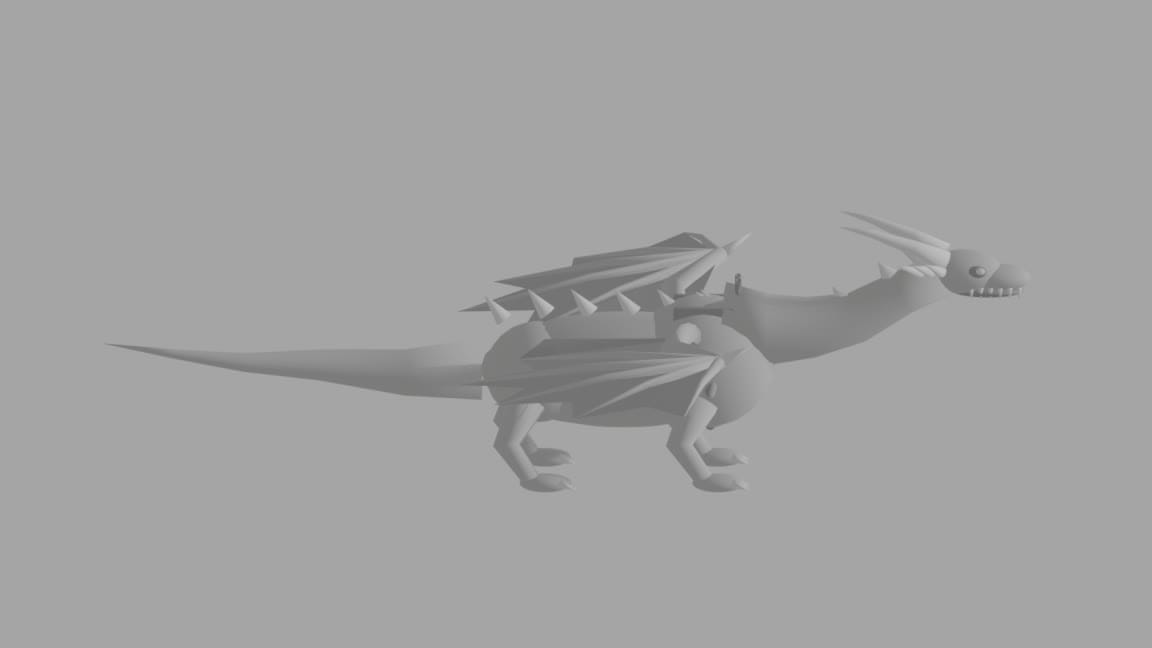
Prompt 2: The world
Attach: three photos of the place you want to build
Now build the place in these photos as a grey blockout at real scale: a huge rounded granite dome about 200 metres high on the shore of a wide reservoir, the reservoir full of small wooded islands, a wide horseshoe waterfall about 1 kilometre away at the far end of the reservoir, and low rolling hills all round. The islands and hills can be simple shapes. Same grey clay material. One low sun behind the waterfall, 15 degrees above the horizon. Put the dragon on the very top of the dome, facing out over the reservoir. Show me a wide render.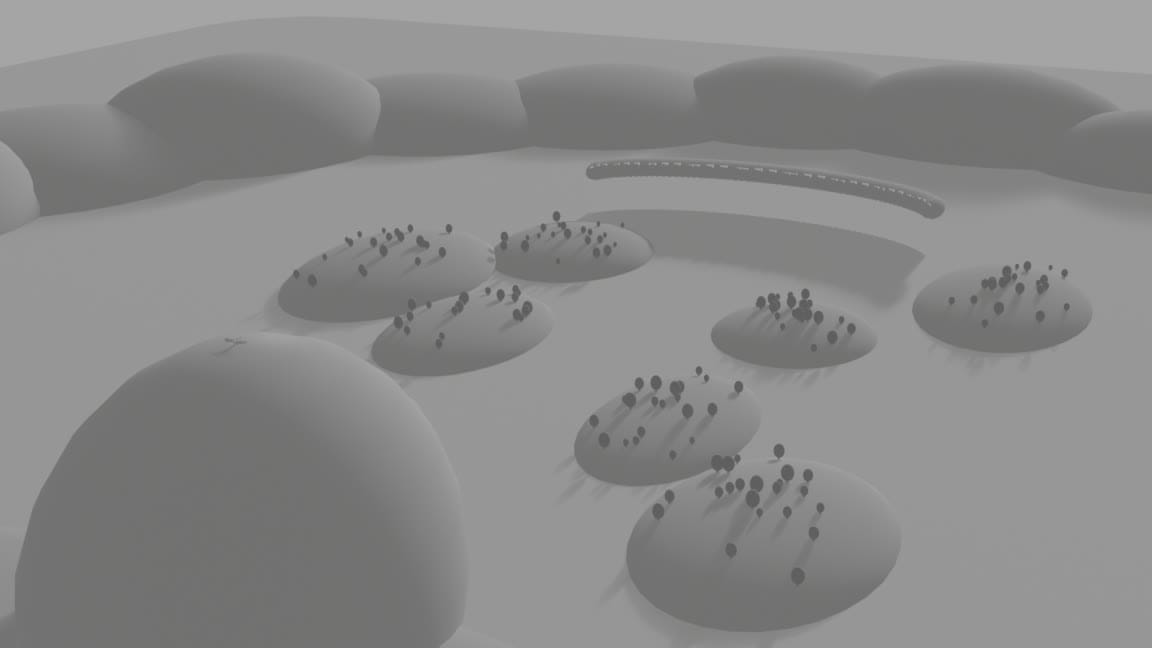
Prompt 3: The flight and the camera
Animate the dragon's flight: it stands on top of the dome, launches off the edge and dives down the rock face, pulls out low over the reservoir, glides between the islands towards the waterfall, then banks hard to the right past vertical over open water. About 30 seconds at 24fps. The wings beat hard on the launch and the pull-out and glide the rest of the way, and the whole body dips and rises with each downstroke. Put a camera on the saddle at the rider's eye height, looking forward down the neck at the grab handle and the head, parented to the dragon so it moves and rolls with it.Prompt 4: The grey shots
Render these from the saddle camera as separate clips, 1920x1080, 24fps, grey clay, MP4, and name each file with its shot number:

Shot 1, 6 seconds: on top of the dome, the launch off the edge and the dive down the rock face.
Shot 2, 6 seconds: the pull-out low over the reservoir, islands sliding past on both sides.
Shot 3, 6 seconds: the glide towards the waterfall, the falls growing ahead of the dragon's head.
Shot 4, 5 seconds: the hard bank right past vertical over open water, the horizon rolling through the frame.

Each shot has to end on a still, clean frame. Save the Blender file too.Prompt 5: One still of the dragon alone
Render one still of the dragon alone, three-quarter front view from slightly below, wings half raised, head turned towards the camera, grey clay on a plain light grey background, 3840x2160.At this point, you have a basic virtual film studio: a 3D subject, environment, animated path, and camera shots.
While the blockout can demonstrate camera movements, it isn't the detailed character model used for our final video. For that, we're going to start with a separate dragon design and build a proper textured 3D asset.
Download the prompts and the skill here, because the rest of the article uses them.
Step 1: Make the Design Sheet
A character sheet is an image showing your subject from several angles, with a person or another familiar object beside it for scale. It establishes the character's anatomy, proportions, colors, and detail before you generate the 3D model.
Head to Kai, click attach media, and upload your reference images. Paste the prompt, open the settings toggle, and in Model Preferences, set Images to GPT Image 2.
Our design uses a wyvern, a dragon with two hind legs and two wings that double as its front limbs. The wings attach at the shoulders and end in weight-bearing wrists. We needed those details to match across every view.
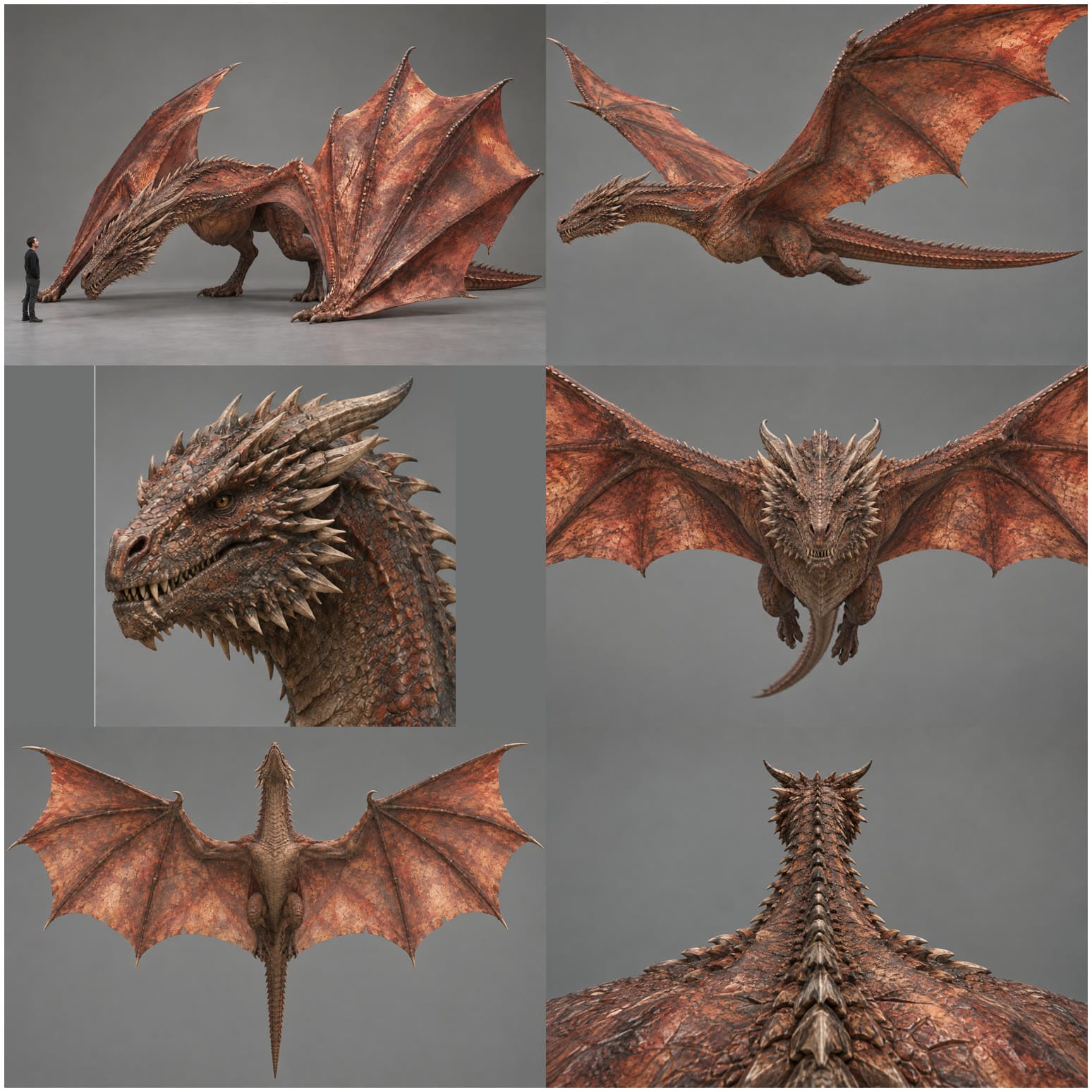
Design Sheet Prompt
A photorealistic creature reference sheet of one original dragon, 16:9 landscape, six separate photographs in a strict grid of 3 across by 2 down, thin white gutters, plain solid mid-grey studio background in every panel, even soft studio lighting from above and the front, no text, no numbers, no labels anywhere.
REFERENCE IMAGES: images 1, 2 and 3 are the ANATOMY AND PROPORTION references. Copy their body proportions exactly: image 1 for the side-on body, neck, tail and wing length in flight; image 2 for the raised wings, the neck and the stance on the ground; image 3 for the wingspan and the head size seen from the front. Image 4 is the COLOUR AND SKIN reference only. The dragon is an original design: take only the proportions from images 1 to 3 and only the colouring from image 4.
PROPORTIONS (from images 1 to 3):
- Exactly four limbs. The wings are the front limbs: a long, massive arm from each shoulder, the upper arm and forearm together about as long as the body from the shoulders to the hips, ending at a wrist with one hooked thumb claw, then very long finger bones supporting a huge, broad wing membrane that runs back along the flank to the hind leg. The wingspan is about three times the length of the body from snout to hips. Two powerful hind legs.
- A long, strong, muscular neck, about as long as the torso, thick at the shoulders and tapering toward the head, able to curve in an S. Not short, not stumpy, not thin like a snake.
- A deep chest and heavy shoulders where the wings attach, the body streamlined and horizontal, tapering to the hips.
- A long tail, longer than the body, thick at the base and tapering to a thin point.
- A large, heavy head with horns sweeping back along the skull in layered rows and a frill of spikes along the jaw and throat. The head is as long as a grown man is tall.
COLOUR AND SKIN (from image 4): rust-red and burnt-orange scales, mottled, darker brick-brown in the gaps, pale bone-coloured edges on the larger scales of the face and brow. Horns, spines and claws bone and tan, darker at the tips. The wing membrane a darker rust-brown, darker along the bones. A weathered, slightly wet natural sheen, the skin of a real old animal, with scars and wear, micro detail and translucency at the thin edges.
THE SIX PANELS:
Panel 1, top left: full left side profile in flight, wings spread wide and level, hind legs tucked, neck and head stretched forward, tail streaming behind, the whole dragon in frame, matching image 1.
Panel 2, top centre: on the ground, front three-quarter view, standing on its hind legs and the knuckles of its wings, both wings raised high and half open, neck raised in an S-curve, matching image 2.
Panel 3, top right: head and neck close-up, three-quarter view facing left, sharp detail on the scales, horns, jaw spikes, teeth and the amber eye.
Panel 4, bottom left: head-on in flight, wings fully spread to both edges of the panel, the head large in the centre, matching image 3.
Panel 5, bottom centre: seen from directly below in flight, wings fully spread, showing the arm bones, the long finger bones and the full membrane down to the hind legs, the tail straight behind.
Panel 6, bottom right: SCALE: full left side profile standing on the ground with wings folded along its sides, and one ordinary adult man 6 feet tall in plain dark clothes standing beside its head, seen side on: the dragon's head is as long as the man is tall, the top of its shoulder is two and a half times his height.
Photorealistic, like photographs of a real living animal, ultra sharp, every panel matched in proportions, scale, lighting and colour.
Once the design is approved, choose the panel that will become the main 3D input. It should show the whole subject against a plain background, with all the important body parts visible.
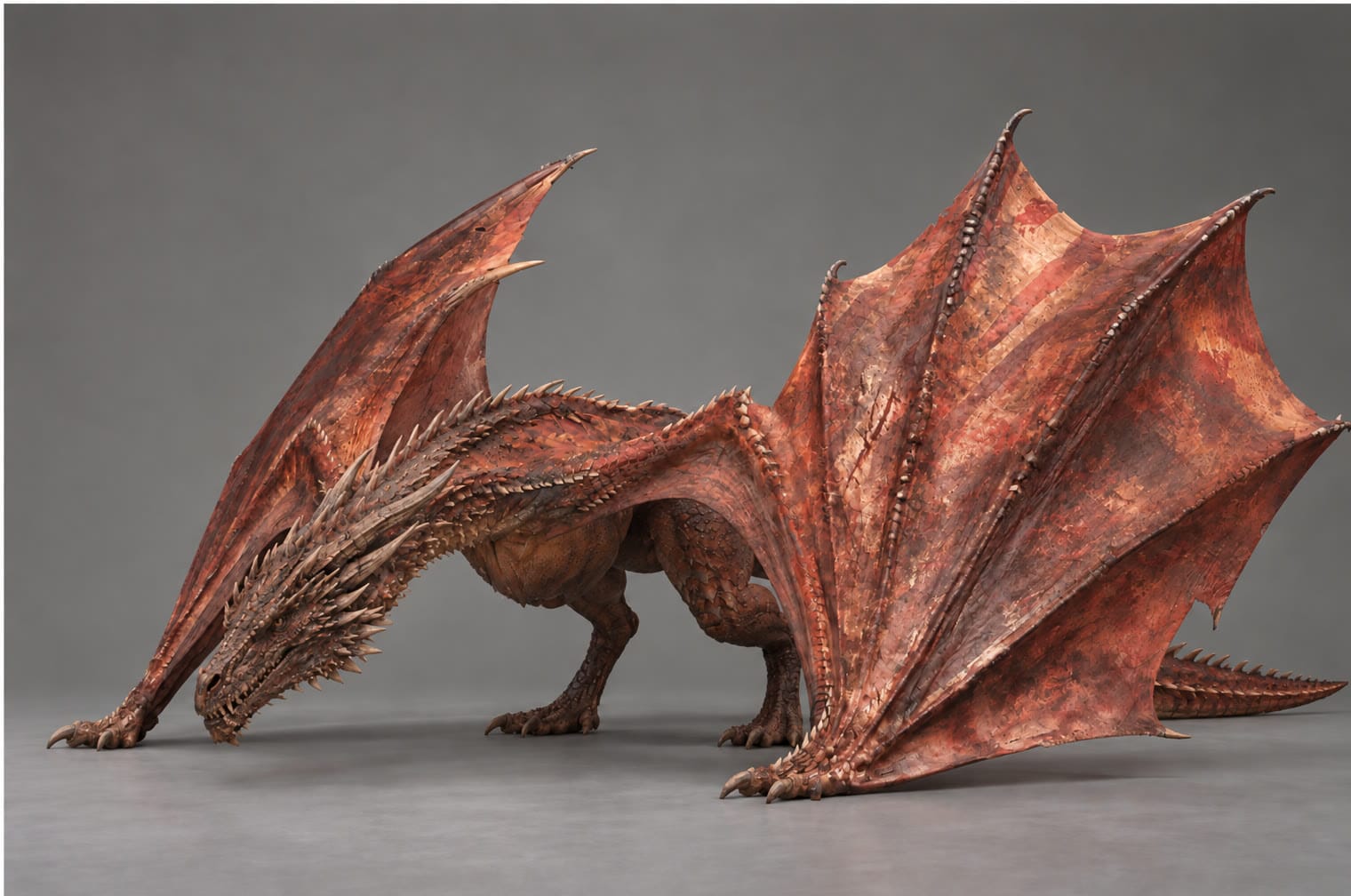
For ours, a second prompt copied a standing pose from a reference, with the wyvern's wing wrists planted on the ground.
Step 2: Fix the Anatomy
This is the step that breaks most image-to-3D models. The generator works from the shapes it sees, so a mistake in the reference image can become part of the mesh, and then appear in every later render.
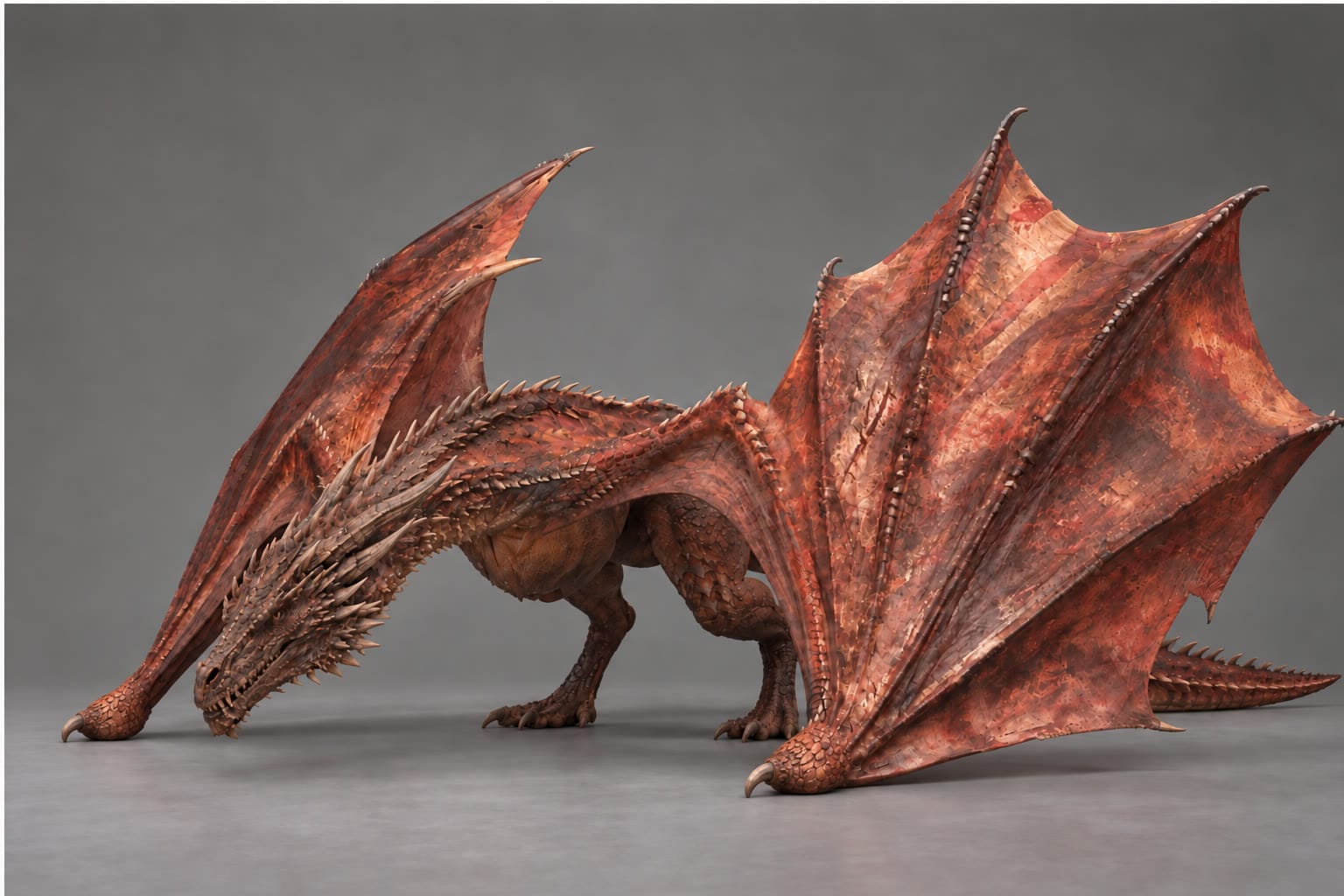
Our wyvern has no front legs. Its wings are its arms, with each wing growing from the shoulder and resting on a rounded wrist knuckle with one small hooked claw. Some of our early images showed large feet at the wing wrists. We corrected the images before running the 3D models again.
Anatomy Fix Prompt
Edit Image 1 and change ONLY the wing wrists, nothing else. This is a wyvern: its wings are its arms, and where each wing touches the floor is its WRIST, a weight-bearing joint it walks on, like walking on its elbows for support, reach and balance. It is not a hand or a foot. Make each wing wrist a rounded, bony, leathery KNUCKLE pad resting on the floor, carrying the weight. From the knuckle grows only ONE SMALL short curved hook claw, tiny compared with the knuckle, about the size of one of the dragon's teeth, pointing forward and down, like a bat's thumb. No large claws, no toes, no fingers, no foot at the wing wrists. The hind legs keep their full clawed feet. Keep every other pixel the same: the head, neck, body, wings, membranes, colours, spikes, tail, pose, camera, lighting, grey studio and framing. No text.

Step 3: Reconstruct the Character From Different Angles
The image-to-3D model needs enough information to reconstruct the character from more than one viewpoint. For our wyvern, we used the approved standing panel, one head-on view, and one view from the far side.
All three show the same frozen pose, with the same lighting, colouring, proportions, and anatomy. We generated the additional views with GPT Image 2, then ran the Step 2 wrist correction on each one.
Head-On View Prompt
Attach: Image 1 is the approved standing panel; Images 2 and 3 are anatomy guide pictures.
Image 1 is a photograph of a huge wyvern dragon standing in a grey photo studio: this is THE dragon, match its look exactly. Images 2 and 3 are anatomy guides only (how a wyvern's wing-arm and wrist work); do not copy their colours, heads or poses. Make a new photograph of the EXACT dragon from Image 1, in the EXACT same frozen pose, only the camera has moved. WYVERN ANATOMY, get this exactly right: it has NO front legs and NO hands. Its wings ARE its arms. Each wing grows from the SHOULDER, behind and above where the neck meets the chest, never from the neck. From the shoulder a long thick upper-arm bone comes away from the body to the elbow, then the forearm runs down to the wrist. The WRIST rests on the floor as a bony knuckle with ONE curved hooked thumb claw, like a bat walking (as in Image 3) - absolutely no hand, no foot, no toes, no three-claw foot at the wing. From the wrist, the very long finger bones rise up and back, holding a HUGE wing membrane; the wingspan is enormous, much wider and taller than the body. Only the two hind legs have full clawed feet. The neck is long and slender, the body lean and athletic, not bulky. Keep everything else identical to Image 1: head lowered with the snout near the floor, the long spiked tail along the floor, rust-red weathered leathery wing membranes, dark brown-red scales, tan spikes and horns, the plain grey studio and soft studio light. The whole dragon fits in frame with space around it, nothing cropped. Landscape. No people, no text, no labels, no extra objects. Camera: directly in FRONT of the dragon, looking at its face head-on. The lowered head is in the centre foreground; the two wings rise on either side, each one coming out of its shoulder behind the neck, each wrist resting on the floor as a knuckle with one hook claw, the long finger bones fanning up and out. The hind legs with their clawed feet stand behind, under the body.
Far-Side Camera Line
Camera: on the dragon's OTHER flank, the side Image 1 cannot see. Mirrored from Image 1: the dragon's lowered head is at the RIGHT edge of the frame and its tail runs off to the LEFT edge. Side-on, at the same height and distance as Image 1, showing the near wing as a limb from the shoulder, its wrist knuckle and hook on the floor.
Image: 40-view-front.jpg
Head-on, after the wrist correction.
Image: 41-view-far-side.jpg
The far side, after the wrist correction.
We also tried a rear view, but GPT Image 2 repeatedly drew the wings as though they were being seen from the front. That gave the image-to-3D model conflicting information about the shoulder and wing structure.
Image: 42-view-back-dropped.jpg
The rejected back view. The wings were drawn from the wrong perspective.
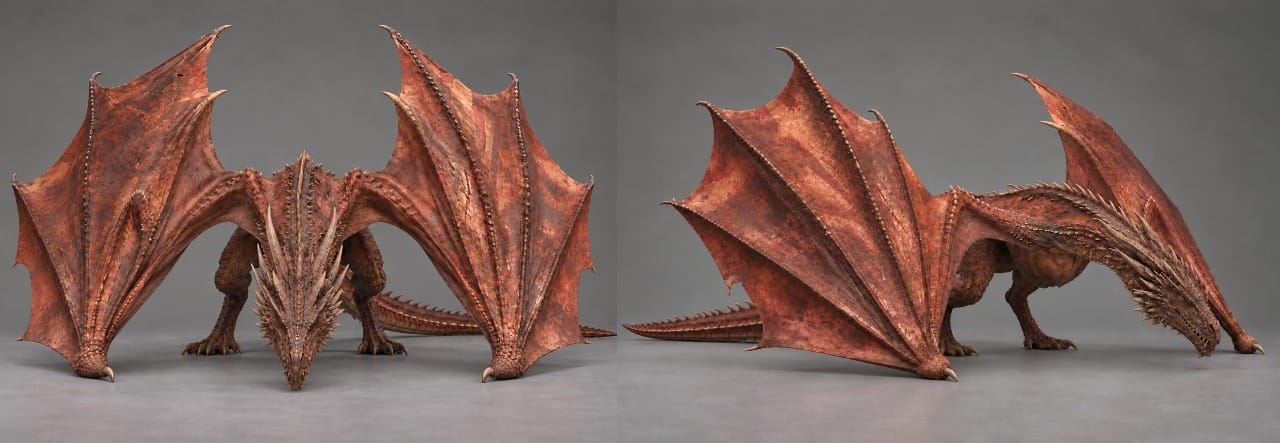
Now take the three approved images from Step 3 and upload them to an image-to-3D generator. You need the original standing panel, the head-on view, and the far-side view. All three should show the same pose, with the corrections from Step 2.
This step doesn't need a text prompt. The generator uses the different views to work out the dragon's shape, including the parts it can't see in any single image. It then produces a textured 3D model you can rotate and import into Blender.
Step 4: Turn the Images Into a 3D Model
Now take the three approved images from Step 3 and upload them to an image-to- generator. You need the original standing panel, the front view and the side view.
This step doesn't need a text prompt. The generator uses the different views to work out the dragon's shape, including the parts it can't see in any single image. It then produces a textured 3D model you can rotate and import into Blender.
We tested three generators with the same images. Here's how we set each one up:
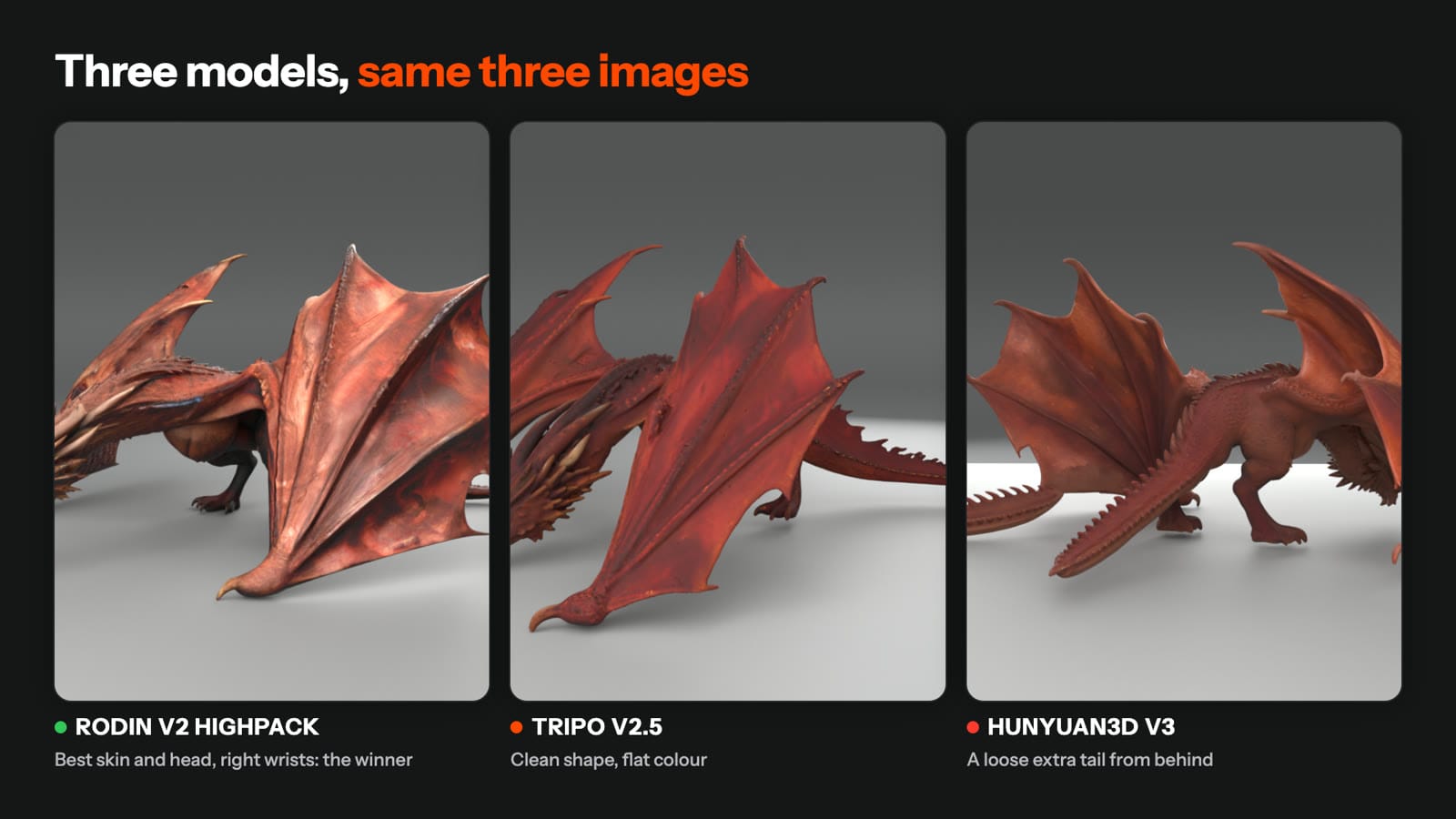
| Model | Settings used | Result |
|---|---|---|
| Rodin v2 | the three images, 500K triangles, material All, the HighPack option | The winner: best skin, best head, the right wrists |
| Tripo v2.5 multiview | head-on as front, approved angle as left, far side as right, HD texture, PBR on | Anatomy right, colour flat |
| Hunyuan3D v3 | approved angle as the main image, the other two views, Normal geometry, PBR on, 1,000,000 faces | A loose extra tail |
Once you've chosen the strongest result, save the 3D model.
That's the file you'll bring into Blender in Step 5.
Step 5: Bring the 3D model into Blender
Open Blender and import the model you generated in Step 4. Before you start making shots, check the geometry, set the scale, and match the materials to your approved design sheet. Here's the order we followed.
1. Check the model from every side. Rotate around it in Blender and look for duplicated parts, distorted anatomy, missing surfaces, or anything that doesn't match the reference images.
2. Set the model to its real size. Scale the dragon so its dimensions match the design sheet. Ours is 13 metres from nose to tail. Getting this right matters when you place the creature next to a building or into a larger 3D scene.
3. Fix the materials and lighting. Put the model in a plain grey studio with soft, even light. Our first version looked like plastic because the surface was too smooth and glossy.
4. Make a turntable to check the result. Set up a rotating view of the model so you can inspect it from every side. We rendered two versions:
Step 6: Turn the 3D model into a photorealistic image
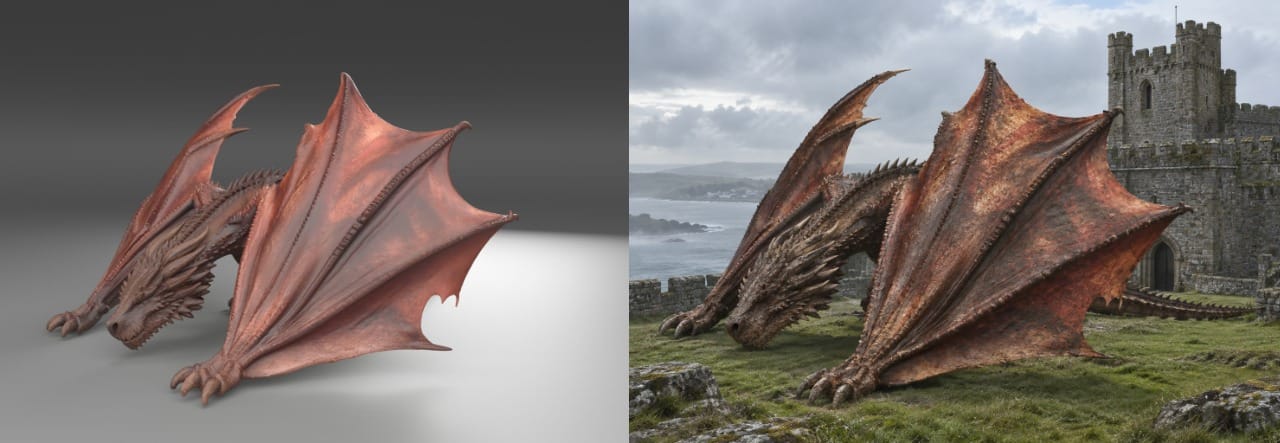
In Blender, position the camera where you want the video to begin and render one still image.
Open GPT Image 2 and attach two images:
- The Blender render: Sets the dragon's pose, proportions and camera angle.
- The approved standing reference from Step 1: Sets the scales, horns, wings and colour.
Paste the photoreal start-frame prompt below. We used it to place our dragon on St Michael's Mount in Cornwall while keeping the pose and framing from the 3D render. Save the finished image. This is the frame you'll animate in Step 7.
Photoreal Start Frame Prompt
Image 1 is a 3D render of a huge wyvern dragon. Image 2 is the same dragon's approved reference photograph, for its surface detail only. Make a photoreal live-action film still of this EXACT dragon, keeping Image 1's pose, silhouette, proportions, camera angle and framing exactly: head lowered with the snout near the ground, both wings planted on their wrist claws, the near wing's finger fan rising like a sail, the long spiked tail behind. Give it the real surface of Image 2: rust-red weathered leathery wing membranes with darker blotches, dark brown-red scales, tan bone spikes and horns, a mane of spikes around the head. Only the world changes: it stands on the wide grass terrace at the summit of St Michael's Mount in Cornwall, the medieval granite castle walls and a tower behind it, the grey-blue sea and the coastline far below, overcast silver daylight, soft shadows, light sea mist. It is enormous, its back higher than the castle doorway. Landscape 16:9. No people, no text, no logos.
Step 7: Animate the image with Seedance 2.5
Open Kai and set Model Preferences → Video Clips → Seedance 2.5.
Attach the photorealistic image from Step 6, then paste the Seedance prompt below. It uses the image as the opening frame and creates one continuous 10-second shot, with the camera slowly orbiting the dragon as it breathes.
Seedance 2.5 Shot Prompt
One single continuous 10-second 16:9 landscape video. #image_1 is the opening frame: the video starts on exactly this frame.
A huge wyvern dragon rests on the grass terrace at the summit of St Michael's Mount in Cornwall, head lowered with the snout near the ground, both wings planted on their wrist claws, the finger fans rising like sails, the castle walls and tower behind, the grey-blue sea far below, overcast silver daylight, light sea mist. Keep the dragon exactly as in #image_1: same shape, pose, proportions, horns, spike mane, rust-red weathered wings, dark brown-red scales and tan spikes, the same scale against the castle.
Camera: one slow, smooth continuous orbit to the right around the dragon at the same height and distance, travelling about a quarter of the way round it over the 10 seconds, so the head, the near wing and then the flank and tail come into view. Photoreal live-action film, steady, no cuts.
Action: the dragon breathes slowly, its flanks rising and falling, nostrils flaring once, a slow blink; it otherwise holds the pose. The grass and mist move in the wind.
Sound: wind over the summit, distant gulls and waves, the dragon's slow heavy breathing. No music, no people, no text, no logos.
Make this ONE single Seedance 2.5 generation of the whole prompt exactly as written: no separate scenes, no assembly step.
Kapwing AI shows the generation plan and credit estimate before starting. Ours was 233 credits. Check that the plan specifies one continuous generation, then click Confirm.
When the video is ready, click Edit to open it in Kapwing's editor.
How Much Does AI Filmmaking Cost?
The cost depends on which AI models you use and how many times you generate. For our final 10-second shot with Seedance 2.5 in Kapwing AI, the cost was 233 Kapwing credits.
| Video model | Length | Kapwing credits |
|---|---|---|
| Seedance 2.5 | 10 seconds | 233 |
That's about 23 credits per second. A Kapwing Pro plan with 1,000 monthly credits would cover approximately four clips at this rate. Kapwing AI shows the exact estimate before you confirm, and prices may change.
Image-to-3D model costs
We also tested three AI 3D generators. These were the per-run prices for our settings in October 2026:
| Model | Cost per run |
|---|---|
| Rodin v2, HighPack | $1.20 |
| Tripo v2.5 multiview | $0.40 |
| Hunyuan3D v3 | $0.83 |
Rodin v2 gave us the best result, so our selected model cost $1.20. Blender is free, while GPT Image 2 is available through eligible ChatGPT plans or Kapwing AI, with separate generation costs.
For comparison, ByteDance's published developer rate for Seedance 2.5 worked out to approximately $2.31 for a 10-second video at 720p in October 2026. That's the model-only rate, not Kapwing's credit price.
Best Practices for Consistent AI Videos
Only move the camera. Once your 3D scene is built, keep the subject, environment and scale the same. Change the camera angle instead of rebuilding the scene for every shot.
Fix anatomy before generating the 3D model. A mistake in your reference images can become part of the model. Our wyvern initially had feet where its wing wrists should have been, so we corrected the images first.
Be specific about proportions. State the number of limbs, body measurements and important features. Our grey blockout had four legs because that's what the prompt requested.
Leave out incorrect reference views. Three accurate images are better than four with conflicting details. We dropped the back view because the wings kept coming out wrong.
Compare image-to-3D models. Rodin, Tripo and Hunyuan3D produced different results from the same images. Check the anatomy and textures before choosing one.
Inspect the model in Blender. Rotate it and look for unwanted geometry. Even our winning Rodin model had a duplicated tail that needed removing.
Use soft lighting and realistic materials. Our dragon looked like plastic until we softened the light, increased the skin's roughness and matched the colour to the design sheet.
Use a still as the video reference. We rendered one frame from Blender, made it photorealistic with GPT Image 2 and used it as the starting frame for Seedance 2.5. Our attempt to upload the 3D turntable video was rejected twice.
Check the generation plan. Kapwing AI shows the steps and credit estimate before generating. Make sure it plans one continuous shot if that's what your prompt requests.
Frequently Asked Questions
How do I keep AI characters consistent across different shots?
Create a design sheet, generate matching views and turn them into a 3D model. Render the model from the camera angles you need so the character's proportions stay consistent between shots.
Can GPT-6 Astra create an AI film with Blender?
GPT-6 Astra can build 3D scenes, animate objects and position cameras in Blender. In our workflow, GPT Image 2 created the photorealistic reference and Seedance 2.5 generated the finished video.
Do I need to know Blender?
You don't need to model anything by hand, but basic Blender skills help. You'll need to import the model, check its geometry, set its size and adjust the lighting.
Why does my 3D model have extra limbs or body parts?
The image-to-3D generator may have misread your reference images. Our dragon had feet on its wing wrists and a duplicated tail. Fix anatomy errors in the images first, then remove any remaining geometry problems in Blender.
Why is my AI-generated 3D model one flat colour?
Some generators get the shape right but lose surface detail. Try another model with the same reference images, or adjust the materials in Blender to match your design sheet.
Why does my 3D model look like plastic?
The surface may be too smooth or the lighting too harsh. Use soft, even light, increase material roughness and match the colours to your approved reference.
Can I turn a single image into a 3D model?
Yes, but multiple views usually give the generator more information about the subject's shape. We used three images showing the same dragon from different angles.
Why was my turntable video rejected?
Kapwing AI's safety filter refused our 3D turntable video reference twice. We used a photorealistic still from the model instead, and that worked.