Closed Captioning vs. Subtitles: Learn the Difference
Find out the important differences between closed captions and subtitles and why they’re so important for social media videos.
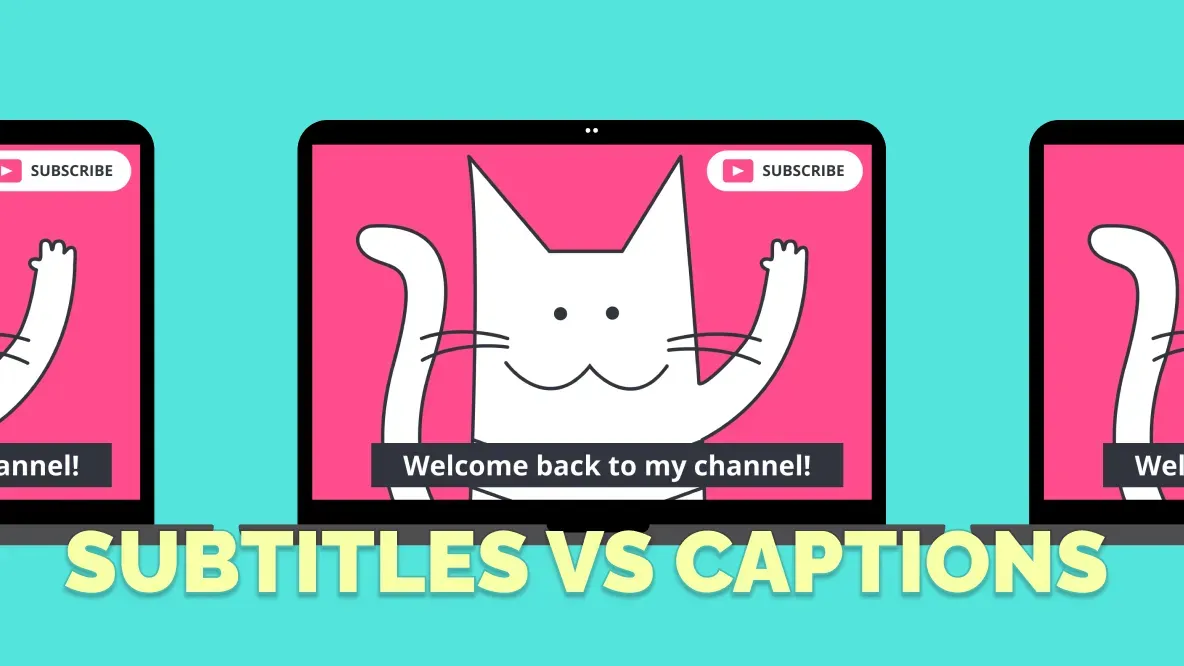
Closed captions and subtitles may look similar on screen, but they serve different purposes.
Closed captions are designed for deaf and hard-of-hearing viewers. They include not only spoken dialogue (in the video’s original language) but also sound effects, music cues, and speaker identification. Subtitles, by contrast, are primarily used to display spoken words — either in the same language for clarity or translated into another language — and assume the viewer can hear the rest of the audio.
While the two terms are often used interchangeably on social media and streaming platforms, the differences matter, especially when it comes to accessibility and legal compliance. Subtitles are also critical for engagement on social media, where most videos are watched without sound. In fact, 80% of viewers are more likely to finish a video with subtitles, and 85% of Facebook videos are viewed muted.
In this article, we’ll break down the differences between captions and subtitles, explain how they work across platforms, and show you how to add them to your videos, including how to meet accessibility standards and reach a wider audience.
What Are Closed Captions?
Closed captioning is all about accessibility. They were originally developed in the 1970s for television to make sure deaf and hard-of-hearing viewers would have equal opportunity to watch and enjoy shows. Over time, legislation such as the Americans with Disabilities Act has made closed captions mandatory in many situations.
Unlike subtitles, closed captions are designed for viewers who may not be able to hear anything in a video, including audio effects or music. The important distinction is that closed captions include spoken dialogue, including speaker differentiation, as well as sound effects, music, or other audio that shines light on what’s happening in the video.
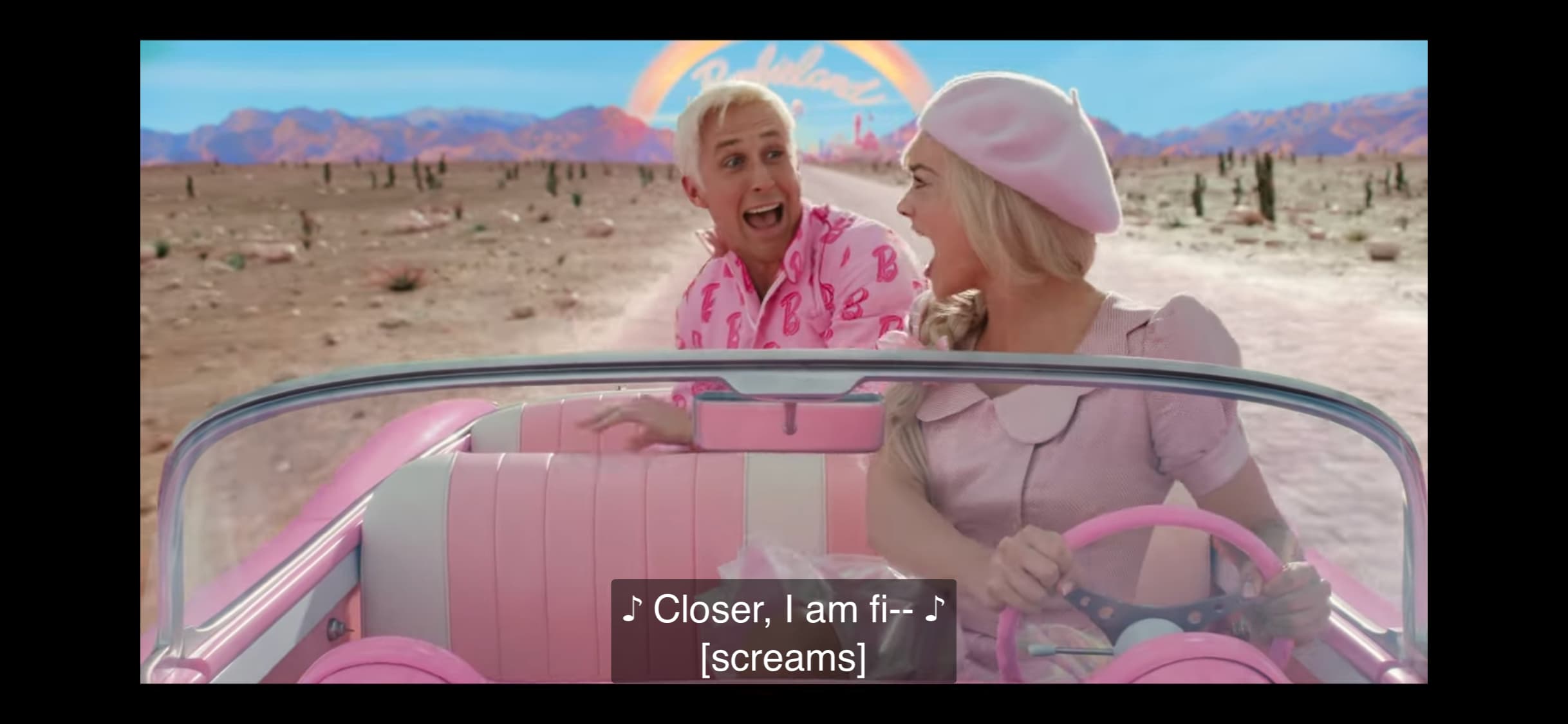
As an important note, closed captions are always in the language spoken in the original audio. For example, captions for foreign films will be in the original language.
Closed captions are “closed” because they can be toggled on and off according to the preferences of the viewer. Often, you can upload this type of caption using an SRT file. Permanent captions that are baked into video content and can’t be turned off would be called open captions.
You can generate closed captions using Kapwing simply by following our how-to guide.
What Are Subtitles?
The history of subtitles lies in providing translations for audiences who don’t understand the spoken language in a movie or television show. You may have seen them when watching foreign films.
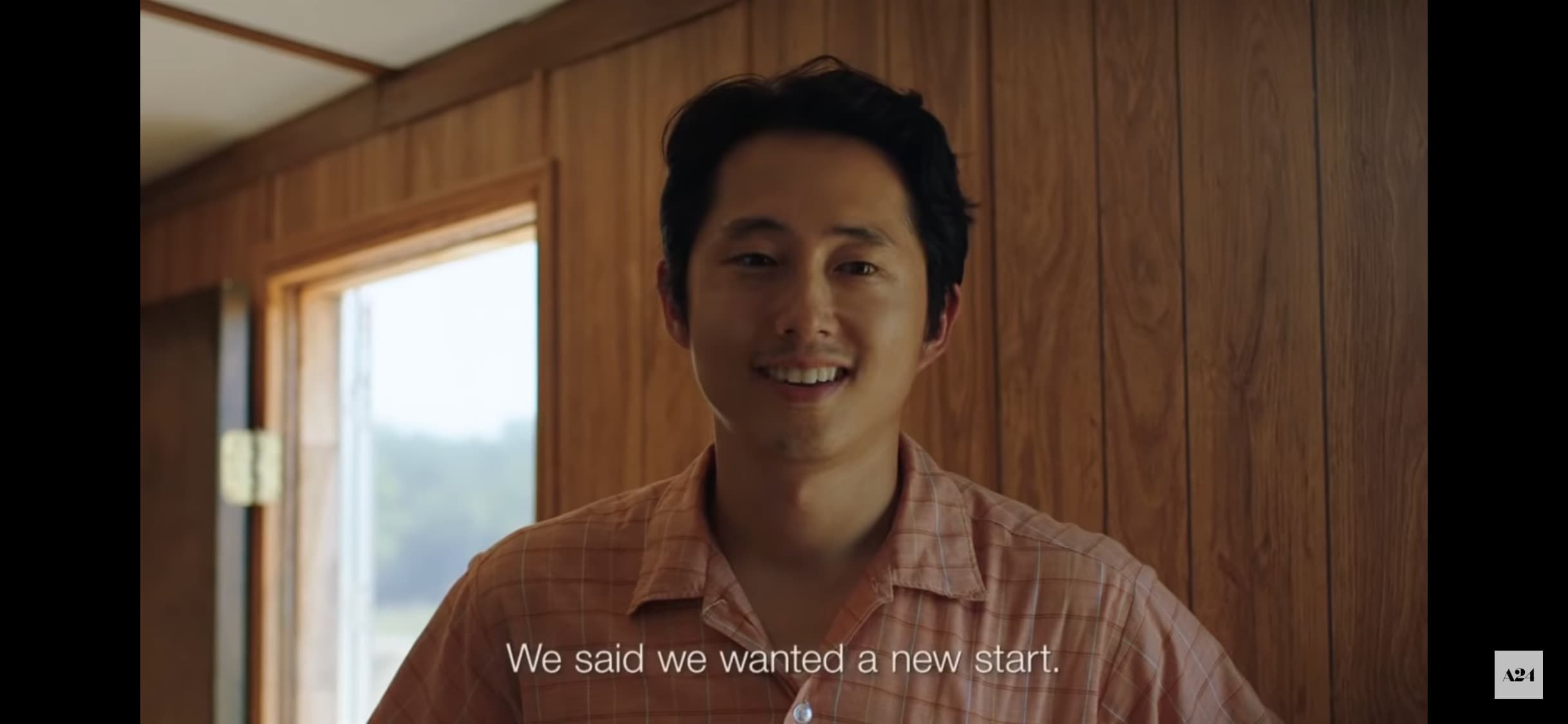
Unlike closed captions, subtitles are made for viewers who can hear what’s happening — including dialogue, music, and sound effects — but need clarification about the words being spoken. That’s why subtitles only contain dialogue and no other information.
One of the main functions of subtitles is to provide a real-time translation of spoken words or lyrics in music. You might be familiar with this on streaming services, where you can often choose subtitles in a variety of languages. Some videos that have small pieces of dialogue in a foreign language may also provide subtitles for those parts.
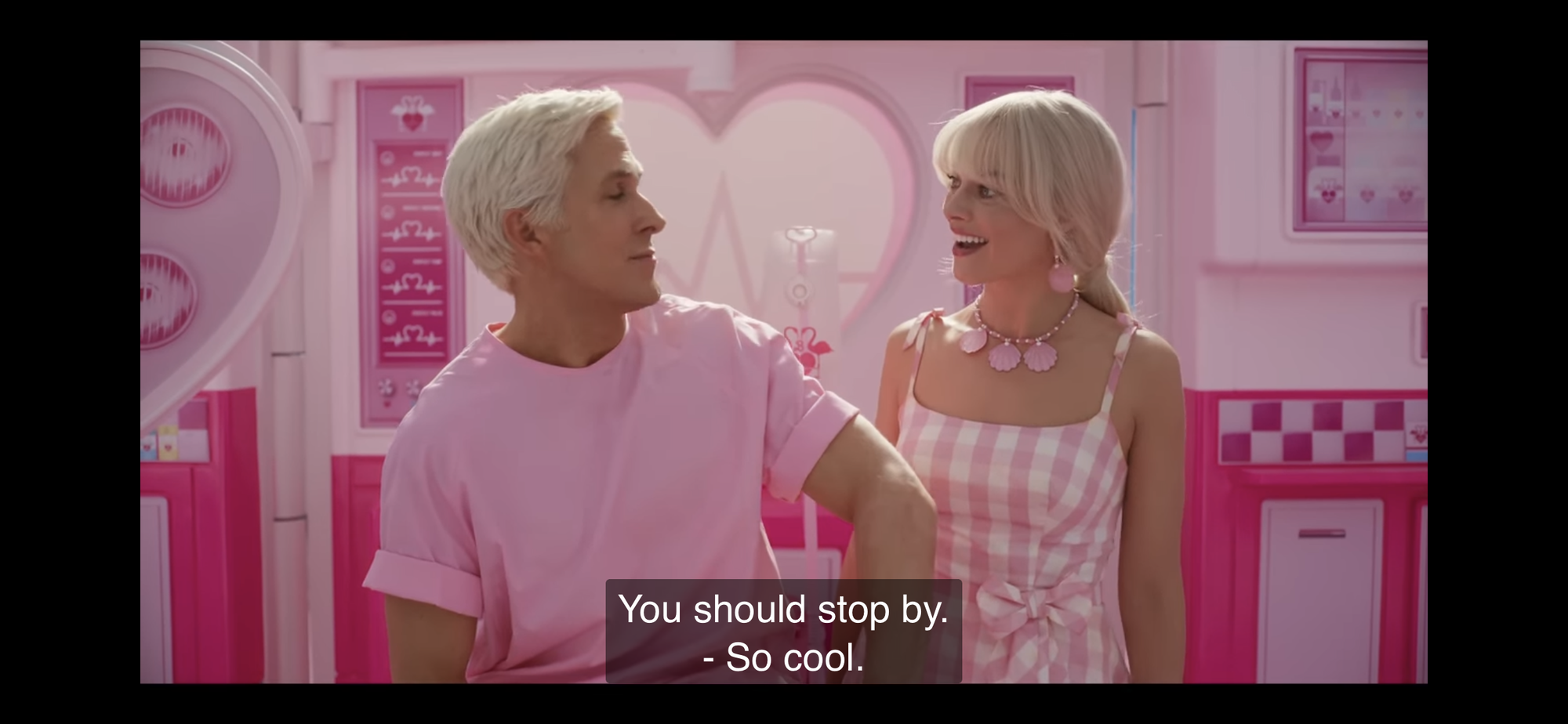
Subtitles may also be the same language being spoken in a video to provide clarification on dialogue, whether because they’re watching on mute or at a low volume, or there are accents that are difficult to understand.
The rate of subtitles on screen at any moment is determined by how wordy the content is. Media with longer, complex sentences make for subtitles that are more difficult to read.
Subtitles vs. Closed Captioning in Social Media Video Content
The terms subtitles and closed captions are often used interchangeably on social media, even if they’re not used correctly.
On TikTok, for example, the text generated on video content is referred to as “captions,” but the automated option only shows the dialogue being spoken and not any audio effects. That would technically make them subtitles.
However, if a creator takes the time to edit those captions and add information about any music or audio effects, that would make them closed captions.
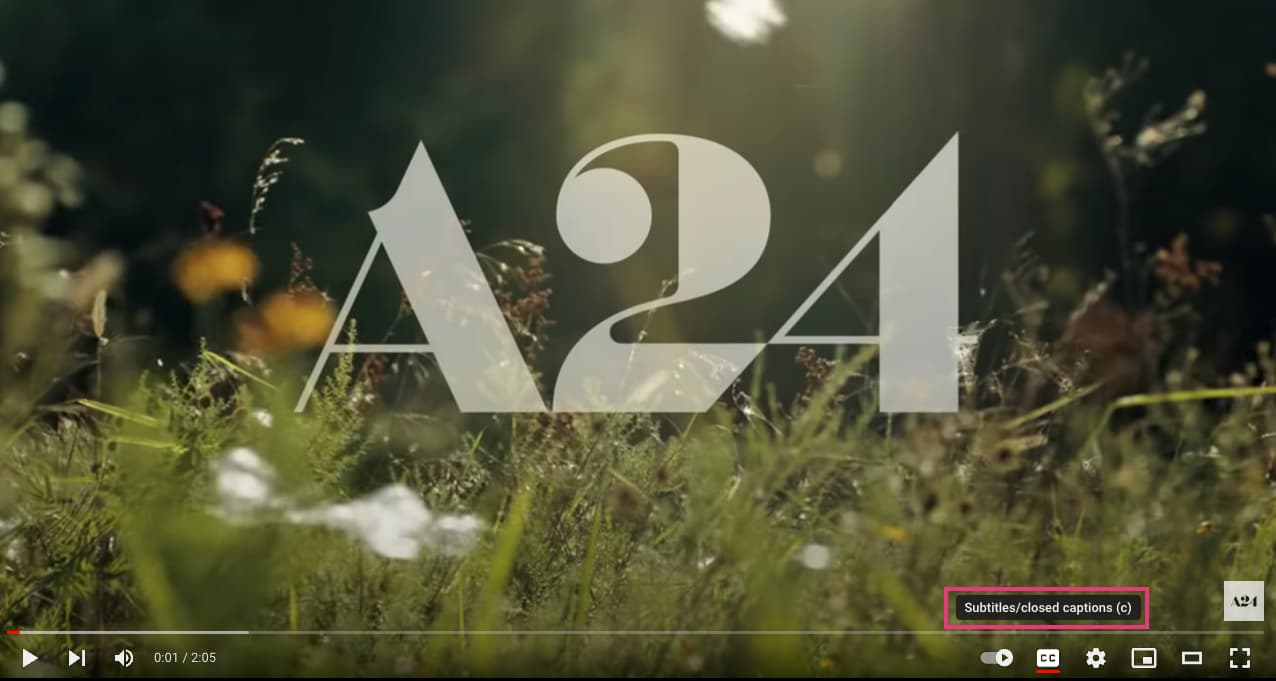
On YouTube videos, the button has a “cc” icon, indicating closed captions, but if hovered over, it says “subtitles/closed captions.” Like TikTok, the automated option that YouTube creates for itself would be subtitles. But if a creator edits those subtitles to include audio information, they would become closed captions.
As a general rule of thumb, most text on social media platforms is actually subtitles, unless they’re manually edited with additional audio cues and information to turn them into closed captions.
EAA Requirements on Closed Captions
Under the European Accessibility Act (EAA), all public-facing videos distributed in the EU must include closed captions that are accurate, time-synced, and accessible.
These captions must go beyond just spoken words — they should also include speaker identification, non-speech audio (like music or sound effects), and be presented in a way that's easy to read and toggle on or off. Open captions, which are burned into the video and can’t be turned off, do not fully meet EAA requirements on their own.
The exact standards can vary slightly based on your video’s context, platform, and target audience, but the core expectations are consistent: ensure that deaf and hard-of-hearing viewers have equivalent access to your content.
For a full breakdown of what’s mandatory, what’s recommended, and how to stay compliant, check out this EAA compliance checklist for video creators and teams.
How to Add Subtitles to Your Social Media Videos
There are two main ways to add subtitles to a video you're posting on social media — either natively in the app you’re using, or with a third-party video creator tool like Kapwing.
Add subtitles using native tools on social media
Each social media platform has both manual and automated options for adding subtitles to video content.
How to add subtitles on TikTok
On TikTok, subtitles can be manually added by simply adding text overlays and timing them to appear as the words are spoken. While this allows for more stylistic creativity than the CC option, it’s tedious and time-consuming.
To add them automatically, simply record a clip and tap the checkmark. On the next screen, the editing screen, you’ll see an icon on the right-hand side of the screen that looks like a white box with lines at the bottom. Tap this, and TikTok will automatically process your audio and turn any spoken words into subtitles.
You can edit the subtitles if they’re incorrect, as well as change their appearance, including the font type and color.
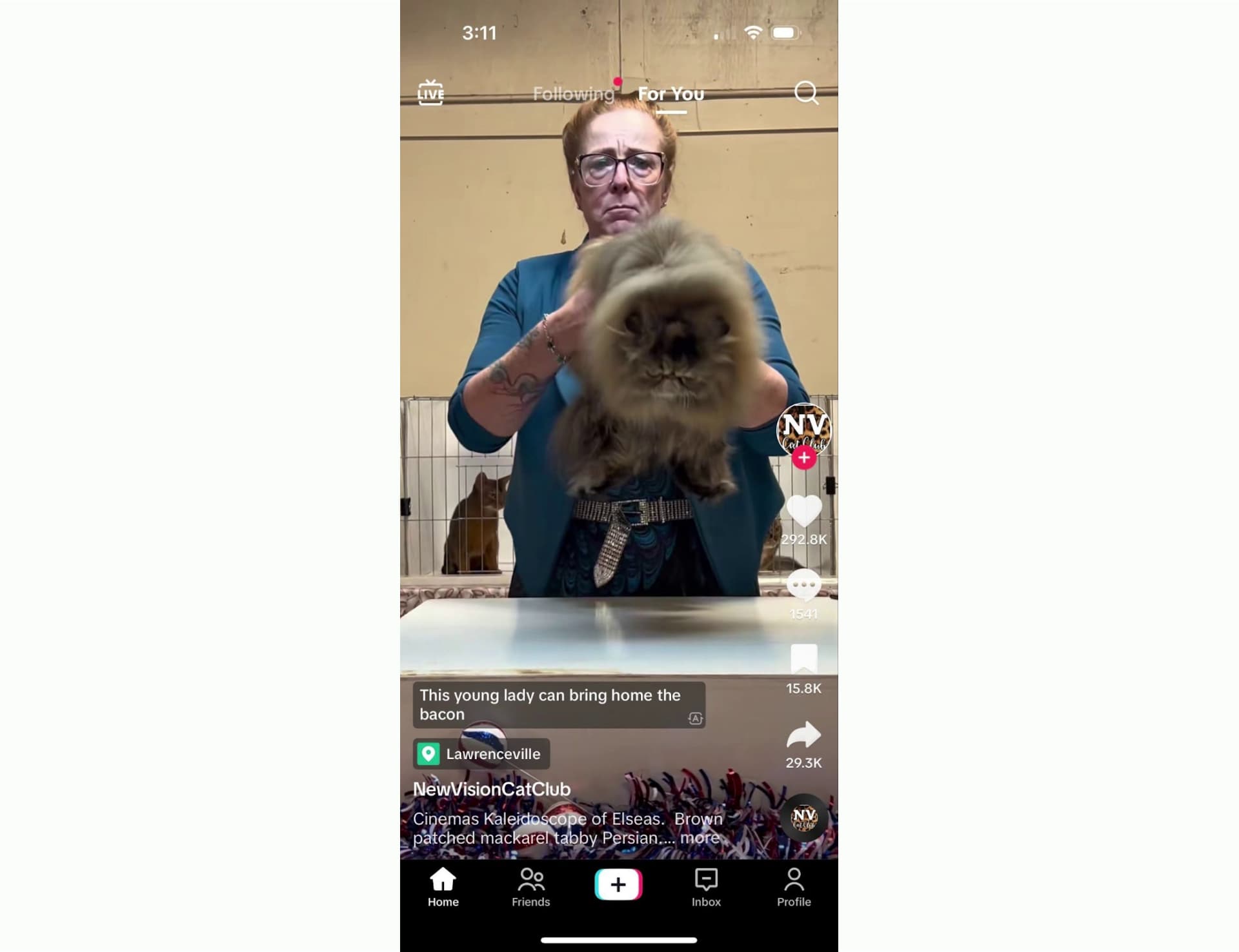
Here’s an example of a cat show TikTok with automated captions turned on.
How to add subtitles on Reels
When creating an Instagram Reel, you can add subtitles on the edit screen after recording a clip.
Tap the stickers icon in the top row, then tap captions. Instagram will automatically process your audio and turn any spoken audio into subtitles that will appear over the video. You can then change the style in which the words appear.
Reels can also automatically add subtitles if users turn on the captions feature.
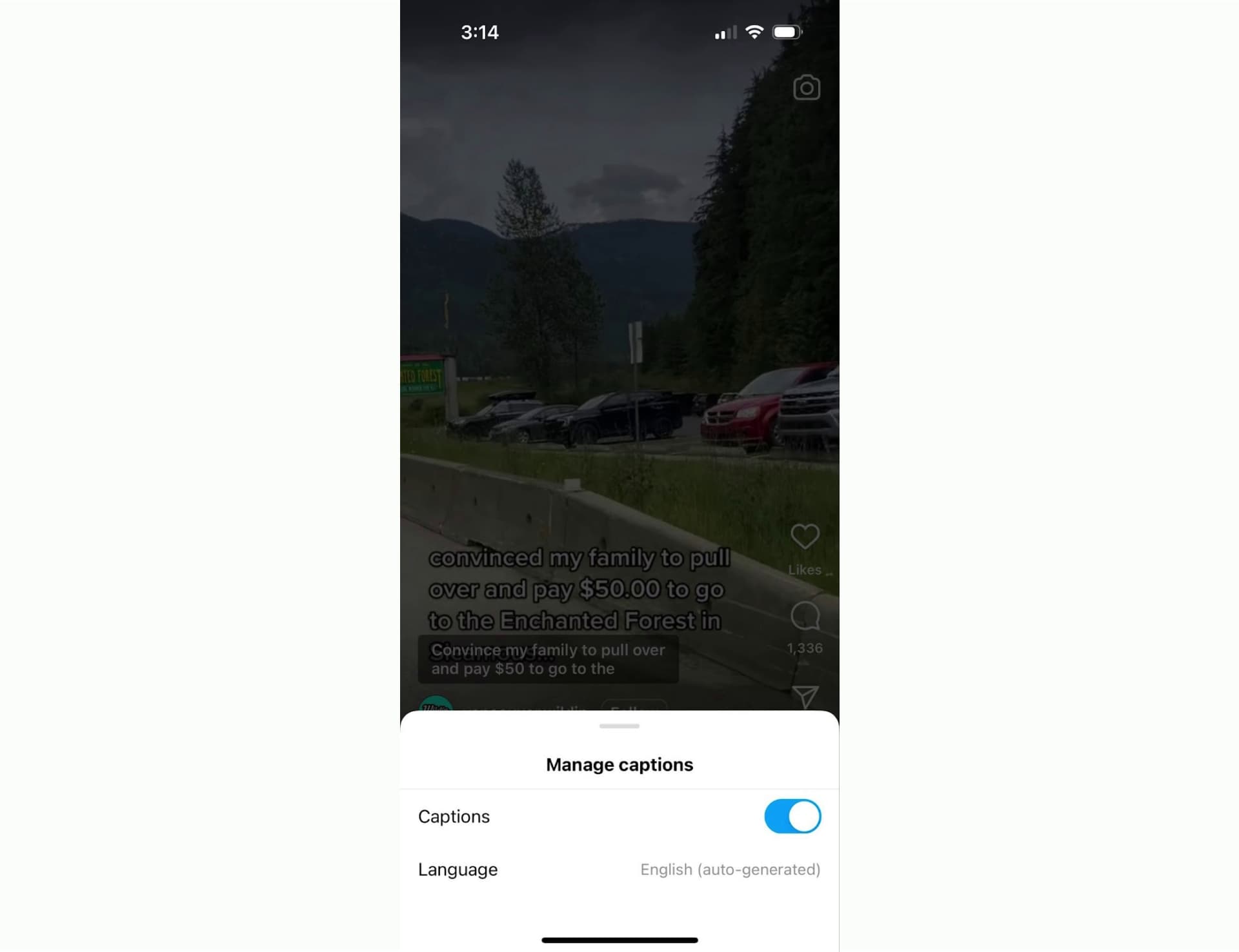
You can also add automatic captions to Instagram stories.
How to add subtitles on YouTube
There are multiple ways to add subtitles on YouTube.
For automatically generated subtitles, you can generate subtitles while uploading a video by clicking “add subtitles” under the video elements options. You simply choose a language and YouTube will do the rest. You can also do this later on from the YouTube Studio. YouTube videos will also automatically offer subtitles in multiple languages.
Here’s how automated subtitles appear on this YouTube video:
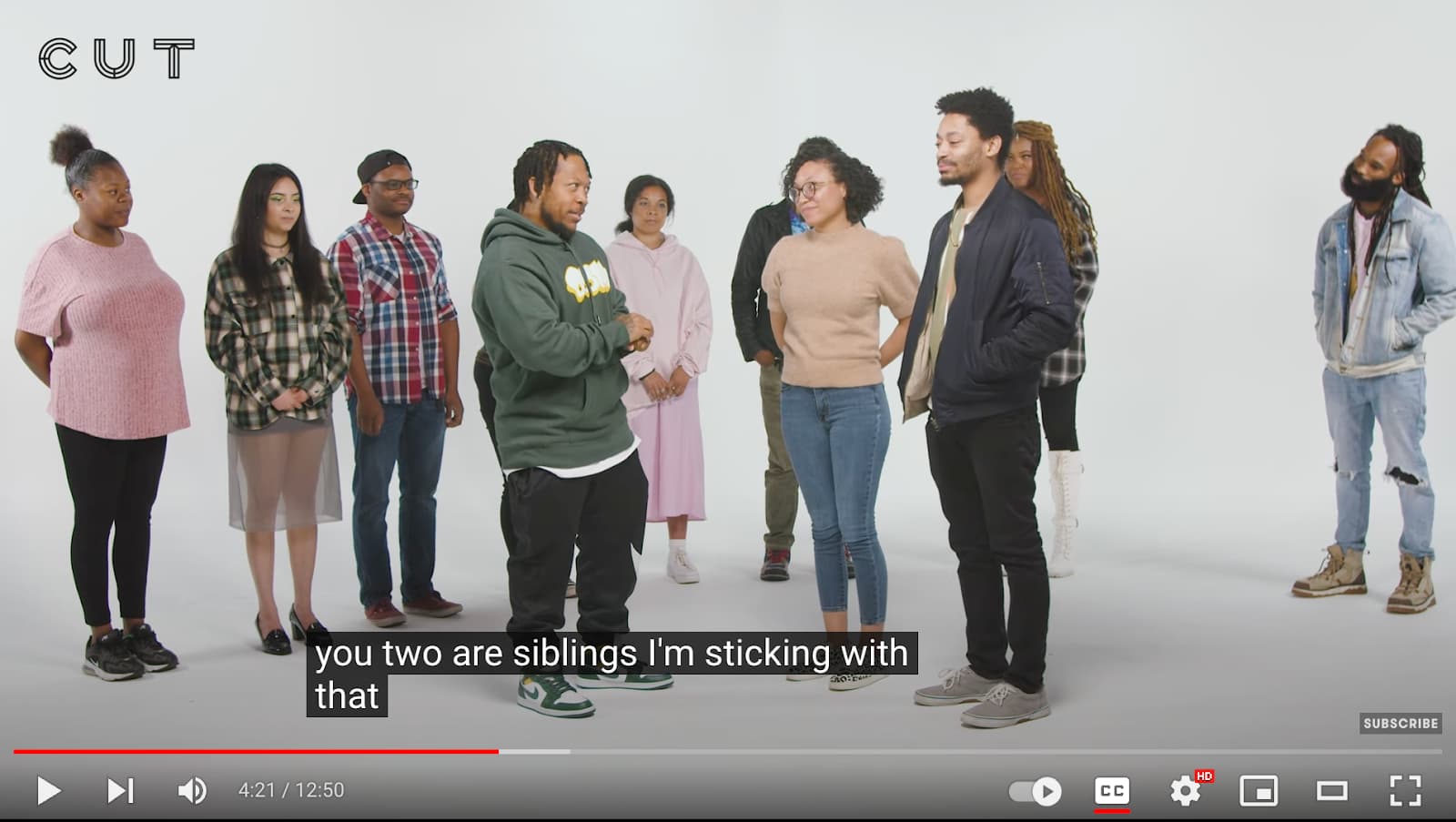
To manually add subtitles to a YouTube video, upload a subtitle file with your video file, or type the subtitles yourself.
Check this guide from YouTube for a complete tutorial on how to add subtitles on YouTube. You can also generate subtitles for YouTube Shorts.
Add subtitles using Kapwing
A third-party video editing tool with captioning services like Kapwing makes adding subtitles to any video a breeze. It’s useful for if your video is ending somewhere other social media, if you want more control over your subtitles, or if you edit your social media videos before uploading.
Kapwing’s AI-powered Subtitle Generator automatically creates subtitles for your videos. Simply upload your video into Kapwing to get started. You can upload directly from your device, from the web with a URL, or from your Google Photos or Drive.
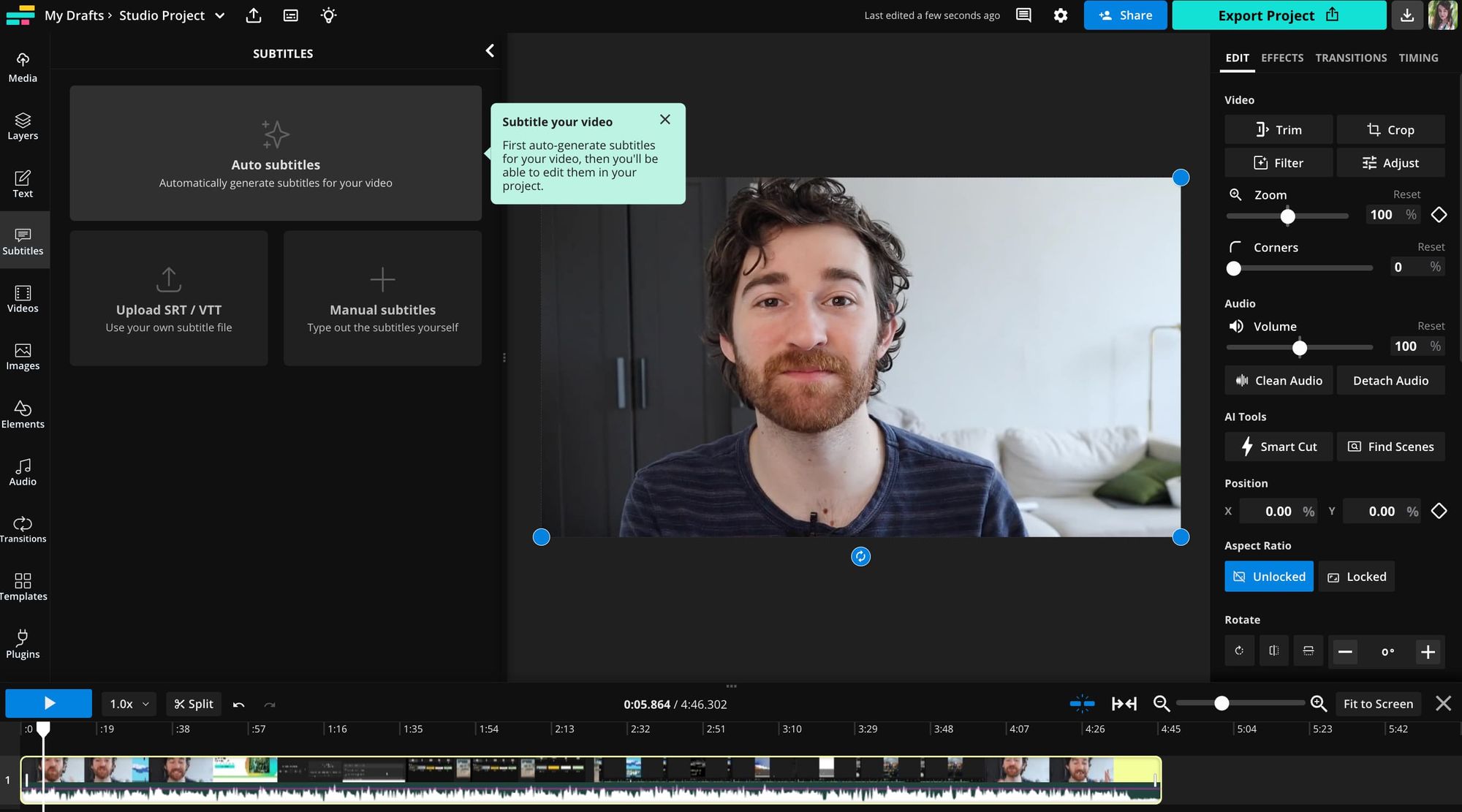
Click the Subtitles tab in the left sidebar. There are a few different options for adding subtitles here, including uploading an SRT/VTT file or manually typing the subtitles out yourself. To generate automatic subtitles, you’ll want to select the auto subtitles option.
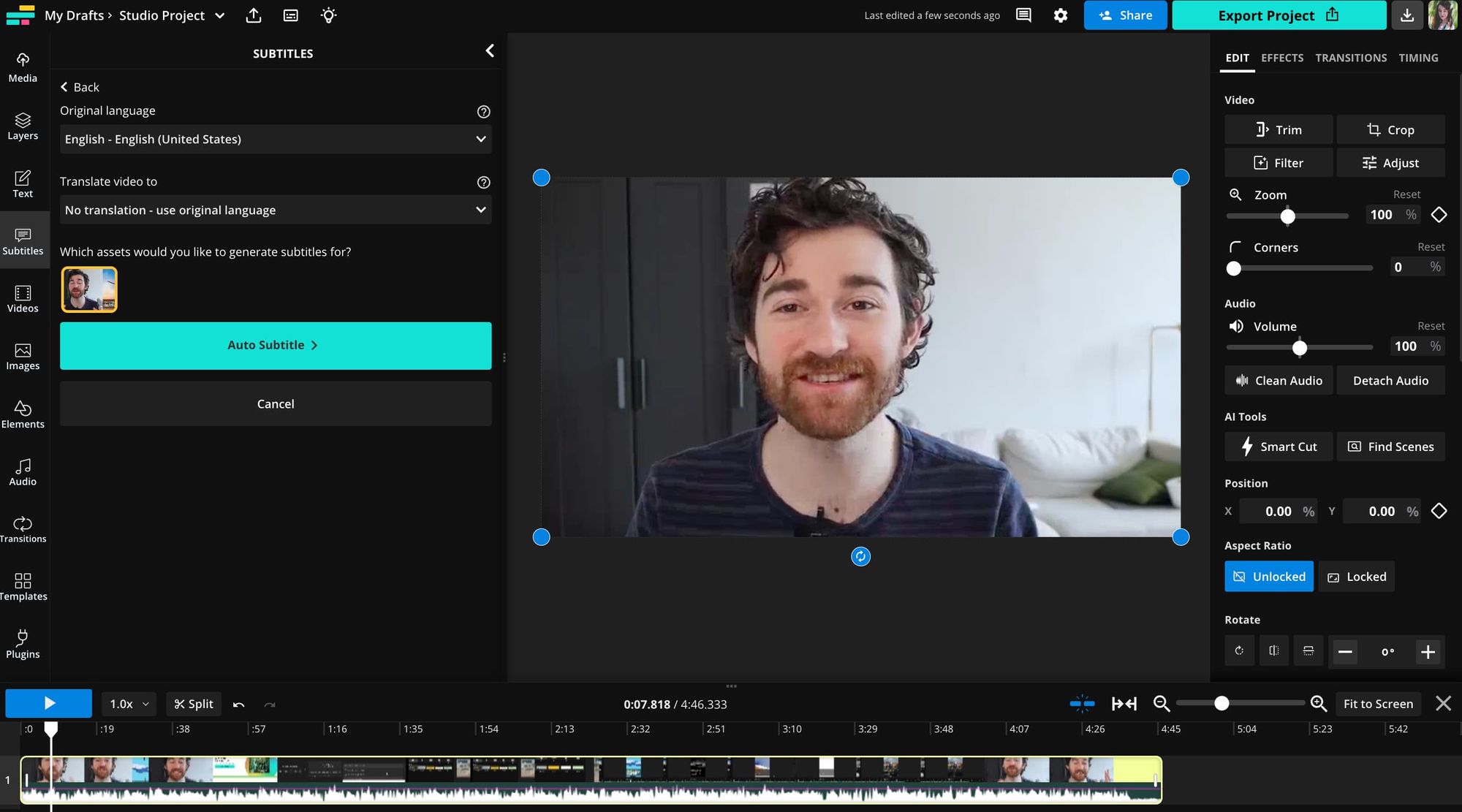
Choose the language you want your subtitles to appear in – Kapwing can translate your video into over 70 languages – then click “Auto Subtitle” to generate subtitles.
Once your auto subtitles are generated, you can edit them using the subtitles preview window. The window shows timestamps for all of the subtitles, so you can adjust the timing to perfectly match your audio, and is easily edited to correct any spelling or grammatical errors, although the transcript is usually quite accurate.
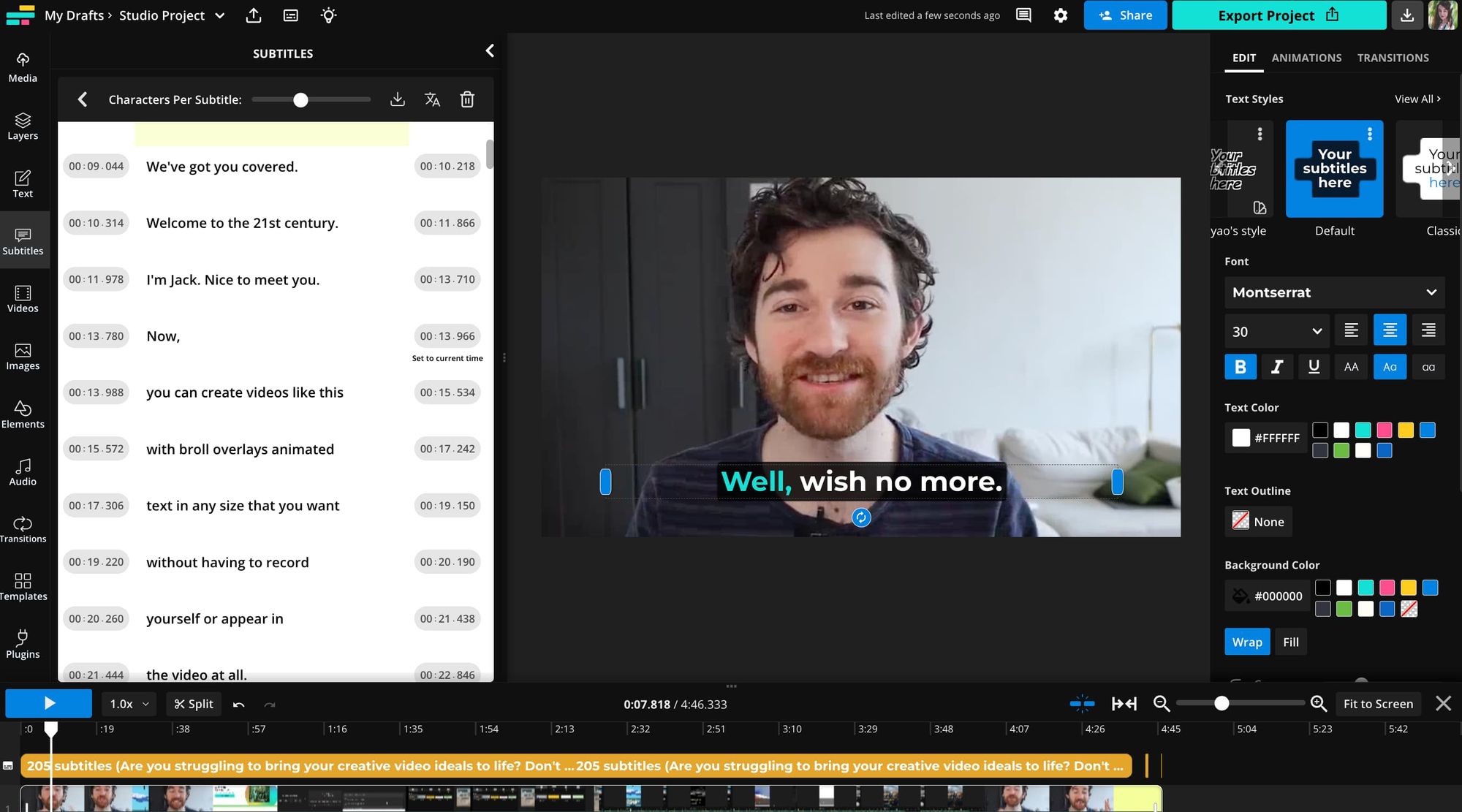
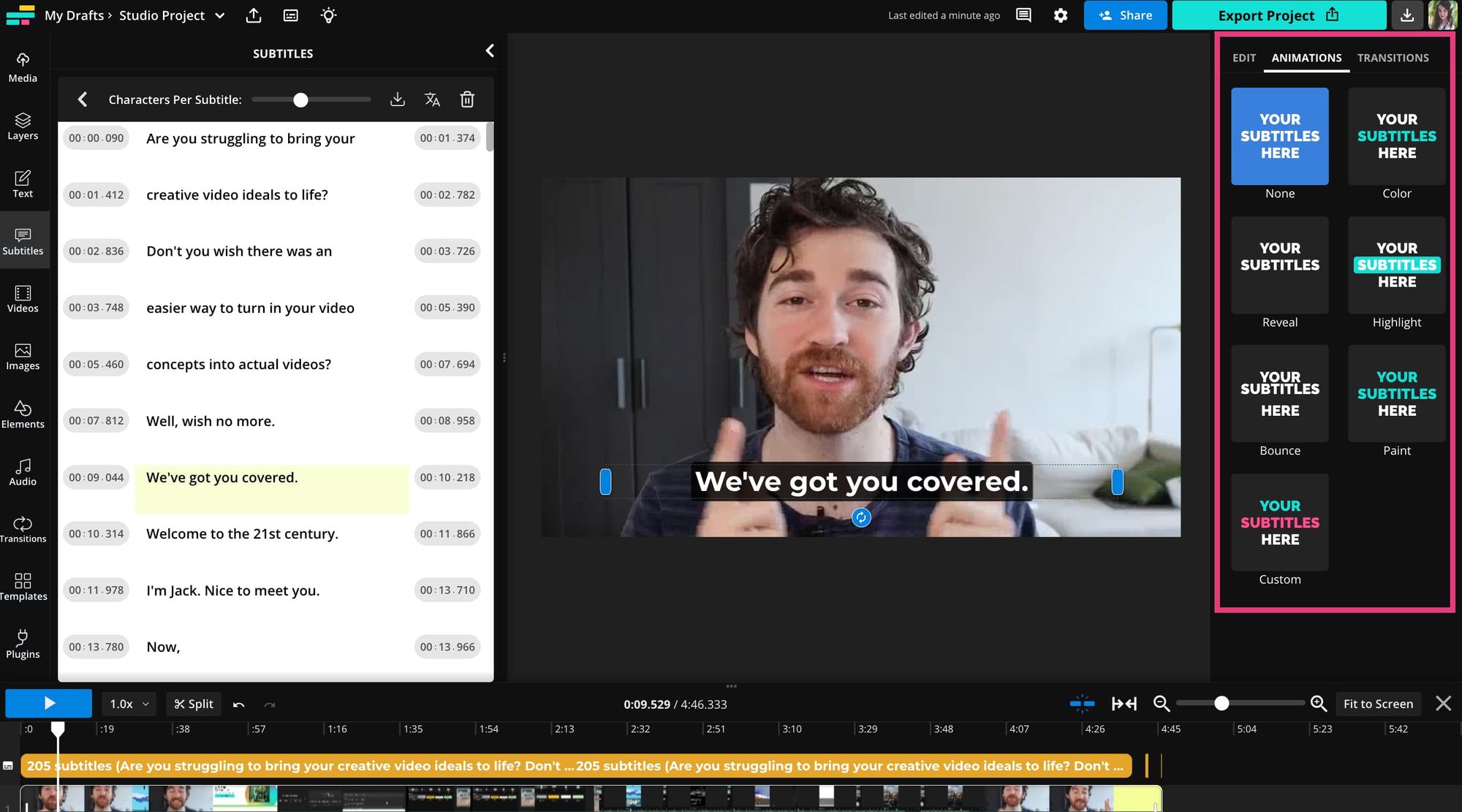
In the subtitles menu on the right side of the editor, you can customize the look and feel of your subtitles to match your brand or style as a creator. Change the style, color, font, size, and even add animations to make your subtitles that much more engaging.
If you’re adding these subtitles to a video for social media, we recommend using the Safe Zone filters to check that your subtitles will be visible on the social platform of your choice.
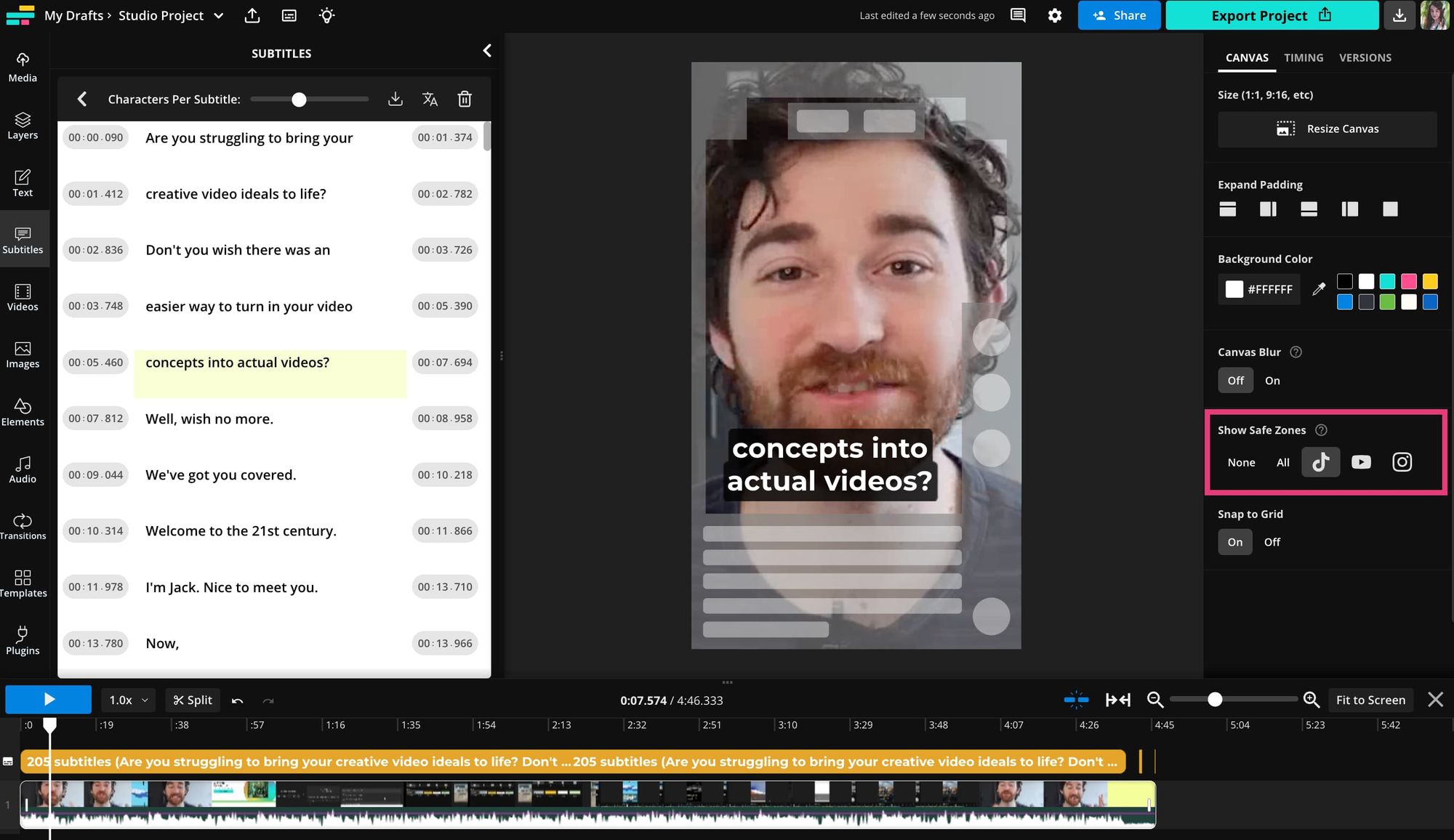
We currently have Safe Zones for TikTok, Instagram, and YouTube Shorts.
How to add closed captioning to your social media videos
The simplest way to add closed captions to your videos that are fully accessible for deaf and hard-of-hearing people is to edit your subtitles.
In TikTok or Instagram Reels, for example, simply tap to edit your subtitles and include any other relevant audio as text. If you choose to use text overlay to caption your videos, this would be considered open captions, because open captions, by definition, cannot be turned off.
Using Kapwing, you can edit the automated Subtitles or create and edit full video transcripts that can then be exported as a TXT, SRT, or VTT file.
Here are some tips for when you edit subtitles into closed captions:
- Include any non-speech elements, such as laughter, music, sound effects, or background sounds.
- Differentiate the sounds from spoken words by either putting them in square brackets [like this] or in between asterisks *like this*.
- Include speaker identification information if more than one person is speaking.
Help everyone watch videos with subtitles and closed captions
Including closed captions and subtitles is important for equal access for all viewers. For those who are deaf or hard of hearing, it makes your videos accessible so people of all abilities can enjoy them.
Even subtitles have become very important. For those watching videos on social media with the sound off, subtitles make them less likely to skip past your video. It also means those who speak different languages can still enjoy your content.
Plus, closed captions and subtitles are useful for SEO. The YouTube algorithm and the various algorithms of social media apps, as well as search engines, scan subtitles and closed captions to determine the content. That helps you get more viewers and reach a global audience.
Don’t neglect this important step of video production and make sure to include subtitles and closed captions wherever you can to reach a wider audience.
Closed Captioning vs. Subtitles FAQ
1. Are closed captions and subtitles the same?
When looking at closed captioning vs. subtitles, they appear similarly on the video screen, but are not the same thing. Subtitles only contain a written version of any spoken words in a video, whereas closed captions also contain descriptions of any sounds or music.
2. What is the difference between English CC and English subtitles?
English closed captions include descriptions of all audio, including music, background noises, or sound made by a person that’s not a spoken word. Subtitles only include spoken words. Closed captions are often used by viewers with hearing impairments.
3. Why is it called closed captioning?
It’s called “closed” captioning because the user can decide whether it appears or not. Open captions are “baked into” a video and are part of the actual video file.
4. Are closed captions more accurate than subtitles?
Closed captions are more inclusive because they include any and all sounds in a video, including background noise, music, or sound effects. Subtitles only include spoken words. Both are accurate, but closed captions include more information.
5. What are closed captions on social media?
On social media, subtitles are often mistakenly marked as closed captions. If the text only includes spoken words, they’re subtitles. If it includes other audio elements, they’re closed captions. All major social media apps and sites include options for adding subtitles to videos. These are also used to show words being spoken in an alternate language.
6. Why add subtitles to videos on social media?
There are many reasons to include subtitles on screen. It’s helpful for those who are deaf or hard of hearing, those who don’t understand the foreign language in a video, or those watching content on mute.
Captions and subtitles are great for search engines as well. It gives them another place to find keywords to determine what’s in your video content and deliver it in search results.