Instagram Posts in Google Search: What Creators Need to Know
With 93% of online journeys starting on Google, Instagram’s update gives your posts a new way to get discovered

Starting July 10, 2025, Instagram is rolling out a change that could make your public content more discoverable on search engines like Google. Some users have already seen a notification that reads:
“Your public photos and videos may soon appear in search engine results. From July 10th, search engines will automatically be allowed to show all photos and videos on the results page.”
This update could boost the reach of your content, but it also raises questions about privacy, control, and SEO.
In this article, we’ll break down what’s changing, why it matters, and how to manage your settings. Plus, we’ll share tips to help your Instagram posts get found on Google using smart optimization strategies.
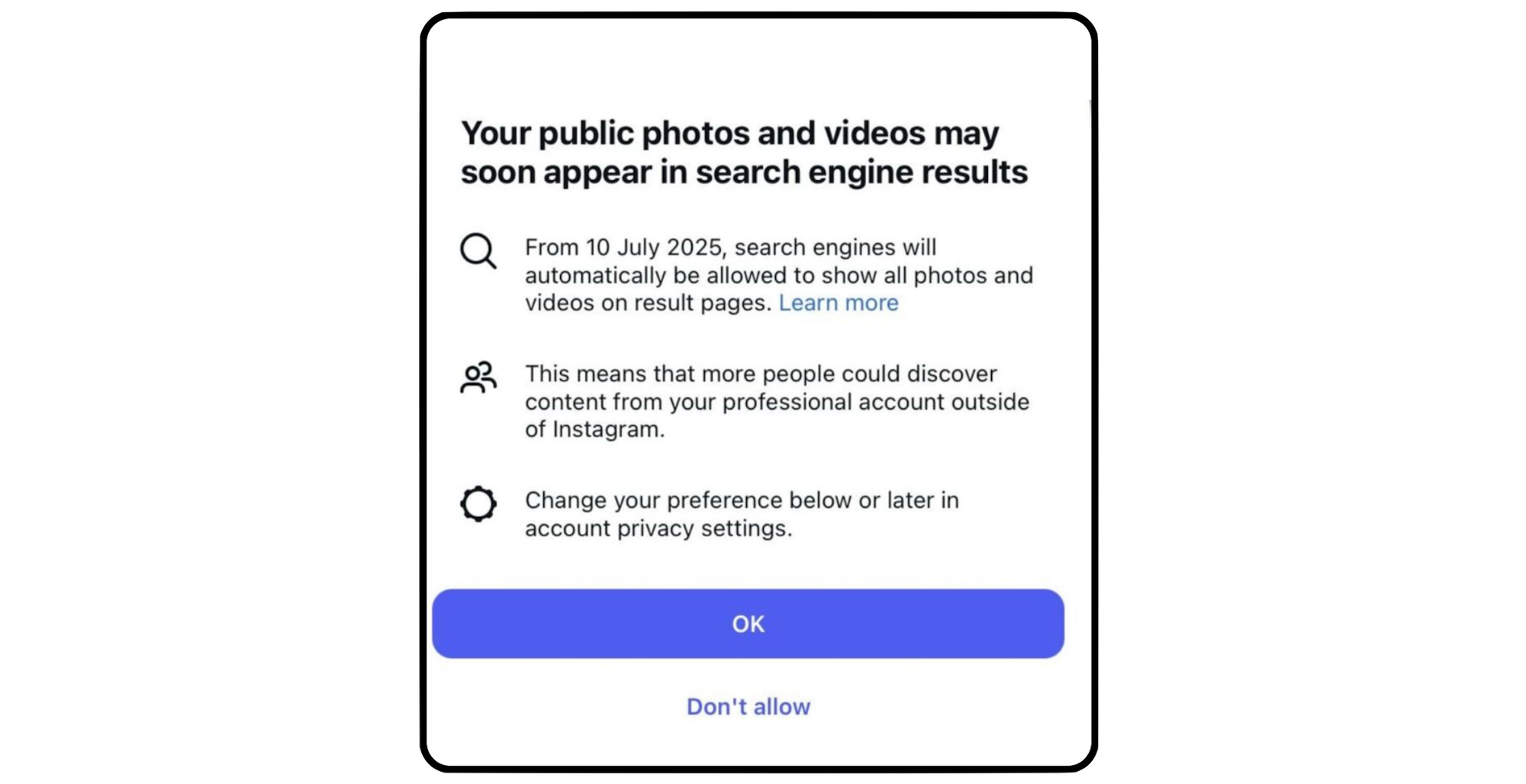
Table of Contents
- Instagram Posts Are Now Indexed by Google Search
- How to Turn Off Instagram Posts From Displaying on Google
- How to Allow Instagram Posts To Be Displayed on Google
- How to Optimize Your Instagram for Google Search Results
Instagram Posts Are Now Indexed by Google Search
As of July 10, Instagram will allow search engines like Google to index public posts and show them directly in search results.
So what does this mean for you?
In short, this update means your Instagram content could appear in Google search results, even to people who don’t use the app.
So if you consistently post about San Francisco travel tips, your content might show up when someone searches for terms like “things to do in San Francisco.” It’s a new way to grow your reach through search, helping your posts get discovered based on keywords and topics, not just followers or hashtags.
What Instagram Posts will Show Up on Google?
Google will index the captions on Instagram grid posts and Reels, and these posts may show up on the main search results page, Short Videos, and Videos search mode. However, not all Instagram videos and images show up on Google.
Eligible Instagram Posts that now will appear on Google Search include posts by:
- Public business and creator accounts
- Users who are 18 or older
- Posts published with search engine indexing enabled
Posts that will not show up on Google Search:
- Posts on private or personal accounts
- Posts by users younger than 18 years old
- Any account that opts out manually will not show up on Google Search
- Instagram Stories, Highlights, and Live videos
- Content that is shared with Close Friends or not shared publicly
Does Turning Off Google Visibility Affect Engagement on Instagram?
Turning off Google visibility won’t affect how your content performs inside Instagram. Your posts will still appear in your feed, Reels tab, Explore page, and to your followers as usual.
However, turning Google visibility on allows for your content to gain additional exposure, especially if people are searching for your name, niche, or specific topics related to your posts.
For example, if you regularly share travel content, your Instagram posts could now appear in search results when someone Googles terms like “Europe travel itinerary” or “budget travel tips.” This can help new audiences discover your content even if they’re not on Instagram or don’t follow you.
So while turning it off won’t hurt your engagement within the app, keeping it on gives you the chance to reach new audiences through search.
How to Opt Out: Stop Google from Displaying your Instagram Posts
If you have a public creator account and do not want your posts showing up in search engine results, you can choose to block Google from showing your posts on Google. Here’s how you can turn the setting off in the Instagram app:
- Tap the menu icon (☰) in the top right corner of your Instagram profile.
- Scroll down to “Who can see your content.”
- Select Account Privacy.
- Find the option labeled “Allow public photos and videos to appear in search engine results” and toggle it off.
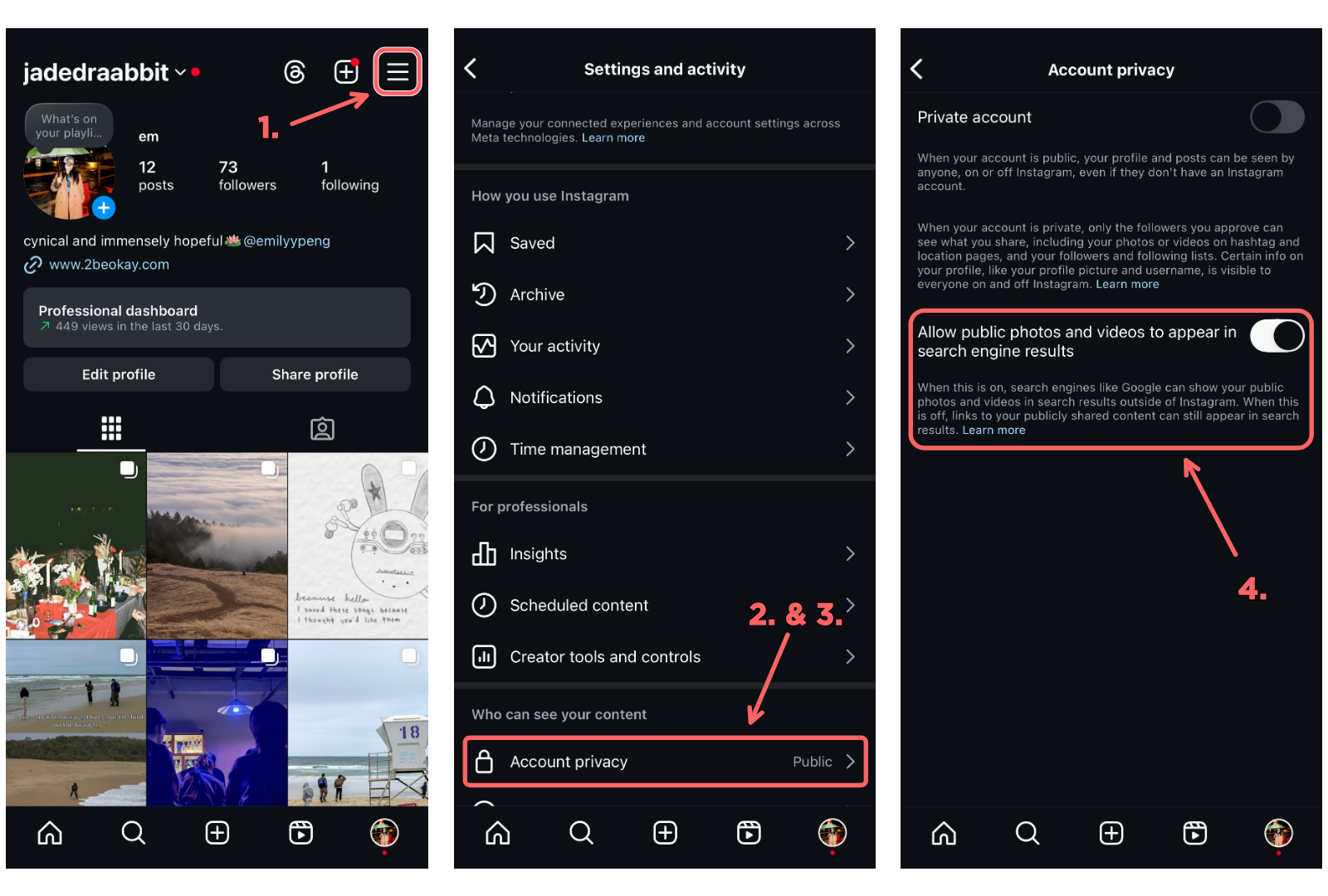
Once turned off, your existing and future public posts will no longer be indexed by search engines like Google, though they’ll still be visible within Instagram as usual.
How to Allow Instagram Posts To Be Displayed on Google
If you have a private or personal account and want your content to appear in search engine results, you’ll need to switch to a public Creator account first:
- Tap the menu icon (☰) in the top right corner of your profile.
- Scroll down to “For Professionals.”
- Select “Switch to Professional Account” and follow the prompts to choose a Creator account.
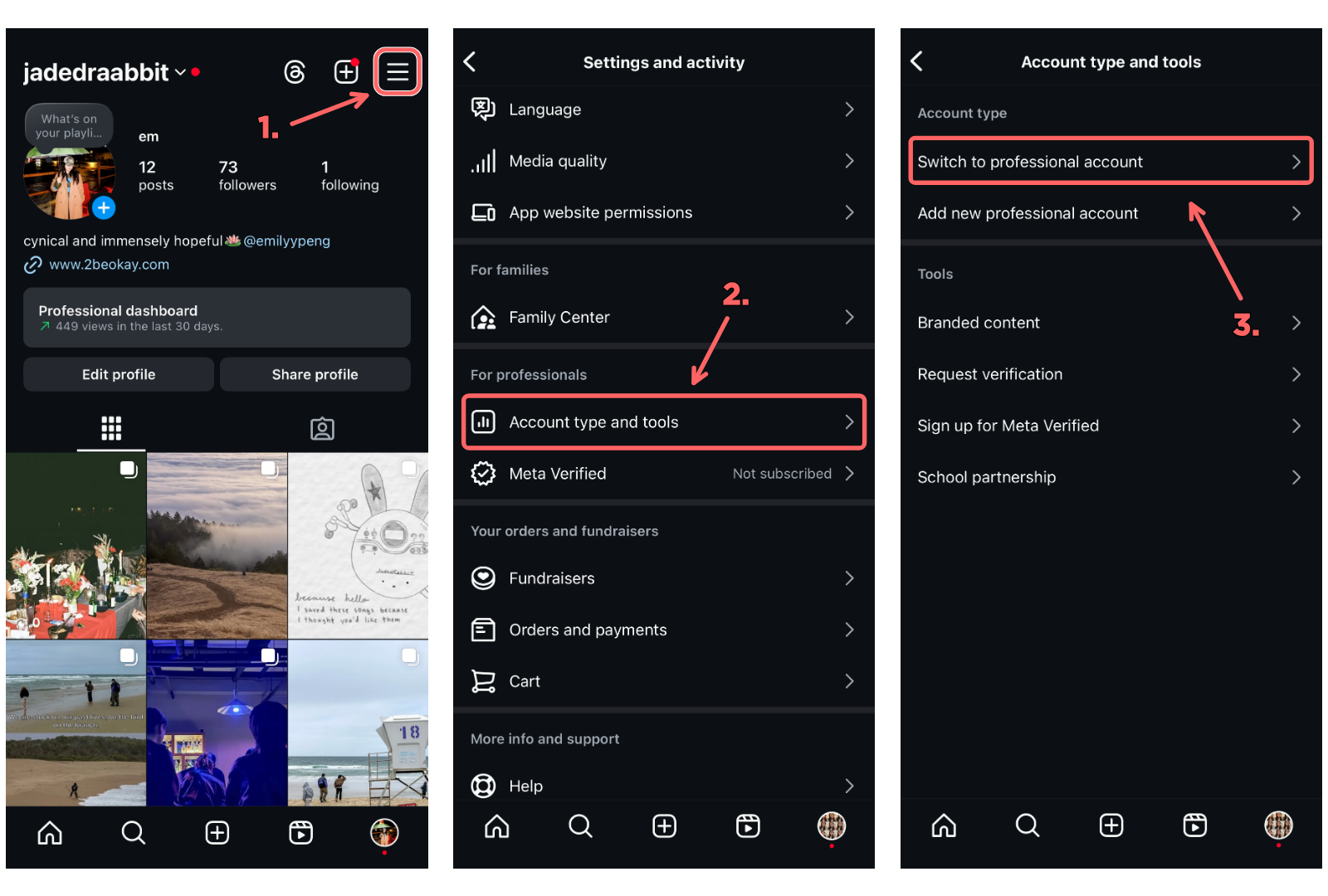
Once your account is public and switched to Creator, Instagram should automatically enable search engine visibility. To double-check:
- Go back to Settings
- Scroll down to “Who can see your content”
- Select Account Privacy
- Ensure the toggle for “Allow public photos and videos to appear in search engine results” is turned on
How to Optimize Your Instagram for Google Search Results
To improve the indexability of your Instagram posts (how easily they can be found and understood by Google), optimize your content with clear, descriptive metadata.
This includes elements like alt text, keyword-relevant captions, and other contextual signals. These help Google interpret each image and video more accurately, increasing the chances they appear in relevant search results.
Here are some simple strategies to get you started.
Use Searchable Keywords in Captions and Descriptions
Adding keywords related to your content’s niche, topic, or location helps people discover your posts more easily through search. When writing your caption, think about what interests your content appeals to, whether that’s travel, food, fashion, or something else.
Then, research popular keywords and phrases people search for in that space, and incorporate those keywords naturally into your caption or description.
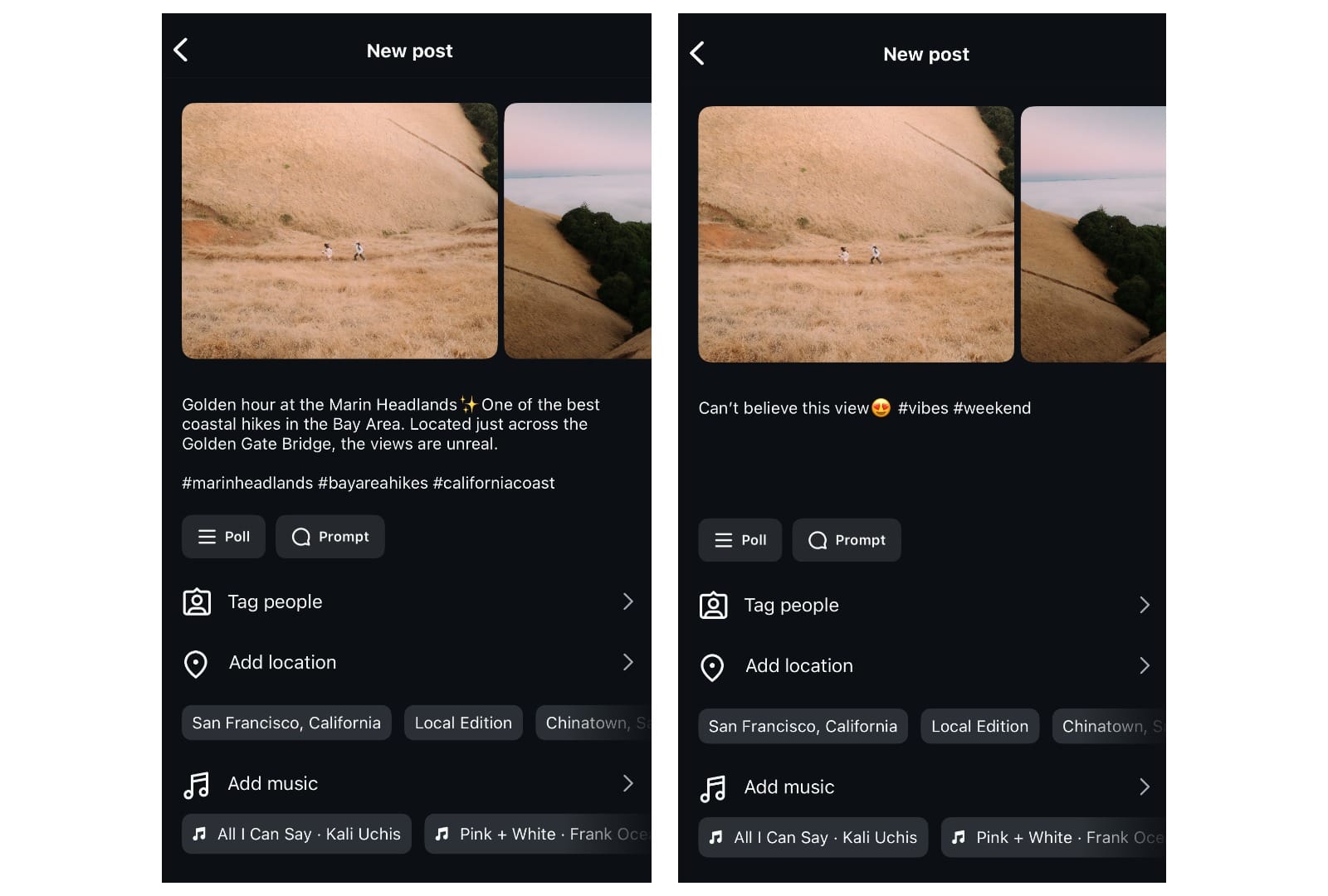
As per the example above, if your post is about a hiking trail in San Francisco, you might include keywords like “best hikes in the San Francisco” or mention famous attractions like the Golden Gate Bridge.
This helps both Instagram and search engines understand what your content is about, increasing the chances that new audiences will find it.
Write Alt Text for Images
Alt text is a written description of an image that helps people who use screen readers understand what’s being shown. It's an important accessibility feature for visually impaired users, allowing them to engage with content through descriptions.
But alt text also has SEO benefits. While Instagram doesn’t publicly display alt text, search engines use it to understand the content of your image. When you include relevant keywords, it gives Google more context to index your post, increasing the chances it could appear in search results.
Here's how to write alt text on Instagram:
- After selecting your photos or videos, scroll to the bottom of the post drafting screen and tap “More options.”
- Scroll down to the Accessibility and Translation section and tap “Write Alt Text.”
- Write a clear description of what’s happening in the image, including setting, subjects, or actions. Add keywords where they naturally fit to improve SEO, but keep the focus on making your post accessible to all users.
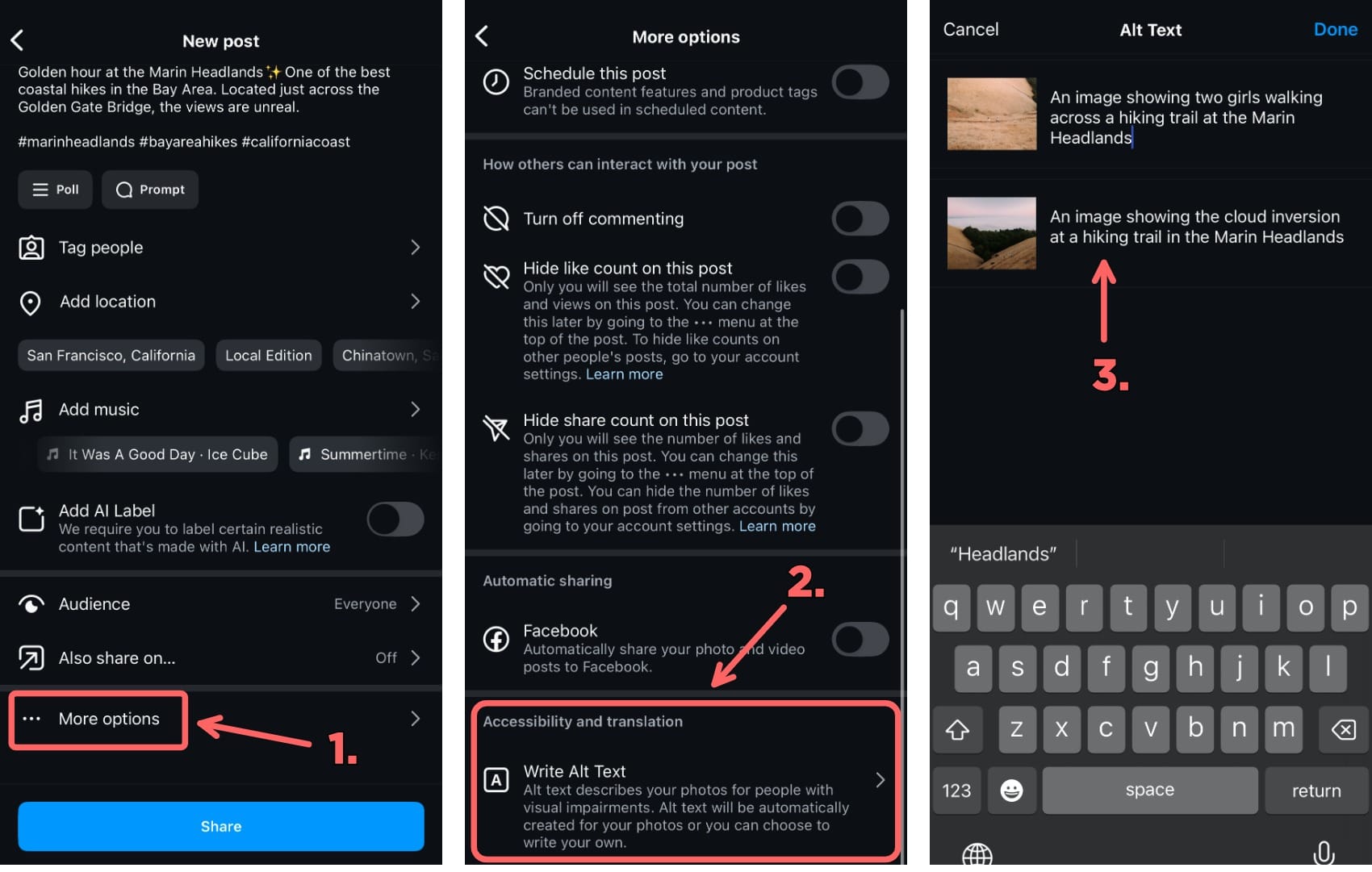
As seen in the example above, if you're sharing an image of a hiking trail, a strong alt text might be: “An image showing two girls walking across a hiking trail at the Marin Headlands.” This describes what’s happening in the photo and includes a relevant location for context.
A weaker alt text might be something vague like “hiking,” which doesn’t give enough detail for screen readers or search engines to understand the image.
Name Image Files Strategically
Even though Instagram doesn’t show your file name publicly, Google can still access image metadata (like the original file name) when indexing content. That means what you name your image file before uploading can influence how it shows up in search.

Instead of keeping generic file names (e.g., IMG_742.jpg), rename your images with clear, descriptive terms that match the content.
This gives Google more context about your content and can improve your chances of appearing in image or web search results.

Although you cannot rename image files directly on a mobile device, you can do so on your computer by right-clicking the file and selecting "Rename.
Create Transcripts and Blog Posts from Video Content
If you’ve shared a popular Reel or video on Instagram that covers an important topic, you can increase its reach by turning it into a blog post. This works because search engines like Google mainly read and rank written content to decide what appears in search results.
Since videos and images don’t include enough text for Google to fully understand the topic, creating a blog post with detailed written information helps your content show up more often when people search for related keywords.
While this isn’t something that you’d do for every post, it’s a great way to spotlight your most valuable content, especially if you already have a blog or website. Tools like Kapwing make it easy to create a transcript of your video, which you can then use to write a short article.
Here’s how you can create a blog post from a video:
- Create a Transcript of Your Instagram Video
- Use the Transcript to Write Your Blog Post
- Link and Connect the Content
Create a Transcript of Your Instagram Video
To create a transcript from your Instagram video, first upload it into Kapwing.
You can either upload your video file or paste the Instagram video link directly.

After uploading your content into the editor, find and click the "Transcript" option in the left-hand toolbar to open the transcript editor.
Next, select the Trim with Transcript tool. Make sure to choose the correct language for your video, then click the Generate Transcript button to create the transcript.

To access your transcript, you can either copy the text directly from the editor, or click the download icon in the top toolbar to export it as a .txt file.

Use the Transcript to Write Your Blog Post
Turn your video into a short blog post by summarizing its main points in a few clear, engaging paragraphs. Then, include the full transcript below the summary.
This not only improves accessibility for users who prefer or need to read, but also gives Google more content to index, helping your post rank in search results.
Be sure to include relevant keywords naturally throughout the summary and transcript, such as the topic, location, or any brand or product names mentioned in the video.

Link and Connect the Content
To tie your blog and Instagram content together, embed the original Instagram video directly into your blog post. This helps Google recognize the relationship between platforms and boosts your content’s credibility.
Here's how to embed your Instagram post:
- Open Instagram in a desktop browser (embedding isn’t available on mobile).
- Click the three dots in the top right corner of the post.
- Select “Embed” and copy the code into your blog editor.

You can also add a line of context in your post, such as: “This video originally appeared on our Instagram. You can watch it below or read the full transcript.”