How to Use Wan 3.0: Alibaba’s AI Video Generator
Learn how to use Wan 3.0 to generate, edit, and extend AI videos with multimodal references and native audio.

AI video generators have moved beyond producing isolated silent clips. Newer models can use several reference files at once, generate synchronized audio, and create longer sequences with multiple shots. Alibaba’s Wan 3.0 brings those capabilities into a single video model.
Wan 3.0 can generate videos from text, animate a first frame, interpolate between first and last frames, follow image, video, or audio references, edit existing footage, and extend a clip. It supports videos up to 30 seconds long at 1080p and 30 frames per second, with dialogue, background music, and sound effects generated alongside the visuals.
This guide explains what changed in Wan 3.0, how each generation workflow works, how to write a stronger Wan prompt, and how to turn the resulting clip into a finished video.
Table of Contents
- What Is Wan 3.0?
- Wan 3.0 Video Generation Specs
- How to Generate Videos With Wan 3.0
- How to Edit Wan 3.0 Videos
- Wan 3.0 Pricing
- Frequently Asked Questions
What Is Wan 3.0?
Wan 3.0 is Alibaba Cloud’s all-in-one AI video generation model. Unlike Wan 2.1, which was primarily used for short text-to-video and image-to-video generations, Wan 3.0 combines several production tasks inside the same model.
This makes Wan 3.0 more useful for complete creative workflows than its predecessors. A creator can, for example, supply a product photo, a motion-reference video, and an audio track, then ask Wan to generate a vertical product ad that keeps the product recognizable while borrowing only the movement and pacing from the video. This makes it a strong choice for users looking to add motion to still images or enhance existing video content.
Wan 3.0 Strengths
- Up to 30 seconds of native video generation
- Integrated dialogue, music, ambience, and sound effects
- Multiple reference types within one generation
- First-frame and first-and-last-frame control
- Prompt-based video editing and extension
- 480p, 720p, and 1080p output
- Both landscape and vertical aspect ratios
Wan 3.0 Limitations
- Complex 30-second prompts can still lose visual or narrative consistency between shots
- References can compete if their roles are not clearly assigned
- Precise text, logos, hands, and fast object interactions may require several iterations
- Availability and controls vary between Wan’s web interface, Alibaba Cloud regions, and third-party platforms
- Generation time and credit cost increase with output length, resolution, and model tier
Wan 3.0 Video Generation Specs
Wan 3.0 represents a substantial upgrade from the six-second Wan 2.1 workflow described in earlier versions of this guide.
| Specification | Wan 3.0 support |
|---|---|
| Duration | 2–30 seconds, plus a smart-duration option |
| Frame rate | 30 fps |
| Resolution | 480p, 720p, or 1080p |
| Aspect ratios | 16:9, 4:3, 1:1, 3:4, 9:16, or adaptive |
| Output format | MP4 |
| Audio | Native dialogue, background music, ambience, and sound effects; audio can be disabled |
| Reference images | Up to 10, with a maximum size of 20 MB each |
| Reference videos | Up to 5, totaling no more than 15 seconds; up to 100 MB each |
| Reference audio files | Up to 5, totaling no more than 15 seconds; up to 15 MB each |
| Other references | One supported document or one public webpage |
| Frame control | First frame or first and last frame |
| Video tools | Prompt-based editing and forward/backward extension |
These specs are very creator-friendly, providing smooth, workable video that is especially helpful when merged together in larger projects.
How to Generate Videos With Wan 3.0
Wan AI is an open-source video generator that can be run locally on your device or accessed through public hosting sites. Public hosting typically has longer processing times, while private hosting requires knowledge of the model’s codebase and API tools.
Likewise, not all hosting sites offer the same features. Some provide more control over aspect ratio, resolution, and prompt type, such as text-to-video or image-to-video. Certain platforms also offer side-by-side access to multiple other AI video generators like Google's VEO 2 and Kling, allowing for a direct comparison between models.
To generate videos using Wan 2.1, visit the official International Experience Page and select AI Videos from the left-hand menu. This will open the video generation interface, where you can choose between text-to-video and image-to-video.
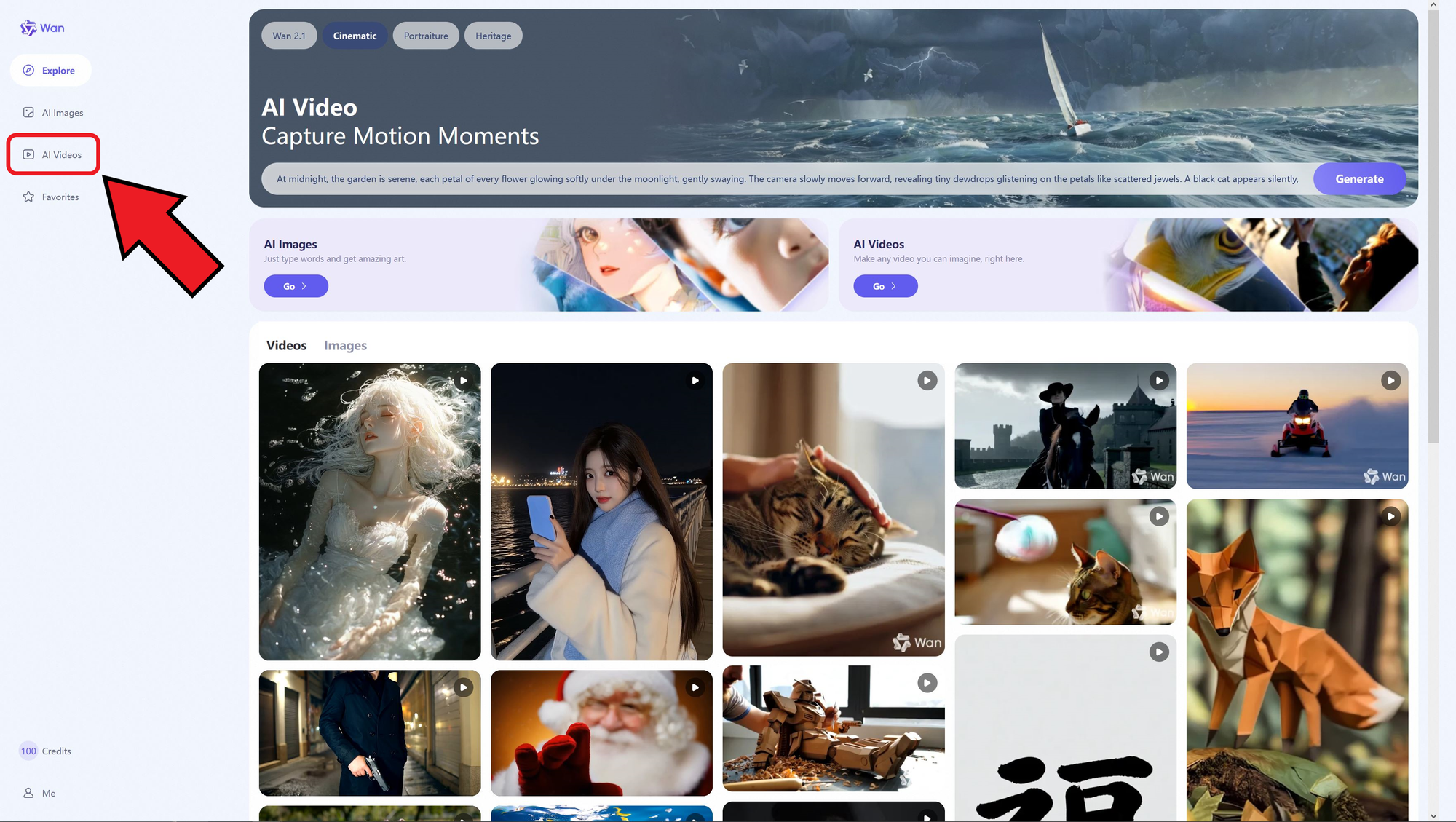
Use the Text2Video and Image2Video toggles at the top of the prompt menu to switch between these options.
Both methods generate AI-powered videos but function slightly differently.
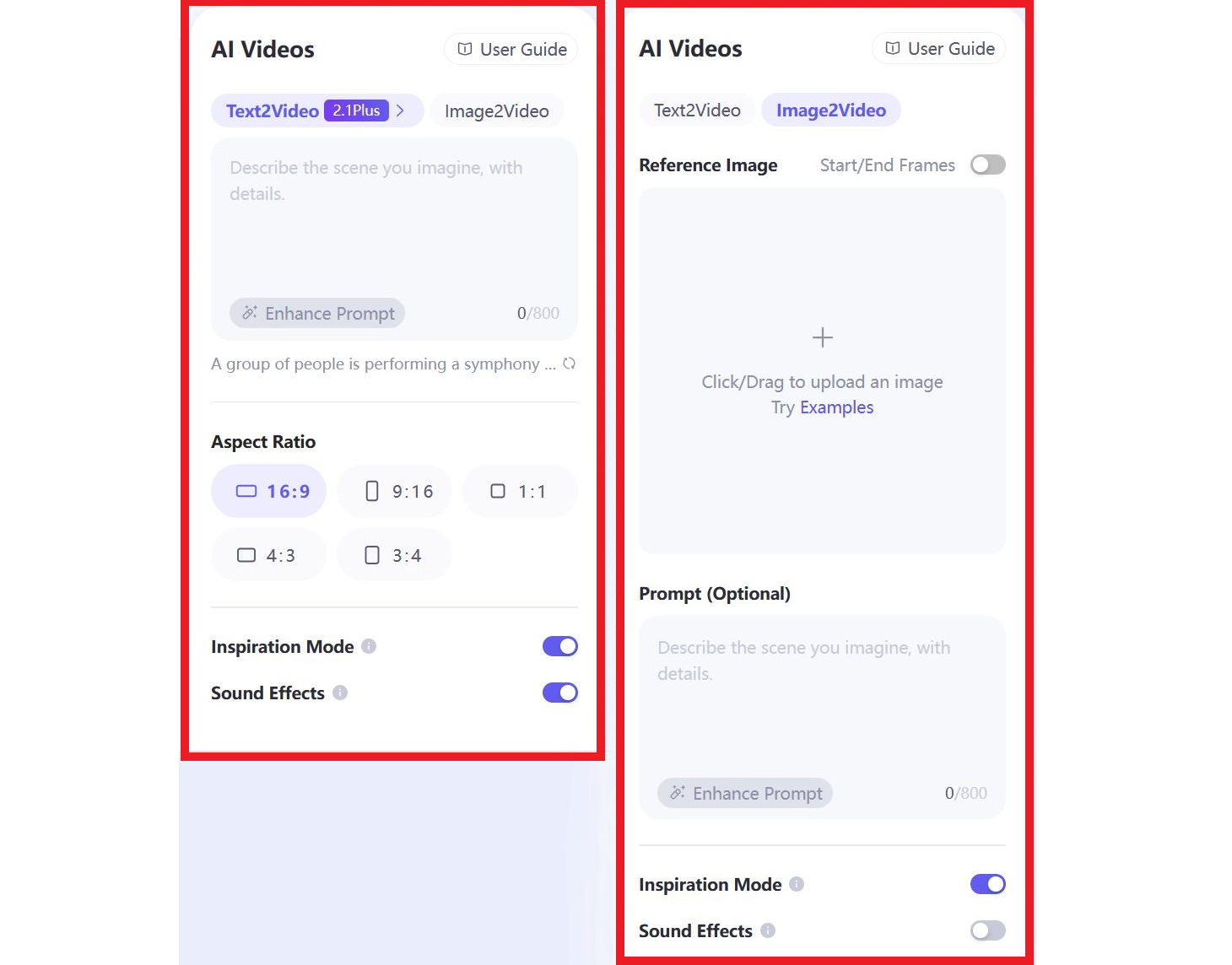
Text-to-Video
- Generate a video from scratch using a written prompt of up to 800 characters.
- Select an aspect ratio from the available options (16:9, 9:16, 1:1, 4:3, 3:4)
- Use optional tools:
- Inspiration Mode: Adds more expressive video features.
- Sound Effects: Generates sound effects if specified in the prompt. If no sounds are specified, background music is added.
- Prompt Enhancing: Rewrites the prompt to improve clarity and optimize it for the Wan 2.1 model.
Image-to-Video
- Upload one or two images to serve as the start and end frames. If only one image is uploaded, it will be used as the start frame.
- Optionally include a supplemental prompt of up to 800 characters.
- The generated video will match the aspect ratio of the reference image.
- Use the same optional tools as text-to-video: inspiration mode, sound effects, and prompt enhancing.
Each video generation, whether from a text or image prompt, costs 10 credits and produces a six-second clip. These credits function as Wan AI’s proprietary currency, though more detailed pricing details will be covered later.
Wan AI is not the fastest video generator, but its speed is expected to improve over time. Enterprise users will likely have a different experience since they can run the model locally or on dedicated servers, avoiding the bandwidth limitations of public access.
Currently, image-to-video generations take approximately 15 minutes to generate, while text-to-video is slightly quicker at around 10 minutes. Generation times vary significantly depending on the complexity of the prompt, concurrent site usage, and optional tools.
Resizing Your Reference Image
Since Wan AI’s image-to-video generator matches the aspect ratio of the uploaded reference image, it is important to size your image correctly before uploading. A free online image resizer can help with this process.
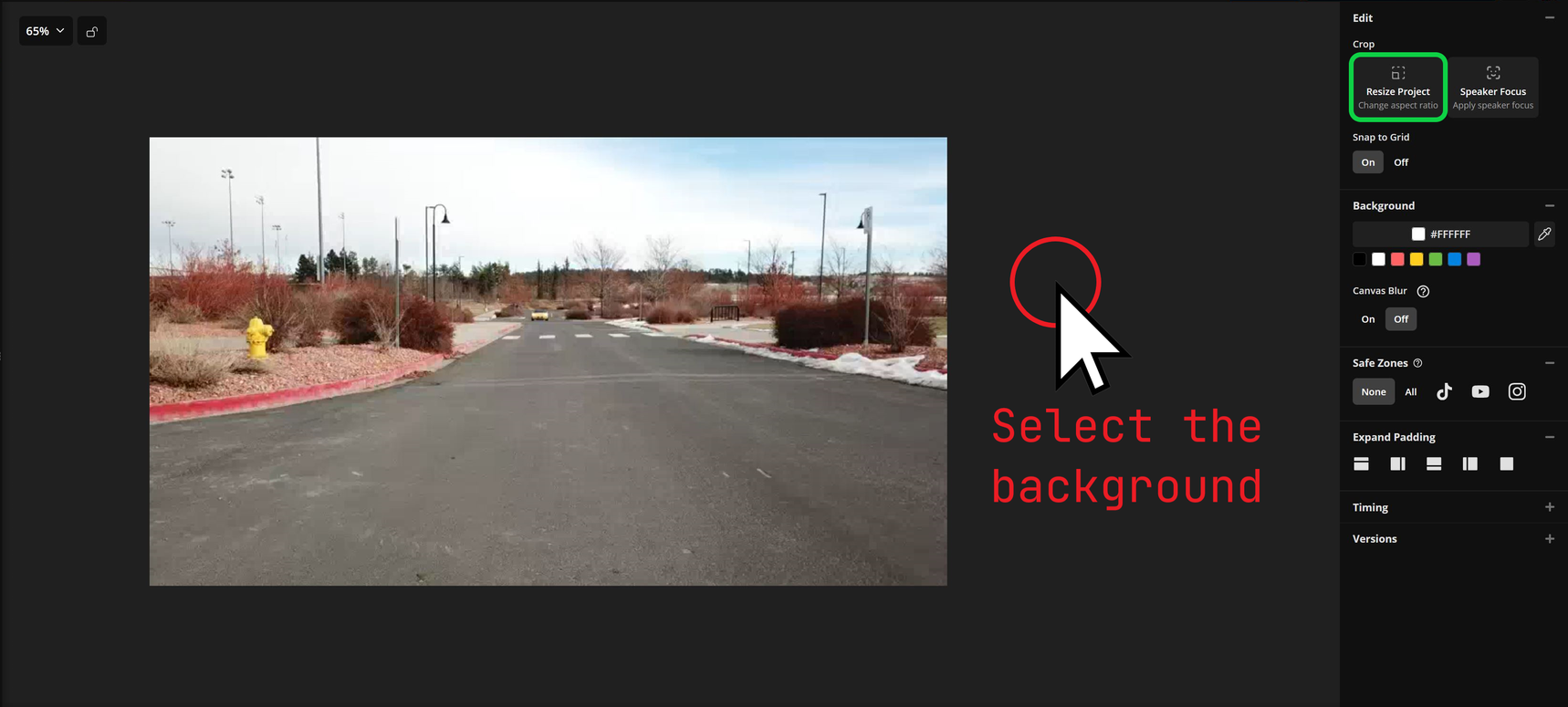
Kapwing makes it easy to resize images with over 15 preset aspect ratios or custom dimensions in just a few clicks. To resize an image, start by uploading it to the editor. Once uploaded, select the background of the image before choosing the Resize Project tool on the right-hand side.
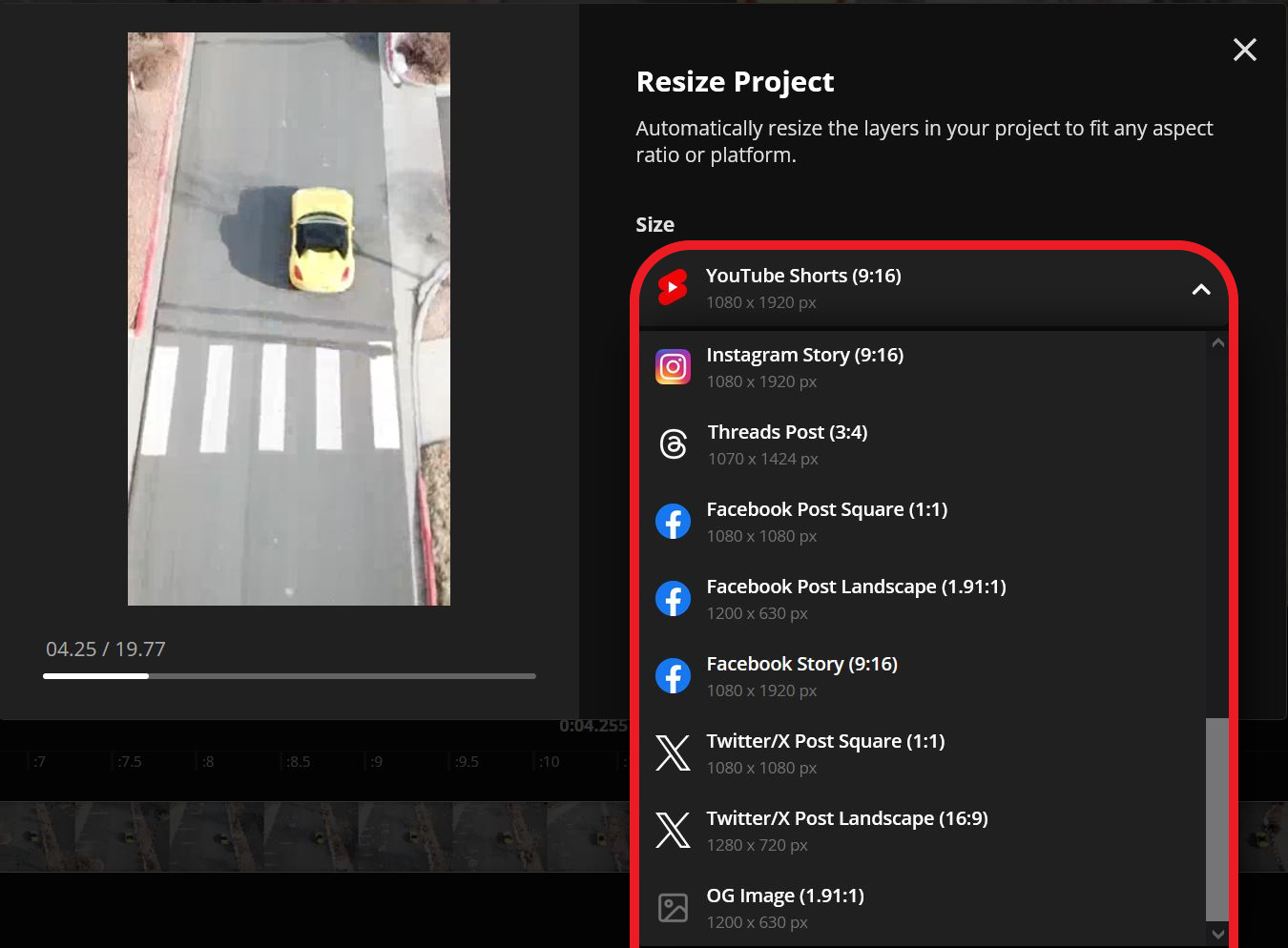
Then, either enter custom image dimensions or choose from the available preset aspect ratios to resize your image.
To ensure your image looks exactly how you want it to after resizing, double-click on it to adjust its crop within the frame. This allows you to control the framing while maintaining the new aspect ratio.
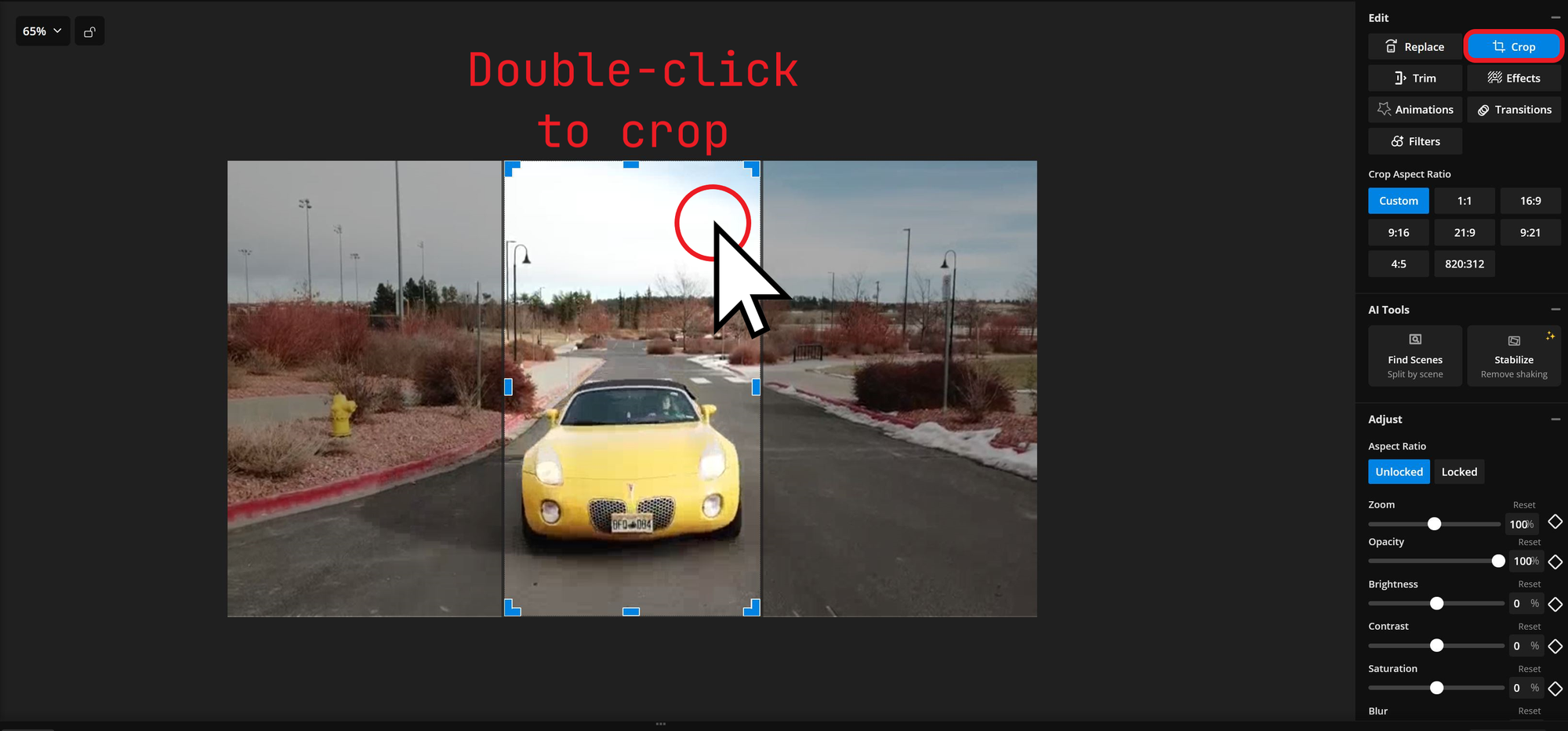
Once completed, your image is ready to be exported and used as a reference for a Wan 2.1 video generation.
You can also use a video resizing tool to adjust the aspect ratio of any video generated by Wan AI if you need a different format than the default options: 16:9, 9:16, 1:1, 4:3, and 3:4.
How to Edit Wan 3.0 Videos
Generating short AI video clips can be a great way to fill brief gaps in your content with relevant visuals. Many content creators also combine generated clips with real footage for a more dynamic result.
To edit your Wan AI videos online, open the Kapwing editor in your browser. Start a new project or make small adjustments to existing clips. Use the media sidebar to add videos, text, graphics, images, audio, or AI-powered features like automatic subtitles.
Easily arrange layers in the project timeline by dragging and dropping them into place.
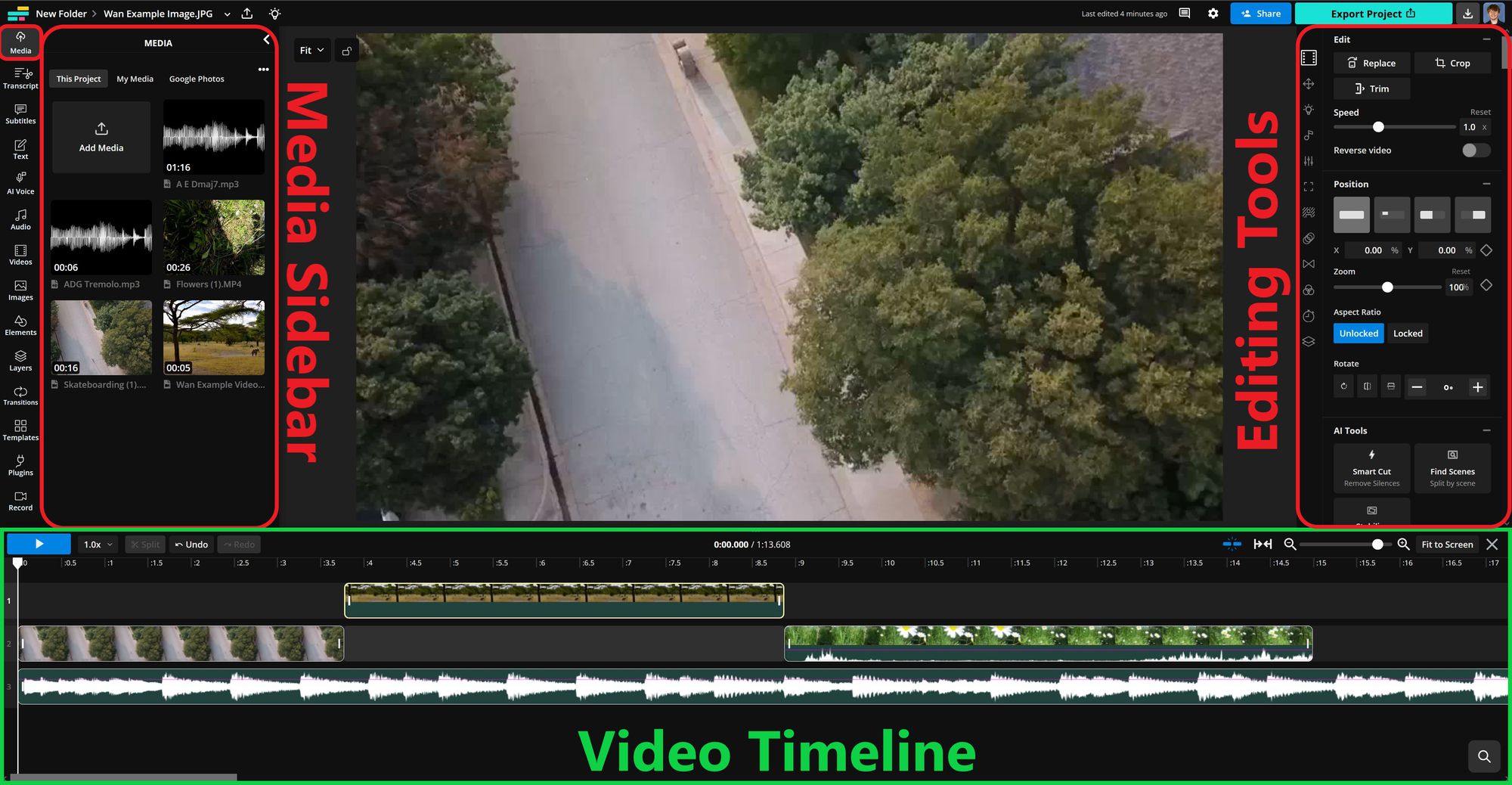
To streamline your editing process, here are a few key shortcuts:
- Spacebar: Play/Pause the video
- Ctrl/Cmd + A: Select all layers in the scene
- Ctrl/Cmd + Z: Undo | Ctrl/Cmd + Shift + Z (or Y on Windows) – Redo
- S: Split selected layers at the playhead
- H: Hide selected layers
- Backspace/Delete: Remove selected layer or gap
- Arrow Keys: Move layers (Up/Down to switch tracks, Left/Right to adjust position)
- Ctrl/Cmd + ] or [:Bring layer forward/backward in order
Beyond filling gaps in longer videos, many creators use AI-generated clips to create short promotional content like trailers or teasers. These are especially useful for podcasters, YouTubers, and social media managers looking to build anticipation for an upcoming release without revealing actual footage.
To create a video in this style using Kapwing, upload and arrange your clips in the editor. Then, add automatic narration by selecting the AI Voice tool from the left-hand sidebar.
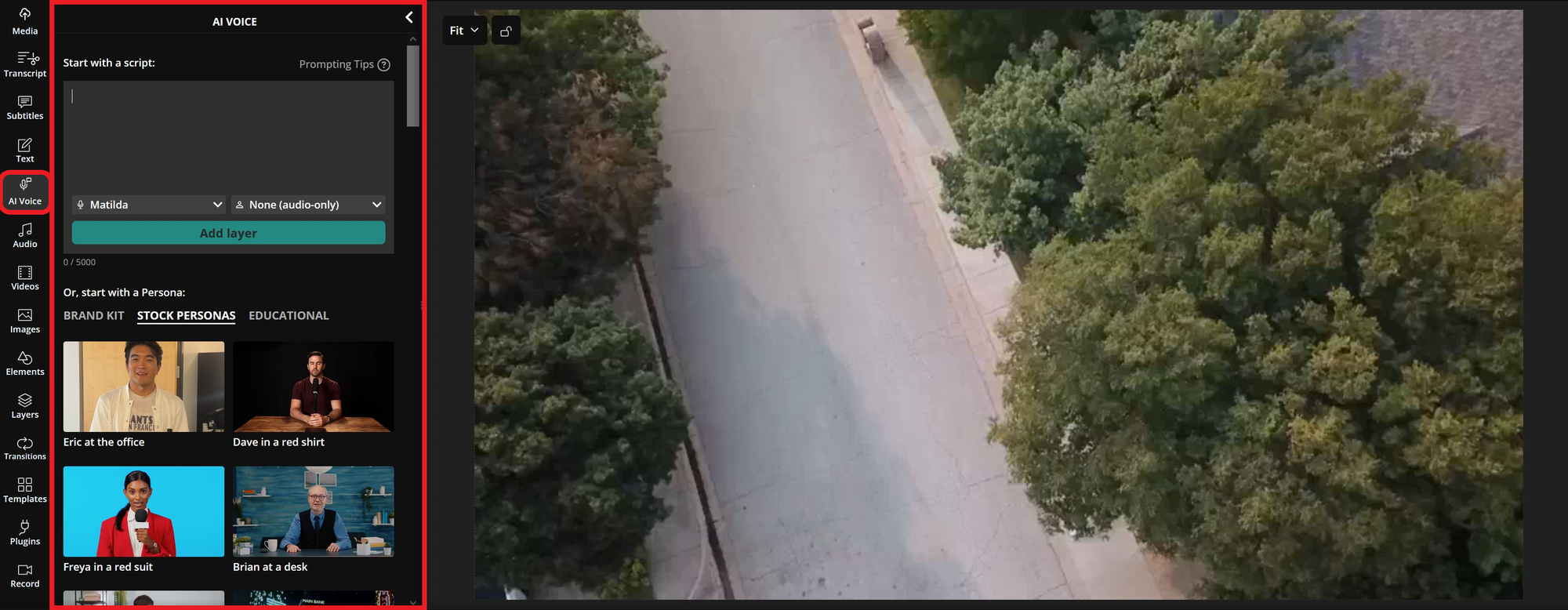
Enter or paste your script into the prompt box (up to 5,000 characters at a time). Once you've confirmed your script, selected a voice, and optionally chosen a persona, click Add Layer to generate the voice over.
Kapwing will automatically add subtitles that sync with the spoken content, giving your video a polished finish. To adjust the subtitles, use the editing menu on the right to change the font, size, color, border, and animations. If you need to modify the narration, reopen the AI Voice tool and update your script.
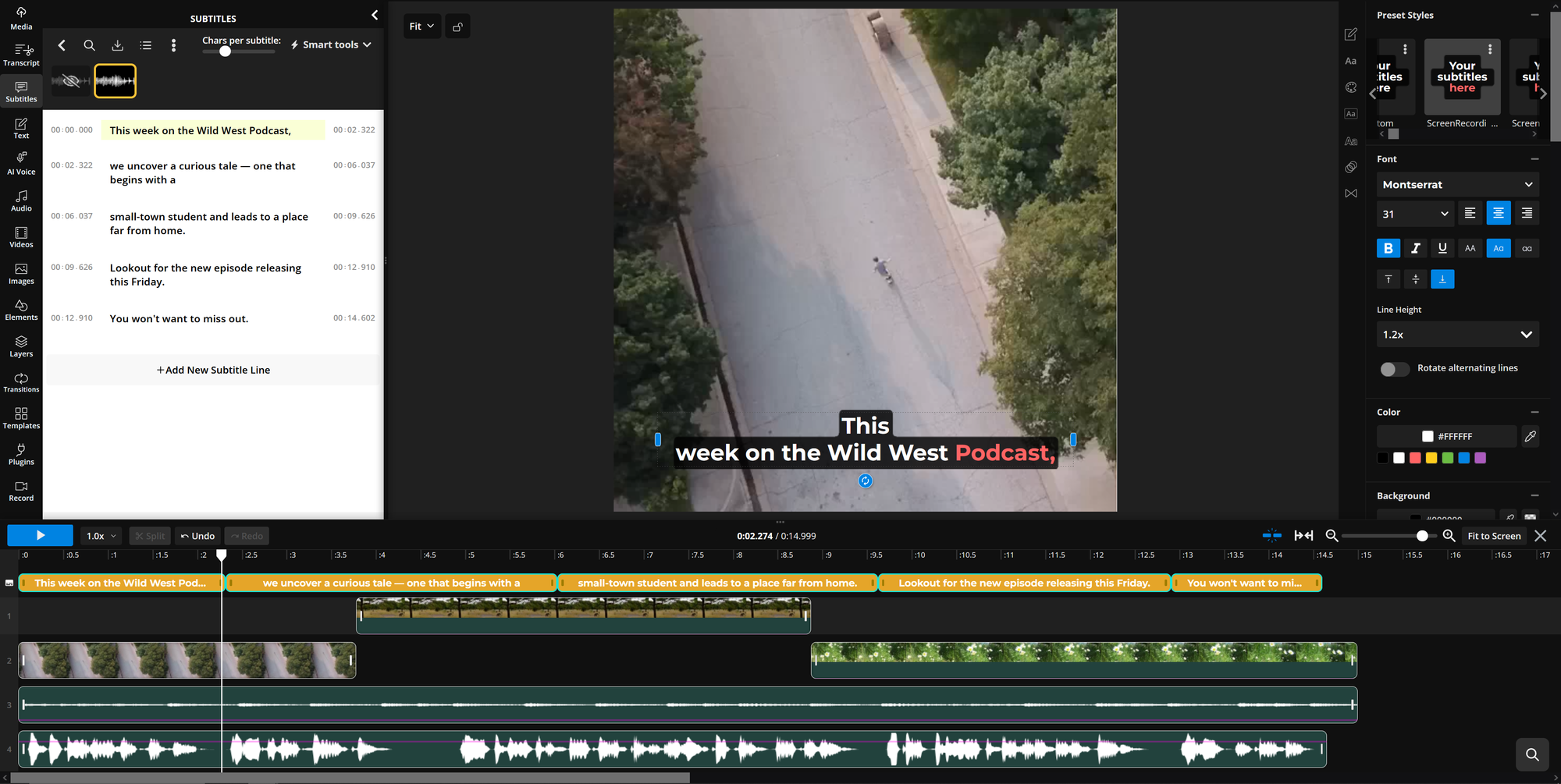
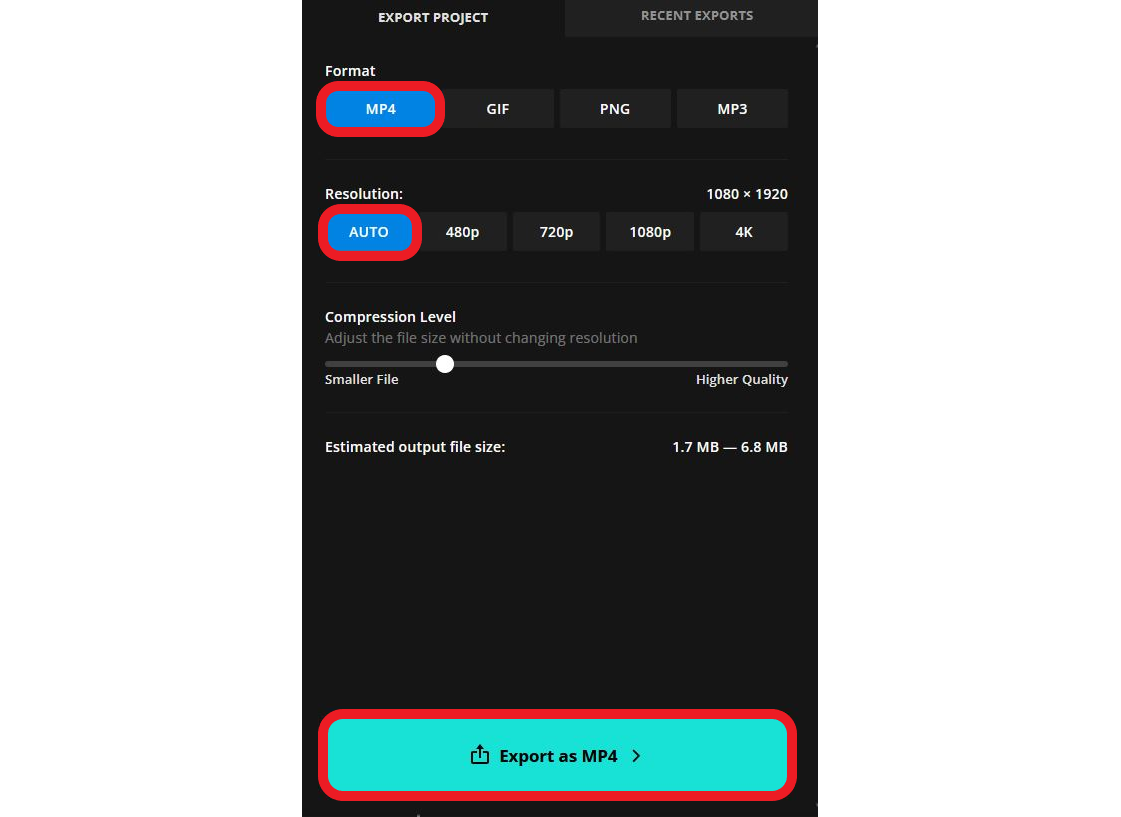
When you're finished, export your video by clicking Export in the top-right corner. For best compatibility, export as an MP4 and use the compression slider if you need to reduce file size.
The final video will be an effective promotional piece that integrates Wan AI-generated content into your production.
Example video trailer using a Wan AI generated video clip
Wan 3.0 Pricing
For enterprise users, Wan AI offers a customized pricing structure based on usage and support needs. To learn more about enterprise pricing, visit the official Wan AI enterprise website.
For individual users, Wan AI operates on a credit system. New users receive 50 credits upon creating an account, which is enough for five video generations. Each video, whether created from a text or image prompt, costs 10 credits.
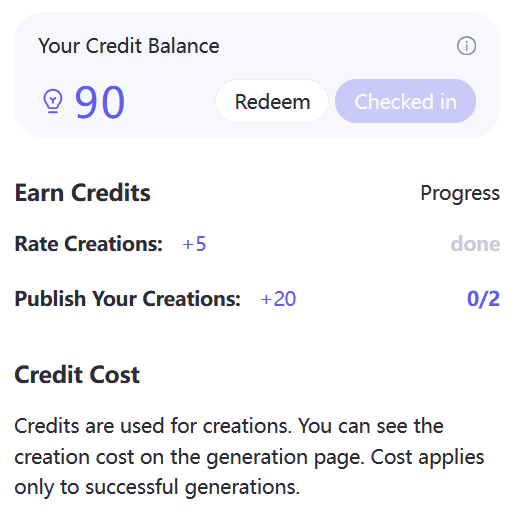
Currently, there is no option to purchase credits, but users can earn free credits through platform interactions:
- Daily Check-In: Clicking the Check In button once per day adds 50 credits.
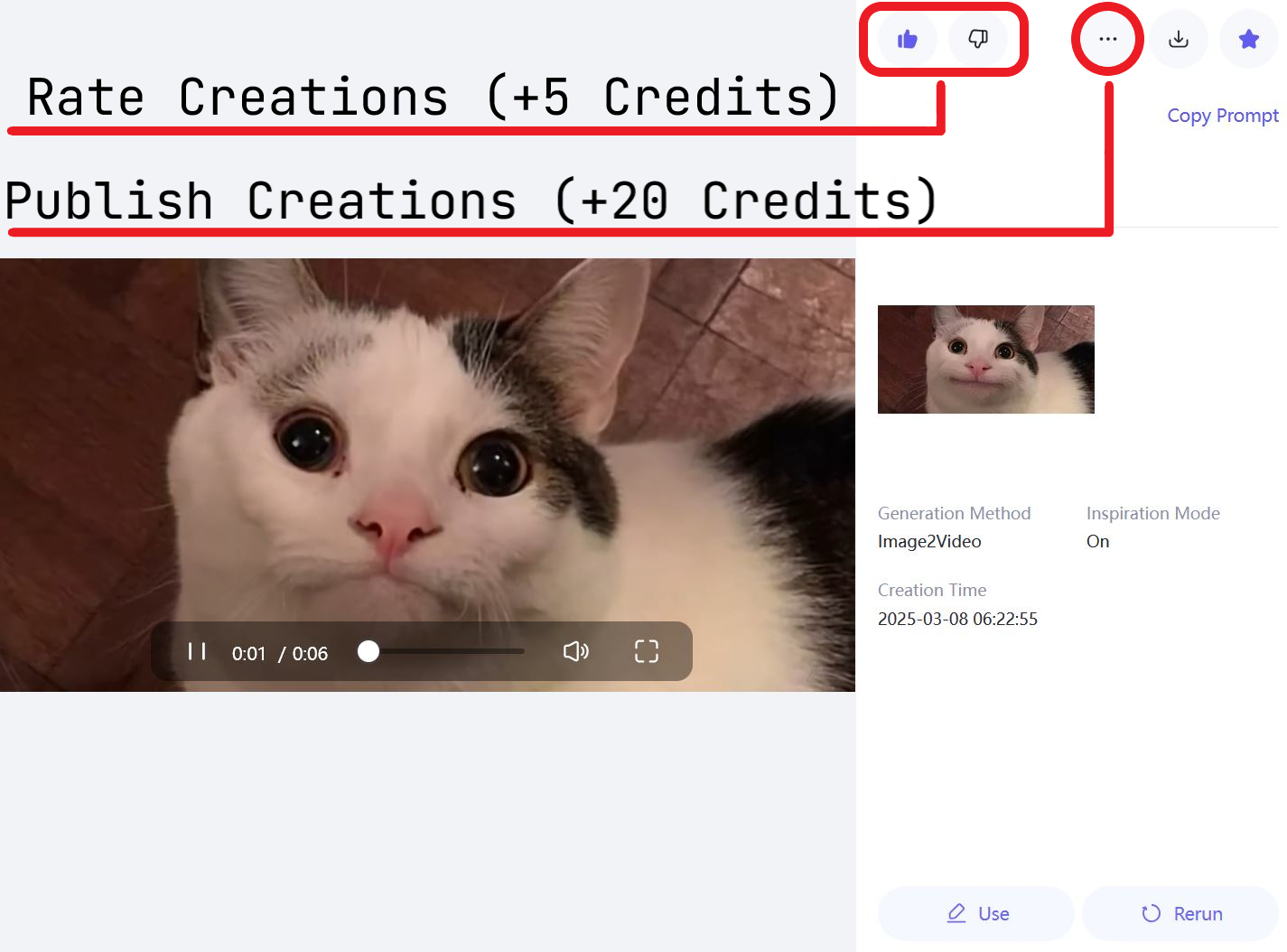
- Publishing Videos: Sharing a generated video earns 20 credits. To publish, select the three-dot icon in the video window and choose Publish from the menu.
- Providing Feedback: Rating a generated video with a thumbs-up or thumbs-down gives 5 credits, up to 10 credits per day.
At the moment, credits cannot be purchased, but a paid option may be introduced later to increase generation limits.
Frequently Asked Questions
Is Wan 3.0 free?
Wan may offer limited trial credits or free generations, but availability varies by account, region, and current promotion. Ongoing use generally requires a consumer subscription, credits, or paid Alibaba Cloud API usage.
How long can Wan 3.0 videos be?
Wan 3.0 supports native generations from 2 to 30 seconds. When a reference video is included, the input and output duration together cannot exceed 30 seconds in the Alibaba Cloud API.
Does Wan 3.0 generate audio?
Yes. Wan 3.0 can generate synchronized dialogue, background music, ambience, and sound effects with the video. Audio is enabled by default in the API but can be disabled.
Can Wan 3.0 use multiple reference images?
Yes. Wan 3.0 supports up to 10 reference images, as well as video and audio references. Alibaba describes the model as supporting up to 20 multimodal reference materials in total, subject to the limit for each file type.
Can Wan 3.0 edit an existing video?
Yes. You can instruct Wan 3.0 to add, remove, replace, or restyle elements; change lighting or dialogue; and extend footage forward or backward. For exact trimming, captions, layout, and multi-clip assembly, finish the result in a timeline-based video editor.
What is the best aspect ratio for Wan 3.0?
Use 9:16 for TikTok, Instagram Reels, and YouTube Shorts; 16:9 for YouTube and widescreen video; 1:1 for square social posts; or adaptive when you want Wan to preserve the aspect ratio of an input image or video.