How to Download Audio from Instagram
Nearly 79% of viral Reels use trending audio—making sound one of the best tools for creators to boost reach

You’ve found a trending audio on Instagram and want to use it in your own videos, but you’re not sure how to extract it. Whether you’re looking to save music from a Reel, download Instagram sounds, or reuse background tracks in your own content, there are simple ways to do it.
In this article, we’ll show you how to save or download audio from Instagram for your own use, starting with Instagram’s built-in features, then exploring online video conversion, audio extraction, and vocal splitting tools.
Table of Contents
- How to Download Instagram Audio as MP3 (Step-by-Step)
- How to Split and Isolate Audio from Instagram Reels
- How to Save Audio on Instagram
How To Download Instagram Audio as MP3 (Step-by-Step)
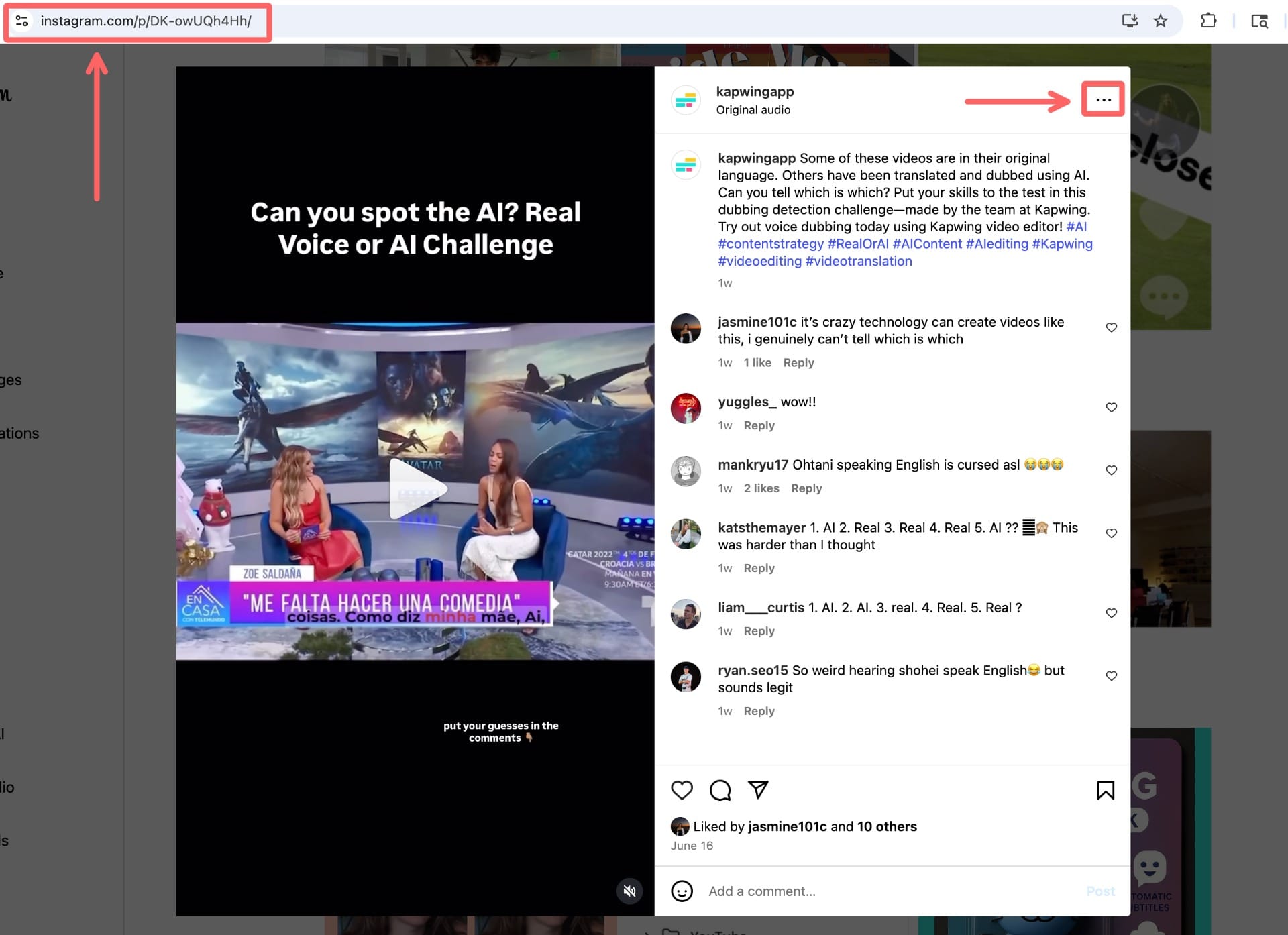
Step 1: Open Instagram and Copy the Video Link
First, open Instagram and find the video you want to extract the audio from. Then, click the "Share" icon and select "Copy Link" to copy the video link to your clipboard.

If you're on a computer, you can either click on the three dots icon at the top of the Instagram post or copy the link to the video from the URL bar in your browser.
Step 2: Paste the Video Link into the Editor
Go to Kapwing.com in your browser and click “Start editing” to open the video editor, or use their Video Conversion Tool and click "Start converting."

Upload your Instagram video by pasting the video URL into the editor.
In the video editor, paste your URL link into the box to upload the video into Kapwing.
Your Instagram video will automatically populate the timeline below. If you want to trim your video file to make it shorter, you drag either end of the file.
Step 3: Export as MP3 and Download
Once your video file is uploaded, you can download it by clicking “Export Project”. Change your project format to MP3, and confirm by selecting “Export as MP3”.
After you export, you’ll be notified via email when your content has finished converting into an MP3 audio file. You can also export the MP3 as a smaller file size, making it easier to share via email or across messenger platforms.
Export your Instagram video by selecting Export Project and choosing MP3 format.
How to Isolate or Remove Audio Tracks from Instagram Reels
If you want to isolate vocals, remove background music, or extract clean audio from a reel, a Split Audio tool can help you do exactly that. This is especially useful if you’re planning to remix a Reel, add your own vocals, or customize the audio for a new video.
Here’s How to Split Audio:
- Paste your Instagram link into Kapwing.com and let the video load into the Studio.
- Click on the video or audio layer in the editing timeline.
- In the toolbar, scroll to the Audio section.
- Click “Split Audio” to automatically separate vocals and background music.

Using this tool, you can mute Instagram background audio, emphasize speech, or swap in your own music. This gives you more control then simply trimming or detaching the sound, perfect for creators who want to elevate their content with custom audio edits.
How to Save Audio on Instagram
If you just want to reuse a sound within Instagram, the easiest option is to save it using Instagram’s built-in features. This is helpful if you’re planning to make a Reel using the same audio but don’t need to download the file for external use.
Steps to Save Instagram Audio:
- Find the Reel with the audio you want.
- Tap the audio icon at the bottom of the screen — this opens the audio page.
- Tap the bookmark icon to bookmark it to your Instagram account.

To Access Your Saved Sounds:
Go to your profile → tap the menu (☰) → tap “Saved” → select “Audio”.
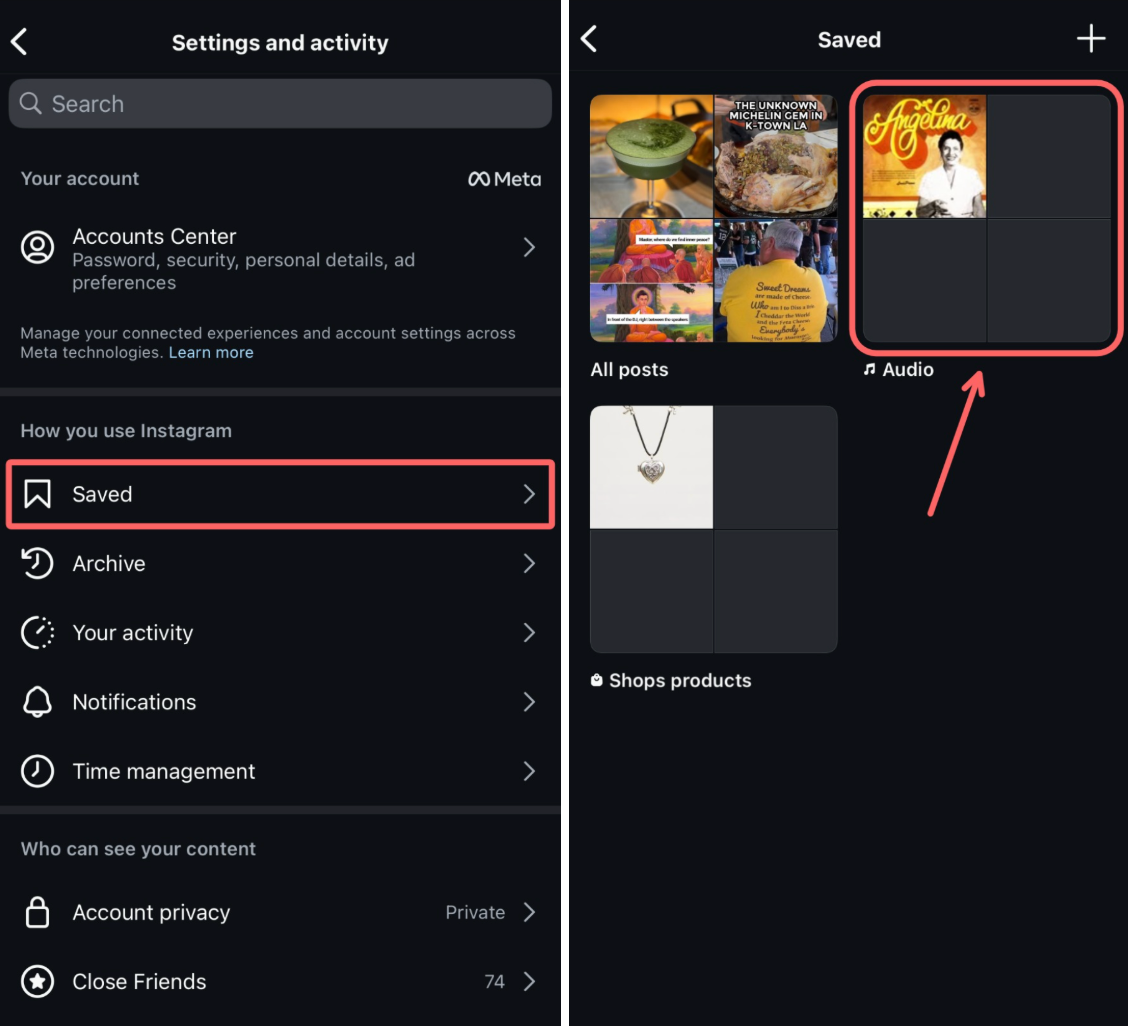
Saved audio stays linked to the original creator and can be reused in your own Instagram Reels, but it won’t be downloadable outside the app. If you want to use the sound in external projects, you’ll need to extract audio from Instagram as an MP3, covered in the next section.