
Kapwing vs Canva: Comparison for Video Creators in 2026
A hands-on comparison of two leading AI creative tools.
Kapwing and Canva are two of the most popular browser-based creative tools in 2026. They both let you edit videos online, add text and captions, use templates, and resize content for different platforms. They also both include AI-powered features to speed up content creation.
While there’s definitely lots of overlap, they’re built for different types of workflows. Canva is best known as an all-in-one design platform for graphics, presentations, brand kits, social posts, and template-based videos. Kapwing is more focused on video production, with tools for editing, AI video generation, subtitles, translation, repurposing, and collaboration.
In this comparison, we’ll look at Kapwing and Canva across the areas that matter most to modern creators, including video editing, AI tools, subtitles, translation, templates, collaboration, and social media workflows. By the end, you’ll have a clear understanding of where each platform excels and which tool is the better fit for your content strategy.
Table of Contents
- What's the Difference Between Kapwing and Canva?
- Kapwing vs Canva: Video Editing Features
- Kapwing vs Canva: AI Tools and Automation
- Kapwing vs Canva: Templates, Effects, and Social Media Workflows
- Kapwing vs Canva: Which Is Better for Different Types of Creators?
- Frequently Asked Questions
What's the Difference Between Kapwing and Canva?
Canva is a design platform with video editing tools, while Kapwing is a video-first platform with design and AI tools.
Canva is stronger when you need to create many types of visual assets in one place, such as graphics, presentations, posters, and marketing assets. Kapwing is stronger when the project is video-editing centered, focusing on workflows such as video clipping, translation, resizing, and collaboration.
Which creative tool fits your workflow?
A quick comparison, updated for 2026.
| Category | Kapwing | Canva |
|---|---|---|
| Video Editing | ★★★ | ★★ |
| Design Templates | ★★ | ★★★ |
| Auto-Subtitles | ★★★ | ★ |
| Translation | ★★★ | ★★ |
| AI Video Tools | ★★★ | ★★ |
| Content Repurposing | ★★★ | ★★ |
| Team Collaboration | ★★★ | ★★★ |
Kapwing vs Canva: Video Editing Features
Both Kapwing and Canva offer browser-based video editors, but in my experience they’re built for very different kinds of editing.
When I used Kapwing, it felt much more like a true video editing workspace. The studio is centered on a timeline-based editing workflow. This makes it easier to work with longer videos and manage complex transition or video effects. What stood out to me most was how easy it was, even while supporting more advanced workflows like keyframes.
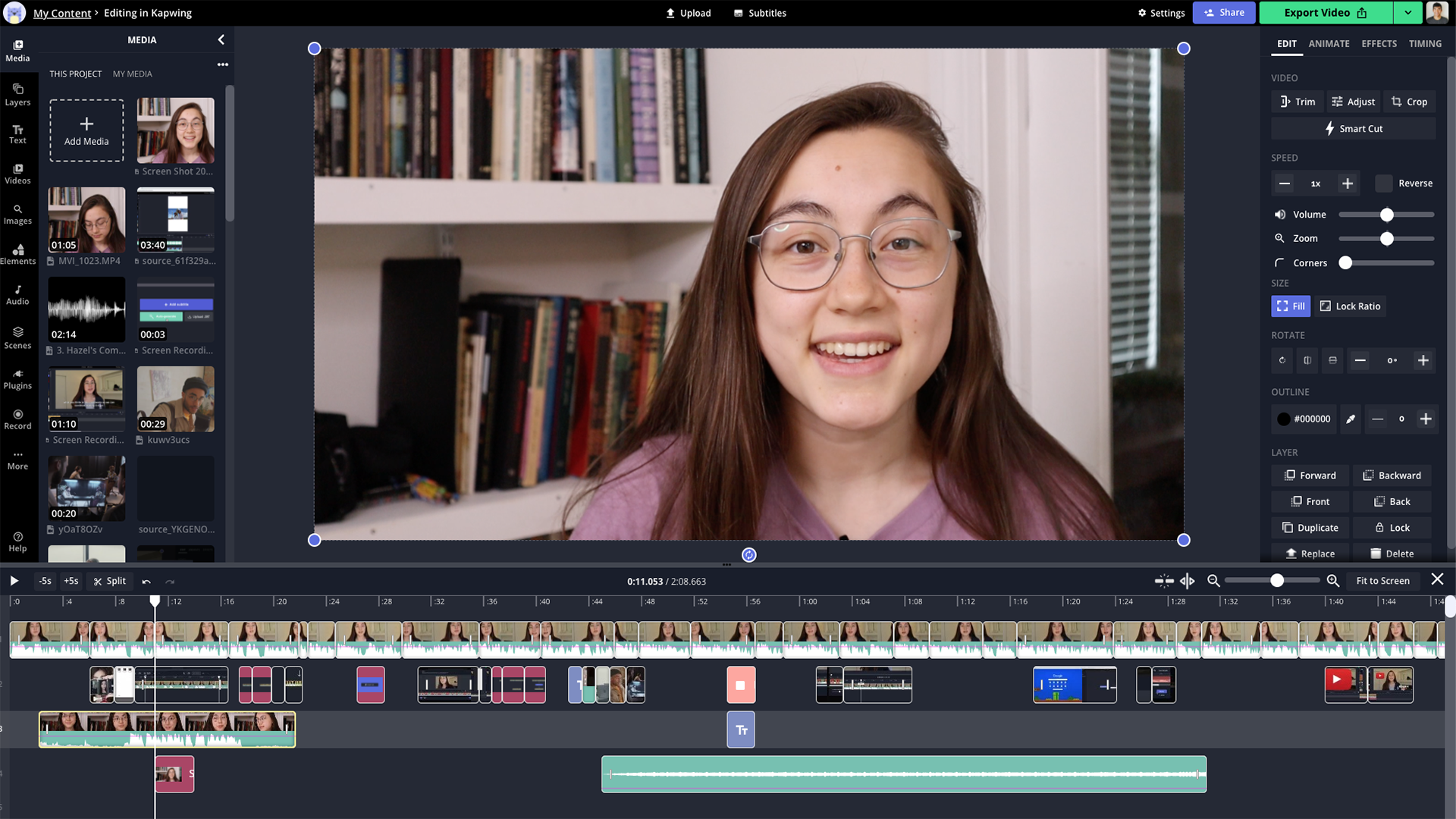
The interface is definitely considerate towards beginner content creators. For example, they have built-in safe zone templates for different social platforms. Before discovering this feature, I never even considered the different sizing and framing restrictions for each platform.
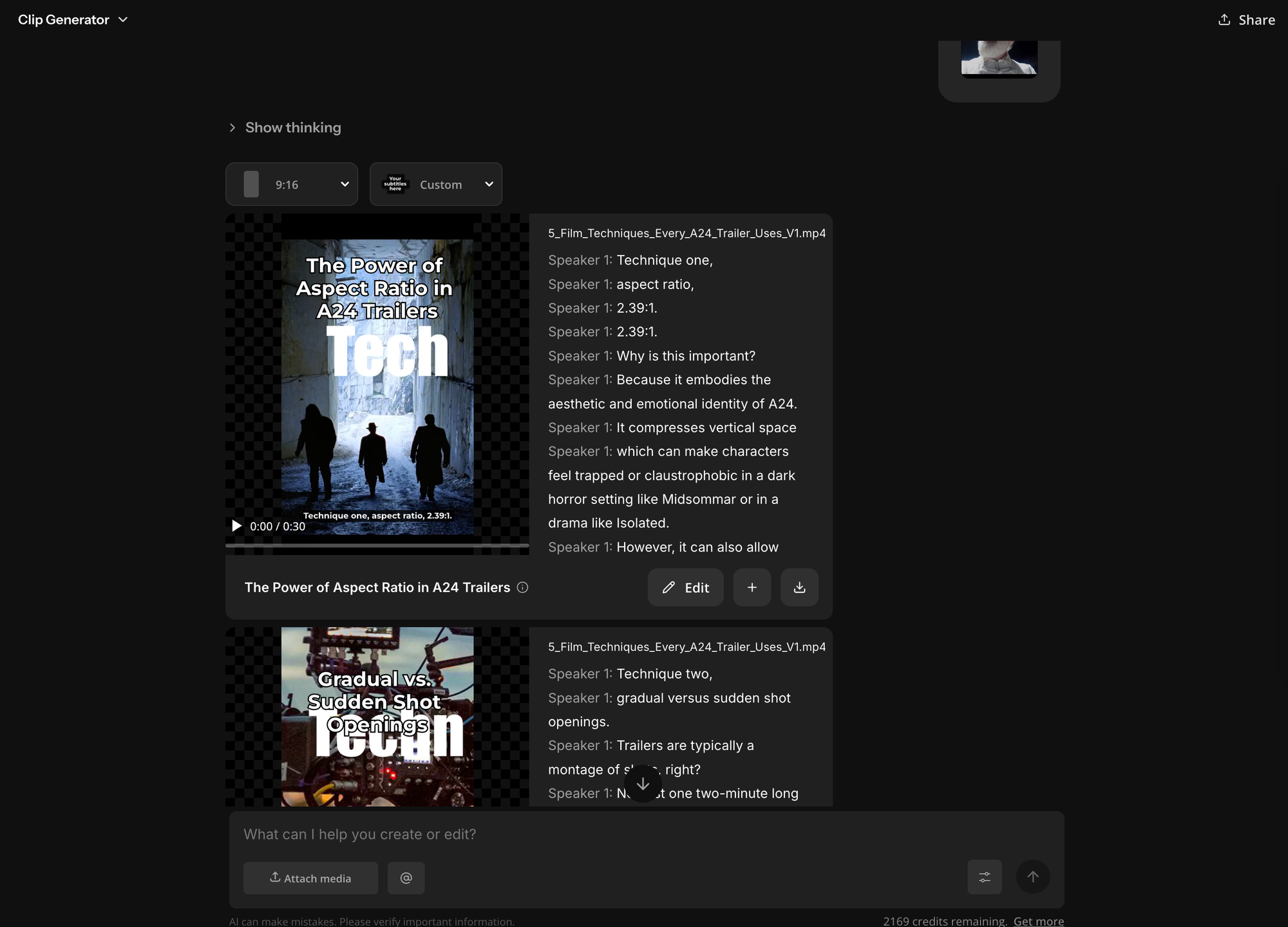
One of my favorite workflows was the Clip Generator, which allows you to repurpose longer videos into short clips.
I tried uploading a long podcast and it automatically identify 3 key moments, generated short clips, and formatted them with the relevant visuals and subtitles. Instead of manually scrubbing through the timeline, I could quickly review and edit the suggested clips.
At the same time, Kapwing isn’t as strong for design-heavy projects. While there are plenty of templates to get started quickly, it’s harder to build something fully from scratch.
There also aren’t as many individual design assets, fonts, or layout options compared to a tool which is built specifically for graphic design.
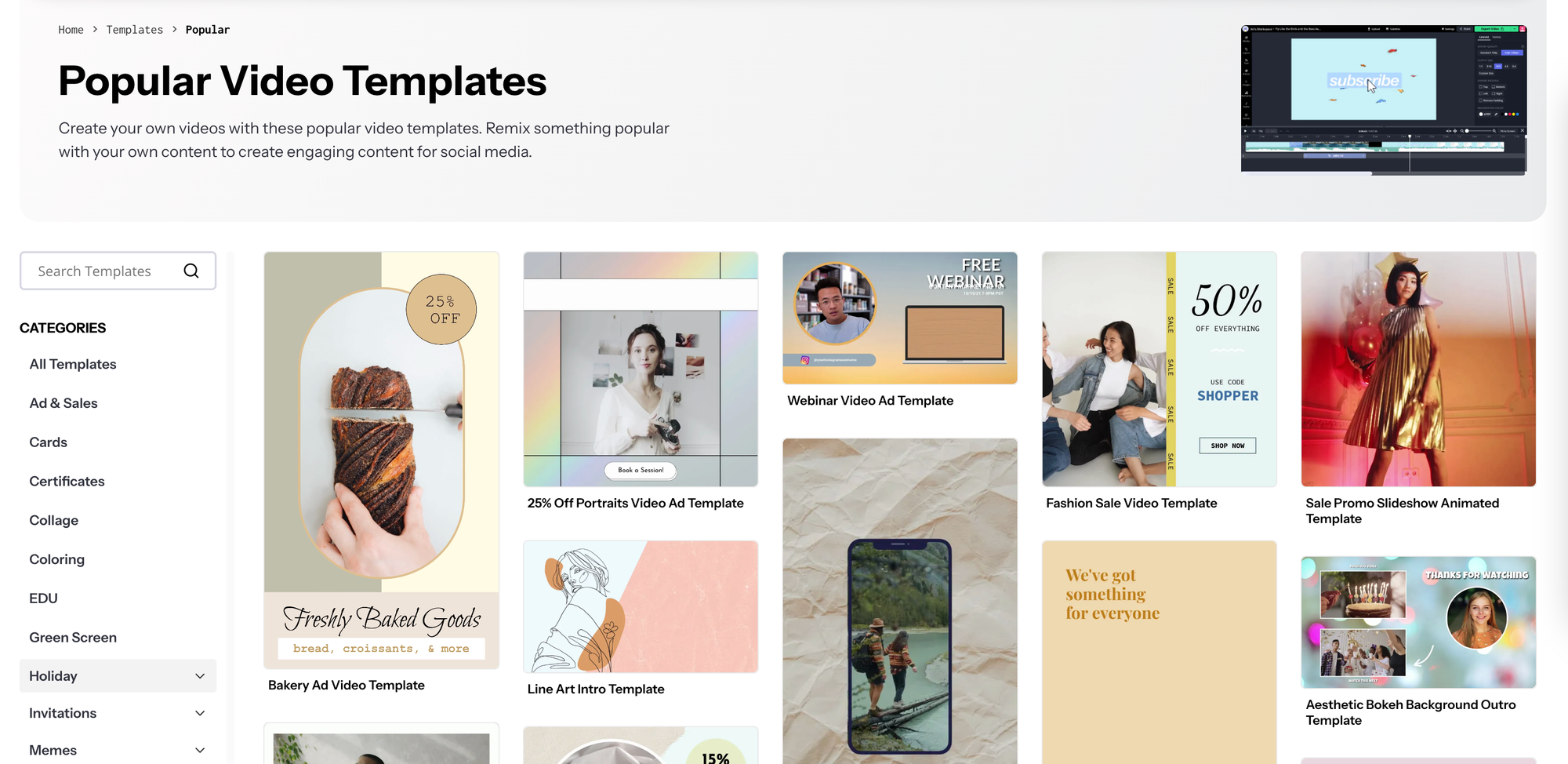
On the other hand, when I used Canva, I found that it worked the best for drag-and-drop video templates.
If you’re already working in a Canva template that has text and graphic elements, adding a video in is seamless. It's easy to adjust the masking shape, add music, and change the color palette without thinking too much about editing mechanics.
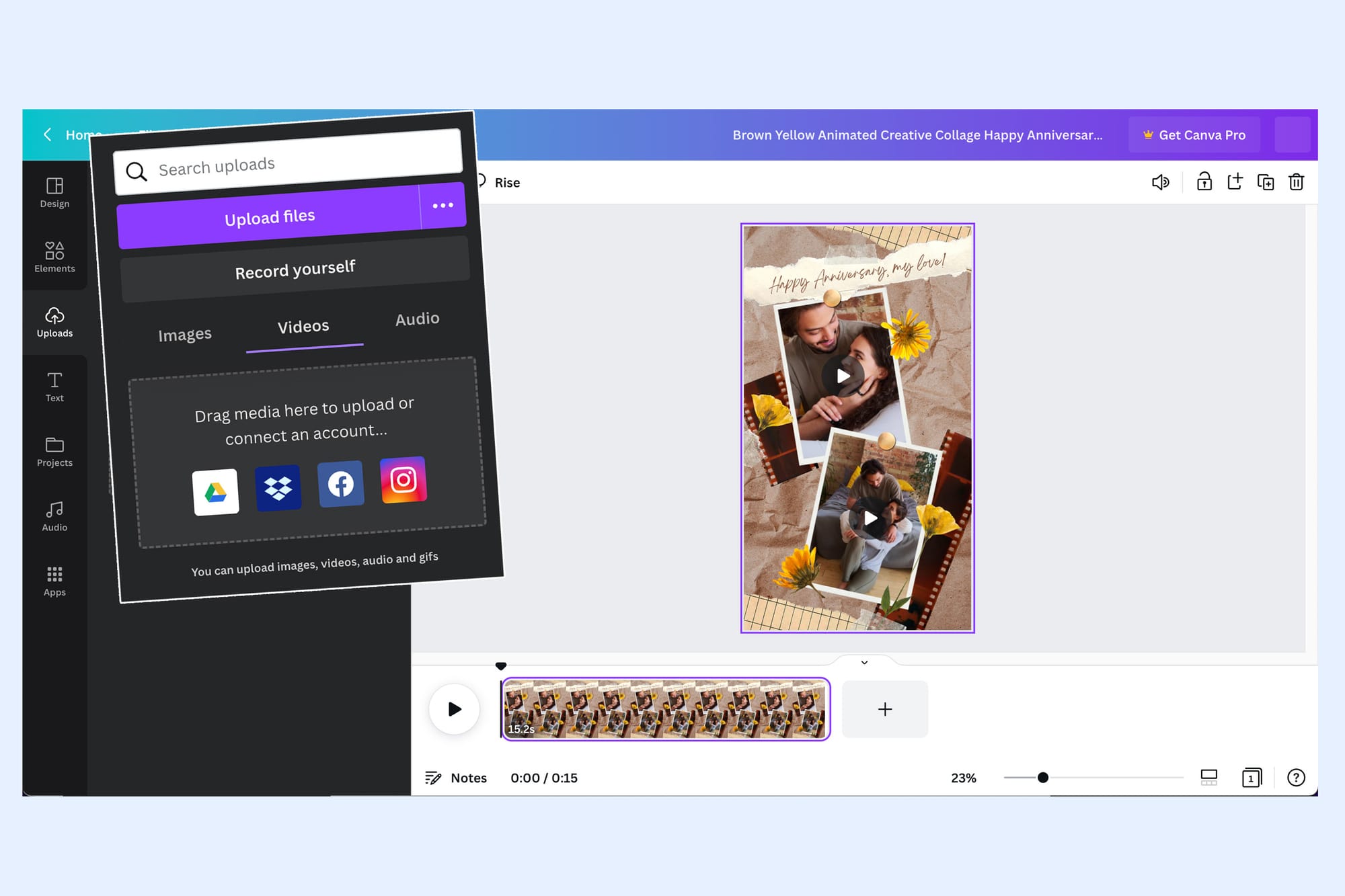
This is most useful for social media content that isn’t primarily video or is heavily template-driven. For example, a YouTube intro, a branded promo, or an Instagram carousel that incorporates short video clips.
Canva’s strength here is its extensive library of templates, fonts, and design elements, which makes it easy to create polished, visually cohesive content quickly.
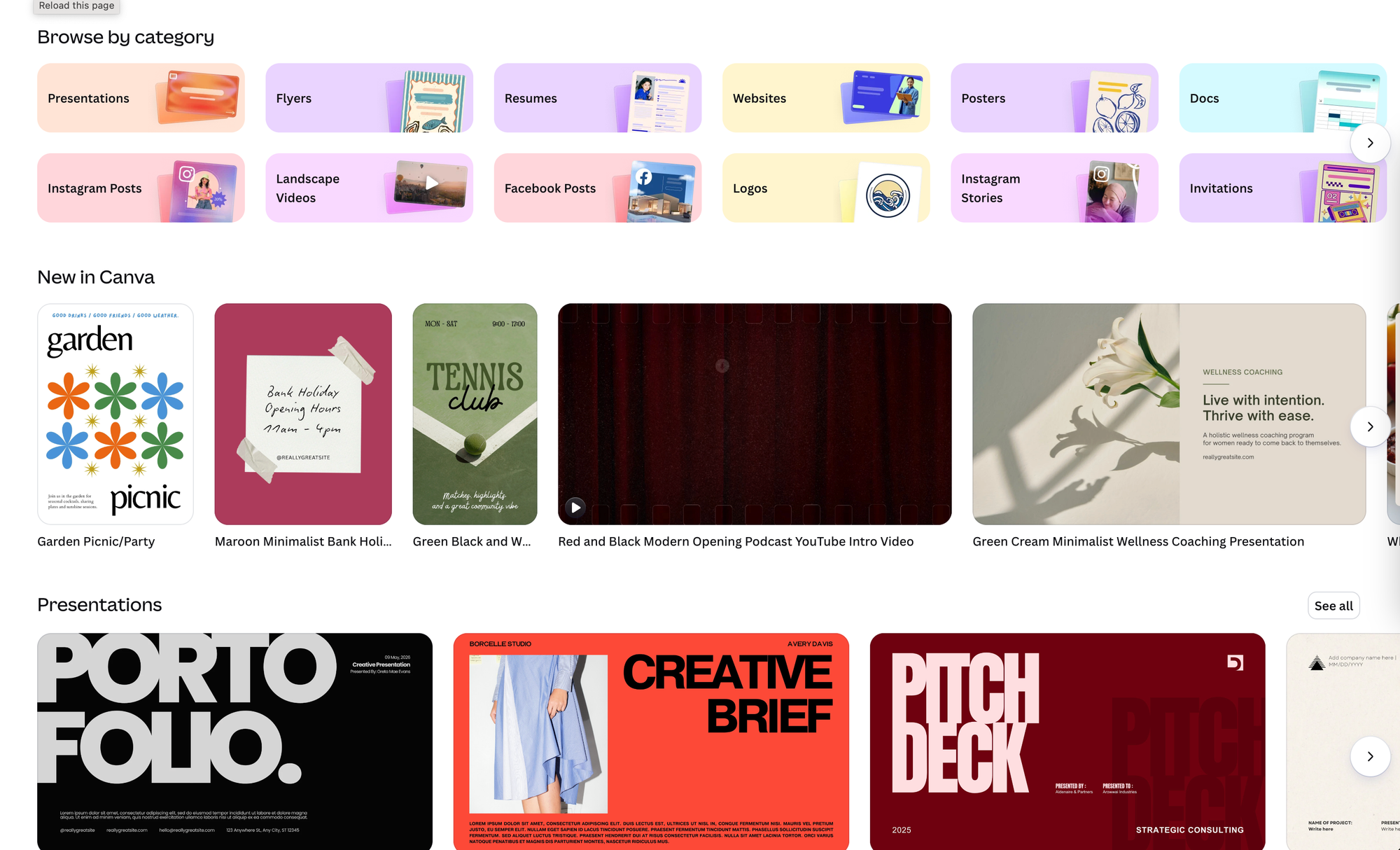
That said, I didn’t find Canva as strong for more traditional video editing tasks. For example, Canva also doesn’t offer a true keyframe tool, which makes it harder to create more advanced video animations. It does have a similar “Match and Move” feature, but it’s more constrained and less precise than full keyframe control. Furthermore, video effects like transitions are a bit limited, and much less flexible than a dedicated editor.
Kapwing vs Canva: AI Tools and Automation
Both Kapwing and Canva have added lots of AI tools to make it easier for creators, but their AI features still reflect their broader product strengths.
Kapwing’s AI tools are more focused on video production, but it’s more helpful to think of them as an AI video editing assistant rather than just a video generator. While it can create clips from prompts or scripts, its main strength is that everything it generates stays fully editable and can be added directly into a larger project timeline. You can trim, layer, resize, caption, and combine AI-generated clips with existing footage without leaving the editor.
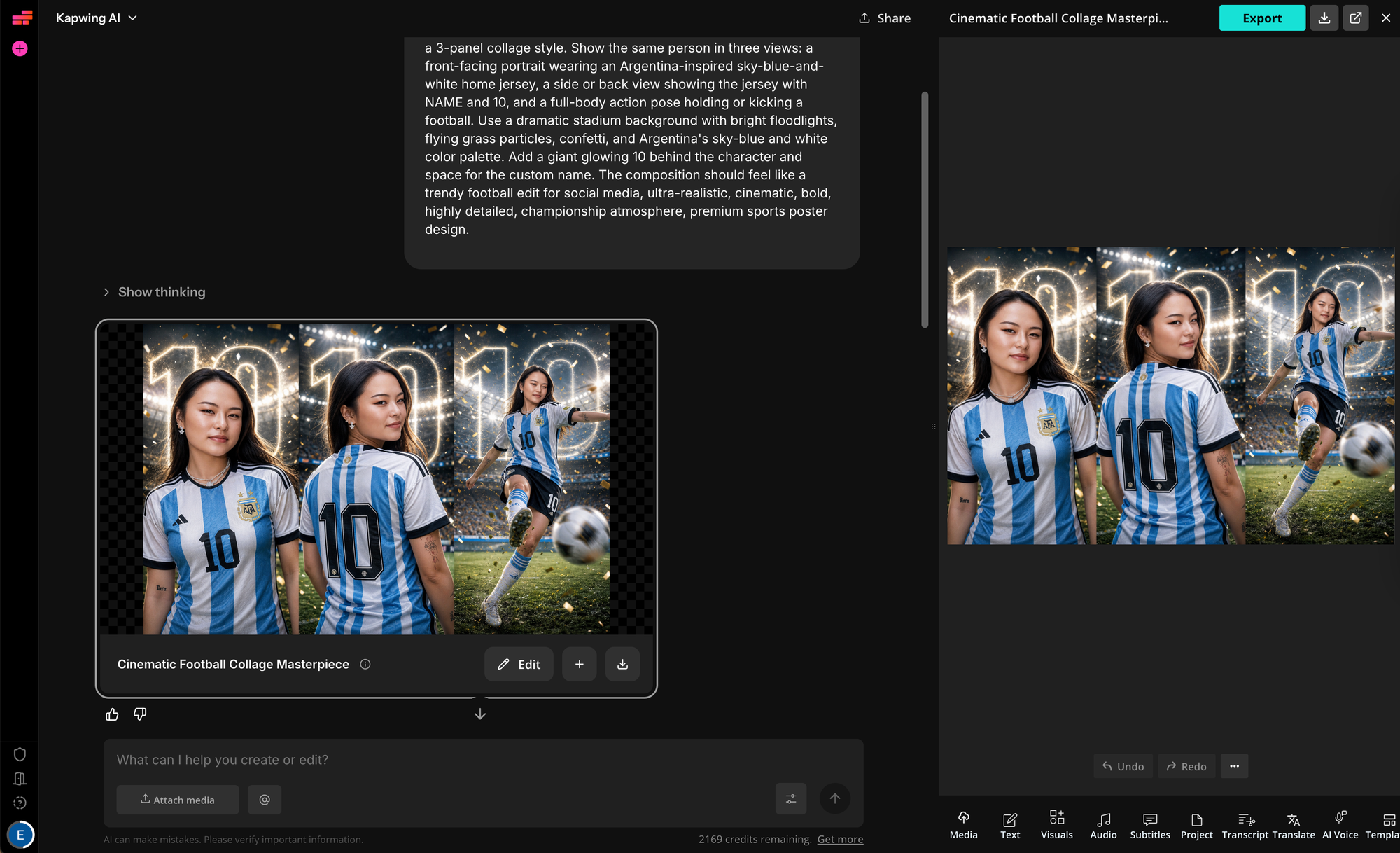
For example, one of the most effective use cases I’ve found is generating B-roll for a product video. Instead of stopping what I’m doing, switching tools, and then coming back, I can keep my main timeline open, generate supporting clips on the side, and immediately see what’s missing or what needs to be filled in.
I’ll often play through the video, spot a gap where visuals feel thin, and generate something on the fly to test how it fits. That split workflow—editing while generating—makes it much easier for me to build out a complete video rather than dealing with a bunch of isolated clips that I have to piece together later.
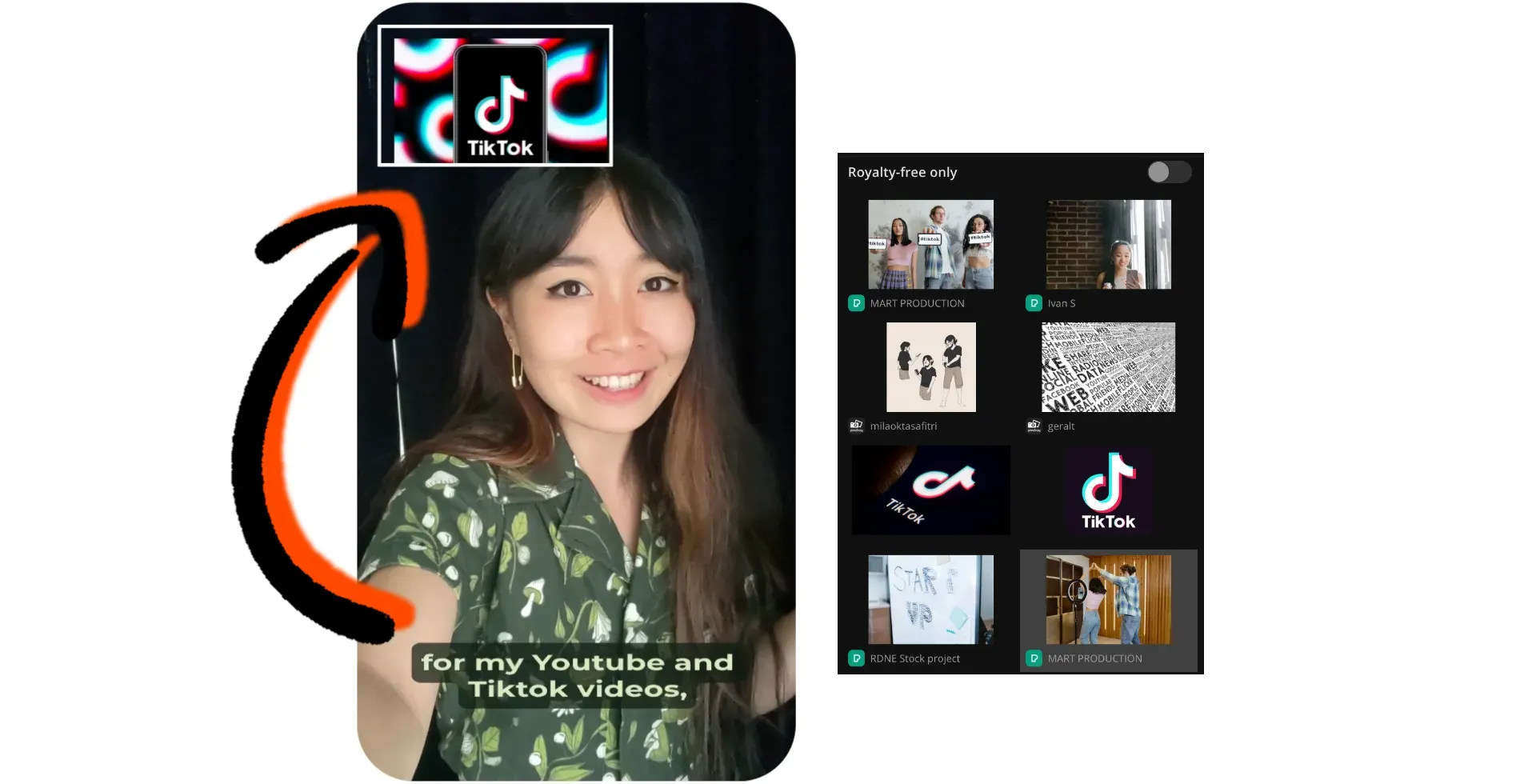
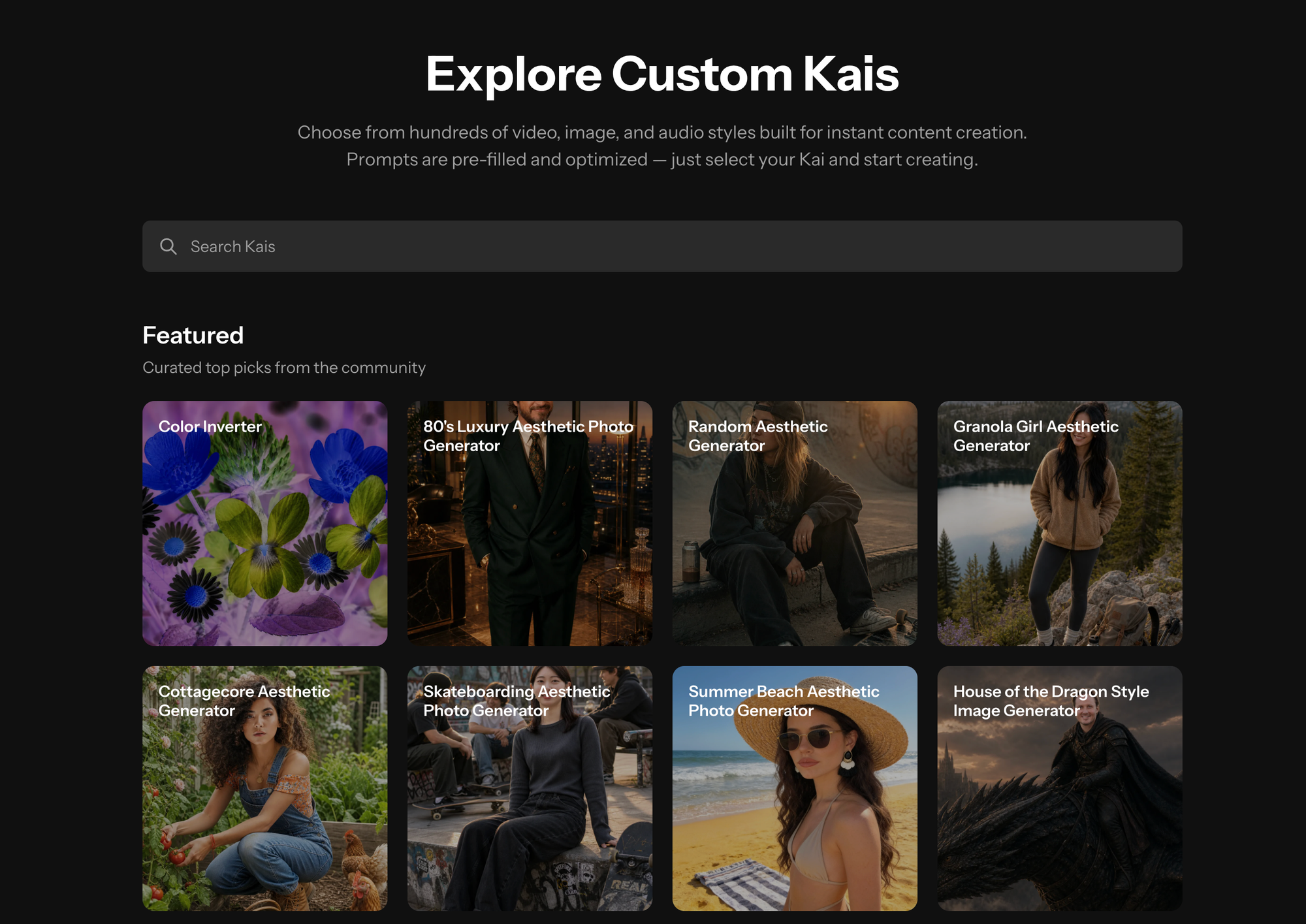
Custom KAI’s are another one of Kapwing’s most useful AI features. A custom KAI is an AI generator with specific instructions that it follows. For example, you could create one that turns any uploaded photo into a polaroid. Kapwing already has a library of over 500 KAI’s, but you can also create your own.
What I like most about custom KAIs is how easily they handle repeat creative workflows, especially when you’re working within a defined aesthetic—like a photoshoot or marketing campaign. Instead of repeating prompts, which can lead to incoherent outputs, I can run a KAI and generate content that stays true to a specific look and feel.
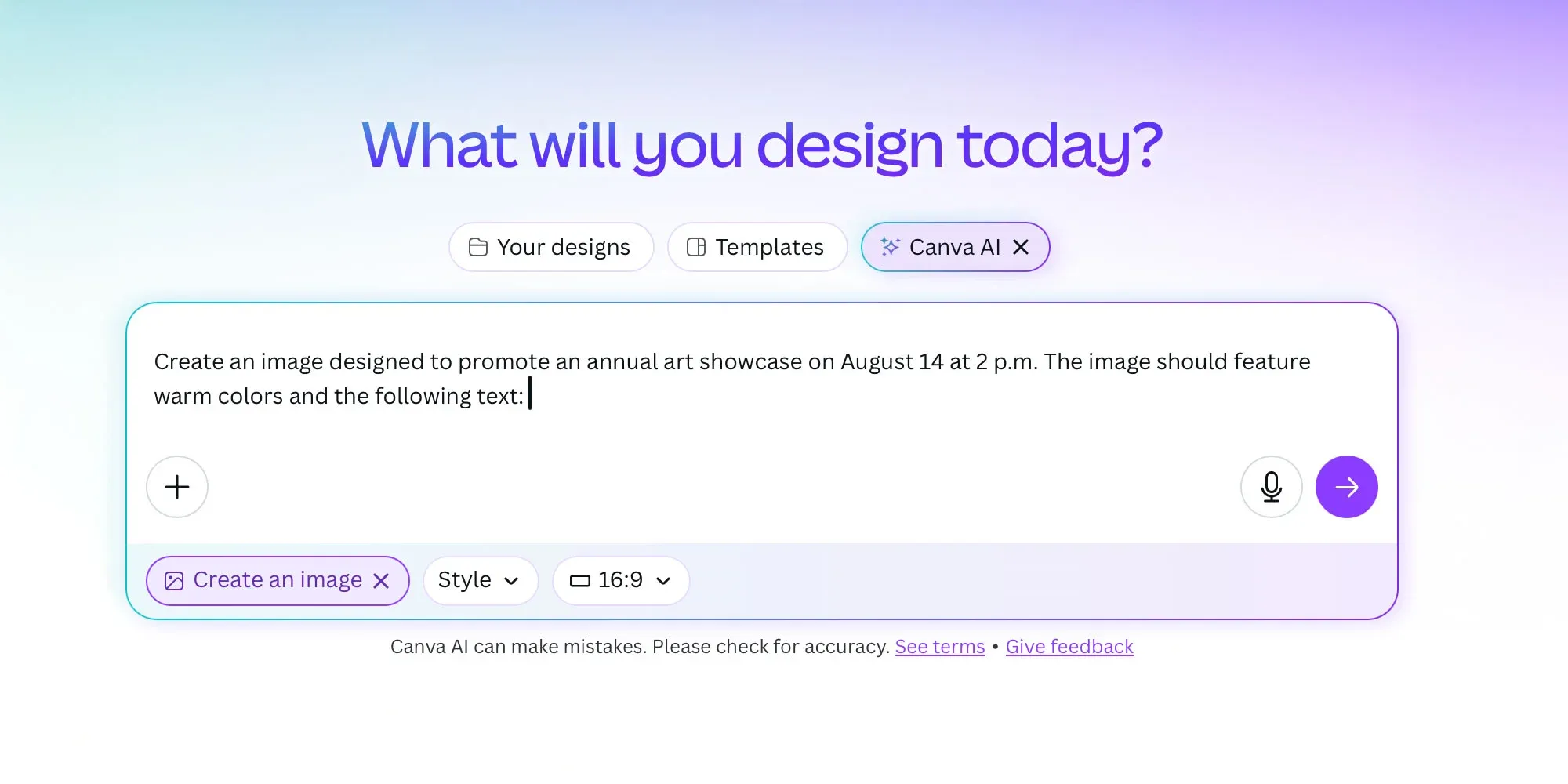
Canva’s AI tools are design-first, supporting things like layout generation and brand consistency to content creation across formats like social posts, presentations, documents, and video.
These tools are designed to reduce manual design work while maintaining a polished, on-brand look, and in practice, they do a good job of getting you 70–80% of the way there. In my testing, I tried generating a few Instagram posts from prompts, and Canva produced usable designs instantly. I experimented with resizing those designs for different platforms, which saved a lot of time.
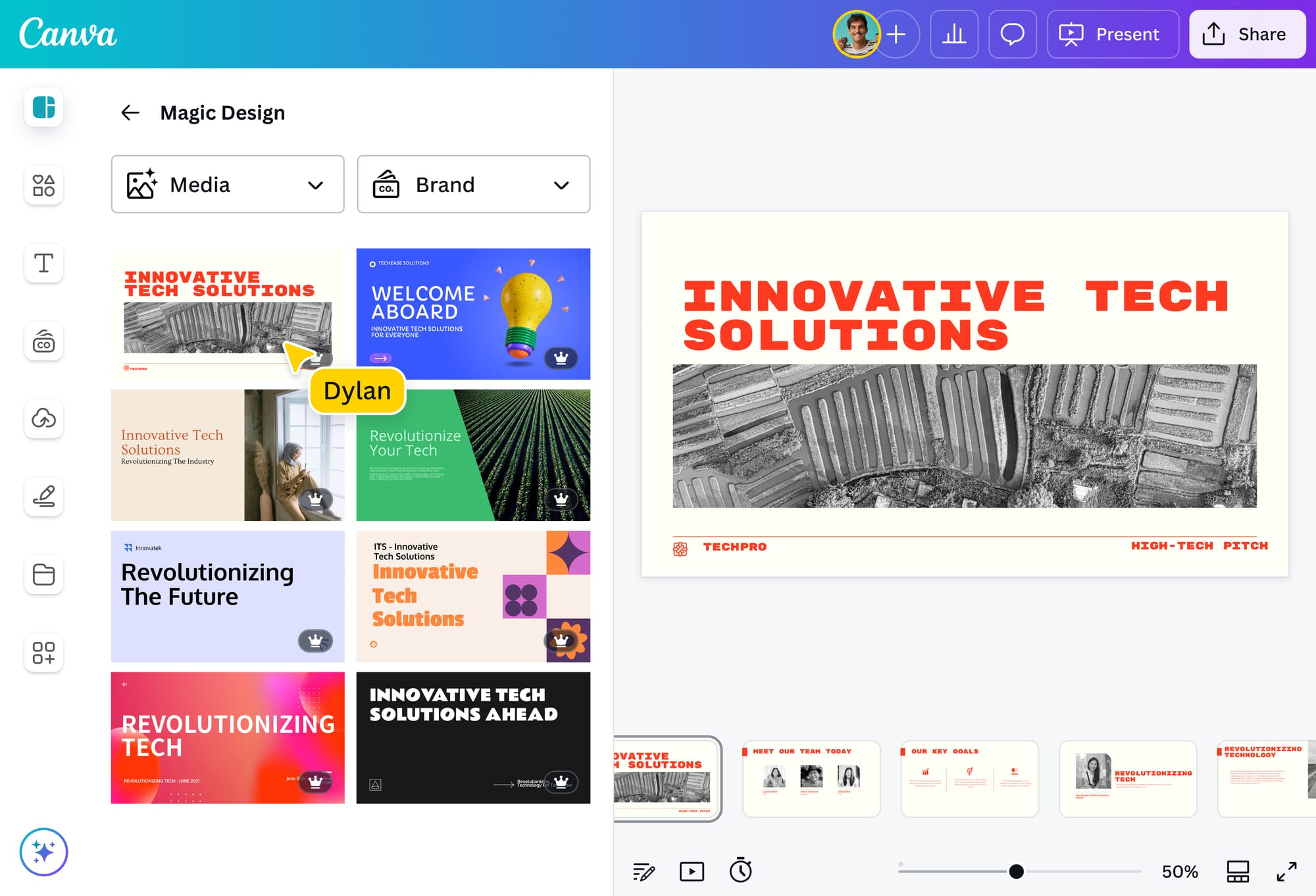
Two especially useful features here are brand kits and AI-generated presentation slides. In my experience, brand kits have been a huge time-saver because I can store my fonts, colors, logos, and styles in one place, then automatically apply them across any design.
The AI presentation feature is also surprisingly helpful. I’ve used it to start with a simple outline or prompt, and Canva generates a full set of slides with layouts, visuals, and text already in place. It’s not perfect, but it gives me a strong starting point and saves a lot of time compared to building slides from scratch.
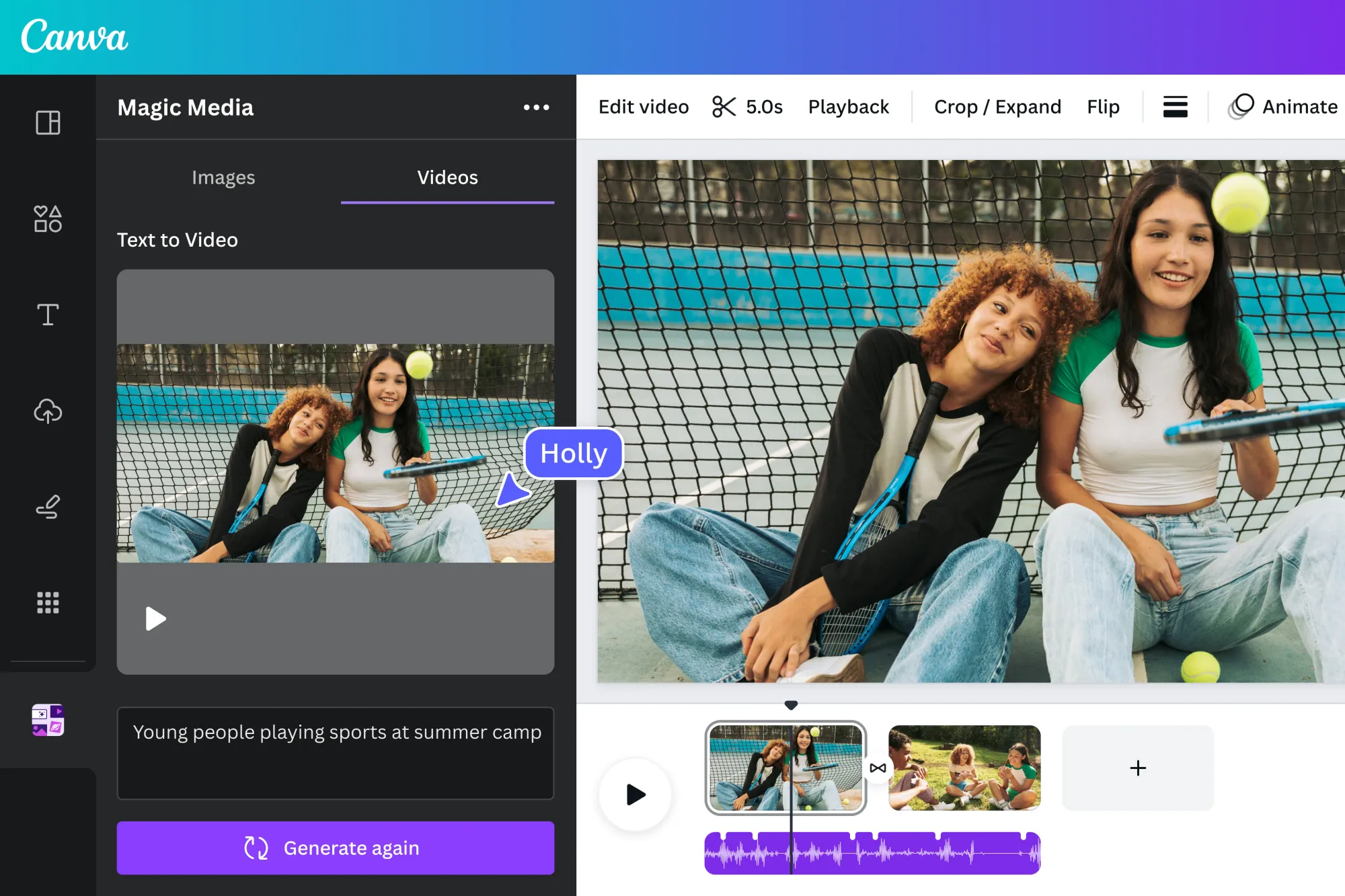
While Canva has expanded its AI video capabilities, the current offering is still limited. The “Create a Video Clip” feature uses Google’s Veo 3 model to generate short clips with audio from a text prompt, but there are no high-quality alternative models options available.
The clips themselves are also fairly short, typically designed for quick scenes rather than longer sequences or full videos. This makes the feature useful for generating snippets, background footage, or quick concept ideas, but less useful for building complete videos. While the results can look polished for short-form content, the lack of longer generation lengths, controls, or multiple model options makes Canva’s AI video tools feel more like a lightweight add-on than a full AI video production workflow.
Kapwing vs Canva: Collaboration and Team Features
Both Kapwing and Canva support team collaboration, but the collaboration use cases are different, and I’ve noticed that difference pretty clearly when working with both tools on real projects.
Kapwing is strong for collaborative video production, better suited for teams reviewing edits, working from shared assets, maintaining caption styles, or creating recurring video formats.
One feature I found especially useful is how Kapwing handles shared workspaces. Instead of organizing everything as isolated files, teams can group projects, assets, and brand elements into a single workspace. For example, a social media team might have one workspace for all video campaigns, with collections for weekly posts and product launches. Inside those collections, you can store video projects, uploaded footage, logos, and even reusable caption styles.
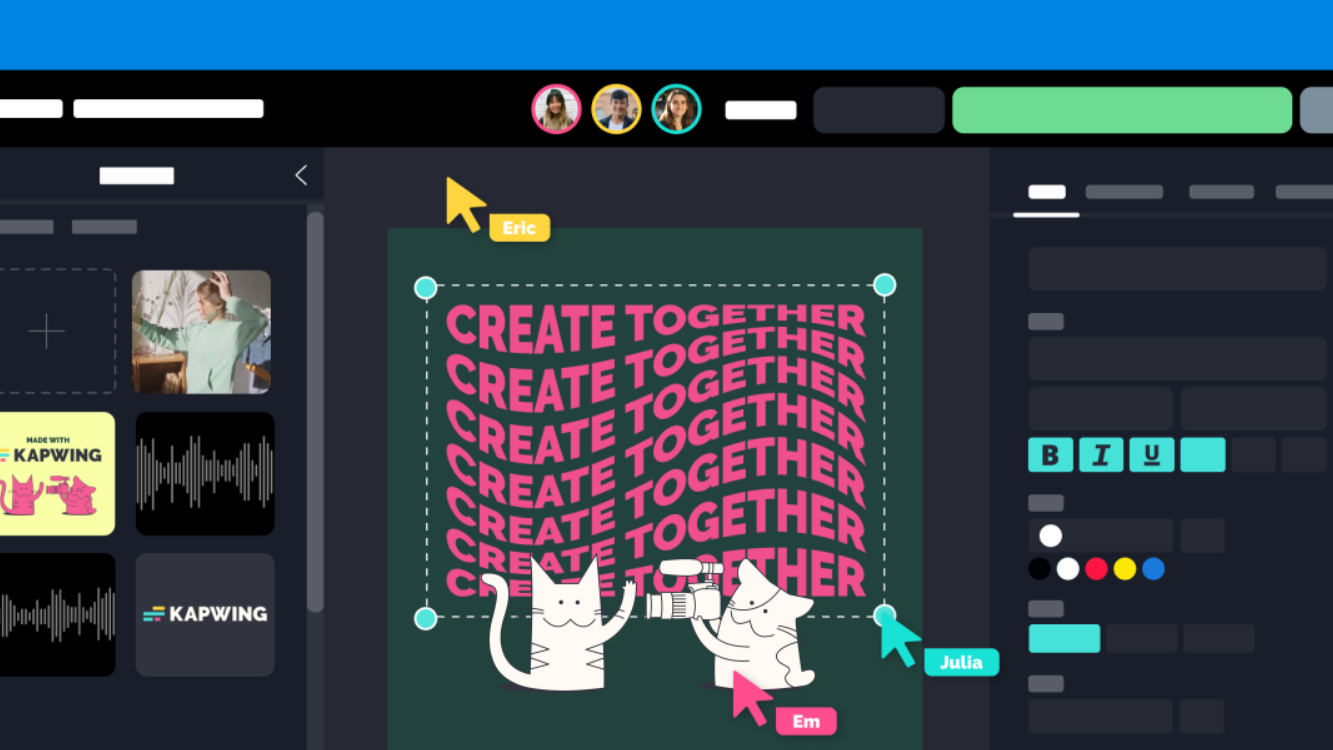
This setup makes it much easier to stay organized and consistent. A marketing team could keep a shared brand kit with approved colors, fonts, and intro/outro clips, so every new video automatically follows the same style.
I’ve had teammates jump into the same workspace to update captions, swap out clips, or duplicate a project into a new collection for a different platform. That kind of centralized, shared environment is hard to replicate in more design-focused tools.
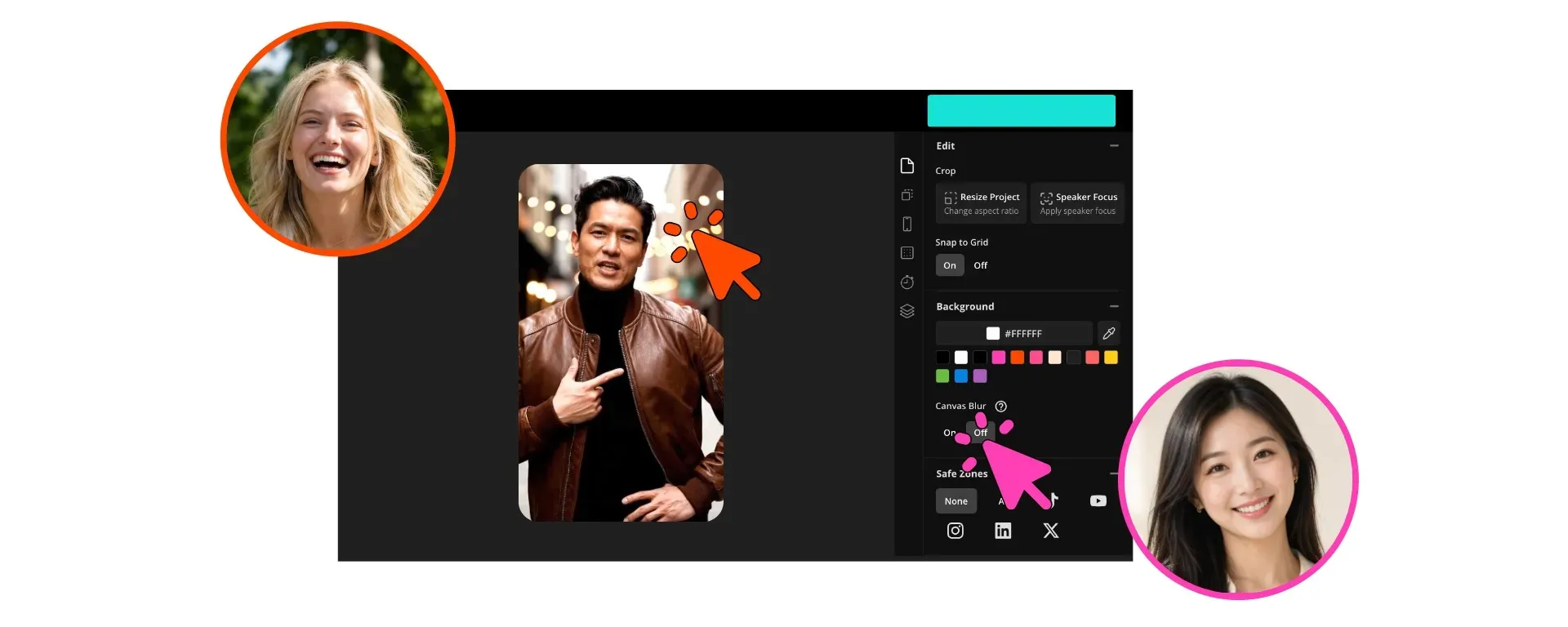
Canva is strong for brand and design collaboration, and I’ve used it more in situations where consistency across many assets matters. Teams can work from shared templates, brand kits, presentations, documents, and marketing assets.
In practice, this means a designer can create templates with locked layouts, predefined color palettes, and approved font pairings, so anyone on the team can duplicate them without breaking the brand. Shared libraries for logos, icons, and imagery, along with color application, help ensure everything stays consistent. For example, a marketing team might maintain templates for Instagram posts, carousels, email headers, pitch decks, and ads, all tied to the same visual system.
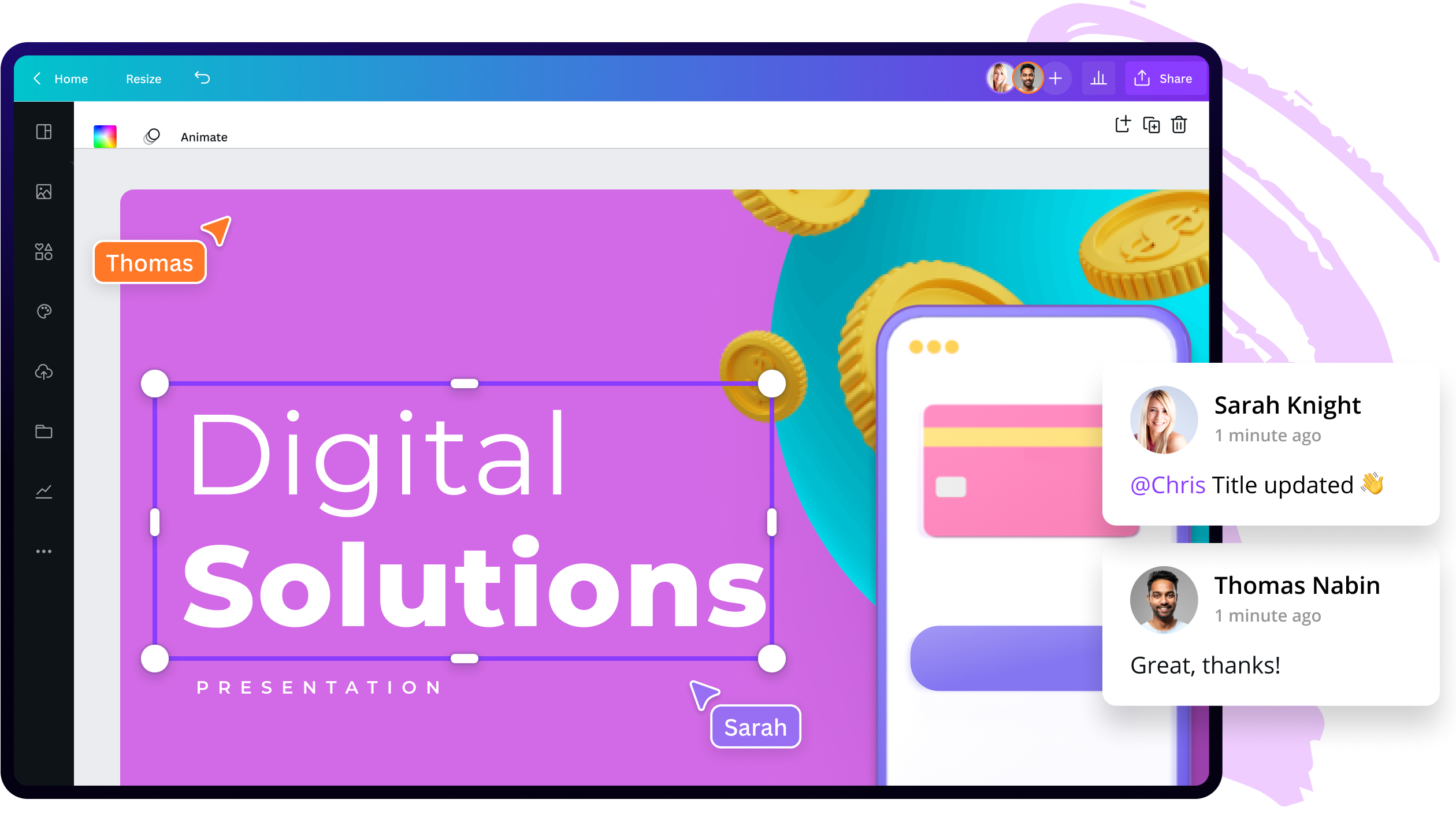
Canva also makes it easy to update campaigns or adapt content for different channels by applying brand styles across an entire design.
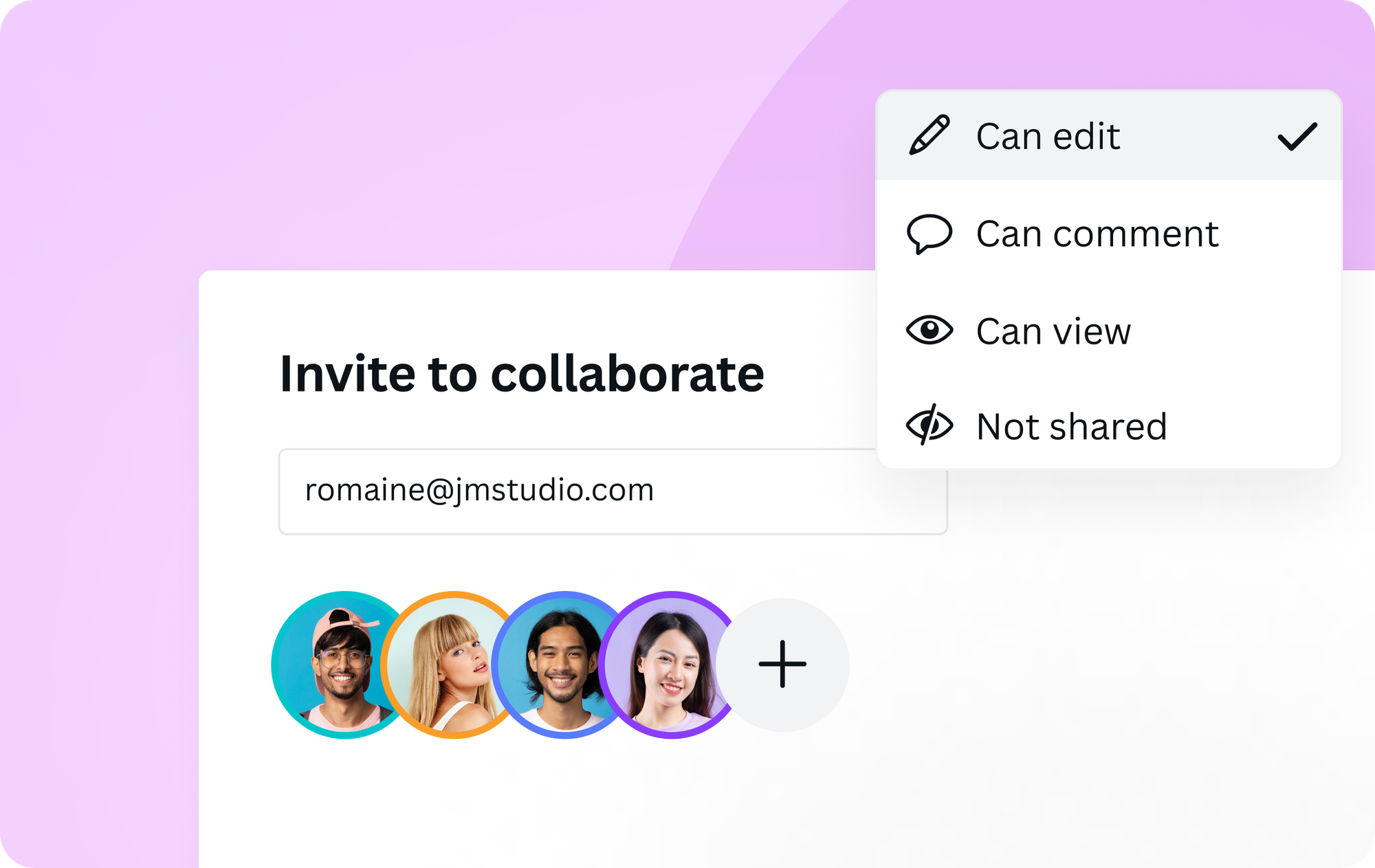
Its commenting, version history, and sharing tools support quick feedback loops, making it easier for teams to collaborate on social posts, presentations, and other visual assets.
Kapwing vs Canva: Which Is Better for Different Types of Creators?
Both Kapwing and Canva are useful, but they solve different problems.
Canva is best for creators and teams who need a flexible design platform that also supports video. It is ideal for social media managers, marketers, educators, small businesses, and non-designers who want to create polished assets quickly. If your content calendar includes graphics, presentations, carousels, thumbnails, posters, documents, and occasional videos, Canva is likely the better everyday tool.
Choose Canva
Canva is ideal for teams and creators who need polished visual assets across many formats. It works especially well for templates, presentations, social graphics, thumbnails, brand kits, and simple design-led videos.
Kapwing is best for creators and teams whose workflow is built around video. It is especially useful for YouTubers, podcasters, educators, marketers, agencies, and social teams who need to edit, caption, translate, resize, and repurpose videos regularly.
What impressed me most about Kapwing is that it is built around the reality of modern video production: most videos do not stay in one format. A podcast becomes Shorts. A webinar becomes LinkedIn clips. A product demo becomes social ads. A tutorial gets subtitles, translations, and multiple aspect ratios. Kapwing is better suited to that kind of workflow because video editing, AI tools, subtitles, translation, repurposing, and export all connect inside the same workspace.
Choose Kapwing
Kapwing works best when video is the main project. It is built for creators and teams who regularly edit, caption, translate, resize, repurpose, and collaborate on video content across multiple platforms.
Frequently Asked Questions
Is Kapwing better than Canva?
Kapwing is better than Canva for video-first workflows, including AI video editing, subtitles, transcript editing, video translation, resizing, repurposing, and team-based video production. Canva is better for design-first workflows, including templates, brand kits, social graphics, presentations, thumbnails, and simple design-led videos.
Is Canva good for video editing?
Yes. Canva is good for simple browser-based video editing, especially when the video is built from templates, graphics, text, animations, photos, and short clips. Canva’s video editor supports drag-and-drop editing, transitions, animations, fonts, audio, and social video creation.
Is Kapwing or Canva better for YouTube creators?
Kapwing is usually better for YouTube creators who need to edit long-form content, create Shorts, add subtitles, translate videos, or repurpose one video into multiple clips. Canva is better for YouTube thumbnails, channel graphics, presentation-style videos, and simple branded video assets.
Is Kapwing or Canva better for social media content?
Canva is better for social graphics, carousels, story templates, thumbnails, and branded posts. Kapwing is better for social videos, especially when the workflow involves subtitles, vertical resizing, clip generation, translation, or repurposing longer videos into short-form content.
Does Canva have automatic captions?
Yes. Canva has an automatic captions tool that can generate video captions and help make videos more accessible. However, Kapwing is stronger for advanced subtitle workflows because subtitles connect more directly to editing, translation, transcript-based workflows, and repurposing.
Does Canva have AI video tools?
Yes. Canva has added AI video features through Magic Studio and its broader creative suite. Canva’s “Create a Video Clip” feature uses Google’s Veo 3 model to generate short video clips from prompts, which can then be edited in Canva’s video editor.
Can I use Kapwing and Canva together?
Yes. Many creators may use Canva for thumbnails, social graphics, brand templates, and presentation assets, then use Kapwing for video editing, captions, translation, repurposing, and final social video exports. The two tools can complement each other well



