How to Recreate the Viral AI Bullet-Time Coffee Trend
Recreate the viral AI bullet-time coffee effect with a simple prompt-to-video workflow.
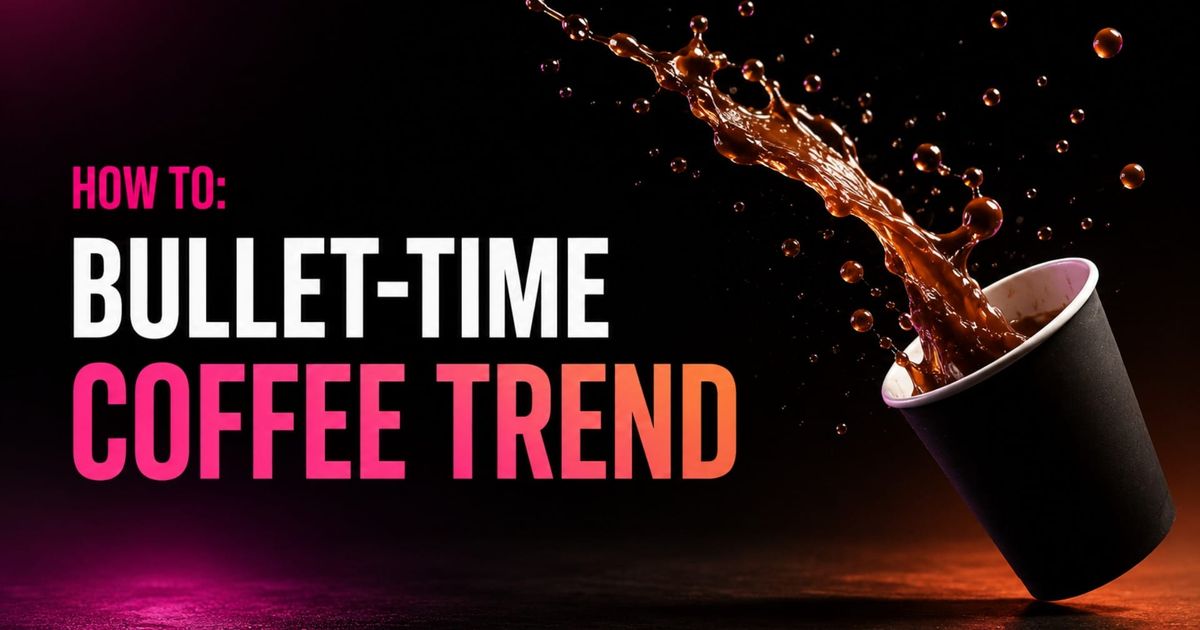
A person gets bumped on the street. Their sunglasses and laptop fly into the air. Time seems to stop, but the camera keeps moving. It pushes through the suspended objects, passes straight through the tinted sunglasses, and lands on the product in a perfectly framed final reveal.
This is the viral AI bullet-time effect: a short-form video format that combines extreme slow motion with an impossible moving camera. The result looks like a complicated VFX sequence, but with current AI video models, the entire shot can be generated in one continuous clip.
For our recreation, we used three still-image references and one Seedance 2.5 prompt to generate the full 10-second sequence. In this guide, I’ll break down that structure, show the exact prompt we used, and explain how to adapt the effect for your own product, ad, or social video.
Table of Contents
- What Is the Viral AI Bullet-Time Effect?
- How to Make the AI Bullet-Time Effect
- AI Bullet-Time Prompt Example for Seedance 2.5
- Frequently Asked Questions
What Is the Viral AI Bullet-Time Effect?
The viral AI bullet-time is AI video effect. It recreates a camera trick that would normally require an elaborate physical setup: a subject or object appears almost frozen in time while the camera continues moving freely through the scene.
That is also what separates bullet time from ordinary slow motion. In slow motion, the action simply plays back more slowly. In bullet time, the subject and camera seem to operate on different timelines. In this trend, a pair of sunglasses hangs in the air while the camera pushes past, toward a product farther behind.
How to Make the AI Bullet-Time Effect
The hardest part of this effect is not generating slow motion. Most AI video models can do that reasonably well.
The harder task is controlling several things at once: keeping the subject consistent, preserving the product, making the collision feel physically connected to what happens next, slowing the objects without slowing the camera, and ending on a deliberate final composition. Here's how we did it:
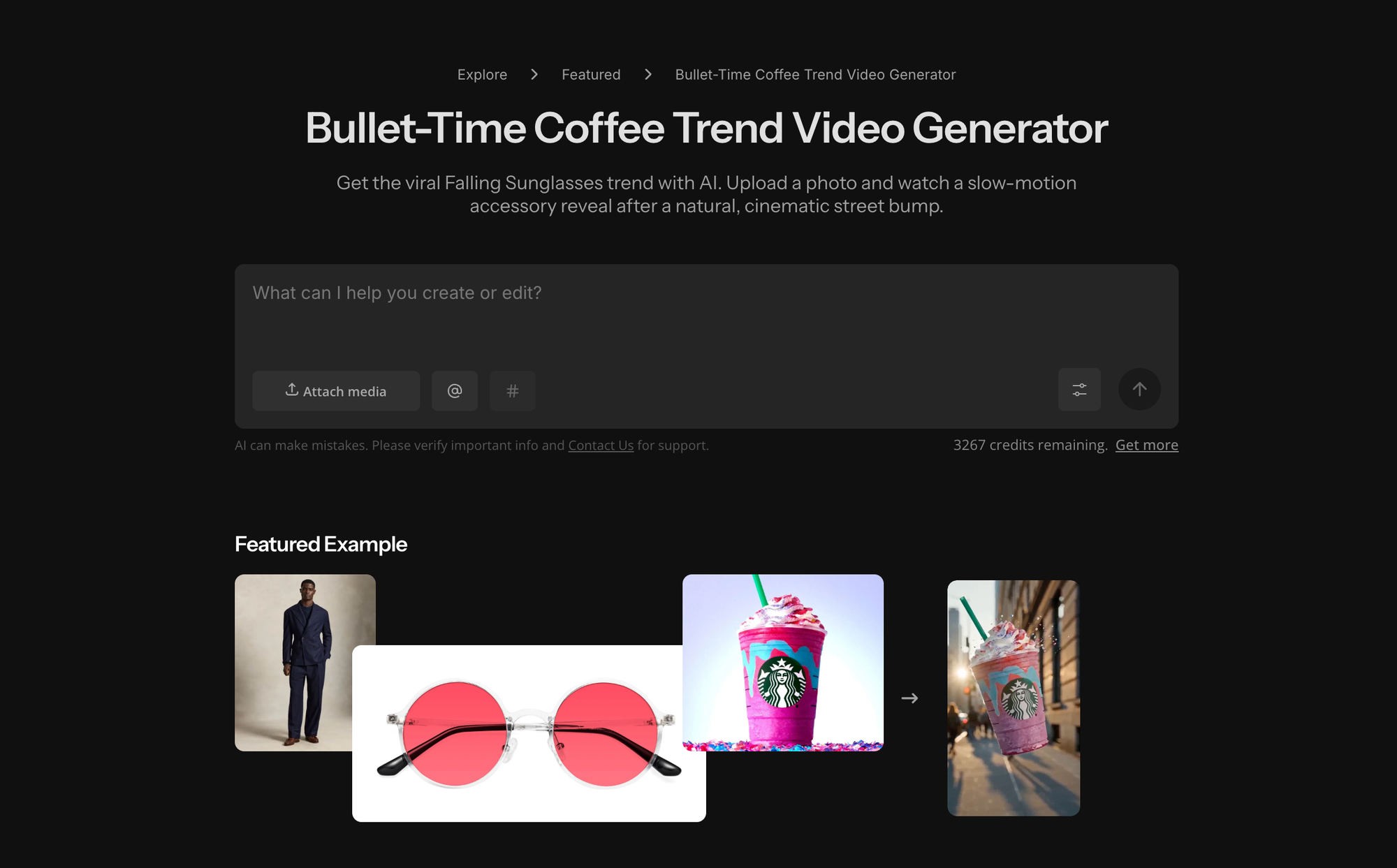
Step 1: Open the AI Bullet-Time Custom Kai
Open the AI Bullet-Time Custom Kai in Kapwing and start a new generation.
The effect is already set up for the same basic sequence: a subject walking through a street scene, a collision, objects flying into the air, and a dramatic slow-motion camera move through the suspended products.
Step 2: Upload Your Reference Images
Start with the elements that need to remain consistent throughout the shot.Our recreation used three reference images:
- A clear image of the person
- A photograph of the sunglasses, or another accessory
- A clean product image of the product showcased in the final reveal
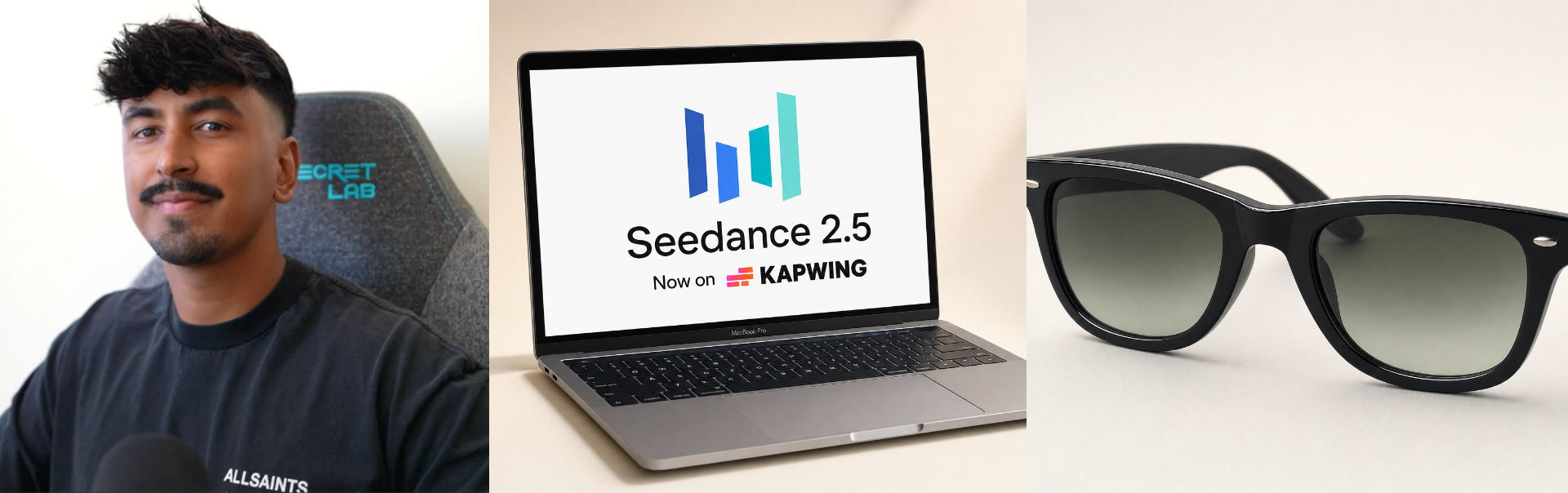
The first two were straightforward photographs. The laptop image was generated as a image separately, then used as the final product reference.
We wanted the final shot to end with a specific piece of artwork visible on the laptop screen, so we generated the ideal product reference with brand assets.
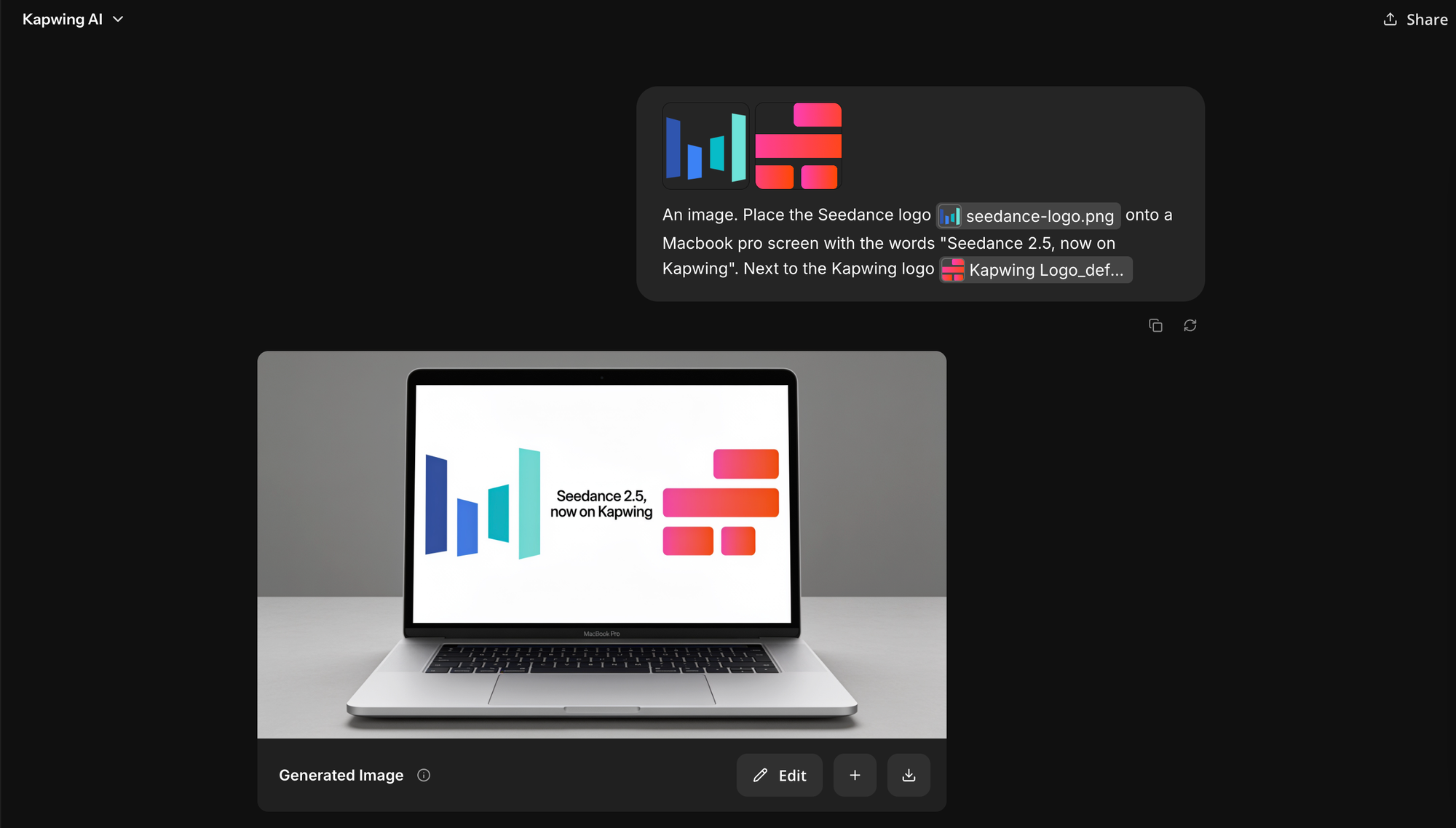
This is a useful workflow whenever the object you need is difficult to photograph as you want it. A product reference can be generated if you are working with:
- a phone or laptop screen
- fictional packaging
- a product that has not been manufactured yet
- concept products
Step 3: Generate the Video
Once the three images are attached, generate the video.
If the first result is close but not quite right, regenerate with the same inputs before changing anything. With a shot this complex, small differences in object position and camera movement can make one generation substantially stronger than another.
AI Bullet-Time Prompt Example for Seedance 2.5
If you want more control over the final result, you can also create the effect directly in Seedance 2.5 with your own prompt.
Below is the video prompt we used. It is built around three references: #image_1 for the person, #image_2 for the sunglasses, and #image_3 for the product.
You can use it as-is, or customize it by swapping out the setting, product, trigger, camera move, or final reveal while keeping the same bullet-time structure.
Create one continuous 10-second cinematic shot on a sunlit summer afternoon on a European city street with pastel neoclassical facades, a wide open road on the left, and a stone-paved sidewalk.
The woman from #image_1 walks naturally along the sidewalk holding the drink from #image_3 and wearing the sunglasses from #image_2. Preserve her appearance and styling exactly.
A passerby accidentally bumps into her shoulder in a believable, natural way. At the moment of impact, her sunglasses and drink fly into the air. The action then transitions into dramatic slow motion, with the camera focusing primarily on the airborne objects. The camera follows the airborne sunglasses and cup as they tumble through space. Make them the visual focus. Use strong shallow depth of field, crisp object detail, and rich cinematic lighting.
The camera should move with the flying objects, creating a premium fashion-commercial feel. At one point, the camera passes through or immediately behind the tinted sunglass lens, briefly shifting the world to a warm amber tone before continuing the shot. Then rack focus onto the spinning drink cup as lemonade droplets and ice catch the sunlight
Frequently Asked Questions
What is the AI bullet-time trend?
The AI bullet-time trend is a video effect where a person and surrounding objects enter dramatic slow motion while the camera continues moving through the scene.
Many versions use a collision or sudden impact to send products or accessories into the air before the camera follows them.
How do you create the AI bullet-time effect in Kapwing?
Create a Custom Kai, upload reference images for the person and products, paste in the bullet-time prompt, and generate the video.
Once you have a result you like, open it in Kapwing Studio to add music or make final edits.
How do you make a bullet-time video with AI?
Start with a simple action, introduce a clear trigger such as a collision or dropped object, then move into dramatic slow motion while keeping the camera in motion.
For the strongest result, give the camera a clear path through foreground and background objects before ending on a deliberate final frame.
Can Seedance 2.5 create bullet-time videos?
Yes. Seedance 2.5 can generate continuous cinematic sequences with multiple references, detailed camera movement, and slow-motion action, which makes it well suited to this type of effect.
For our version, the full sequence was generated as one continuous 10-second shot.
Can I make the AI bullet-time effect without writing a prompt?
Yes.
If you are using the ready-made Bullet-Time Custom Kai in Kapwing, you can upload your reference images and generate the effect without building the full prompt yourself.
If you want more control over the setting, product, trigger, or camera path, you can instead use a custom Seedance 2.5 prompt.
Why does my AI bullet-time video look like normal slow motion?
The camera is probably slowing down at the same time as the subject.
For a stronger bullet-time effect, explicitly separate the two:
Keep the subject and airborne objects in extreme slow motion while the camera continues moving quickly and smoothly through the scene.
Then describe where the camera should travel.