How to Do the Hotel Lobby AI Trend with Seedance 2.5
Recreate the viral Hotel Lobby performance with yourself, a friend, or any character using Seedance 2.5 and motion references.
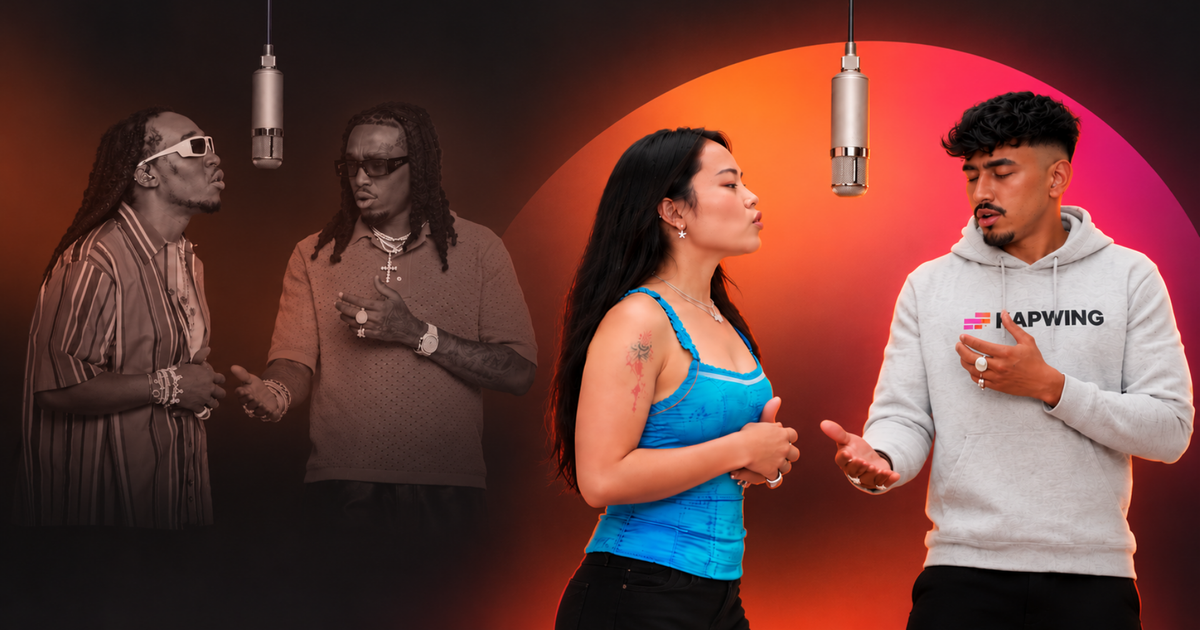
The Hotel Lobby AI trend replaces Quavo and Takeoff in their viral “Hotel Lobby” performance with you, a friend, a celebrity, or almost any two characters. Instead of manually face-swapping the original footage, you can recreate the full 15-second performance with Seedance 2.5 in Kai, using the original movement as a reference while giving the AI completely new people to perform it.
The workflow takes four steps: create a character sheet for each person, use a simplified motion-reference clip of the performance, generate the new version with Seedance 2.5, and add the original song back in Kapwing.
What makes this method work particularly well is that the AI never needs the original performers' appearance as its reference. The motion clip is converted into a simple line drawing that preserves the gestures, head turns, mouth movements, timing, and camera framing while stripping away most of the visual information that could interfere with your new characters.
Table of Contents
- How to Do the Hotel Lobby AI Trend
- How to Recreate Other AI Performance Trends
- Best Practices for AI Video Swaps
- Frequently Asked Questions
How to Do the Hotel Lobby AI Trend
For this version of the trend, you'll need:
- Kai for generating the character sheets and final video
- Seedance 2.5 as the AI video model
- One clear photo of each person you want to place in the performance
- The Hotel Lobby motion-reference clip, which recreates the 15-second performance as a line drawing
- The Hotel Lobby AI Trend template for adding the original audio back to the finished generation
Step 1: Create a Character Sheet for Each Person
Start by creating a character reference sheet for each person in the video.
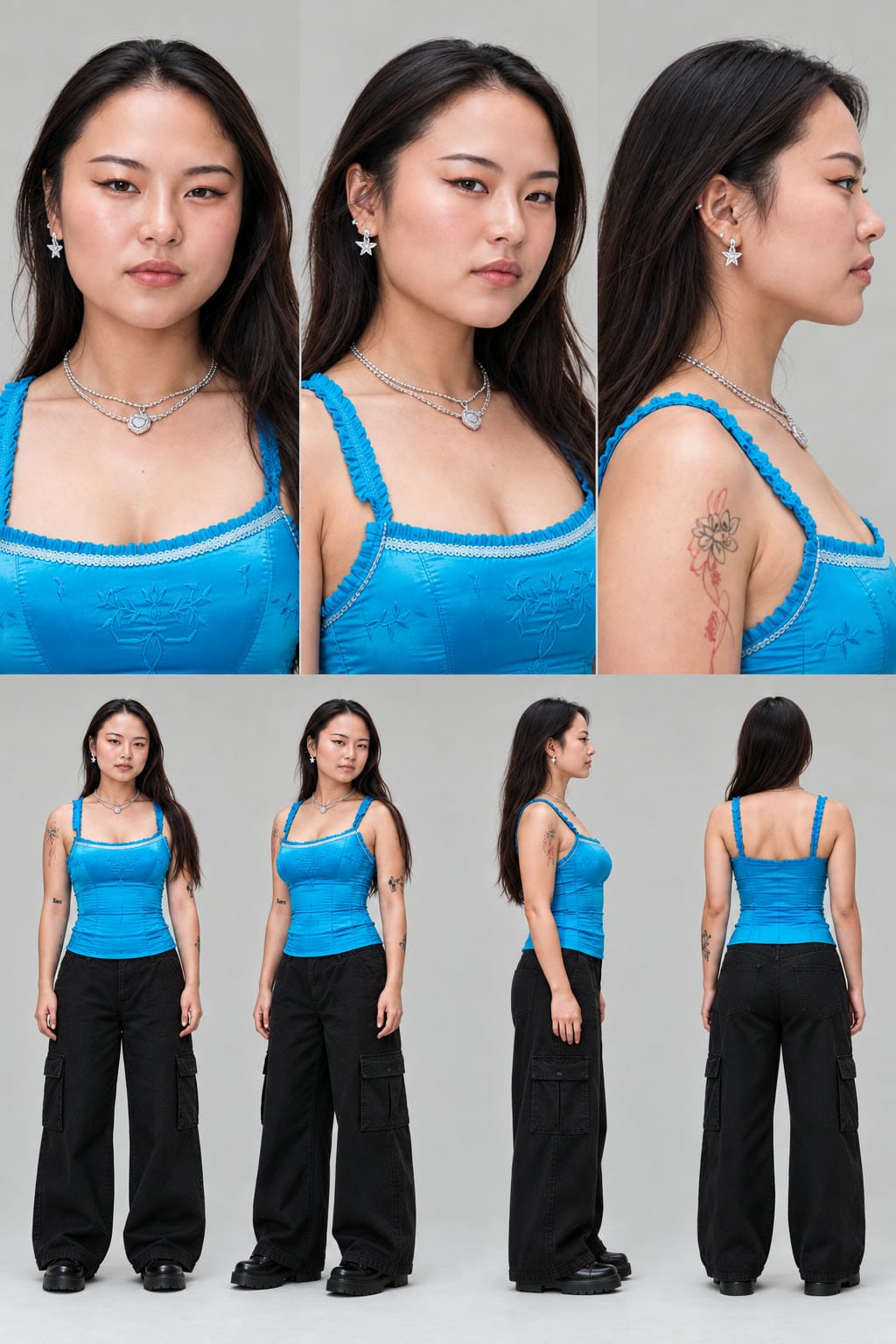
A single portrait can work for basic image generation, but this performance includes head turns, side profiles, arm movements, and changes in body angle. Giving the model several consistent views of the same person makes it much easier for Seedance 2.5 to preserve character identity across the entire clip.
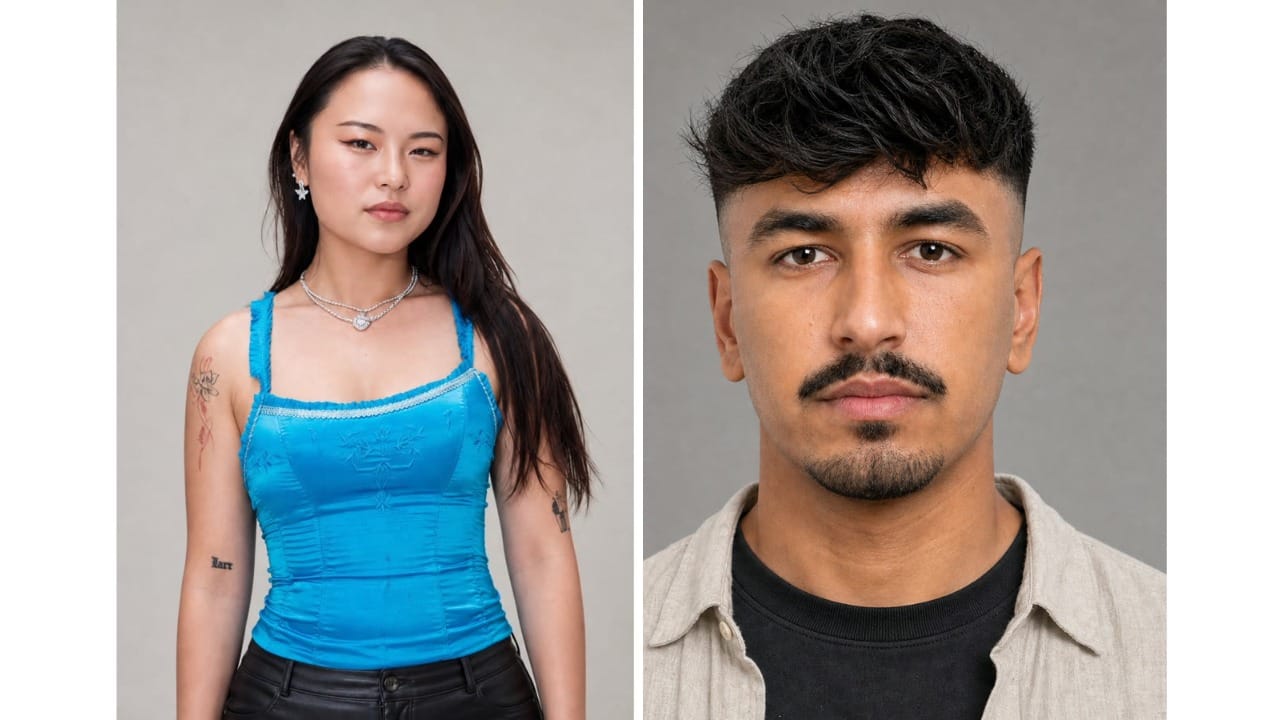
Open Kai's Character Sheet Generator, attach one clear photo of the first person, and use an image prompt that generates:
- Front-facing portrait
- Three-quarter portrait
- Side profile
- Front full-body view
- Three-quarter full-body view
- Side full-body view
- Back full-body view
You should also specify the outfit at this stage. The character sheet effectively becomes the visual source of truth for the final video, so it's more reliable to dress the person in the character sheet than to ask the model to invent an outfit later.
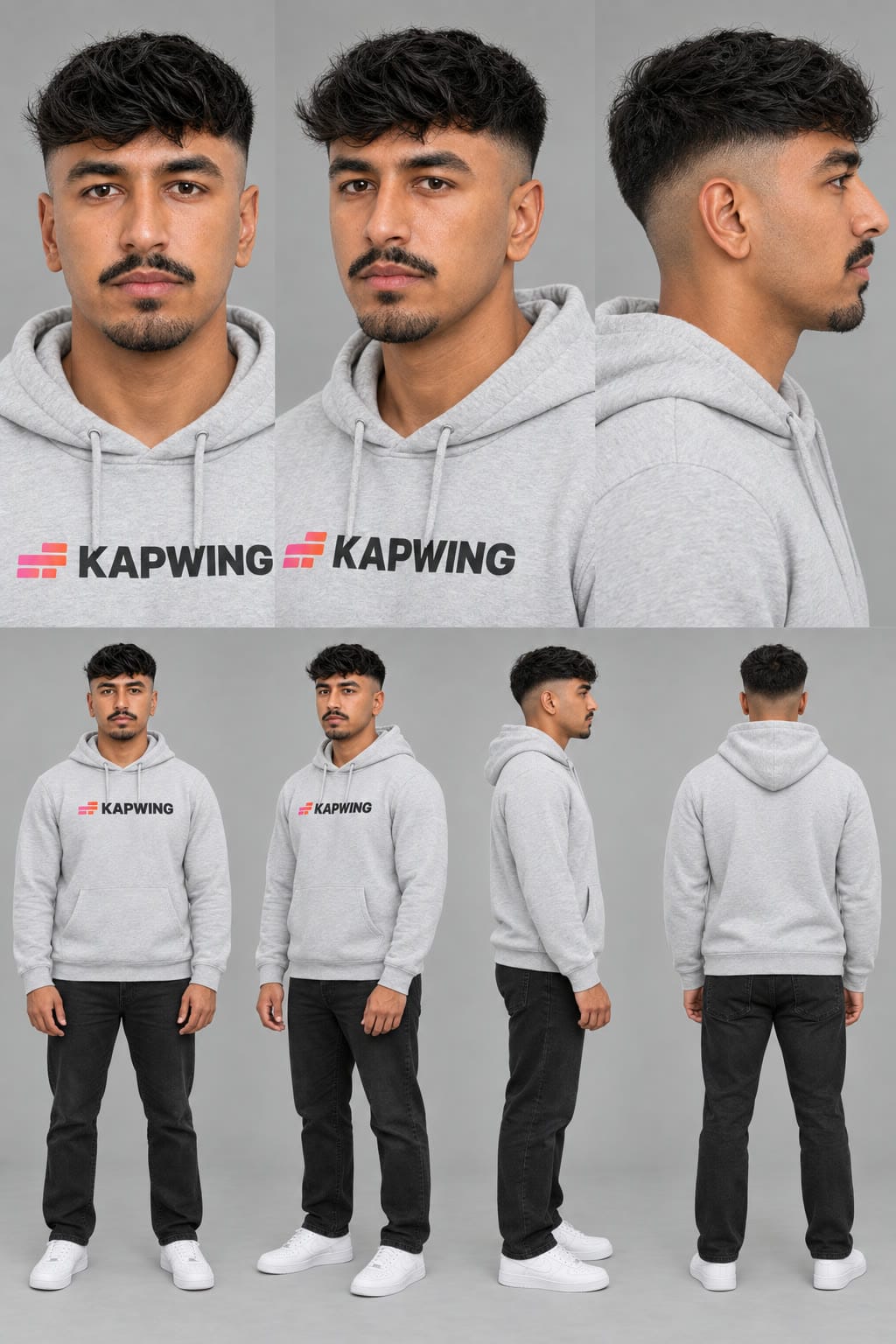
Character Sheet AI Prompt:
A photoreal character reference sheet of the person in #image_1.
Layout: two rows on a plain light grey studio backdrop with soft, even lighting and no shadows on the backdrop.
TOP ROW, taking approximately the top 60% of the image: three large head-and-shoulders portraits side by side, pin sharp, with natural skin texture:
1. straight-on front view
2. three-quarter view
3. right-side profile
BOTTOM ROW: four smaller full-body views at the same scale, relaxed standing pose with arms at the sides:
1. front
2. three-quarter
3. right profile
4. back
Same person, same outfit, same lighting in all seven views. Preserve their face exactly as shown in #image_1.
They wear [DESCRIBE OUTFIT].No text, labels, captions, or watermarks anywhere in the image.
Repeat the process for the second person.
Before moving on, inspect each character sheet closely. Check the face, hairstyle, proportions, and outfit across every view. If one of the angles noticeably changes the person's identity, regenerate the sheet.
Step 2: Download the Hotel Lobby Motion Reference
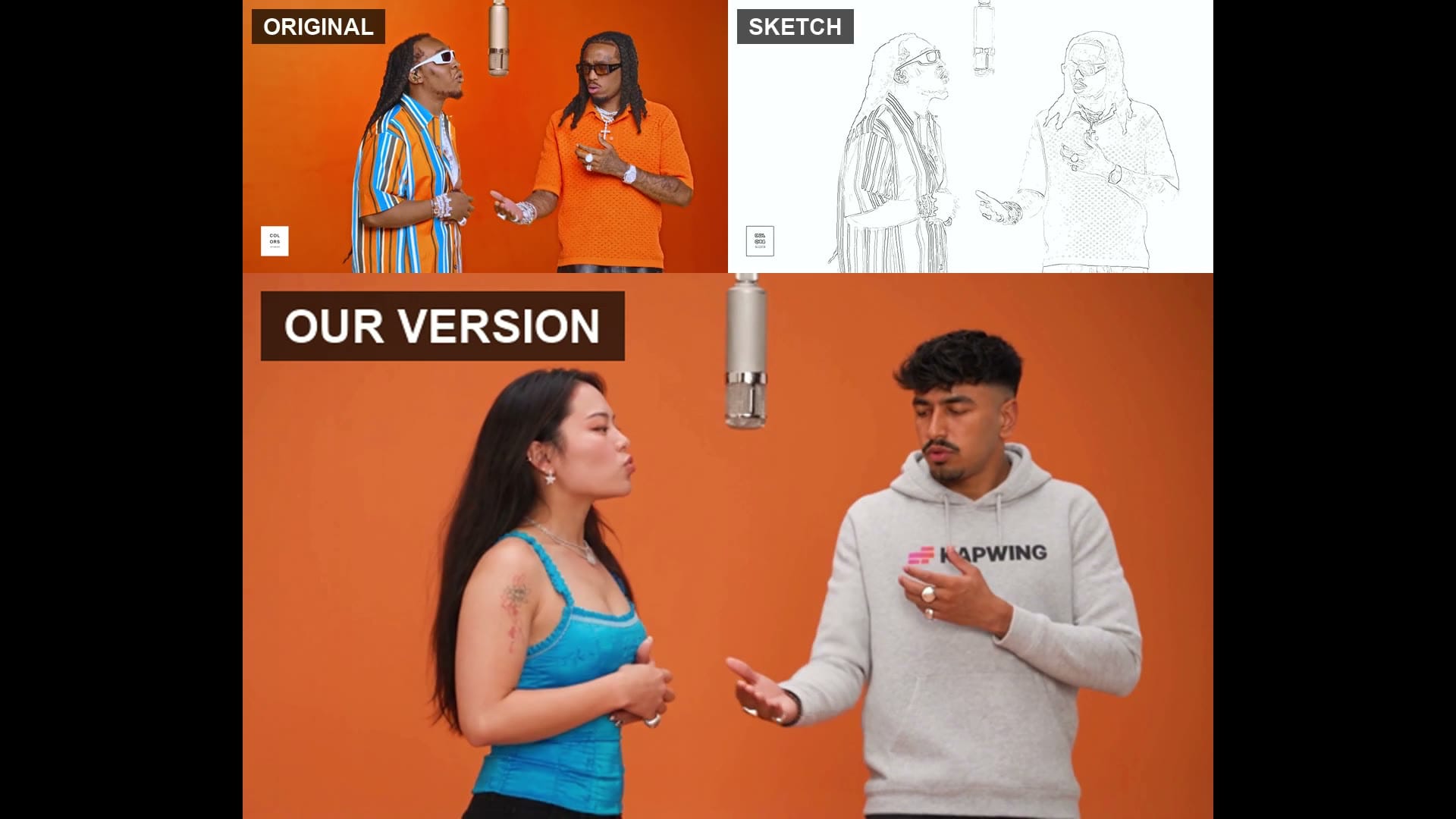
The recognizable part of this trend comes from a specific section of Quavo and Takeoff's “Hotel Lobby” performance on A COLORS SHOW.
Across the examples we reviewed, creators overwhelmingly use the approximately 15-second section beginning around 0:14.6 of the performance. It contains many of the gestures that make the clip instantly recognizable, including the forward point, forearm across the face, turn away, and shush gesture.
For our workflow, that sequence has been converted into a line-drawing motion reference. The simplified clip preserves primarily:
- Body movement
- Hand gestures
- Head movement
- Mouth movement
- Timing
- Camera framing
At the same time, it removes much of the performers' original facial detail, clothing, jewelry, and color information. The result is generally more controllable.
Step 3: Recreate the Performance with Seedance 2.5
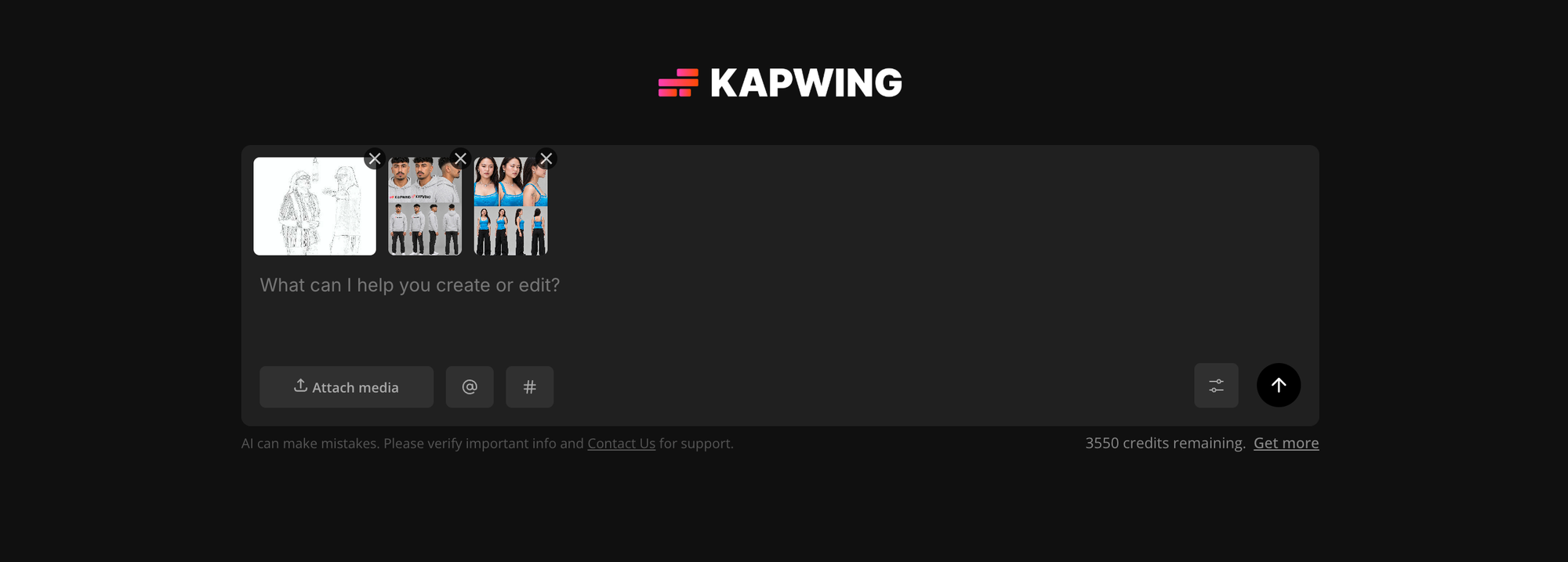
Open Kai and attach your three reference files in this order:
- Hotel Lobby motion clip
- Character sheet for the person who should appear on the right
- Character sheet for the person who should appear on the left
The order matters because Kapwing maps the uploaded assets to the media references used inside your prompt.
Next, select Seedance 2.5 under your Video Clips model preferences and use the following video prompt.
Hotel Lobby AI Trend Prompt
Use the input video #video_1 only as the reference for motion, body movement, mouth movement, timing, and camera movement. It is a line drawing; the output is NOT line art. Ignore every piece of clothing and jewelry drawn in #video_1.
Create a photoreal video of the same performance.
#image_1 stands on the RIGHT.
#image_2 stands on the LEFT.
#image_1: face exactly as shown in their character sheet, [HAIR], wearing [OUTFIT] exactly as shown in their character sheet.
#image_2: face exactly as shown in their character sheet, [HAIR], wearing [OUTFIT] exactly as shown in their character sheet.
Each person wears only what their character sheet shows: bare hands and bare wrists, with no rings, bracelets, watches, or chains unless their character sheet explicitly includes them.
They perform every gesture, hand movement, head turn, body movement, and mouth movement of the two performers in #video_1, frame for frame and perfectly in time.
The set is a seamless burnt-orange studio backdrop, warm and saturated, with a silver condenser microphone hanging on a thin cable between them.
Locked-off camera with the same framing as the input video. Warm studio lighting.
Photoreal, sharp, clearly detailed faces, natural skin texture.16:9 landscape. Same duration as #video_1. Generate as one continuous video with no separate scenes.
Kai will show you the planned generation and credit cost before it begins. Check that the plan contains one continuous video rather than several separate clips, then confirm the generation.
When the video finishes, download it or open it directly in the Kapwing editor.
Step 4: Add the Hotel Lobby Audio
The generated Seedance clip does not include the original song, so the final step is adding the audio back.
Open the Hotel Lobby AI Trend template in Kapwing. The correct section of the song is already positioned on the timeline. Right-click the placeholder video, select Replace, and choose your generated clip.
Because the audio and motion reference begin on the same frame, the mouth movements and gestures should line up with the music without requiring you to manually search for the correct point in the song.
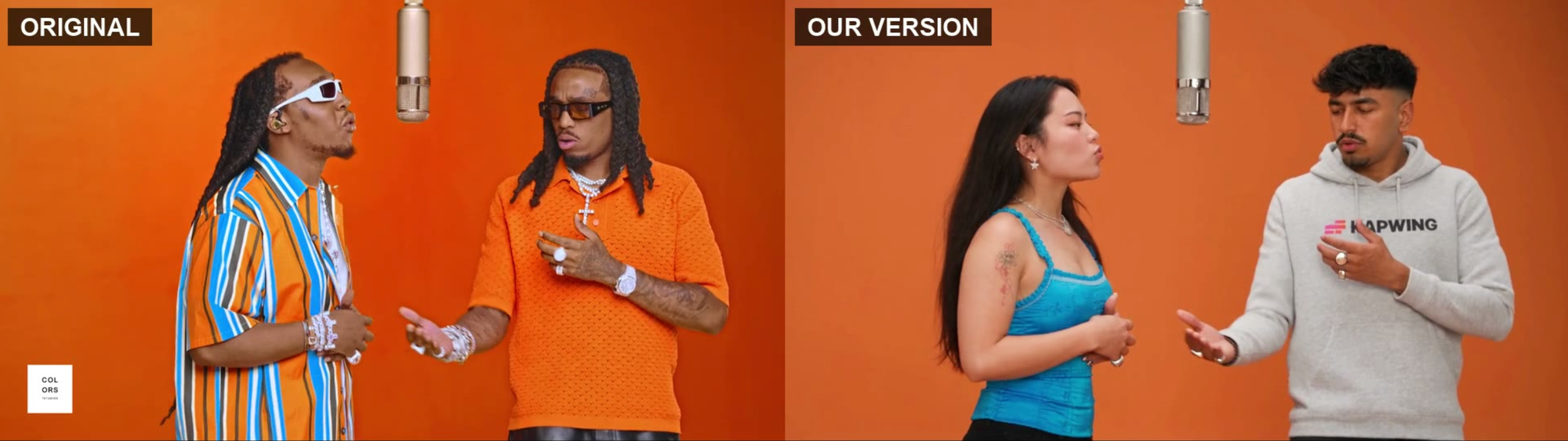
Review the full video before exporting. Small visual artifacts are much easier to notice once the audio is playing, particularly around:
- Hands crossing the face
- Fast finger movements
- Profiles
- Jewelry
- Mouth shapes
- Hair around the face
You can fix minor presentation issues in the editor, add text or captions, crop the frame, and then export the finished video.
How to Recreate Other AI Performance Trends
The same workflow isn't limited to “Hotel Lobby.” Once you've created strong character sheets, you can reuse them with other performance clips. The main things that change are:
- The motion-reference video
- The environment described in the prompt
- The audio added during editing
For example, we used the same character sheets to recreate a section of Fetty Wap and Monty's “679” performance on On The Radar.
Instead of creating entirely new characters, we attached:
- A 15-second line-drawing reference of the “679” performance
- The same right-hand character sheet
- The same left-hand character sheet
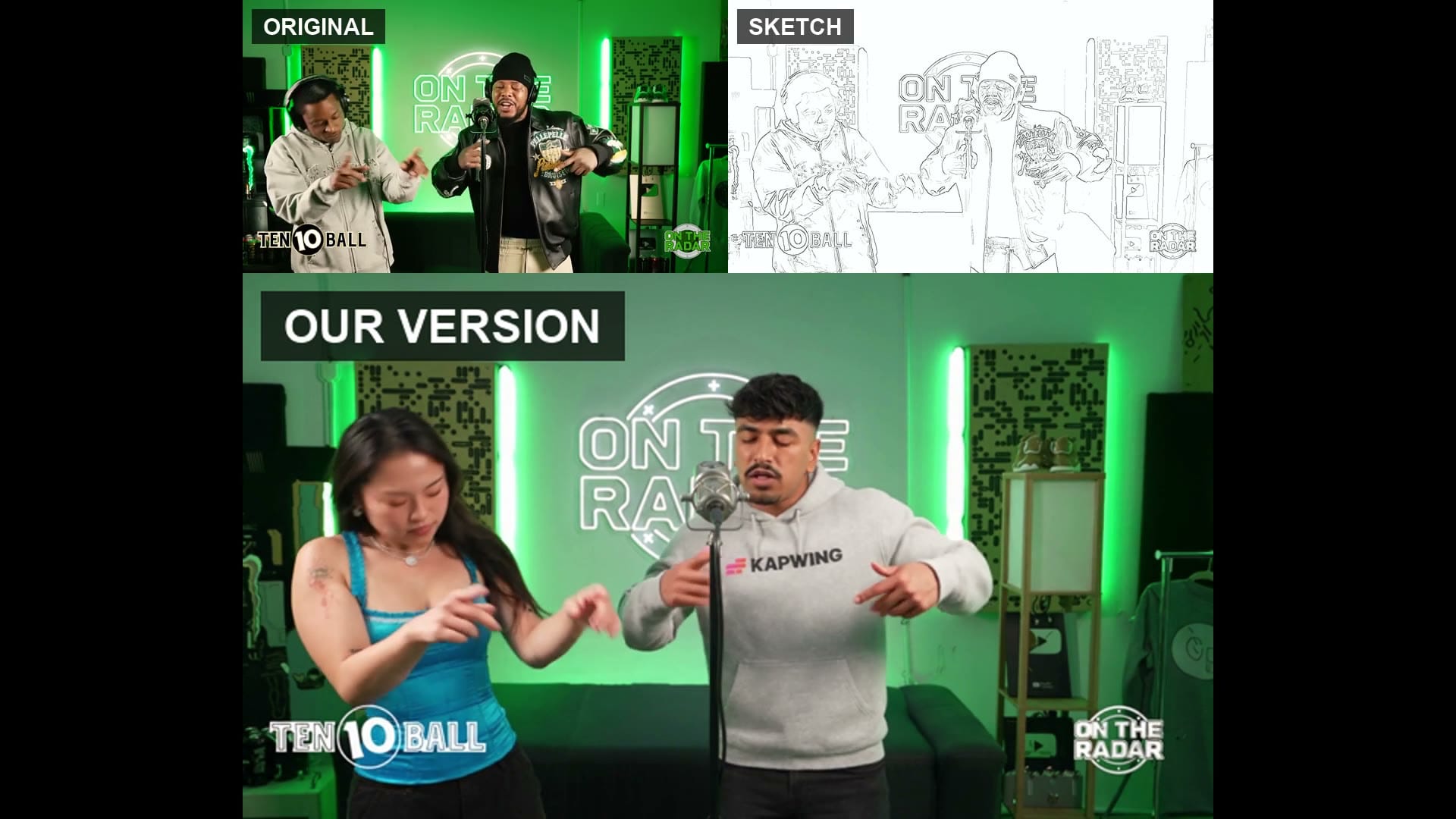
The character instructions stayed almost identical. The main prompt change was describing the green radio-studio environment and preserving the original camera push-in.
That makes reusable character sheets particularly valuable if you plan to test several AI video trends. Once the identity reference is working, each new video becomes more of a motion-transfer problem than a character-generation problem.
Best Practices for AI Video Swaps
Use the Same Section of the Performance as the Trend
For recreation trends, recognition often depends less on the song itself than on a particular visual moment.
Using a different verse may technically be the same track, but viewers won't necessarily recognize the reference immediately. Match the section, timing, framing, and gestures that are already associated with the trend.
Use a Character Sheet Instead of One Photo
One portrait gives the AI information about one angle of the face. A character sheet gives it multiple angles plus the person's full body.
That becomes much more important when the reference performance includes side profiles, head turns, crossed arms, or movement toward and away from the camera.
Put the Final Outfit in the Character Sheet
Don't rely on the video prompt alone for wardrobe consistency.
If the person needs to wear a black hoodie, white sneakers, or a specific jacket throughout the generation, put those clothes directly into their character sheet. Then reinforce the same outfit in the video prompt.
Separate Motion From Appearance
The strongest part of this workflow is giving different references different jobs.
The motion clip should communicate what happens.
The character sheet should communicate who is doing it.
The prompt should communicate where it happens and how it should look.
When one reference is expected to control all three at once, unwanted visual details are much more likely to carry over.
Decide Who Gets Which Side Before Generating
The two performers do not have identical choreography.
In the Hotel Lobby clip, one side receives several of the most recognizable gestures. In other performances, one performer may spend more time directly at the microphone or closer to the camera.
Put the person you want to emphasize in the stronger role before generating rather than trying to swap positions afterward.
Reuse Good Character Sheets
A strong character sheet can work across multiple videos.
Keep the same character sheet in your Kapwing media library and change only the motion clip and scene description. This makes it much easier to build a series of trend recreations where the same characters remain visually consistent.
Frequently Asked Questions
What is the Hotel Lobby AI trend?
The Hotel Lobby AI trend recreates a recognizable section of Quavo and Takeoff's “Hotel Lobby” performance with different people or characters performing the same movements. AI video tools preserve the choreography and framing while replacing the original performers.
How do you put yourself in the Hotel Lobby AI trend?
Create a multi-angle character sheet of yourself, attach it alongside the Hotel Lobby motion-reference clip in Kapwing AI, and generate the performance with Seedance 2.5. After generation, replace the placeholder video in the Hotel Lobby template to restore the original song.
Why use a line drawing instead of the original Hotel Lobby video?
The line drawing separates motion information from appearance information. It preserves gestures, timing, mouth movement, and framing while reducing the amount of original clothing, facial detail, and jewelry that Seedance can copy into the new generation.
Your character sheets can then provide the identity and wardrobe instead.
Why does my AI character look different halfway through the video?
Identity drift often happens when the model doesn't have enough information about how a person looks from different angles.
Use a consistent character sheet containing front, three-quarter, profile, and full-body views rather than relying on one portrait. Also check that all images within the sheet actually depict the same face consistently before generating the video.
Why are rings or chains appearing on my AI characters?
The video model may be inferring accessories from the reference performance.
Explicitly instruct it to ignore clothing and jewelry in the motion reference, then specify that your characters should have bare hands and wrists unless their character sheets show otherwise.
Why doesn't the Hotel Lobby audio sync with my AI video?
The music and generated video need to start from the same point in the original performance.
The Kapwing template already positions the correct section of the song against the first frame of the motion reference. Replace the existing placeholder video rather than importing and manually positioning the song yourself.
How many Kapwing credits does the Hotel Lobby AI trend use?
A 15-second Seedance 2.5 generation costs approximately 415 Kapwing credits in this workflow. Kapwing AI displays the exact credit cost before you confirm the generation.
Can I use the same character sheet for other AI video trends?
Yes. A character sheet represents the person's appearance rather than one specific performance, so it can be reused with new motion-reference clips.
For another performance trend, you generally only need to replace the motion clip and update the environment or camera instructions in the prompt.
Can I recreate the Hotel Lobby AI trend with one person?
Yes. You could use two character sheets of the same person, create two different outfits or versions of the same character, or substitute another character for the second performer. The important part is still assigning one character reference to each performer position.
Which AI video model is best for the Hotel Lobby trend?
This workflow uses Seedance 2.5 because it can follow a relatively long motion reference while maintaining two character identities through a continuous performance. Regardless of model, look for strong reference-video following, character consistency, and enough generation length to reproduce the full sequence.