How To Do The Falling Through Instagram Trend
Turn a few AI clips into a seamless falling-through-Instagram effect with Seedance 2.5 and Kapwing.
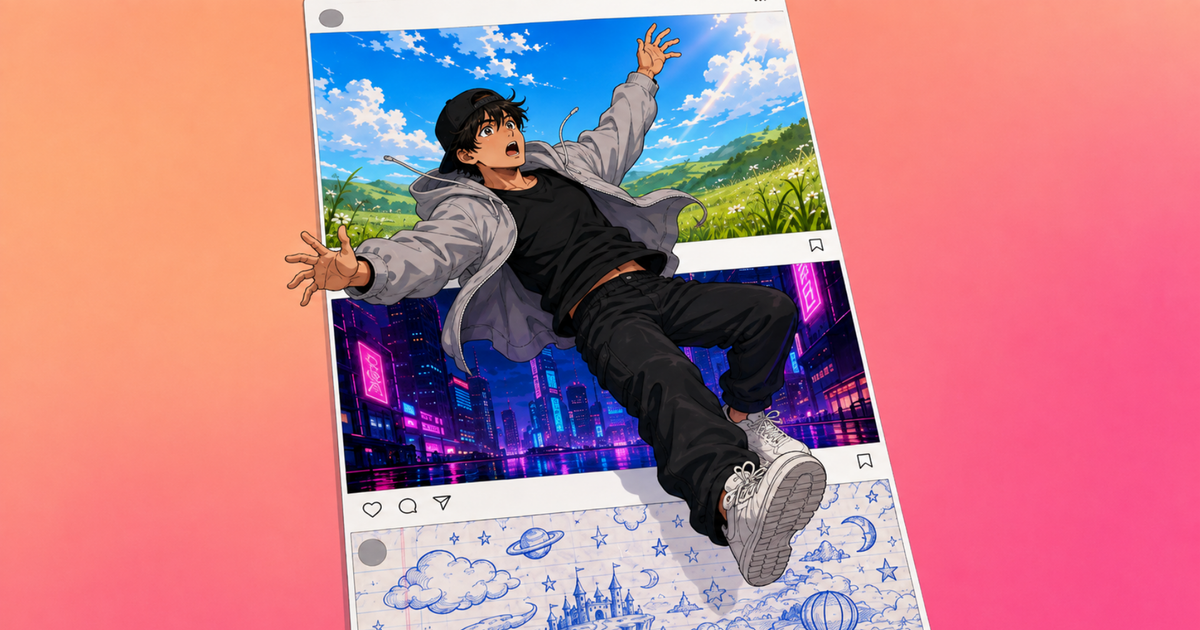
The Falling Through Instagram trend turns a simple falling video into a surreal trip through your Instagram feed. You start in the real world, fall through the screen, and continue dropping through a series of posts where each one transforms you into a different AI-generated style.
The finished effect looks complex, but the workflow is relatively straightforward. You only need two pieces of original footage: one clip that establishes the beginning and end of the fall, and another that gives the AI a reference for your falling motion. The difficult part is continuity. If your body changes size or enters each AI world from a different position, the illusion breaks.
In this tutorial, we'll show you how to recreate the Falling Through Instagram trend using Kai, Seedance 2.5, and Kapwing Studio, including the prompting and editing techniques that make the transitions work.
Table of Contents
- What Is the Falling Through Instagram Trend?
- How To Create The Falling Through Instagram Trend
- Best Practices for a Seamless Falling Through Instagram Effect
- Frequently Asked Questions
What Is the Falling Through Instagram Trend?
The Falling Through Instagram trend is a short-form video effect where a creator appears to fall into an Instagram post and continue moving through a scrolling feed. As the feed moves upward, each new post reveals the creator falling through another environment or visual style.
AI video makes the format especially effective because the same person can move through dramatically different worlds without having to film each scene separately. One post might turn the fall into an anime style, while the next looks like a notebook drawing or a 16-bit video game.
What You Need to Make the Falling Through Instagram Trend
You don't need a complicated filming setup to recreate the trend.
The effect starts with two phone clips, while Seedance 2.5 and GPT Image 2 handles the different visual worlds and a timeline editor brings everything together into the final edit.
How To Create The Falling Through Instagram Trend
The workflow breaks down into three stages: film the fall, generate your AI worlds, and build the scrolling Instagram effect.
The key throughout is keeping your position and movement consistent so each clip connects naturally to the next.
Step 1: Film the Falling Effect
Start with the real-world portion of the video. Place your phone vertically and frame the shot wide enough to capture your full body. Stand still, look toward the ground, extend your arms, and fall backward onto the grass. Stay down for a moment before sitting up and returning to your original position.
You can use the beginning of this take to establish the fall and the end as your landing. Returning to roughly the same position you started in also gives you the option of making the final Reel loop: after you stand back up, the video can cut back to its opening frame and begin again.
Next, film the reference video you'll use for AI generation. Lie horizontally across a table or bench and position the camera side-on. Kick your legs and move your arms as though you're falling backward through the air.
Framing matters more than making this clip look realistic. Position the camera around three paces away so your entire body is visible and there is additional space around your head and feet.
Tip: Your clothing can also improve consistency. Distinctive shapes and colors give the model details it can carry from one generation to another. A recognizable hoodie, cap, pair of shoes, or contrasting colors will generally give you more visual continuity than an entirely plain outfit.
Step 2: Turn Your Falling Video Into AI Worlds
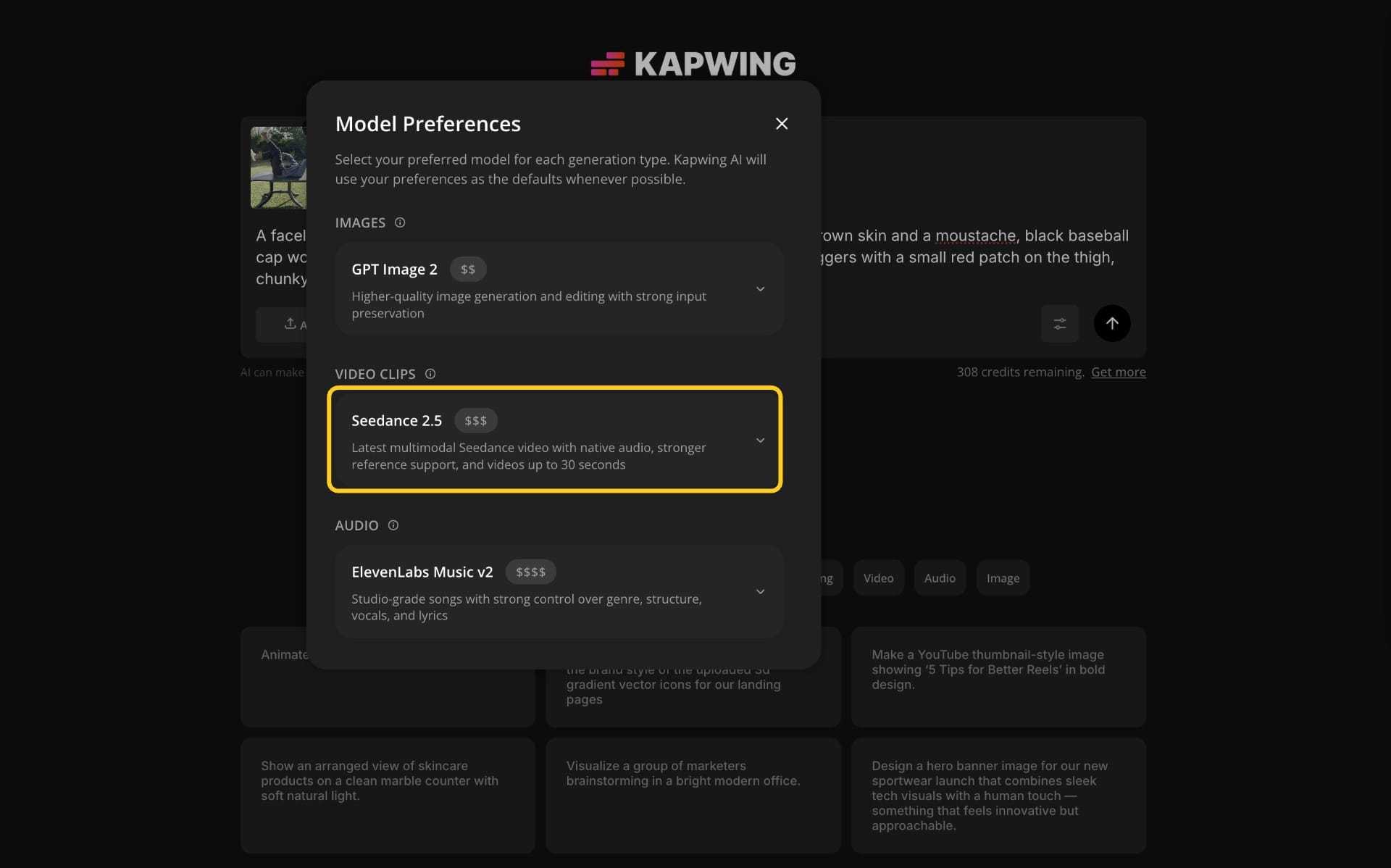
Upload the table clip to Kai and select Seedance 2.5 as your video model.
Set the aspect ratio to 9:16 and use the original table footage as your video reference.
Start by writing a character description that identifies the most visible features of your outfit.
A faceless character based on the person in the attached video: [YOUR DESCRIPTION]For example:
A faceless character based on the person in the attached video: a man with brown skin and a moustache, black baseball cap worn backwards, light grey zip-up hoodie open over a black tee, black joggers with a small red patch on the thigh, chunky white clogsMake sure to keep the word faceless. A stylized blank face reads as a deliberate design choice. A stylized attempt at your actual likeness reads as AI slop.
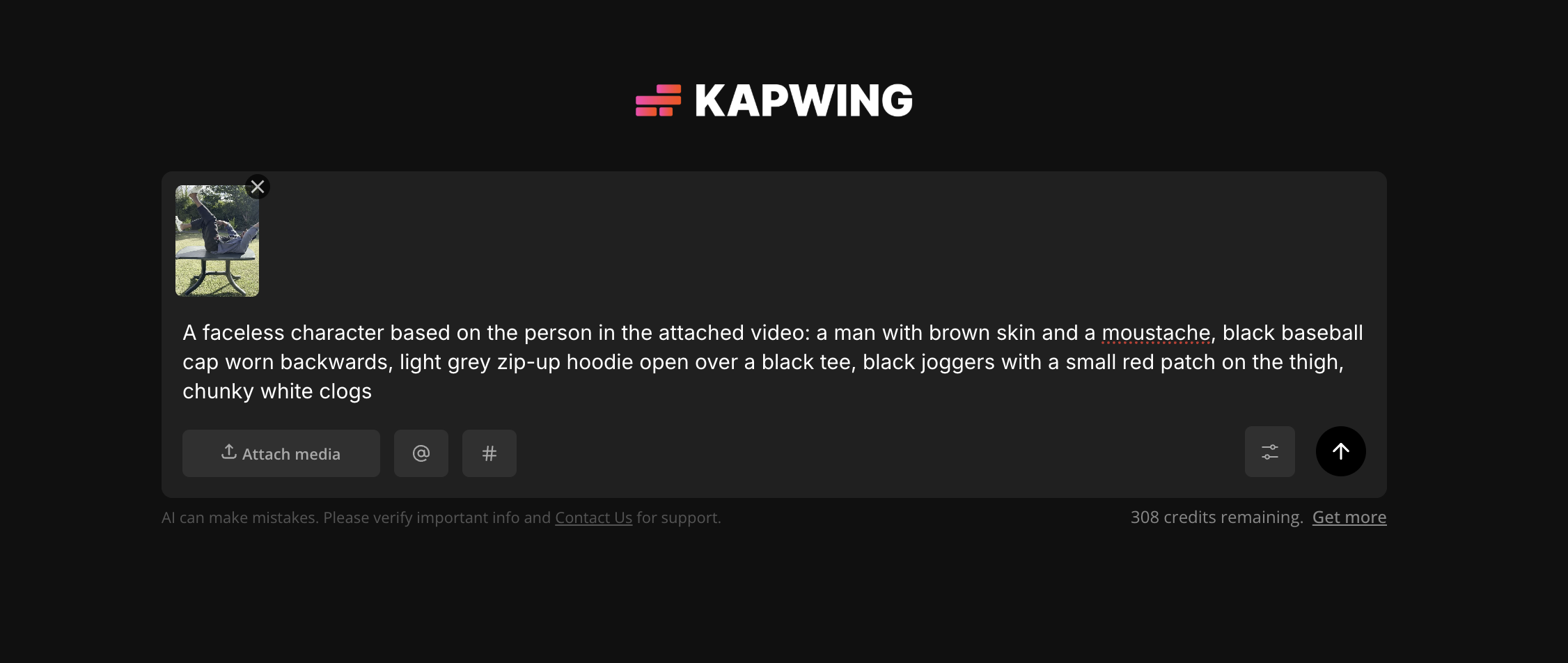
Next, control the movement. This is the most important part of the prompt because a generic instruction might cause the model to spin the character, move the camera, change their scale, or create a cinematic tumbling motion.
Use the following framing instructions consistently across your generations:
LOCKED STATIC CAMERA. The background never moves, never pans and never zooms.

THE POSE IS FIXED. The character is horizontal, flat on his back in mid-air as if falling backwards. His HEAD is at the RIGHT-HAND SIDE of the frame and his FEET are at the LEFT-HAND SIDE. His body spans almost the full width of the frame. This exact pose, this exact size and this exact left-to-right orientation are identical in every single frame of the clip.

HE DOES NOT ROTATE. No tumbling, no spinning, no flipping, no somersaulting, no turning over, and no change to which way he faces. He does not get larger or smaller. He does not drift left or right. His distance from the camera never changes. The ONLY thing that changes is his vertical position.

THE MOVE: at the first frame he is entirely ABOVE the top edge of the frame and out of view. He descends smoothly and continuously straight downward at a constant speed, crossing the full height of the frame in that same fixed horizontal pose. By the last frame he has passed entirely BELOW the bottom edge of the frame and is out of view again.

HE DOES NOT LAND. He does not hit the ground, does not slow down, does not stop and does not come to rest. He falls through the frame and out of the bottom of it.

Only his hair and clothing may flutter. The body itself stays locked.

Take the character's appearance from the attached video, but not its framing, not its rotation and not its timing.

Vertical 9:16.
The repetition is intentional. AI video prompts often benefit from being unusually explicit when a specific motion needs to remain constrained. Here, you're telling the model that the reference footage should inform the falling movement without allowing it to reinterpret the camera angle or turn the fall into a spin.
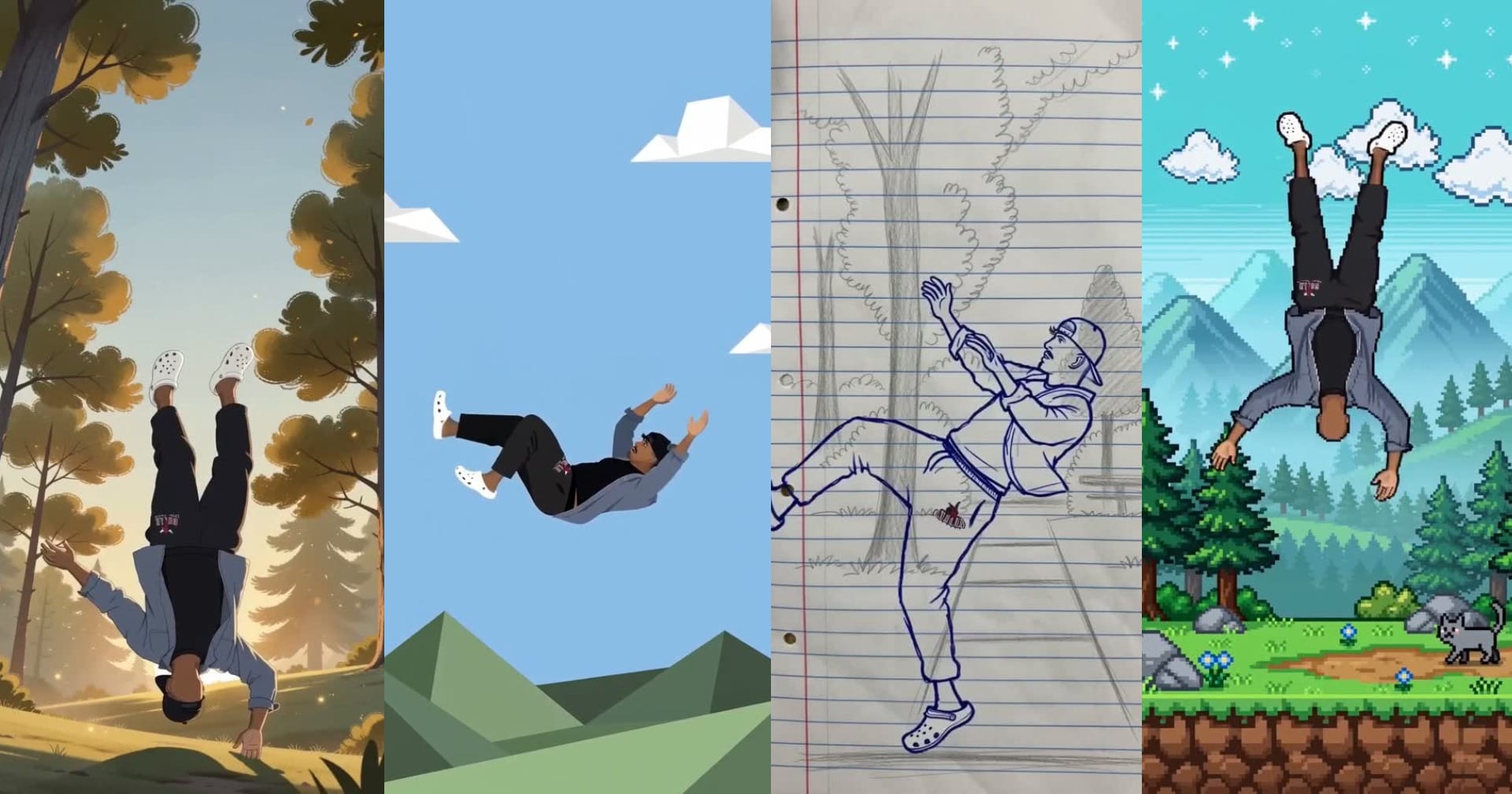
You can change the style portion of the prompt while leaving the character and framing blocks untouched. The important thing is that only the art direction changes. Keep the same character description and the same falling instructions underneath each style prompt.
Example Style Prompts
Anime: Anime-style 2D illustration, painterly cel-shaded look with soft flat colour fields, no hard outlines. Sunlit forest clearing in a tall vertical composition: tall pine trunks in grey and warm brown, layered canopy in olive and sunlit orange-yellow, a glowing white sun disc behind the treeline, hazy pale-blue sky. Rolling grass lawn filling the bottom of frame, warm yellow light patches, dust motes and bokeh in the air. [YOUR CHARACTER BLOCK], rendered in simple flat colour blocks. Nostalgic golden-hour anime film still. [FRAMING BLOCK]
Notebook Sketch: Stop-motion sketchbook animation on real lined notebook paper with blue ruled lines and a red vertical margin line, visible paper texture and slight page warp. Background landscape hand-drawn in graphite pencil in a tall vertical composition: thin trees with loose scribbled foliage, bushes, a sketchy path and ground lines at the bottom, unfinished hand-drawn quality. [YOUR CHARACTER BLOCK], drawn as a loose blue ballpoint-pen line doodle with scribbled contour-line body. Doodle-come-to-life feel, handheld paper look. [FRAMING BLOCK]
Pixel Art: 16-bit pixel art scene, retro SNES video game aesthetic, crisp pixels, dithered shading, subtle horizontal scanlines. Tall vertical composition: teal-blue sky with tiny white sparkle stars and chunky white pixel clouds at the top, layered misty pine-forest mountains, tall pixel pine trees, and at the bottom grass, rocks, small blue flowers, a dirt path and a little grey pixel cat walking by. A pixel-art version of [YOUR CHARACTER BLOCK]. Cosy nostalgic game-world vibe. [FRAMING BLOCK]
Flat Geometric: Flat 2D vector illustration, minimalist geometric style with sharp angular polygon shapes, no outlines, no gradients. Tall vertical composition: solid light-blue sky filling most of the frame, blocky white low-poly clouds, two-tone angular green hills along the very bottom. [YOUR CHARACTER BLOCK], built from clean angular vector shapes simplified into flat colour blocks. Mid-century modern poster feel, crisp flat colours. [FRAMING BLOCK]
Step 3: Build the Scrolling Instagram Effect
Once you've generated your AI clips, bring everything into the studio to build the final effect.
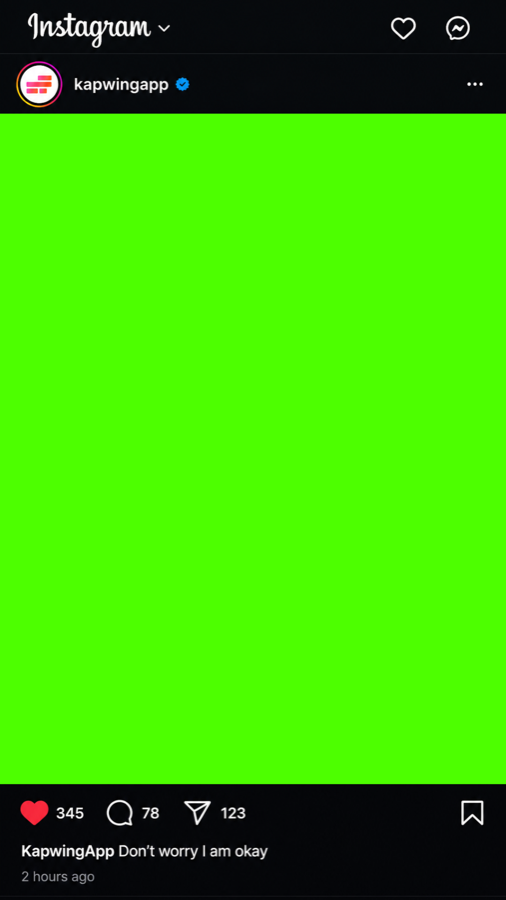
Start by creating one 9:16 Instagram post template. Add the recognizable parts of an Instagram post, including a profile picture, username, like count, caption, and the like, comment, and share icons. You can also use the image below.
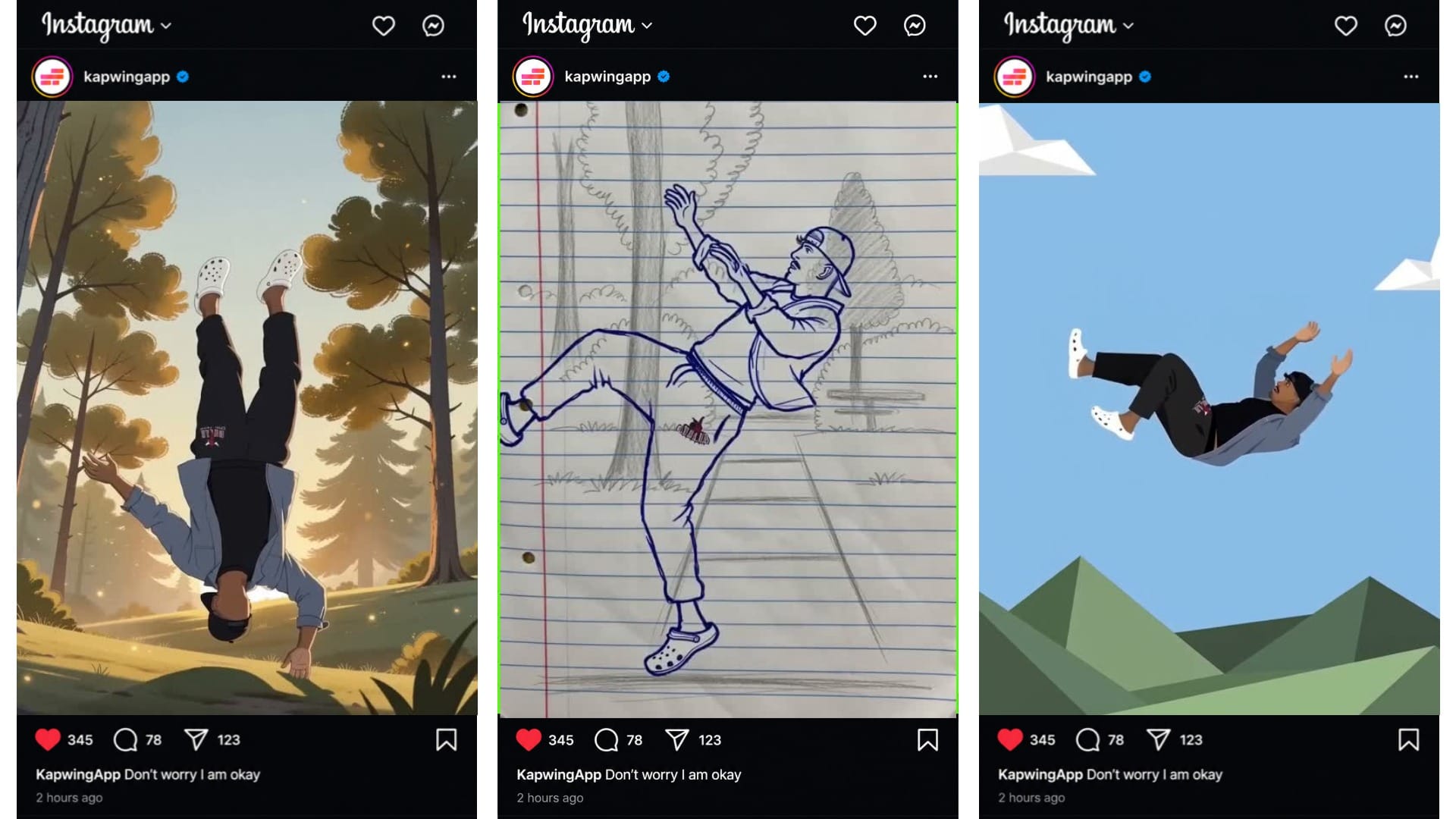
Once the first post is finished, duplicate it for each of your AI worlds and replace the video inside each version. You can also change details like the caption and like count between posts.
These details aren't essential to the effect, but they make the sequence feel more like you're actually moving through different posts in a feed.
Next, create the black hole that starts the fall. One simple way to do this is to animate a black ellipse over a green background, bring that clip into the studio, and use Chroma Key to remove the green.
Position the remaining black ellipse beneath your feet in the opening grass footage and time the animation so the hole begins opening as you prepare to fall.
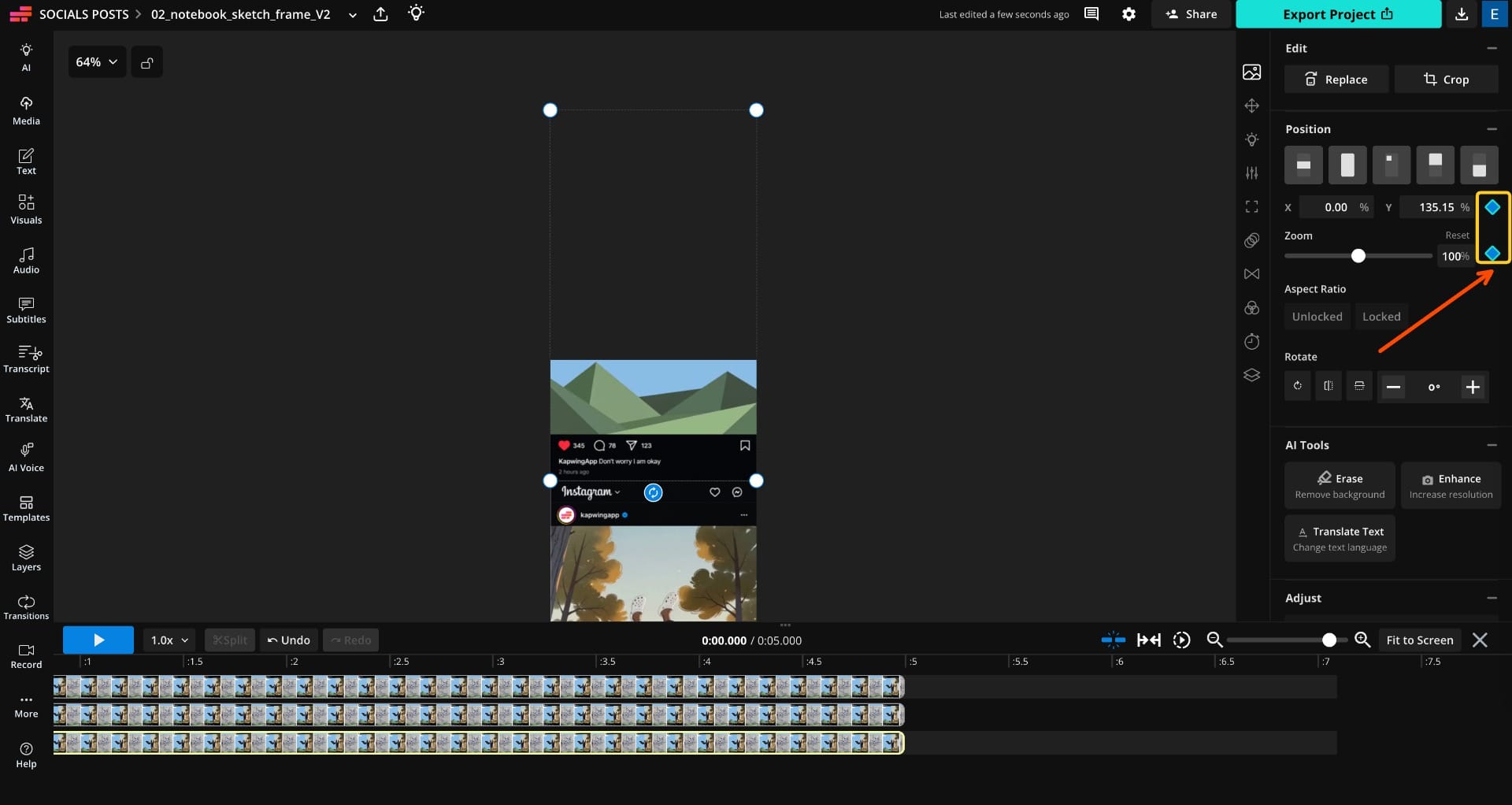
From there, animate the Instagram posts using keyframes. In a 9:16 canvas, stack the three images in a continuous scroll. The images will be bigger than your canvas.
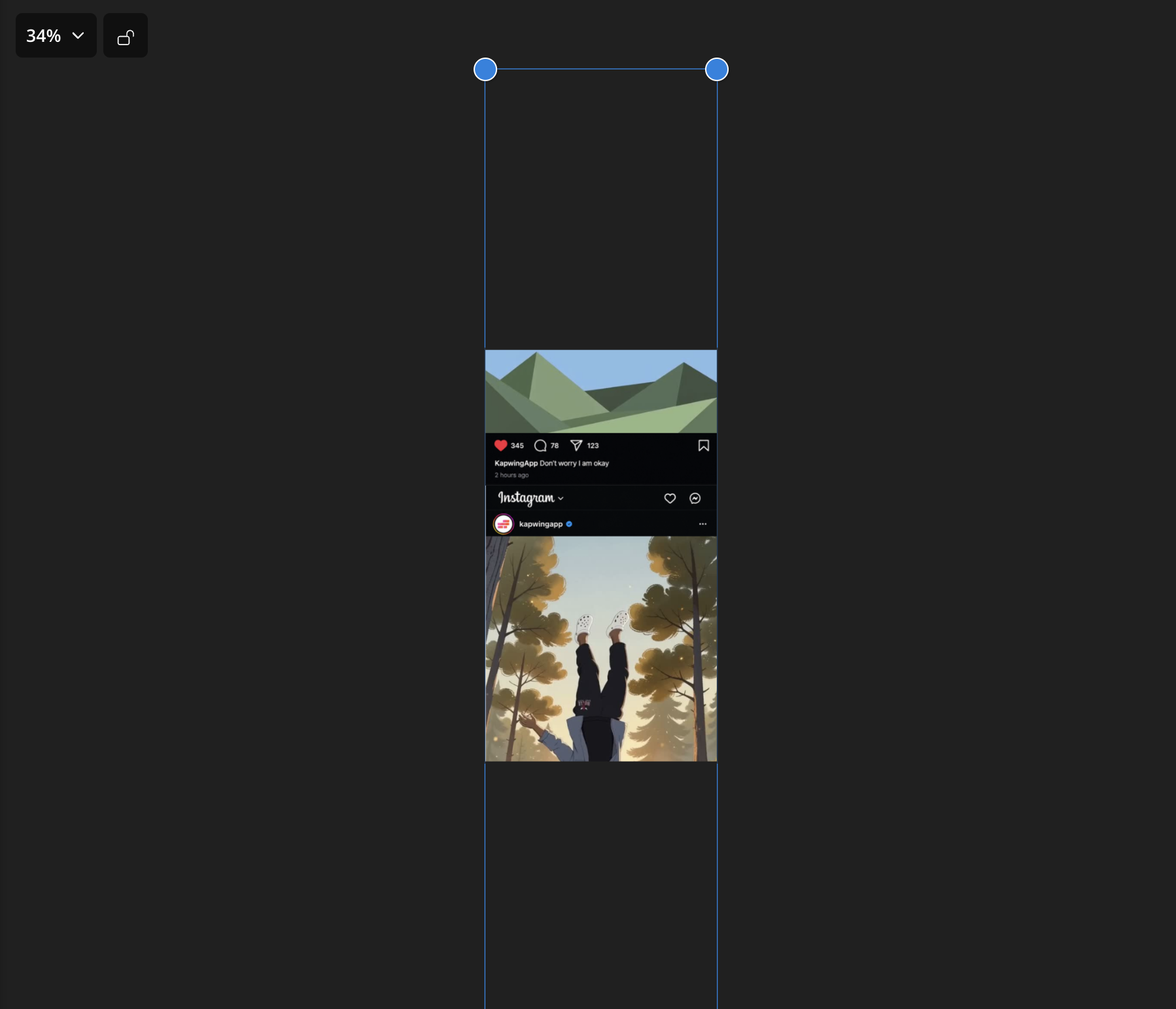
The first post should begin below the visible canvas. Add a keyframe, move forward in the timeline, and reposition the post so it fills the screen. Add another keyframe as the post continues upward and eventually leaves through the top of the canvas.
Repeat the same movement for every post: start below the frame, move through the center, then exit through the top.
Best Practices for a Seamless Falling Through Instagram Effect
Small inconsistencies in the character's position, scale, or movement become obvious as soon as two clips are placed next to each other.
These are the practices that make the biggest difference.
Keep the character description the same
Once you have a character description that accurately represents your reference footage, treat it as a locked part of the prompt. Copy and paste the same block into every generation rather than rewriting it to suit each visual style.
Even small changes in wording can encourage the model to reinterpret your character's clothing, proportions, or appearance.
Prioritize consistent movement over a perfect AI generation
When choosing between generations, pay attention to pose, scale, orientation, and trajectory before looking at smaller visual details. Your character should remain horizontal, stay the same size, and move straight down through every world.
Because each AI world only appears briefly, minor background imperfections are much easier to overlook than a break in the falling motion.
Don't shorten the framing instructions
The framing prompt is intentionally repetitive. Instructions such as no spinning, no flipping, no drifting, no zooming, and no change in scale all restrict different behaviors the video model might otherwise introduce.
For this effect, predictable motion is more valuable than a shorter or more natural-sounding prompt.
Match the first and last frames of every fall
When two AI clips don't connect properly, compare the point where the character exits one video with the point where they enter the next.
Their body should be approximately the same size, in the same horizontal pose, with their head and feet on the same sides of the frame.
Use sound to connect the transitions
Sound design can make separate visual cuts feel like one continuous movement. Try a descending sound as the fall begins, followed by a short whoosh as each Instagram post passes through the frame.
You don't necessarily need a different sound effect for every transition. Reusing the same whoosh with small pitch changes can create a consistent audio motif that reinforces the downward movement. You can also place the sound a few frames ahead of the visual transition to make the scroll feel faster and more responsive.
Frequently Asked Questions
Why does my AI character spin instead of falling straight down?
This usually happens when the video model has too much freedom to interpret the falling motion. Keep the full framing block in your prompt and explicitly specify a locked camera, fixed horizontal pose, fixed character size, and straight vertical movement. The instructions against rotating, flipping, tumbling, drifting, and zooming are there specifically to prevent this behavior.
Why does the person look different in every AI video?
Check that you're using the same reference footage and the exact same character description for every generation. Changing clothing descriptions or other identifying details between prompts can cause the model to redesign the character. Keep that block identical and change only the description of the visual world.
Why don't my AI clips transition smoothly?
Compare the character at the end of one clip and the beginning of the next. The body should be roughly the same size and orientation, with the head and feet on the same sides of the frame. Each character should also leave completely through the bottom before the next version enters from above. If one generation is substantially different, regenerating it is usually easier than trying to correct the mismatch in the edit.
What should I do if one AI generation looks bad?
Run the same prompt again first. A single poor result doesn't necessarily mean your prompt is wrong, and another generation may produce the movement you need without any changes. If the same problem survives several attempts, then adjust the part of the prompt responsible for that specific issue.
What aspect ratio should I use for the Falling Through Instagram trend?
Use 9:16 vertical video for your original phone footage, AI generations, and final Kapwing project. Keeping the same aspect ratio throughout the workflow makes it easier to maintain consistent framing and prepares the finished video for Instagram Reels and other vertical platforms.