How To Use Microsoft Bing's AI Image Creator
Bing helps creators generate AI images for free
Microsoft offers a powerful free AI image generator that’s a valuable addition to any creator’s toolkit. Microsoft Bing Image Creator allows users to generate original images simply by writing a text prompt. All you need to get started is a free Microsoft account.
As many AI image generators have moved behind paywalls or strict credit systems, Bing Image Creator remains one of the most accessible free AI art tools available in 2026. Powered by OpenAI’s image generation models and integrated into the Microsoft Copilot ecosystem, the tool makes it easy to create custom illustrations, concept art, social media graphics, and more.
The following article will include a step-by-step guide to creating AI-generated images with Microsoft Bing Image Creator, as well as a comparison to alternatives.
Table of Contents
- How To Use Microsoft Bing's AI Image Creator
- Kapwing AI Image Generator vs Bing AI Image Creator
- Frequently Asked Questions About Bing AI
How To Use Microsoft Bing's AI Image Creator
Step 1: Sign In to Microsoft Bing AI Image Creator
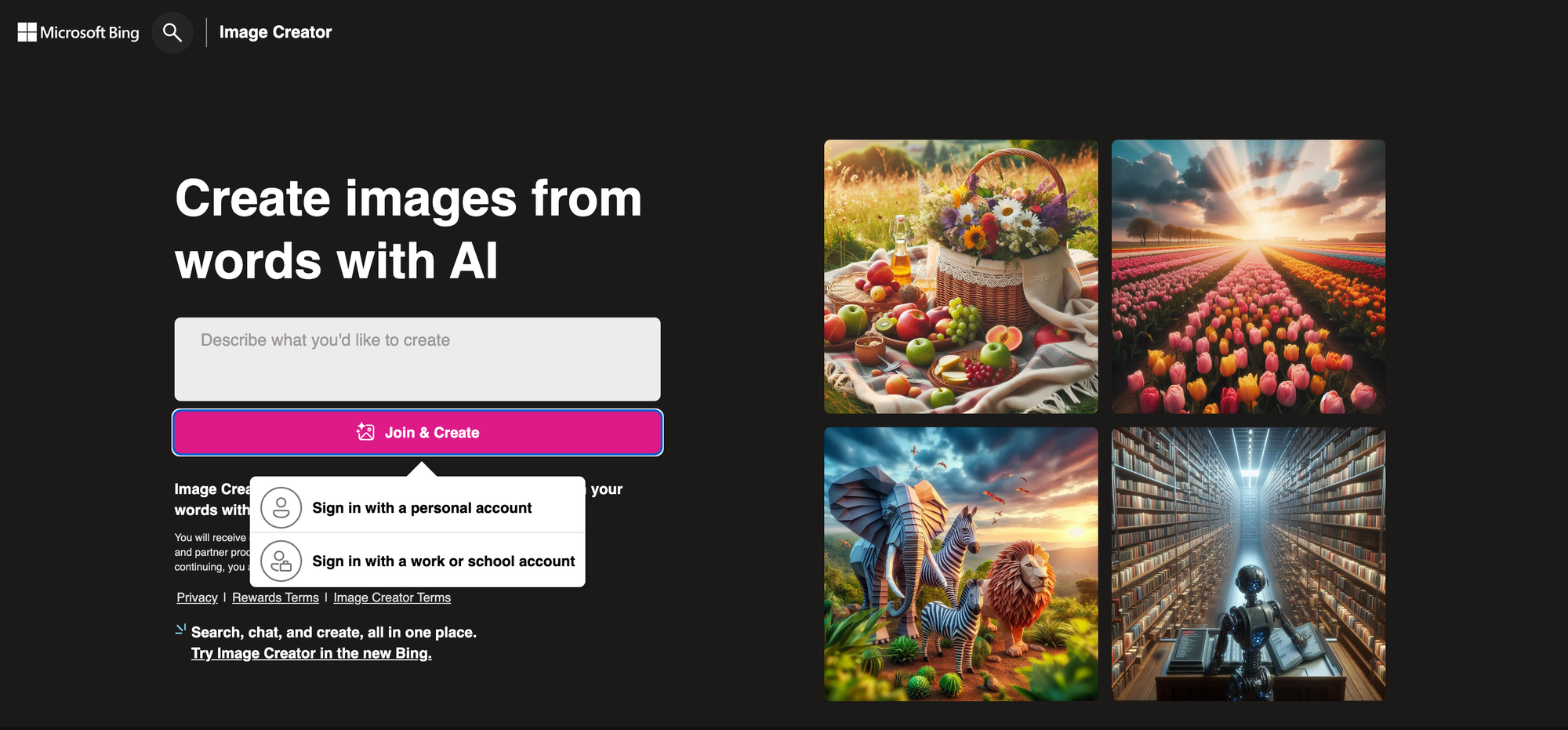
Go to Bing Image Creator and click the “Join & Create” button. You can sign in using any Microsoft account, including accounts connected to:
- Outlook
- Skype
- Teams
- Xbox
- Microsoft 365
Select “Personal account” during login to complete setup. Once signed in, you’ll be taken to the AI image generator interface where you can start creating images immediately.
If you don’t have an account, you can create one for free.
Step 2: Learn and Explore
Once signed in, you have several options:
The “Explore Ideas” section showcases AI-generated images created by other users. This gallery is helpful for discovering prompt ideas, understanding different art styles, and seeing how detailed prompts influence results. You can click any image to view the prompt that generated it.
If you’re unsure what to create, click “Surprise Me.” This generates a random prompt such as:
“Superhero sitting at an office cubicle, vintage comic book style.”
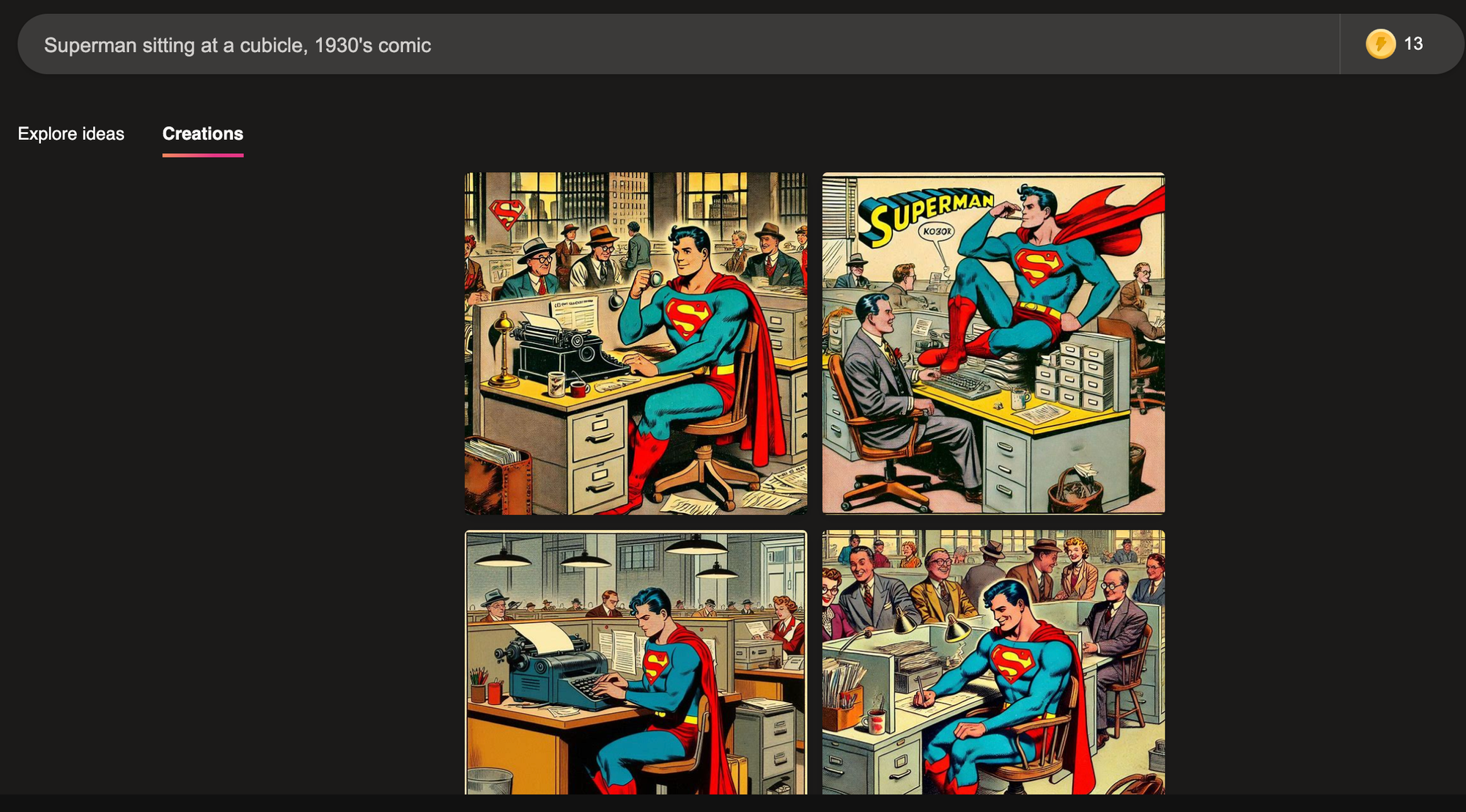
You can then edit the prompt to make it your own. For example:
“Superhero sitting at a cubicle reading a newspaper under a single lightbulb, 1930s comic illustration style.”
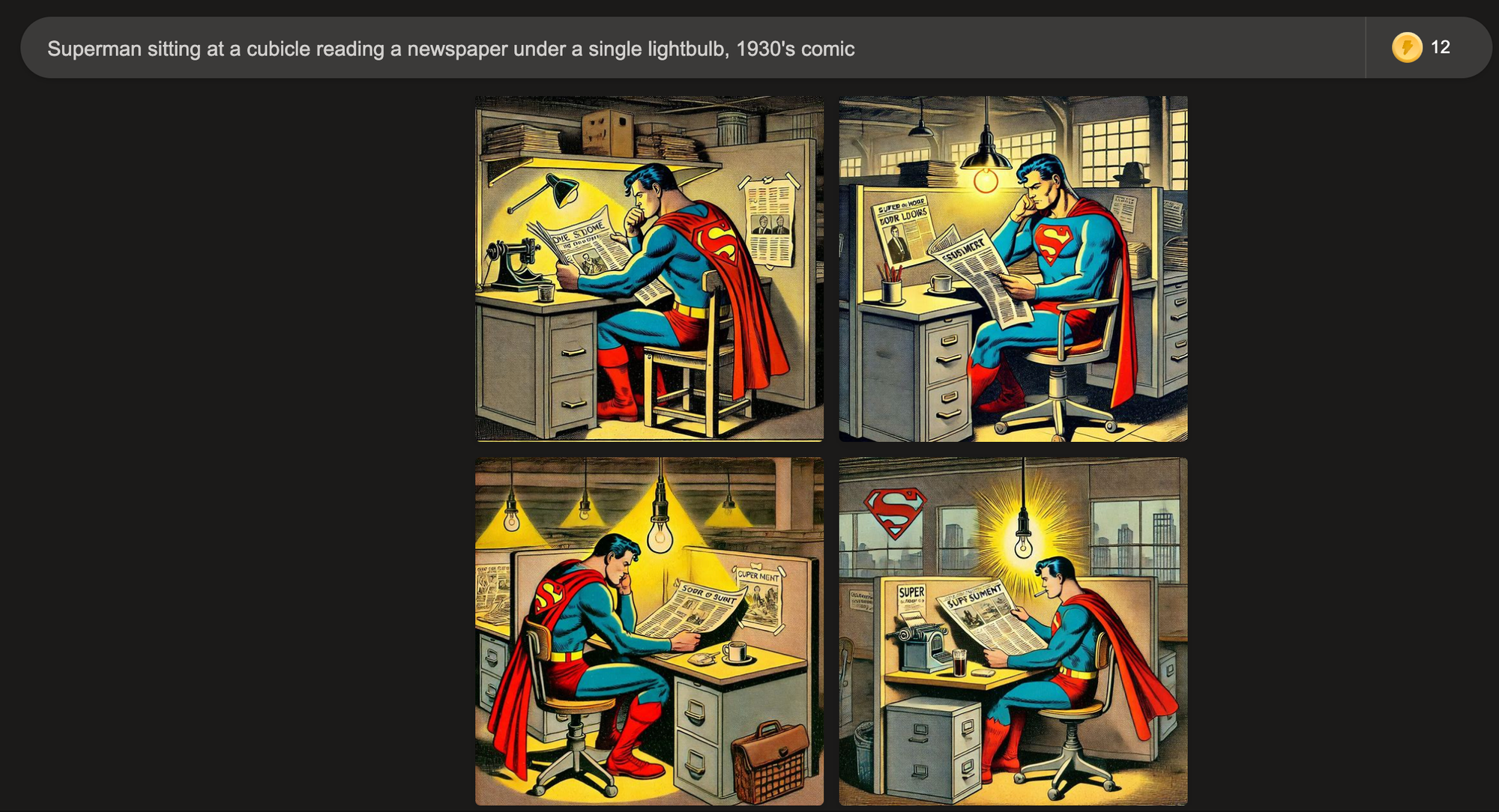
Step 3: Generate Images with Custom Prompts
To generate an image:
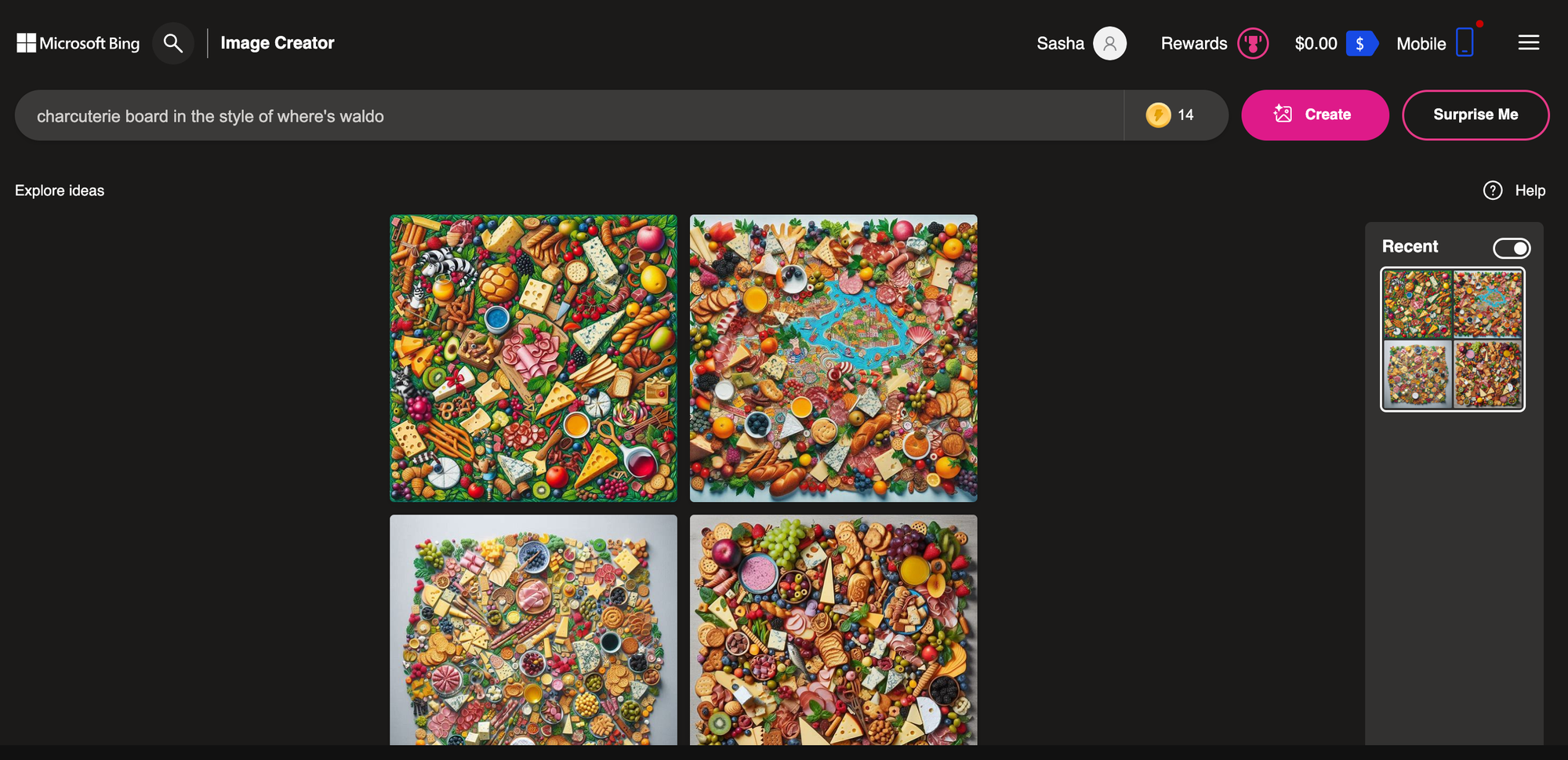
- Type your prompt into the prompt bar
- Click the Create button
Bing recommends using at least six words for the best results.
Example prompt:
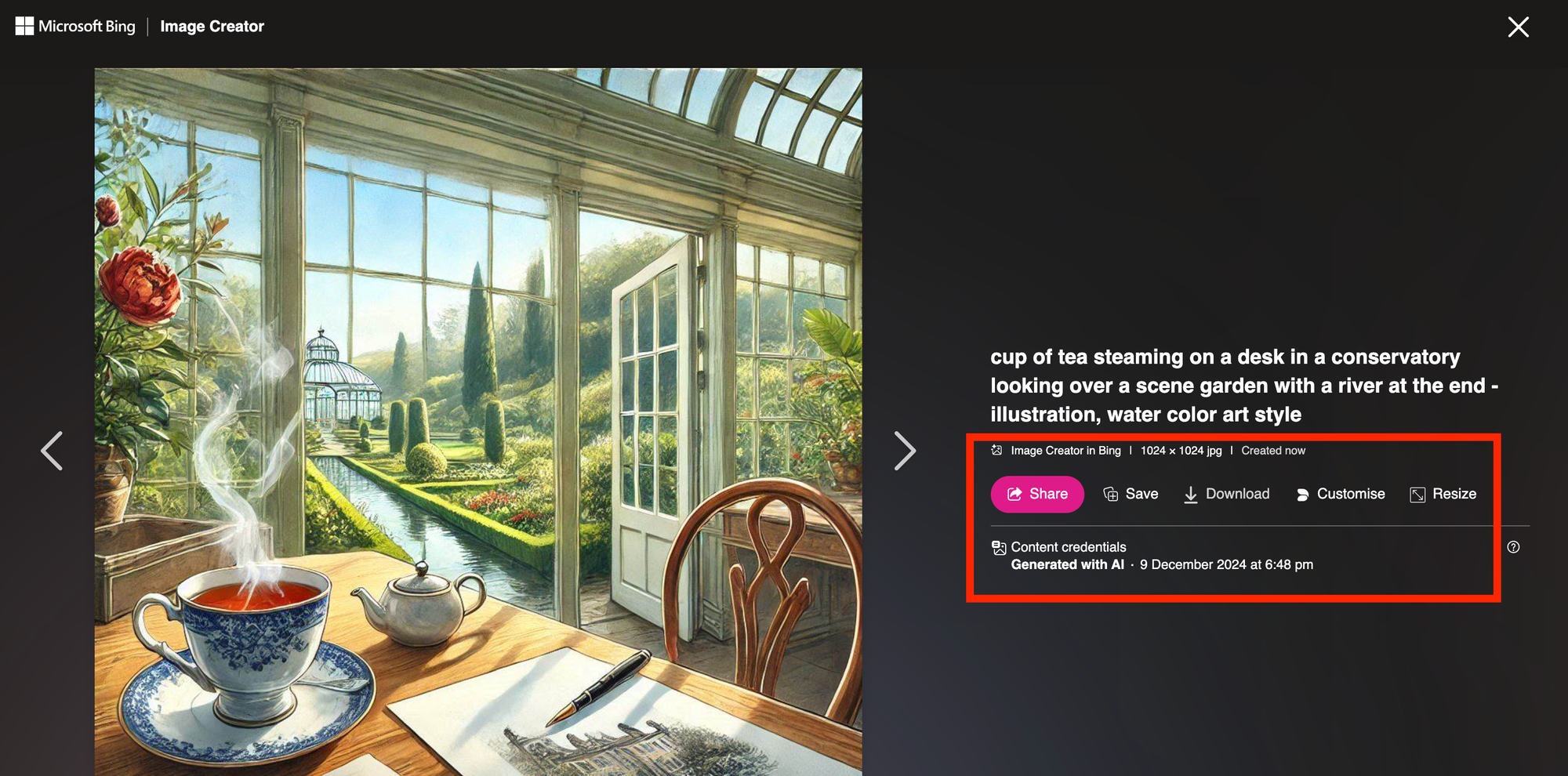
“Cup of tea steaming on a desk in a glass conservatory overlooking a garden river, watercolor illustration style.”
Each prompt generates four different image variations. You can click through them and download your favorite version.
When you click "Create", it uses one of your 15 free daily image creations. If you decide to adjust your prompt, you can retype the prompt with your modification. However, the tool won’t recreate the exact same image with the small change; it will generate a similar one based on the updated description, and this will count as another usage from your daily allowance.
Alternatively, a Microsoft Copilot Pro suite costs $20 per month and allows you to generate 100 Creations per day.
Step 4: Resize, Crop, and Edit Your Image
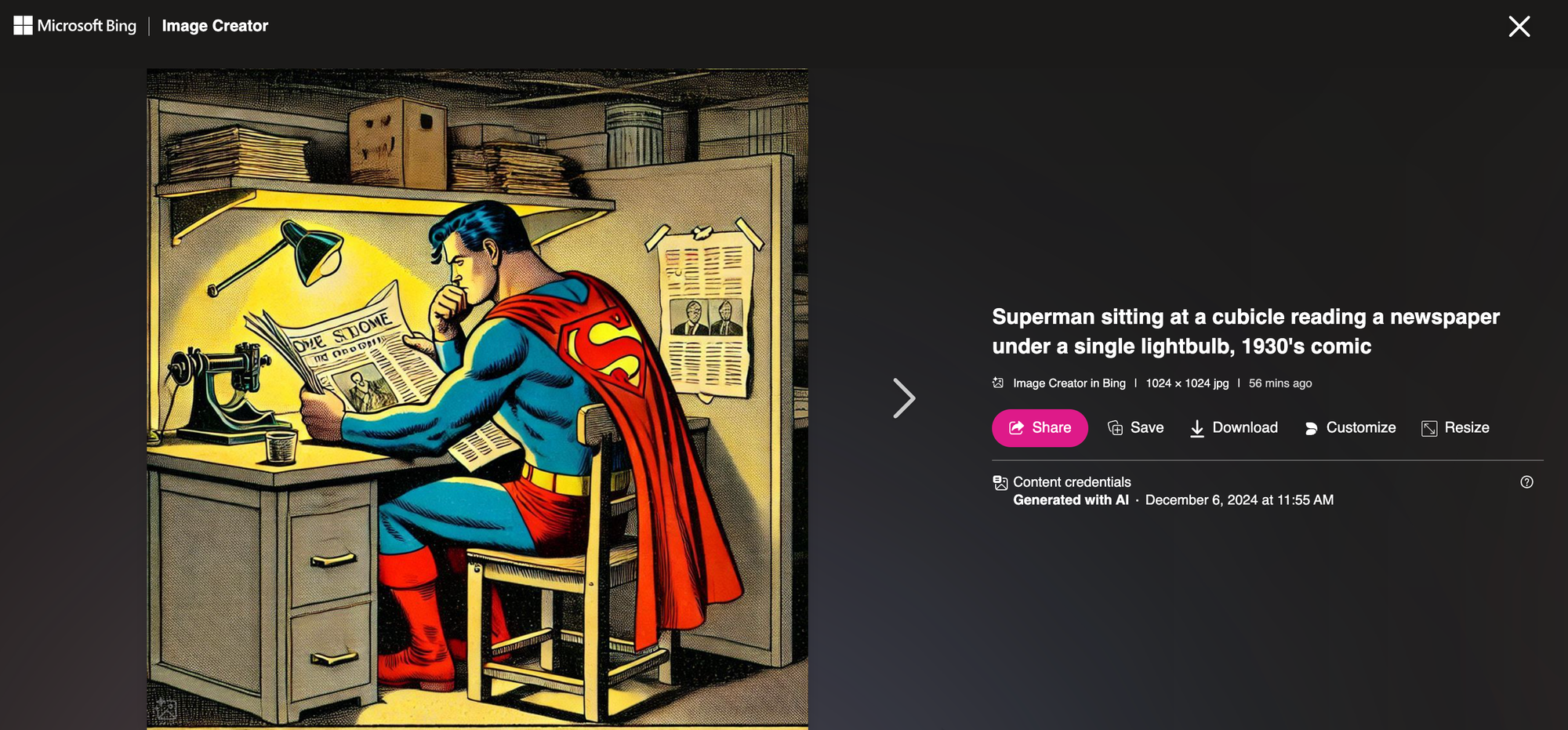
Once you’ve selected an image from Bing AI Image Creator, you can adjust its size using the built-in Resize option. However, for editing and adjustments such as adding text, creating a custom aspect ratio, or creating a transparent background, you'll need to use Microsoft Designer or a third-party app such as Kapwing.
Resize:
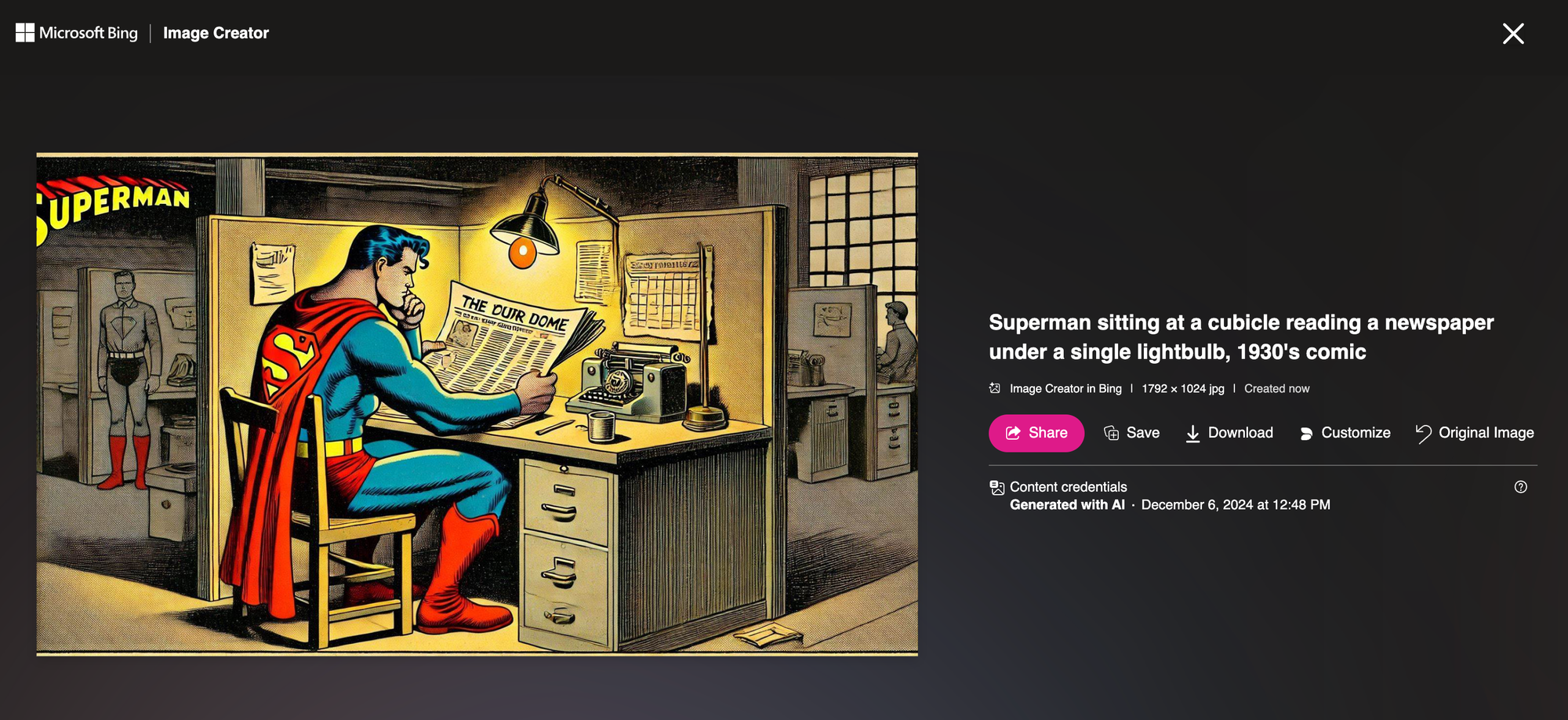
- Use the "Resize" button to change the image from its default square format to a Landscape 4:3 ratio.
- The tool automatically generates additional elements to fill the expanded space (e.g., adding desks and background scenery in a Superman-themed image).
- You can revert to the original image if needed.
Customize:
- Click the "Customize" button to open Microsoft Designer, a free web-based editor.
- Features include annotation, cropping, filters, brightness adjustments, and advanced AI tools like "Blur Background" and "Generative Erase."
Step 6: Share, Save, and Download Your Image
Once your image is ready, you have several options for sharing, saving, and downloading it:
Share It:
- Use Bing’s "Share" button to share directly on social networks or via text.
- On mobile, the browser offers standard sharing choices, including email, social media apps, and text apps.
Save It:
- Click "Save" to store the image in your Bing account under the "Saved Images" Collection for easy access later.
Download It:
- The image will save as a JPEG file by default. From there, you can treat it like any other downloaded image. If you want to save the image as a PNG or PDF, click "Customize" to open Microsoft Designer.
Kapwing AI vs Bing AI Image Creator
Kapwing also offers AI image and video generators, which allows users to create original visuals from text prompts. While Bing Image Creator focuses primarily on image generation, Kapwing provides a full editing environment for creators and teams.
Here’s how the two tools compare.
Features and Customization
Bing AI Image Creator: Best-suited for quick, one-off tasks with basic functionality and minimal editing. Need to use in conjunction with Microsoft Designer for advanced editing and resizing requests.
- Generates static images (JPG by default, with PNG and PDF options via Bing Designer).
- Limited editing capabilities unless paired with Microsoft Designer.
Kapwing AI Image Generator: Suited for complex, ongoing projects requiring advanced customization, branding, and integration into multimedia workflows. It is the better choice for professional creators or teams working on comprehensive content.
- Image Editing:
- Add effects, animations, filters, and layers.
- Insert text (e.g., for memes) and templates.
- Remove or customize backgrounds, including transparent PNG files.
- Aspect Ratio Tools:
- Automatic resizing for platforms like TikTok, YouTube, Instagram, Facebook, and LinkedIn.
- Custom sizes and AI-powered image expander to extend images without cropping.
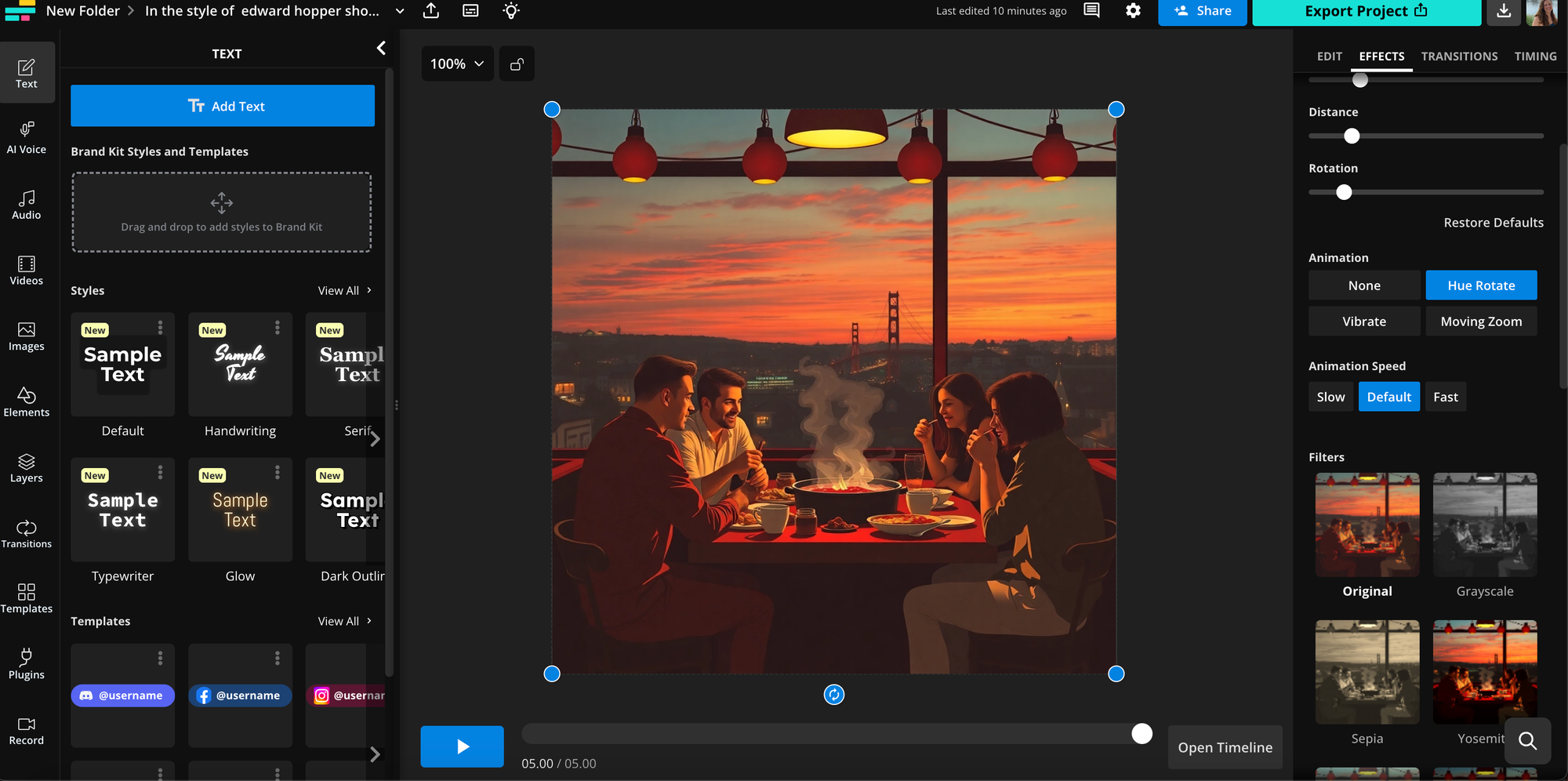
- Brand Kit Integration:
- Maintain consistent branding by adding logos, fonts, and templates directly from a Brand Kit.
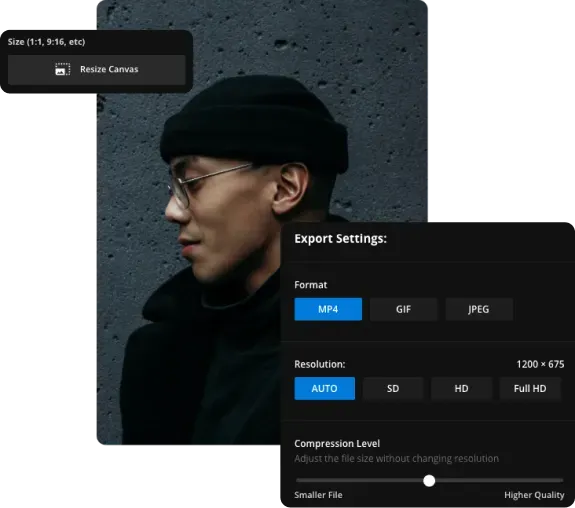
- Export and Download:
- Simultaneously switch between video, image, or GIFs and export in a range of file formats ranging from MP4 to MOV, JPG, PNG, and MP3.
- GIF and Animation Creation:
- Convert static images into dynamic GIFs or animations.
- Additional Features:
- Text translation for multilingual projects.
- Library of stock images and photos for easy integration.
- Shape tools to create logos or stickers (e.g., turning images into circles).
Advanced AI Features in Kapwing
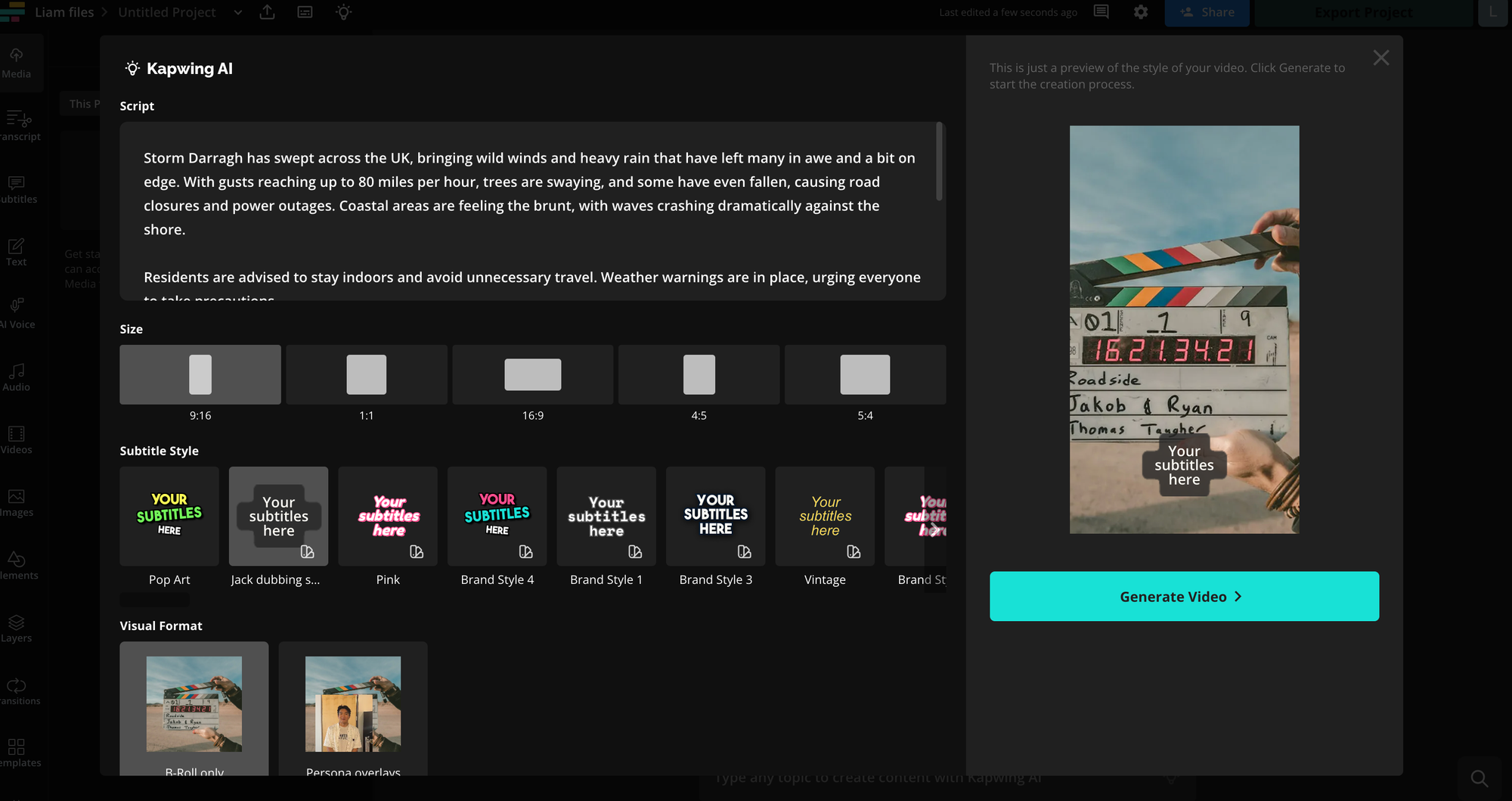
- Video Projects: Create AI-generated videos complete with B-roll, voiceovers, and subtitles.
- Scenes: Generate three-second animated "scenes" for dynamic storytelling or presentations.
Frequently Asked Questions About Bing AI
Is Bing's AI Image Creator Free? Is There a Waitlist?
Yes, Bing Image Creator is free, but you need a Microsoft account tied to an email address to access the tool. You have 15 "boosted" image creations available per day. After 15 generations, it will take longer for the tool to create an image.
As with most free things, your personal data is being used and you need to go into the settings if you want Bing to not use your personal activities online to create image recommendations. Turn off 'Personalization' in the 'Settings' tab.
There's no waiting list to start using the Bing tool and you don't have to put in credit card info to access the creator. You can earn Microsoft Rewards that you can in turn use on the Bing Image Creator
How Long Does it Take to Make a Bing AI Image?
Bing’s AI Image Creator typically takes under a minute to generate images, depending on the complexity of your prompt. To speed up the process, Bing provides a daily supply of "boosts," which are replenished each day. Additional boosts can be purchased using Microsoft Rewards points if needed.
In comparison, Kapwing’s AI Image Generator process is significantly faster, usually taking just a second or two to create four images.
What Are the Best Types of Prompts to Use with Bing AI Image Creator?
Bing offers helpful tips for crafting effective prompts to generate AI images. We found that being highly descriptive is the key to success. For example, instead of simply typing "Thanksgiving," a more detailed prompt like "Thanksgiving at sunset on the beach" yields richer results.
Likewise, you can enhance your prompt further by including style cues such as "photorealistic" or referencing artistic styles like "in the style of Cubism." Adding specific details, such as locations, times of day, or moods (e.g., "silly," "professional," or "childish") can also influence the tone of the image.
For even greater precision, specify camera-related aspects like angle, focus, or depth of field to emulate a particular photographic style. The more specific and detailed your prompt, the better the results.
Can You Sell Bing AI Images? What are the Copyright Rules?
You cannot sell images created with Bing AI Image Creator, as they are not intended for commercial use. According to Bing’s terms of use, images generated by the tool are for personal purposes only, although you are permitted to share them online, such as on social media. Commercial activities, including selling or profiting from these images, are prohibited, and Bing reserves the right to revoke access if these rules are violated.
In terms of copyright, images generated by Bing AI Image Creator include a watermark to indicate they are AI-generated. These images do not grant you exclusive rights, as they are created using a shared tool available to all users.
Do Bing AI Images Have a Watermark?
Yes, images generated by Bing AI Image Creator carry a watermark. The watermark is located in the bottom left corner of each image and indicates that the image was AI-generated. This is a requirement to ensure transparency about the origin of the images.
What Other Free AI Image Generators are There?
- Bing AI Image Creator: Offers 15 free image creations per day for Microsoft account holders.
- Meta AI: Available on WhatsApp, Facebook, and Instagram, providing unlimited free AI image creation.
- Google ImageFX: Part of Google's Gemini AI interface, using Imagen3 for free image generation.
- DALL-E: Integrated with OpenAI's ChatGPT, allowing free users to generate two images per day when signed in.
- Adobe Firefly: Free for Adobe account holders, with 25 credits per month. Credits expire after one month and do not roll over. Users can upload reference images for added customization.
Paid Options:
- MidJourney: Subscription required (monthly or annual), with free trials or credits occasionally available.
- Pixelcut: Costs $10 per month.