How to Pin Posts on Instagram (with Examples)
Keep your favorite and most important posts seen at the top of your Instagram profile. This is how to pin posts on Instagram.
We all have that favorite selfie, that favorite trip across seas, that favorite memory with our friends last summer. Sometimes, we even have announcements or updates that our community and followers should always know about– whether those are FAQs, new products, or new charities we want to share.
Pinning comments on TikTok and Instagram are incredibly helpful for viewers and creators alike for context or engagement. On Twitter, people pin a tweet on their profile to highlight important information, keep their favorite tweet seen, or just share a fun joke. Now, we have Instagram pinned posts.
THREE of them.
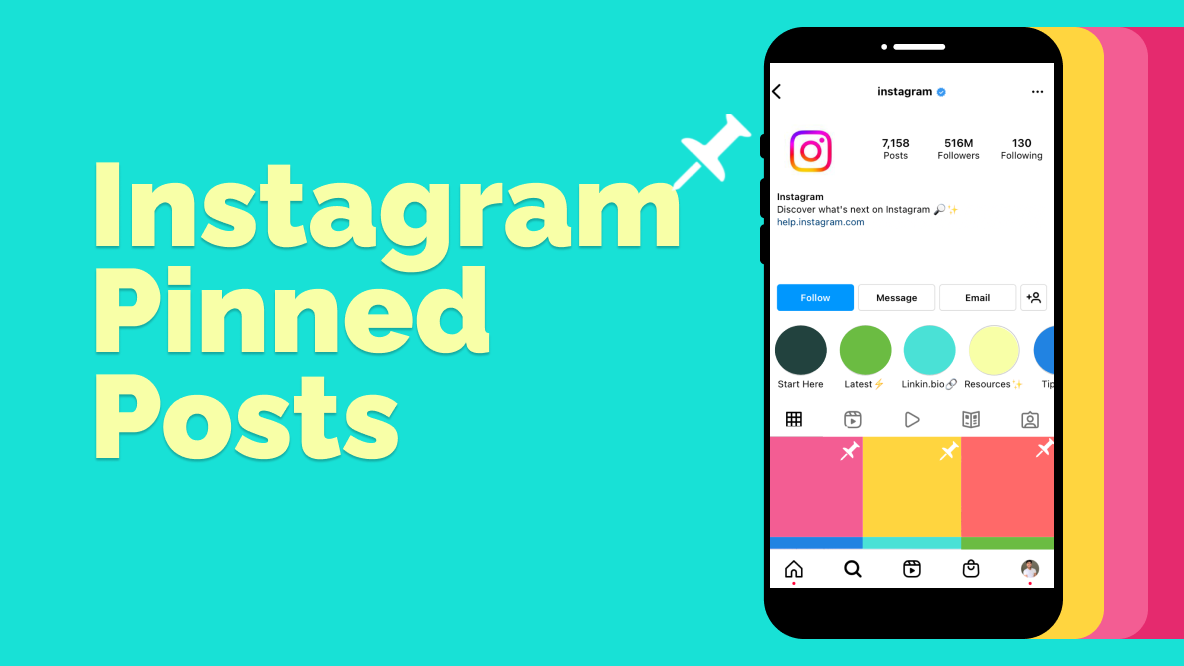
These pinned posts will show up on your profile at the top of your grid, right below your Instagram bio and Story Highlights.
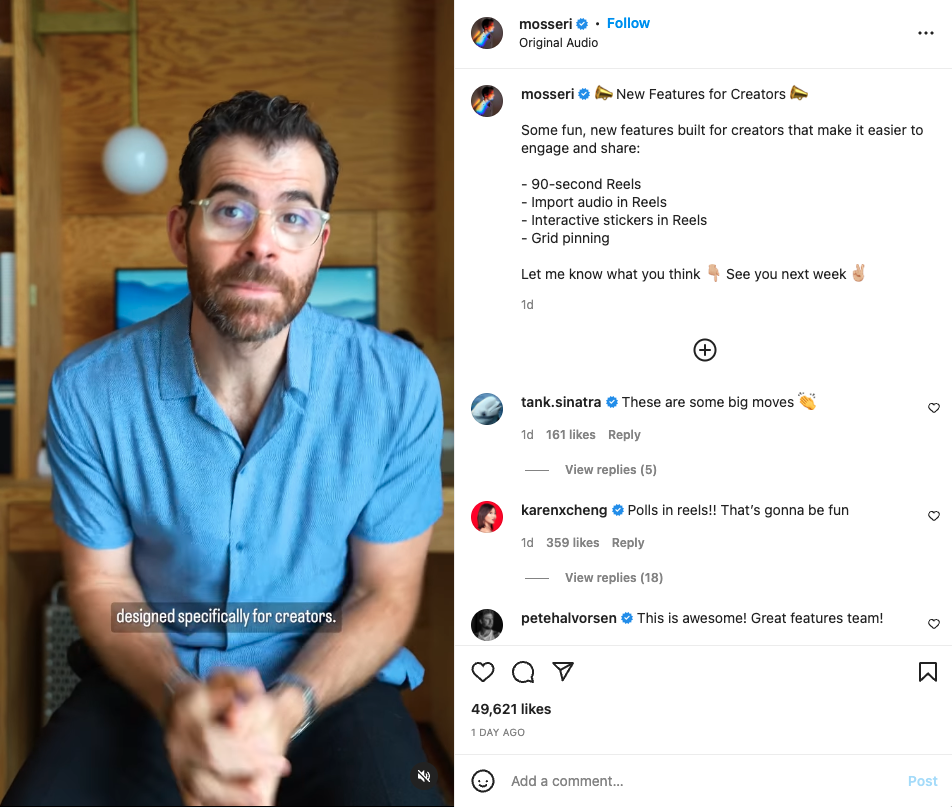
The Head of Instagram, Adam Mosseri, recently took to the platform to announce the new feature on the platform: grid pinning. This is huge for content creators, brands, and every Instagram user in between as Mosseri reminds everyone "Your profile is your space, so we're looking for more ways to give you control over that experience."
By pinning 3 posts at the top of your Instagram profile, you’re able to create the experience a viewer would have when on your profile.
In this article, I’ll show you exactly how to pin a post on Instagram, making your Instagram profile much more tailored towards who you are and how you’d like to express yourself.
Try these trending Instagram tools:
- Free Online Video Resizer
- Online Instagram Video Maker
- Instagram Reels Safe Zones Template
- Repost YouTube Videos to Instagram
- Video Progress Bar Generator
How to pin posts on Instagram:
- Choose which post you want to place first
- Tap on the 3 dot icon (⋯)
- Select Pin to your profile
- Organize and play with your top 3 pinned Instagram posts
Step 1: Choose which post you want to place first.
First, think of what kind of aesthetic you want people to experience when viewing your profile. Ask yourself questions like:
- Which posts show my personality the best?
- What colors do I want to present to set the tone of my Instagram profile?
- Do I want to feature my friends and family?
- Are there any announcements I want to keep highlighted on my profile?
Below are a few Instagram profile mockups to view ways you can organize your top pinned Instagram posts.
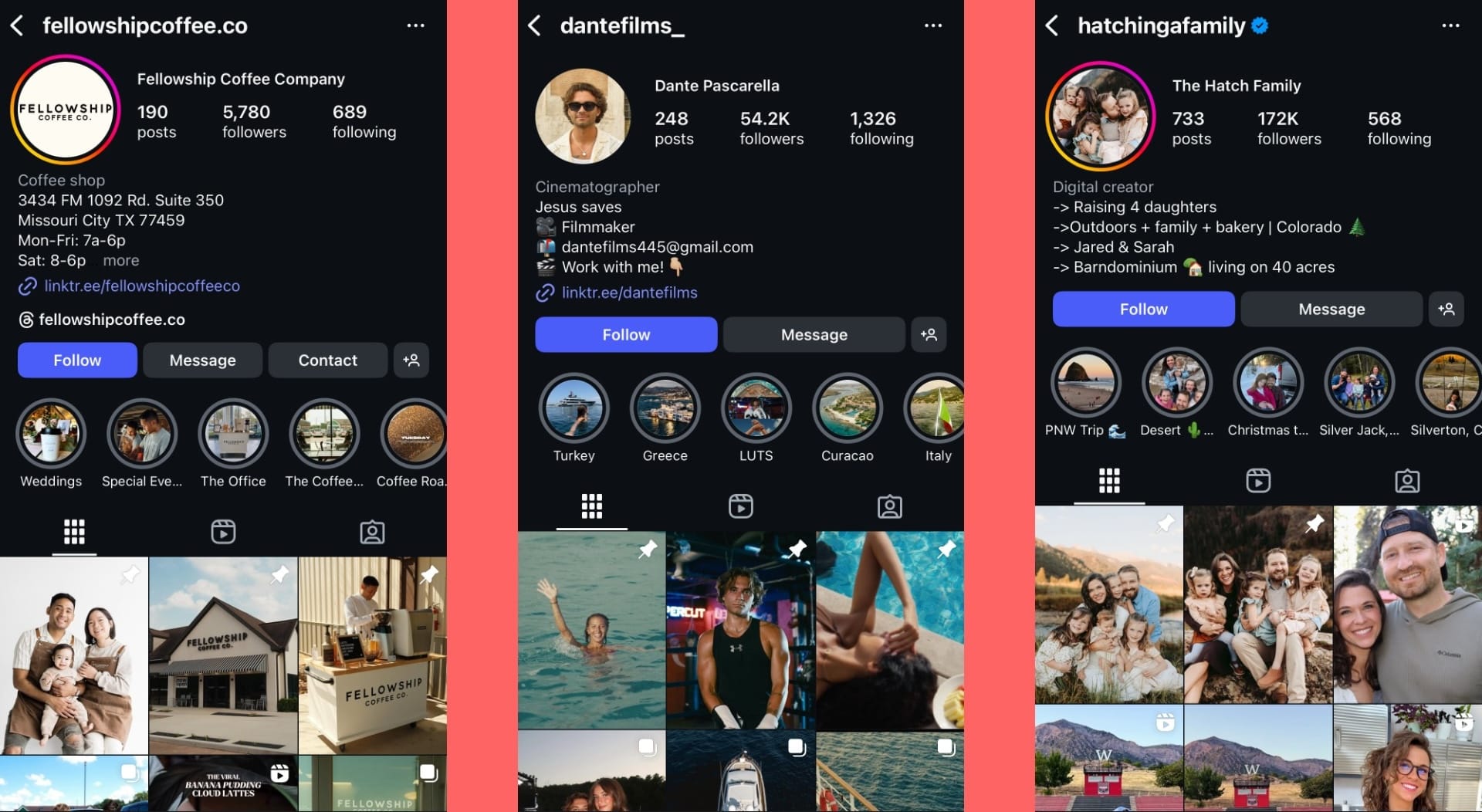
- On the left: A coffee shop pinning posts on Instagram that have a photo of their family that runs the business, basic photo of the business with hours and info, and an action shot of their coffee makers in action.
- In the middle: A cinematographer @dantefilms_ who pinned some inspirational reels and highlight samples
- On the right: A travel blogger and influencer who pins posts on their Instagram profile showing their full family
The important thing when choosing which posts you want to pin on your Instagram profile is deciding which posts you want to have greet anyone who lands on your profile and the impression you leave them with.
Step 2: Tap on the 3 dot icon (⋯)
Once you've found the post you want to pin to your Instagram profile, tap the 3 dots icon in the top right of that post (⋯).
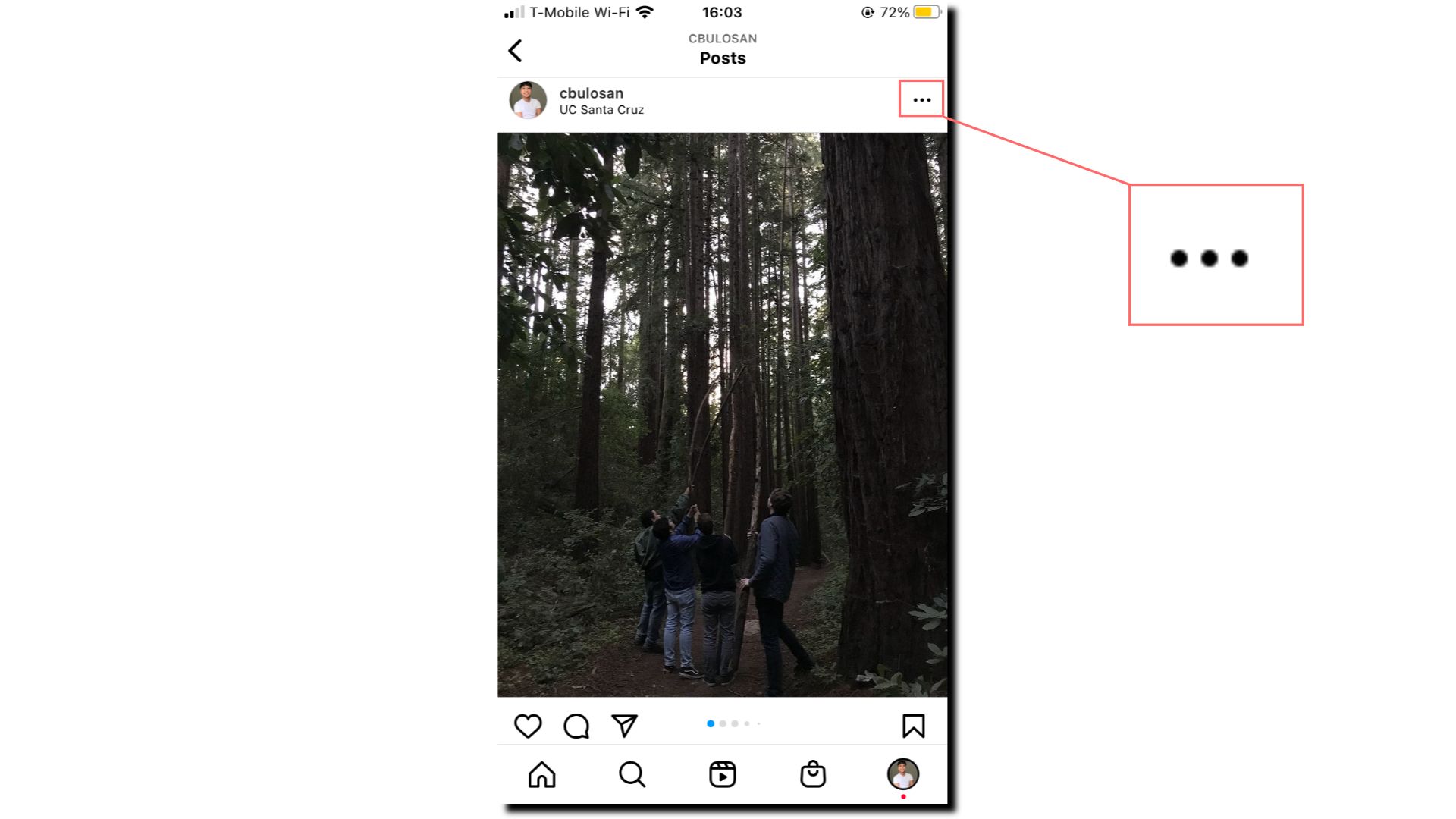
This will open the the settings and actions you can take for that specific post like deleting, archiving, turning off commenting, and now, pin to your profile.
Step 3: Select "Pin to your profile"
When you have your post settings open, select "Pin to main grid". This will pin your post to the top of your Instagram profile.
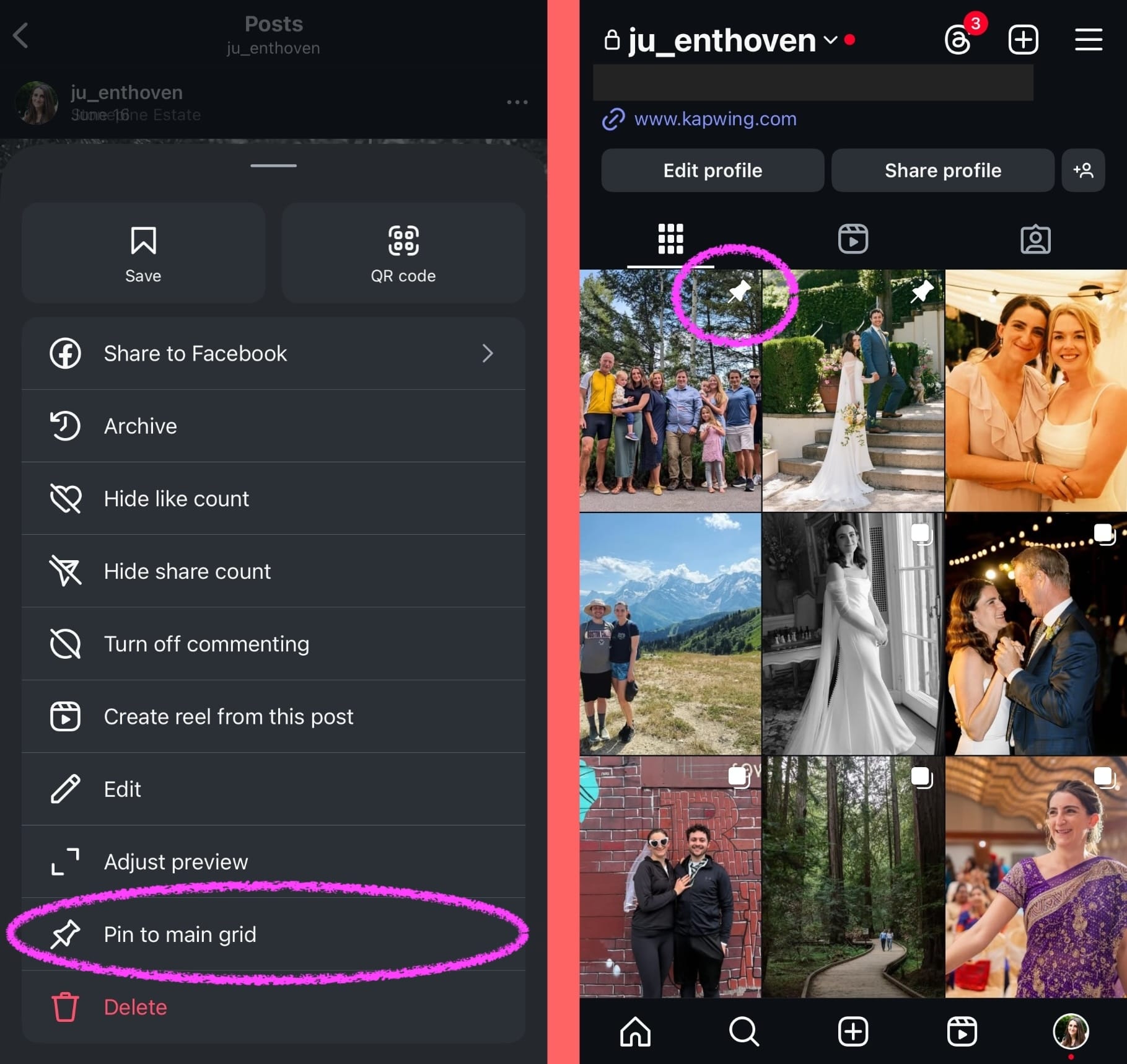
One thing to keep in mind: the order in which you pin your Instagram post is the order it will be placed at the top of your Instagram profile. For example, if you're pinning 3 posts, you'll want to pin the one you want to appear on the right side of the three, first.
Step 4: Organize and play with your top 3 pinned Instagram posts
You've pinned posts on Instagram– now what?
Take in what Mosseri mentioned: express yourself and "take control over [this] experience." Play around with the positioning of the posts you pinned on your profile and see what works (and looks) best to you.
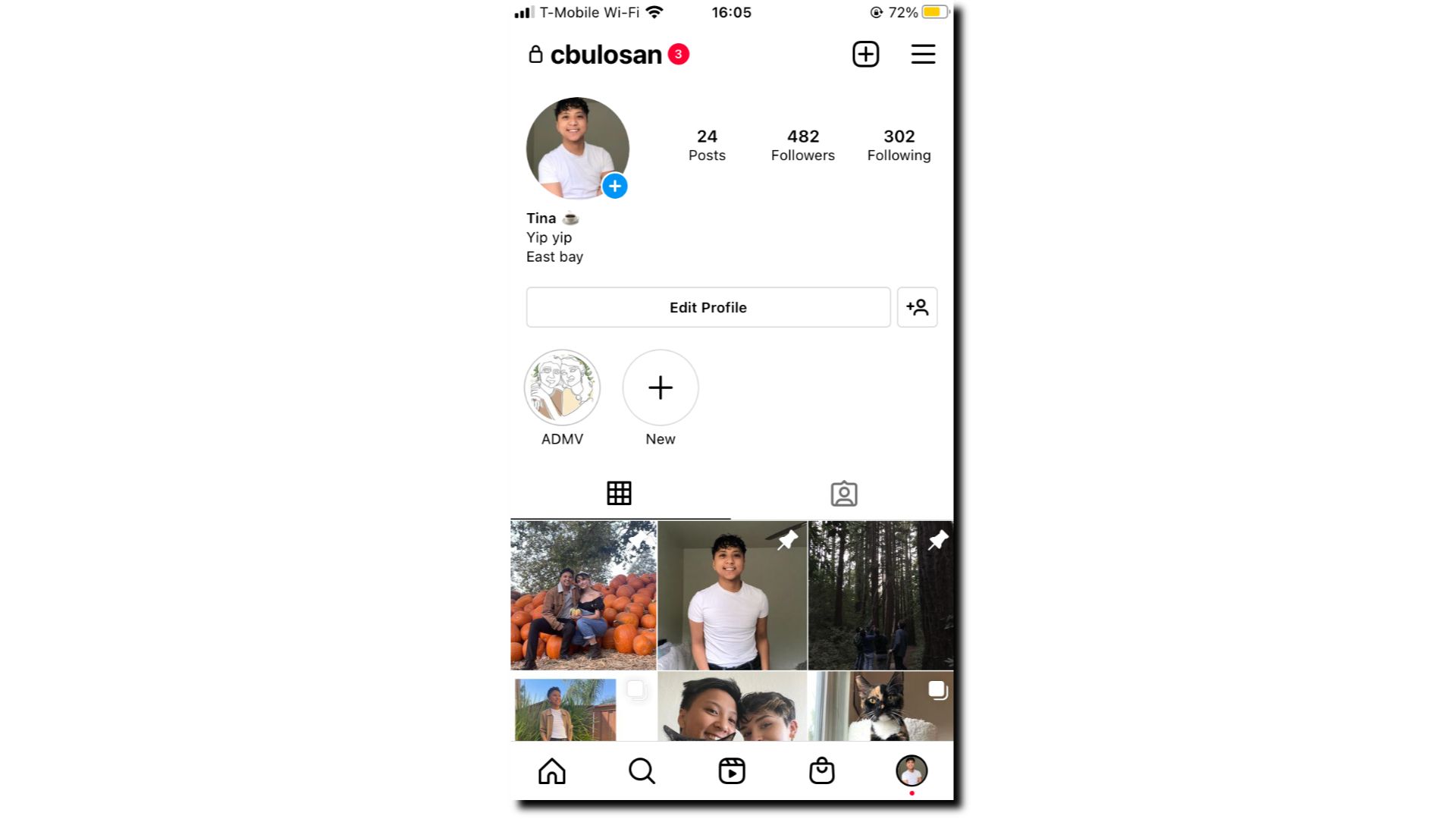
This is what my Instagram profile looks like. I wanted to feature posts of my friends and loved ones as well as a clear picture of myself. There wasn't much thought in this for me, but I did want to include a pop of color by pinning the post of myself at a pumpkin patch.
Frequently Asked Questions
How many posts can be pinned to my Instagram profile?
Three. 3 posts is the maximum number of pinned posts, taking up the whole first row of your Instagram profile grid.
Can I pin other people's Instagram posts on my profile?
No, Instagram users cannot pin photos or videos posted by other users. For example, you cannot pin a photo you were tagged in or a post that you saved.
To save or share an Instagram post from someone else, use the bookmark icon to put that post in your "Saves" folder. Find the saved posts folder on your Instagram profile.
What post can be pinned on my Instagram Grid?
All posts that you published are eligible for pinning:
- ✅ Reels: If you posted a video reel but did not publish it on your profile,
- ✅ Albums: If you have a multi-image carousel, you can pin this to the top of your profile. The pin icon will replace the album icon in your feed.
- ✅ Images: Single photos you have posted on Instagram
- ✅ Collaborations: If someone has added you as a collaborator, that post can be pinned at the top of your profile.
Some posts that are not eligible for pinning to the main grid:
- ❌ Stories, which are only visible for 24 hours by default
- ❌ Profile highlights, which show up above the main grid on Instagram
- ❌ Live videos
Can I pin a later image in a carousel?
If you pin a multi-photo album on your Instagram profile, the first photo still shows up first in the grid, regardless of which photo was visible when you tapped "pin to main grid." There is no way to change which image appears in the grid to a subsequent image in the carousel.
What order do pinned posts show up in, on Instagram?
On Instagram, pinned posts show up in the order that you pinned them. They are not chronological. If you pin an old post from your grid today, it will show up as the first image in your grid, before any other posts you have pinned.
Do pinned posts show up later in the grid, in the original position?
No. When you pin an Instagram post, it is moved out of its original position in the main grid to the top. The post does not show up again later. So, pinning a post does reorder the Instagram grid.
If you unpin a post, it moves back to its original chronological position in the main grid.
Happy Pinning!
With the digital media and creative space expanding its horizons day by day, the more room we as creators have to explore, express, and share our stories.
To learn more about new updates across every social media platform and content creation tips, check out the rest of our Resources Library. You'll find new trends, news, and features you can use to become a greater creator by visiting our YouTube channel, Instagram, or Twitter @KapwingApp.