How to Post the Full Photo on Instagram Without Cropping (2026 Update)
In 2025, Instagram added 3:4 photo support, making it easier to post full photos without cropping — if you know the limits.
In May 2025, Instagram updated its photo sizes by adding support for the 3:4 aspect ratio. Because most phone cameras shoot in 3:4 by default, this update makes it much easier to post full photos on Instagram without cropping. Previously, uploads were limited to square (1:1) or portrait (4:5), which often cut off parts of the image.
While this update makes it much easier to post the full photo on Instagram, cropping can still happen. Instagram may trim your photos if they’re wider than the landscape limit (1.91:1) or taller than the portrait limit (4:5).
This guide will cover everything you need to know about Instagram photo sizes, including the best aspect ratios, when Instagram crops photos, and how to resize without cropping.
Table of Contents
- How to Post the Full Photo on Instagram Without Cropping
- How to Resize Photos for Instagram Without Cropping
- Frequently Asked Questions
How to Post the Full Photo on Instagram Without Cropping
With Instagram’s latest update, posting the entire photo is much easier. Here’s exactly how to post the full photo on Instagram without cropping:
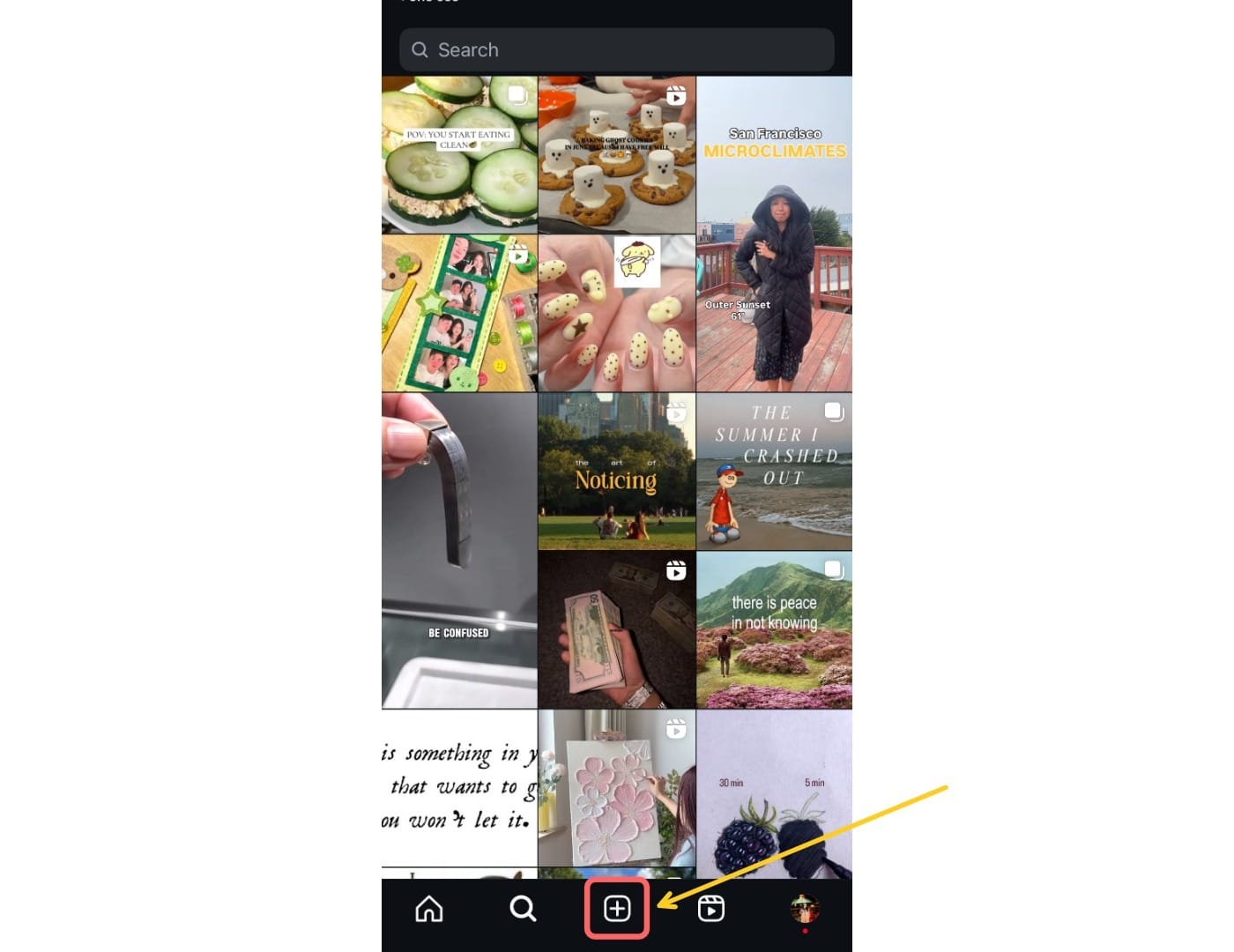
First, open Instagram and tap the “+” button to start a new post.
Select your photo or photos. Keep in mind that when posting in a carousel, Instagram may crop photos automatically to make them the same size. Posting different-sized photos together requires extra steps.
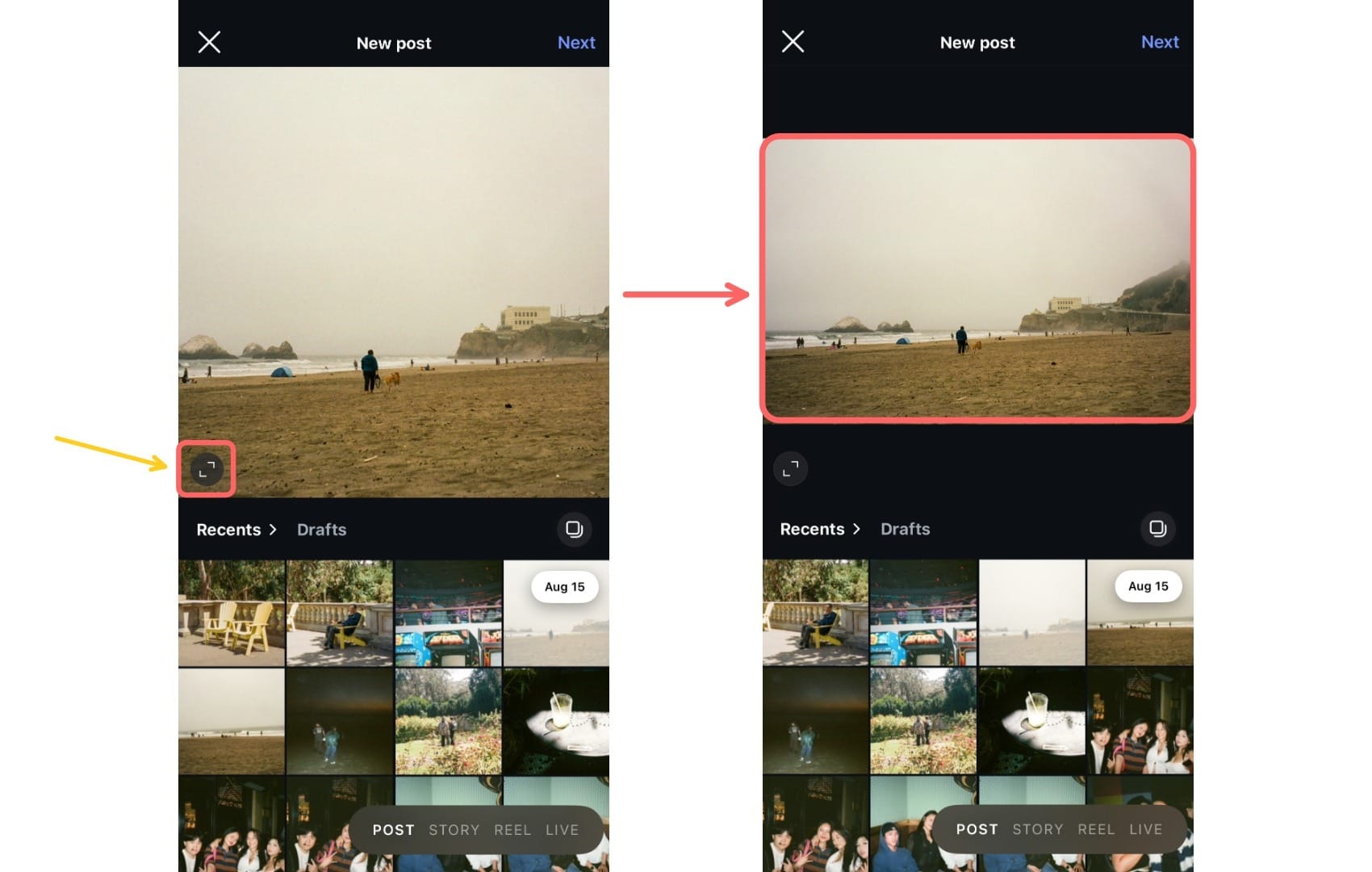
After choosing your images, tap the resize button in the bottom-left corner. This will adjust the frame so your photo displays in full. Most images will fit automatically, unless they fall outside Instagram’s supported aspect ratios (see below).
You can also pinch or drag to adjust the framing. Once you’re happy, tap "Next" to share.
Instagram Aspect Ratio Limits (2025)
You may be wondering why Instagram automatically crops some photos, but not others. That’s because Instagram only supports full-size uploads within certain aspect ratios. Anything outside of those limits will be resized to fit.
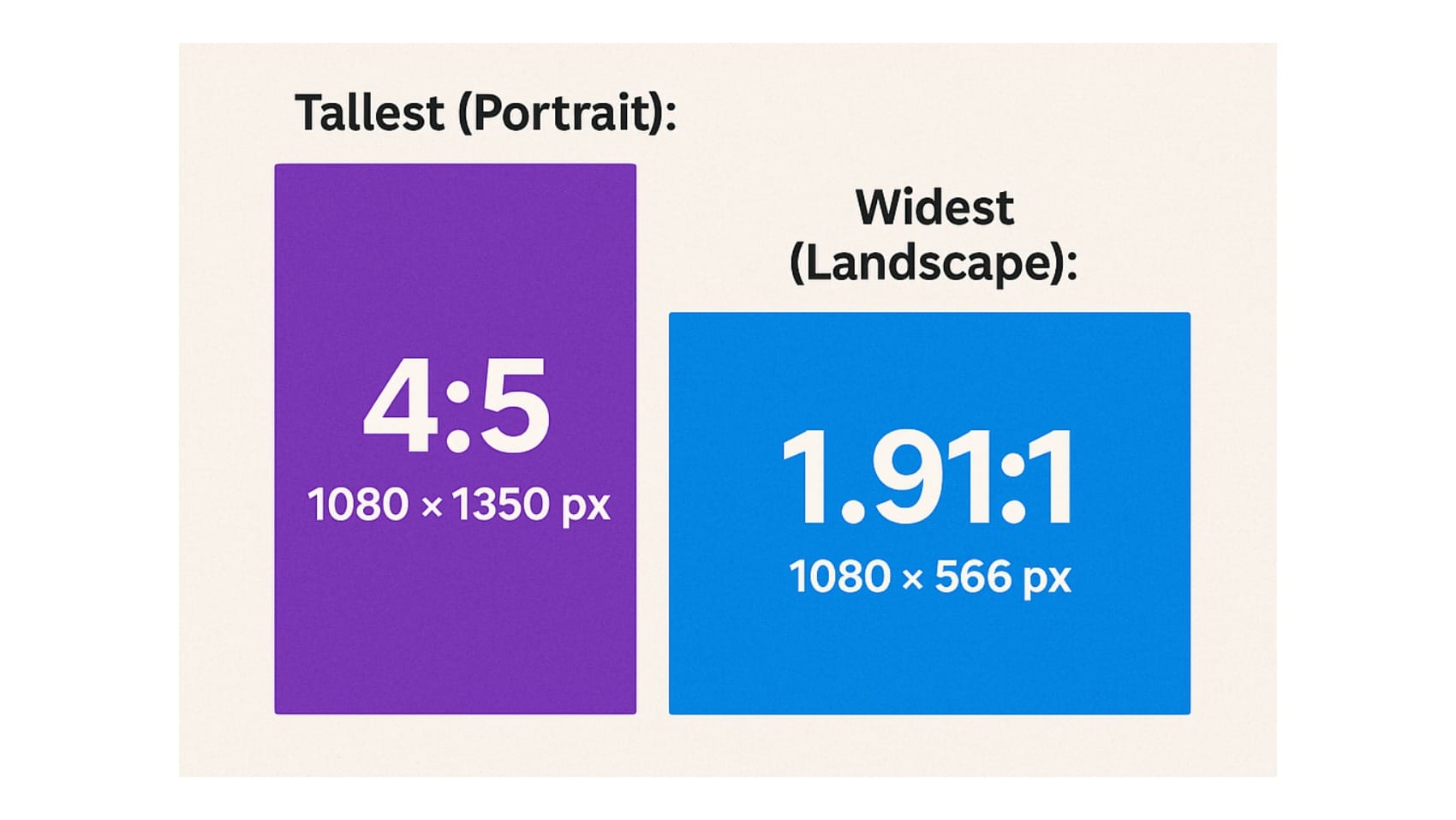
Below is the 2025 Instagram aspect ratio limits:
- Tallest (Portrait): 4:5 ratio → 1080 × 1350 px
- Widest (Landscape): 1.91:1 ratio → 1080 × 566 px
How to Resize Photos for Instagram Without Cropping
If your photo is outside of Instagram’s supported aspect ratio limits, you’ll need to resize it to post the full photo. The best way to resize photos for Instagram without cropping is with Kapwing’s Magic Fill tool. It automatically expands your background to fit Instagram’s supported sizes while keeping the subject intact.
Here’s how to resize your photo:
Go to Kapwing.com and click the Generate tab. This will take you to Kapwing’s AI generation hub, where you can create and edit images, videos, and songs.

Once you’re on the Generate page, select the AI Assistant tab from the left-hand toolbar. This tool gives you more control, allowing you to make edits and see changes with each iteration.
Inside the AI Assistant, you’ll see a chat-box. Start by clicking the “Attach an Image” button in the bottom-left corner and upload the photo you want to resize.

Once you've attached your photo, you can copy the following prompt:
Resize the attached photo to have a [...] aspect ratio by filling in the background.
If you’re resizing a landscape or panorama image, make sure to input an aspect ratio of 1.91:1 or narrower.
If you’re resizing a portrait image, make sure to input an aspect ratio of 4:5 or wider.
After entering your prompt, click the arrow button to resize your photo.

The AI Assistant will return your resized photo. If you’re not satisfied with the first result, you can type additional requests in the chat to make specific edits until it looks right.
Once you’re happy with your photo, you can either download it directly or save it to a project.
Downloading is the fastest option if you want to post the resized photo on Instagram as-is. Saving to a project lets you open the image in the Studio for further edits before posting.
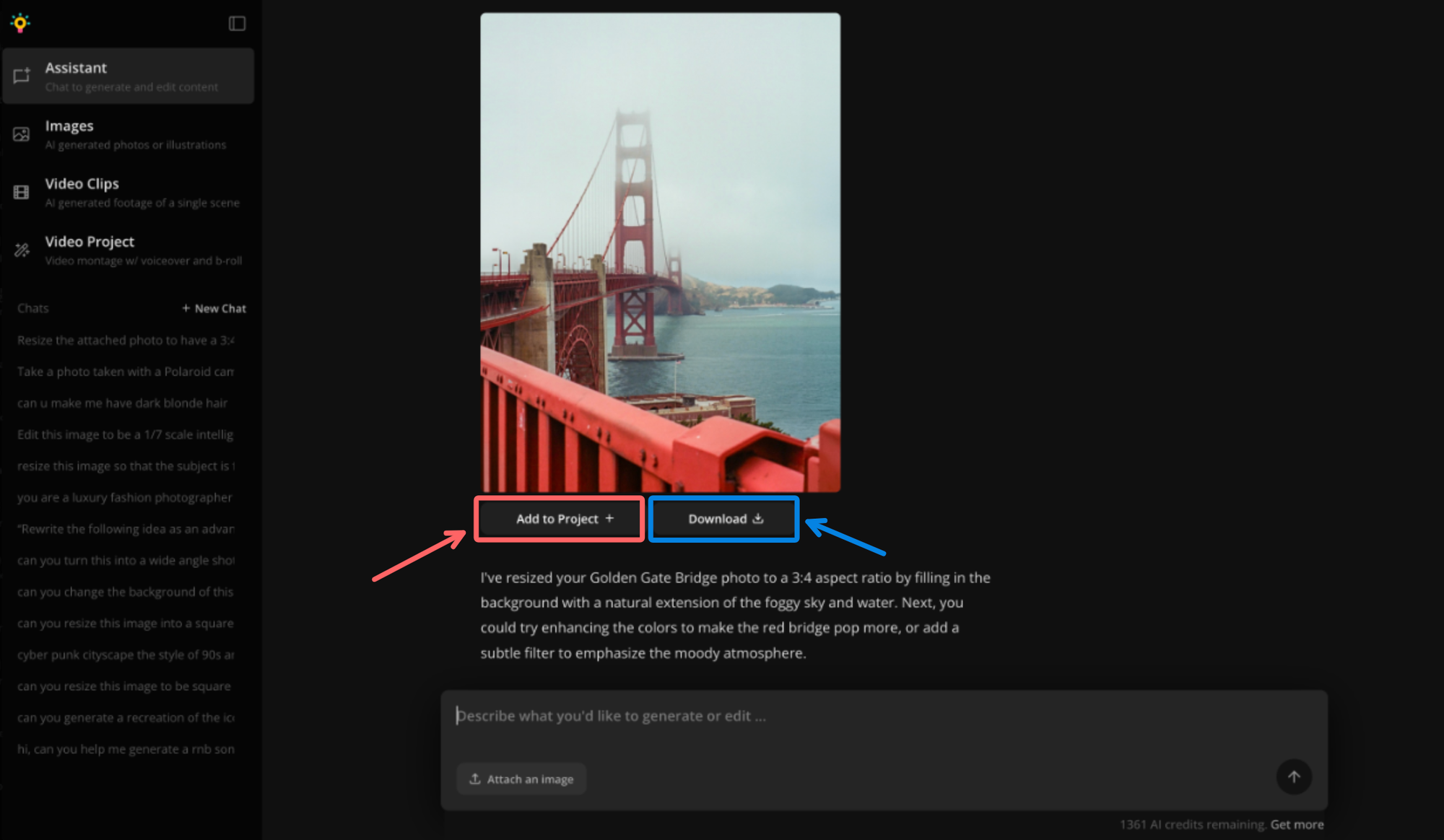
Once your photo is resized and ready, you can download it and upload directly to Instagram. Because the image now fits within Instagram’s supported aspect ratios, you will be able to post the full photo without cropping or adding borders.
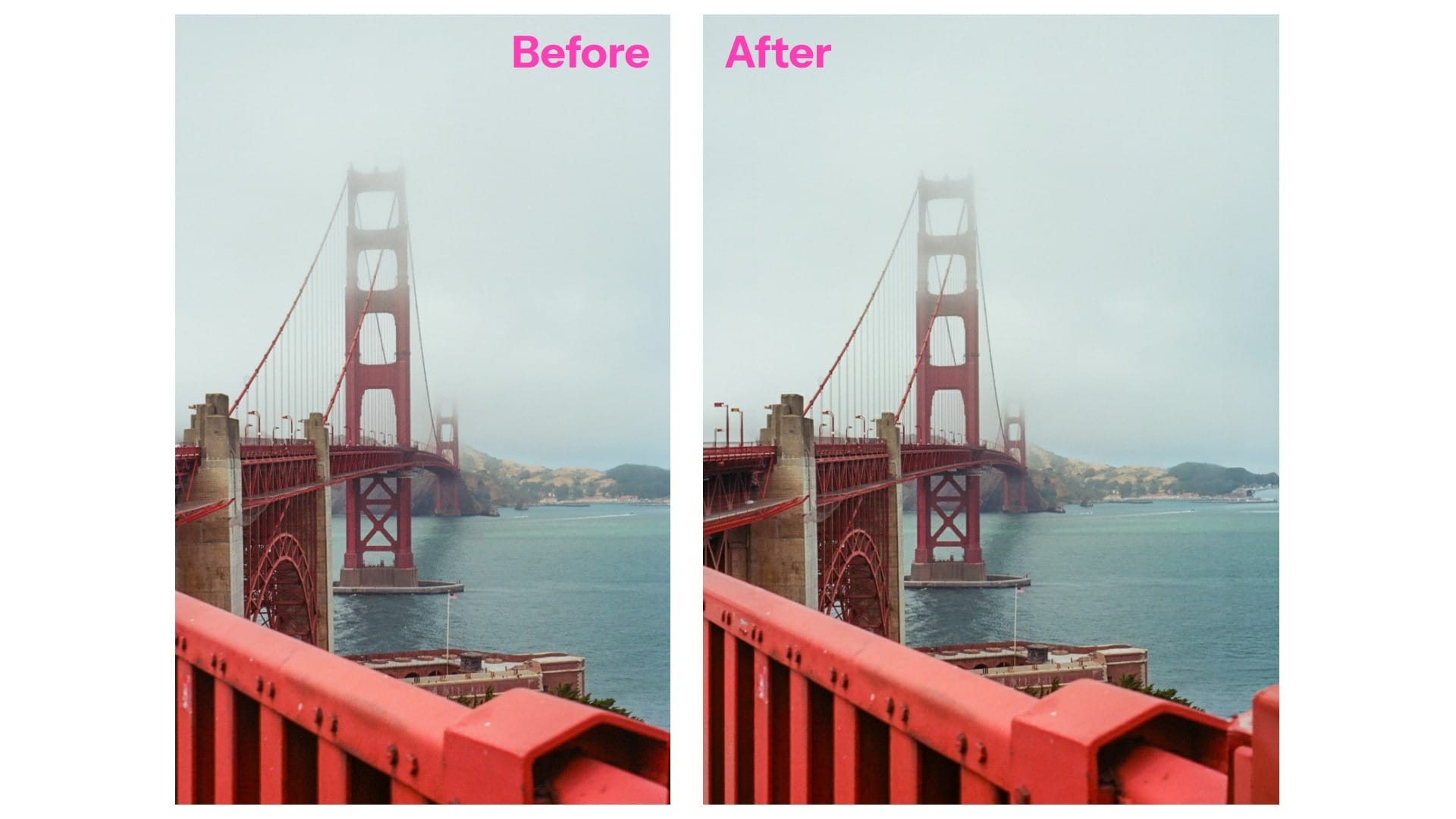
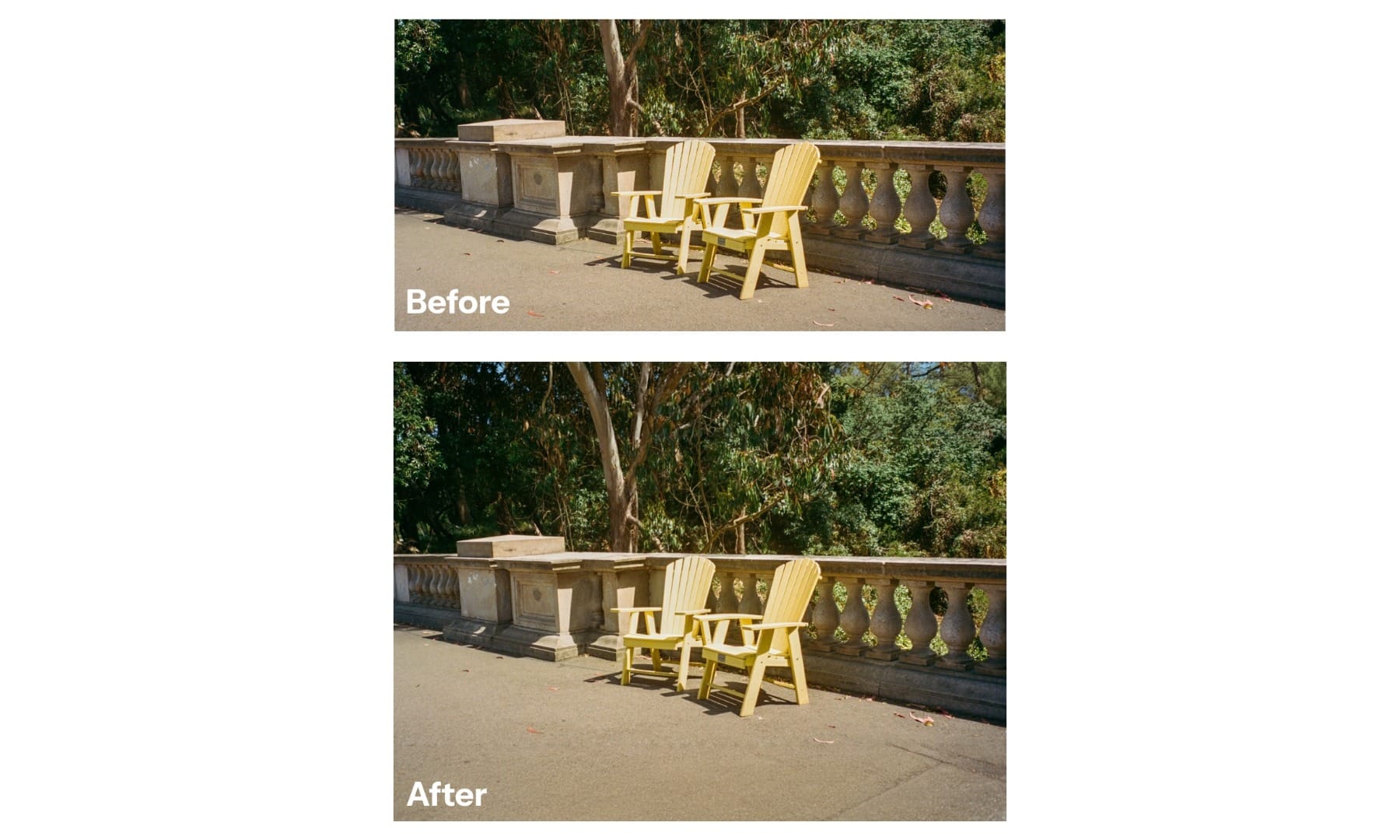
Here are the results we got when resizing both a landscape photo and a vertical photo:
Frequently Asked Questions
Why does Instagram crop my photos?
Instagram crops photos that fall outside its supported aspect ratios. If your photo is taller than 4:5 or wider than 1.91:1, Instagram will automatically trim the edges.
Why do my Instagram photos look cropped?
Instagram crops photos that fall outside its supported aspect ratios. If your photo is taller than 4:5 or wider than 1.91:1, Instagram will automatically trim the edges.
What’s the maximum aspect ratio Instagram allows?
The tallest Instagram size is 4:5, and the widest is 1.91:1. Any photo outside these limits will be cropped.
How do I resize photos for Instagram without cropping?
To fit a full photo on Instagram without cropping, you can use an online editor like Kapwing. Kapwing’s Magic Fill tool automatically resizes your image and expands the background to meet Instagram’s aspect ratio limits while keeping the subject intact.