How to Do the Korean AI Baseball Trend (Prompt Included)
The Korean AI baseball trend has exploded, with some clips pulling in over 15 million views.

The Korean AI baseball trend is one of the most viral AI video formats right now, spreading across TikTok, Instagram Reels, and YouTube Shorts.
Unlike other trending videos on TikTok which look like AI slop, these clips look like real moments captured during a live KBO (Korean Baseball Organization) broadcast. A camera zooms into the crowd, lands on a spectator, and suddenly they look like the main character.
But these videos are actually created through AI video generators.
In this guide, you’ll learn how to recreate the Korean AI baseball trend step by step using Kapwing, from generating your first image to exporting a realistic, scroll-stopping video.
Step 1: Generate Your Stadium Image
In Kapwing, open the pre-built Korean baseball custom KAI. Upload an image of yourself by clicking on the Attach Media button.
For best results:
- Use a clear photo (waist-up works best)
- Avoid heavy filters
- Keep your expression neutral or natural
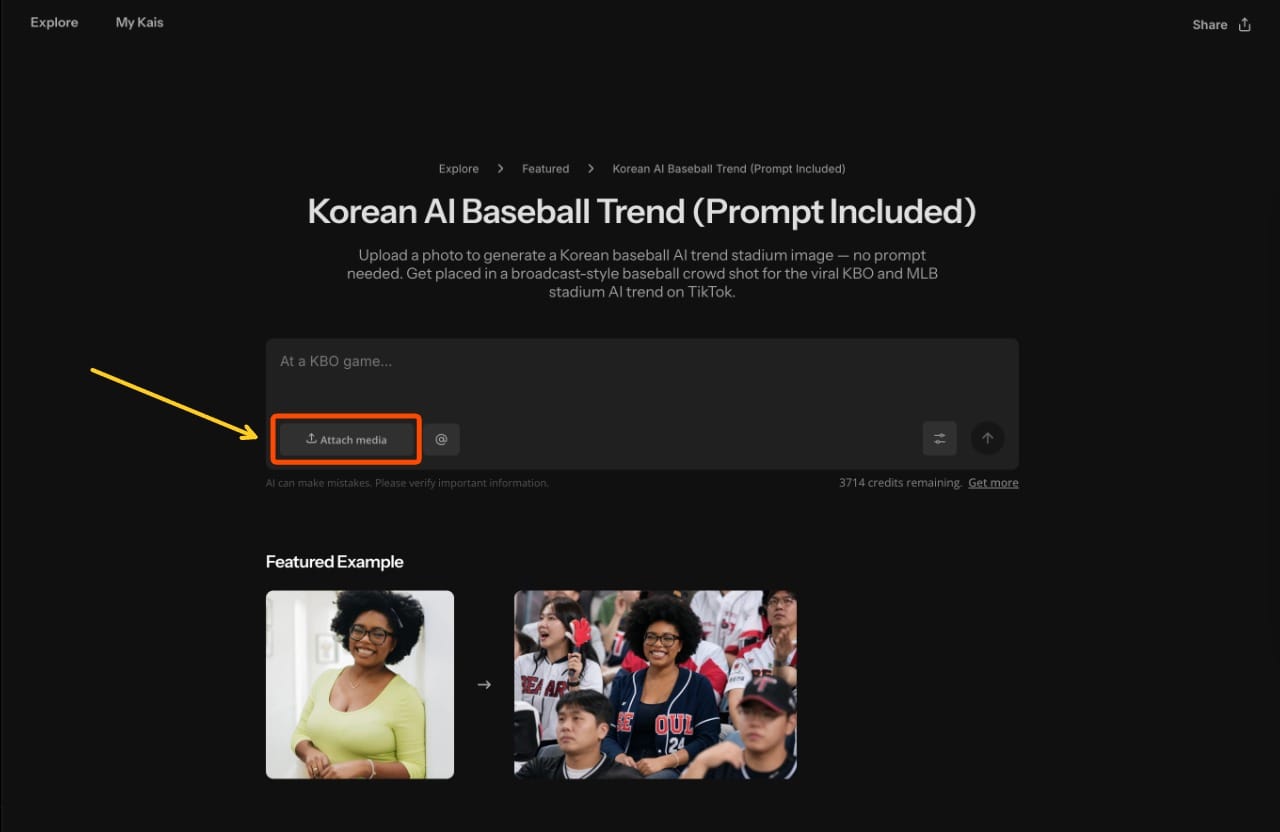
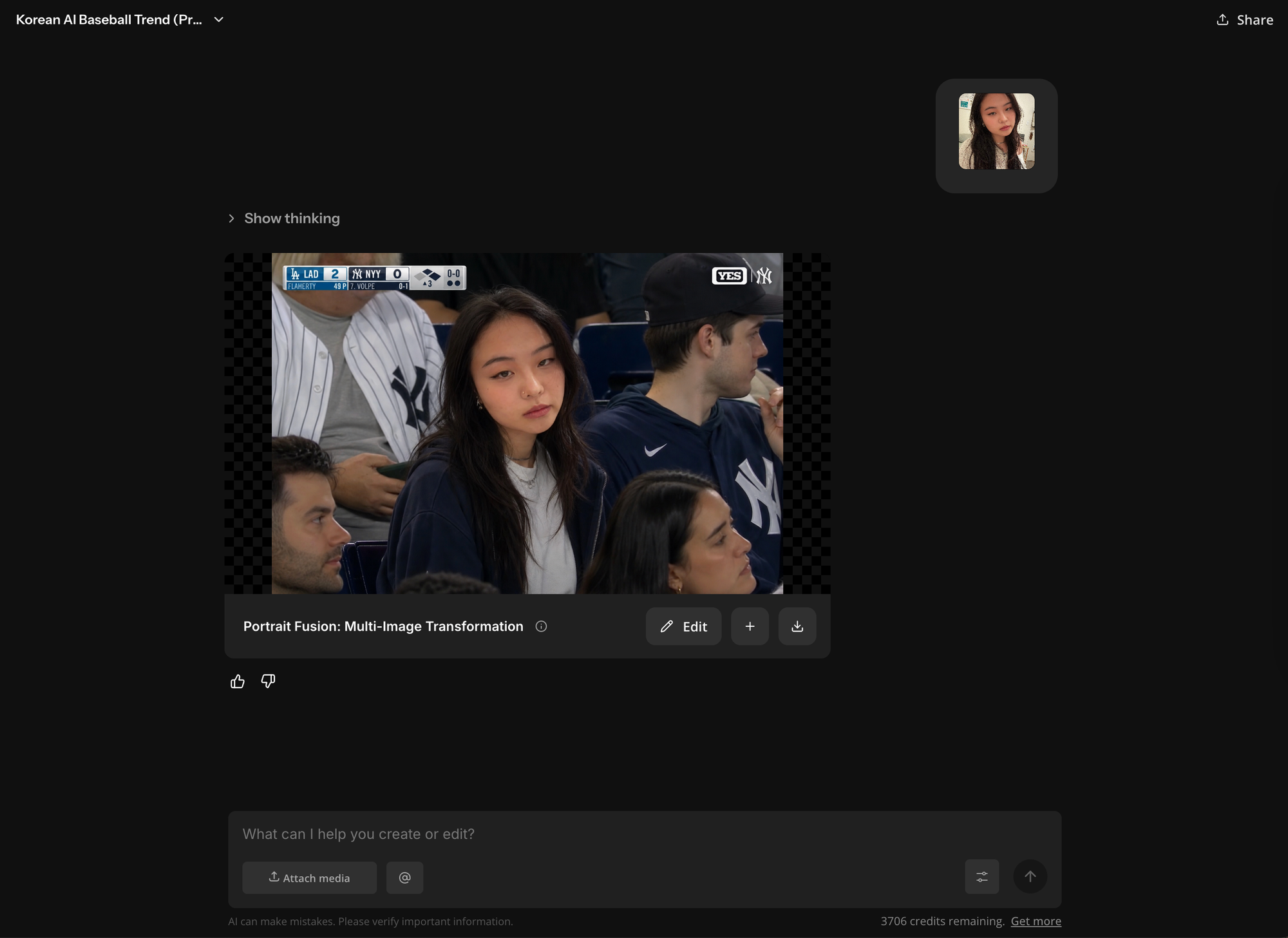
Once you've sent the image into the Kai chat, it'll automatically generate a Korean Baseball AI image of you – no prompting required.
From there, expect to iterate a bit. The first result is rarely the best one. Simply type any changes you'd like to see in the chat, or reupload a different input image.
Step 2: Animate the Image with a KAI Chat
To animate your image, open a new Kai chat in Kapwing, and upload your stadium image.
Next type a short motion prompt, and generate animate the image into a video. Make sure to specify that you are using a image to video workflow in the prompt.
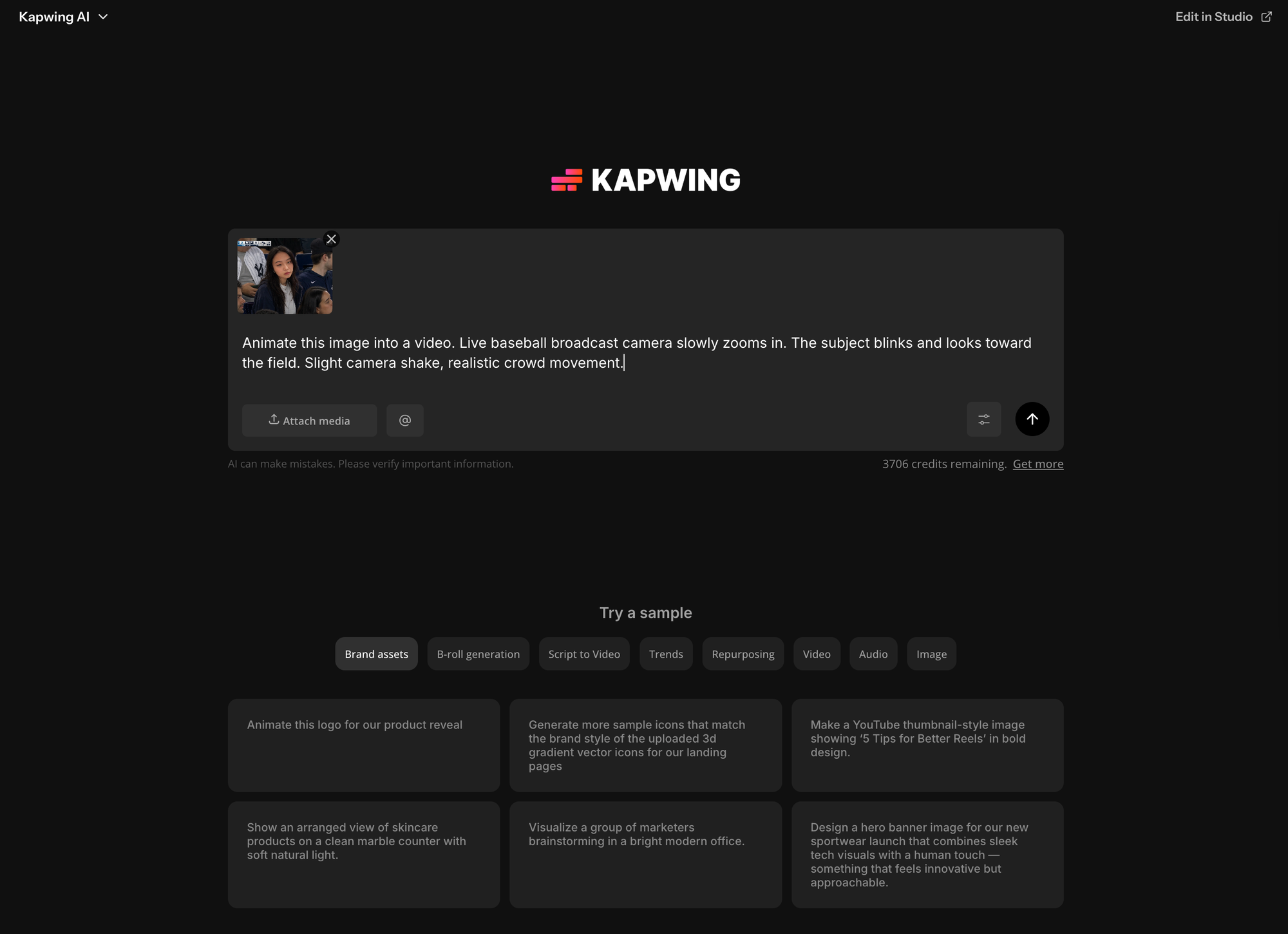
Keep your prompt focused on movement, not visuals. You’re telling the AI how the scene behaves—small actions like blinking, slight camera movement, or a subtle glance.
Korean AI Baseball Trend Prompt Examples
Basic (safe starting point)
Subtle sports broadcast camera movement. The subject blinks naturally and slightly shifts gaze. Background crowd moves minimally.Slight zoom + realism
Live baseball broadcast camera slowly zooms in. The subject blinks and looks toward the field. Slight camera shake, realistic crowd movement.More candid / “caught on camera”
Candid stadium broadcast moment. The subject glances to the side and blinks. Camera holds steady with slight handheld shake. Background fans move naturally.Animation Prompt (Looking at Camera + Smiling)
Subtle live sports broadcast camera. The subject briefly looks toward the camera and gives a small, natural smile. Minimal movement, slight blink, gentle camera shake, realistic crowd motion.Step 3: Add Broadcast Details in the Editor
Once your animation looks natural, bring it into the Kapwing editor to add the final layer of realism.
Kapwing will often automatically generate background audio and basic text overlays for you, which already gets you close to the broadcast look. From there, you can leave it as-is or customize further.
If you want more control, add:
- a scoreboard in the corner
- Korean text (team names, inning, stats)
- a small watermark or logo