Turn a Square Photo Into a Landscape Image Using AI
Repurposing is quicker than re-shooting
Square photos are a popular choice for content creators looking to post uniform content across social media. They are well-optimized for mobile, especially on sites like Instagram, and broadly accessible on desktop.
However, as longer-form content gains traction in 2025, horizontal optimization is making a comeback. While this shift may affect how content is captured, square photos remain valuable for cross-platform sharing. Thanks to AI-powered image extending, resizing images for any aspect ratio is easier than ever.
In this article, we’ll explore two different ways to turn a square photo into a landscape image using a free online image editor.
Table of Contents:
- Turn a Square Photo into a Landscape Image by Cropping
- Turn a Square Photo into a Landscape Image with AI
- When to use AI Image Extending
Turn a Square Photo into a Landscape Image by Cropping
There are multiple ways to adjust an image's aspect ratio, but one of the simplest is cropping it to fit your desired dimensions. This method preserves the original image’s composition while resizing it, though it may cut out some details in the process.
To turn a square image into a landscape image, upload it to the Kapwing online editor.
Then, select the image background and use the Resize Project tool on the right-hand side to adjust the aspect ratio.
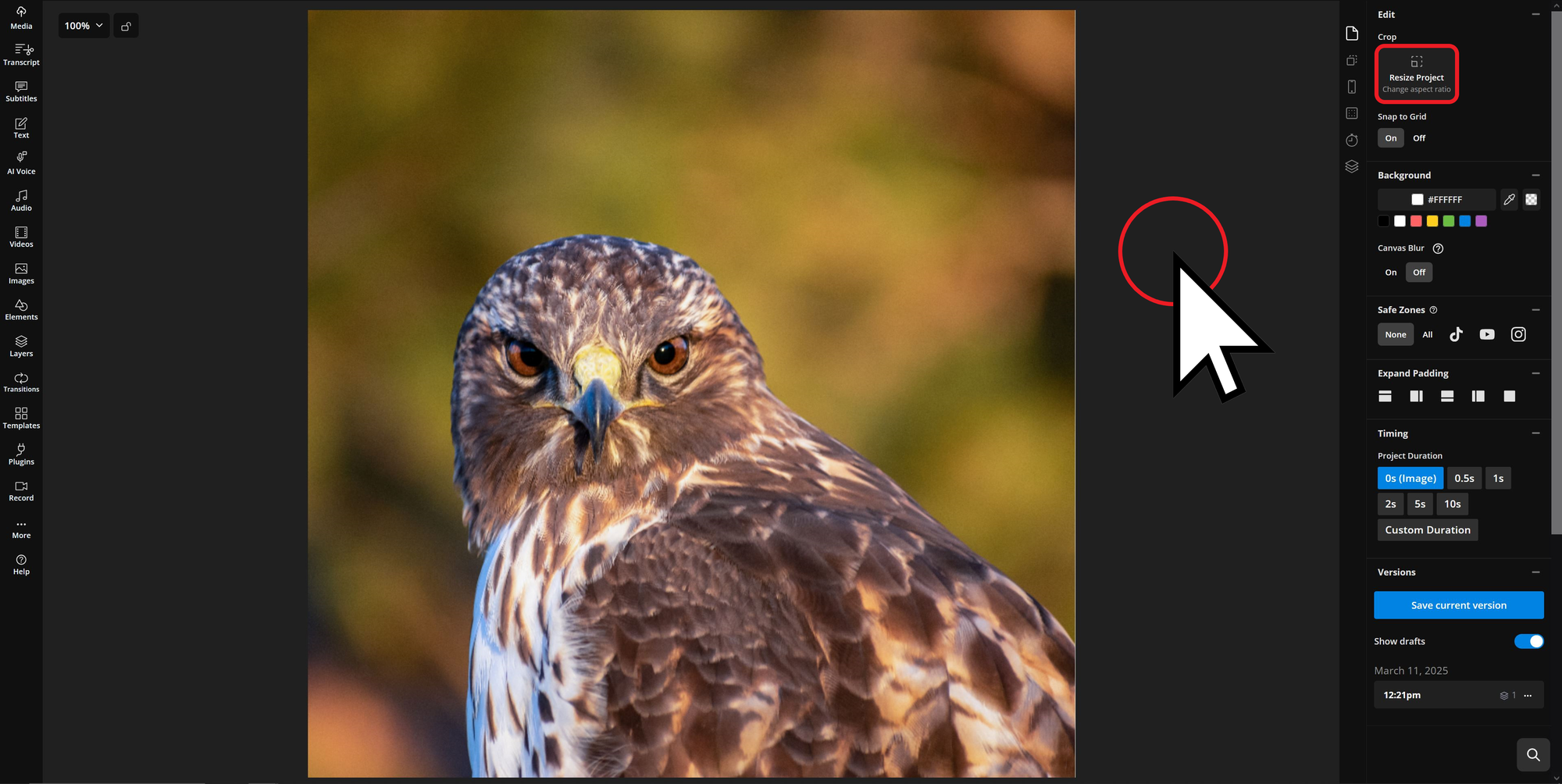
Once opened, expand the Size dropdown menu to choose from preset aspect ratios or enter custom dimensions.
For a standard landscape crop, select the Horizontal (16:9) option.
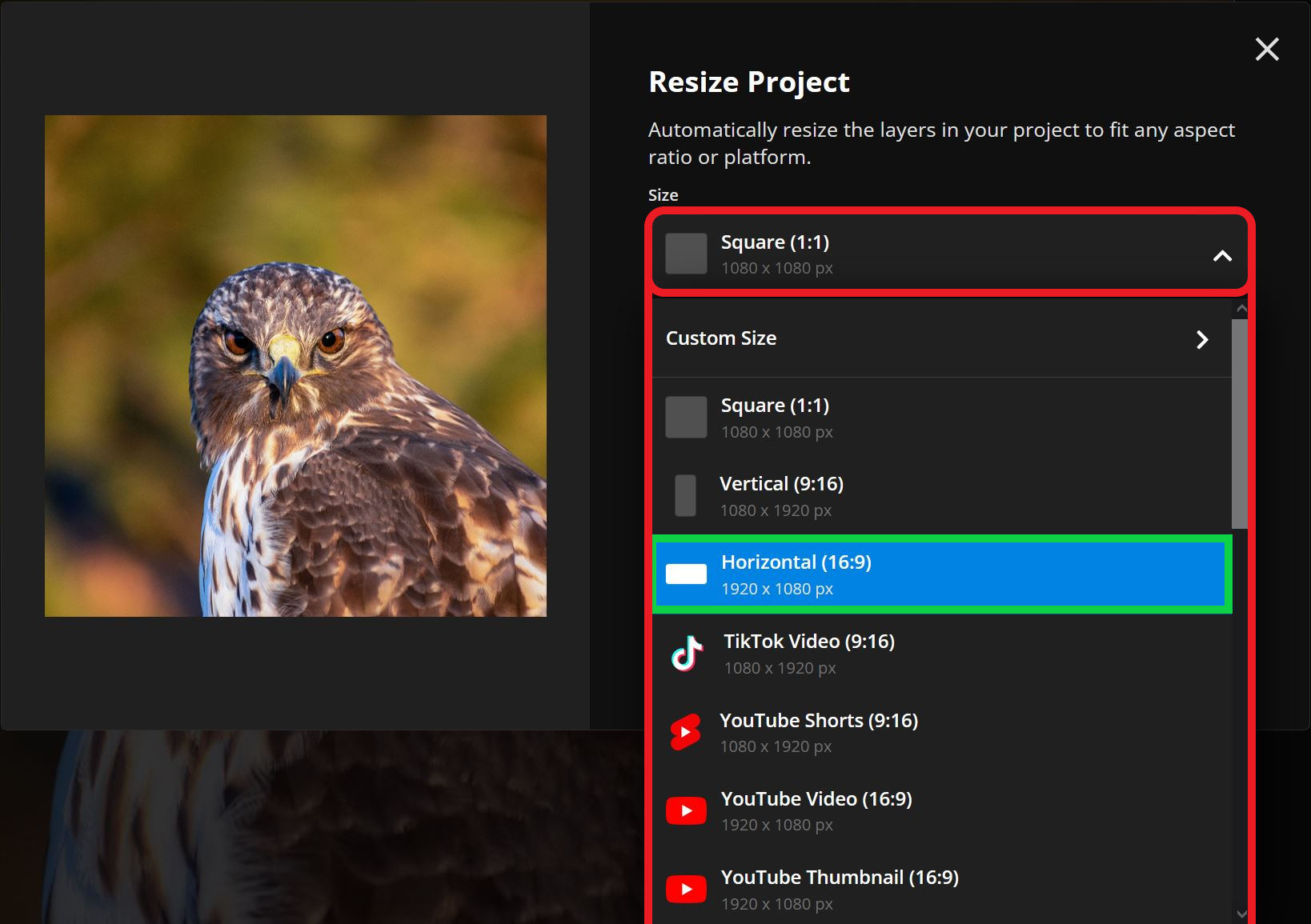
Once applied, you can adjust the image crop by double-clicking on your image.
This will automatically enable the Crop tool, allowing you to drag and drop the image frame to ensure the most important areas of your photo are featured.
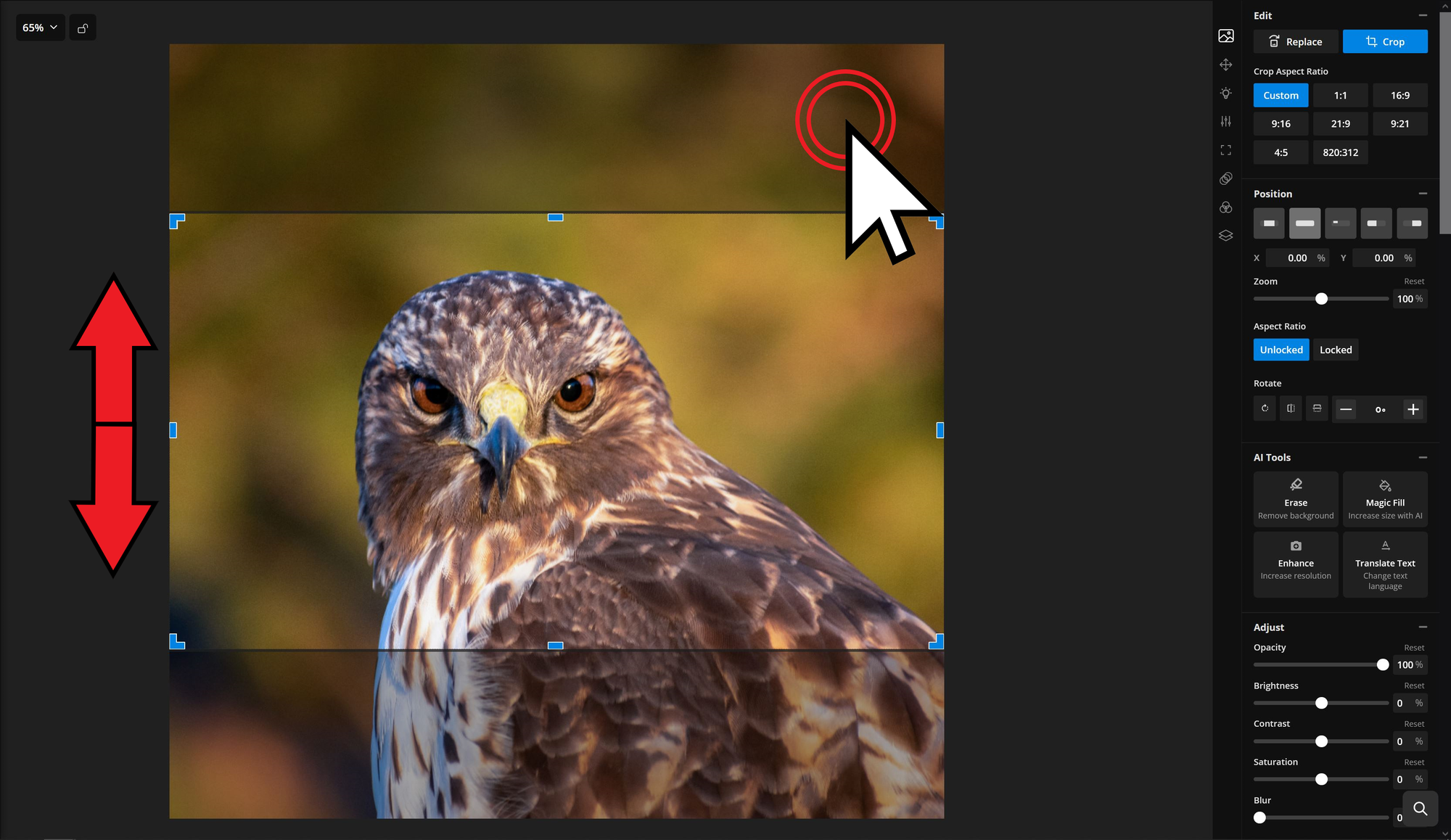
The main drawback of this method is that cropping removes parts of the image, which may reduce quality or cut out important details. While high-resolution photos, such as those taken with a DSLR, are less affected, the risk remains.
To avoid this issue entirely, another resizing approach an AI Image Extender to expand a square image into a landscape format without cropping.
Turn a Square Photo into a Landscape Image with AI
Go to Kapwing.com and click the Generate tab. This will take you to Kapwing’s AI generation hub, where you can create and edit images, videos, and songs.

Once you’re on the Generate page, select the AI Assistant tab from the left-hand toolbar. This tool gives you more control, allowing you to make edits and see changes with each iteration.
Inside the AI Assistant, you’ll see a chat-box. Start by clicking the “Attach an Image” button in the bottom-left corner and upload the photo you want to resize.

Once you've attached your photo, you can copy the following prompt:
Resize the attached photo to have a 16:9 aspect ratio by filling in the background.
After entering your prompt, click the arrow button to resize your photo.

The AI Assistant will return your resized photo. If you’re not satisfied with the first result, you can type additional requests in the chat to make specific edits until it looks right.
Once you’re happy with your photo, you can either download it directly or save it to a project.
When to Use AI Image Extending
AI-powered image extension isn’t just useful for fixing aspect ratios or repurposing old content — it can also expand scenes creatively, adding elements that weren’t originally captured. This is especially valuable for visually engaging images like YouTube thumbnails, where extra detail can enhance impact.
In the example below, I uploaded the following image of an aeroplane and used the prompt: "A small plane flying through a wooded forest with tall trees in the background."
This helped the AI generate a natural-looking extension that seamlessly blended with the original scene.
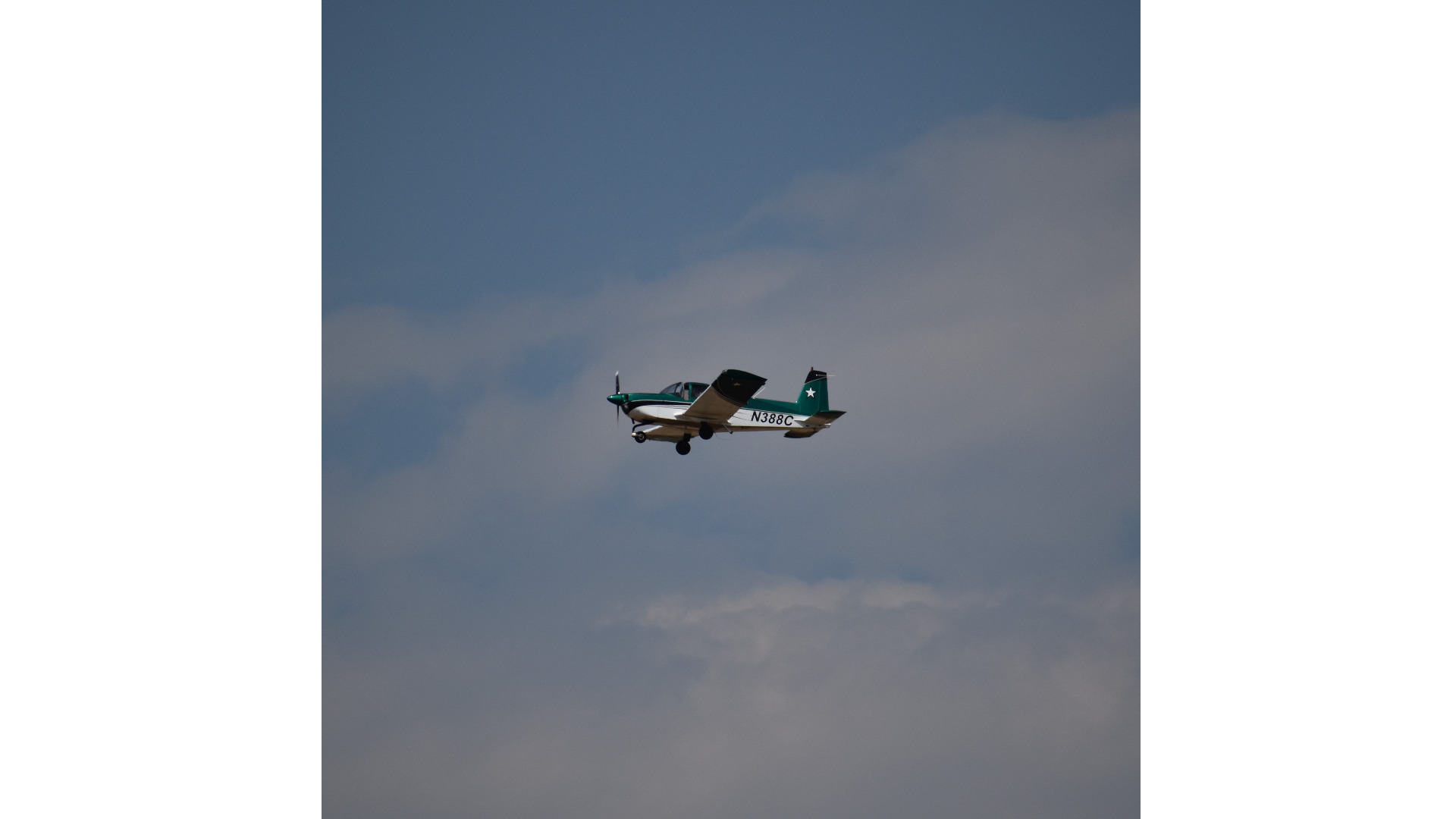
Kapwing then generated this extended image, adding more detail and making it even more visually captivating. This expansion would have been impossible to capture naturally due to the close proximity to the plane and surrounding objects.
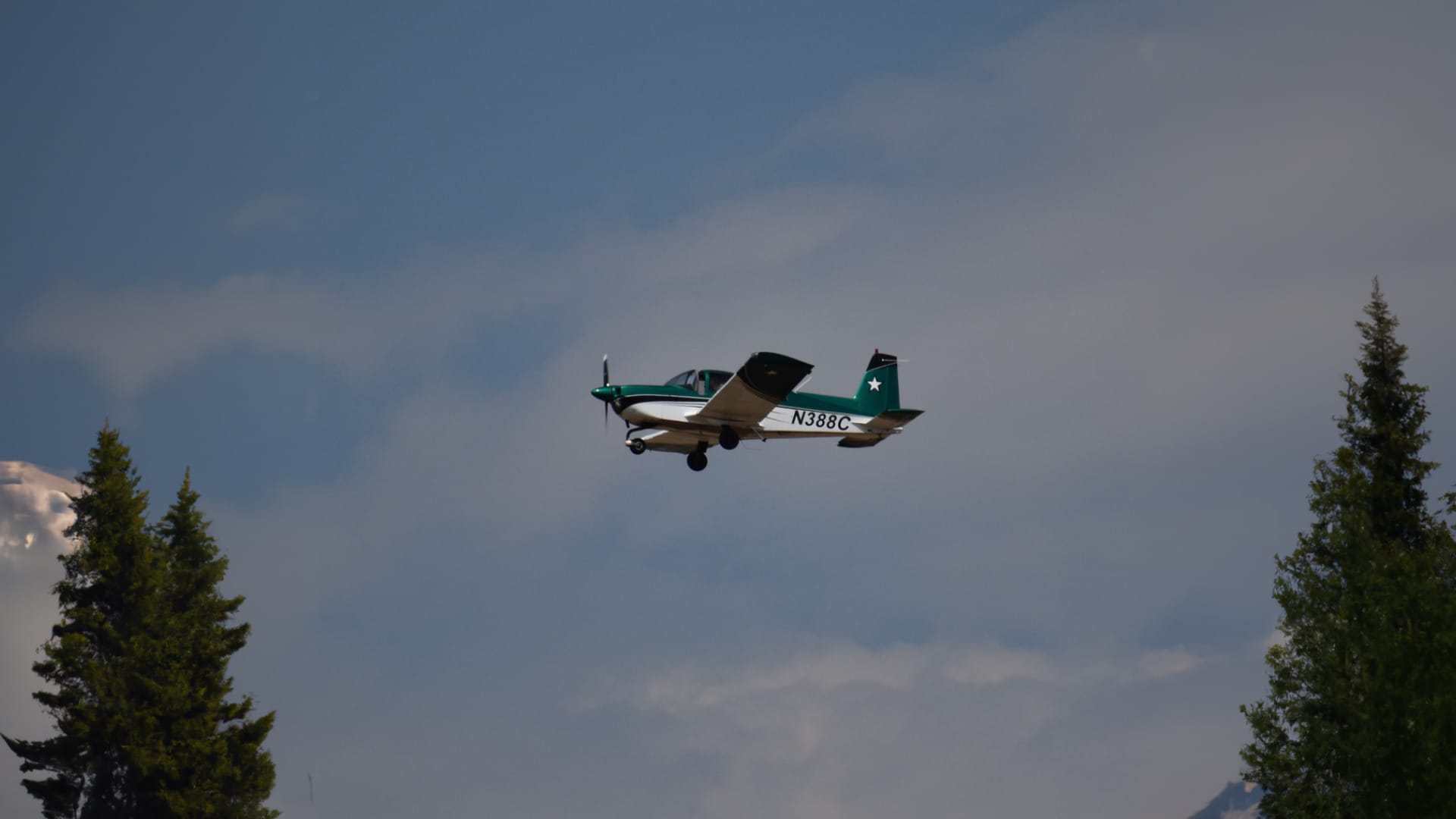
An image like this is more likely to succeed as a YouTube thumbnail, especially when paired with tools like custom text overlays and graphics like a channel logo.
To make the image stand out, I added high-contrast text to give the viewer context, a graphic to add greater image details, and a channel logo in the bottom left to ensure the thumbnail always tracks back to my channel if shared externally.
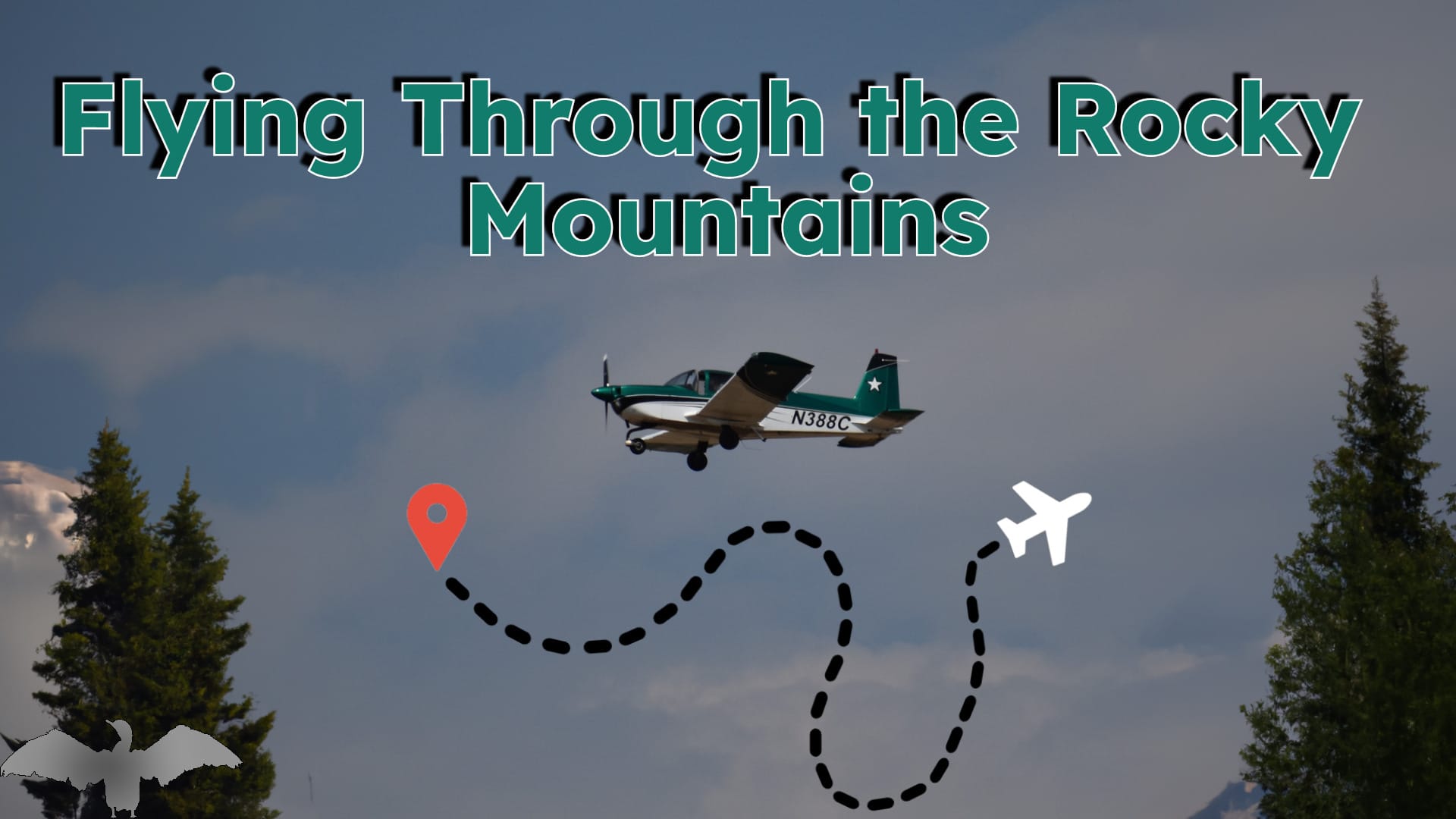
The final result is a landscape image fully edited within Kapwing, from AI-powered image extension to adding text and graphics.